Are motion photos filling up your storage? Discover how to turn off motion photo on Android in just a few steps. Learn how to remove motion photos on your smartphone and save space & battery life:
Have you ever clicked a picture only for it to churn out a short GIF-like video? Recently, I faced this issue as well. When I opened the photo gallery on my Android phone, I found a series of pictures that could be described as short 2-3-second video clips. I initially thought this was a bug until I hit the internet and found out what was going on.
Without my knowledge, my phone’s camera app’s new “Motion Photo” feature was on. If, like me, you aren’t a fan of this feature, then switching it off is pretty simple.
Table of Contents:
How to Stop Motion Photos on Android: Easy Steps
As the old saying goes, knowledge should be shared, which is exactly what I will do with this article. Consider this article your comprehensive guide on how to turn off “Motion Photo” on your Android smartphone.
So, without much further ado, let’s dive in.
[image source]
What is a Motion Photo
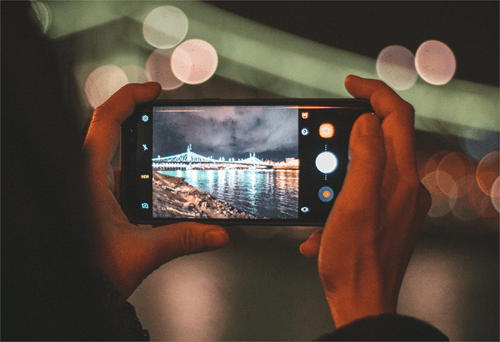
Google introduced Motion Photo as a direct response to the iPhone’s Live Photo feature. This feature works in the same way Live Photo does. When “Motion Photo” is on, your phone’s camera won’t capture a still picture like it typically does. Instead, you get a 3-second short video clip.
Think of this video clip as a short preview of the photo you captured. Some people say it adds context to any picture you click. I think this feature primarily appeals to folks who are fans of photos that are more dynamic.
Although this is an Android-exclusive feature, not all Android devices have it, currently, “Motion Photo” can be found in Samsung, Motorola, and Google Pixel smartphones. How you turn off “Motion Photos” will also depend on what Android phone among the three mentioned here you are using.
Lucky for you, I’ll guide you through the steps for each of these devices.
How to Turn Off Motion Photo on Android Devices
#1) How to Remove Motion Photo on Google Pixel
What is a Top Shot?
In Pixel smartphones, Motion Photo goes by a different name–Top Shot. You can find this feature in the settings section of your smartphone’s camera. In Pixel smartphones, Motion Photo goes by a different name – Top Shot. You can find this feature in the settings section of your smartphone’s camera.
Here’s how you turn off “Top Shot”
1. Open the Camera app on your Pixel phone.
2. Go to “Settings”.
3. Navigate to the option “Top Shot” and choose to switch it off.
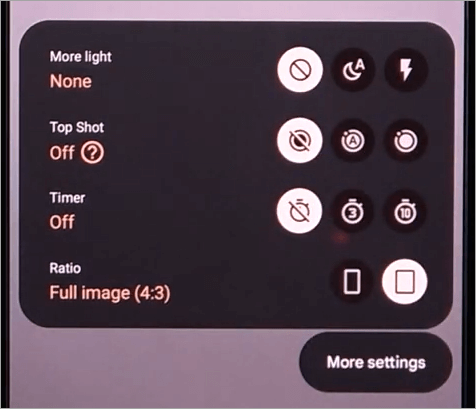
4. You’ll also have the option to select “Auto”. By choosing “Auto”, you let the phone decide whether to turn a captured photo into a motion picture or not.
Also Read => How To Resize Images in Photoshop
#2) How to Switch off Motion Photos on Samsung Devices
Almost all the recent Samsung released devices have this feature. If you want to turn it off, simply follow the below steps:
1. Open the Camera app on your device.
2. When opened, you’ll see a little square with a small play icon at its edge. That is the “Motion Photo” icon.
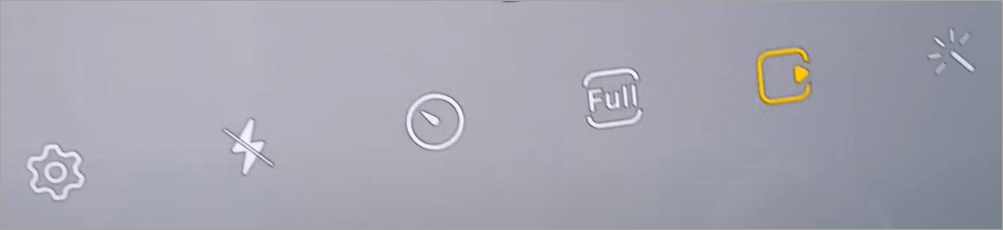
3. If it is on, it’ll be yellow or golden.
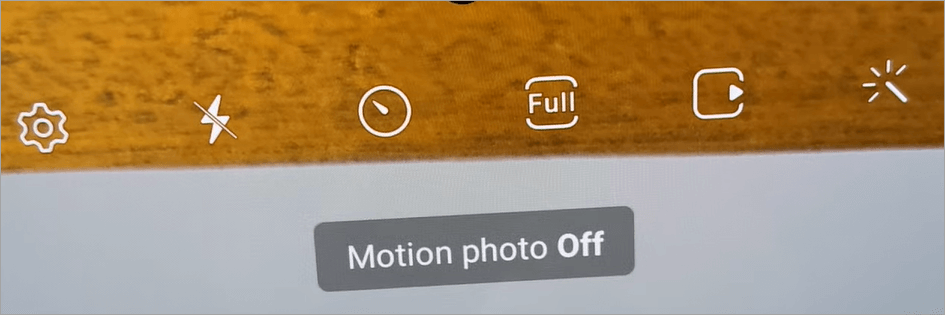
4. Simply tap on the button to turn it off. This icon will turn white and you’ll also see a little prompt that tells you “Motion Photo off”.
You can check this quick video on how to enable and disable motion photos on the Samsung
#3) How to Put Off Motion Photo on Motorola Devices
Note: In Motorola devices, Motion Photo goes by the name Active Photos. This is the feature you’ll need to turn off.
Here’s how you do it:
1. Open the Camera app on your device.
2. Expand the above menu, find the option – “Active Photos” and simply tap on the off icon to disable the feature.
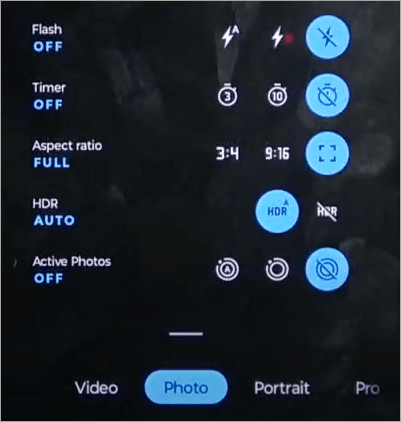
3. Alternatively, you can put this feature on “Auto” mode, which will let your Motorola camera decide what capture photos to turn into Motion pictures and which ones should be ignored.
#4) How to Disable Motion Photos in Google Photos
The methods we’ve discussed so far pertain to disabling the feature directly in the Camera app, but what if you already have a motion photo saved in your Google Photos library? Fortunately, you have the option of turning it back into a simple still image.
Here’s how you do it:
- Open the Motion Photo that’s saved in your Google Photos.
- You’ll find a little play icon surrounded by a circle. It’ll be right beside the “Cast” icon. That’s the Motion Photo icon.
- Tap on this icon to disable the feature.
Tip: Alternatively, you can also download special apps that let you turn a Motion Photo into a still image. I would advise against it though as your Android device does a fine enough job.
Suggested Read =>> Explore the features of Wondershare PixCut
How to Deactivate Live Photos on iPhone
Now that we’ve discussed how to disable motion photos, it seems only fair to leave no ground uncovered. So I’ve also discussed disabling live photos on an iPhone. If you are an iPhone user, I suggest you take notes.
Do the following to disable live photos on the iPhone:
- Go to settings.
- Tap on Camera and then Preserve Settings.
- Find “Live Photo” and ensure the switch next to it is turned on green.
Remember, Live Photo is on by default. Following the above steps will ensure this feature is turned off permanently.
Inherent Limitations of the Motion Photos Feature
You should know that Motion Photos will not work if special modes on your phone’s camera are active. For instance, Motion Photos are rendered useless if your phone’s camera is in Night Sight or Portrait mode. Motion Photos will also not work if the lighting surrounding the object you are trying to capture is considerably dark.
Another problem with Motion Photos is their size. An average Motion Photo is said to be three to four times larger than a still-picture counterpart. You could encounter storage issues if you are clicking too many Motion Photos, which is all the more reason to stick to the traditional practice of clicking photos.
Key Tips to Make Good-Looking Phone-Clicked Photos
One reason people experiment with new features on their phone’s camera is to click a picture that stands out. Everyone wants to click a picture that’s worth posting on Instagram. It’s tricky to achieve this on your traditional phone unless you are a professional photographer.
I would suggest you do this instead of playing with your camera app’s features to click the best pictures.
- Enable your Phone’s HDR mode. Also known as High Dynamic Range, this feature will let you capture a picture in all its detailed glory, regardless of how dark or bright the surrounding ambiance is.
- Try Portrait mode to capture an image that keeps the focus solely on your subject.
- Use natural lighting to click great-looking pictures. No need to invest in expensive lighting equipment.
- Learn to be still when holding your phone to click a picture. Buy a tripod if you have shaky hands.
- Click a more balanced image by enabling the grid lines on your phone’s camera.
- Click the subject at multiple different angles.
Further Reading => Learn How to Fix Blurry Pictures within Minutes
Frequently Asked Questions
1. How to convert motion photos to regular photos?
This is very simple. Open your Motion Photo and select the “Edit” option. Here, select the part within your motion picture that you’d like to turn into a regular photo. Alternatively, you can download apps that take care of this task at your behest.
2. Why is my phone taking motion photos?
Your phone is taking motion photos because the feature “Motion Photos” is on without your knowledge. Depending on what device you are using, you can disable this feature by following the steps I’ve shared above in this article.
3. Can I turn motion photos into videos?
Yes, it is possible to turn motion photos into videos. Here’s how you do it:
• Open the Motion Photo you’d like to turn into a video.
• Tap on the “More” button at the top. (Three Dotted Lines)
• Select “Export”
• Select the option “Video”
• Your Motion Photo will now be exported and saved in the form of a video.
Following the same method, you’ll also have the option to export the video as a GIF.
4. Can a motion photo be shared?
Yes, you can share a motion photo and it is as simple as sharing any other media file on your phone. All you have to do is open your motion photo and tap on the share icon below. You’ll be greeted with multiple options that’ll allow you to share your motion photos through email, messenger apps, social media, etc.
5. How do I turn off live photos?
Live photos are the iPhone alternative to Android’s motion photo. If you know how a motion photo works, then you pretty much know everything there is to know about Live Photo. If you are using an iPhone and run into this issue, here’s how you deal with it:
• Open the Live Photo in your phone’s gallery.
• Find the “Live” button at the top left corner of your phone and tap on it to disable it.
It is that simple.
6. How to disable motion photos on Samsung S23?
Motion photo in Samsung photos is indicated by a square with a play icon by its side. If you open your phone’s camera and see this icon displayed as yellow, it means that the motion photo is on. All you have to do is simply tap on this icon to turn it white. A message will be prompted stating: Motion photo off.
7. How to change the motion photo to normal?
To change a motion photo to normal, open that photo and select edit. Now pause on the part of this short clip you want as a still photo and save it. Alternatively, you can try downloading a special app to help you transform a motion photo into a still one.
Further Reading => Learn How to Fix Blurry Pictures within Minutes
Conclusion
While I do understand the appeal of motion photos, it is not my cup of tea. I like my photos still as they were meant to be. So it was annoying to me when I found out that most of the photos I’d clicked recently were short video clips. Thankfully, there was an easy fix to that issue and I’ve shared the details with you in this article.
As you can read for yourself, motion photos aren’t much of a problem once you know how to switch them on or off. It only takes you a single tap of a finger to enable or disable this feature so you can go back to clicking photos that don’t move.
Unless you truly like clicking moving pictures, I suggest keeping the feature switched off permanently.
Was this helpful?
Recommended Reading
-

Photoshop is the best photo editing app useful for graphic designers & photographers. In this article, you will learn how to download photoshop for free and install it on Windows, Android, or iOS devices.: Photoshop is one of the best photo editing apps you will ever come across. It appeals…
-
Having problems in fetching Instagram Photos from your PC or phone? Read this review to compare and select the best Instagram Photo Downloader Apps: Instagram will not allow you to directly save a Photo to your phone. To get this, you will require a decent Instagram Photo Downloader that can…
-
Review and comparison of popular Photo Viewer Software with features. Select the best, free Photo Viewer for Windows 10, Mac or Android: What are the qualities you look for in a Photo Viewer? Or to put it precisely, what features in an Image Viewer satisfy you the most? An image…
-
This tutorial reviews and compares the top Free Photo Editing Software to help you select the best photo editor as per your requirements: Thinking about uploading a new image for your social media account? Quick image editing can do wonders for your new post. If you just want to post…
-
In-depth review and comparison of the top Photo Printers with technical specifications. Select the best Photo Printer for professional photos: Are you looking to print the best professional quality pictures? It's all about the printer that you choose. The best printer for photos can provide you color-enhanced pictures for professional…
-
This tutorial explores the top Image Hosting Sites with features and other factors. Select a free or paid Photo Hosting Site for your requirements: Image Hosting Site is the service provided by the companies to upload the image on the server so that it can be displayed online. It will…
-
Quickly learn How to Make a Video with Pictures from this exclusive list of Photo Video Makers and create splendid videos as per your needs Photos and videos are our way of immortalizing our memories. They can tell stories, be it yours or your brand’s. They are one of the…
-

Get ready to explore some of the most easy ways to add multiple photos to Instagram story. Create the most perfect and alluring Instagram stories ever with numerous pics of your choice: So you have a bunch of photos you’d like to share on your Instagram Story. Instead of uploading…