


Get educated on how to create a Poll in iMessage on iPhone or iPad on group chats. Quickly gather opinions from friends & family through the iMessage poll and view the results directly:
It’s an undeniable fact that we all love to chat with our friends through text messages. Almost all of us do this in our free time. Even when we are too busy in our lives, we don’t forget to text our friends. Text messaging has become more interesting with the introduction of emojis, GIFs, etc.
This article will tell you about another feature to use while you chat with your friends through iMessage. This feature will make your group chats more entertaining and that feature is an iMessage poll.
Table of Contents:
iMessage Poll: Simple Steps to Create
Watch this YouTube video to learn about some of the interesting features offered by Apple messages.
Why Should I Embed Poll in My Messages
You can create polls in iMessages, to get suggestions from your friends on various subjects. For example, if you are planning to go on a trip, you can create a poll with the following questions: Where to go? And your friends could choose from the options like Paris, London, New York, etc.
If you have a family group, you can create a Poll with the name, ‘What to eat for dinner?’ or ‘When to have daddy’s surprise promotion party?’ Businesses can even use this feature to get suggestions from the team for various subjects.
You must know that iPhones do not come with this feature already built-in in them. Install another application from the App Store if you want to use the poll in iMessage.
The application used for creating a poll in iMessage is Polls for iMessage. It’s a free app available on the Apple App Store and has 5-star ratings from over 4.5K users.
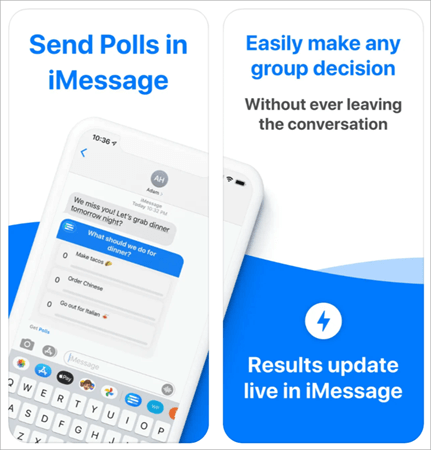
[image source]
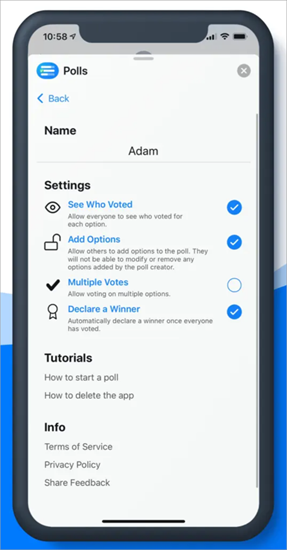
This app allows its users to create polls for making group decisions, see who voted for each option, and automatically declare a winner once the voting is completed. You can allow the group members to vote for multiple options or even add options to the poll.
Benefits of Using Poll in iMessage
- You can send the message instantly
- Very easy to use
- Works even when you do not have an internet connection
- You can see who voted for each option
- Secure application with 5-star reviews
Suggested Read => How to Run iMessage on Windows 10 PC
How to Create a Poll in iMessage Group Chat
If you want to create a poll in iMessage, follow these steps:
Step #1: First, download the Polls for the iMessage app from the App Store.
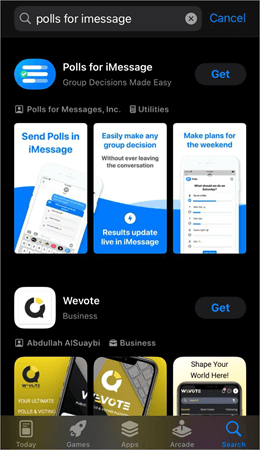
Please note that the application works with the latest versions of iOS. If it does not run on your phone, try updating your phone. You can update your iPhone by following these steps:
- Go to Settings
- Select General
- Now tap on Software Update
- Then select Update Now and then tap on Agree
Step #2: Once you have downloaded the Polls for iMessage application on your iPhone, open the Messages app.
Step #3: Open a Group chat. If you don’t know how to create a group chat, then do as follows to create one:
- Open the Messages application
- Tap on the new message-composing icon located in the upper right corner of your screen
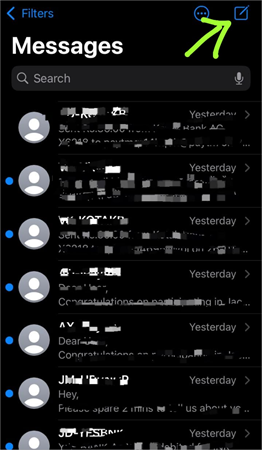
- The phone will ask you to add recipients. You can add multiple contacts from here, by tapping on the plus + icon.
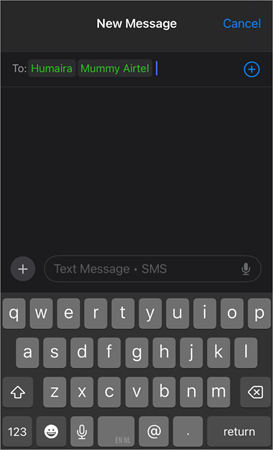
- Type a message, record an audio, or insert a picture/video to be sent to all recipients.
- Then tap on the Send icon.
If you want to know how to add or remove someone from an already created group chat, then do:
- Open the group chat
- Tap on the Group info at the top of your screen
- Then tap on the information about the number of people added to the group
- Now if you want to remove someone from the chat, swipe left on their name, then tap on the Remove button
- If you want to add someone to the group, tap on + Add Contact, then select anyone from your contacts whom you want to add to the group chat.
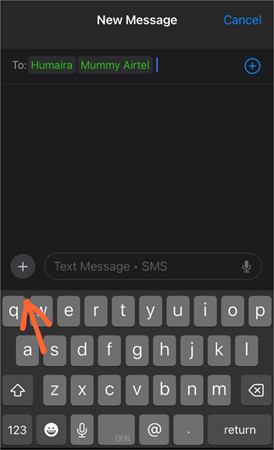
Step #4: Once you have opened a group chat where you want to create a poll, tap on the plus + icon located on the left of the text input field.
Step #5: You will see a list of applications. Scroll down, find Polls, and select it.

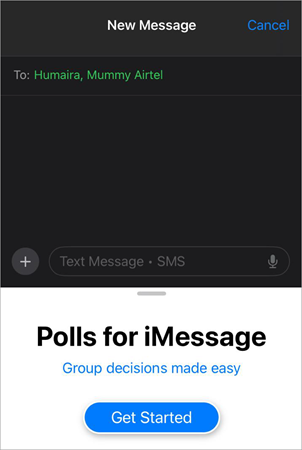
Step #6: Now tap on Get Started.
Suggested Read => Fix for Message+ Keeps Stopping issue
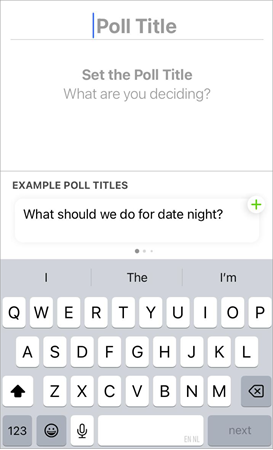
Step #7: Now you can create your poll. Enter a Poll Title, then tap on Next.
Step #8: Then add an option.
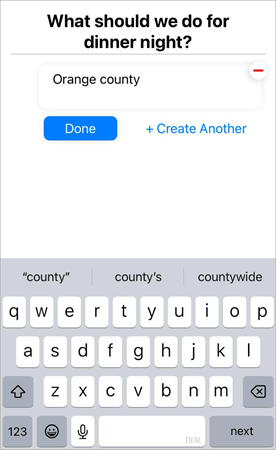
Step #9: Tap on + Create Another to add another option to the poll.
Step #10: Once you have added all options, tap on Done.
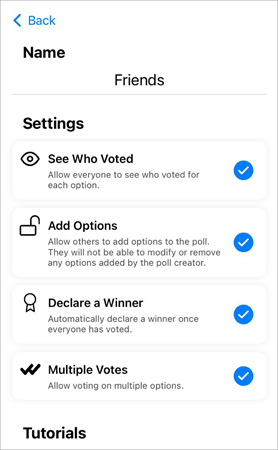
Step #11: You can customize your poll by going to Settings. From here, you can make settings like:
- Do you want everyone to see who voted for each option?
- Do you want others to add options to the poll?
- Do you want a winner to be declared once the polling is finished?
- Do you want to allow members to vote for multiple options?
Once you have changed the settings, tap on Back.
Step #12: Now tap on Send Poll.

Best Practices Send a Poll in iMessage
To get the best results, follow these guidelines while creating a poll:
- The number of options to choose from should be kept as less as possible so that the best option can be chosen easily after polling.
- You can share the results with your friends.
- The title of the poll should be simple and easy to understand.
Why not use other platforms to poll?
The reasons why I recommend iMessage polls over other options are as follows:
- iMessage polls is a secure, trustable option
- It is easy to use
- It can be used without the internet
- Let you see who voted for each option
- Lets you send messages instantly
Frequently Asked Questions
1. Can you create polls in iMessage?
Yes. It’s quite easy to create an iMessage poll. You just need to download an app called Polls for iMessage, then go to Messages, open a group chat, click on the ‘+’ icon, choose polls, and then create a poll.
2. What are the advantages of using iMessage?
iMessage is a messaging app for iPhone users, that offers the following advantages:
• You can send an instant message to anyone
• You can make group chats
• You can send text messages, images, videos, documents, links, stickers, and more.
• You do not need to have an internet connection to send a message through iMessage
• End-to-end encryption of the messages.
3. What are the special effects in iMessage?
iMessage offers some interesting features like bubble and full-screen effects. Here’s how it works:
• Open iMessage
• Open a chat
• Type a message
• Touch and hold the send button
• Your screen will show you various options for bubble effects and full-screen effects. Choose the one you like.
• Send the message.
4. What words trigger the iMessage effects?
Several words like ‘Happy Birthday’ trigger special effects in iMessage. The screen effects that appear automatically when you send some specific messages are as follows:
• Balloons appear automatically if you send a Happy Birthday message
• Fireworks appear for Happy New Year
• Confetti for Congratulations.
5. How do you create a group on iMessage?
Follow these steps for creating a group on iMessage:
• Open the Messages application on your iPhone
• Now hit the Create New Message icon located in the upper right corner of your screen
• In the recipient’s field, add a contact by tapping on the ‘+’ icon, then hit ‘+’ again and add another contact. You can add as many contacts as you want in your chat from here.
• Then type in your message in the text input field
• Then hit the send button.
Your group is now created. Whenever you send a message in this chat, it will be sent to everyone.
6. How do you uninstall polls for iMessage?
If you want to uninstall the Polls for iMessage app, then follow these steps:
• Go to the Messages application on your iPhone
• Open a chat
• Tap on the + icon location on the left of the text input field
• Now scroll down to find the option Polls
• Swipe left on Polls
• Tap on Remove
Also Read =>> Websites to Send Free Text Message (SMS) Online
Conclusion
Polling is a method used for asking people about their opinions. So in this article, we talked about a free app called Polls for iMessage, that is used for getting opinions from people in your contacts.
This app can be used on iOS devices only. Once you download the app on your iPhone, you can start inserting polls in your messages. Please note that everyone in the group chat needs to download the polls app to use the iMessage poll feature.
It can be used by business teams, friends, classmates, neighbors, or any group that wants to get opinions from a group of people regarding any subject. The best part is, it is quite easy to use and the poll can be sent with or without the Internet. And since iMessage is an end-to-end encrypted application, your polls will also remain secure.
Was this helpful?
Recommended Reading
-
![How to Retrieve Deleted Text Messages on Android [Solved]](data:image/svg+xml,%3Csvg%20xmlns='http://www.w3.org/2000/svg'%20viewBox='0%200%20240%20120'%3E%3C/svg%3E)
A complete guide to understand the different methods to find out How to Retrieve Deleted Text Messages on Android: Apps like WhatsApp and Messenger have indeed made it easier to recover deleted messages with a backup. But have you ever wondered how to recover deleted text messages on Android? Deleting…
-

This Tutorial Explains How to Setup And Test Outbound Messages from Salesforce to the External System Through PutsReq or Request Bin: Workflow is nothing but a way to automate certain business processes. Workflow rule can be created and based on the criteria that are set in the rule the following…
-
Here you will explore the iMessage application and multiple ways to understand How to Run iMessage on Windows 10 PC: There are times when you are occupied with some work and need to check who is calling or sending messages on your phone with the help of notifications. Though smartwatches…
-
Most Popular JMS Interview Questions and Answers for Fresher and Experienced Professionals: JMS or Java Messaging Service, has presently become one of the most dominant models for secure, reliable, and scalable delivery of messages across the world. This model is very well structured and supports several forms of messaging techniques…
-
Through this tutorial, understand the reasons behind and explore the top effective methods to fix Message+ Keeps Stopping issue: Nowadays, almost everybody uses social media to interact and share information with their near and dear ones. Also, social media has helped people to connect with different social media users worldwide…
-
Review and comparison of Websites to Send Free Text Message (SMS) online. Sending free text messages online has become easier than ever, due to a growing list of websites that let you send SMS without needing a phone or mobile plan. Whether your phone is switched off, you’ve run out…
-
Are you worried about blocking spam messages on your Android phone? This tutorial explains methods for How to Block Text Messages: SMS is hardly ever used anymore for communication. Traditional text messages have been surpassed by instant messaging apps. SMS is still useful for receiving alerts and information, though. When…
-
Learn How to Repair Outlook Messages from PST or OST Files Using Recovery Toolbox for Outlook: He used to have it all: his accounting reports, romantic notes to his wife, his boss's calendar, his plane tickets to Frankfurt, some ancient photos of his beloved dog and his almost-equally-beloved mother-in-law. Now…
![How to Retrieve Deleted Text Messages on Android [Solved]](https://www.softwaretestinghelp.com/wp-content/qa/uploads/2023/05/How-to-Retrieve-Deleted-Text-Messages-on-Android-Solved.jpg)


