


Can’t make calls on your Android phone? Try these proven fixes to resolve network errors or software issues when your Android phone is not allowing you to make calls:
If your Android phone suddenly stops allowing you to make calls, it can be frustrating and confusing. This problem usually occurs due to network issues, SIM card errors, incorrect settings, or software bugs.
In this guide, I’ve explained step by step the most reliable fixes to restore your calling function and ensure your Android Phone starts making calls smoothly again.
Table of Contents:
- Android Phone Not Allowing Me to Make Calls: Quick Fixes
- Why Can’t I Make Calls on My Android Phone?
- Can’t Make an Emergency Call
- Issues Faced by Users of Different Network Services
- Problems Due to Android Version or Phone Model
- Quick Solutions for Common Calling Problems
- Advanced Network Troubleshooting
- Potential Causes for Network Issues
- Frequently Asked Questions
- Conclusion
Android Phone Not Allowing Me to Make Calls: Quick Fixes

Smartphone users may sometimes face issues or get confused while finding settings like:
- How to change the call ringtone/volume?
- How to enable DND?
- How to do a software update?
- How to enable Wi-Fi calling?
- Where is the option to switch on/off the Aeroplane mode?
- How to fix a bug?
- Why can’t I call out on my phone?
In this article, we have talked about the reasons and solutions to the most common problem faced by smartphone users, which is issues with outgoing and incoming calls.
Why Can’t I Make Calls on My Android Phone?
Call issues occur mainly because of mobile networks. You should try moving to some other place to make the call, which fixes the issue most of the time.
Other reasons that can cause the issue are – you may have enabled Airplane mode or DND in your phone, your phone may need a software update, etc. Read the article further to know about the solutions for this problem.
Causes and Possible Solutions:
Here is a list of reasons and solutions for the issue:
#1) Network Issues: The most common reason that leads to call failure is an unavailable network.
The image below depicts how no service is indicated:
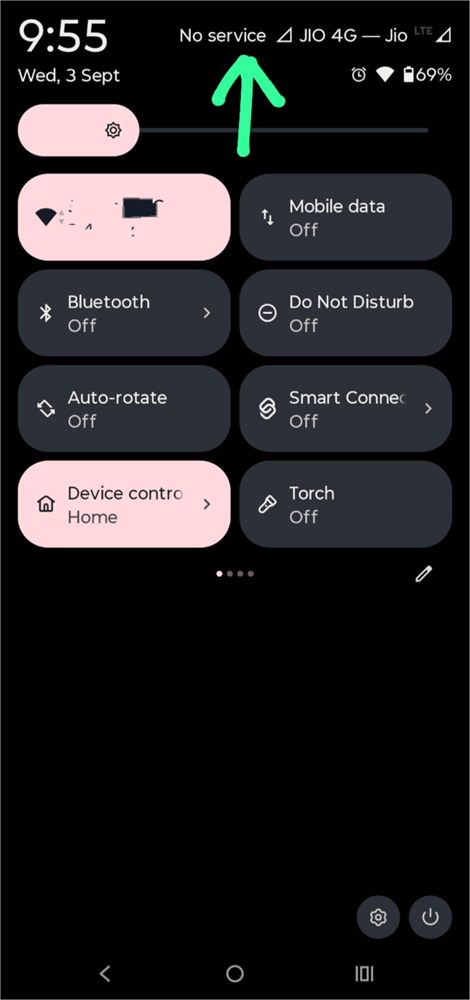
The phone has 2 SIMs, and one of them has no signal. Here, the phone owner won’t be able to make calls. Moving to another place where the network is available solves this issue most of the time.
If you can’t find any network connectivity, you can try using Wi-Fi calling. This feature enables phone users to use the WiFi network to make phone calls.
To switch on WiFi calling, follow these steps:
a) Go to Settings
b) Tap on Network & Internet as shown in the image below.
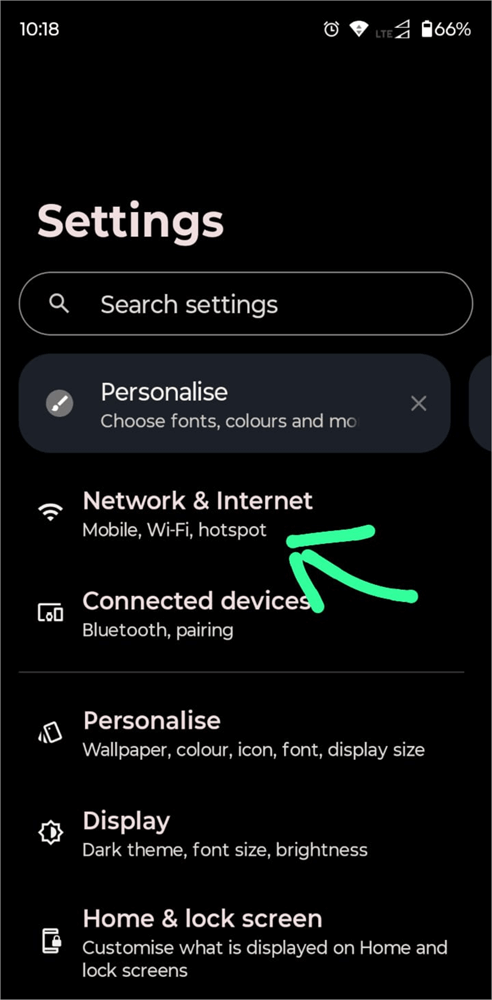
c) Select SIMs & mobile network
SIMs & Mobile network option is shown below:
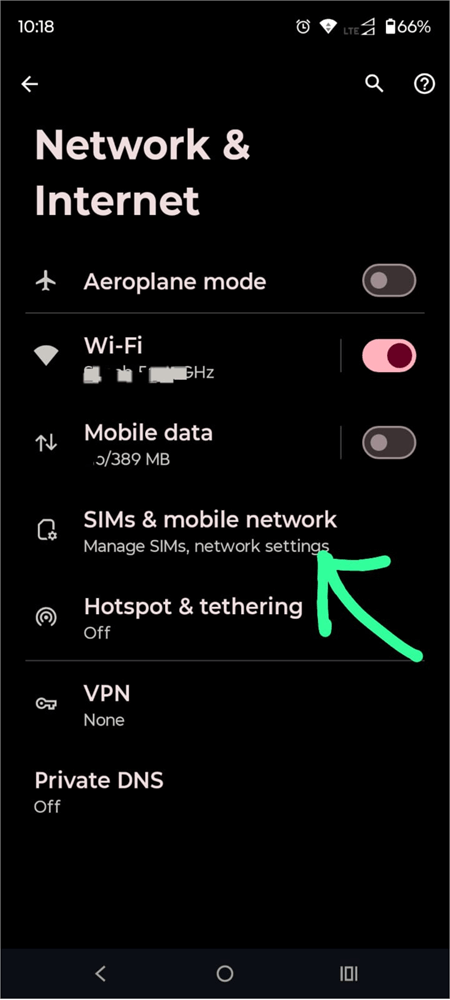
d) Now tap on your network provider’s name.
e) Scroll down to find the option – Wi-Fi calling. Tap on it.
Here is the image of the Wi-Fi Calling option:
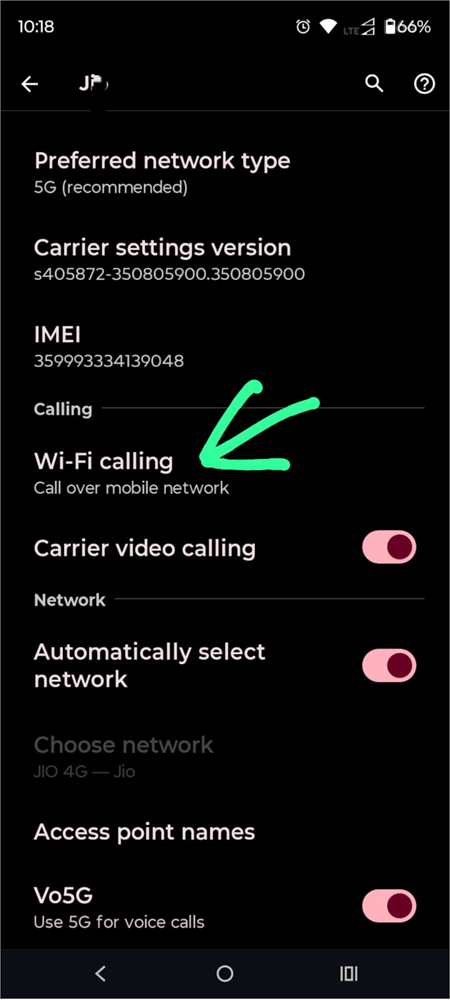
f) Now turn WiFi calling on as shown in the image below.
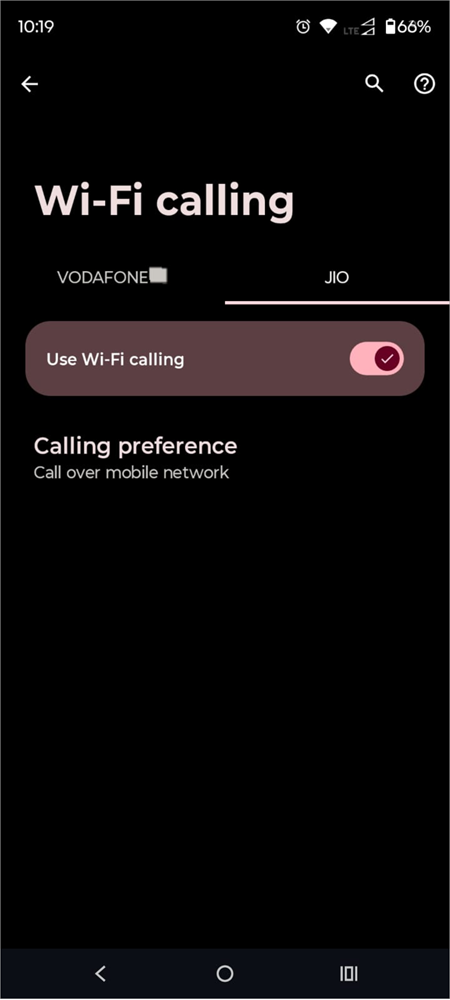
[Make sure you keep your phone’s WiFi turned on; otherwise, this feature won’t work.]
#2) Airplane mode should be turned off: There are chances you turned your phone’s Airplane mode on earlier, which is why you are unable to make calls. So, make sure the Airplane mode is turned off. Read our exclusive guide to know what Airplane mode does.
You can check for the Airplane mode setting by following these steps:
a) Swipe down on your phone screen.
b) Look for the option – Aeroplane mode as shown in the image below.
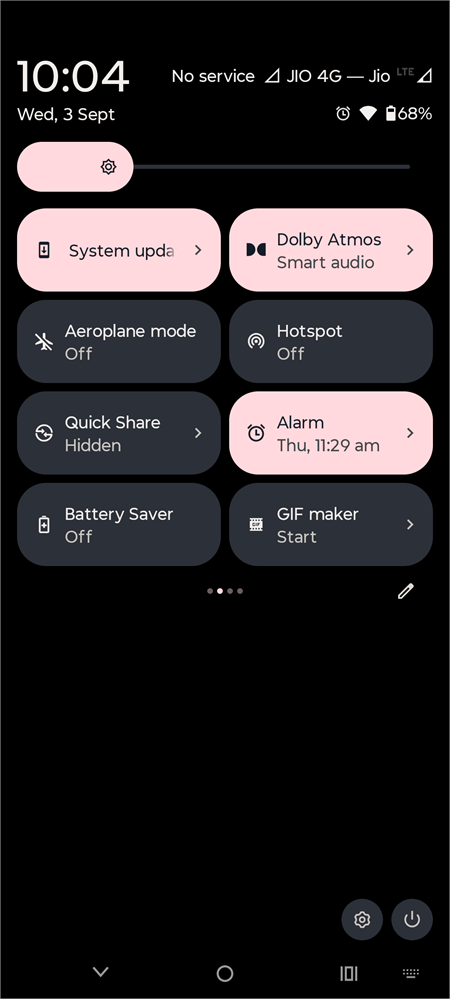
Make sure it is turned off. If it was already turned off, try turning it on and then off again. Trust me, it helps in gaining network strength many times!
3) There can be a glitch/bug: You can try restarting your phone to get the bug fixed.
4) The other person may have blocked you: If you cannot make calls to a specific person, there is one of the following reasons:
- They may have blocked you.
- Their phone may not have network access.
- They may be busy on another call.
- Their phone may be switched off.
5) There can be some issues with the network settings on your phone: Try resetting your network settings.
Follow these steps for resetting your network:
a) Go to Settings.
b) Now select System as shown in the image below.
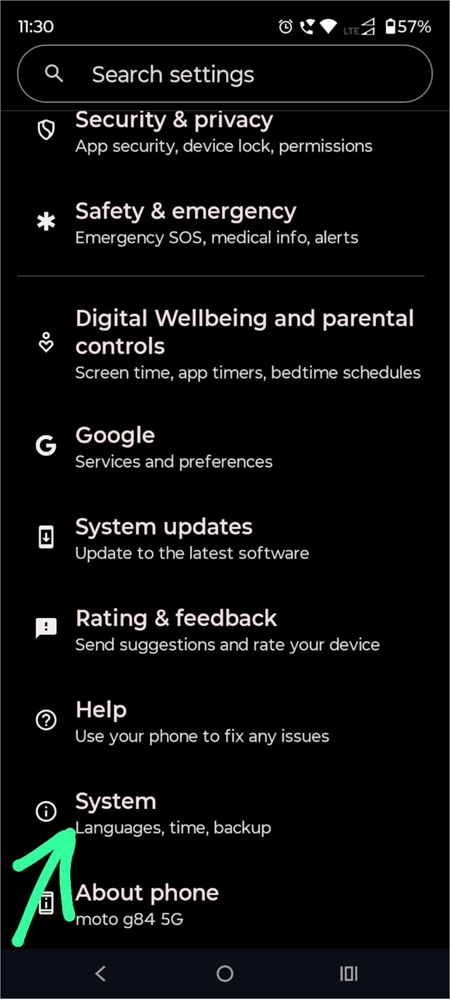
c) Now tap on Reset options.
The image below depicts Reset Options:
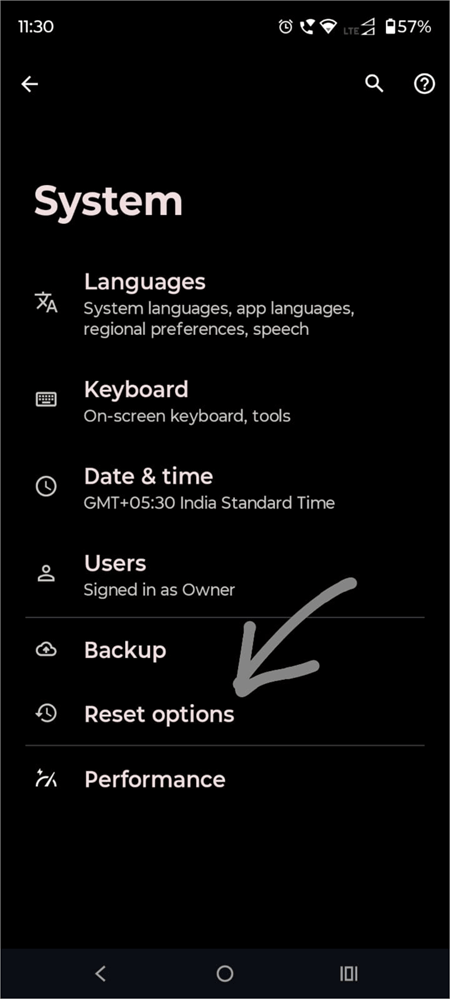
d) Select the Reset mobile network settings option as shown below.
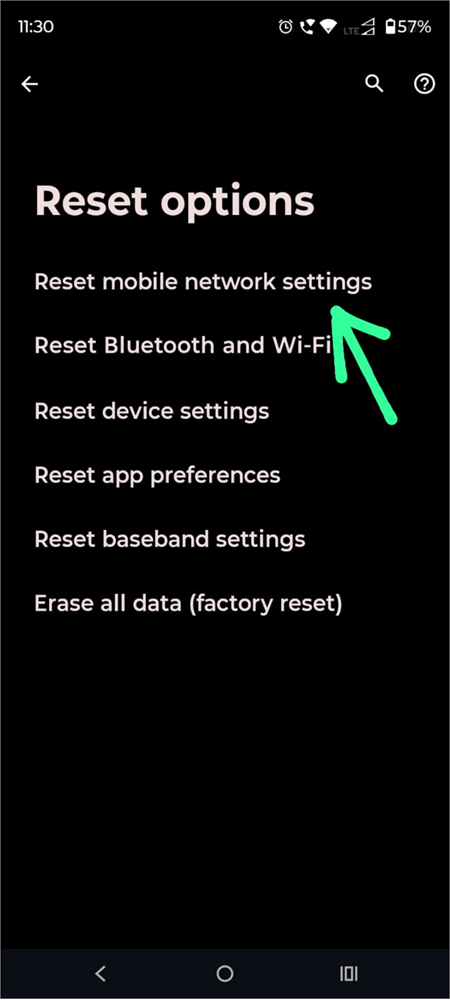
6. Your phone may need an update: Many functions on mobile phones don’t work properly when an update is pending. So, go to your phone’s settings and check for software updates if you are facing issues like you can’t being able to make calls, etc.
7. You may not have inserted the SIM properly: If you haven’t inserted the SIM properly (like if it’s upside down, etc.), the SIM won’t work. Make sure it is placed in the SIM tray perfectly. You can watch this YouTube video illustrating how to insert a new SIM into the SIM tray perfectly.
8. Check for malware or suspicious apps on your phone: There are chances of malware or some unwanted and suspicious apps on your phone. Here is our guide to help you remove malware from Android Phone.
Signs that warn you about these are:
- Unusual battery drainage
- Pop-up ads
- Unusual activity on the phone
- Phone hangs
- You see apps on your phone that you did not download
- Increased data usage
If you see these signs, first of all, remove the suspicious apps from your phone. The best option is to factory reset your phone, so that every suspicious file is cleared out at once. If you want to know more on factory reset, check our tutorial to learn if a factory reset would delete everything or not.
9. You downloaded an app from a Third-party: In case you recently downloaded an app from a third-party (other than the Google Play Store) and the problem started soon after that, then there is a good probability that the new app is causing the issue. Uninstall it right away.
10. Outgoing call barring feature may be enabled on your phone. Some of the Android models offer this feature.
To enable or disable outgoing call barring, follow these steps:
- Open Phone app
- Go to its Settings
- Select the option Calls
- Tap on the Call Barring option
- Now turn it OFF (or on)
The method may vary with different Android models.
11. You may have turned off your SIM in settings: If you are using 2 SIMs on your phone, you can switch off one SIM from your phone’s settings.
Maybe you switched off one of the 2 SIMs and now you are wondering why you can’t make calls (with the SIM you turned off).
Follow the steps below for switching a SIM on or off in your dual SIM phone:
- Go to Settings
- Select Network & Internet
- Tap on SIMs & mobile network
- Now you will see the list of SIMs (network service providers) that you are using. You can turn any of them ON or OFF from here.
12. You may have enabled DND: Check if you are using DND mode on your phone. If DND mode is enabled, your phone will automatically restrict incoming calls (unless you have starred some contacts to call you even in the DND mode), and you will see a sign like this on your phone’s screen.
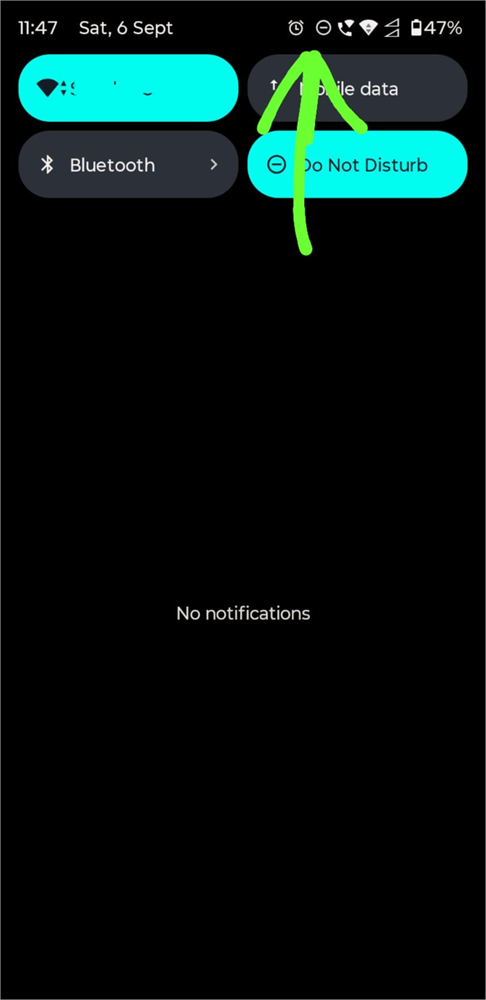
To turn OFF (or ON) DND mode, just swipe down your screen and tap on the Do Not Disturb option as shown below.
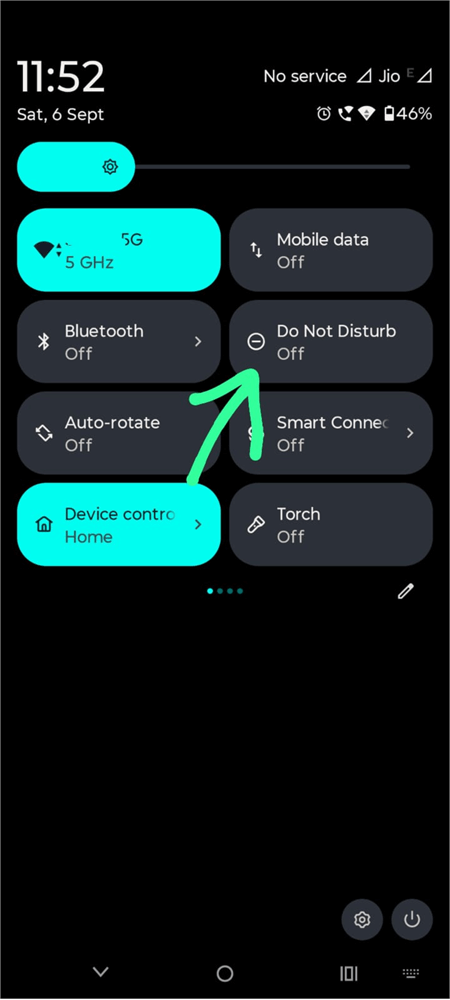
If the Do Not Disturb option is not available when you swipe down on your screen, then
- Go to Settings
- Tap on Notifications
The image below shows the Notifications options:
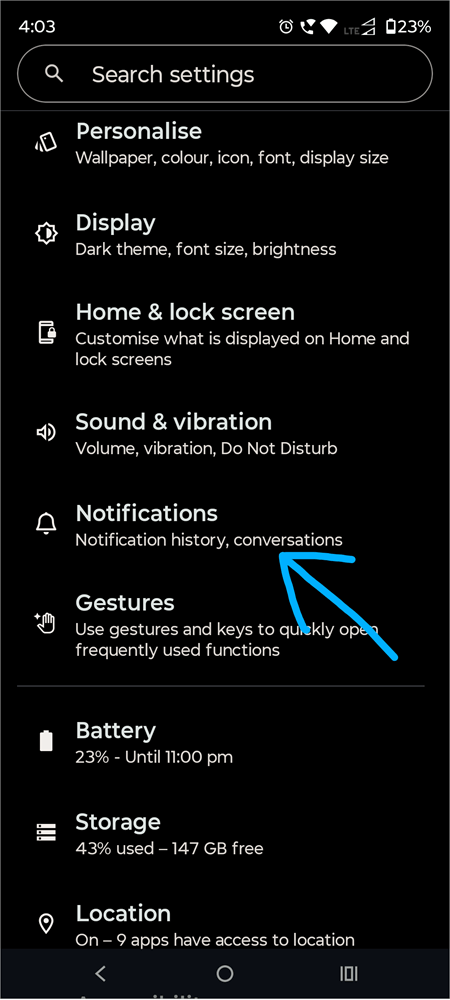
- Under the heading General, there will be the option – Do Not Disturb as shown below. Tap on it.
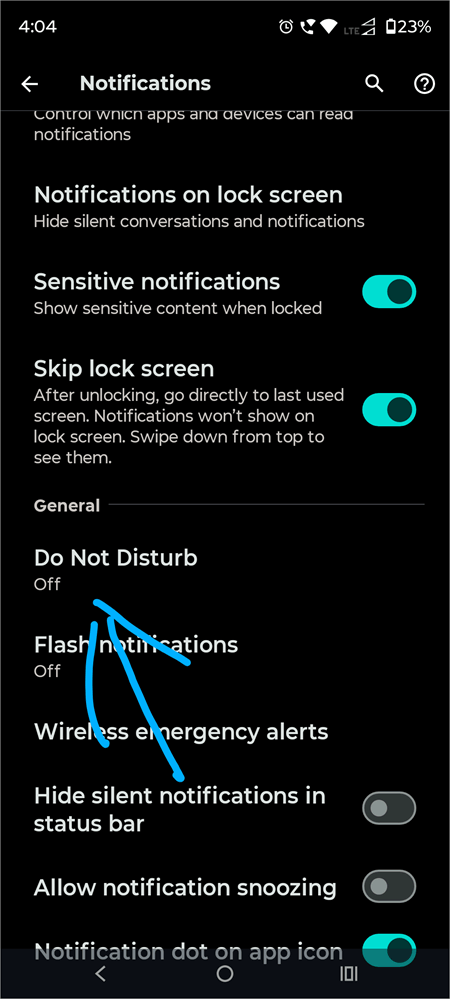
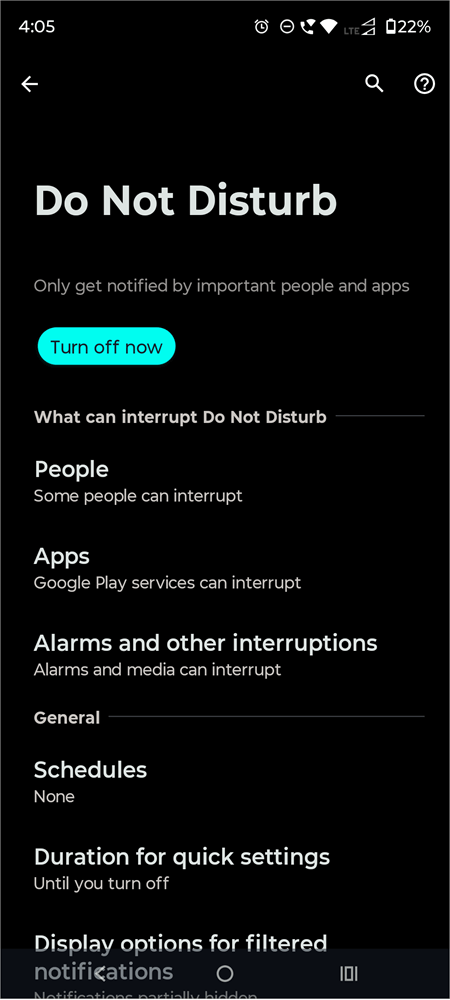
- Now select Turn off now.
The Turn off now button will look as shown in the image below:
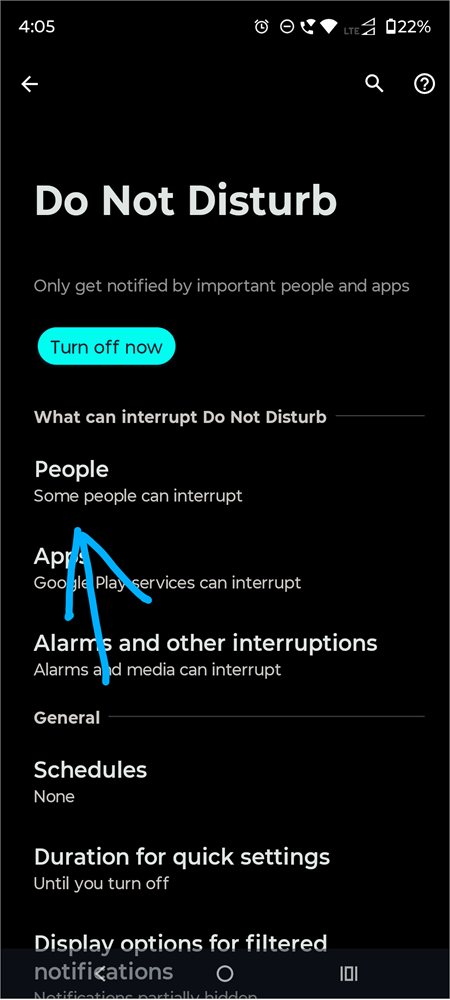
- If you want to star some contacts so they can call you even in the Do Not Disturb mode, you can do it by tapping on the option – People as shown below.
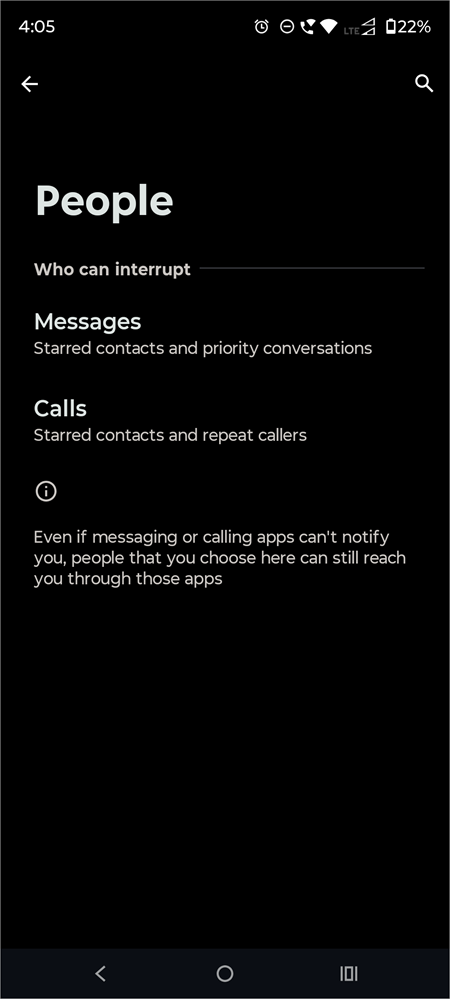
- Now tap on Messages or Calls to select people who can interrupt you through Messages or Calls while you are in DND mode.
The screen below appears when you click on the People option:
13. There may be some issue with the hardware: Hardware issues like a damaged or improperly inserted SIM tray, liquid damage to the phone, damage to the microphone, etc., can also be the reason you can’t make calls from your phone.
You would need to contact the phone’s service center to get the hardware issues fixed.
14. Factory Reset: If none of the above-mentioned solutions work, you can go for a factory reset. This fixes most of the problems. (Just make sure you back up your phone’s data before doing a factory reset.)
To do a factory reset, follow these steps:
- Go to Settings
- Select the option – System
- Tap on Reset options
- Now choose Erase all data (factory reset)
If you are exploring ways to factory reset on Windows 10, then check our detailed guide to understand how to Factory Reset on Windows 10.
15. Try clearing the phone (dialer app) cache: Clearing the cache also helps in solving issues. Follow these steps for clearing the phone cache:
- Go to Settings
- Select Apps
- Now select Phone
- Tap on Storage & cache
- Now, select Clear cache
16. Check whether there are any pending bills: If you have a postpaid network and you haven’t paid your bills, then your phone won’t allow you to make calls.
17. Do you have an active calling plan? If you are using a prepaid SIM, make sure your calling plan has not expired. The network instantly stops allowing users to make calls when the calling plan expires, unless and until you buy the subscription again.
18. Contact the customer care: If nothing works, you must contact the customer support of the network service you are using to know the cause of this issue.
You can also try contacting the customer support of the mobile brand you are using, so that they can identify technical issues.
Can’t Make an Emergency Call
If you are unable to make emergency calls, chances are:
- Your phone may not have a signal
- Your SIM may not be properly placed in the SIM tray
- Your phone may need an update
- There can be a bug
- Your phone/SIM may not be in working condition
To tackle this issue, you can try these methods:
- Put your phone on Aeroplane mode for a second, then turn off the Aeroplane mode.
- Check whether or not your SIM is properly inserted.
- Check for software updates.
- Restart your phone.
- Contact the service provider.
Emergency Calling Alternatives
- If you cannot call 911, you can just send a text
- For health referrals, contact 211
- 311 can be contacted for city services
- A silent 911 call or SOS feature can also signal an emergency.
Issues Faced by Users of Different Network Services
- Verizon: Users of Verizon and almost all the telecommunication services sometimes face network issues, including loss of connectivity, dropped calls, slow data speed, etc. If the issue is on the side of the service provider, there’s nothing that users can do to solve it, other than wait for the problem to be resolved from their side. Users must check the network provider’s website for information about outages. Contacting the customer support will also help.
- AT&T: AT&T users are often spotted facing account login issues, and sometimes network and internet connectivity outages. Login issues occur when users forget their login credentials or enter incorrect credentials. If that’s not the case, try restarting the device and clearing the browser cache and cookies. Sometimes, the account gets locked after several failed attempts. Here, you must contact the service provider.
- AT&T users may also face connection issues when they use an incompatible device. Please note that AT&T offers VoLTE access only when you use a supported phone. For best use, you would need to buy a carrier-provided phone.
Problems Due to Android Version or Phone Model
Sometimes issues occur because:
- You haven’t updated your phone to the latest version. You must check for Software updates regularly.
- Sometimes issues occur when you are traveling to a place that is a no-sales region for your device. That’s why you may notice a slow network and other connectivity issues. You can try using Wi-Fi calling in this case.
How to fix ‘Android dialer not working’
If your Android dialer is not working, chances are:
- You may need to clear the dialer cache by following these steps:
- Go to Settings
- Select Apps
- Now select Phone
- Tap on Storage & cache
- Now select Clear cache
- You may need to update your phone
- There may be a bug. Try restarting the phone.
What is VoLTE
VoLTE, which is an abbreviation for Voice Over LTE, is a modern technology that enables mobile users to use 4G networks for making calls and using the internet at super high speed, thus enabling better voice quality during calls and uninterrupted internet.
Since VoLTE calls don’t need to shift between networks like 2G or 3G, users get a smooth calling experience.
How to Enable/Disable VoLTE
If your phone supports VoLTE, it can be enabled or disabled by following these steps:
- Go to Settings
- Tap on Network & Internet
- Select SIMs & mobile network
- Now tap on the name of your network service provider
- Enable / Disable VoLTE
VolLTE Compatibility Issues
- Some old mobile models do not support VoLTE because the necessary software updates are not available for them.
- If you have bought your device from a different country where VoLTE is not available, the model may not support VoLTE, even if it is used in a supported region.
- Your device may not connect to VoLTE networks if you are in an area with little or no LTE coverage.
VoLTE (Voice over LTE) Issues
VoLTE may not work on your phone if:
- You have an old, incompatible device.
- VoLTE is not enabled in your phone.
- There is no LTE coverage in your area.
- VoLTE sometimes does not function properly if you haven’t purchased your mobile device from your network service provider.
Quick Solutions for Common Calling Problems
| Issue | Possible reasons | How to fix it |
|---|---|---|
| My Android won't dial numbers | • There would be no network in your area • You may have switched the Airplane mode ON • Dialer app's cache may be full • Your phone may be needing an update • There can be some bug • If you are unable to contact a specific number, chances are- they would be out of network coverage, or they may have blocked you. | • Check your signal strength, if possible move to a place with stronger signal strength • Airplane mode must be turned OFF for making and receiving calls • Clear Phone app’s cache • Check for system updates • Restart your phone • Try calling after some time |
| Call button not working Android | • No signals • Airplane mode may be turned on • There can be a bug • Dialer app's cache may be causing the issue • Your phone may need a software update • SIM would not be inserted properly | • Check signal strength • Try turning Airplane mode on, then turn it off. • Restart the phone • Clear dialer app's cache • Check for software updates • Check whether your SIM is inserted properly or not. |
| Android phone says call ended immediately | • Week signals • The call receiver may not have signals or they may have blocked your number • There can be a bug • You may not have an active calling plan or you may not have paid previous bills | • Try turning Airplane mode on, then turn it off. • Restart your phone • Move to a place with better signal strength • Try calling after some time • Check the validity of your plan |
| Can receive calls and can't make calls on Android | • Week or no signals • Airplane mode may be turned on • You may not have an active calling plan or you may not have paid previous bills | • Try moving to a place with better signal strength • Try turning Airplane mode on, then turn it OFF • Check the validity of your monthly plan |
| Call ended immediately after dialing | • Week signals • Airplane mode may be turned on • There can be a bug • Phone app's cache may be full • You may have enabled outgoing call barring feature | • Try moving to a place with better signal strength • Try turning Airplane mode on, then turn it OFF • Clear Phone app's cache • Restart your phone • Check the validity of your plan • Make sure the outgoing call barring feature is turned off |
| Mobile network not available - error | • There would be no networks available in your region • You may not have inserted the SIM properly • You may have turned on the Airplane mode | • Try moving to a place with better signal strength • Try turning Airplane mode on, then turn it OFF • Check whether you have inserted the SIM properly or not. |
| Emergency calls only (No network connection despite having data) - Error message | • No signals • Airplane mode on | • Try moving to a place with better signal strength • Try turning Airplane mode on, then turn it OFF • Check whether you have inserted the SIM properly or not. |
Advanced Network Troubleshooting
Here are some more techniques that can help in troubleshooting the network issues.
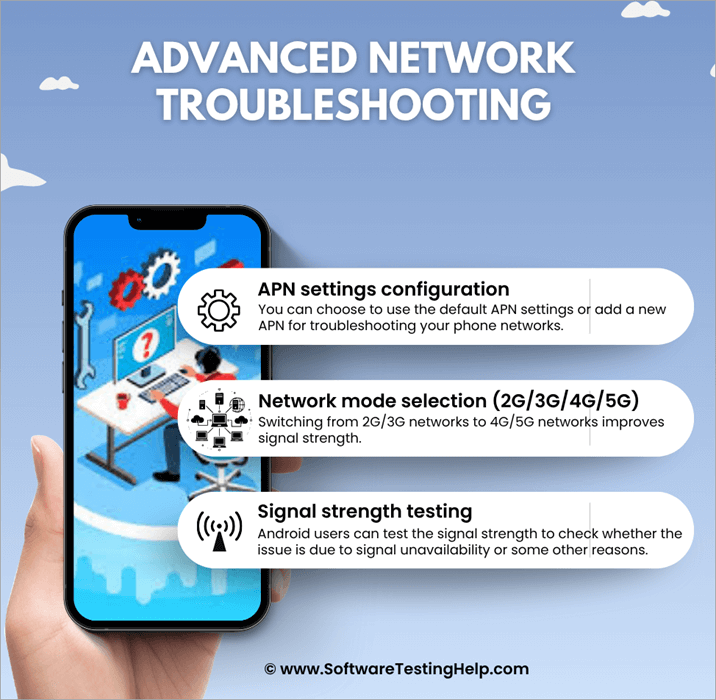
#1) APN Settings Configuration: You can choose to use the default APN settings or add a new APN for troubleshooting your phone networks.
To edit APN settings, follow these steps:
- Go to Settings
- Select Network & Internet
- Choose Mobile Network
- Tap on Access Point Names (APNs)
- Now add/edit the APN configurations
- Restart your phone
#2) Network Mode Selection (2G/3G/4G/5G): Switching from 2G/3G networks to 4G/5G networks improves signal strength.
It is also possible that you may have selected 4G or 5G networks as the preferred option, but there is no 4G/5G network access in your area. In that case, you can try switching to 2G/3G networks.
To change the network mode, follow these steps:
- Go to Settings
- Select Network & Internet
- Choose SIMs & mobile network
- Tap on your network provider’s name
- Now tap on Preferred network type
- Select the mode you want
#3) Signal Strength Testing: Android users can test the signal strength to check whether the issue is due to signal unavailability or some other reason.
To test signal strength, follow these steps:
- Go to Settings
- Select About Phone
- Choose Status
- Tap on SIM card status to check signal strength.
Potential Causes for Network Issues
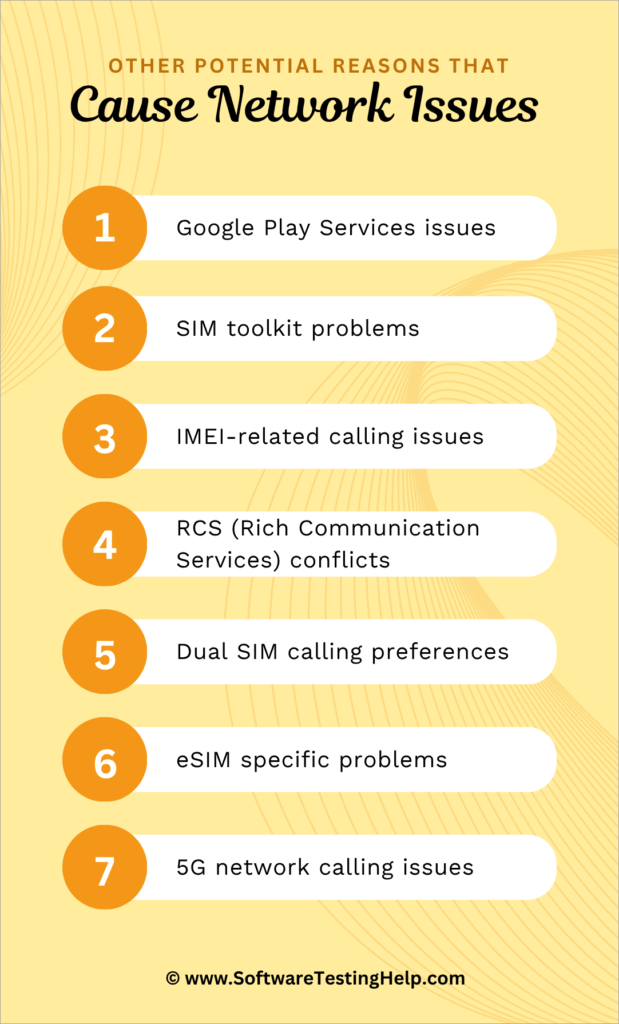
If you are facing issues like your Samsung phone won’t make calls, or Google Pixel calling issues, or Android VoLTE problems, or Android dialer not working, there can be one of the following reasons:
#1) Google Play Services Issues: Yes, the network instability can be caused by Google Play Services issues as well.
To avoid such issues, do as stated under:
- Check for Google Play System updates on your phone by going to Settings, then Security & Privacy, then System & updates, and select Google Play system update.
- If you are using a Carrier (Network) service application, check for its updates in the Play Store.
- Clear the cache for the Dialer (Phone) app.
- You can also try deleting your Google account, restarting the device, and then signing in again.
#2) SIM Toolkit Problems: Network issues can also be caused due to SIM toolkit problems.
Do as stated under to avoid such problems:
- Try re-inserting the SIM. Watch this YouTube reel to learn how to put the SIM currently in the SIM tray.
- Clear SIM toolkit app’s cache- Go to Settings, then select Apps, then find the SIM Toolkit app in the list of all apps. Tap on SIM Toolkit and then go to Storage & cache. Now delete the cache. If the problem persists, you can try clearing storage as well.
- You can talk to the support services of your network provider to check whether your SIM is working or not. Sometimes the carrier service disables a SIM when you do not pay the bill, or when the SIM is not used for a long period of time.
#3) IMEI-related calling issues: If the IMEI number is missing or is invalid, then your phone also won’t be able to connect to any networks.
When a phone gets stolen or lost, the users sometimes block the IMEI number. This disables the phone from connecting to any network. In such cases, you would have to go to the service center for help.
Modern Communication Issues
#4) RCS (Rich Communication Services) Conflicts: The very popular RCS conflict that causes communication issues is the rivalry (non-compatibility) between iMessages and Android messaging. Both of them are basic messaging tools, but they don’t allow users to exchange messages from one platform to another.
#5) Dual SIM Calling Preferences: Incorrect configuration of dual SIM settings often leads to problems while making calls and using mobile data.
Plus, users sometimes set one specific SIM as the default for making calls or messages, then they keep on wondering why their Android can’t make outgoing calls with the other SIM. So you must set ‘Ask Always’ as the calling preference.
Follow these steps to make ‘Ask Always’ your preferred setting while making calls or sending messages:
- Go to Settings
- Select Network & Internet
- Go to SIMs & mobile network
- Now, under the heading Calling, tap on Always
- From here, you can assign a SIM for calling specific contacts
#6) eSIM Specific Problems: eSIM-specific issues include connectivity problems, device compatibility issues, security threats, and more. To avoid e-SIM-related issues, do as stated under:
- Check for device compatibility before buying an eSIM.
- Make sure you have activated the SIM properly. Watch this YouTube reel to learn how to install an eSIM in an Android device.
- Check the network settings and configurations.
- Make sure your device’s software is updated
- Contact the customer support if the problem is not solved.
#7) 5G Network Calling Issues: Calling issues arising due to 5G networks include:
- Device incompatibility with the 5G networks
- Your region may not have 5G coverage
- There may be some issues with your network settings. You can reset network settings by following these steps:
- Go to Settings
- Tap on System
- Now choose Reset options
- Select Reset mobile network settings.
Frequently Asked Questions
1. Why can’t I call out on my phone?
If you cannot make calls on your phone, chances are:
• You may not have an active plan (if you have a prepaid SIM)
• If you are a postpaid user, you may not have paid your previous bills, due to which the SIM stopped functioning temporarily.
• You may be at a place with no network connection
• You may have accidentally or intentionally put your phone on Airplane mode
• Your phone may need a software update
• There can be a bug
• You may have enabled outgoing call barring
• There can be some hardware or technical issues if the above-mentioned issues are not there.
2. How do I fix my call problem on Android?
To fix the calling problem on your Android phone, do as stated under:
• Check the validity of your subscription plan
• Check your mobile networks. If there is no signal, you can try moving to some other place to find a network.
• Switch off Aeroplane mode
• Check for software updates
• Restart your phone
• Reset network settings
• If there are some hardware issues, get them fixed at the service center
• Do a factory reset (to remove malware or unwanted/hidden apps from your phone)
• If none of the above-stated solutions work, contact the customer support of the network service you are using.
3. How to reset call settings on Android?
You can reset mobile network settings on your Android phone. To do so, follow these steps:
• Go to Settings
• Tap on System
• Now select Reset options
• Then select the option – Reset mobile network settings.
If you want to change the ringtone, follow these steps:
• Go to Settings
• Select Sound & vibration
• Now tap on Phone ringtone
• Now choose the ringtone you want and click OK.
For changing call volume, do as stated under:
• Go to Settings
• Select Sound & vibration
• Under the heading Volume, adjust the Call Volume.
4. How to activate do not call?
If you want to activate the Do Not Disturb mode, follow these steps:
• Go to Settings
• Tap on Notifications
• Under the heading General, there will be the option – Do Not Disturb. Tap on it.
• Now select Turn on now.
• If you want to allow some contacts to call you even in the Do Not Disturb mode, you can do it by tapping on the option – People.
• Now tap on Messages or Calls to select people who can interrupt you through Messages or Calls while you are in DND mode.
5. How to remove outgoing call barring?
To remove the outgoing call barring in your Android phone, follow these steps:
• Open the Phone application
• Go to Settings (you may find this option after tapping on the three-dots menu)
• Now select the option Calls
• Tap on Call Barring
• Turn it OFF
Here is the video guide on how to fix Android not making or receiving calls:
Conclusion
It is now clear that calling issues in an Android phone can be fixed with simple steps. Please note that the steps mentioned above may not be the same for all Android phones, but you will most probably find them to be very similar in all phones.
In this article, we discussed the steps for:
- Enabling Wi-Fi calling
- Turning Aeroplane mode off
- Turning DND off
- Resetting network settings
- Turning outgoing call barring off, and more
These help in resolving the issue with the calling feature on Android phones.
Please note that a specific setting in your phone can be found by opening the Settings app, typing in the particular word (such as “call ringtone” or “network settings” or “software update”) at the top of your page in the search field, and you will get different options related to your search. This makes finding a setting quite easy.
For more quick Android or calling-related guides, you can explore our range of Android tutorials below:
- Best Spam Call Blocker Apps for Android
- Top Android Phone Cleaner Apps
- How to Check the Call History of Any Mobile Number Online
- No Caller ID: Easy Ways to Find Who Called
Was this helpful?
Recommended Reading
-

Read this review to explore different effective methods to understand how to Record Phone Calls on iPhone: In a majority of states across the United States, the law mandates it to get consent from a single or all parties to the conversation to legally record a phone call. It is…
-
Read this review to compare and select among the List of Platforms That Can Help You Find Out: Who Called Me From This Phone Number: After all, it could be an annoying telemarketer trying to sell you a new product or a prankster who wishes to have some fun at…
-
Learn how to check the call history of any mobile number online easily and in an authorised way, and the Top 7 apps to check and retrieve mobile call history are reviewed in this guide. Accessing the call history of a mobile number can be useful for various legitimate reasons,…
-
Are you Wondering Why my Calls Going Straight to Voicemail? This guide explains the most common reasons and shares 13 proven solutions to fix the issue. Are your calls just going right to voicemail without ringing your phone? And looking at how to stop my phone from going straight to…


