What is Google Meet Companion Mode? Learn how to join on a second screen, use chat and polls, share your screen, and avoid audio feedback.
Ever wondered what Companion Mode on Google Meet actually does for you? It enables you to participate in a Google Meet call from another screen, such as a computer, without your mic and meeting audio being active to stop echoing.
It helps to use Companion Mode in conference rooms where the Meet system in the room takes care of the audio and video while you get to use chat, polls, Q&A, captions, raise hands, and screen share from your personal device.
In this guide, you will understand how Companion Mode works, how to use it, its functionality, and how to use Companion Mode in place of Google Meet.
What Is Google Meet Companion Mode? How It Works
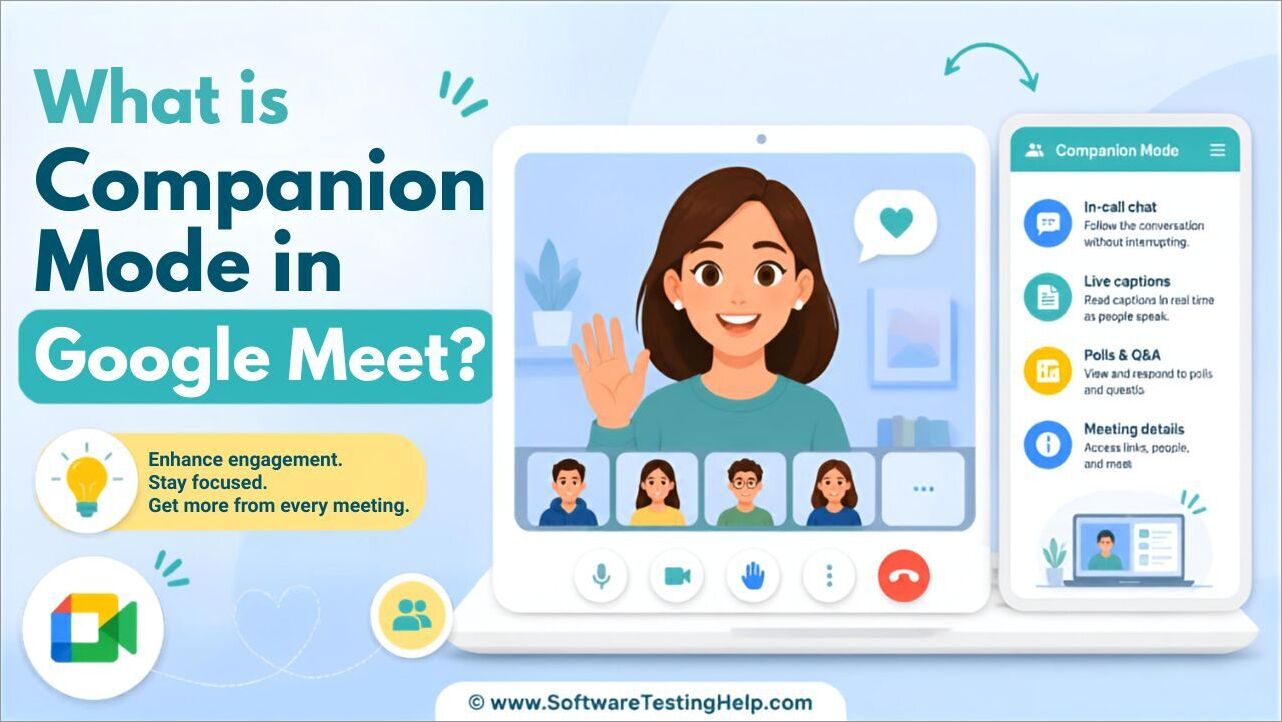
Simple yet effective, this mode helps in hybrid meetings wherein the end-user can actively participate in the session from a secondary device while avoiding audio mishaps.
Well, let’s delve deeper to understand more about the companion mode, how it works, and other intricacies of this remarkable feature.
What Is Companion Mode in Google Meet?
Companion mode in Google Meet is an interactive way to join a meeting remotely from a secondary device without causing audio feedback. This feature aims to give all participants equity by allowing them to use the Google Meet features readily available to those gathered in the conference room.
When there are both meeting rooms and remotely joined participants, companion mode allows the remotely joined users to avail themselves of the same features as in-meeting ones.
How Does Google Meet Companion Mode Work?
Companion mode in Google Meet works on a second screen wherein you’re still joining the meeting but in a subtle way.
This is how the companion mode works:
- The system will connect you as a participant in companion mode.
- You can check in to the Google Meet session and can check in or connect to a conference room. However, this will only appear when a conference room is connected to your concerned meeting.
- In order to find the room check-in option, the room device has to be kept on call.
- To prevent noise and echo, the default will mute your microphone and audio.
- You will have access to features like chat, captions, reactions, and presenting.
- You can easily share your screen from a secondary device without having to plug into the conference room display cables.
- Personal video tiles are visible to others in the conference rooms during the call and are sorted alphabetically.
- When you raise your hand, your personal video tile and room name will appear to other participants.
Here is the video on how to use Companion Mode in Google Meet:
Who Should Use Google Meet Companion Mode?
Google Meet companion mode is best for people who are joining a hybrid meeting primarily from a shared conference room. With the audio turned off, this feature allows the participants who have joined remotely to access all the collaboration features without audio feedback.
Use companion mode in Google Meet if:
- You are someone who is connected to the conference room and is attending the meeting from the same one, wherein the audio and video system is connected to Google Meet beforehand.
- You are multitasking and presenting from your own device and do not wish to interrupt the audio of the conference room.
- You are in a hybrid setting and want to actively be a part of the meeting using a secondary device.
- You are the organizer of the meeting who wants to manage Q&A queues while tracking participant attendance separately.
How to Use Companion Mode in Google Meet?
Companion mode can be enabled simply and efficiently on Android devices, computers, iPhones & iPads. In addition, this mode is also supported across foldable devices and certain smart displays such as Nest Hub Max hardware.
How to Use Companion Mode on a Phone or Tablet
Steps for enabling companion mode on Android devices, iPhones and iPads:
- Open your Meet app. From your upcoming meetings, select video meetings.
- Click on Join with code to join the meeting with a nickname or code.
- Select Use companion mode under the self-view option.
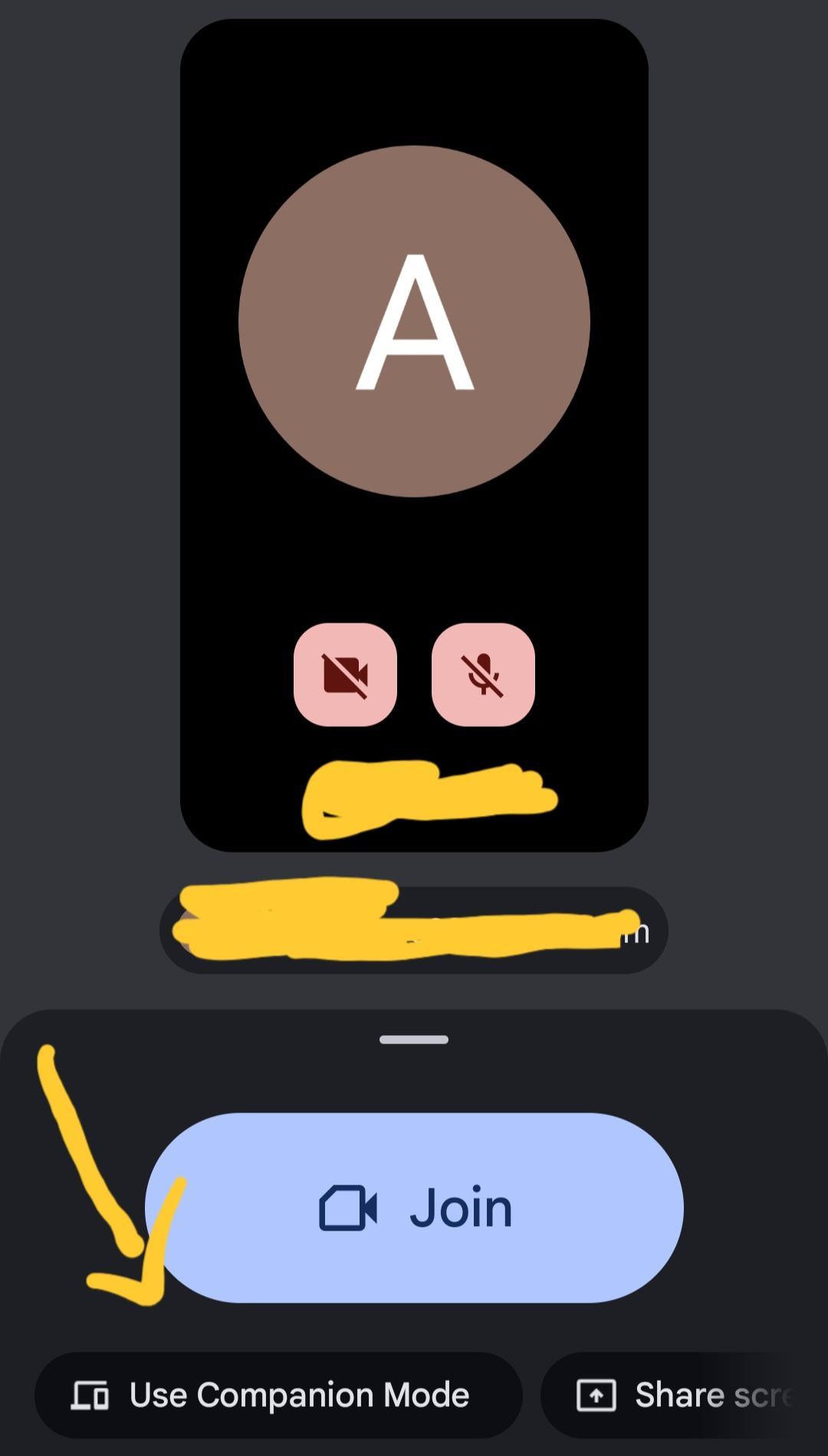
- Once the meeting starts, check into your assigned conference room using companion mode. Companion mode mutes your audio to stop audio feedback.
- A pop-up will appear and confirm your room if the meeting connects to a room. However, if multiple rooms are connected, from the pop-up you’ll have to choose your room.
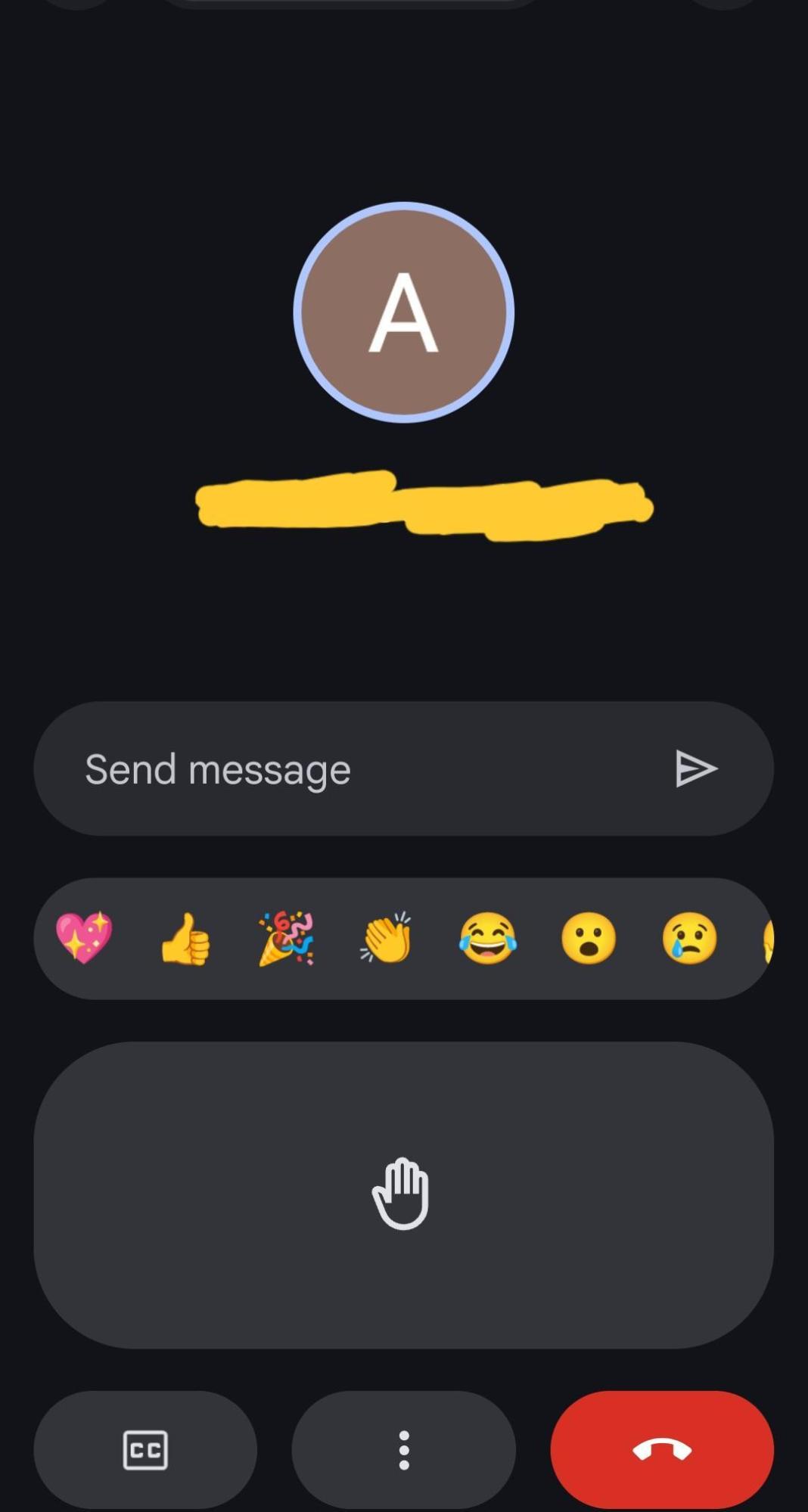
- Once you have joined, you can make use of various collaboration features like chat, hand raise, and present now from your secondary device, while the conference room will handle the audio and video of the meeting.
How to Use Companion Mode on a Computer
Steps for enabling companion mode on computers:
- With your meeting invite, tap on Join.
- Select the option, Use companion mode under “Other joining options”.
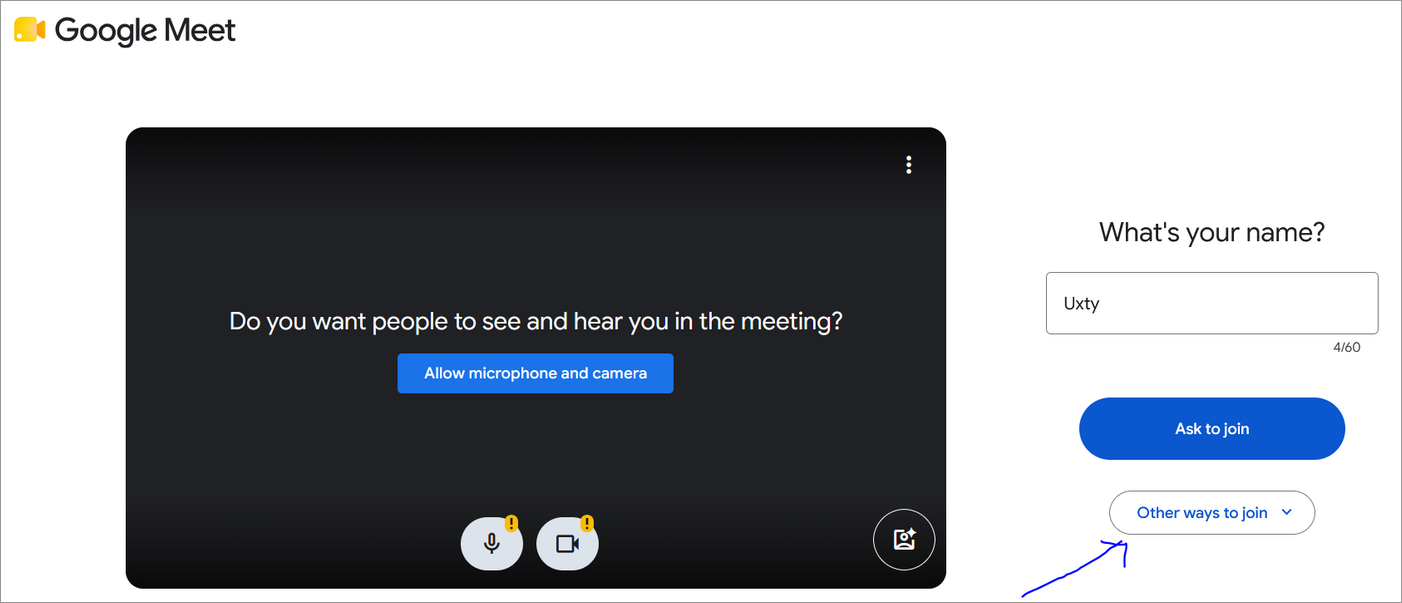
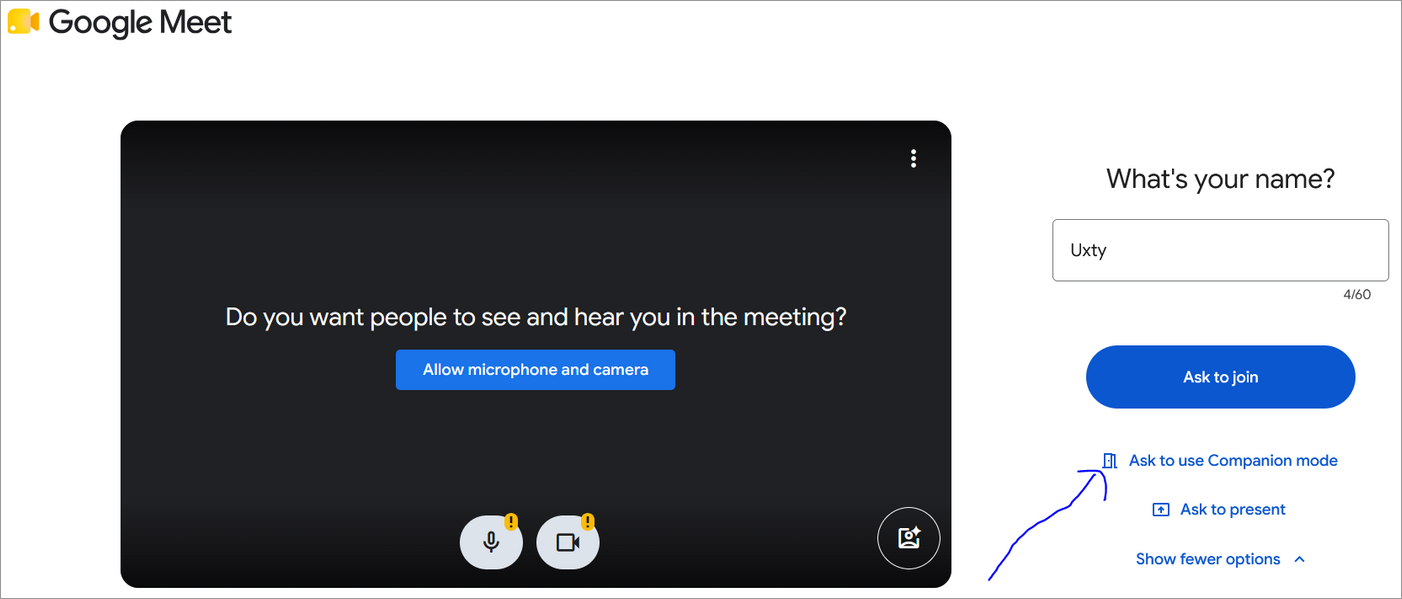
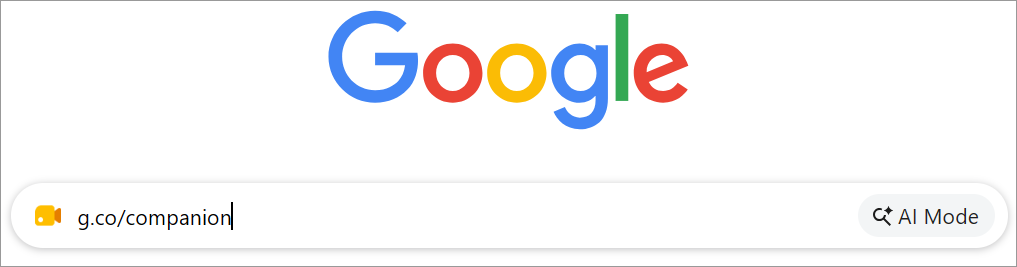
- If not, you can also join the meeting by opening g.co/companion on your browser and entering the meeting code or selecting the meeting.
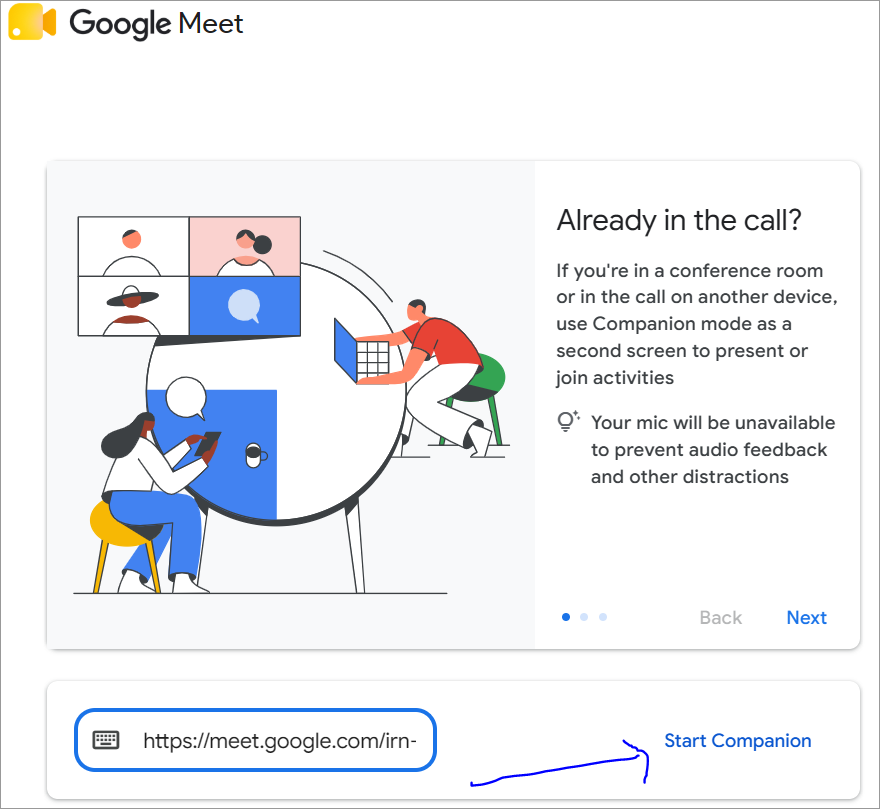
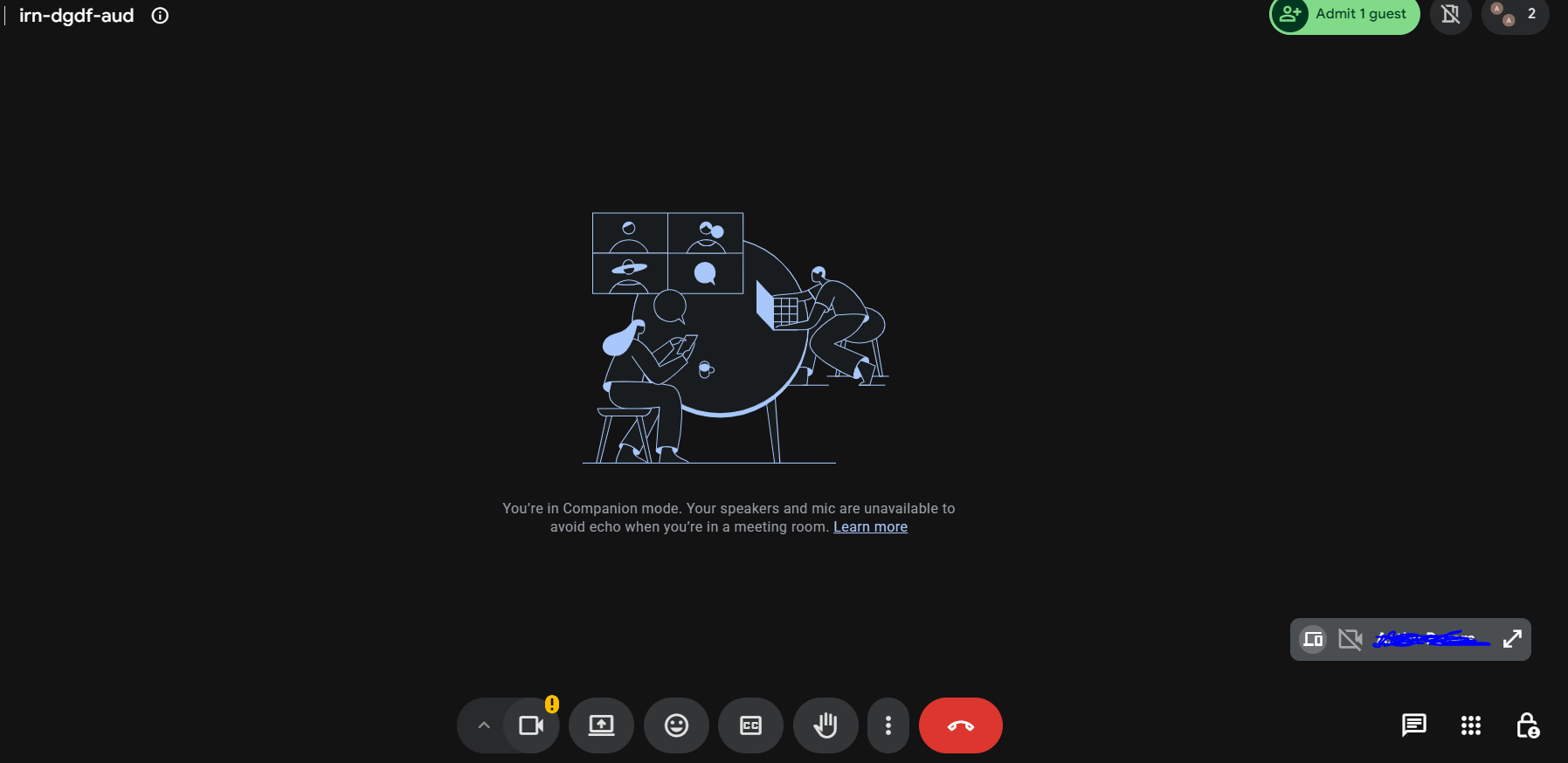
- Join the concerned meeting wherein your microphone and camera would be turned off to prevent audio feedback. However, you will still be given access to the collaboration features of Google Meet.
How to Turn Off Companion Mode in Google Meet?
If you’re wondering how to turn off companion mode in Google Meet, you can do so by following the simple steps below:
- Look for the leave button on your screen to leave the current meeting (red phone icon).
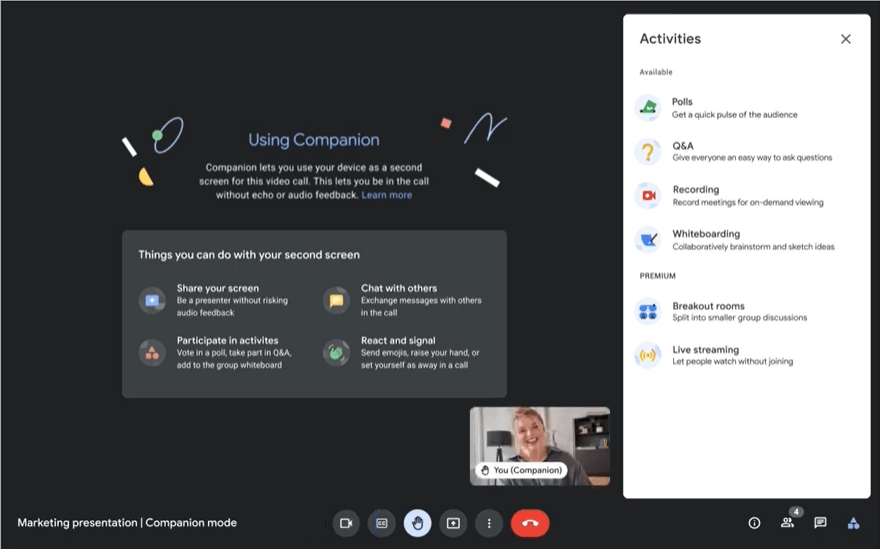
- This will instantly disconnect your device from the companion mode, wherein the conference room system will stay connected to the meeting.
- If you wish to rejoin the meeting with full audio and video, join the meeting once again without tapping on the Companion mode.
What Can You Do in Google Meet Companion Mode (Top Features)
Companion mode has several features that make hybrid meetings more interactive.
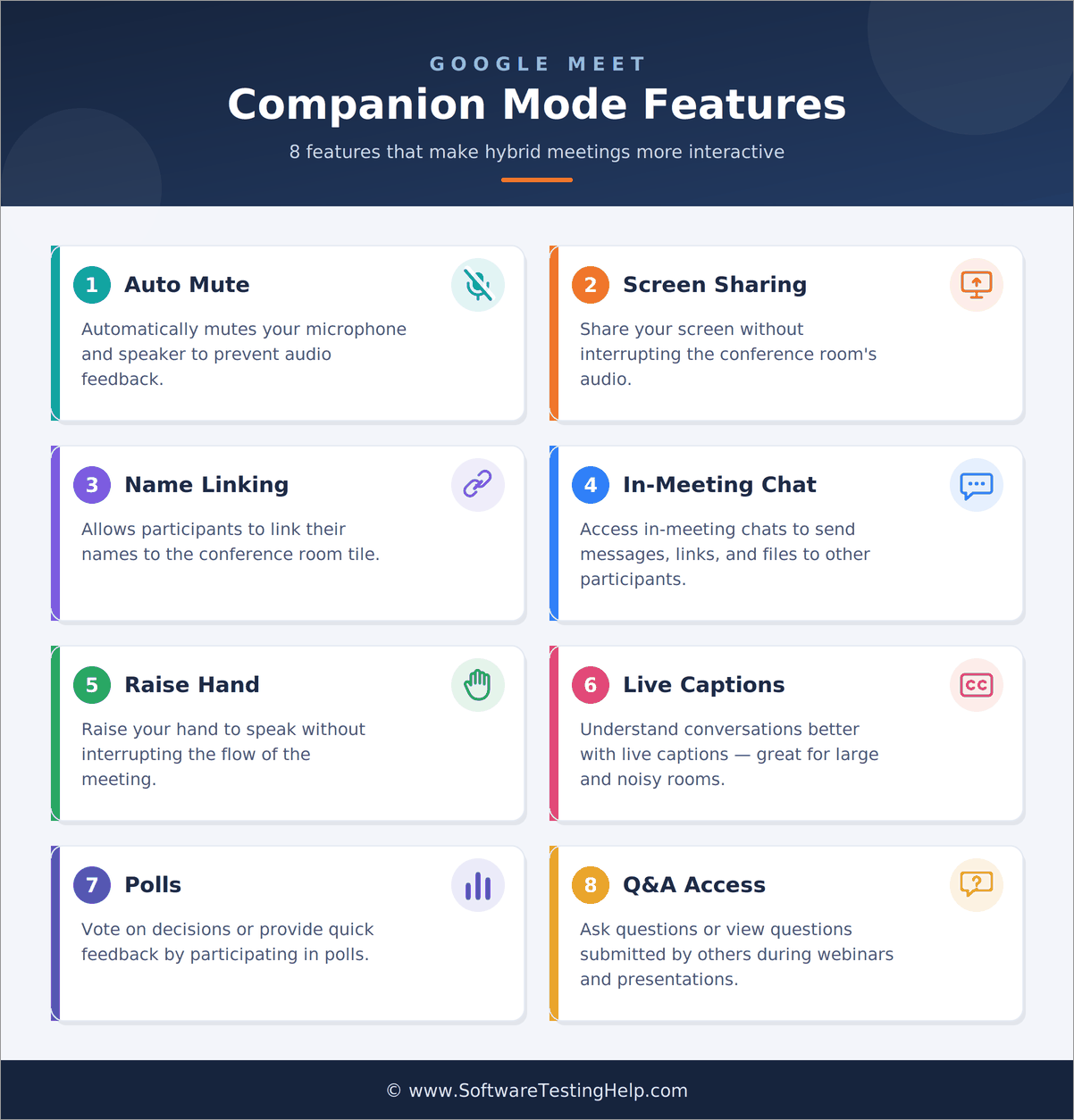
Here are the prominent features of Google Meet Companion Mode:
- Automatically mutes your microphone and speaker to prevent audio feedback.
- Helps you share your screen without interrupting the conference room’s audio.
- Allows participants to link their names to the conference room tile.
- Provides access to in-meeting chats to send messages, links, and files to other participants.
- Raise hands without interrupting the meeting.
- Helps participants better understand the conversations with live captions, especially if it’s a large and noisy room.
- Vote on decisions or provide quick feedback by participating in Polls.
- Provides easy access to Q&A while enabling participants to ask or view questions submitted by others during webinars or presentations.
What Does Companion Mode Do for the End-Users?
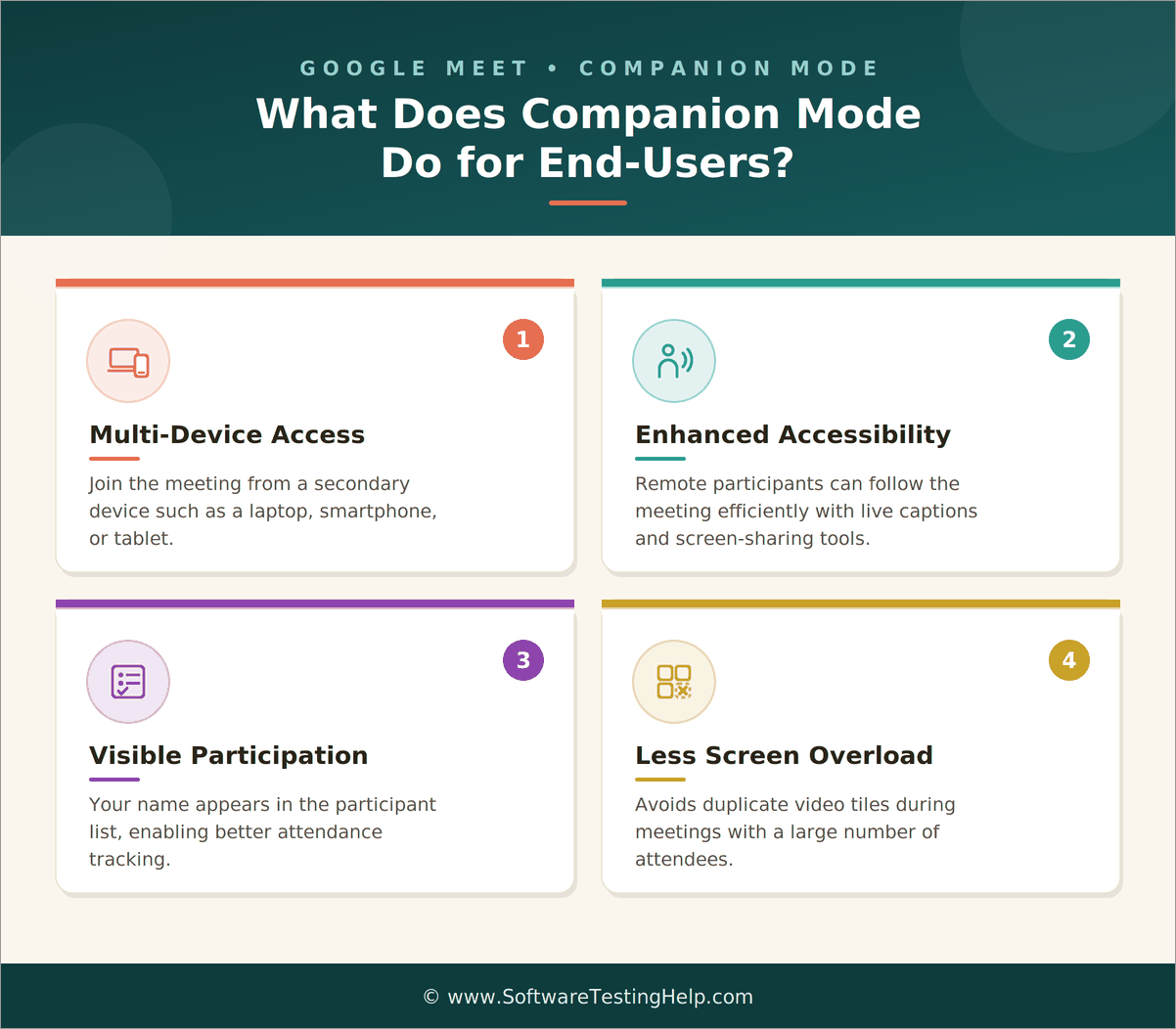
As an attendee, companion mode offers you the following benefits:
- Multi-device Access: Helps users to access the meeting from a secondary device such as a laptop, smartphone, tablet, etc.
- Enhanced Accessibility: Allows remote participants to follow the meeting efficiently by enabling live captions and screen-sharing tools.
- Visible Participation: Helps in the visible participation of the attendees since their names appear in the participant list, thereby enabling better attendance tracking.
- Less Screen Overload: Assists participants in avoiding duplicate video tiles during meetings where there are more attendees.
Companion Mode for Hosts/ Organizers: What Does it Do?
Not just for participants, but companion mode is a great aid for hosts and organizers too. This is because it helps them make meetings more structured and focused.
Here is how companion mode helps the hosts:
- Reduces Audio Feedback: Hosts do not have to deal with audio feedback in companion mode since the default turns the audio off.
- Seamless Meeting Management: Companion mode helps hosts better manage participants and control meeting settings.
- Enhanced Attendance Tracking: Helps the host to keep track of the attendees and also check who is actively participating in the meeting session.
- Promotes Equal Participation: Since every participant in the hybrid meeting can access tools like chats, hand-raising, polls, etc., hosts get better visibility into the questions and feedback of the attendees.
Companion Mode vs. Regular Mode vs. Presenting
Google Meet offers various ways for participants to join the meeting.
Below is a quick comparison to help you make the most of each mode based on your meeting goals:
| Feature | Companion Mode | Regular Mode | Presenting Mode |
|---|---|---|---|
| Audio & Video | Audio and video gets turned off immediately to remove audio feedback | Microphone and camera remains on | Audio and videos are active or handled through the conference room’s hardware |
| Best for | Meetings where participants are on a secondary device or shared conference room | Meetings where participants are joining an individual setup or working remotely | Those participants who want to share a screen, window, document, or a slide deck to the concerned group |
| Key Features | Allows the usage of google meet features like chats, hand raise, polls, Q&A without leading to audio feedback | Allows active speaking, two way communication and complete participation | Helps everyone to see the shared screen with certain options whereby the presenter can present the slide directly from a companion device |
| Recording Capability | Does not record meetings but enables participants to trigger, control or gain benefit from meeting recording if their Google workspace edition allows | Allows users to start, stop and manage meeting recordings | Allows capturing the meeting including slides being presented directly inside certain software such as Canva or Microsoft Powerpoint, or specialized screen recorders. |
| Participant Limit Impact | Counts as an active participant and contributes to the meeting cap | Counts as an active participant and contributes to the meeting cap | Counts as active participant while presenting |
| Host Controls | Allows hosts and co-hosts to manage participants, control chat, share screen, including ending the call for any given participant | Hosts and co-hosts hold full control | Hosts hold the moderation control while non-host presenters retain limited controls |
Limitations of Companion Mode in Google Meet
Although companion mode is an interactive way to be a part of hybrid meetings, it is not devoid of its limitations. It is essential, therefore, to understand the companion mode Google Meet limitations to make the most out of this feature.
- Microphone and Camera Disabled: When you use companion mode, your audio and video are disabled by default. If you wish to express something during the meeting, you need to exit companion mode and rejoin through the regular mode to get your audio and video working again.
- Disabled Voice Participation: When using companion mode, you will not be shown as an active speaker since this mode does not support audio streams.
- Host Control Limitations: Companion mode does not allow the host to assign co-hosts or manage global permissions.
- No Dual Companion Mode: Participants can’t make use of companion mode on multiple devices from the same account simultaneously. They will have to join the meeting from both regular and companion mode.
Troubleshooting in Google Meet Companion Mode: Tips and Solutions
Although companion mode is made to make hybrid meetings seamless, certain technical issues can happen for a variety of reasons.
Let’s explore some of the common ones and ways to deal with them:
- Unable to Find the Companion Mode Options: If you are not seeing companion mode on your device, make sure you are using the latest version of Google Meet.
- Not Able to Check into a Conference Room: Make sure that the conference room device is connected to the same Google Meet session. Check if it supports room check-in.
- Unable to Access Polls or Q&A: If you cannot find polls or Q&A, it may be because the host has turned off these features, or the same is not available for your Google Workspace edition.
- Black Screen During Screen Sharing: This can happen due to third-party Chrome extensions. You can fix it by:
- Temporarily disabling the extension while reloading the meeting
- Now, join the meeting in Incognito mode
- Directly go to g.co/present to share the screen clearly
- Not Able to Speak During the Meeting: Since the companion mode automatically turns off the audio, you need to leave this mode and rejoin the meeting in regular mode while enabling your camera and microphone.
Frequently Asked Questions
1. What is companion mode in Google Meet?
Companion mode in Google Meet is an interactive way to be a part of a hybrid meeting setup, wherein participants can fully participate in ongoing sessions from a secondary device without causing audio feedback.
2. What are the benefits of companion mode in Google Meet?
Google Meet companion mode allows participants to use a secondary device in a hybrid meeting without causing audio feedback. It is aimed at boosting hybrid collaboration while using Google Meet features like chats, hand raise, polls, etc.
3. How do I use companion mode in Google Meet?
Tap on the meeting link to join the meeting and click on Use Companion mode, or you can directly go to g.co/companion and enter the meeting code.
4. Can you share a screen in companion mode?
Yes, participants can share a screen in companion mode. To do so, they need to click on Present now in the meeting. They can select to share a screen, tab, or a window based on their needs.
5. How do I remove companion mode?
To remove the companion mode, you need to leave this mode and rejoin the meeting normally from the regular mode.
Conclusion
Companion mode in Google Meet is a smarter feature for today’s hybrid meeting trends. From keeping meetings less cluttered to offering each participant access to the same collaboration tools from a secondary device, this mode has made meetings more interactive, organized, and productive.
So, if your team is usually in a hybrid setting, enable companion mode for a smoother and seamless experience from now on!
Research Process: Time taken to research and write the solutions – Approximately 36 hours were spent on comprehensive research, review, evaluation, verification, and final preparation to ensure accurate and reliable information.
For more related guides, you can explore our range of tutorials below:
- Top 15 Best Online/Virtual Meeting Platforms Software
- Top 10+ Video Conferencing Software (Top Rankings)
- The 14+ Best Web Conferencing Software (TOP RANKINGS)
- How to Record a Google Meet: Where to Find It
- How to Create Breakout Rooms in Google Meet
- The 15 BEST Virtual Events Platform Software [TOP LIST]
- The 10 Top Webinar Platforms | Webinar Software
Was this helpful?
Recommended Reading
-

Are you looking for the top Video chat cameras for your meeting room? Here are the best Video Conference Cameras that offer high-definition video with top-notch functionalities: Being present in a conference meeting is important and also making your appearance look better with clear recordings is also important. It's time…
-

Learn the steps to enable Chrome Dark Mode as a customization feature on Chrome mobile, Chrome desktop, Mac, Windows, etc: We often personalize our things as per our desire, and similar is the case for personalizing our system. Personalizing our system includes changing themes and setting wallpapers and screensavers that…
-
This tutorial explains How to Strikethrough on Google Docs. Also, learn various strikethrough shortcuts on Google Docs: In the initial days, Microsoft Office provided users with software that could ease creating and managing documents on the computer. Later on, the users looked for an online editor that can store all…
-
Read this article to understand how to edit PDF in Google Docs. Follow the easy steps to format text, insert images, charts, tables, etc: Until recently, PDF wasn’t as important a document. It made us think about legal contracts, agreements, purchase orders, etc. It was a document you would print,…