Learn how to convert GIF to Live Photo on iPhone in just minutes using 3 proven methods for absolutely free of charge. Find out the differences between the methods and pick the best one as per your needs.
Want to convert your GIF image into Live Photo? Well, there are many ways for converting your GIF to live photo – using an online converter, iPhone app, or even a PC program, all according to your need.
We have found out that there are many ways to convert GIF to Live Photo on iPhone, but just 3 of them are reliable. In this tutorial, we are going to see you how to convert GIF to Live Photo in easy steps, compare the actual Live Photo and the converted one, and also use it as an animated wallpaper.
Can you really convert a GIF to a Live Photo?
Yes. You can do it very easily and quickly. There are a number of online websites that allow you to convert a GIF to a Live Photo within seconds. Plus, there are reliable apps on the App Store as well as Google Play Store, that offer cool editing features along with the conversion feature. And for batch processing of your files (for conversion, editing, and more) you can use the Wondershare UniConverter on your desktop.
In this Tutorial, we will see step by step Free and tested methods to convert a GIF into a Live Photo and how to set a Live Photo as your iPhone’s wallpaper, and more.
What is the difference between GIF and Live Photo
The only difference between a GIF and a Live Photo is that the GIF keeps on looping again and again, showing the same short video multiple times, while a Live Photo would typically look like an image and would animate when you press on it for 1-2 seconds.
Have a look at this comparison table to learn about all the main differences between GIFs and Live Photos.
| GIF | Live Photo |
|---|---|
| Keeps on looping endlessly | Doesn’t loop. A Live Photo animates when you do a long press on it. |
| Can not be used as iPhone wallpaper | You can set it as your iPhone’s lock screen. Live Photos won’t animate on the Home Screen. |
| They are usually made of highly compressed images | Live Photos are usually of high resolution. |
| GIFs can consume a lot of phone storage because of endless looping. | Live Photos are usually small in size. |
| Does not have sound | May or may not have sound |
| GIFs are compatible with all devices and social media apps | Live Photos are built for iPhones and Macs. |
How To Convert GIF to Live Photo on iPhone Step by Step
A GIF can be converted to a Live Photo quickly and quite easily.
There are different ways to do it, namely:
- You can use an online web-based GIF-to-Live Photo converter.
- Use an app built for editing, trimming, and converting videos/GIFs.
- Apps like Wondershare UniConverter can convert GIFs to Live Photos in batches on your Mac or your PC.
Method #1: Use an Online GIF to Live Photo Converter
This is the best way to convert a GIF into a Live Photo, because it is the easiest and quickest one and does not require you to download an app. I would recommend using either Ezgif.com or WidgetClub. These sites allow you to convert any GIF into a Live Photo online, anytime.
Here is the step-by-step guide for using the Ezgif.com GIF to Live Photo converter online:
1. Open the website on your phone’s browser. It works on all devices.
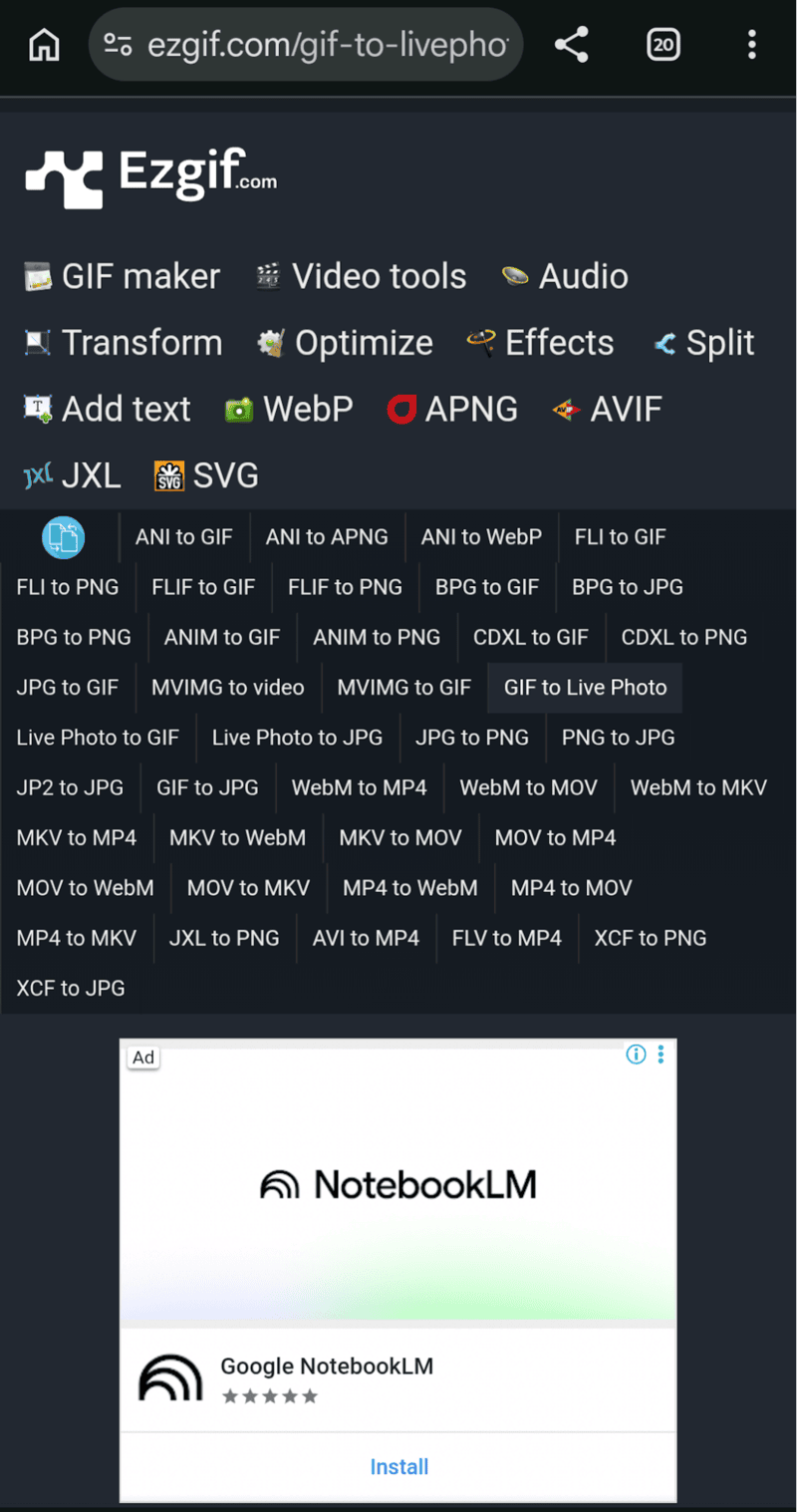
2. Now tap on GIF to Live Photo.
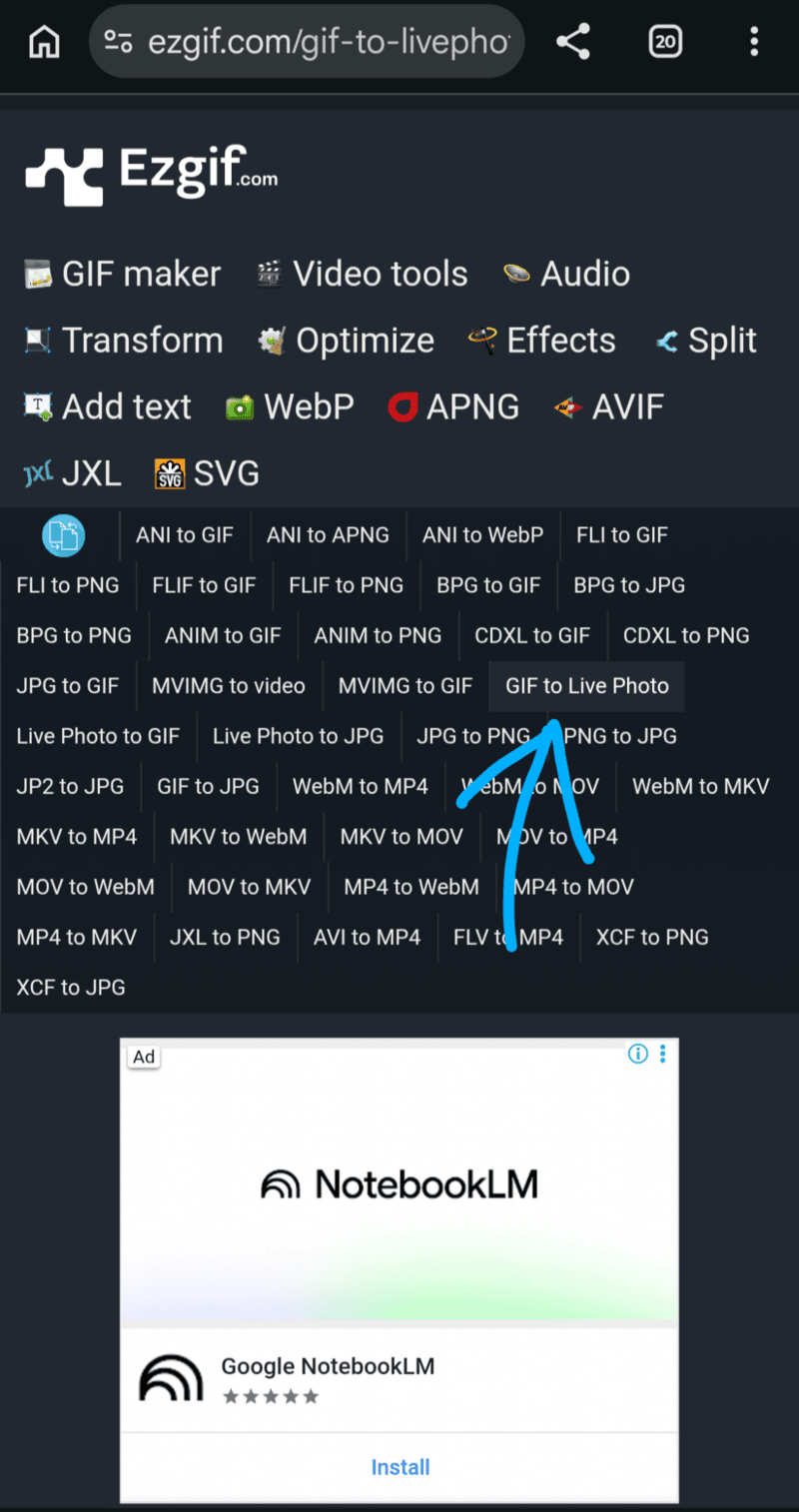
3. Scroll down, and you will see the option to upload the GIF file you want to convert into a Live Photo.
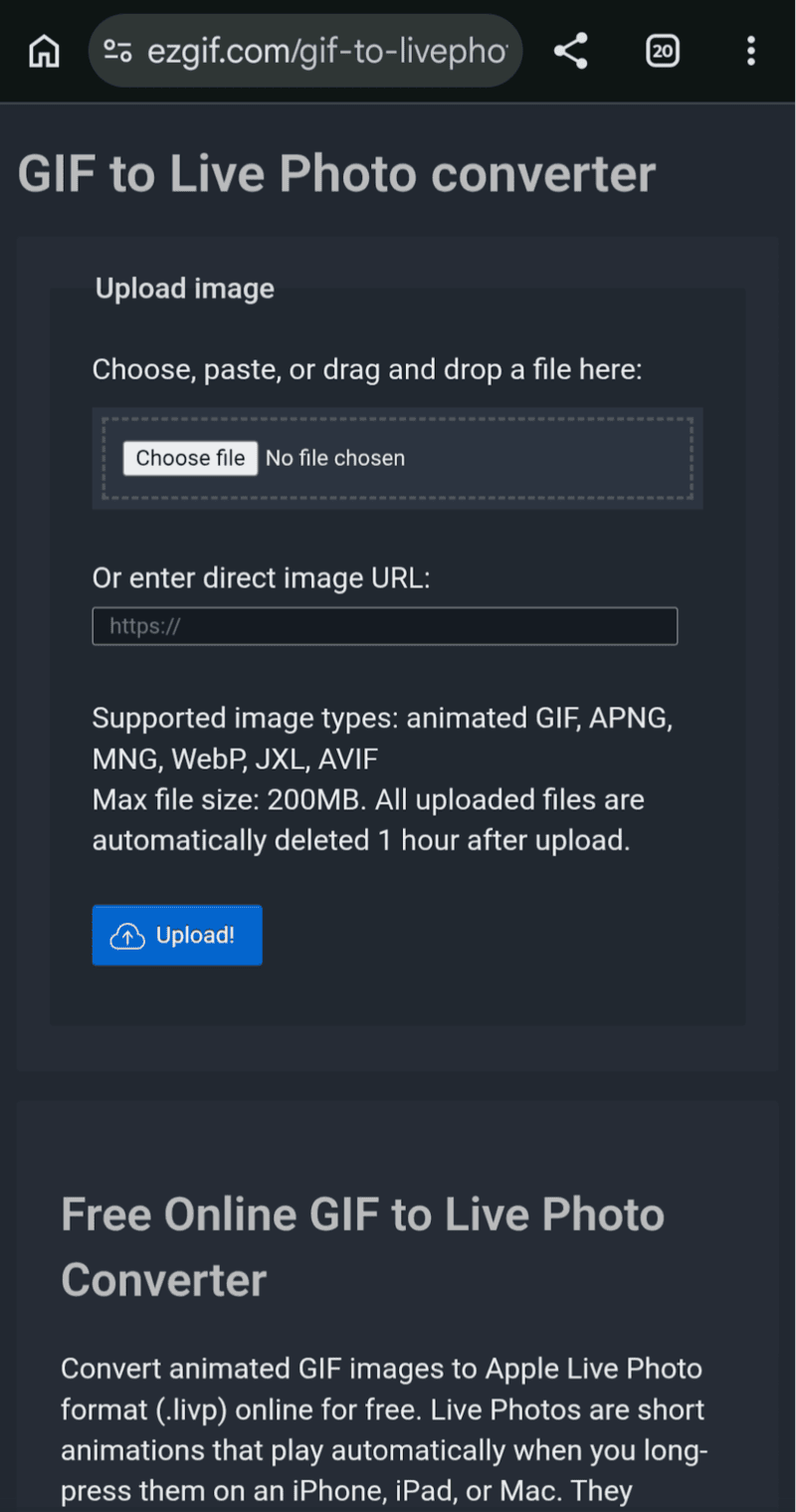
4. You can either choose a GIF file from your phone’s gallery or enter the file’s URL. After selecting the file, tap Upload.
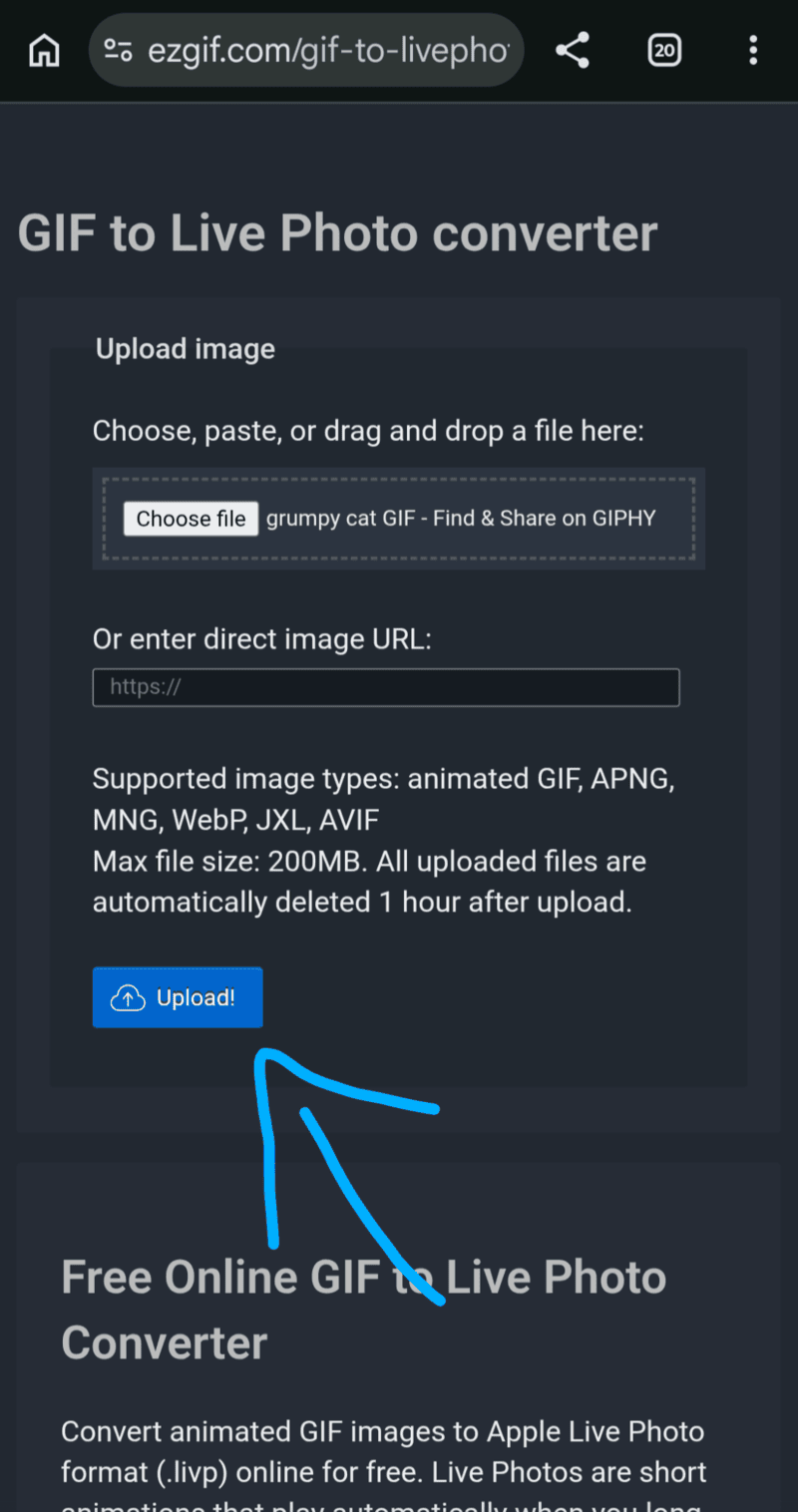
5. The file will be converted into a Live Photo, available for download within a minute, which can then be used as a wallpaper for your iOS device.
How to turn a GIF into a live photo using the WidgetClub site:
1. Open the site in your browser.
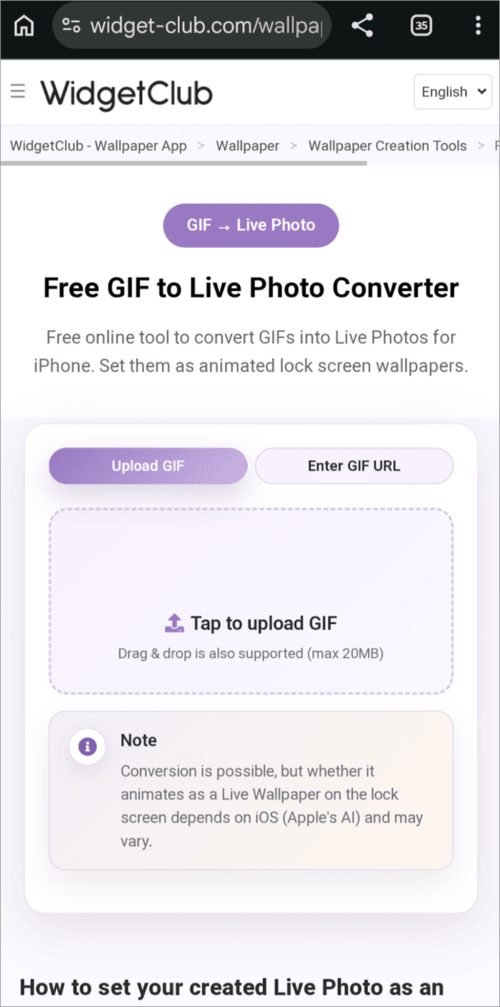
2. Now tap on the box where Tap to upload GIF is written
3. Choose a GIF from your phone’s gallery
4. Tick the Terms of Use box, and select the option Convert to Live Photo.
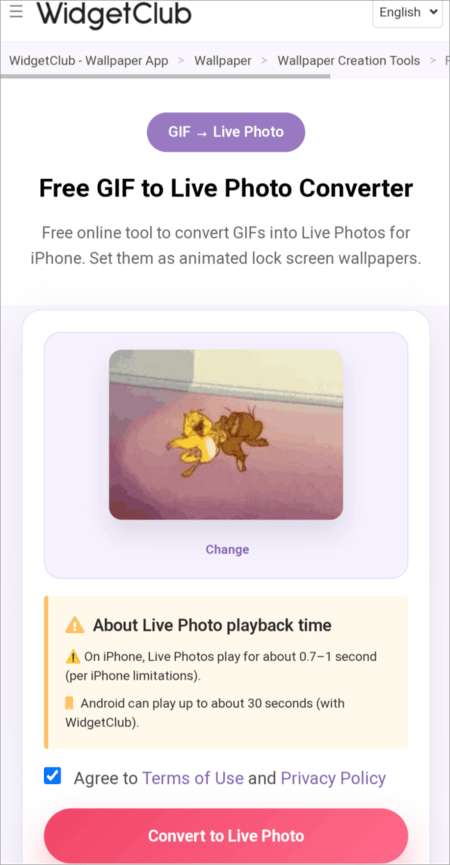
5. Now you will see a preview of your Live Photo. You will need to download their app to save the converted Live Photo.
Pros and cons of this method
| Pros | Cons |
|---|---|
| Easy-to-use, beginner-friendly method | Contains ads. |
| Quick results | May not work for all GIFs (if the file type is not supported) |
| No need to download an app. (You would need to download the app to save the file from the WidgetClub site). | You should not use this method if the file contains private, sensitive information. |
| Free for unlimited use. | The result may contain a watermark. |
| Supports animated GIF, APNG, MNG, WebP, JXL, and AVIF file formats. |
Method #2: Use an iPhone App From the App Store
You can use one of the following apps for this purpose:
#1) Convert: This app is known for comprehensive converting options and formatting tools. This GIF to Live Photo and Live Photo to GIF app has 4.8/5 stars on the App Store. Here is the step-by-step guide for converting a GIF into a Live Photo using Convert.
1. Download the Convert app from the Apple App Store.
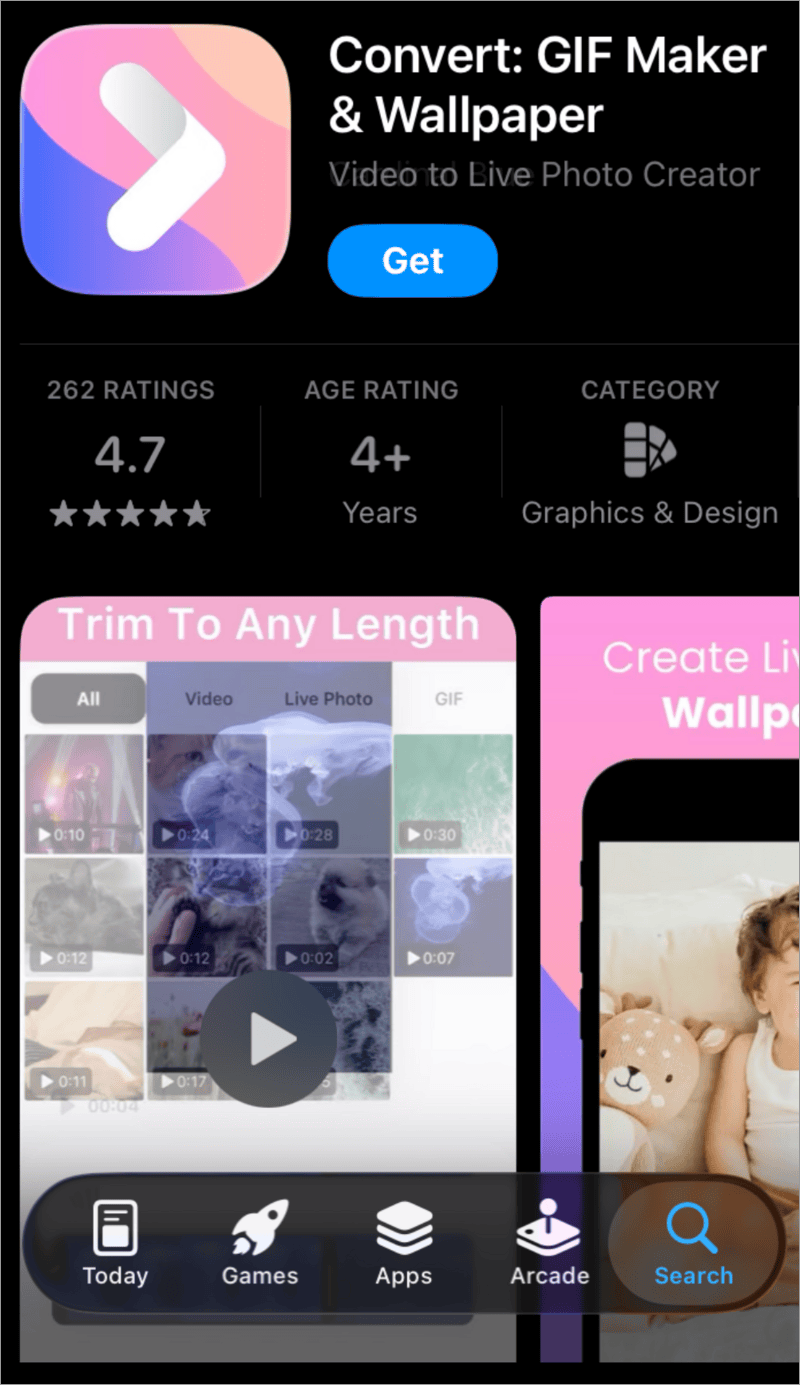
2. Open the app once installed. It will open your phone’s gallery.
3. Tap on the GIF tab
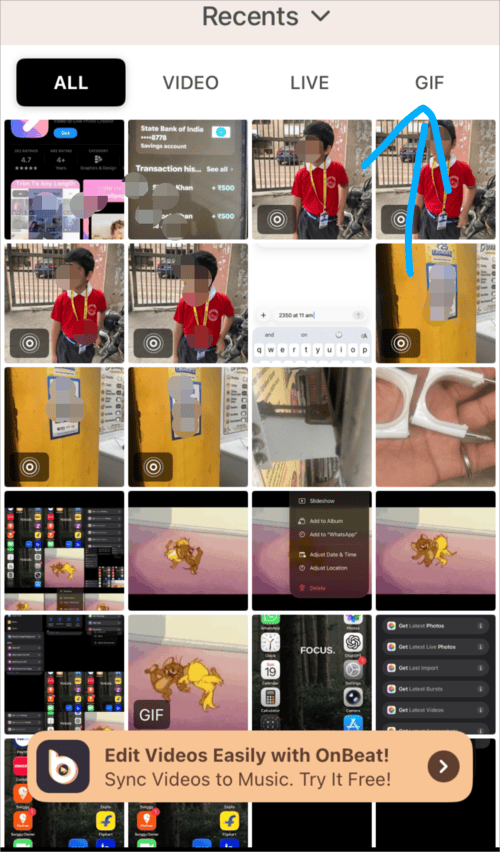
4. Now tap on the GIF that you want to convert.
5. Now you either trim your GIF or change its speed.
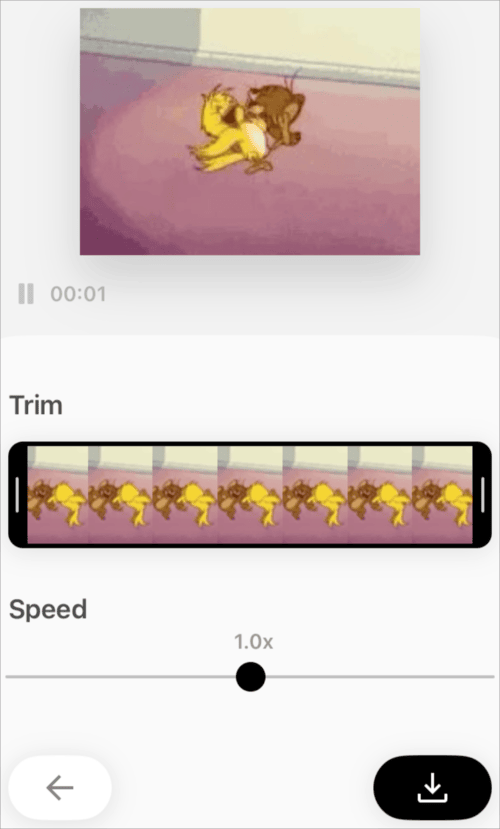
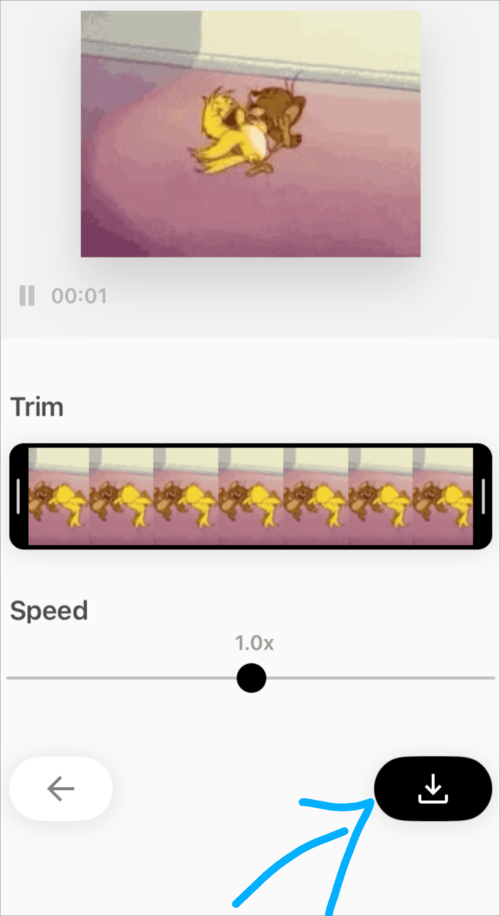
6. Once done, tap on the download icon.
7. Under the Save as heading, choose Live Photo. You can also select the resolution for your Live Photo from here.
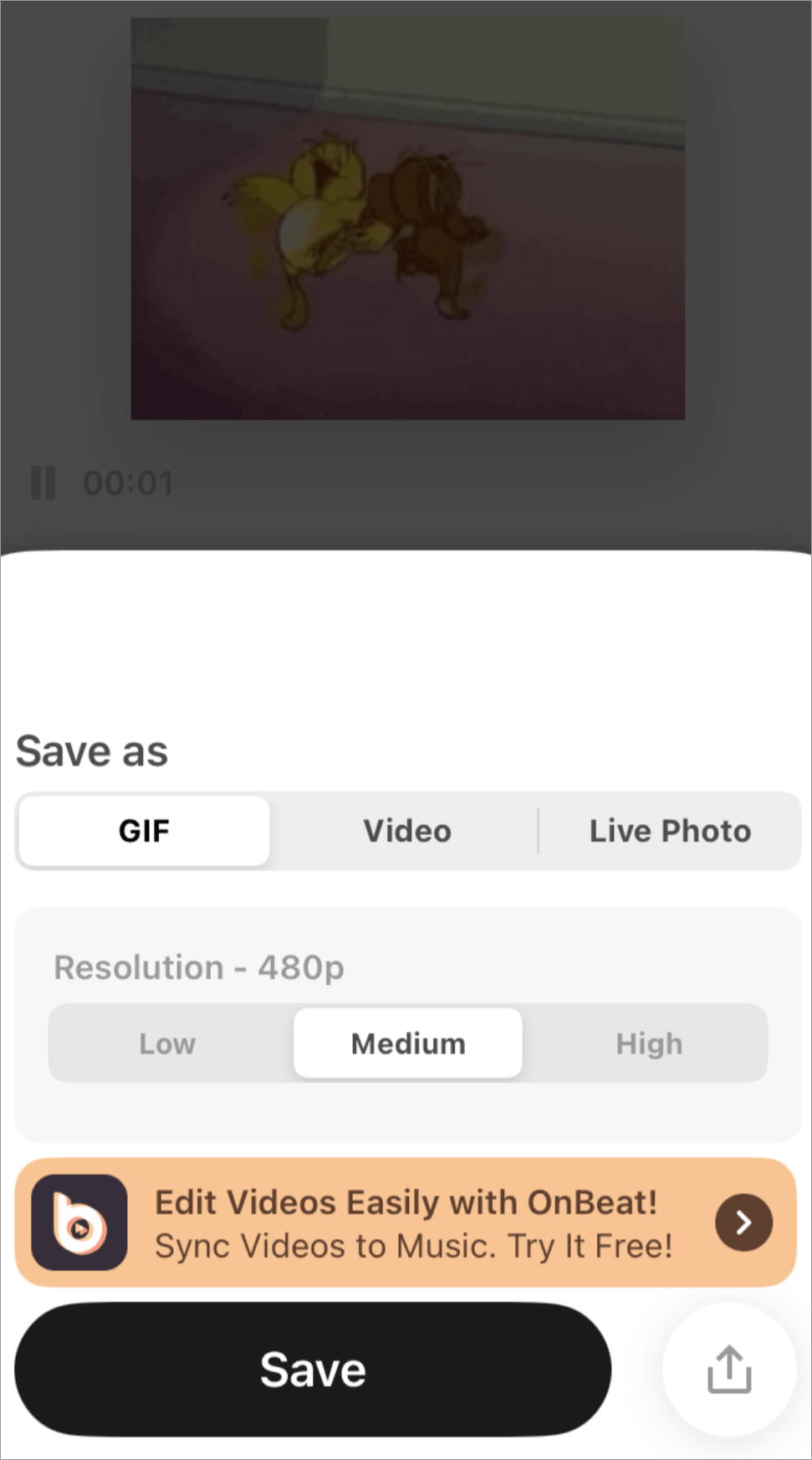
8. Once done, choose Save or tap on the Share icon if you want to export the Live Photo.
Website: https://apps.apple.com/us/app/convert-gif-maker-wallpaper/id1524913415
#2) Gifive: Another very useful and intuitive application available on the App Store for this purpose is Gifive.
You can convert a GIF into a Live Photo using Gifive using these steps:
1. Download and open the Gifive application on your iPhone
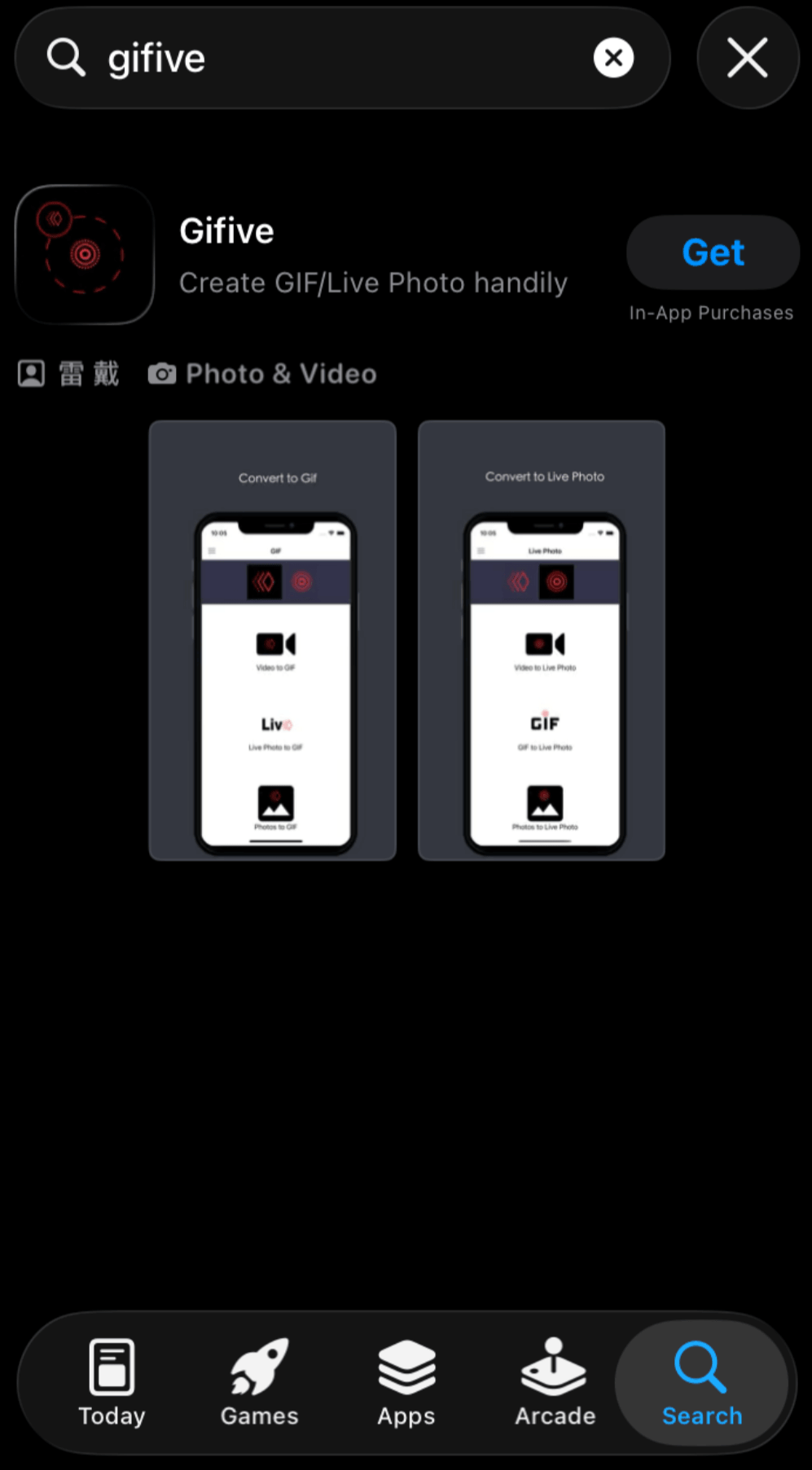
2. Tap on this icon to get options for converting files to Live Photo format.
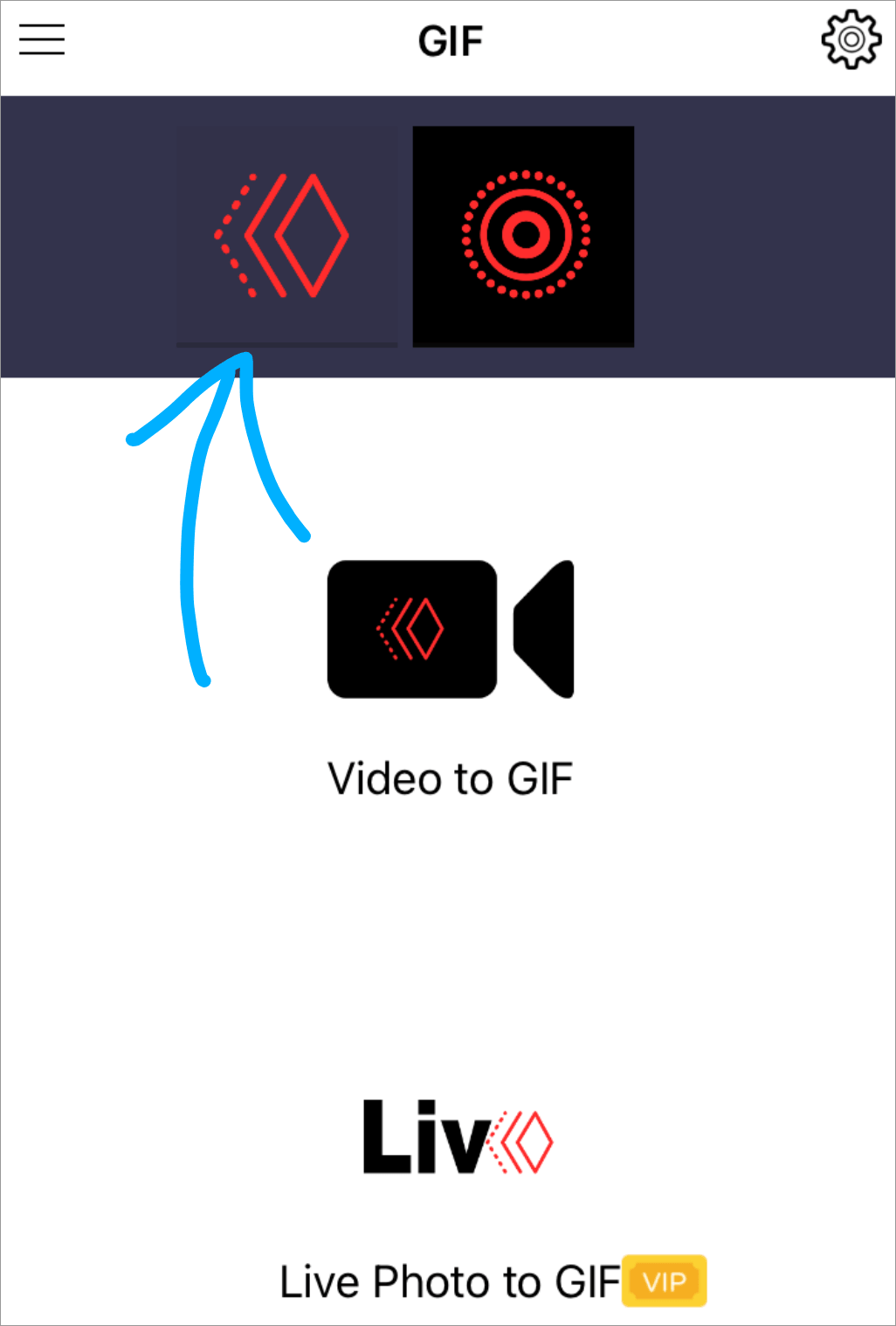
3. Now select the GIF to Live Photo option.
4. You will be prompted to buy a subscription. You can choose a plan or tap on Cancel.
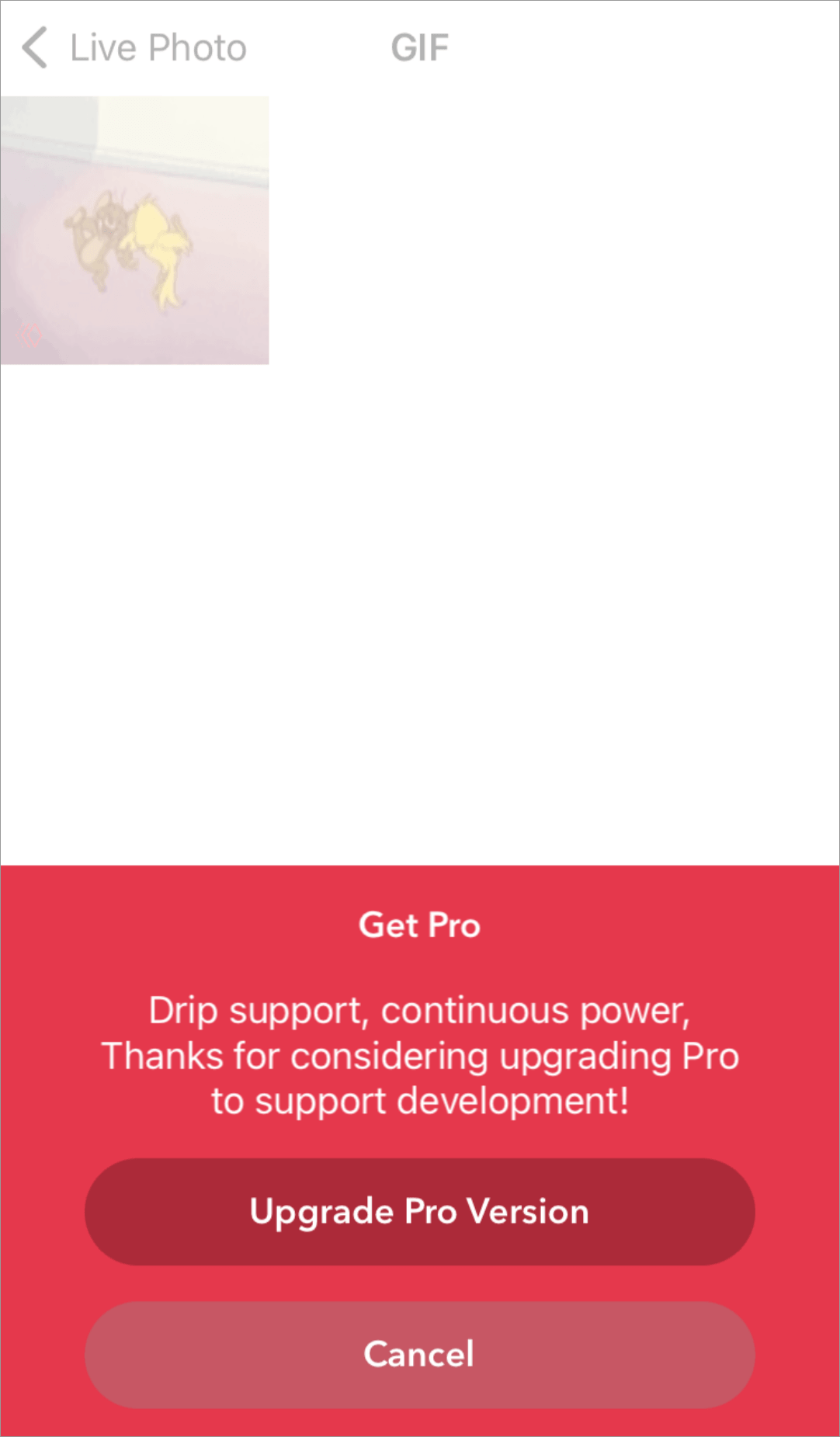
5. Now tap on the GIF you want to convert.

6. You will get your Live Photo generated in a second!
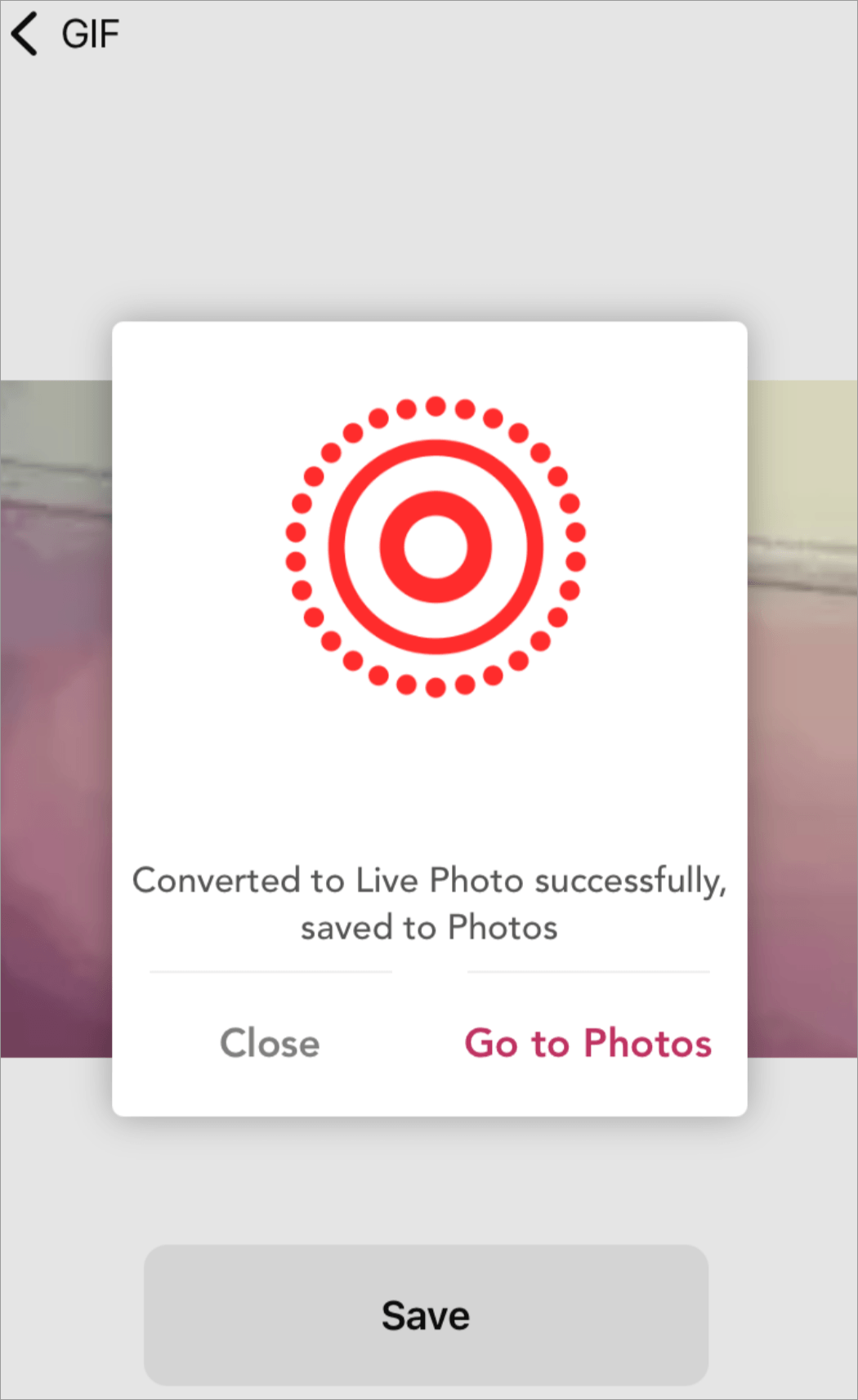
7. You can go to Photos to check if it animates. Let me tell you, I got a good quality result.
Website: https://apps.apple.com/us/app/gifive/id1448679508
[via videoconverter]
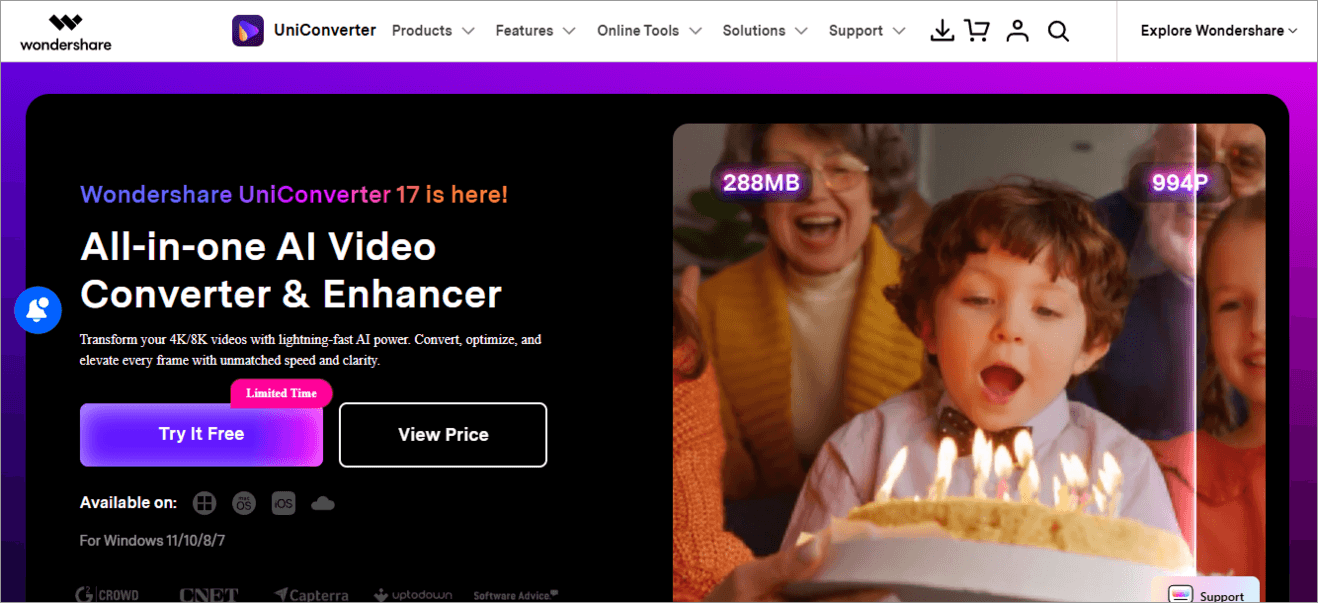
Here are the steps to use Wondershare UniConverter on your Windows PC for converting GIFs to Live Photos in batch:
1. Install the Wondershare UniConverter application on your PC.
2. Once installed, you will see its Home page.
3. Click on Online Tools
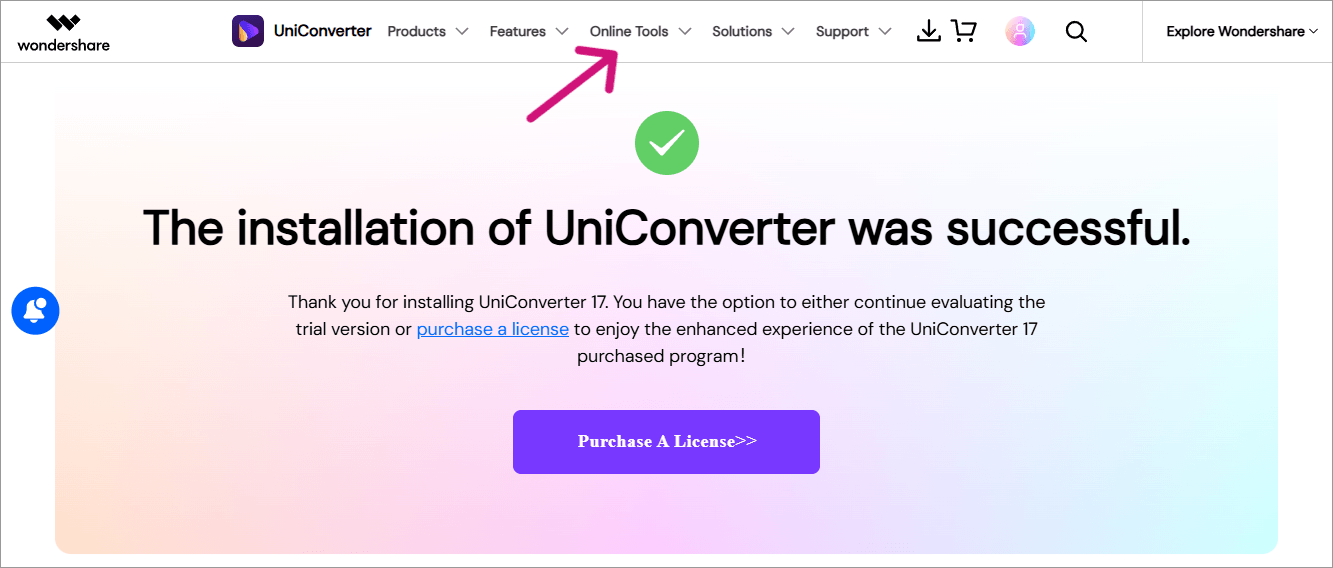
4. Now you will see the options below:
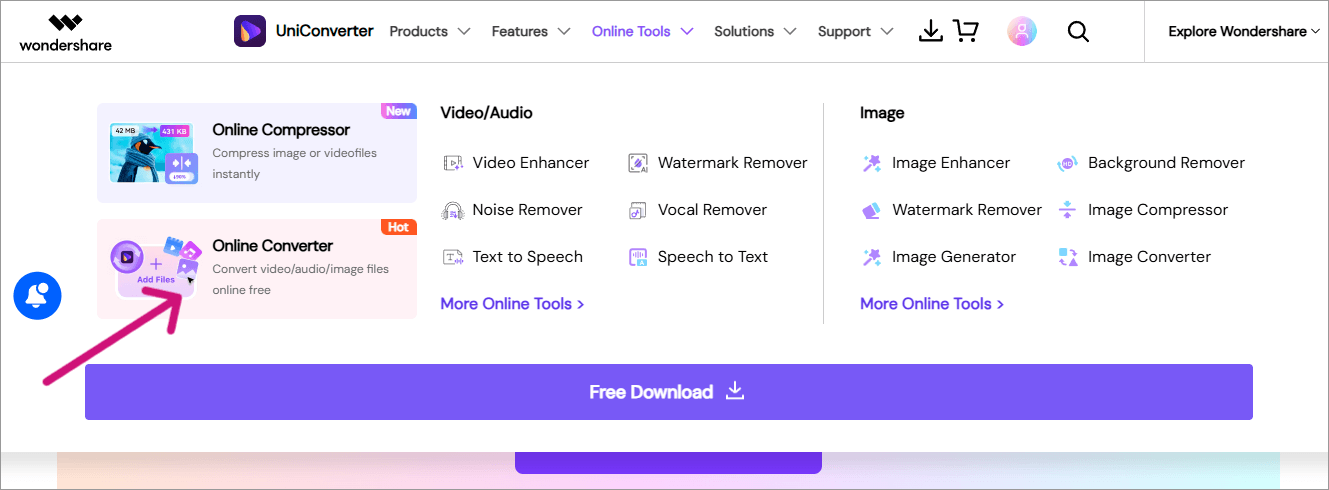
5. Select Online Converter.
6. Now click on Add file as shown below. Since you are using the free trial, you can use this feature a maximum of 3 times. The maximum file size allowed is 50 MB.
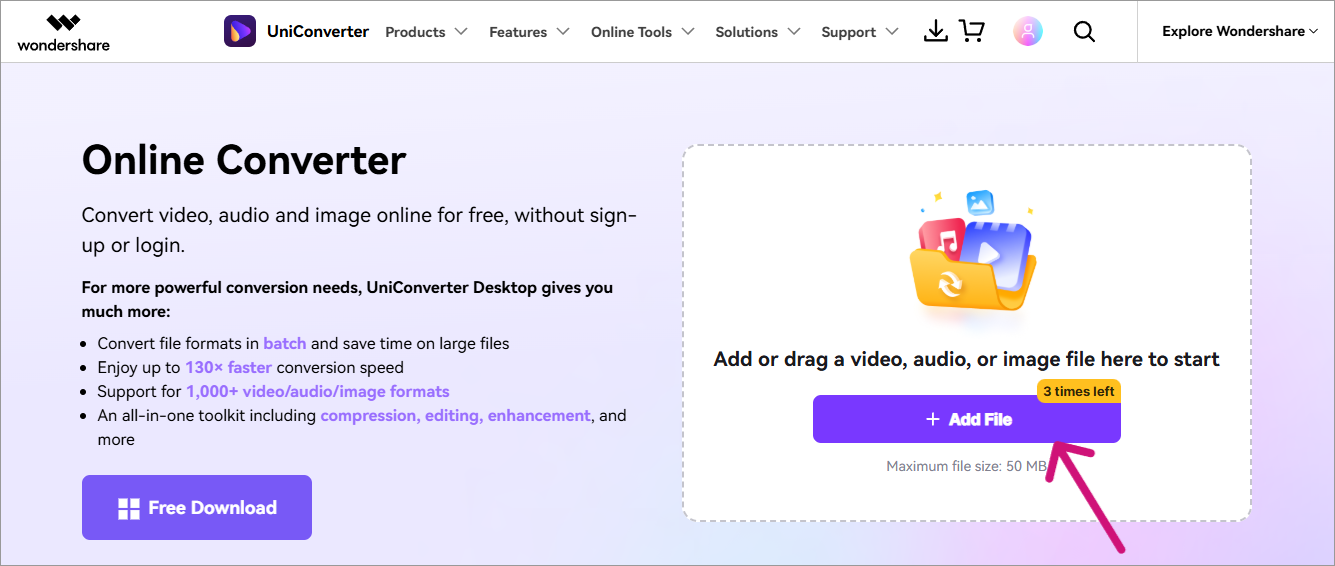
7. Once uploaded, click on the box next to Convert to for choosing the output file format.
8. Choose MOV.
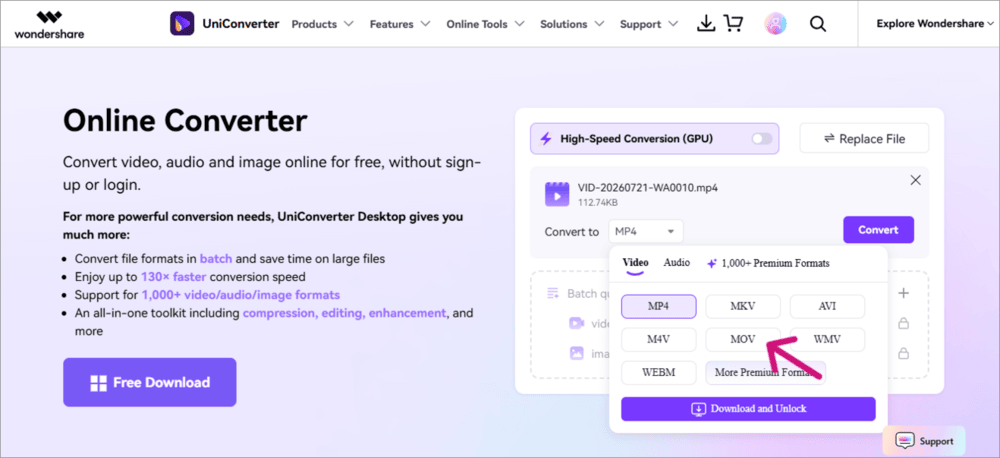
9. Now click on Convert.
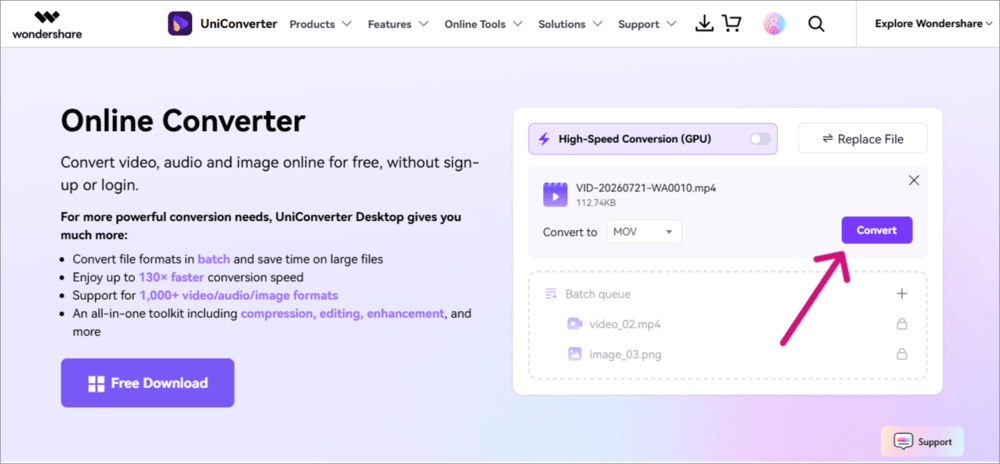
10. The GIF will then be converted into MOV format, which is required for Live Photos. Once the file converts, the system will notify you. Click on Download File.
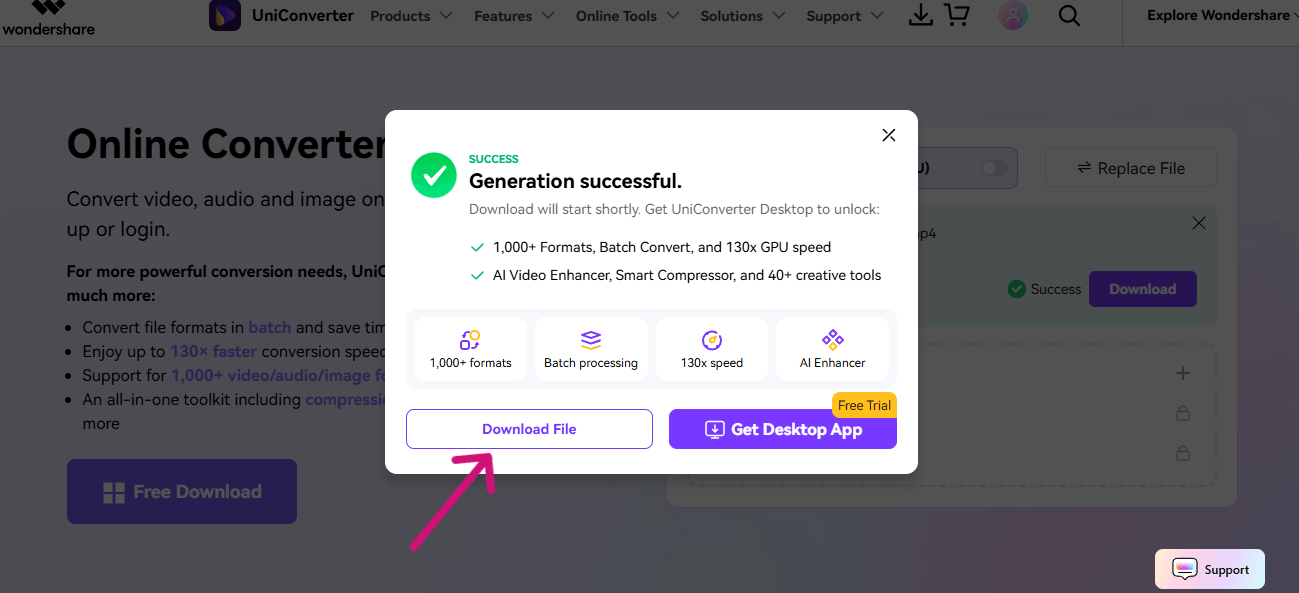
11. The file will then be downloaded and saved on your PC.
Now have a look at this comparison table for quick information about all the above-stated methods for converting a GIF into a Live Photo.
| Method | Why you should choose this method | Demerits of this method |
|---|---|---|
| Online platform | • Gives quick results • No need to download an app. (Some sites may instruct you to download the app for saving the converted file). • Easiest method • Beginner friendly | Free sites contain ads and deliver results with a watermark. Plus, some sites can be a threat to your privacy. |
| Apps from App Store | • You get a number of features along with the converter- for example video trimming and editing. • You will get good quality results • Easy to use | • You will need to download the app first. • You would need to buy a subscription for advanced features. |
| Batch conversion on Mac and PC using Wondershare UniConverter | • Suitable for professional video editors and content creators. • Provides good quality results • You get a good range of features. | You must be having a PC, and the application for conversion. Plus, the batch conversion feature is not available for free. |
Which GIF to Live Photo Method Is Best?
| Method | Best For | App Required | Editing | Privacy | Cost |
| Online converter | Fast conversion | No | Basic | Varies | Free/Paid |
| iPhone app | Editing | Yes | Advanced | Varies | Free/Paid |
| Desktop software | Batch conversion | Yes | Advanced | Better | Free/Paid |
Can Android users do this too?
The Live Photo feature is not available on Android phones. If you export a Live Photo to an Android device, it will look like a mini video.
But Android users can still use the online applications to convert a GIF into a Live Photo. Plus, they can also use third-party apps from the Google Play Store for converting GIFs to videos, Live Photos, and more.
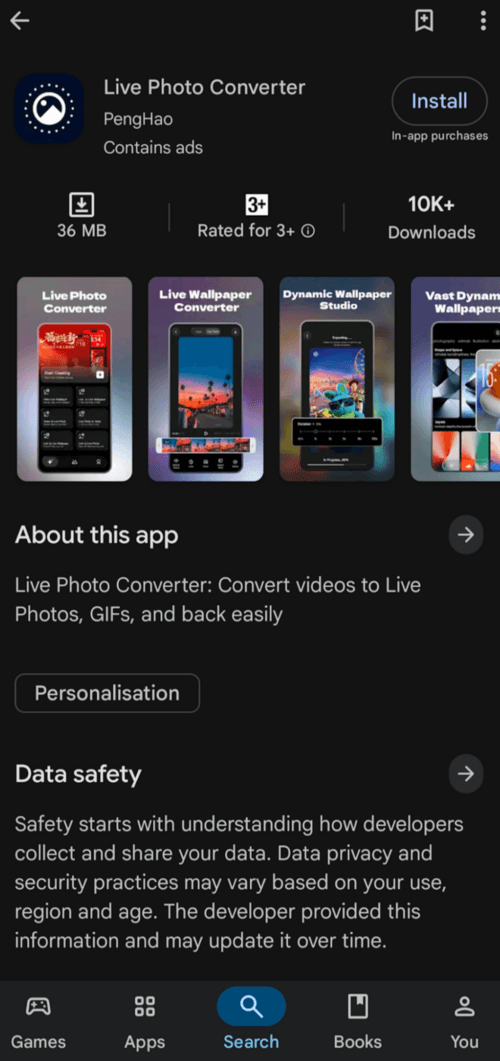
Live Photo Converter app available on the Play Store can be used for this purpose.
How to Set a Converted GIF as an iPhone Live Wallpaper
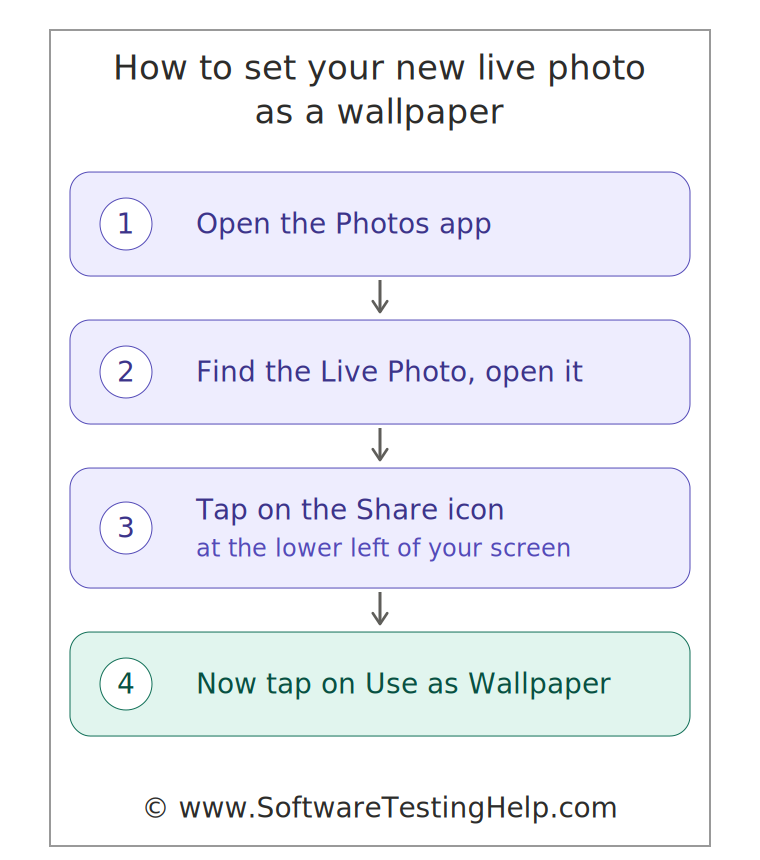
To set your Live Photo as a wallpaper on your iPhone, follow these steps:
1. Open the Photos app
2. Find the Live Photo and open it.
3. Tap on the Share icon located in the lower left corner of your screen
4. Now tap on Use as Wallpaper
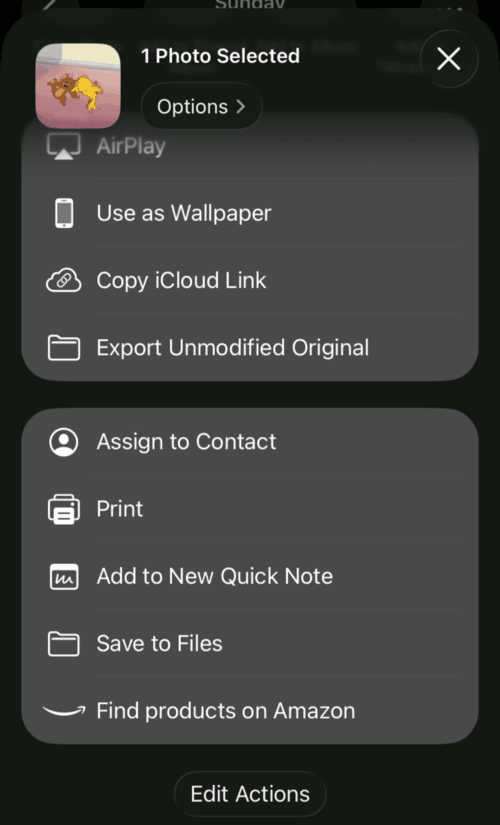
5. Select Set as Lock Screen.
Why Is My GIF-to-Live-Photo Conversion Not Working?
If the Live Photo is not animating on conversion, then:
- Go to the Photos app, open the Live Photo, and long-press it to check whether it’s working or not.
- Make sure you have selected a Live Photo for wallpaper and not a photo.
- The GIF may be too long. Try trimming it and see if it works.
- Make sure you are using an iPhone and not an Android device. Live Photos are compatible with iOS devices.
- Your device may run on Low Power mode, due to which automated animations would not be working.
How to Convert GIF to Live Photo Without Losing Quality
Conversion of GIF to Live Photo without quality loss requires the same FPS and resolution. Third-party applications carry out this task without using any compression.
Fast Solution: You need to download and install the applications GIPHY or intoLive and convert your GIF to Live Photo by using “Convert to Live Photo” option.
Steps to Use GIPHY Application (Preferable Method)
- You need to download GIPHY application from the App Store.
- You can either import your GIF into the app or find it on their platform.
- Tap three dots (… ) on the top right corner.
- Tap “Convert to Live Photo”.
- Tap “Save as Live Photo (Full Screen)”.
Steps to Use intoLive for a Customized GIF
- You need to download intoLive from the App Store.
- Photos access should be granted, and you select your GIF from the gallery.
- Set the canvas frame size to avoid deformation of the photo.
- Tap “Make” in the top-right corner.
- Tap “No repeat” (or specify the number of loops), then “Save Live Photo”.
Requirements to Maintain the Visual Quality
- Use “Full Screen” or “Fit” to avoid stretching.
- Use High FPS rate. Free online converters usually reduce FPS to 10-15.
- High Original GIF Quality.
How We Tested These GIF to Live Photo Converters
To find the best approaches to converting GIFs to Live Photos without image degradation, we assessed several applications and online converters available in iOS through the following main performance criteria:
- Resolution retain rate: Output file size and dimensions were compared to the initial GIF file to see whether any downscaling or pixel stretching took place
- Frame Rate (FPS): It was ensured that high FPS GIFs (24-30 FPS) did not experience frame loss or lag during the process of conversion.
- Format integrity: Conversion was tested to produce native iOS HEIC/MOV Live Photo pair for wallpaper.
- Compression artifacts: Color depth, contrast and edge sharpness were checked to verify if there was any distortion after the conversion process. These tools were tested by using identical sample files (low resolution pixel art GIF, high definition GIF with 60 FPS and heavy camera clip) on iOS 17 and 18.
Frequently Asked Questions
1. How do I turn a GIF into a live photo?
To turn a GIF into a Live Photo, you can use one of the following methods:
• Use an online website like Ezgif. To convert a GIF into a Live Photo, just open the website, upload your GIF, and tap on Convert. You will get the result within seconds. This is the quickest method for converting a GIF to a Live Photo.
• Use a third-party app from the App Store. Many apps that can be used for this purpose. They are beginner-friendly and offer many more useful features for audio and video editing and conversion.
• Use Wondershare UniConverter for batch processing of GIFs. This application can be used on your Mac or PC for batch conversion of GIFs.
2. How do I save a GIF to my iPhone Photos?
If someone has sent you a GIF on WhatsApp, but you can’t find it in your Photos app, then:
• Long-press the GIF
• Select Save.
If you like a GIF on the web, then:
• Long-press the GIF
• Select Save Image or Save to Photos.
3. How do I save a GIF so it plays?
To save a GIF that plays, right-click on the GIF in your browser, then
• Click on Open image in new tab.
• Now open the tab with the GIF and right-click on the GIF.
• Now select Save image as.
• Check that the file format ends with .gif and then select Save.
4. Can I turn a non-live photo into a live photo?
Yes, this can be done using a third-party app. There are many apps like Gifive and Convert available on the App Store that offer several file conversion as well as editing options. And most of these apps are beginner-friendly and available for free.
5. How do I make my photos automatically live?
You can take Live Photos on your iPhone by following these steps:
• Open the phone’s Camera
• Set the Camera to Photo mode
• By default, all photos are clicked in Live Photo format.
• Now click a photo, go to the Photos app, open the last photo, and long-press it to check whether it animates or not.
If the photo doesn’t animate, you have switched Live Photos off in the Camera settings.
Check this setting by following these steps:
– Open Camera
– Make sure the Camera is in Photo mode
– Tap on the 6-dot icon
– Now tap on Live
– Select Live on.
Conclusion
I must say, mobile phone companies constantly look for ways to make our day-to-day tasks easier. Today, you can download several free apps for getting your tasks done within seconds. This article focuses on providing solutions for how to save a GIF as a Live Photo.
Converting a GIF into a Live Photo can be done on your iPhone (or Mac/PC) using various methods, namely:
- Using an online website
- Using a third-party app
- Using a batch converter for Mac/PC
We tried converting our GIFs using all of these methods, and look what we have found:
- The quickest method is the Online Converter.
- Wondershare UniConverter is best for content creators who want to convert GIFs or Videos in a batch.
- For best editing controls, you can use a third-party app on your iPhone or Wondershare UniConverter on your Mac or PC.
- For best quality results, use a third-party application. They let you choose the quality of the output file.
Research Process: The total time involved to complete and publish this article is approximately 42 hours. This content was created through a structured research approach to ensure accuracy and reliability.
For more related guides, you can explore our range of tutorials below:
- The 14 Best Free Online Image Resizer Tools
- 16 BEST Meme Generator Apps: Online Meme Maker/Creator Apps
- Top 10 Photo Viewer For Windows 10, Mac And Android
- Free Online SVG Converter to Convert PNG/JPEG to SVG
- The Top 10 Free Video Converter Software [SAFE & FAST]
- Free AVIF to JPG Converter Online (Fast and Secure)
- How to Convert and Save WebP to JPEG File Format Quickly
Was this helpful?
Recommended Reading
-

Detailed Review & Comparison of The Top Photoshop Alternatives. Select The Best Alternative To Photoshop From This List Based on Your Requirements & Budget: Image editing, graphic designing, and digital arts are modern time skills to engage the audience with tempting artistic content. Many people love portrait and landscape designs,…
-
This tutorial explores the top Image Hosting Sites with features and other factors. Select a free or paid Photo Hosting Site for your requirements: Image Hosting Site is the service provided by the companies to upload the image on the server so that it can be displayed online. It will…
-
Edit and enhance your photos effortlessly with apps similar to Cutout Pro. Pick the best Cutout Pro Alternative with powerful features to revolutionize the world of image & video designs: Are you looking for an app like Cut Out Pro? Go through this article to find reviews about the top…
-
Quickly learn How to Make a Video with Pictures from this exclusive list of Photo Video Makers and create splendid videos as per your needs Photos and videos are our way of immortalizing our memories. They can tell stories, be it yours or your brand’s. They are one of the…