Remove any sticker on your Snapchat snaps with our exclusive guide. Discover the quick and easiest methods to delete stickers on Snapchat, both from iPhone and Android, in just a few taps:
As far as social media platforms go, Snapchat is one that just exudes unbridled fun. Stickers are just one of the many aspects that make it a joy to use. You can use the provided stickers or create your own to add personality to your snaps. That said, these stickers don’t work all the time.
Sometimes, you might add a sticker only to then regret the decision after witnessing the abhorrent result. At times, a sticker might just end up making your snap or picture look aesthetically ugly. Thankfully, adding a sticker to your snap isn’t the same as writing something in stone.
Can You Really Delete Stickers on Snapchat?
Yes! You can quickly and easily remove the sticker before sending off your Snaps.
Just follow these simple steps:
- Touch and hold the sticker to be removed.
- Drag that sticker to the bottom of your screen.
- A trash can icon (the trash can) will appear; drop the sticker into the trash can.
- As soon as you drop your sticker in the trash can, it will be gone.
If you already sent a Snap with the sticker, then Snapchat does not allow you to change it. You will have to delete the Snap and resend it without the sticker.
Tip: Before hitting send, check that your stickers are in the place where you want them to be, this way you won’t have to go through all these steps! Just view your Snap in the preview window!
Remove Unwanted Stickers on Snapchat in Minutes
You can easily remove or delete any applied sticker, and my job with this article would be to show you how.
So, without much further ado, let me show you how to delete stickers on Snapchat without breaking a sweat.
Here is the video guide on how to delete Snapchat Stickers on iPhone and Android:
What You Need to Know Before Deleting Stickers?
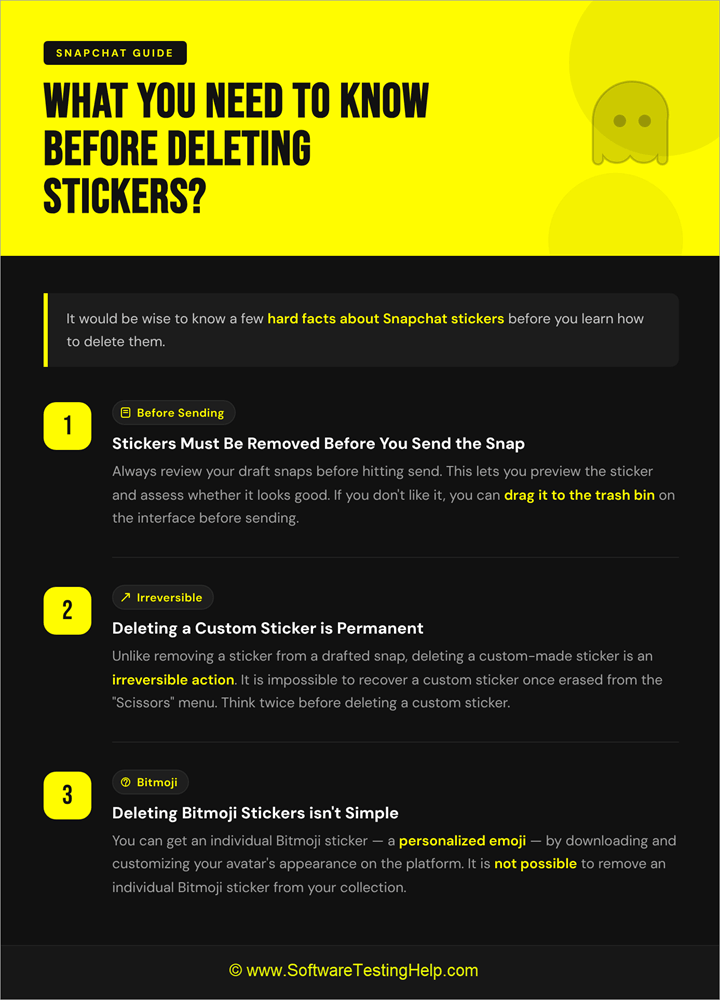
I think it would be wise to know a few hard facts about Snapchat stickers before you learn how to delete them.
#1) Stickers Must be Removed Before you Send the Snap
It is always wise to review your draft snaps before you hit the send button. Doing so will let you preview the sticker being used on a snap and assess whether it looks good. If you don’t like the added sticker, you can drag it to the trash bin on the interface. I’ll show you how to do this later in the article.
#2) Deleting a Custom Sticker is Permanent
Unlike the sticker you erase from a drafted snap, deleting a custom-made sticker is an irreversible action. It is impossible to recover a custom sticker once you’ve erased it from the “Scissors” menu. My advice would be to think twice before you decide to delete a custom sticker.
#3) Removing Bitmoji Stickers isn’t Simple
You can get an individual Bitmoji sticker, which is simply a personalized emoji, by downloading and customizing your avatar’s appearance on the platform. It is not possible to remove an individual Bitmoji sticker.
The only way to remove these types of stickers from your menu would be to unlink your Bitmoji account, which will result in any sticker associated with your avatar being removed, as well.
How to Delete a Sticker From Snap Before Sending
It is very simple to delete a sticker from any snap that hasn’t been sent already. You are free to edit a draft-snap to your heart’s content. This means you can have any sticker removed or added to the snap with ease.
Here’s how you can remove an undesirable sticker from a snap:
1. On the snap, press and hold the sticker that you wish to erase.
2. With your fingers holding the sticker, you’ll see a small trash can appear on the screen.
3. All you have to do now is drag the sticker to this trash can.
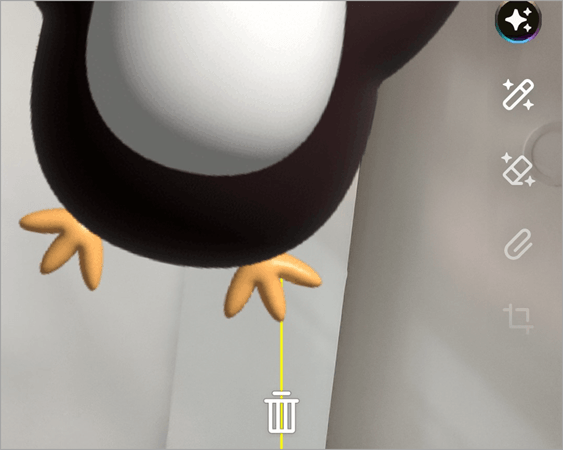
4. Release your finger once the sticker reaches the trash can.
Just like that, you’ve removed a sticker from your snap before sending it.
Steps to Remove Stickers from a Saved Snap
There are two ways to save a snap on your Android or iOS device. It could be saved in Snapchat’s memories, or it could be saved on your phone’s image gallery. It is possible to remove stickers from a saved snap if it is saved in Snapchat’s memories.
Snaps saved in the “Memories” section are entirely editable, thus making it easier to erase any stickers on them.
Here’s how you do it:
1. Select “Memories”. You’ll find this option right next to the camera shutter.
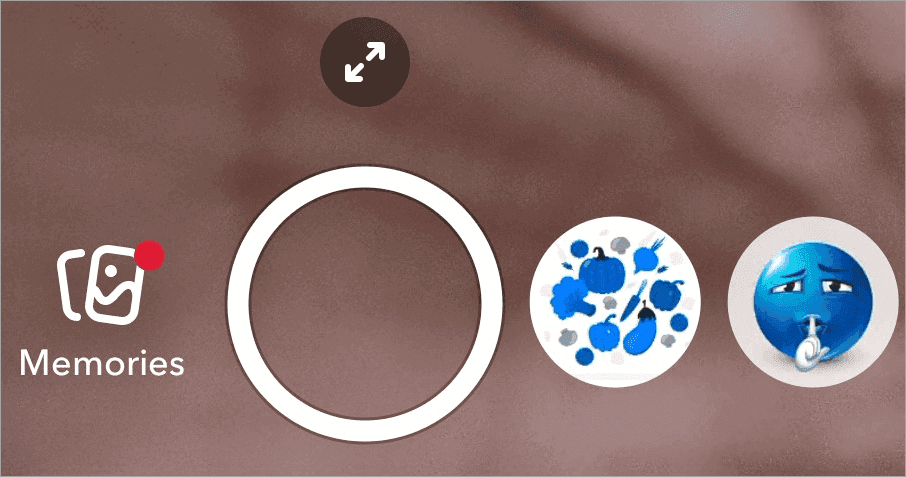
2. From “Memories”, select the snap you wish to edit.
3. Tap on the three dots displayed on the top-right corner of your screen.
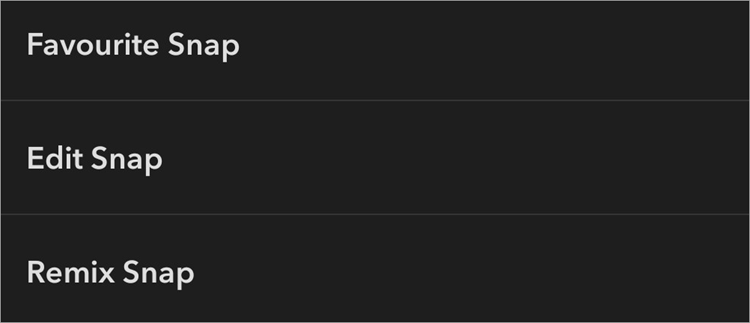
4. From the menu, select “Edit Snap”.
5. Now, simply hold the sticker you wish to remove and drag it to the appearing trash can.
It is that simple. Note that editing a saved snap is only possible if it can be found in your Snapchat memories. Snap’s saved on your phone’s gallery can’t be edited this easily. If you must edit them, your best bet would be to use a third-party image or video editing tool.
We now have AI-powered tools that can remove any sticker on a Snap saved natively inside your phone’s gallery. These tools are simple to use and will have the sticker removed within seconds.
In my opinion and experience, Adobe Firefly, Airbrush, and Picsart are some of the best AI-based tools you can use to delete a sticker on your Saved snap.
How to Remove Stickers from a Snapchat Video
Similar to Snapchat images, Stickers can be removed from a Snapchat video, provided you haven’t already saved it to your phone’s gallery. The process to delete a sticker remains the same. You tap on the sticker until the trash bin appears. You drag the sticker to this trash bin to delete it successfully.
If the Snapchat video has already been saved, your best bet would be to use third-party tools. AI-based tools like Picsart and Wondershare’s Filmora can help you with this.
Delete Custom Stickers on Snapchat: Easy Ways
Besides the stickers Snapchat features in its massive gallery, the platform also offers you the privilege of creating your own stickers.
You’ll find a tool called “Scissors”, which lets you create a sticker from scratch.
Here’s how you create a custom sticker:
1. Take a snap
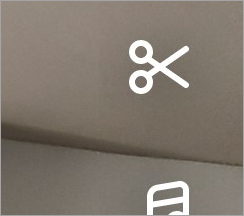
2. On the preview window, select “Scissors” from the right-hand side menu.
3. Highlight the object you want as a sticker with your fingers as shown below.
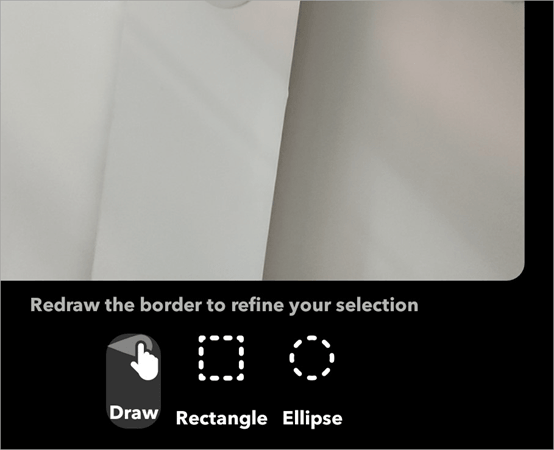
4. Lift your fingers once the object is outlined, and Snapchat will turn it into a sticker you can now use on your snaps.
Any sticker you’ve made with Scissors will be saved for later use in Snapchat’s gallery. If you want to remove this sticker, you’ll have to delete it from the saved gallery.
Here’s how you do it:
1. Open Snapchat and just hit the camera shutter to take a snap.
2. Tap on the “Stickers” icon on the right-hand side menu.
3. Select the “Scissors” menu to open a gallery that contains your custom stickers.
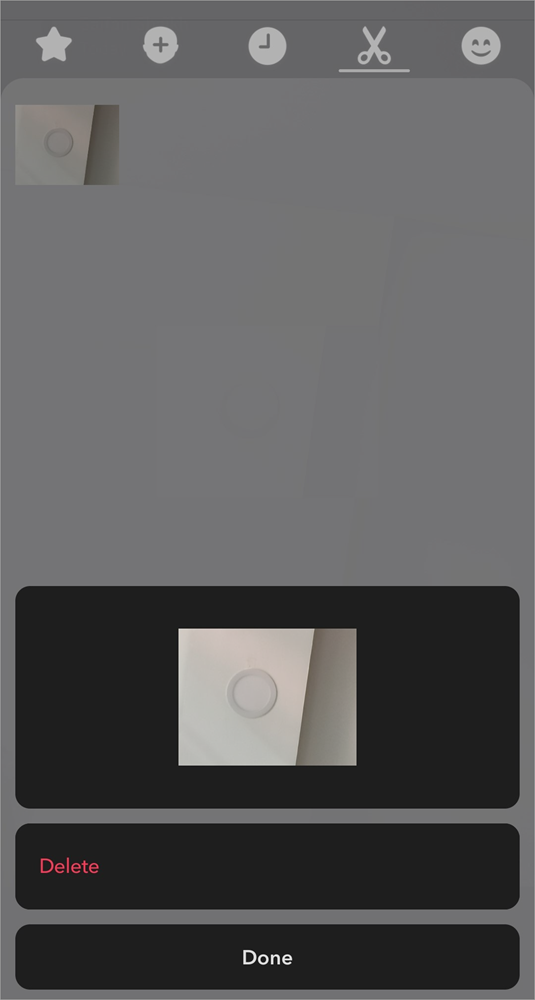
4. Press and hold one or multiple stickers until the option to delete them pops up on your screen.
5. Simply hit the delete button to delete this sticker.
Steps to Clear Recently Used Stickers on Snapchat
You can view all of your recently used stickers by following the steps below:
1. Open Snapchat and take a snap.
2. Select “Stickers” from the right-side menu on the preview window.
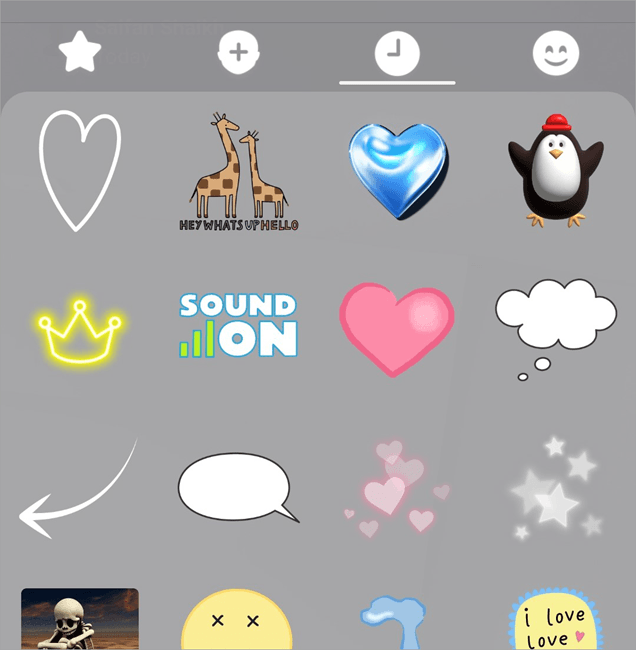
3. Now select the “Clock” icon to open a gallery that displays all of your recently used stickers.
Unfortunately, Snapchat doesn’t provide you with an option to clear this library. There are workarounds to this problem, though.
For starters, you could just keep using new stickers and have past stickers cleared automatically in the updated window.
Another way to possibly clear recently used stickers would be to clear the app cache.
Follow these steps:
- Open Snapchat, tap on your profile icon.
- Tap on Settings > My Privacy and Data > Clear Cache.
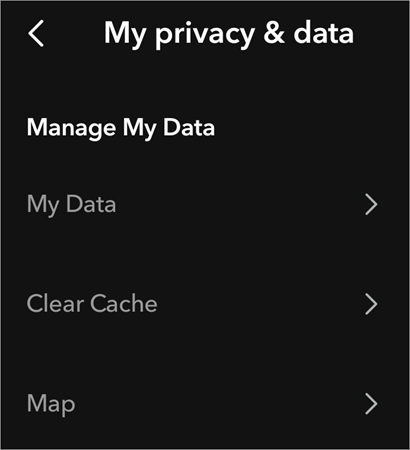
You can also have recently used and saved snaps erased from your Snapchat account by clearing its sticker search history.
- Go to Settings.
- Open Account Actions.
- Tap on Clear Data > Clear Sticker Searches.
- To make sure you leave no traces behind, tap on Clear Cache, as well. This will delete any cached stickers from your account.
-See if this does the trick. The results aren’t guaranteed, but this is still your best bet for clearing recently used stickers as of now.
How to Erase Bitmoji Stickers
Bitmojis are personalized emojis that you can use as a sticker. You get these Bitmojis by having your Snapchat account linked with the Bitmoji app. If you want to remove an individual Bitmoji from your Snapchat, that wouldn’t be possible.
The only way to remove a Bitmoji would be to unlink it from your Snapchat account.
Here are the instructions:
1. Go to Settings.
2. Scroll down to find the option to customize Bitmoji’s appearance.
3. Tap on “Unlink My Bitmoji”.
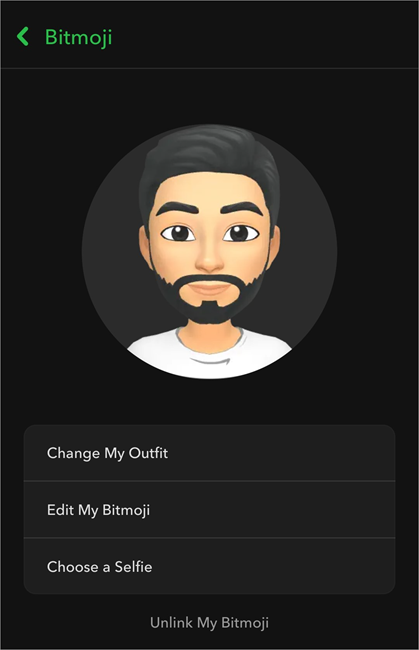
4. Tap again to confirm the “Unlink”.
This will remove all Bitmoji stickers from your Snapchat account.
Quick Ways to Delete Cameo Stickers
Cameos are highly personalized stickers that add so much-needed personality to your Snaps. Like any other sticker, you can change or completely erase them from your account.
Here’s how you do it:
- Open Snapchat and click on your Bitmoji
- Open Settings > Cameos
- Tap on Clear My Cameo Selfie and hit the Clear button again to confirm.
This will permanently remove the cameo sticker from your account.
How to Recover or Undo Accidentally Deleted Stickers
According to Snapchat, a sticker or memory once deleted is often hard to recover. That said, there are still things you can do to recover accidentally deleted stickers.
The first measure entails checking the recently used sticker library. I’ve already discussed this above. This will only work if you haven’t cleared your account cache or sticker history.
If you have cleared your account’s data, your best bet would be to place a request for your data to Snapchat’s team.
This is the process:
- Open Snapchat > Settings > My Data
- Select the data you would like to include in your data download.
- Select the date range.
- Confirm your email ID and click Submit.
- Snapchat will send you an email with a link once your data is ready.
Why Can’t You Delete Stickers in Some Cases
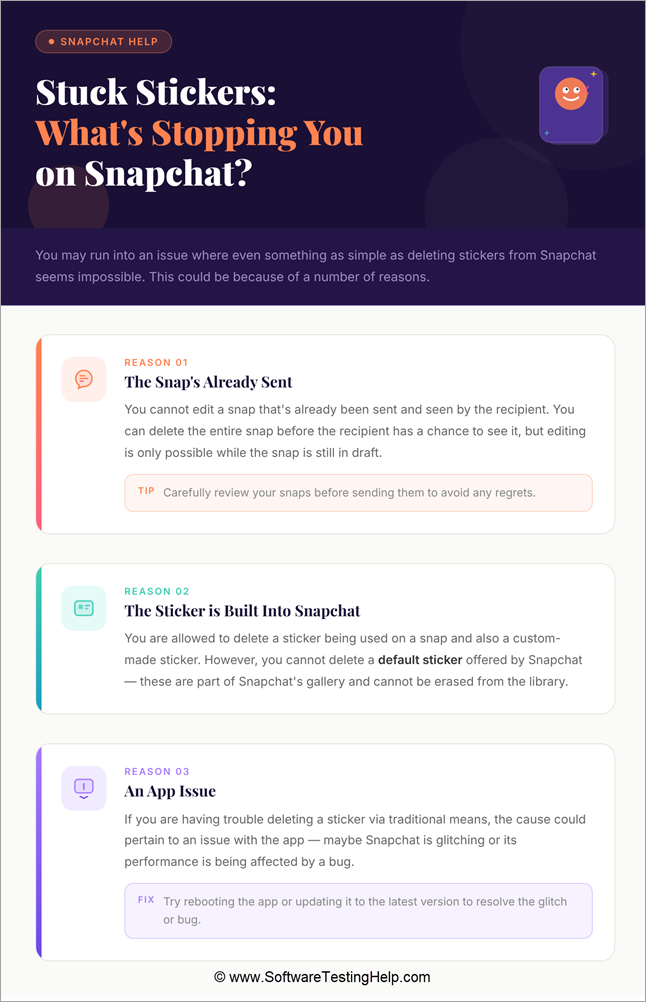
You may run into an issue where even something as simple as deleting stickers from Snapchat seems impossible. This could be because of several reasons.
#1) Snap is Already Sent
You cannot edit a snap that’s already been sent and seen by the recipient. You can delete the entire snap before the recipient has a chance to see it, but editing a snap is only possible if it is in draft. I would suggest carefully reviewing your snaps before you send them to avoid any regrets.
#2) Sticker is Built into Snapchat
You are allowed to delete a sticker being used on a snap. You are also allowed to delete a custom-made sticker. However, you cannot delete a default sticker that’s being offered to you by Snapchat. These stickers are a part of Snapchat’s gallery. You cannot just navigate to the stickers library and have them erased.
#3) App Issue
If you are having trouble deleting a sticker via traditional means, the cause could very well pertain to an issue with the app. Maybe the Snapchat app is glitching, or its performance is being affected by a bug. Both the bug and the glitch are issues you can solve by either rebooting the app or having it updated.
Frequently Asked Questions
1. Is there a way to delete stickers on Snapchat?
Yes, depending on the type of sticker you wish to erase, you have multiple options at your disposal to erase a Snapchat sticker. The simplest way to erase a sticker from your snap would be to hold that sticker with your finger on the screen and drag it to the trash can that appears.
To erase a custom sticker, you’ll need to open the Scissors menu, whereas to remove a Bitmoji sticker, you’ll need to unlink your Bitmoji account.
2. Where can I find my stickers on Snapchat?
You can find stickers to use on Snapchat by tapping on the flat rectangular icon displayed on the right side menu on the preview window. Tapping on that icon will open Snapchat’s sticker library. You can use the default stickers, check stickers you’ve recently used, or navigate to the menu containing custom-made ones.
3. How do I create my own custom stickers?
It is very simple to create custom stickers on Snapchat by using the “Scissors” feature. You start by first taking a snap of the image that features the object you want as a sticker. With the snap taken, tap on the “Scissors” icon on the right.
Now outline the object you wish to have as a sticker with your fingers. Release the fingers once you are done outlining. That outlined object will automatically turn into a sticker. You can use it again by navigating to the “Scissors” menu in the “Stickers” section.
4. How do I save a sticker I made on Snapchat?
Any sticker you create on Snapchat is automatically saved in the Scissors menu within the Stickers gallery. No additional effort is required from your side.
5. How to download stickers on Snapchat?
Downloading stickers isn’t a standard feature on Snapchat. You can create a custom sticker from a snap. You can also add new stickers to your Snapchat by keeping the app regularly updated.
6. How do I delete stickers on Snapchat on Android and iPhone?
Deleting stickers on Snapchat on an Android and an iPhone is very simple. If you are editing the Snap, simply tap and hold the sticker that you wish to remove from your Snap until a small trash can appears on your screen. Simply drag the sticker to the trash bin to have it deleted.
If the Snap is saved in your account’s Memories section, then tap on the “Memories” option you’ll find next to the camera shutter, tap on Edit Snap, and repeat the deleting process we just discussed.
Conclusion
You are busy creating a snap, and amidst all the fun and games, you end up using a sticker that just sours the picture in front of your eyes. Fortunately, nothing’s lost, as you can easily have this sticker removed in a heartbeat.
That is the point I wanted to make with this little guide on how to delete stickers on Snapchat. Depending on what type of sticker you want to remove and whether you want it removed permanently. I’ve shared several methods to help you remove a sticker you don’t want on your profile.
As you can see for yourself, the process is straightforward and something that can be done without batting an eyelid. I would now suggest that you try these methods yourself and share them with others who are also struggling with the same issue.
Research Process: The total time involved to complete and publish this article is approximately 38 hours. This content was created through a structured research approach to ensure accuracy and reliability.
For more Snapchat-related guides, you can explore our range of tutorials below:
- What is Snapchat Planets? Solar System Order Explained
- How to Deactivate or Delete Your Snapchat Account Quickly
- How to Half Swipe on Snapchat – Detailed Guide
- How to Know if Someone Blocked You on Snapchat
- How to Send a Snap with the Cartoon Face Lens on Snapchat
- How to Recover and Restore Your Snapchat Streak Without Paying
- How to Turn ON Snapchat Dark Mode on iPhone and Android
- How To Get Snapchat On Windows
- Top Apps to Hack into Someone’s Snapchat
Was this helpful?
Recommended Reading
-

This tutorial will quickly educate you on how to deactivate Snapchat and delete your account across various platforms and devices with step-by-step screenshots of Snapchat deactivation: Snapchat has been a very popular social media app since its launch in 2011. For over a decade, there has been a sanctum of…
-
Through this tutorial, get to know the best possible ways to address your query: How to Get Snapchat on Windows 10: Three former students developed Snapchat, a communication app at Stanford University. It is only used on mobile devices. But can you get Snapchat on a computer? Yes, there are…
-
In this guide, we shall provide you with legal working methods that can be used to track your child’s Snapchat activities through snipping into the Snapchat account. If you are a worried parent or trying to retrieve your lost data from Snapchat, it is important that you know how to…
-
Are you unable to see someone's Snapchat story? This step-by-step guide explains the proven ways to know if someone blocked you on Snapchat and ways to deal with it. Are you looking for ways to find out if someone has blocked you on Snapchat, or Not Sure why you can’t…