Try these quick fixes to end your Alexa Green Light flashing issue. Our step-by-step guide will help you understand why your Alexa is blinking green and fix it in minutes.
Are you wondering, why your Alexa show a green light ring? This could possibly be due to calls, Drop In, or notification on the Echo device. Most of the problems can easily be sorted out within a few simple steps.
In the below guide, you will learn what does a blinking green light ring indicate on your Alexa Eco device and how to stop the Alexa from showing a glowing green ring light step by step.
Why Is Alexa Blinking Green?
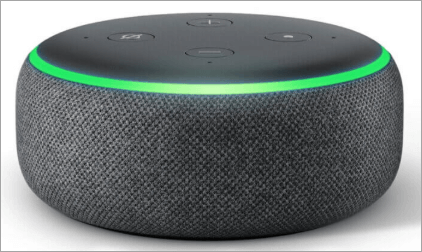
The blinking or rotating green light on the Amazon Alexa enabled Echo device have few reasons like
- An incoming call is received.
- An active call is ongoing.
- A drop in feature is activated.
- missed a communications notification
You can stop the green light by ending the call, turning off Drop-In, or dismissing notifications on the Alexa app.
Alexa Green Ring: Fix Light Flashing in Minutes
Though these indications are useful, they may at times linger because of faults or user preferences and cause frustration. This guide will discuss the essence of these lights, the reasons that can cause these lights to appear, and also give you the step-by-step solutions to clear or control them so that your Alexa device is still responsive and efficient.
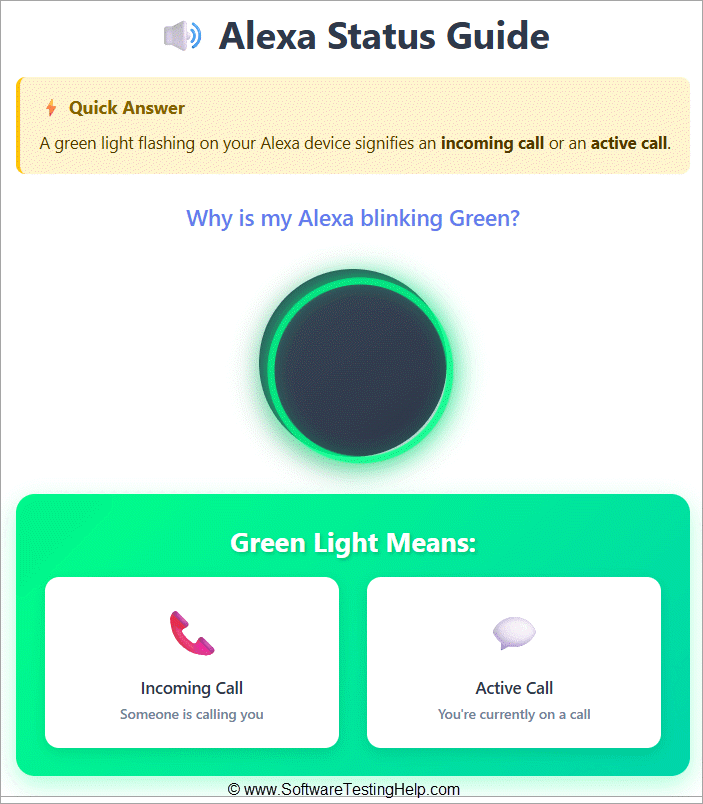
Here is the quick answer guide on why my Alexa is blinking green:
Here is the video guide Alexa Green Light:
How to Fix the Alexa Green Light Blinking instantly
1: Answer the Incoming Alexa Call
If your Amazon Alexa device blinks in a green color, it is likely to be an incoming call.
Speak:
• “Alexa, answer the call.”
The call will be connected, and the green blinking notification will cease.
2: Ignore or Reject the Call
If you wish not to receive the incoming call, you can ignore it by speaking the voice command below.
Speak:
• “Alexa, ignore.”
The call will be ignored and the green blinking light disabled.
3: End an Active Call
A green spinning light is generally indicative that a call is ongoing.
Speak:
• “Alexa, hang up.”
As soon as the call has ended, the green light should stop spinning.
4: Turn Off Alexa Drop In
Alexa’s drop-in function can unexpectedly cause your green light to blink.
To disable drop-in mode:
- Open Alexa app
- Click on Devices
- Scroll down to Echo & Alexa
- Select the Echo device you wish to use
- Click on Communication/Drop In
- Disable the drop in mode
Disabling the drop in mode will minimize the chances of getting unexpected green light notifications.
5: Check for Missed Notifications
• Some times your green light may keep blinking due to any communication alerts or notification.
• Tell Alexa to:
• “Alexa, play my notifications.”
• “Alexa, clear notifications.”
This removes pending alerts and stops the blinking light.
6: Restart Your Echo Device
In case the green light fails to stop blinking:
- Pull out the power cord from your Echo device
- Count down to thirty seconds
- Insert the plug into the Echo device
- Let Alexa connect itself to the internet
This is usually enough to solve any temporary notification issues.
7: Update the Alexa App and Device Firmware
Outdated software could sometimes trigger the problem you are experiencing.
Here’s how to solve it:
• Download the latest version of Alexa application
• Connect the Echo device to Wi-Fi to receive automatic firmware updates
Malfunction Reasons for Alexa Green Light on Echo Devices
Green and yellow lights will also appear due to the malfunction of the device.
Why does it happen?
1. Problems with incoming or active calls: A green spinning or flashing light will signify an incoming or active call. There is a possibility that the device will show this light when it is not supposed to show it.
2. Drop In Feature Errors: The Drop In feature enables one to talk to Alexa devices immediately. The appearance of the green light can be unexpected in case of malfunctions associated with this feature.
Dark Side of the Story: What This Means
3. Persistent Green Light: The green light is on or rotating even without any call or drop-in being put on.
4. Unresponsive Device: The device will not respond to voice recognition, or it will act unpredictably.
Step-by-Step Solutions to fix Alexa Green Lights due to Eco Device Malfunctions
Enlisted below are the step-by-step solutions for fixing Alexa green light blinking issues due to the malfunctioning of the device:
Step 1: Apply Active Calls or Drop Ins: Say, “Alexa, end the call, or Say Alexa, stop the Drop In”.
Step 2: Reboot the Device: Unplug and remove it after 30 seconds, and reconnect it.
Step 3: Update Software: It is crucial to ensure that the software is updated to the latest Alexa app and device.
Step 4: Reset (when required): In case the problem remains, press the button with the reset option and keep it for 15-25 seconds until the ring with the light changes to orange.
Step 5: Replacement: If the method fails, proceed to a technician for a malfunction check and part replacement, provided the warranty covers the issue. Alternatively, request a replacement under warranty.
Yellow Light on Alexa
Here are the steps to follow when the Alexa Yellow light signifies unread notifications or messages:
It indicates unread messages, and here’s how to remove them.
The presence of a yellow light shows that you have unread notifications or messages on your Alexa device.
The reason that the yellow light is present is that:
- Missed notifications
- Unread messages
- Pending reminders or alarms.
When unread messages or notifications arrive, the light appears and stays on until they are read.
Reasons for Alexa showing Yellow Light due to Malfunctions
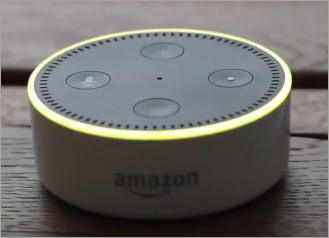
Why It Happens:
1. Error of Notification or Message: A flashing yellow light is used to show unread messages or notifications. The device can show this light when there are no new messages, even when the device has malfunctions.
2. Connectivity Problems: There might be network problems that cause constant yellow lights because the gadget might not receive or process the notification properly.
3. Behavior of Devices When This Occurs: Continuous Yellow Light: The yellow light does not go off and does not present any additional information.
4. Failure to respond to Commands: The device could either be unable to respond to voice commands or could not be responsive to the yellow light.
How to Fix Alexa Yellow Light Due to Malfunction
Here are some of the detailed solutions for the Yellow Light malfunction issue:
Step 1: Check Notifications: Check notifications, Alexa, say, what are my notifications? Or Alexa, are there any messages to me?
Step 2: Intelligible Reminders/ Alarms: Say “Alexa, clear my reminders/ say Alexa, delete all alarms.
Step 3: Restart the Device: Unplug the device and leave it for 30 seconds, and then plug it back in the device again.
Step 4: Update Software: It is crucial to ensure that the software is updated to the latest Alexa app and device.
Step 5: Reset to Factory (when needed): In case the problem still remains, use the factory reset. Hold the reset button for 15-25 seconds until the light ring becomes orange.
Step 6: Replacement: If the method fails, proceed to a technician for a malfunction check and part replacement, provided the warranty covers the issue. Alternatively, request a replacement under warranty.
Problems and Troubleshooting Steps for Light Flashing on Alexa
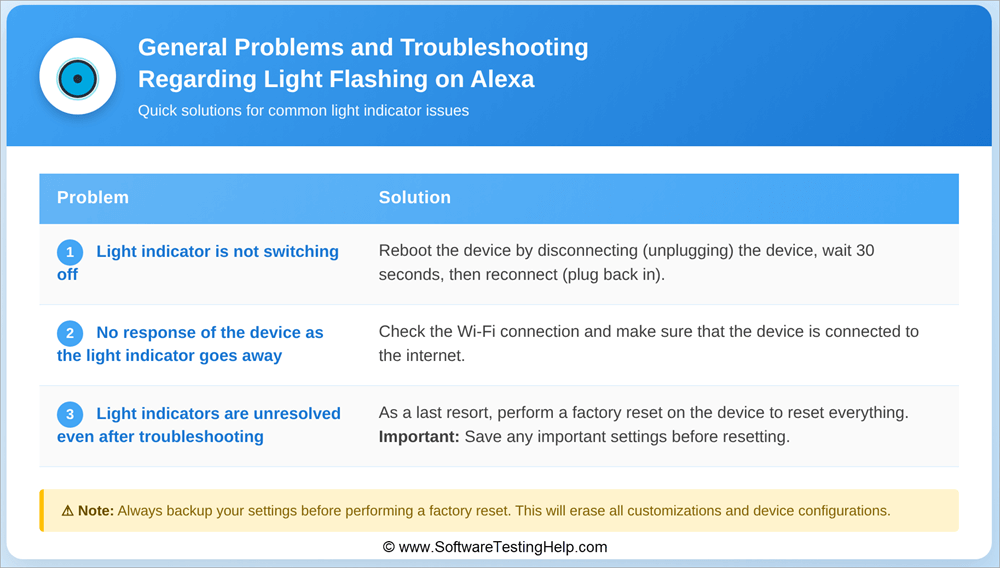
Problem 1: Light Indicator is not switching off
Solution: Reboot the device by disconnecting (unplugging) the device, and after 30 seconds reconnect (plugging back in).
Problem 2: No response from the device as the light indicator goes away
Solution: Check the Wi-Fi of the device and make sure that the device is connected to the internet as well.
Problem 3: The Light Indicators are unresolved even after troubleshooting
Resolution: As a last resort, do a factory reset on the device to force a reset of everything on the device. It is important to always save any settings that are important in advance before resetting.
Frequently Asked Questions
1. How do I get rid of the green light on my Amazon Alexa?
To turn off the green Alexa light, simply end a call or Drop In or clear all missed notifications from your Alexa device. Some phrases that will help you include:
• “Alexa, hang up.”
• “Alexa, clear notifications.”
If the green light persists, you may need to restart your Alexa
2. Does green Alexa mean someone is listening?
No, this is not the case. The green light mostly means there is an incoming call or active call or drop-in. However, if you have enabled the drop-in feature, someone who is on your approved list may contact you.
3. Why is my Alexa green when I’m not on a call?
Some of the reasons why your Alexa device displays a green light even if you are not making a call include:
• Missed notification alerts
• Enablement of Drop In feature
• Calls synchronized among Echo devices
• Software errors that may be resolved by restarting the device
4. How to stop green light on Alexa Echo Dot
Here’s how you can prevent the green light from staying on your Amazon Echo Dot:
1. Tell Alexa to “hang up” the connection.
2. Remove any missed notification alerts.
3. Disable Drop In in Alexa application.
4. Reset your Alexa Echo Dot device.
5. Why is Alexa green yellow?
In case your Alexa gadget changes between green and yellow lights:
• Green means either calls or Drop In
• Yellow means that there are unopened notifications or messages
There are ways to resolve yellow notifications. One can say the following phrases:
• “Alexa, what are my notifications?”
6. Why is my Alexa green and not responding?
If Alexa is green and doesn’t react, there are a few things you should try:
• Check your Internet connection
• Reboot the Echo gadget
• Update Alexa’s application
Sometimes frozen communication may be the reason for the problem.
7. What does a pulsing green light on Alexa mean?
A blinking or flashing green light typically means:
• Calling on Alexa
• Drop In request
• On a call
The blink mode varies if the call is ringing or connected.
8. Why is my Alexa blue and not responding?
A blue light indicates that Alexa is busy processing your request or is booting up. If it stays blue and Alexa stops responding:
• Restart the device
• Connect to Wi-Fi again
• See if there are any available firmware updates
Conclusion
Alexa devices have green and yellow lights that allow users to stay updated on incoming calls, messages, and notifications. They are useful, but their persistence or malfunction can disrupt the user’s experience.
With the help of the steps of troubleshooting described above (answering or ending calls, clearing notifications, rebooting, updating the software, or performing a factory reset), one will be able to reclaim control of the device and preserve its reliability.
Finally, learning these cues will fix technical problems and make you more comfortable with Alexa, making your communication and reminders more secret, orderly, and productive.
Research Process: The total time involved to complete and publish this article is approximately 38 hours. This content was created through a structured research approach to ensure accuracy and reliability.
For more AI Tools-related guides, you can explore our range of tutorials below:
- Why is My Alexa Blinking Yellow Light
- Amazon Alexa vs. Google Home: Which is the Best Assistant
- Alexa Not Connecting to the Wi-Fi Internet
- Most Popular IoT Devices to Look For
- How to Connect Alexa to WiFi
- How to Fix Alexa Red Light Blinking
- How to Change Alexa Name Wake Word Quickly
Was this helpful?
Recommended Reading
-

Through this tutorial, you will identify and understand some effective ways to Fix Alexa not Connecting to Wi-Fi Issues: I have a third-generation Amazon Echo and I use it for various things, like a speaker for my TV, alarm, smart devices in my house, and so on. Sometimes it goes…
-
Get to know all about the several aspects of Amazon Alexa vs Google Home to identify the one which best suits your requirements: Recently, smart technology has become a hot topic for simplifying your home life. You may wish to add simple security features, such as weather updates and timers,…
-
Enjoy a seamless Alexa WiFi connection with our expert guide. Troubleshoot and learn how to connect Alexa to WiFi in minutes without the Alexa app and fix all common issues: The introduction of AI-powered devices has revolutionized the world in recent years. These devices have several merits and demerits. While…
-

Here is an exclusive list of the most popular and best IoT devices, along with their features and price details. These top IoT devices and Smart Home Devices will revolutionize our lives. The Internet of Things (IoT) is expanding at a fast pace in 2026, connecting billions of devices across…