Share YouTube TV with your whole family with our step-by-step guide. Discover how YouTube TV Family Sharing exactly works and get the most out of your YouTube TV subscription:
YouTube TV has transformed the way television content is consumed. Gone are the days when families struggled to control the remote or had to rely on cable packages.
YouTube TV provides an opportunity to create an account with your family members, ensuring that each user has his or her own experience and remains on the same low-cost subscription. The subscription currently is $82.99 per month, although there is a limited-time deal of $49.99 for the first three months.
We will take you through the complete process of sharing YouTube TV, including how to create family groups and streamline with multiple devices, in this guide. We will also examine the advantages, issues that arise more closely, and how to ensure that you get the most out of your TV experience on YouTube.
YouTube TV Family Sharing: Explore Options
One of the first things you will probably enjoy when you first explore YouTube TV is the family sharing option. This gives you the option of sharing your YouTube TV subscription with members of your family, which creates an illusion of a traditional cable TV plan but is much more flexible.
Here’s how you can set it all up:
How to Create and Control a YouTube TV Family Group
To build your own family group with YouTube TV, the first step is to have a Google account, which is a prerequisite in order to make everything. By that time, you will go to the YouTube TV application or site, where you will go to the settings and begin creating your family group.
#1) You need to sign in with your Google Account to share YouTube TV with different households:
- Open YouTube TV, proceed to the settings, and locate the option to form a Family group.
- Take the steps to add family members by entering Google email addresses.
#2) Send invitations to family members:
- You may invite 5 family members (6, including the account holder) living together under the same roof to be added to your family group.
- A member receives his or her own account on YouTube TV with their own DVR, suggestions, and playlists.
#3) Set up Home Area to share YouTube TV across different houses:
- YouTube TV will need you to create a Home Area, where the main user (you) and the family members will be situated.
- This plays an important role in ensuring service sharing is done in a proper way. Note that YouTube TV applies location tracking to ensure that every family member is in the same physical location.
- After forming a family unit, every member is free to use his or her own logins on various devices (smartphones, tablets, smart TVs, and so on).
- The family manager (you) will also have the opportunity to control subscriptions and settings, and each member of the family receives his or her TV experience.
#5) Streaming of Family YouTube TV Multiple Accounts:
- Every single member of the family will receive individual streaming profiles to access YouTube TV.
- The person having the account will pay one bill yet enjoy personalized preferences, suggestions of content, and DVR recordings for all.
- You can watch up to three streams through YouTube TV, multiple accounts at any second so that family members can stream to watch different shows at the same time on separate devices without interference.
At this point, when you have established the fundamentals of sharing YouTube TV in your family, it is time to look at some steps that extend beyond what the company officially offers as family features.
Since it can be as simple as inviting extended family to making a gift to friends and other users, it would be a good idea to see all the options, broken down:
#1) Formal Family Group Sharing:
The most valid way to share YouTube TV is through the family group system that we previously mentioned. It is an easy method, and all of them will have their own personal experiences. Sharing in family groups is limited with a requirement that the entire group must be living at the same home address.
Steps:
Step 1: Sign in to YouTube TV.
Step 2: Go to Family Sharing.
Step 3: Invite up to 5 people through their Google accounts.
#2) With Multiple Devices for the Device-Based Access:
Alternatively, you can log in to YouTube TV using multiple devices. YouTube TV can also be used on smartphones, tablets, smart TVs, and streamers, provided you are living in the same house.
Steps:
Step 1: Log in to your primary device.
Step 2: Watch YouTube TV on outside devices (tablets, phones, streaming devices such as Roku, Apple TV, or Chromecast).
Step 3: Stream without any hassles anywhere!
Check the video below to know how to watch YouTube TV with any device:
YouTube TV can be used with many different devices, and you can watch your favorite shows and movies anywhere you are. These tricks will bring the experience to every one of your devices, whether you are at home, a friend’s place, or on the go:
#1) Streaming via Chromecast
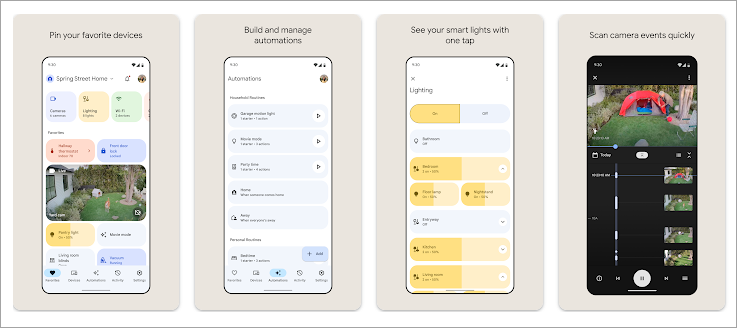
Chromecast is among the simplest methods of streaming YouTube TV to all television sets in the home without a smart TV. You can stream your material directly using your smartphone, tablet, or laptop.
Steps:
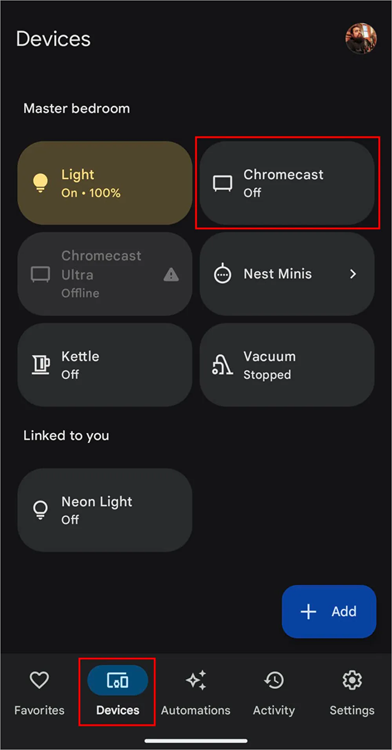
Step 1: Connect your phone/ tablet to the same network as Chromecast.
Step 2: Launch the YouTube TV app and tap the Cast button on the upper-right-hand side as shown below.

Step 3: Choose your Chromecast device from the list and begin watching.
Pricing: About US $79.99 for the cost of the Chromecast device.
#2) Screen Reflection using Apple AirPlay
On iPhone or iPad users, the Apple AirPlay feature enables you to project your YouTube TV screen wirelessly to an Apple TV or a smart TV compatible with Apple TV.
Steps:
Step 1: Ensure that you have turned on AirPlay on your Apple TV or smart TV.
Step 2: Open YouTube TV on your iPhone/iPad.
Step 3: Click the AirPlay icon and select your TV to stream.
Pricing: $0 for the app.
#3) Watching Smart TVs and Streaming Devices
YouTube TV supports both Smart TVs (Samsung, LG, Vizio, among others) and streaming devices (Apple TV, Roku, Amazon Fire TV, and others).
Steps:
Step 1: The YouTube TV application is available in the app store of your TV.
Step 2: Use your Google account to log in.
Step 3: Start watching on your TV.
Advantages of Sharing YouTube TV With Others
There are numerous benefits of sharing YouTube TV, and it is an excellent choice with families or even extended families.
Now, we can have a closer look at the advantages of sharing YouTube TV:
Individualized Experiences for All:
Every family member will have their own account, which means that people will be offered personalized content suggestions based on their preferences and watching patterns.
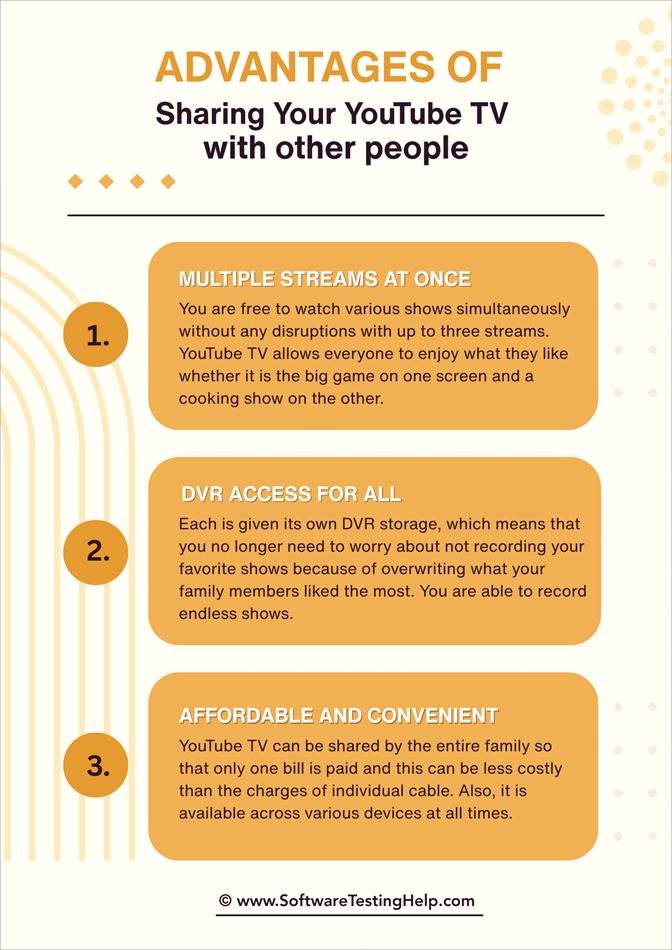
You are free to watch various shows simultaneously without any disruptions, with up to three streams. YouTube TV allows everyone to enjoy what they like, whether it is the big game on one screen and a cooking show on the other.
Each is given its own DVR storage, so you no longer need to worry about not recording your favorite shows because of overwriting what your family members liked the most. You can record endless shows.
YouTube TV can be shared by the entire family, so that only one bill is paid, and this can be less costly than the charges of individual cable. Also, it is available across various devices at all times.
YouTube TV Family Sharing Rules of Eligibility
To make YouTube TV available within a family group, it has a few requirements. They are not negotiated conditions, but rules that Google/YouTube has established to guarantee compliance, abuse prevention, and other mechanisms to keep the household sharing model intact:
Role Requirements/Constraints
Family Manager: Should be at least 18 years old, have a Google Account, live in the U.S., should not be a member of another family group, and should use a non-G Suite (non-business) Google account.
Family Member: The member must be 13 years old or above, possess a Google Account, should be a family member of the household (not belong to another family unit).
Household/Location: The family group members should reside at the same residential address/home area. The service might demand that you authenticate your location (through IP, Wi-Fi, or GPS).
Switching/Limitations: A user is usually allowed to exit and join family groups only up to some limit (e.g., once per 12 months). The family manager is also confined to making changes in the home area only a few times over a certain time.
Some of the sticking points:
- The same household requirement implies that although you may have six accounts in theory, they need to be shared between people who are physically co-located in the same house.
- It is only the manager who can change the family group; include or exclude members, control subscriptions, and decide the home area.
- Google clarifies that you will not see the watch history or libraries of your family members; they receive their own profile experience.
- YouTube can either cut or limit the access of a family member who has moved out long-term or is no longer physically at the house, or may need to be physically verified at home.
- Practically, some users push the limits of these rules (e.g., adding a person who does not live nearby), which are considered risk areas (YouTube may identify and penalize). When you want continuous service, always tend towards obeying.
How to Make a Google Family Group (YouTube TV)
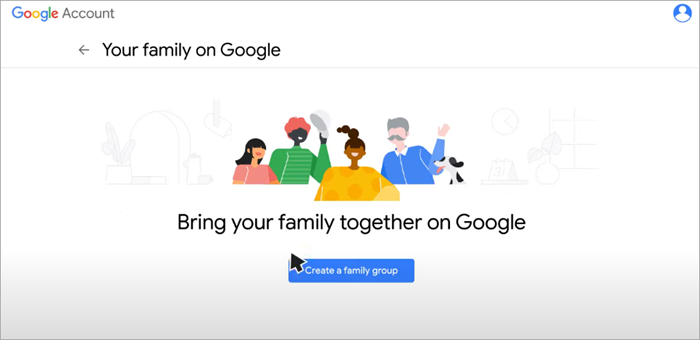
The step-by-step instructions for the process of creating, inviting, and activating the sharing of YouTube TV through a Google family group go as follows:
Step 1: Deliver on Manager Requirements.
Age 18 years and above, a normal Google account (not business), and never belonged to a family group.
Step 2: Subscribe to YouTube TV (unless you have already done so). Sign up with your Google account to YouTube TV. This will make this account a family manager.
Step 3: Go to YouTube TV -> Family Sharing -> Settings.
Log in to YouTube TV (web or app).
Step 4: Navigate to Settings. Click your Profile icon -> Family Sharing. Select either, Manage or Get Started, and start setup. Create a Family Group. Check up on your account details.
On request, admit to the conditions of sharing within the family and the privacy policy of Google. Select the option of creating a family group in Google Family Settings. Configure the Home Area / Home Location.
The family manager will be encouraged to specify the Home Area (typically by typing in a ZIP code or by verifying your address/where you are). It is a local area that defines local networks and content access.
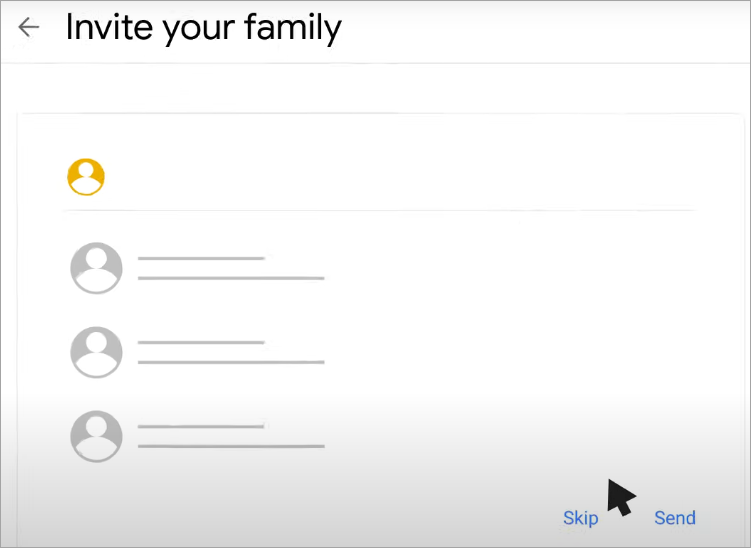
Step 5: Invite Family Members
- On the Family Sharing menu, select Invite Family Member.
- You are allowed to have up to 5 other members (so 6 all told).
- Type in the Google email (Gmail or Google account) or phone number of each invitee.
- Send invitations
- Members Accept Invitation.
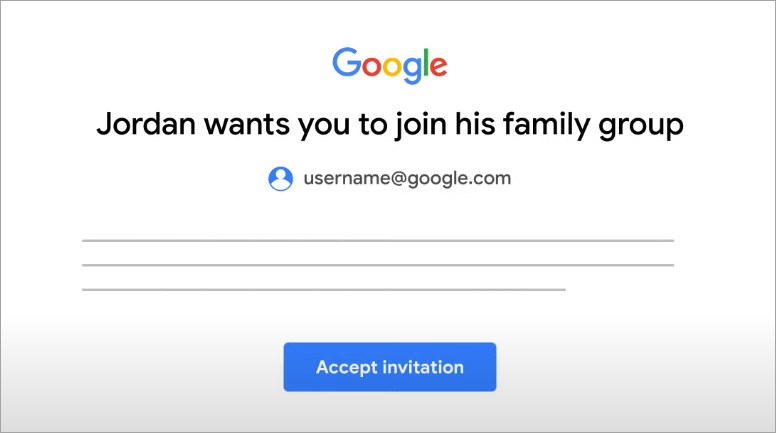
- The invitations are sent out to every individual who is invited.
- They accept the invitation, use their Google account, verify their residence, etc.
- Upon acceptance, they are provided with access to YouTube TV on their profile.
- Verify/Confirm as Needed
Step 5: Certain members may have to confirm that location or that they are in the home area by confirming IP/Wi-Fi now and then.
- If needed, remove or reassign.
- The manager is able to expel a member through Settings – Family Sharing – Manage – Remove Member.
- Through Delete Family Group (only available to the manager), the group itself can be deleted. Deleting can limit the possibility of establishing a new group within a time span (usually 12 months).
- Switching Family Groups.
- You may leave the group by going to Settings -> Family Sharing -> Leave Family.
- But with limitations: you usually can not jump between family groups too often (limits such as once a year or period).
That’s it! After everyone has been accepted, everyone opens YouTube TV under their own profile and gets their own recommendations, DVR, etc.
Administration of Family Group
Most of the administrative power resides with the family manager. You can manage membership, home area settings, and access tracking.
Addition, Removal, and Control of Members
Here are some of the most important functionalities and best practices:
Adding Members
- Maximum of 5 invites (to account for 6 users).
- Should be at least 13 years old, should have a Google account, and should be living under the same roof.
- Email invitation to the user; he/she have to accept getting invited.
- In case of an invitation becoming outdated or canceled, the manager will be able to resend the invitation or have another invitee.
Removing Members:
- Enter YouTube TV and open the Settings -> Family Sharing -> Manage.
- Select the member to delete and select Delete.
- The group will automatically lose access to that user on YouTube TV.
- The user will be notified via email.
Transfer of ownership/ Changing Family Manager:
- The current situation at Google does not allow the right to transfer the rights of a family manager directly. In case of the need to switch managers, more often than not, you have to dissolve the group and form it afresh under the new manager.
- Be careful: by deleting the family group, you can limit the creation/joining of new groups for some time (typically 12 months).
Home Area & Location Controls
- The family manager can only change or set the home area.
- The manager can also implement checks to ensure that the family members are at their proper locations.
- There are restrictions on how frequently some changes (such as updating the home area) can be done (e.g., twice in a year) to discourage abuse.
Parental/Content Controls/Restrictions
- The manager has no direct control over what a member views, although they can promote the use of child profiles, content filters, or supervision.
- The manager will track the use of devices, any flagged access, or deny membership where necessary.
Switching/Leaving the Group
Any member can abandon the family group. They are deprived of a YouTube TV membership by the group but retain their Google account. In case of the departure of the manager or removal of the group, the common YouTube TV is lost.
When the family manager or a member deletes or leaves the group, you might not be allowed to form or join another group (this can be a cool-down period, e.g., 12 months).
The removal of the family group normally creates a time lag to join or create another group.
Overall: Although sharing offers flexibility, you remain locked down to stream limits, home network restrictions, frequent location verification, and content licensing. Understanding those limits helps prevent surprise lockouts.
Best Practices:
- Have a backup manager that you can trust (co-managers are not an option on Google, but be prepared to recreate, in case of necessity).
- Document removals and document invites.
- Remind members are asked to periodically log in at the home area (some checks demand that).
- Removal of handles should be done with care so as not to lose access in use.
Sharing YouTube TV (Streams, Location Locks, Household Rules, Concurrent Access) Limits
- YouTube TV has many restrictions, even in the official sharing model, to create a balance of usage and discourage misuse. You must be familiar with them.
The default threshold is 3 streams at the same time for the whole subscription. That is, it can only be watched simultaneously by three devices (in the family). When you go over this, you will see a message screaming, limit reached.
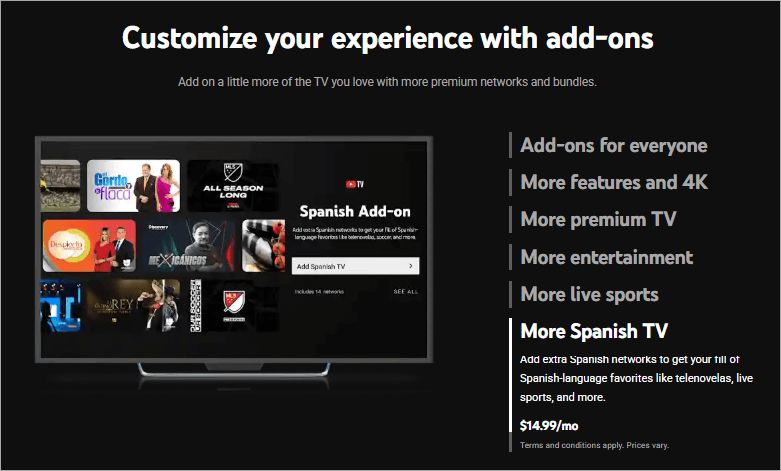
It offers an add-on (4K Plus) that enables you to stream indefinitely (i.e., not just three) but only when connected to the home network. In-home is understood to mean on the same Wi-Fi/home network, which is considered to be the home network. There is still a 3-stream limit on other networks/outside the home.
Home Network / Unlimited Streams at Home
- Provided you make your existing Wi-Fi network your home network, it will enable unlimited in-home streaming (with the 4K Plus add-on) to compatible devices.
- To prevent misuse, home network changes are limited (e.g., to 3 times in 30 days).
- The family manager can only configure or change the settings of the home network.
Location/Home Area Checks/Restrictions
- All the members should be able to access YouTube TV every now and then in the home area to keep in complete access.
- YouTube can block some local channels or broadcasting rights depending on your location when outside of your home area (when you travel and stream).
- Google/YouTube occasionally requires home address verifications (e.g., after every X months) to ensure that all members of the family remain connected to that physical address. In case a person does not log on at home or is caught too far away permanently, he/she can be denied access.
- It is possible to switch your Home Area, but not more than twice a year. To cross that threshold, you have to wait or forgo some access.
You are allowed to create up to 6 profiles (one per head) in the family group, but you do not receive six simultaneous streams; the stream limit is imposed worldwide.
He or she has a DVR, watch history, and individual recommendations with each profile. Google makes sure that there is no cross-sharing of libraries or watch history among members of the family.
Copyrights/Rights of Broadcast
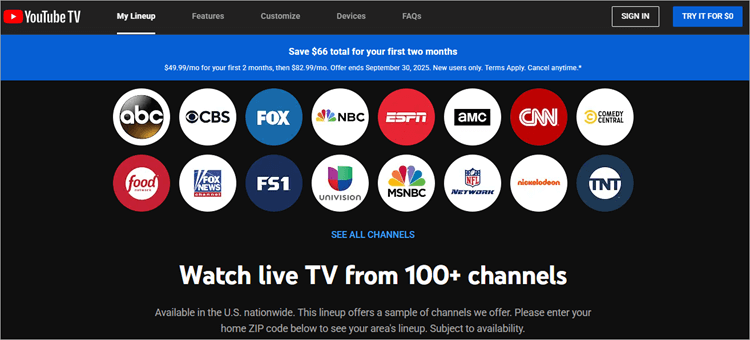
There are also geographic rights restrictions in some content (particularly sports, local channels, or premium add-ons). You might not have access to all those broadcasts even when you are legally considered part of the family group, but when you are not within your home area.
Depending on your home area, the availability of local network affiliates is possible. In case you shift or switch your location, the channels that localize to your place might be changed or lost.
Number of devices/accounts allowed to log in
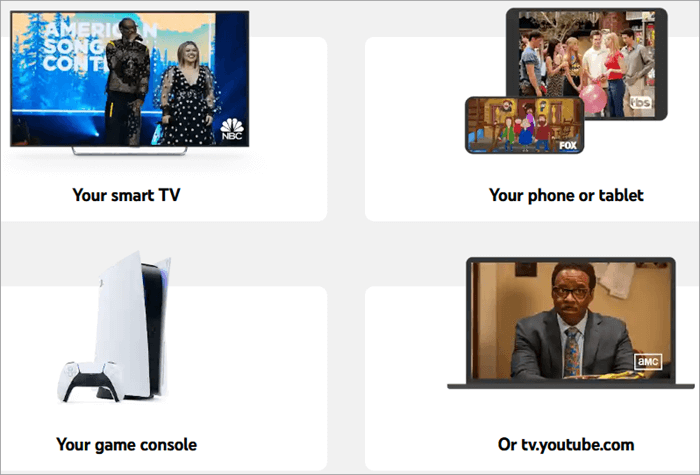
It is compatible with numerous devices (smartphones, tablets, smart TVs, consoles, etc.), and only 3 of them can be actively playing with the basic plan. Should you desire to stream more simultaneous viewers (particularly to in-home), the 4K Plus add-on can enable unlimited streams on the home network.
Legal / Official Process: Family Group Through Google
That is the approach that YouTube supports: with the help of the Google family group, you can legally share your YouTube TV subscription with other members of your household. Every rule and feature functions under this umbrella, and you stand no danger of violation.
Setup Steps:
Step 1: Sign in as a manager.
Step 2: Form a family group under YouTube TV.
Step 3: Set the home area.
Step 4: Invite up to 5 members.
Step 5: All the members confirm through email.
The manager is able to control any group, delete members, etc.
| Pros | Cons |
| • Wholly conforming to conditions of service. • Every member receives individual DVR, history, and recommendations. • Escapes the danger of being suspended or terminated as an account holder. • Add-ons will be automatically shared to the profiles as premium. • Easy to manage and revise. | • Should they all be living in the same house and be location compliant. • Stream limits are still (3 simultaneous). • Poor portability when one goes to a different location. • The manager is not able to transfer his role easily. |
Other Important Issues:
1. Watching YouTube TV on the Road
(Mobile access, location resets, and offline/download options)
- It is possible to stream YouTube TV outside of the home, but there are complexities and limitations that you need to overcome.
2. Mobile/Remote Streaming
- YouTube TV is such that it can be streamed on smartphones, tablet computers, and laptops that are not within your home area. But your local channels will be converted to those that are licensed in your present locality.
- You may be unable to access some of the content in your home area until you reconnect to your home network or check your home area.
- YouTube could force you to re-login to your home area to re-verify the home area, should you be traveling longer than the location-check window (which is typically 3 months without home visits).
3. Updating Home Area/Playback Area
- You can change your Home Area (usually twice a year) in case you permanently move, or remain in a new location.
- You can also update your Current Playback Area (your current geographic position) at any time using the app, at Settings – Location – Update Playback Area. This is to make sure that you see content that is relevant to your location.
- But in order to get back all the local content of the new region, YouTube may want you to verify physically or sign in using the region.
4. Offline Viewing/Downloads
- With the basic YouTube TV subscription, there is no offline downloading available – you cannot download a show to watch without internet.
- Using the 4K Plus add-on, certain content recorded in the DVR is now eligible to download through the YouTube TV application to watch offline.
- Always verify the licensing of the content; not everything can be downloaded – even with 4K Plus.
Best Practices When Traveling
- Before you travel, check your location at home by logging into YouTube TV.
- Assuming there is access to home Wi-Fi, it is best to connect there first to avoid validation.
- Do not change locations too often (the rule is twice a year).
- When you are on a long-term trip, and you would like to access the computer locally, you may alter your Home Area (as long as it is permitted).
- Streaming with a mobile device will be flexible, but will require substitution of certain local content depending on the place of your travels.
- With 4K plus, you may want to download your priority DVR shows when you are traveling, in case you have an offline backup.
- On-the-fly streaming is generally very good, except that you will not always have access to your home-area local channels, and there are some shows that are either not available or are replaced depending on your location.
Sharing Premium Add-Ons (HBO, Showtime, Sports Packages)
(What extra can be shared in a family group, and how to establish them)
The fact that it integrates premium add-on subscriptions (HBO, Showtime, Starz, Cinemax, sports packages, etc.) is one advantage of YouTube TV. Sharing through the family group can tend to share across these extras to all members, provided that you set it up properly.
How Add-On Sharing Works
The family manager will be able to buy an add-on (e.g., HBO) that will instantly grant access to all the family members through their individual profiles- no additional cost or per-member activation needed.
According to the support documentation of Google, this is the case: family members are able to see additional subscriptions and packages that the manager has purchased.
Availability: Availability of the same is subject to the same location/licensing rules as other content. Region, or broadcast license, limits premium content (sports or local events, in particular) in certain cases.
When an add-on is canceled, all members lose their access.
- Members can not select or deselect premium individually; they either have them (assuming that the manager has them) or do not.
- Log in as the manager to YouTube TV.
- Select Settings – Memberships and Add-ons.
- Search through the existing premium channels/sport packages (HBO, Showtime, etc.).
- Subscribe to add-ons of choice.
- Confirm billing.
As soon as they become active, such add-ons will be added to the accounts of all the members of the same family group automatically.
- Certain sports add-ons (NFL Sunday Ticket, etc.) might impose limited streaming policies (e.g., can only stream at home).
- In case one of the family members is not at home, but in a different area, they might not access certain premium content because of broadcast licensing.
- New add-ons may sometimes need re-verification or re-authorization by the family manager for all users.
This implies that having signed up to premium content under the family group, anyone will benefit, again, as long as you do not push the boundaries of location and licensing.
YouTube TV Device Compatibility
(Smart TVs, game gadgets, Roku, Apple TV, Chromecast, Fire TV, mobile applications, etc.)
YouTube TV can be used on a wide range of devices.
A checklist and caveats for each type of device that you or your family may utilize are provided below:
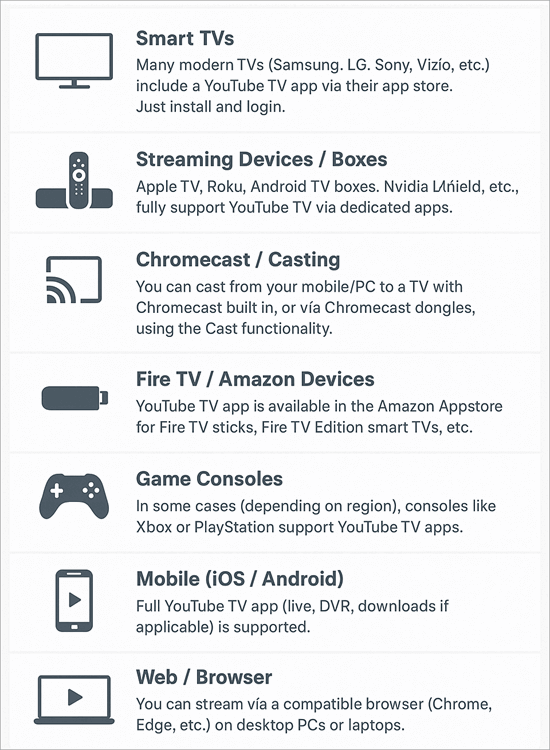
Set-Top Boxes/Cable Boxes: Some cable boxes (e.g., Comcast X1) may not fully support YouTube TV; some functions (like unlimited in-home streaming) may be unavailable.
Important Caveats & Tips on YouTube TV Family Sharing
Updates on the apps: Be sure to have the latest version of the YouTube TV app installed on every device. The old apps can either fail to stream, crash, or lose features.
Limits on devices: Although you can install the YouTube TV on many devices, only 3 can stream at once (or 4K + Plus + home network).
Location compatibility: There are region-locked devices or applications, and make sure that your device or region can access YouTube TV.
Parental controls and child profiles are also provided:
- In case you have children in your home, it is important to be responsible with the type of access and the type of content they see. YouTube TV has features (and you will need support strategies) that allow you to apply parental controls.
- Within a YouTube TV family, you are able to create child profiles. These profiles can limit access to programming of a mature rating.
- The content available in child profiles is restricted to TV-G, TV-Y, or even PG (no R, TV-MA, etc.).
- The family manager or parent is in charge of deciding when the child profiles may watch some shows, or they must use a PIN to access the restricted shows.
Procedures to make/set up Child Profiles:
Step 1: Join YouTube TV as a manager.
Step 2: Click on Settings – Family Sharing/Profiles.
Step 3: Select Add Profile and make it a Child Profile.
Step 4: Block mature content (e.g. set content restrictions).
Step 5: Either have a PIN or a parental gate to access restricted shows.
Step 6: The profile belongs to the child user (he/she logs in with this profile).
Best Practices & Tips on YouTube TV Family Sharing
- Review your watching history occasionally, or content that is restricting the modification of settings.
- Apply ordinary care of supervision – technical measures have an assisting effect, but discussions have a content side.
- In the case of teens, it is a good idea to provide them with a more open profile and watch usage or time restrictions separately (using parental control on the device level).
- When a child is traveling or is moving to a different place, make sure to log in under the home area when maintaining profile access (when checks are location-based).
- Watch out: adult accounts cannot be completely blocked out of explicit content unless so stipulated in YouTube TV.
- YouTube TV has a parental control that is small compared to comprehensive parental controls, but when properly implemented, it provides you with guardrails when it comes to children watching TV.
Sharing is awesome, but to avoid conflicts, wastage of storage space, or stream wars, here are some strategic tips to maximize your shared YouTube TV:
1. Set the Home Network Early:
As a manager, make a Wi-Fi that is on all the time, the internet of the home to take full advantage of streaming at home.
- Do not change the home network too frequently (limited by Google). Google Help
2. Clean up Profiles Sometimes:
- Get rid of old or infrequent family member profiles to clear up space or make space available to new users.
- Whereas someone goes away, kick that person away.
3. Security/Privacy -When Sharing:
(Secrecy of passwords, control of questionable logins, and account recovery)
- In the case of a digital service sharing, the level of security is increased. These are critical precautions and measures:
4. Use Strong, Unique Passwords:
- Enable 2-Factor Authentication (2FA).
- This provides an extra layer of verification (SMS, Authenticate app), and it can help deter unauthorized access- even to a person with the password.
5. Avoid Sharing Credentials:
- Use the family-group name as an alternative to sharing your password with other people – the less you share, the more secure.
6. Monitor Account Activity:
- Check account settings regularly – recent logins/device access to identify new devices.
Should you find some suspicious result of a log-in procedure, cancel access and replace the password.
7. Log Out Inactive Devices:
- With the devices that are ceased to be used or lost, always sign them out through account settings.
8. Never Use Wi-Fi without Security or in Public:
- Public wifi can be used to eavesdrop or hack your streaming traffic. Use VPN if necessary.
9. Have Backup Recovery Options:
- Make sure that you have a recent recovery phone, secondary email, and security questions in your Google account.
- In case an individual loses access or is locked out, you can regain access more easily.
Common Restriction Workarounds
(Reset of home area, stream control, solving device boundaries, location verifications)
Although all this is already in place, you are likely to encounter some limitations or roadblocks. The following are typical problems and ways to work around them.
1. Home Area / Location Lockout:
Solution: You are locked out by a family member, or YouTube has mentioned that you are not within the area of the home.
Workaround Steps:
Step 1: Make sure that you log-in physically at the physical home of your Wi-Fi network.
Step 2: Click on Settings – Location – Update Home Area (only managers can do this). You are allowed to change it a maximum of two times a year.
Step 3: Once updated, get all members to log-in once again when they are at home to ensure that their access is verified.
Step 4: When the location check is periodic (e.g., every 90 days), schedule to visit home physically (or have someone use the account at home) and reset the validation.
2. Streaming Limit Reached Error:
Problem: You attempt to watch and get “Streaming limit reached” — no additional streams.
Workaround Steps:
Step 1: Request family members to playback on other devices.
Step 2: Navigate to Settings > Streaming limits, then set the current network as Home, where you have 4K Plus, which will enable unlimited in-home streams.
Step 3: Unless it is 4K Plus, wait until a person is no longer watching or ask them to interrupt their streams.
Step 4: As a manager, the ideas you can think of include the upgrading (4K Plus) or restructuring of streaming schedules.
3. Device or Login Conflicts:
Issue: A specific device fails to provide for streaming or can’t log in.
Workaround Steps:
Step 1: Make sure the YouTube TV app is updated on the device.
Step 2: Log out and log in to refresh credentials.
Step 3: If the device contains outdated credentials, delete or disconnect it from the account settings.
Step 4: Test to make sure the account works by logging in via web/mobile and retest the device.
4. Premium / licensed Blocks When Traveling
Solution: When you are on the road, you lose access to local channels, add-ons, or content becomes blacked out.
Workaround Steps:
Step 1: Out-of-home streaming can be used in lieu of local channels, which are licensed in your local area.
Step 2: And it you have permanently relocated, think of changing Home Area (twice/year limit).
Step 3: Add a mobile or browser to update your Current Playback Area to show your location.
Step 4: In the case of licensed content, it is a fact that you might not be able to air certain shows since the broadcasting rights do not allow it in your new area.
5. Too Many Home Network Changes
Problem: You have switched your home network too frequently (more than you are supposed to).
Workaround Steps:
Step 1: You must wait for the next permissible period (monthly or according to the policy of Google) before you can reset the home network.
Use a mobile or non-home network to stream temporarily, subject to stream limits.
Step 2: Avoid making unnecessary changes like changing your home network identity (e.g. consistent Wi-Fi SSID / router).
6. Membership/Invite Errors
Issue: One of the family members is unable to accept the invitation or is blocked.
Workaround Steps:
Step 1: Ensure that the invitee fulfills all requirements (13 and above, Google account, not within a separate family group).
Step 2: In case the invitation goes out of date, resend it.
Step 3: When the member is already in a different Google family group (with YouTube or other Google services), he or she might have to leave that group before joining.
Step 4: Make sure that you (manager) have not exceeded the 5-member limit.
7. Sync/Cache/App Bugs
Issue: Invites such as additions and updates to the home area, do not take effect immediately.
Workaround Steps:
Step 1: Open and shut the YouTube TV application.
Step 2: Turn off and on the affected devices.
Step 3: Clear the cache or delete the YouTube TV app.
Step 4: Confirm changes with another device (phone/PC) – in other cases, the bug may be device-specific.
Step 5: Get in touch with YouTube support.
General Issues in YouTube TV Sharing: Possible Solutions
Although sharing YouTube TV can be as simple as possible, common problems that users are facing are frequent.
The following are the most common issues and their solutions on how to remedy them:
1. Location Restrictions (Home Area Issues)
There are some cases when a family member cannot access the service on YouTube TV when they are not at home. This would occur when the location has been modified or not configured.
Solution:
- In YouTube TV, open Settings, select or change your Home Area in the Location tab.
- Verify Location: By reconnecting the application in the primary device, correct the issue.
2. Over-Sharing Suspension of the Account.
When you use your YouTube TV account to log in to many devices, or YouTube TV notices some suspicious activity, your account may be suspended.
Solution:
- Always ensure you stick to the Terms of Service of YouTube and do not share even with your family.
- The Family Group option can be used, but not sharing passwords, as this will flag you.
3. Maximum Streams (3 streams)
YouTube TV only allows you to stream three things at a time in your household. In case you attempt to stream beyond that, you will be given an error.
Solution:
- Watch the streams you are using. You can always increase your subscription with more streaming options or set up streaming times in case you require more.
User Experience and Reviews: Is YouTube TV Worth It?
YouTube TV has a rating of 4.5/5 stars on Trustpilot, Reddit, and Google Play.
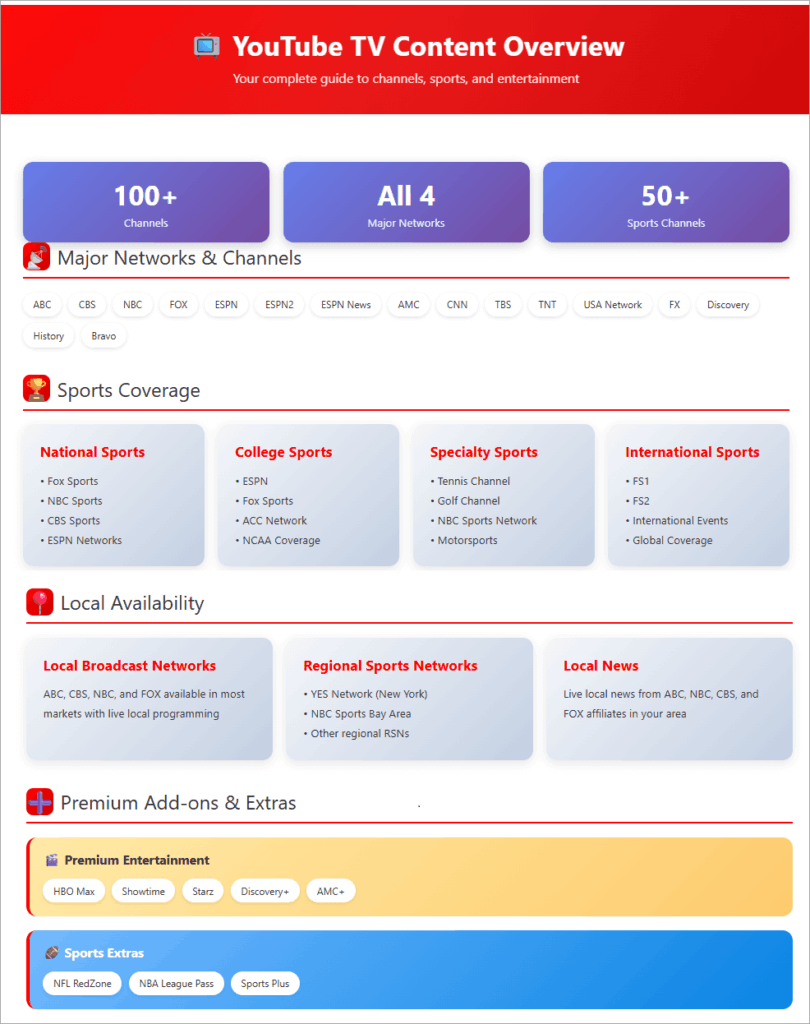
It is praised by users as intuitive, easy to navigate across devices, quality in that it hosts over 100+ in the YouTube TV channels list with good content mix and quality, compatibility across multiple devices, unlimited cloud DVR service, sports viewing service, a balance between YouTube TV price and its service, no-contract flexibility, up to 6 account sharing, etc.
Most common criticisms include price increases because YouTube TV prices have shot up over the years, a lack of channels in some regions, and the fact that it has limited on-demand content in the YouTube TV channels list, and the fact that it is not available as a service in many regions globally.
Frequently Asked Questions
1. Can I share YouTube TV with someone in another state?
YouTube TV streaming cannot be shared with someone in another state unless you have a VPN workaround, which violates YouTube’s terms. We do not advise workarounds here.
Note that YouTube may end up suspending or terminating your account if there is a consistent violation of this requirement. The 3-streaming devices limit applies across all users on the account, and they should be in the same household based on the IP detection.
The family plan also allows only up to 6 individual accounts with personalized settings and recommendations. Besides, VPN workarounds have their downsides: IP workarounds are done by someone familiar with the issue using because VPNs also lose connectivity.
2. How many people can watch YouTube TV at once?
Up to 3 individuals can watch YouTube TV on three different devices simultaneously, and within the same household. 6 accounts are allowed under the family plan, which offers personalization of settings.
4. Can family members see my watch history?
Only when you share an account with family members can they see your watch history. Each member’s watch history is kept private.
5. What happens if someone moves out?
If someone has moved out, someone added in the Family Group as the family manager can update the Home location with the new primary household. This is the case when you want the person to access the account. Only three times a year is this possible.
Otherwise, if this is not possible – for instance, if you live in a separate state from the person and you still want to keep watching, you can remove the person from the Family Group.
This would stop sharing access to the account. This is because they cannot share the YouTube TV without living in the same household as you. Simply put, unless they know a VPN workaround – which has myriad challenges and is not advisable – they need to buy their subscription.
6. Can I use YouTube TV while traveling internationally?
YouTube TV is accessible when traveling internationally, but on restricted terms. Being available only in the U.S., it may not be available in some locations when you travel outside the country. YouTube TV family sharing across different states is possible in the United States, although it still does not work in all states.
7. How much does YouTube TV cost per person? Is YouTube TV worth it?
How much YouTube TV costs per person depends on the subscription package you are on, which is $82.99 per month or $995.88 per year. Those with a YouTube TV membership can enjoy the YouTube TV family plan.
YouTube TV family plan allows a family group to share TV with up to 5 members.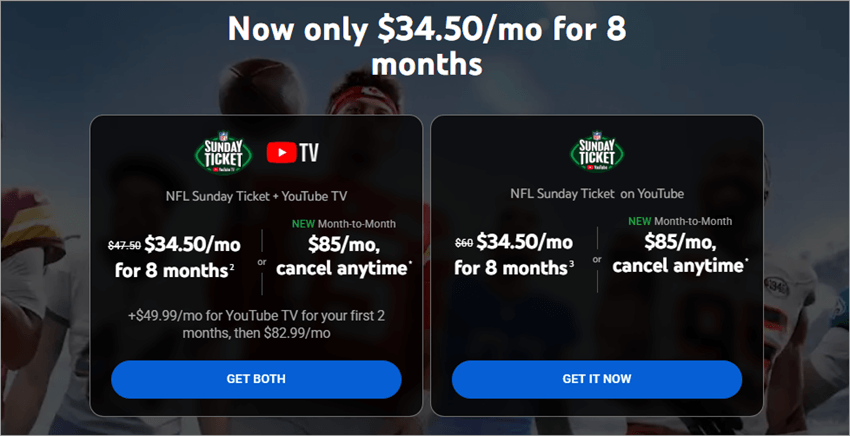
Conclusion
There is a whole new world of convenient, affordable streaming by sharing YouTube TV with your family and friends. With the help of the steps in this guide, you can create your family group, broadcast on multiple devices, and use the best of YouTube TV.
Despite certain issues that need to be addressed, they can be overcome without any challenges, and thus, YouTube TV is a great option to pick when it comes to simplifying the streaming configuration. YouTube TV is an extraordinarily versatile family-friendly choice, whether you are re-watching your favorite shows or following live events.
Research Process: The total time involved to complete and publish this article is approximately 42 hours. This content was created through a structured research approach to ensure accuracy and reliability.
For more quick YouTube-related guides, you can explore our range of tutorials below:
- How to Remove or Disable YouTube Shorts
- How to Make a Intro for YouTube Channel (Step-By-Step)
- Manage YouTube TV Membership Settings: Quick Set up Guide
- YouTube Ambient Mode: Complete Step-by-Step Guide
- Fix For YouTube Videos Not Playing in Firefox
- How to Fix YouTube Glitching: Expert Tips
- How to Record on YouTube TV: Step-by-Step Guide
- Best YouTube Audio Ripper to Rip Audio from YouTube
- YouTube Private Vs Unlisted: Here is the Exact Difference
- FIX: How to Disable Restricted Mode on YouTube
- How to Delete a YouTube Account Quickly in Few Steps
- Best YouTube Subtitle Downloader to Download Subtitles
- YouTube Comments Not Loading? Top 9 Methods to fix
Was this helpful?
Recommended Reading
-

Here is the Step-by-step simple guide to get YouTube videos for free through the best YouTube downloaders. Having evaluated 40+ tools through 150+ hours of testing, we have identified only those tools that are fast and completely secure and are working in 2026. This guide highlights what are the safe…
-
This tutorial will help you understand the meaning as well as the Difference Between YouTube Private vs Unlisted: YouTube has become a platform for people to showcase their skills and post videos of the things they like. I love to post videos of my cute dog every time. There are…
-
Here you will find easy methods to Watch Blocked YouTube Videos in your country and learn to unblock Youtube videos: Today, YouTube has become a massively popular site where you can watch almost everything. News, videos, movies, it has an array of content for catering to its audiences. It is…
-

Explore and discover all about YouTube TV vs Hulu with features. Put an end to your search with these Top Cable TV Alternatives if you are seeking to replace cable TV in this streaming world: We are living in an age of digitized information. Nowhere is this more apparent than…