Evaluate the design, functionality, and suitability of Razer DeathAdder V2 Pro Wireless Gaming Mouse from this review. Enhance your gaming experience in any typical gaming scenario with DeathAdder V2:
Razer DeathAdder V2 Pro mouse is an improved version of the DeathAdder V2, adding the capability to connect wirelessly and optional wired connectivity.
Besides, it can connect to two devices simultaneously for those video gamers who love multitasking.
Razer DeathAdder: Your Absolute Gaming Partner
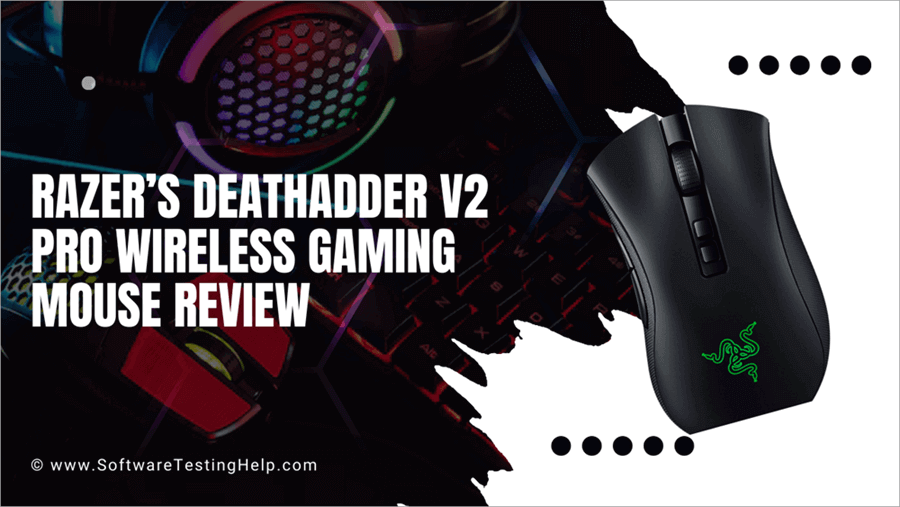
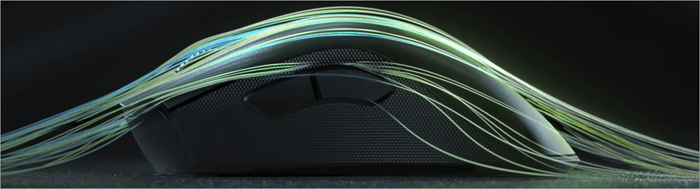
Thanks to its lightweight ergonomic design, it feels comfortable to use, but it is a little bulkier for small hands. It also does not support macOS devices.
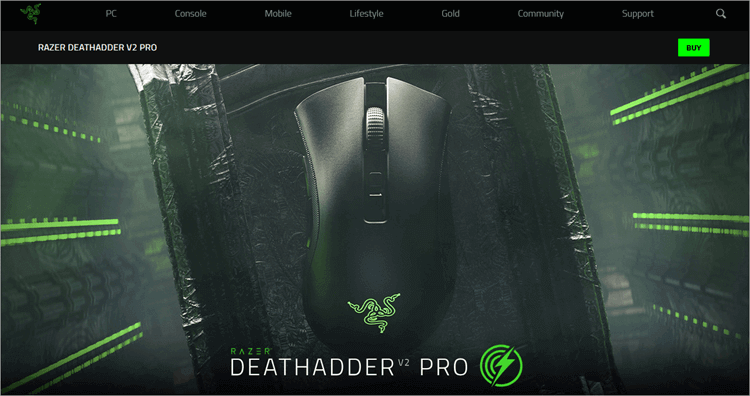
[image source]
Razer DeathAdder Wireless: Performance & Who is it Best Made For

Razer DeathAdder V2 Pro is for FPS video gamers who want a wireless mouse. If you have been using the DeathAdder V2 but want a better gaming experience with wireless mouse inputs and multi-tasking support by connecting more than one device simultaneously, this is a good upgrade.
Despite DeathAdder V2 Pro having a better rating than the lighter Logitech G Pro Wireless mouse, the latter has macOS software customization support. DeathAdder V2 is heavier but has more programmable buttons, Bluetooth support, and RGB lighting. It applies in normal to heavy applications gaming to e-sports applications, especially because of the in-built HyperSpeed technology.
Specifications:
| Weight | 88g or 3.10 ounces. |
| Dimensions | 5.00 inches Length x 2.42 inches Width x 1.68 inches Height. |
| Connectivity | 2.4 GHz Wireless, Bluetooth, Type A dongle (Razer HyperSpeed), 6 feet (1.8 m) USB Type-A cable. |
| Software | Razer Synapse. |
| Polling Rate | 1,000 Hz |
| Sensitivity | 20,000 CPI |
| Sensor Model | Razer Focus+ |
| Sensor Type | Optical |
Gaming performance:
The DeathAdder V2 Pro is one of the best FPS gaming mice given its ergonomic build that makes it comfortable to use except for small hands, and its great sensitivity (the optical sensor has 20,000 DPI sensitivity and 99.6% resolution accuracy) which makes it more accurate and high precision, and due to the mouse’s low latency.
The wireless utilizes optical switches which are faster than the more classic mechanical mechanisms. The PTFE feet also provide good gliding freedom. It has multi-device capability, with 2.4 GHz wireless, Bluetooth, and wire connection options. It uses the HyperSpeed Wireless technology, which makes it 25% faster than other wireless technology.
Thus, it can easily be paired with laptops or other portable and non-portable devices at work and home for on-the-go and better versatility in gaming experiences. It is also suited to heavy data usage due to its seamless frequency switching.
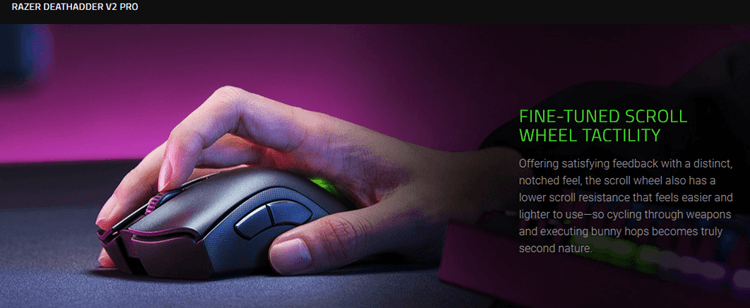
The wheel features a low scroll resistance and satisfying tactile feedback on the scroll, which makes it comfortable to use. The battery can last for several – up to 120 hours- before recharge hence useful in heavy gaming applications.
Battery life:
The DeathAdder is fitted with a Lithium battery that is included in the package and lasts about 120 hours to recharge with Bluetooth connectivity, without RGB lighting, and about 70 hours when using RGB lighting or when you turn HyperSpeed Wireless for low latency.
Comfort:
The DeathAdder V2 Pro has eight customizable buttons, including the 5 at the top (left and right click, wheel, and two DPI cycle buttons). I feel more comfortable in a law grip with large-size hands due to its more pronounced hump. The mouse is preferable for gamers who prefer a right-handed palm and claw grip.
The latter is for those who prefer precision and control. A palm grip is better if you prefer a relaxed and comfortable grip. Besides, the user can utilize physical buttons to adjust sensitivity or DPI. Its accuracy and responsiveness are unmatched even by some of the best-renowned mice in the market today.
Features: Why use Razer DeathAdder V2 Pro?
Bluetooth support: This way, it rates better than the Razer’s Viper V2, another wireless mouse from Razer. The option is the 2.4 GHz receiver. The latency is longer and inconsistent when using Bluetooth, which is recommended for everyday browsing and productivity, or games that are not dependent on reaction-based inputs. The 2.4GHz connectivity is recommended for games that are dependent on reaction-based inputs.
Storage compartment for its USB receiver, which makes it a better option for use on the go, compared to the likes of Viper V2.
A total of 8 buttons, all programmable: They include the 2 thumb buttons fitted on the left, 2 side buttons, and a profile switching button at the bottom. There are two buttons below the scroll wheel that are used to change the sensitivity. The main button is an optical switch type.
The user assigns a button for Razer’s Hypershift feature and, by holding down the Hypershift button so assigned, the user can access a second layer of inputs.
Optical LED Focus+ sensor technology for moving detection technology: The sensor features a wide sensitivity range which can be adjusted in small increments. Users can set the sensor’s polling rate to 125 Hz, 500 Hz, or 1000 Hz.
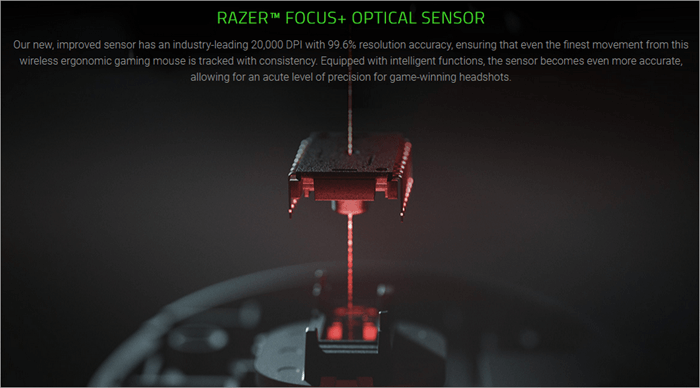
The optical sensor auto-calibrates across the mouse mat and reduces the drift from lift-off and landing. This makes it possible to achieve higher precision. The maximum sensitivity is about 20000 dots per inch.
Customizable lift-off distance: The lift-off distance can be customized as well, from 1 to 3 mm, the lowest distance is about 2.4 mm.
A rubber-coated Notched Wheel scroll wheel with 24 steps for better finger grip: They produce little noise same as the clicks.
RGB lighting.
1 rechargeable Lithium Polymer battery: The wired DeathAdder V2 does not have a rechargeable battery which makes it lighter than the Pro.
A maximum of 2 devices can be paired with it via the multi-device connectivity support.
A rechargeable battery: It is also fitted with a battery indicator. It can last up to 70 hours when using the USB receiver and up to 120 hours with the Bluetooth connection. The mouse can be charged using the USB-to-Micro USB cable that is included in the package or the Razer Mouse Dock Chroma which is sold separately.
The included cable connects to the PC via USB and to the mouse via micro-USB and is about 2 meters in length. The paracord-type cable is also used for the data exchange.
Auto-off and On/Off switch.
Thick feet made of virgin-grade PTFE material: They feel smooth and non-sticky when gliding on smooth and rough surfaces. Although no replacement feet are included in the package and it is not possible to buy them in third-party stores, the thick construction ensures they last for a while.
Wireless USB receiver and a receiver extension are included in the package: The package also includes a Razer logo sticker, user guide, and a protective pouch.
The Razer Synopsis software used to program the mouse is compatible with Windows: With it, you can adjust mouse performance settings, and RGB lighting, and can remap buttons and create macros. The software allows to creation of custom profiles that are stored on the on-board memory.
Although the device can work on MacOS, there is no software to customize it as described above.
Razer DeathAdder v2 Wireless: Competes With Toppers in Gaming Category
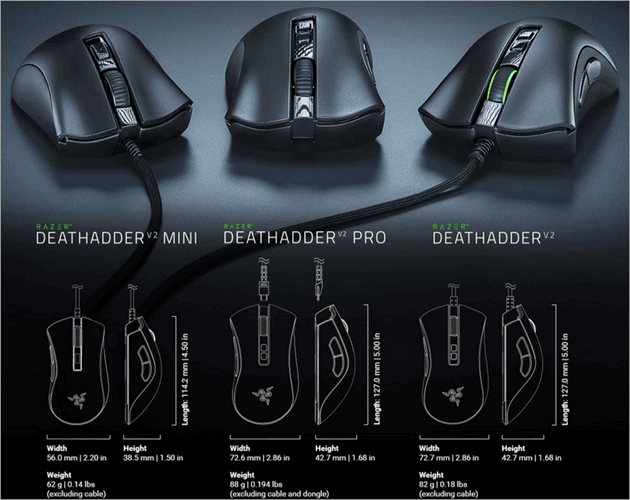
The mouse measures 128 mm in length by 70 mm in width and stands 43 mm tall. Grip width is 65 mm. It has a symmetrical shape, a better sensor than the V2, and is identical in appearance to the DeathAdder V2 mouse. The mouse weighs only 88 grams or 3.1 ounces.
The DeathAdder V2 Pro has a right-handed design with thumb buttons on the left. The buttons can be customized using software. It also features a profile switching button at the bottom, where there is a physical switch that allows the user to change between a 2.4 GHz connection and a Bluetooth connection.
Also read =>> How To Change Mouse DPI In Windows 10: Solution
The mouse features an ergonomic slanting design that makes it feel comfortable to use although it is better suited for medium to large hands because the side buttons can be a bit hard to reach for those with small hands using a claw and fingertip grip, and it is a little bulkier than the earlier V2 version.
The mouse is best suited for palm or claw grip. There are rubber side grips to help with a firmer grip. The mouse is fitted with a matte black grip-enhancing finish plastic body except for the area around the scroll wheel which has a glossy plastic finish. The logo on the back lights up when the mouse is powered.
The mouse also uses low latency and interference reduction HyperSpeed wireless technology from Razer, making it faster than many mice on the market. The Chroma RGB lighting supports 16.8 million colors preset profiles, syncs with gameplay, and Razer Chroma-enabled peripherals and Philips Hue products.
How it Compares with Other Popular Mice
DeathAdder V2 Pro is identical to DeathAdder V2 but offers wireless and multi-device connectivity options and its lift-off distance is customizable. The other is lighter because it does not have a rechargeable battery.
Razer DeathAdder V3 Pro and V3:
V3 is an update of the V2 Pro. Although both have almost similar shapes, the V3 Pro is lighter, affords better performance with FPS games, and the battery lasts a bit longer compared to the V2’s.
Compared to Razer Viper V2 Pro, the DeathAdder V2 Pro is better for Bluetooth connections (Viper V2 Pro has no Bluetooth), and is better for use on the go because it has a storage compartment for the USB receiver. On the other hand, Viper V2 Pro is lighter and more sensitive to the sensor.
When V2Pro is compared to DeathAdder V3 (without Pro), the V3 is better in terms of sensitivity and speed.
Logitech G703, G305, and G Pro X:
Logitech is lighter, manages a lower lift-off distance, and also supports Mac. In comparison, Razer has RGB lighting, Bluetooth, and more programmable buttons.
Both G703 and DeathAdder V2 Pro provide wireless connectivity through a USB receiver and are great for FPS gaming. G703 features a HERO sensor, has a wider CPI range, less CPI variation, and lower lift-off distance. Razer has better feet that provide better gliding. It also features more programmable buttons.
V2 Pro is also considered better than G Pro Wireless in terms of click latency and smoother gliding, but every Logitech mouse has MacOS support. V2 Pro also turns out to be preferable to Logitech G305 Hero because of its wireless capability, weight, and click latency but G305 is preferable for multiple game genres or office tasks.
The latter also manages lower lift-off distance, is more consistence in terms of sensitivity, works with MacOS devices, has a wider CPI range, and has more programmable inputs.
How to Use the Razer DeathAdder V2 Pro
How to Pair the Razer Mouse Using the Wireless USB Dongle
The wireless SB dongle is included in the package and is used, alongside the pairing software to pair the mouse to a computer.
Step #1: Download the pairing software on this link and run it on your PC
Step #2: Select your device. In this case, you are pairing the Razer DeathAdder V2 Pro but the utility can pair any other Razer mouse.
Step #3: Plug the wireless USB dongle into your PC.
Step #4: Connect the mouse to your PC using the USB cable included in the package.
Step #5: Click pair.
Step #6: Wait for the pairing process to complete. Click Close once the pairing process completes. The mouse is now paired with the USB dongle.
How to Use the Razer USB HyperSpeed Dongle Utility
Step #1: Download the dongle utility on this link.
Step #2: Run the dongle utility and plug the wireless USB dongle into your PC. Click/tap Next to proceed. The Razer Synapse and other Razer applications will be closed automatically.
Select your device. The utility can be used to pair any compatible mouse including the Razer DeathAdder V2 Pro mouse, to the dongle.
Step #3: Wait for the update to finish, don’t turn off the computer or unplug the dongle while the firmware is still updating.
Step #4. Follow the indicated steps to pair your Razer device. Click Pair to start the process of pairing.
The wireless USB dongle and supplied USB cable must be connected to the computer for this to work.
Step #5: Click close once the pairing process is completed. The device will now be paired with the dongle.
Configure Mouse Settings Using Razer Synopsis Software
The available versions are the Synapse 3 and 4. Version 3 is compatible with the Windows 10 64-bit or Windows 11 while 4 is compatible with Windows 10 or 11 64-bit operating systems. You can download Version 3, Version 4, and Razer Synapses 2.
Step #1: Download version 3 or 4 and once the download is complete, run any of the installer desired. Click/tap Yes if there is any user account control window that pops up. Select or check the Razer Synapse and proceed to install the software.
Step #2: Restart the PC NOW if prompted during the installation process.
When installing version 4 or version 3, ensure the Launch Razer Synapse is checked or toggle that option (when installing version 3) then click/tap Get Started. Log in with the Razer ID to start using the software.
The Razer ID is a unified account to log into all Razer services and software. Using it, you can register and configure Razer devices in the cloud via Razer Synapses, manage purchases from Razer.com, reload your Razer Gold wallet, redeem Razer Silver rewards, and more. You can create a new Razer ID from http://razerid.razer.com/new.
Step #3: Changing various settings of the mouse.
- To configure and change the LED lighting color on a Razer keyboard, open the Razer Synapses app after installation. Select the Razer Keyboard from the device list. Go to Lighting and change the lighting effect and color of the Razer keyboard to your liking.
- Switch between customized lighting effects by utilizing the Switch Lighting keyboard function. To do so, go to Keyboard -> Customize, then select the preferred button, click/tap the Switch Lighting option, choose a lighting effect to assign, and save.
For Razer Synapses 2, select the keyboard from the device list, go to Lighting, change the lighting effects and colors of the Razer keyboard to your liking, and switch between your customized lighting effects by pressing the assigned shortcut buttons of the profile.
- To assign macros (automated instructions that can be performed using a simple action such as a single keystroke) on the Razer Synapse, open the Synapse software app after installation, select your device from the dashboard, select a key or button to assign a macro to (some keys cannot be mapped or assigned a macro to e.g. Windows and FN).
Select MACRO from the menu pane. Click the Macro dropdown list and select a macro. Click Save.
Refer to this video below:
How to Create a Razer Profile on the Mouse
Step #1: Open the Razer Synapse software after installation.
Select the Razer mouse from the list of devices. Click/tap “…” Click on “Add” to create a new profile.
To rename the profile, select the profile to rename, click on “…”, click on “Rename” and fill out the text field with the profile name. Assign a different set of commands per profile.
Repeat the above steps to create multiple profiles.
Step #2: Click on the memory card icon to assign a profile to the on-board memory of your Razer mouse. This applies if the mouse has on-board memory.
Drag the profile to whichever profile color you want when the Onboard memory section is open. The profile will appear in the onboard memory section.
– The DPI settings can be adjusted from the Dashboard>Performance> tab. Toggle on the Sensitivity stages status and adjust the settings accordingly.
– The surface calibration settings can be altered from the dashboard. Open the application, select the mouse on which you want to make the changes, click on Calibration, and select Add a Surface. Select the correct Razer mouse mat, click Add, and adjust the Lif-off range as desired.
Further Read => Best Ergonomic Mouse
Pros and Cons of Razer DeathAdder V2
| Pros | Cons |
| Wired and wireless connectivity support. | No support for macOS software. |
| Multi-device connectivity support. | Not so comfortable for small hands. |
| High-quality feet for smooth gliding plus durability. Great build and ergonomics. | |
| Highly customizable with software. | |
| Low click latency. |
FAQs on Deathadder V2 Mouse
1. How do I pair my mouse using the Razer Mouse Pairing Utility?
The first step is to download the Razer wireless mouse pairing utility from the company’s website at https://www.razer.com/synapse-new or https://www.razer.com/synapse-3 for version 3 users.
Plug the USB dongle into your PC, then plug the mouse into the computer using the provided USB-to-micro-usb cable. Run the pairing utility after installation, select your device (e.g. Razer DeathAdder V2 Pro), click/tap pair, and then follow the on-screen instructions to pair.
2. How do I pair my mouse using the Razer USB HyperSpeed Dongle?
First, download and install the dongle pairing utility and plug the USB dongle into your P.C. Also, plug the wireless Razer mouse to the P.C. Open the pairing utility application on your P.C., then follow the on-screen instructions to pair. Click/tap Next to continue. Click/tap Pair to pair.
3. How do I change the settings of my Razer mouse?
The Razer Synapse 2, 3, or 4 is used to change the settings of your Razer DeathAdder V2 Pro and other wireless Razer mouse versions. With it, you can tweak the key binds, macros, and other functions.
4. Is DeathAdder V2 Pro rechargeable?
The wireless DeathAdder V2 Pro mouse is fitted with a replaceable and rechargeable battery that lasts long and can be recharged using a USB connection. To charge, simply plug the charging cable that is bought alongside the mouse in your computer USB port and the other side to the Razer DeathAdder V2 Pro.
The charging is best achieved before using the wireless mouse for the first time. A depleted battery will take about 4 hours to fully charge.
5. Is DeathAdder V2 good for FPS?
Both the V2 Pro mouse and V3 mouse are great FPS gaming mouse although they carry different designs. V2 Pro is suitable for most hands using a palm or claw grip and it feels great to use, all with a smooth gliding.
Not just that, it manages a low click latency, a very low lift-off distance that is also customizable, and a wide CPI range. It can be used wired or wirelessly.
6. How long does Razer DeathAdder V2 Pro last?
DeathAdder V2 Pro lasts even for between 6 to 12 years, depending on the extent of daily, regular, or intermittent usage. The mouse is great for FPS gaming and the ergonomics supports 8+ hours of gaming sessions.
7. Does DeathAdder V2 Pro use batteries?
The Razer DeathAdder V2 Pro utilizes a Lithium battery that can be recharged. The battery life is about 70 hours if the HyperSpeed Wireless technology for low-latency gaming is turned on, or up to 120 hours via Bluetooth connection. It can also be plugged in via the USB and will continue to recharge while being used for gaming.
The battery, which is not removable but can be replaced, can be recharged wirelessly through the optional Razer Mouse Dock Chroma. A recharge takes around 3.5 hours using the USB Type-A port.
8. How fast is the Razer DeathAdder V2 Pro?
The DeathAdder V2 Pro mouse utilizes the Focus+ which, according to information supplied by sources, is capable of up to 20,000 CPI and 650 IPS maximum tracking speed. The latter is equivalent to a speed of 16.51m/s.
Further Reading => List of the BEST MMO Mouse of the Year
Conclusion
Razer DeathAdder V2 Pro features an ergonomic design that makes it comfortable to use in hands although, because of its side buttons, is recommended for medium to large size hands.
Its top-notch features include programmable buttons, Bluetooth support, RGB lighting, optical focus+ sensor moving tracking technology, customizable lift-off distance, RGB lighting, and multi-device connectivity support.
This Razer DeathAdder wireless mouse can also be paired to a PC using a wireless USB receiver dongle. It utilizes low latency and interference reduction HyperSpeed wireless technology, making it faster than most computer mouse on the market today.
Time taken to review: 2 days
Was this helpful?
Recommended Reading
-

Do you feel pain in your thumb and other fingers after working for 10 hours a day? Read this review and compare the top Ergonomic Mouse for your requirements: Continuous movements and clicking of mouse buttons may lead to a growing pain in your thumb. The best option is to…
-
In this tutorial, we will understand what is Mouse DPI and learn methods to check and change Mouse DPI in Windows 10: A computer is a collection of various devices that are bind together to perform specific tasks. These devices include a keyboard for providing textual commands, a monitor to…
-

Is your regular mouse not being able to cope with the high fps required for gameplay? A gaming mouse could aid this. If your expenses exceed your budget, it's time to opt for the Best Budget Gaming Mouse available: The Best Budget Gaming Mouse will benefit you to get the…
-
Review and Comparison of the Best Gaming Mouse Pad to select the right gaming mouse pad of your choice for an excellent gaming experience: Are you planning to make your aim better while playing games? Apart from a good mouse, you'll also require a good mouse pad. With the best…
-
Is it getting too difficult for you to play multiplayer games with your regular optical mouse? Compare and identify the best MMO Mouse based on your requirements: The lack of fast optical tracking from your regular mouse is the main reason behind this. It's time to switch over to the…
-
Get to understand the prime reasons that cause mouse freezing in Windows 10. Here is a set of potential remedies to easily resolve and fix the mouse keeps freezing issue: Imagine a situation where you want to send an important assignment to your boss that is expected for review before…
-
Here we review and compare the top Wireless Keyboard and Mouse combos. Sect the best wireless mouse and keyboard combo per your requirements: Are you dealing with discomfort while sitting right in front of the computer and working all day? Being close to the screen could damage your eyes as…
-
A Gaming Mouse is an Important Accessory to Consider when Buying a Gaming PC. This Article Offers a list of the BEST Gaming Mice along with Comparison & Pricing: In this digital era, gaming has grown by leaps and bounds both as a hobby and a profession. People worldwide are…