Scan Spotify code like a pro on an iPhone or Android in just a few taps. Learn how to create and scan Spotify code effortlessly to share or play your favourite music instantly:
Spotify has made music, playlists, albums, and podcast sharing extremely easy with its Spotify codes. You can scan these unique codes directly from the Spotify app on your device, which saves you the trouble of downloading any scanning tool for the purpose.
It also makes it easier to access the music content without requiring users to type or search for it manually.
Spotify Scan Code: Easy iPhone & Android Guide
All you need to do is open the Spotify app, go to the search section, choose the camera option, and scan the given code. Spotify will recognize the code and take you to the linked content.
In this blog, we will explore how to scan Spotify codes on your Android, iPhone, and desktop seamlessly.
What is a Spotify Code?
Spotify scan code is a unique, scannable tag that can be used to share Spotify content such as songs, albums, playlists, artists, and podcasts. Made up of vertical lines, these codes look like soundwaves and are scannable on your personal device with the Spotify app.
When someone scans the code, it is identified by Spotify, which then takes the user to the linked content.
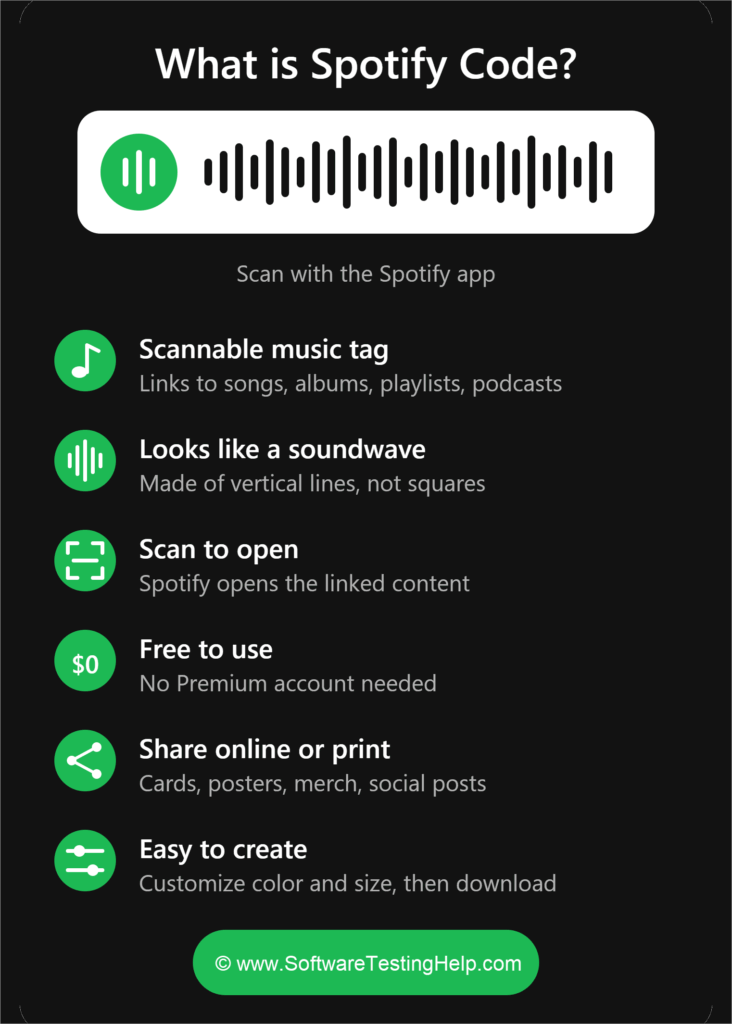
These codes can be shared digitally or printed on physical materials. You do not need a premium account to generate these codes or to use them. Unlike regular QR codes, Spotify specifically designed these tags for content available on its platform.
These codes can be used on business cards, posters, merchandise, event displays, podcast promotions, and social media posts.
You can create high-resolution Spotify codes for songs, albums, playlists as well as artist pages with the help of Spotify Codes website. Customize the color and size of the code, then download the same for sharing or printing.
Here is the video guide on how to scan a Spotify Code:
How to Scan Spotify Code on Android?
Spotify code can be scanned on Android in the following ways:
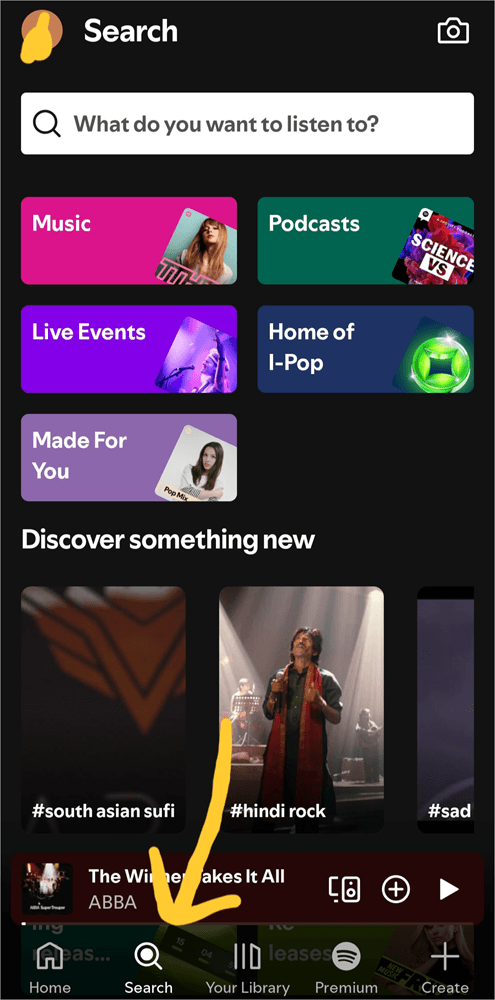
Step 1: Open the Spotify app on your Android device and click on the Search icon.
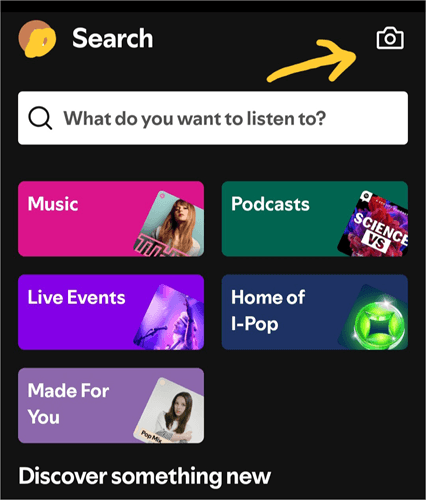
Step 2: Tap the Camera option in the top right corner.
Step 3: Select Scan
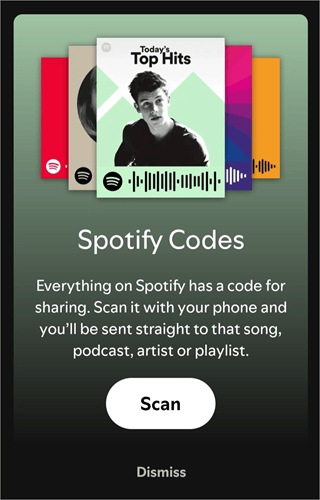
Step 4: Point your camera at the Spotify code and you are good to go.
If you want to create and share a Spotify scan code using your Android device, follow the steps below:
Step 1: Open the Spotify app and go to the music content of your choice.
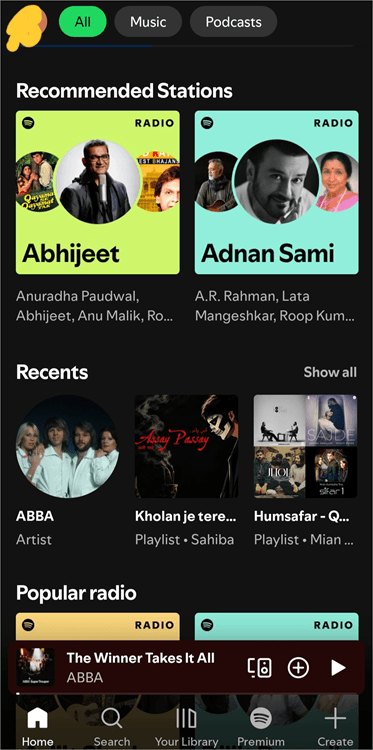
Step 2: Click on the three dots icon present on the top-right side.

Step 3: Now, choose the Spotify code option at the bottom, which will generate a code.
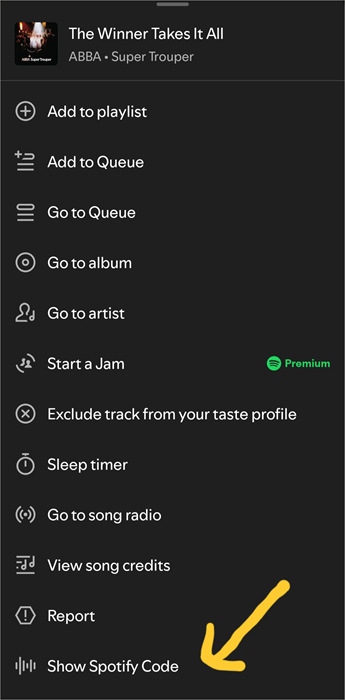
Step 4: This code can be scanned by another mobile phone to access the content. You can also take a screenshot to share the code.

Frequently Asked Questions
1. How to scan a Spotify QR code?
You can easily scan the Spotify QR code in the following way. Go to the Spotify app on your and click on the Search icon. Select the Camera option on the top right corner, and choose Scan. Point your camera at the Spotify code and you are good to go. As for iPhone users, the steps are the same as the Android one.
2. How to make a Spotify scan code?
Open the Spotify app and go to the music content of your choice. Click on the three dots and the Spotify code option at the bottom, which will generate code. The generated code can be scanned by another mobile device to access the content. You can also take a screenshot to share the code. The steps for Spotify code creation and sharing is the same for iPhone devices. The only difference lies in the three dots layout.
3. How do I find my Spotify code?
You can find your Spotify code by going to the album or music content of your choice and clicking on the three dots icon. Now, at the bottom, you will find the Spotify code option. Once you click on it, the scannable bar code will appear on your device.
4. Why is my Spotify code not scanning?
If your Spotify code is not scanning or working, you can check a few aspects. Begin by moving your camera slightly closer or further away or tilt it to one side so that the lens can focus on the code closely.
Try turning on more light so that it scans the code easily. If you are trying to access the code from your saved screenshot, you can click on the Select from photos option.
You should also check whether your camera permission is granted on your device. Finally, try to update and reinstall the Spotify app again.
Conclusion
Spotify offers a very convenient way for users to share music content without manually searching for it. Whether you use an Android device or iPhone, scanning a code takes only a few steps through the official Spotify app.
Once you know how to scan a Spotify code with a phone, you can access and share the music album, podcast or artists quickly and start listening without hassles.
Research Process: The total time involved to complete and publish this article is approximately 42 hours. This content was created through a structured research approach to ensure accuracy and reliability.
For more-related guides, you can explore our range of tutorials below:
- Best Spotify to MP3: Download Spotify Songs & Music Playlist
- Free YouTube to MP3 Converter and Downloader
- Free Online Audio Converter Software for Windows & Mac
- Top Music Streaming Services | Popular Music Sites
- How To Change Payment Method On Spotify: Quick Ways
- How to Find Your Spotify Wrapped (Past and Upcoming)
Was this helpful?
Recommended Reading
-

Review, compare and select from the Best Spotify to MP3 music downloaders to download Spotify songs and music playlists: Whether you are a fan of music or like listening to music occasionally, there is a good chance that you are familiar with Spotify. After all, it is undeniably the biggest…
-
Discover the quick and safe ways to change payment method on Spotify in minutes. Follow the simple steps from our in-depth guide to change Spotify payment method on any browser to enjoy unlimited music: Want to make a quick switch to any other payment mode for your Spotify Premium subscription?…
-

Are you a music fan who wants to know how to find your Spotify Wrapped. Here is a detailed guide to walk you through how to see Spotify Wrapped for 2026 and the previous years: Spotify is my go-to app for listening to music. Its massive music and podcast library…
-
Are back-to-back ads ruining your playlist and looking for Ad-free Music Players for your android or iOS then here is the list of best tested 6 Ad-free Music Players. Are back-to-back ads ruining your playlist? Are you looking for Ad-free Music Players for your android or iOS then here is…