


Learn the simple gestures to mute someone on FaceTime during important conversations. Master this essential Facetime feature to mute people on Facetime and maintain professionalism during video calls:
Launched in 2010 with the iPhone 4, FaceTime has always been a popular, free iPhone app that allows its users to make audio and video calls. FaceTime offered a video calling feature to its users, way before WhatsApp provided it to mobile users.
The only drawback that FaceTime has is that it is available for Apple users only, while WhatsApp is compatible with Android devices.
Table of Contents:
- Mute & Pause FaceTime Calls: Quick Guide
- How to Make a FaceTime Call
- How to Mute FaceTime Calls on iPhone
- How to Mute Someone on Facetime While Using a Mac Device
- How to Add Android/Windows Users to a Call
- How to Silence FaceTime Calls
- How to Handoff an Ongoing FaceTime Call to Another Device
- Frequently Asked Questions
- Conclusion
Mute & Pause FaceTime Calls: Quick Guide

FaceTime is popular because of the following merits it offers over other audio/video calling apps:
- Group audio and video calling.
- Blurring the background during a video call.
- You can mute yourself while you are on a video call; while you can still hear the person you are talking to.
- You can pause a video call.
- You can share your screen with the caller.
- SharePlay feature allows FaceTime users to watch movies (or any other video), and listen to music together.
- You can mute FaceTime notifications.
- A very secure application.
- Join Android and Windows users to a call by creating a call link.
- Schedule FaceTime calls in the calendar app.
- Make a call if you have the other person’s phone number or email address.
- The voice isolation feature filters the background sound so that only your sound is heard by the other person on call, and all the other noises from the background are blocked.
- Lets you switch on live captions during a video call.
- The spatial audio feature makes you feel you are sitting with those you are talking to on the call, by making the sounds come from the direction in which they are positioned on the screen.
- You can add effects to the video screen while on a call or reactions like hearts, fireworks, and more. Watch this YouTube reel showing how to add fun reaction effects during a FaceTime call.
- You can send an audio or video message to someone.
Suggested Reading =>> Top Conference Call Services
Watch this video to learn how to leave a video message on FaceTime.
The platform is quite easy to use. This article provides some useful how-to guides that will help you learn how to use certain features of the FaceTime app. You can also go through this link to find many useful videos for using FaceTime.
How to Make a FaceTime Call
To make a FaceTime call, follow these steps:
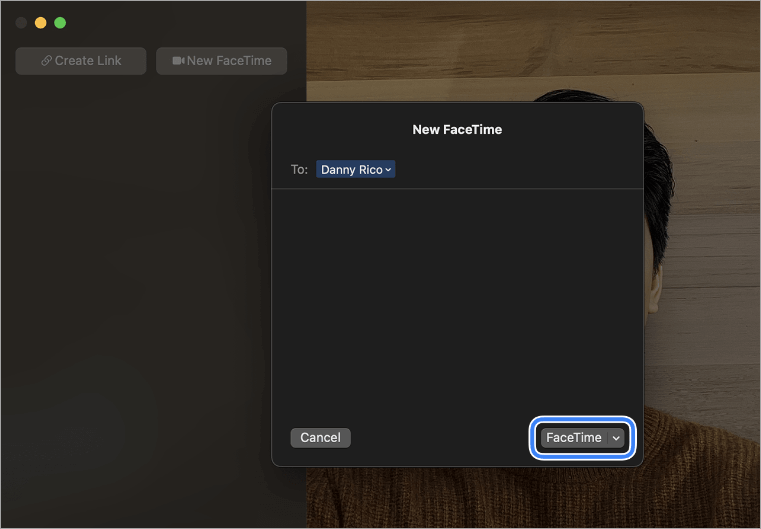
- Open the FaceTime app on your device
- You will see 2 options:
- Create Link
- New FaceTime
- Click on the ‘New FaceTime’ option.
- Now enter the name, contact number, or email address of the person you want to call. You can add multiple people to the call from here. Up to 32 people can be added to a FaceTime call at a time.
[image source]
- Now choose whether you want to make an audio call or a video call.
- The call will be started as soon as the other person(s) accepts your call.
- You can leave the call anytime, by tapping on this button-


Further Reading => Must Try Web Conferencing Software in the Market
How to Mute FaceTime Calls on iPhone
You can mute your voice or the other person’s voice on FaceTime. If you want to know how to mute someone on FaceTime, then you can take one of the following steps:
- Press the button on your phone used for lowering the volume until the volume reaches zero.
- If you can still hear the other person even after lowering the volume, then connect your headphones to the device.
To mute your voice on the Video Call, follow these steps
- During the call, you will see these icons:

- From here, you can click on the microphone icon and the other person(s) on the call will instantly stop hearing your voice, once the microphone button turns white. If the button is grey, it means that your Mute button is turned off and you are audible to the other people on the call. Please note that even if you have muted yourself, you will still be able to hear their voices, unless you decrease the volume.
- Now, whenever you want to unmute yourself, just tap on the microphone icon again.
Also Read =>> How to mute someone on Instagram
How to Mute Someone on Facetime While Using a Mac Device
The method for muting a Facetime call on Mac is quite similar to that for iOS devices. You’ll just have to click on the Microphone icon. When it is grey, it means the other people on the call can hear you. When the icon turns white by tapping on it, know that you are muted.

[image source]
How to Pause a Video Call
You can pause an ongoing video call on FaceTime by just tapping on the video icon shown in the call window. This way, the person on the other side of the call cannot see your video, but you will still be able to see it.

To resume the video, just tap the video button again.
How to Add Android/Windows Users to a Call
The only drawback of the FaceTime app is that it can be downloaded on iOS and Mac devices only. However, it does offer a feature that allows its users to make a call to an Android or Windows device.
Android and Windows users simply need a strong internet connection and the latest version of Google Chrome or Microsoft Edge to receive the call.
Follow these steps to create a FaceTime call link so that any Android, Windows, iOS, or Mac device user can join the call through it:
- Open the app (only a FaceTime app user can create a link).
- Tap on ‘Create Link’.
- You will be asked to select the method of sending the link to your friends (like mail, messages, etc.).
If you have an Android or Windows device and you have received a link to join a FaceTime call, follow these steps to join it:
- Click on the link to open it.
- You will be prompted to enter your name. Enter it and then tap on ‘Continue’.
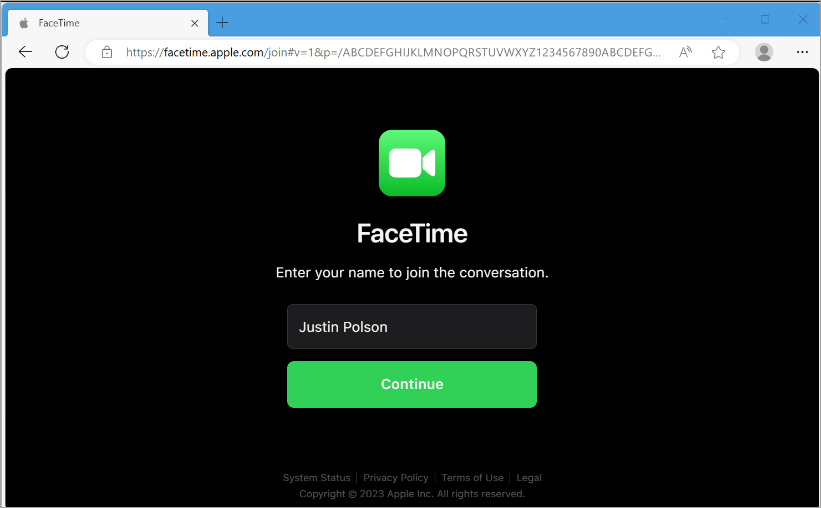
- FaceTime will ask for permission to use your microphone and camera. Allow it.
- Now click on the ‘Join’ button. The host will then allow you to join the call.
- You will be on the call now.
- If you want to leave the call, you can tap on the ‘Leave’ button, anytime.
Further Reading => Top Video Conference Cameras to Look For
How to Silence FaceTime Calls
You can silence or block calls on FaceTime. For blocking a FaceTime call,
- If you want to block a caller while the call is going on, tap on the info icon (
 ), then click on ‘Block Caller’, then tap on ‘Block’.
 - If you want to block someone from the FaceTime history, then go to call history, find that number, swipe left, tap on
 the icon, then select ‘Block’.
 ), then click on ‘Block Caller’, then tap on ‘Block’.
 the icon, then select ‘Block’.
If you want to silence FaceTime calls from unknown numbers, then:
- Go to Settings
- Tap on ‘Apps’
- Select ‘FaceTime’
- Click on ‘Silence Unknown Callers’
- Turn it on
This will ensure that calls from unknown numbers will be silenced. You will view the silenced calls in your call history.
How to Handoff an Ongoing FaceTime Call to Another Device
An ongoing FaceTime call can be quickly and easily switched to another iPhone/iPad/Mac device, just by following these steps-
- Your nearby iOS/Mac device will have a notification of ongoing calls, with the option to ‘Switch’.
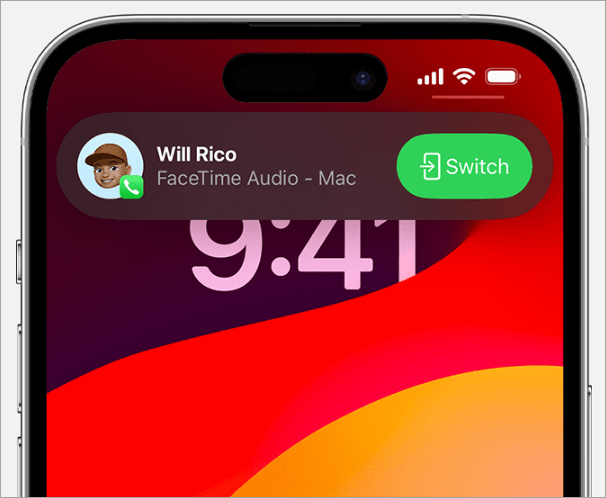
- From here, open the notification and tap on ‘Join’, or ‘Switch’, to enter the call from that device.
- This feature allows you to hand off an ongoing call to even an Apple TV.
Watch this YouTube video showing how to switch an ongoing FaceTime call to Apple TV 4K.
Frequently Asked Questions
1. What is FaceTime?
FaceTime is an app for Apple and Mac users, that allows them to make audio and video calls for free. You just need a good internet connection to make the call. The calls made through FaceTime can also be joined by Android and Windows users, through a call link.
The app is quite popular among iOS users because of the many merits that it offers, like making audio/video calls, muting a video call, blurring the background during a video call, and much more.
2. Can I FaceTime with an Android?
You can not directly call an Android user through the FaceTime app, because Android users can not download FaceTime. If you want an Android or Windows user to join your call, you can send them a link to join it. This way, you can FaceTime with an Android user.
Moreover, since Android users can not download the FaceTime app, they can not start a FaceTime call. They can only join it when they receive a link to join the call. Plus, even if they join the call, they can not enjoy certain features like Screen sharing and SharePlay.
3. Is FaceTime call free?
Yes, Facetime is free. You can use all of its features, without having to pay a single penny, even if you call someone who is residing miles away from you.
Please note that you’ll need a proper internet connection for using FaceTime.
4. Is FaceTime the same as WhatsApp?
FaceTime and WhatsApp both have a huge user base and are very similar free apps used for voice and video calling. The features offered by these applications are quite similar.
FaceTime is an in-built app on iOS devices, while WhatsApp is a third-party application, that can be downloaded from the Apple App Store or Google Play Store, on Android and iOS devices.
FaceTime calling consumes less data as compared to WhatsApp, which is a big merit of FaceTime over WhatsApp. Plus, FaceTime has some cool features like filtering background sounds, turning on live captions during a call, and more.
FaceTime lacks the text messaging feature, which is the core feature of WhatsApp. WhatsApp is more versatile in the way that it can be downloaded on Android, iOS, Windows, and Mac devices and lets you call seamlessly across devices; while on the other hand, calling from an iOS device to an Android device directly through FaceTime is not possible.
You’ll have to send an invite link for the call if you want an Android user to join the call.
5. How do you do a FaceTime video call?
To make a FaceTime video call, you’ll have to do mentioned below:
• Open the FaceTime app on your iOS or Mac device.
• Find and tap on the ‘New FaceTime’ option located at the top of the screen.
• Now you will have to type the name or contact number of the person you want to call. You can enter multiple names here if you want to make a group video call.
• Then you will have to choose from the 2 options- video call or voice call.
• Select the desired option and the call will be sent.
6. Why is my FaceTime not working?
There can be one of the following reasons if you are facing problems with FaceTime:
• You are not connected to an internet connection.
• The connection may be slow.
• You have turned off Mobile Data for FaceTime.
• You need a software update.
• The date and time in your phone is not correct.
Try restarting your phone, check your internet connection, check for software updates, date and time in your phone, and mobile data permission for FaceTime. If you still face issues, contact their customer support.
7. Can you mute someone on FaceTime?
FaceTime does not provide a specific feature for muting someone during a call. If you still want to know how to mute people on FaceTime, then you can try lowering your phone volume. If it doesn’t work, then connect your headphones to the device, so that the voice will not come out.
Conclusion
This article aims to answer different questions of FaceTime users so that beginners will find it easy to use FaceTime to its core. We have provided how-to guides for issues like ‘How to mute a FaceTime call’, ‘How to pause a call’, ‘How to make a FaceTime call to an Android device’, ‘How to attend a FaceTime call through a browser after receiving the Link’, ‘How to block someone on FaceTime’, and ‘How to silence FaceTime’.
FaceTime has a set of some of the most amazing features for audio and video calling, like Background Noise Removal, Blurring the Background, Screen sharing, SharePlay, Live Captions, and more. Plus, the platform is free and secure. This makes FaceTime stand apart from its competitors.
It is quite an easy-to-use application and you will most probably be able to use it in the first go. But if you face any issues, you can follow this link to find solutions.
I would suggest users make sure that they have a strong internet connection so that they can enjoy smooth, uninterrupted calling.
Was this helpful?
Recommended Reading
-

Are you Wondering Why my Calls Going Straight to Voicemail? This guide explains the most common reasons and shares 13 proven solutions to fix the issue. Are your calls just going right to voicemail without ringing your phone? And looking at how to stop my phone from going straight to…
-
Here, we review and compare the top free WiFi Calling Apps. Select the best WiFi calling app and enjoy video and voice calls free: Free Wifi calling apps allow you to make voice or video calls online. You only have to pay for data charges when you use free call…
-
Explore our list and comparison of the most popular Call Recorder Apps for Android and iPhone to select the best Phone Call Recording app: A call recording app is basically a mobile application that allows its users to record their outgoing and incoming calls. There are several valid reasons one…
-

Looking for a solution to block unwanted and fraudulent calls? Review this list of the best Spam Call Blocker for Android to block spam calls: Spam call is defined as an unwanted call or communication that occurs without any prior request and sometimes poses a threat to the person to…
-
Detailed Review of the Best Conference Call Services with Features and Comparison. Select the Right Web Conferencing Service for Your Business in 2026: Conference call is the primary communication tool for offices or work environments. It helps the teams to collaborate and communicate quickly and easily. Conference call services will…
-
Read this review to explore different effective methods to understand how to Record Phone Calls on iPhone: In a majority of states across the United States, the law mandates it to get consent from a single or all parties to the conversation to legally record a phone call. It is…
-
Read this review to compare and select among the List of Platforms That Can Help You Find Out: Who Called Me From This Phone Number: After all, it could be an annoying telemarketer trying to sell you a new product or a prankster who wishes to have some fun at…


