Have you ever checked your Hard Drive health before? Learn how to check Hard Drive health on Windows, Mac, Linux or using any third-party tools in just a few clicks from our step-by-step guide:
10 years ago, I woke up to a tragedy. My laptop’s hard drive had failed, and all the data it held was gone. Everything from the photos I cherished to some very important documents vanished overnight, and there was nothing I could do about it.
We need to realize that those hard drives your system’s carrying aren’t exactly invincible. It is not a matter of “if” but “when” they will fail. Ever since that mishap, I’ve been vigilant with every system I’ve owned, taking measures to check and maintain my hard drive’s health regularly without fail.
Health Checkup For Your Hard Drive: Simple Methods To Perform
I want everyone to learn from my mistakes. As such, I’ve prepared this hands-on guide that’ll show you how to check hard-drive health.
So, without much further ado, let’s dive in.
Quick Answer: How to Check Hard-Drive Health
Hard drives don’t last long, and you must inspect their health regularly to ensure your data isn’t wiped out when an HDD eventually fails.
You can use built-in tools for Windows (SMART check via PowerShell, CHKDSK) and Mac (SMART check via Disk Utility or Terminal) for periodic health inspections or opt for third-party software (GSmartControl, DX Drive, HD Tune, and Hard-Disk Sentinel).
Here is a quick video guide that explains the 3 easy ways to check Hard Disk Health:
Warning Signs of a Failing Hard Drive
So, how do you find out whether your hard drive is failing? You look for signs, of course. Your hard drive will give you several subtle and obvious hints of its imminent death.
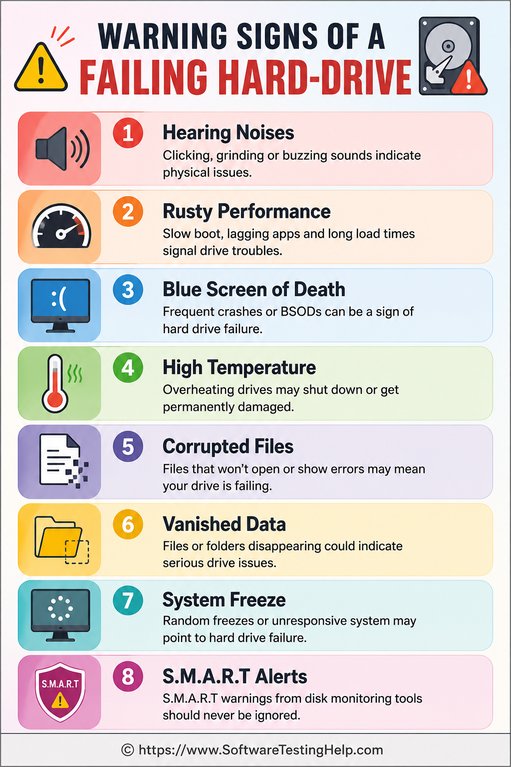
I suggest you keep an eye out for these signs so you can do something before it is too late.
- Hearing Noises: Just before a hard drive is about to fail, you’ll start noticing some odd noises coming out of your computer or laptop. If you notice buzzing, rattling, clicking, or ticking sounds, know that this could indicate a hard-drive failure.
- Rusty Performance: A failing hard drive will eventually translate into sluggish system performance. You’ll notice pages and apps opening at a much slower rate than before. Your system will also take a very long time to boot every time you switch it on.
- Blue Screen of Death: Nothing scares me more than the possibility of seeing the blue screen of death on my laptop. This is one thing that could happen if a hard drive is about to give out.
- High Temperature: Temperature is another metric that you can rely on to assess your hard drive’s health. You can refer to your system’s built-in SMART analytics to check the temperature range your hard drive is operating in. A temperature range of 30℃ to 40℃ is fine. However, you should be concerned if the temperature exceeds 55℃, as the risk of your hard drive failing increases considerably in this environment.
- Corrupted Files: The files that were once opening just fine won’t function as they should. You’ll constantly be greeted with error messages, signifying file corruption.
- Vanished Data: It is also possible that you might witness files, folders, and even entire partitions vanishing overnight. This is the most obvious sign of a failing hard drive.
- System Freeze: Even the most basic functions will come to a screeching halt. System freezes are quite common when a hard drive has been pushed to its limits.
- S.M.A.R.T Alerts: Now, this is a feature already built into your Mac and Windows system. You’ll basically start receiving warnings of an imminent hard-drive failure. S.M.A.R.T is perhaps the most reliable way of finding for sure whether a hard drive is functioning properly, thus warranting a dedicated section of its own in this article.
What is S.M.A.R.T Status?
S.M.A.R.T, aka Self-Monitoring, Analysis, and Reporting Technology, is a system built into modern HDDs and SSDs. It basically diagnoses a hard drive or solid-state drive for issues. You can count on a S.M.A.R.T alert to assess your HDD’s reliability.
A S.M.A.R.T system basically monitors the following metrics for a thorough assessment of hard-drive health.
- Mechanical Wear: Counts spin-up time and bad sector counts
- Error Rates: Accounts for read and write errors whenever data is processed.
- Drive Life: Assesses wear distribution and erase cycles.
If a Drive is doing just fine, the S.M.A.R.T notification will return an “OK”. If its death is imminent, the notification will state “Unhealthy” or return a “Warning” error message.
You will be notified automatically of a drive’s failure via S.M.A.R.T. Alternatively, you can decide to check the S.M.A.R.T status of your drive manually.
How to Check Hard-Drive Health on Windows
You have several options at your disposal to check your hard drive’s health properly. I’ll mention them all one by one and step-by-step for your reference.
#1) Checking Disk Utility
CHKDSK proves quite effective in fixing corrupted files or recovering information from bad sectors.
Here’s how you do it:
- Click on Start > Open Command Prompt as administrator.
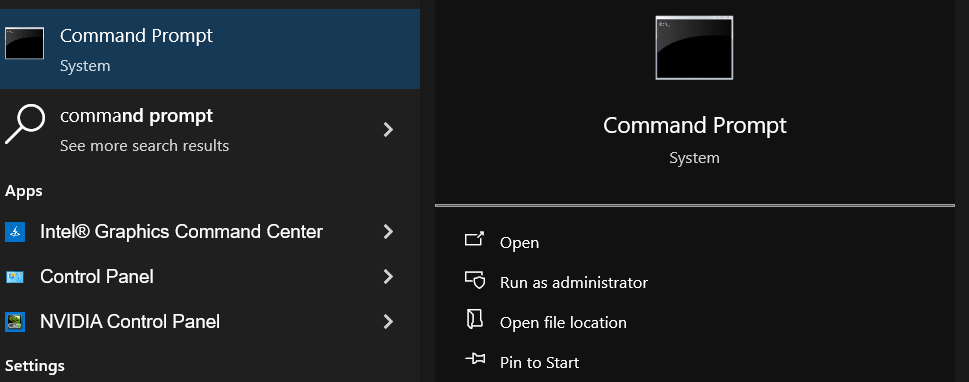
- Now, type C: /f /r /s and hit the Enter button. If you are using another drive, make sure to replace the “C” and type the correct drive letter. Add/b flag for a more thorough check.
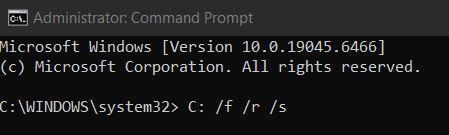
- Schedule the scan to trigger automatically for the next restart.
#2) Use Windows S.M.A.R.T. status.
S.M.A.R.T is a system that can be found on most macOS and Windows-running devices today.
Here’s how you take advantage of it:
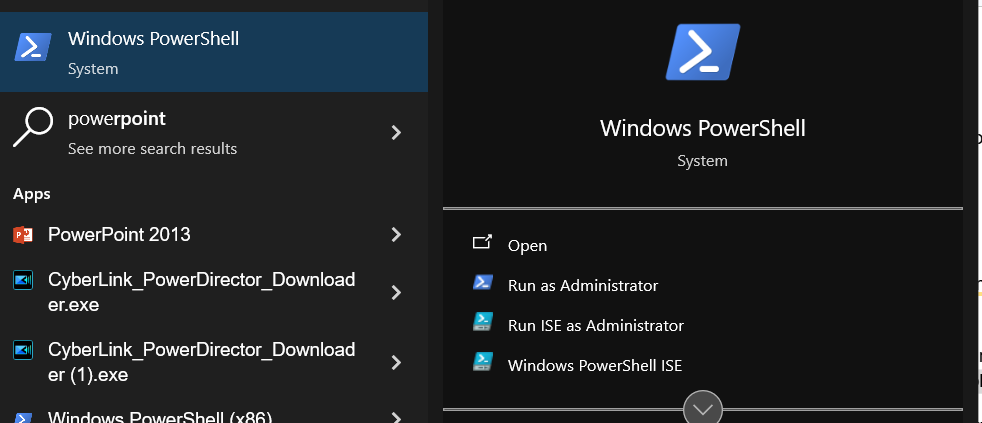
- Click on Start > select Windows PowerShell, then click Run as Administrator.
- Type the following command: get-physicaldisk | select-object FriendlyName, HealthStatus, OperationalStatus
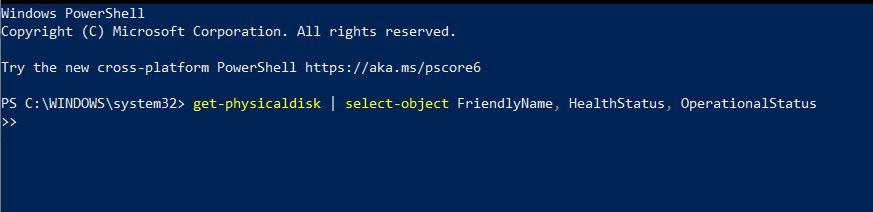
- Now check the report. If the operational status states “Ok” and the health status states “Healthy”, then your hard disk is fine. Anything else would mean trouble.
#3) Use File Explorer
Windows’ built-in File Explorer is yet another method you can use to assess your hard-disk health.
Here’s how you use it:
1. Open File Explorer.
2. Right-click on the Drive you wish to check and click on Properties.
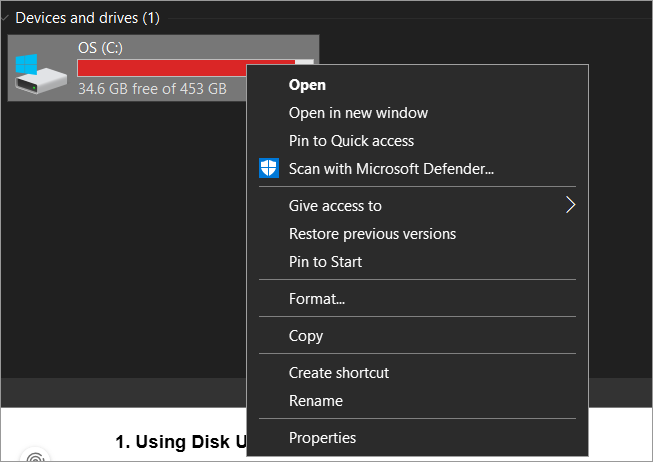
3. Select Tools and click on “Check”.
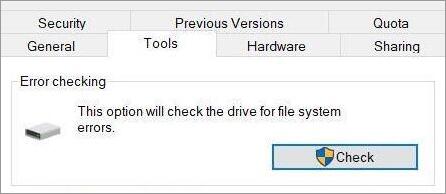
4. Simply follow the prompts. If any issue is found, you will be given an option to scan and repair it.
Steps to Check Hard-Drive Health on Mac
Just like Windows, Mac also offers you several options to regularly check and review your hard drive’s health.
#1) Using Disk Utility
- Go to Applications > Utilities > Open Disk Utility.
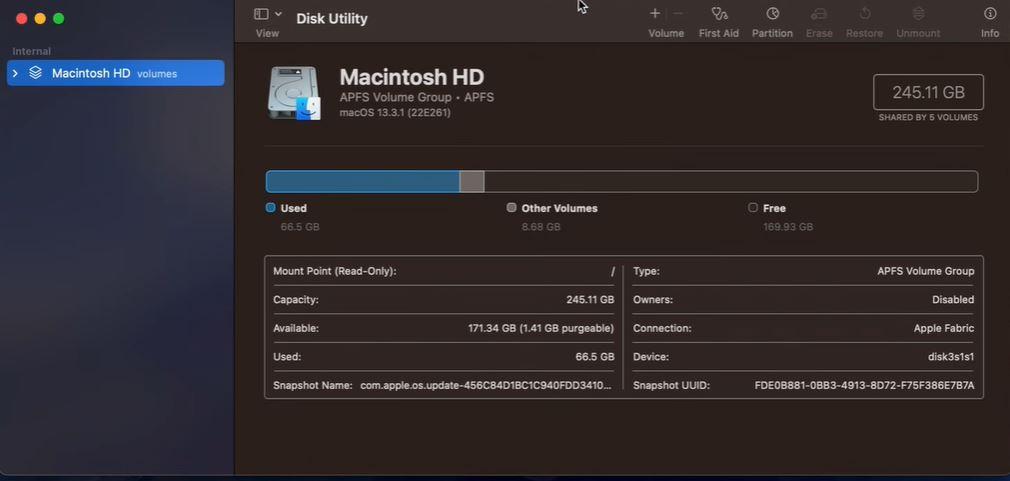
- Select the hard drive you wish to check from the sidebar.
- Select “First Aid”.
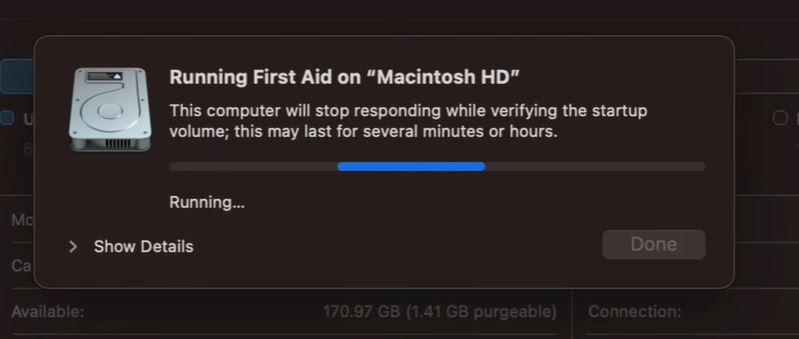
- Click “Run” to initiate the review and repair process.
You’ll be notified if an issue is repaired. If Disk Utility can’t repair an issue, you’ll be notified of that as well, giving you time to back up data and replace the drive as soon as possible.
#2) Relying on S.M.A.R.T Status
While Windows uses PowerShell for S.M.A.R.T. diagnostics, Mac can also help you with this reliable review system via its Disk Utility feature.
- Open Disk Utility
- Select the hard drive you wish to check from the sidebar.
- The S.M.A.R.T status for that drive will be shown on the same page below.
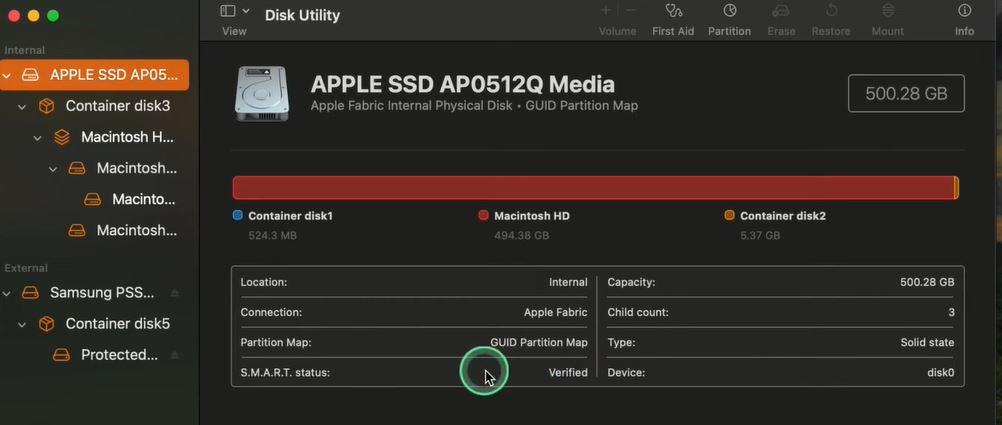
If the status shows “Verified”, it means your hard disk is healthy. You’ll see a “Failing” sign if the hard disk’s failure is imminent.
#3) Use the Terminal
Besides Disk Utility, you can review a hard drive’s health on a Mac via the Terminal as well.
Here’s how you do it:
- Go to Applications > Utilities > Terminal.
- To verify the disk, type diskutil verifyDisk disk0 and hit the Enter button. Replace disk0 if your disk identifier is different.
- To repair the disk, type diskutil repairDisk disk0.
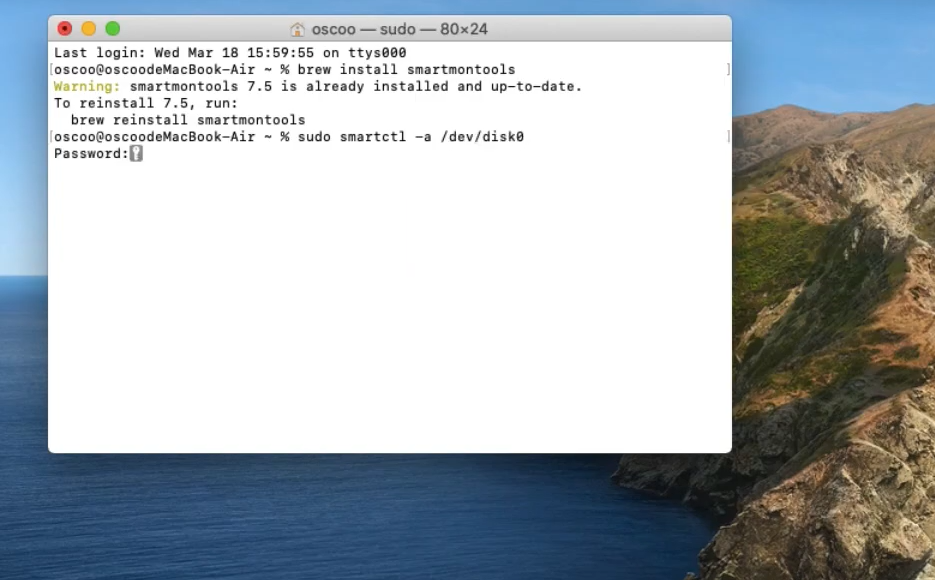
- To get S.M.A.R.T status, type smartctl -a disk0
Ways to Check Hard Drive Health on Linux
Linux comes with several advanced tools that, combined, make the task of checking hard-drive health all the more convenient.
#1) FSCK
FSCK refers to File System Consistency Check, and here’s how you can use it:
- First, open Terminal
- Type sudo fsck – f /dev/sdX.
- fsck will automatically repair any issues with your drive.
#2) S.M.A.R.T Check
You’ll first need to install SMART checkup tools, such as smartmontools, via Homebrew.
With the software package installed, do the following:
- To run a SMART test, type sudo smartctl -H /dev/sX
- For a comprehensive test, type sudo smartctl -a /dev/sX
- For an in-depth test, type sudo smartctl -t long /dev/sX
#3) Use Disk Utility
- Go to Applications > Disk Utility
- Select your drive and click on the gear icon
- Select SMART Data and Self Tests.
You’ll now see detailed information on your hard drive’s health.
#4) Run Badblocks
The badblocks command in Linux can identify bad clusters of memory within your drive that are corrupted or no longer usable.
- First, open Terminal
- Type sudo badblocks – v /dev/sdX and hit Enter.
- The command will run in a non-destructive, read-only mode by default.
You can specify the block size to be tested by running the command sudo badblocks -sb (block size in bytes) /dev/sdb1
To be even more specific about the number of blocks to be tested, you can run the following command: sudo badblocks -sc (number of blocks) /dev/sdb1
How to Check the Health of a Hard Drive Using Third-Party Software
Built-in tools make for the most convenient way to inspect your hard drive’s health. That said, they may not be effective in some cases, especially when you need detailed reports and real-time monitoring.
This is when it makes complete sense to divert your attention towards third-party software. The following 4 are some of the best tools you’ll find to check hard-drive health on both Windows and macOS systems.
#1) GSmartControl
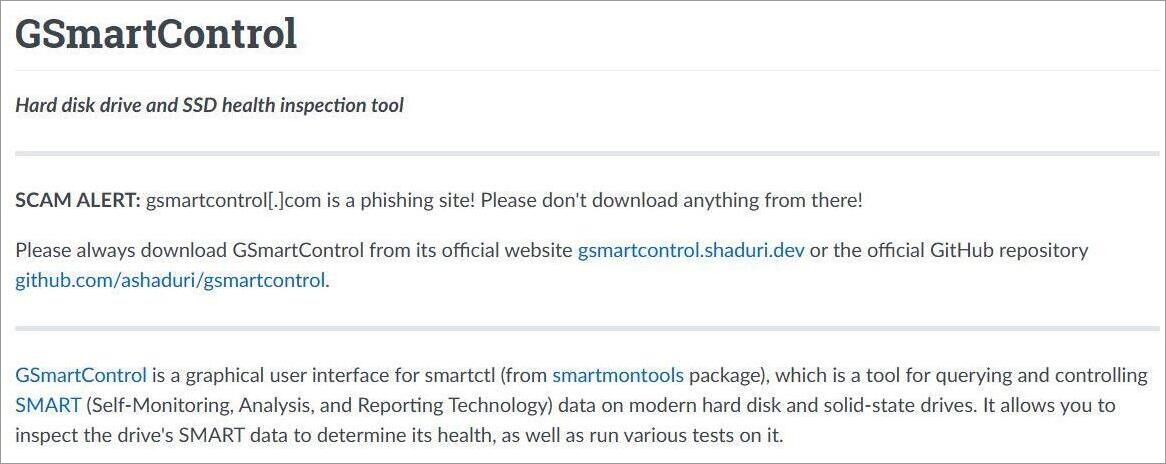
GSmartControl basically functions as a graphical user interface for smartctl, the same command used to query SMART data. It can help you analyze SMART data for both HDDs and SDDs. This software automatically reports any anomalies detected. It also performs SMART self-tests.
Platform: Windows and Mac
Website: https://gsmartcontrol.shaduri.dev/
#2) DriveDx
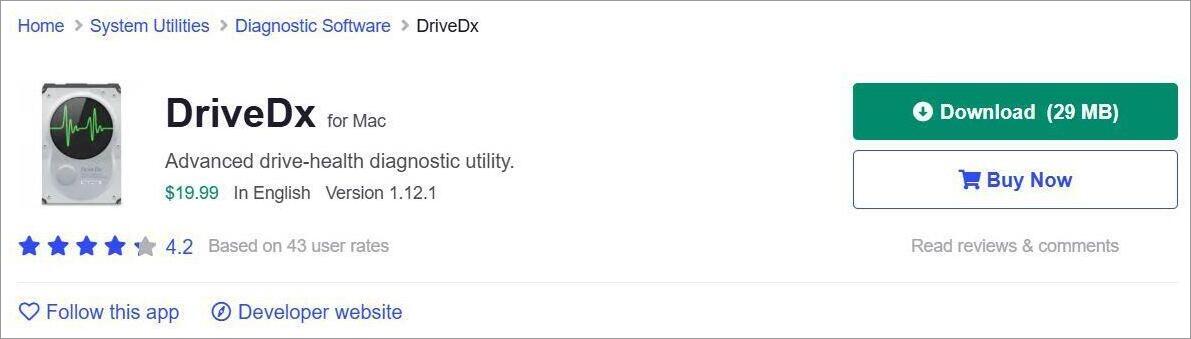
DriveDx is a macOS-exclusive solution that you can count on for in-depth hard-disk health analysis. It stands out for its ability to predict a drive’s failure. It does so by monitoring the disk for various failure signals using heuristic algorithms.
Platform: Mac
Website: https://drivedx.macupdate.com/
#3) HD Tune
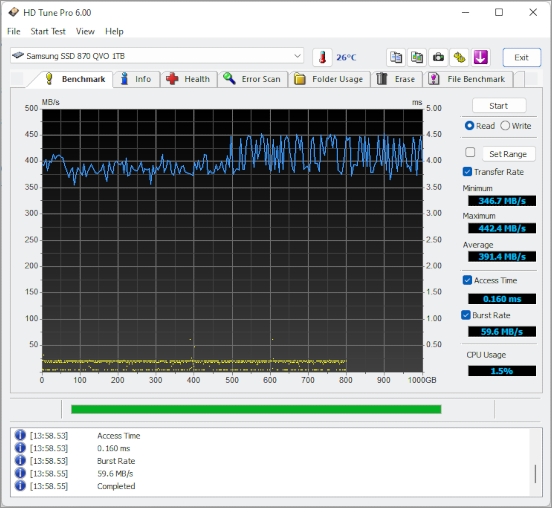
HD Tune is a lightweight utility tool that serves its purpose best for both HDDs and SDDs. You can do a lot more than monitor a hard disk’s health with this tool. It can also help you erase data, scan for errors, and measure overall performance over time.
Platform: Windows
Website: https://www.hdtune.com/
#4) Hard Disk Sentinel
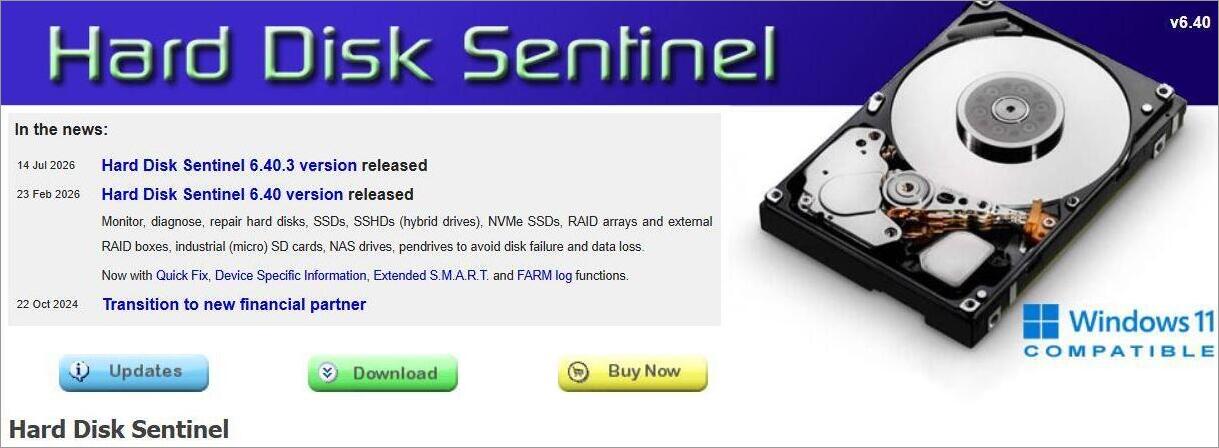
Hard Disk Sentinel is a multi-OS HDD and SDD monitoring tool that can help test, diagnose, and repair issues pertaining to a storage drive. It is very comprehensive in its reporting capabilities. It offers an in-depth description of the problem and even shares tips on how you can ensure the problem never arises again.
Platform: Windows and Linux
Website: https://www.hdsentinel.com/
How to Interpret Your Results
You really don’t need to be a data scientist to decipher the results of a hard-drive inspection, especially when SMART alerts are involved.
Via PowerShell, the SMART alerts basically signify any of the following:
- If the test returns “Ok” or “Healthy”, your hard disk is fine.
- If the test returns “Unhealthy” or “Warning”, then your hard disk will probably fail.
Similarly, on macOS, you’ll either see “Verified,” which means everything is fine, or a “failing” sign, which means imminent failure.
What words are used to describe a hard drive’s health will totally depend on the tool you use. Fortunately, no tools, whether you are using the built-in ones or third-party software, use complicated jargon in their reports.
The results are conveyed in terms as simple as “Good”, “Normal” or “Bad”. Simply put, you’ll know at a glance whether or not your hard drive is in good condition.
What to Do if Your Hard Drive is Failing
There is no saving a hard drive that is doomed to fail. Instead, I suggest immediately backing up all of your data and preparing to replace the drive. Make sure that all of your important documents or files are either copied to an external drive or uploaded to the cloud.
Refrain from running CHKDSK. This can put undue stress on a hard drive, thus expediting its failure. I would also advise against installing new applications for the same reason. Also, do not remove the outer casing of a hard drive. The last thing you want is to expose an already failing hard drive to outside elements like dust. This will only hasten its death.
There has been a long-standing myth that suggests putting your hard drive in a freezer to reverse damage. Do not do this, as this will permanently damage the hard drive.
Your only option is to first back up the data and then replace that drive with a new, functioning one.
How Often Should You Check Your Hard-Drive Health
It depends on just how old your hard drive is. For hard drives, a health check every 3-6 months will suffice. Older hard drives, especially those that are over 3 years old, require more regular checkups. I would suggest undergoing a hard-disk health check every month for such drives.
You can also set up a SMART monitoring tool to run in the background. These tools will automatically alert you to a problem if there is one.
Best Practices for Maintaining Hard-Drive Health
As I’ve said many times before, precaution is better than the ultimate cure. I suggest you follow these practices to keep your hard drive’s health optimal.
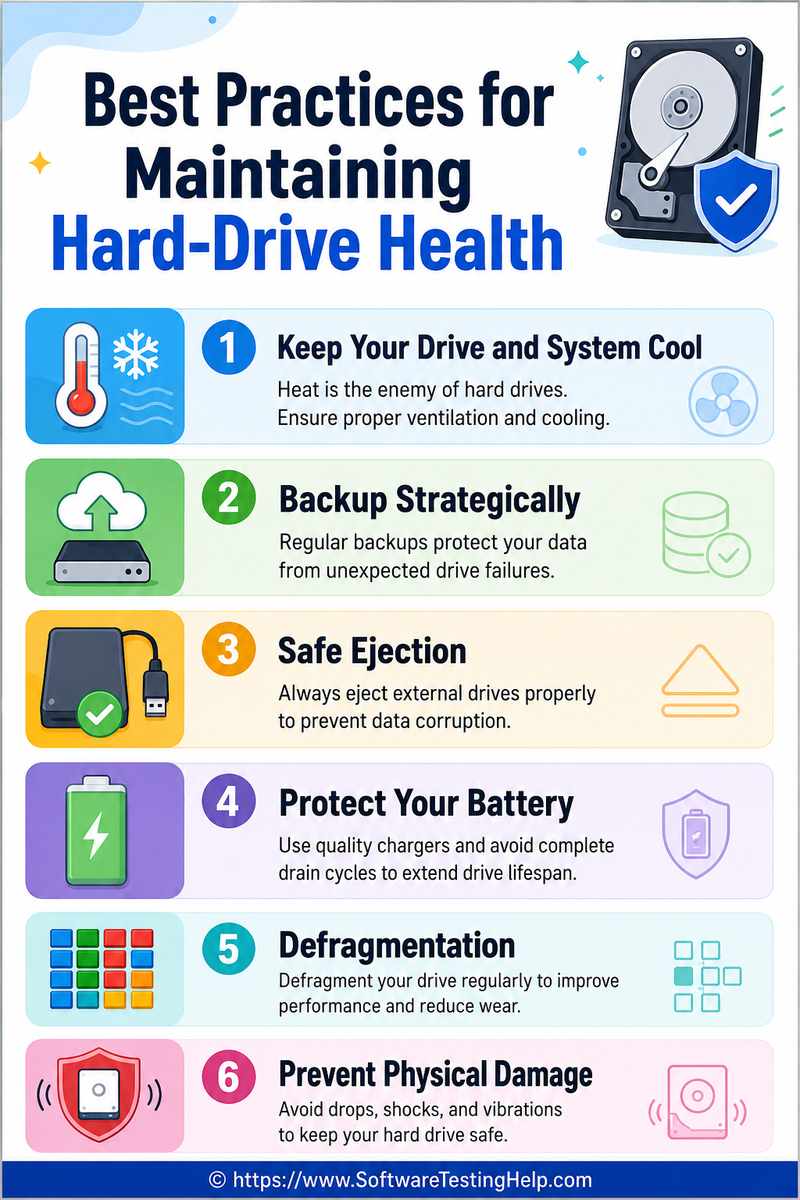
- Keep Your Drive and System Cool: Make sure the ventilation of your computer and laptop isn’t clogged. High temperatures can damage your drive. So, make sure you are using your system in a cooler environment. Also, ensure your system’s fans are working properly. Clean them regularly to avoid dust buildup.
- Backup Strategically: Always back up your data. You never know when your hard drive may fail you. I suggest following the popular 3-2-1 backup rule. Make 3 copies, save them in 2 different types of media formats, and keep 1 copy stored offsite.
- Safe Ejection: Always use the “Safely Eject External Drive” option to disconnect any external storage drives you may use. Simply yanking them out can cause irreparable harm to those devices.
- Protect Your Battery: Use Surge Guards, especially if you are working in a building that experiences frequent power surges or occasional blackouts. Any sudden surge in power can damage your system and hard drive.
- Defragmentation: Always defragment your HDDs for better organization of data. Besides protecting your hard drive, defragmentation will also speed up its performance.
- Prevent Physical Damage: A major cause of hard-drive failure pertains to physical wear and tear. I suggest you handle your drive and system with care. Avoid dropping or bumping them.
Frequently Asked Questions
1. How do I know the health of my hard drive?
There are many things you can do to review the health of your hard drive.
For a Windows system, you can opt for the following:
• Use File Explorer
• Check SMART status via PowerShell.
For a macOS system, you can:
• Check SMART status via Terminal or Disk Utility.
For a Linux System, you can:
• Get SMART data via the smartmontools software package
• Use FSCK
• Use Disk Utility.
There are third-party tools you can use as well, like Hard Disk Sentinel, DX Drive, and GSmartControl, that can also help you with the same.
2. What is the lifespan of an HDD?
The average lifespan of an HDD is said to be around 3-5 years. That said, a well-maintained HDD can last for over 10 years until you notice signs of possible failure.
3. Can a dead HDD be repaired?
Rarely can a dead HDD be fully repaired. In special circumstances, one can revive a dead HDD, but only for temporary use. The success of such a repair will also depend on the HDD failure. Logical failures can be fixed with CHKDSK, but electrical failures require a more invasive approach.
4. Which lasts longer, SSD or HDD?
SSD, because it doesn’t contain any moving parts, lasts longer than an HDD. SSD’s average lifespan can range from 5-10 years, as opposed to the lifespan of an HDD, which averages 3-5 years.
5. When should you seek professional help with a failed hard drive?
You should seek professional help when the following signs start popping up:
• Grinding or clicking sound from your system.
• System failing to recognize drives
• Corrupted data
• Partitions or files vanishing
• Frequent system crashes.
6. Is checking hard-drive health different for HDDs and SDDs?
Yes, let me explain.
A hard drive has many physical moving parts. This means the warning signs you get of an imminent failure will largely be physical. For instance, grinding or rattling sounds, or an extreme drop in performance.
On the other hand, an SDD does not have any physical parts. Its failure is mainly due to gradual cell degradation rather than mechanical wear and tear.
You’ll know when an SDD is failing by noticing the following signs:
• The drive suddenly falls into a read-only mode
• You notice corrupted files and missing folders
• The Blue Screen of Death
• Critical alerts on thermal overheating, active firmware, etc.
Conclusion
So, there you have it: how to check the health of a hard drive without hassle. The method you use will depend on the OS your system is operating on. I hope you can tell just how simple the process can be. You don’t need to be a tech expert or a data scientist to perform these inspections or understand the reports.
When the hard drive fails, I recommend quick action. Keep an eye and ear out for the signs. Perform a health check every 3 months, or every month if the hard disk is old. Back up the data immediately and replace the hard disk with a new, functioning one.
Precaution is better than cure. My goal with this article is to help you be proactive in your approach to data maintenance. This way, you are always prepared, and your data is always secure when the unthinkable happens and your hard drive fails.
Research Process: The total time involved to complete and publish this article is approximately 43 hours. This content was created through a structured research approach to ensure accuracy and reliability.
For more related guides, you can explore our range of tutorials below:
- Top 11 Best External Hard Disk (Most Reliable Hard Drives)
- SSD Vs HDD: Which Is The Best Data Storage For Your Need
- 10 Best Hard Drive For Gaming [External And Internal]
- Hard Drive Not Showing Up In Windows 10: Solved [10 Fixes]
- How to Test Hard Drive Speed on Windows
Was this helpful?
Recommended Reading
-

Here we learn the causes of the Hard Drive Not Showing Up error in Windows 10 and explore various ways to solve hard drive not detected error: The data is the most crucial thing in today's world, and you can understand how frustrating it can be when one day your…
-

Unlock the true potential of your computer with simple speed tests. Learn how to test hard drive speed with the top tools in the market to boost productivity and maximize performance: Your computer's hard disk drive is an essential hardware component. It is a nonvolatile storage device that keeps your…
-
Here we review and compare the Top External Hard Drive with features to guide you to find out the Best External Hard Disk as per your need: Storage spaces have become the epitome of using a laptop or a PC device, and without an external hard disk, it's not possible.…
-
Read our review of the top External Hard Drive for PS4 and compare their features, etc. to identify the best PS4 Hard Drive: Are you thinking about playing your favorite games on your favorite gaming console? A gaming experience in a PS4 is amazing. But, what's the use if you…