Are you looking for ways to modify your Alexa wake word? Quickly learn how to change Alexa name with our simple step-by-step guide and personalize your Amazon Echo experience today:
It is time to enjoy voice inputs once you have configured your amazing Alexa device, whether it is a Dot, Show, or other.
You might be interested to know that an Alexa device, in many cases, prefers the default wake phrase Alexa, and in a manner, this provides the machine with its name in its daily routine.
Table of Contents:
- Rename Alexa in Minutes: Complete Step-by-Step Guide
- Quick Steps: How to Change Alexa Name
- How Can I Change the Wake Word for an Alexa Device: Quick Steps
- Various Strategies of Modifying the Wake Word
- How to Change Alexa Name to Custom Name on Different Alexa Device Versions
- Renaming Alexa Device via a Third-party Manufacturer or Soundbar
- How to Change Each and All Other Wake-Word Names
- Troubleshooting the Problems Related to Changing Alexa Name
- What is Wake Word: Purpose of Alexa Name
- How to Identify the Name/Wake Word of Your Alexa Device
- Frequently Asked Questions
- Conclusion
Rename Alexa in Minutes: Complete Step-by-Step Guide
Nonetheless, several users have been feeling uncomfortable or frustrated when that name is shared with their personal life (say, somebody at home is also named Alexa), or when more than one device reacts to that trigger, generating confusion.
Wake word is the audible signal that initiates listening of the device. Therefore, it may come a time when you want to change that name altogether.

[Via alexa.amazon]
Quick Steps: How to Change Alexa Name
Users are willing to customize and have more control over time, and wish to modify what they refer to as their virtual assistant. Since Amazon (and Alexa) are trying to balance the flexibility, privacy, and technical limits, the wake word is modifiable, but there is a limited set of options, of course.
This tutorial explains what the Alexa name is, its importance, how to check and change it on devices, traps and fixes, and the answers to common questions about the matter.
Here is the video guide on how to change the Wake Word of the Echo Dot:
How Can I Change the Wake Word for an Alexa Device: Quick Steps
The following is a well-described stepwise procedure of how to change Alexa’s name in the app in case you have been using your mobile phone or device to control Alexa activity, as do many people.
Remember, if asking how to change Alexa name on an iPhone, be sure to check the following specific instructions on how to change Alexa’s name in the app, since it works for both Android and iPhones.
Here are the steps:
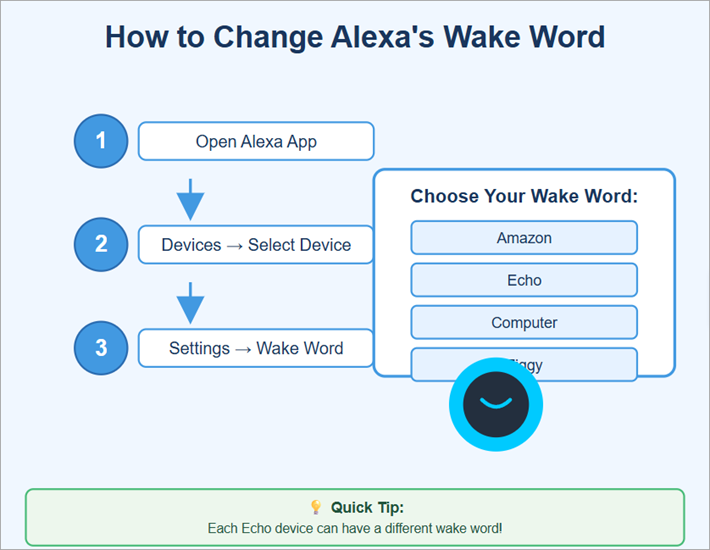
Step 1: Open the Alexa app on your Mobile or other device
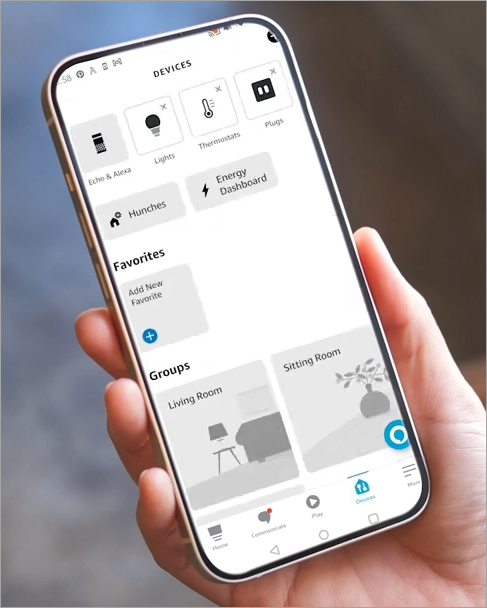
We assume you have the Alexa app from the Google Play Store app added on your mobile phone and that you have added your devices and are using them with the app. The next thing to do is to open up the Amazon Alexa mobile app (on your smartphone or tablet).
The application is a necessity since it mirrors and manipulates the device settings, and through it alone, you can be certain of viewing or adjusting the settings of the device regarding wake words and many other issues relating to Alexa, for instance, display settings on the Alexa Show.
Step 2: On the app, tap the Devices option
After opening the app, you can now see, at the bottom bar, the Devices option, which you need to now select by tapping on it. This way, you are instructing the app to display all your connected Alexa / Echo devices in order to change the correct one.
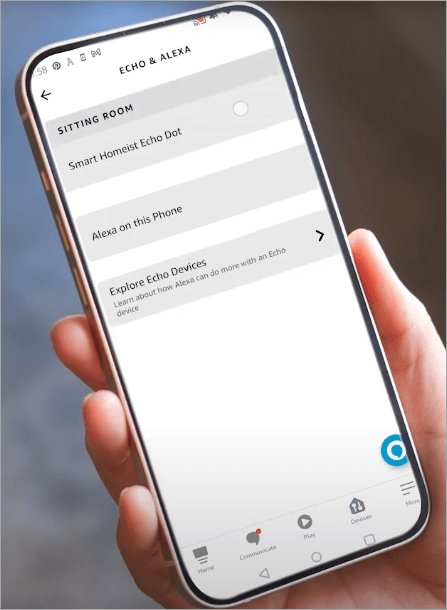
Step 3: Select “Echo & Alexa”
In the upper section of the device types, tap Echo Alexa so that you are reducing your view to Alexa devices (not lights, switches, cameras, etc.) of Amazon, just in case you are using the app to manage other devices as well.
Doing this will mean you are now viewing only those devices on which the wake word is supported and on which that wake word can be changed.
Step 4: Select the particular device whose wake word you want to modify
Move down through that list until you can find the specific Echo or Alexa device for which you want to change the wake word.
The selection of one (e.g. the bedroom Echo, or dining room Echo) cannot be sufficiently emphasized since the wake word change is not worldwide applied for all devices on that list – it is device-specific.
Step 5: Access the Device Settings
You touch the settings (gear) in the upper right (or go to the settings of the device), on the settings screen of that device. You do it to enter its global settings.
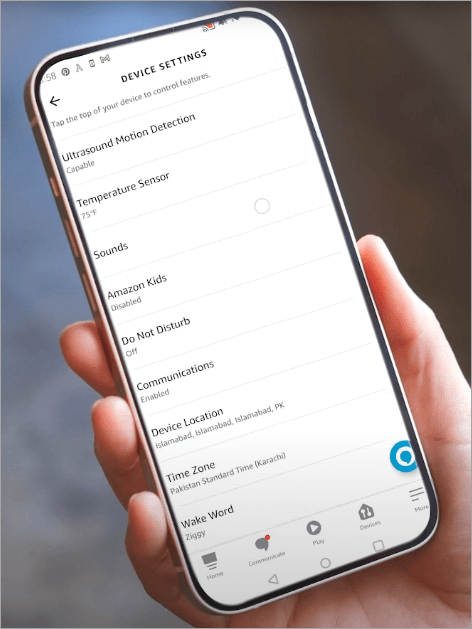
Step 6: Swipe and get to the section of general and then to Wake Word
You get down to the General section, where Wake Word has been listed. This is the applicable setting field that Amazon offers in modifying the wake word.
Step 7: Tap Wake Word from the list of options
The list of available options is brought out by tapping the Wake Word. This move gives the system an indication that it should be ready to change.
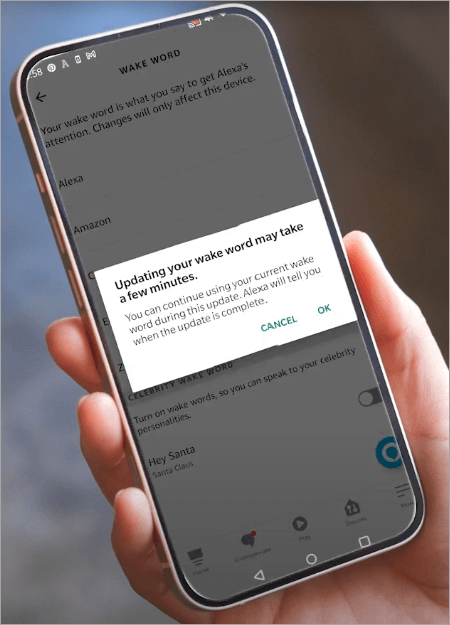
Step 8: Choosing what will be your new wake word
Tapping one of the options, you select one of the permitted ones (Alexa, Echo, Amazon, Computer, Ziggy). Upon choosing it, the device will be told that it will take it as its new wake word.
Step 9: Confirm / Tap OK
The next step is to verify the selection. To do this, tap OK or confirm from the prompt that shows up. This is to make sure that you did not accidentally tap and make the change of the wake word with your conscious consent.
Step 10: Wait until the change becomes effective
You wait some time until the device updates itself. The application can display an indicator of progress or a “Updating wake word” message. The next step is to say the new wake word to the device to check whether it has become responsive.
All those steps are needed as the wake word setting is saved on the local device and must be updated with the cloud/accounts records; the confirmation is necessary in case of accidental modifications; the wait period is required to make sure that the firmware and the wake-word detecting system will restart successfully.
Here is the video guide on how to change Alexa’s name on an iPhone:
Various Strategies of Modifying the Wake Word
The Alexa has slightly different ways to interact, depending on how you interact and what device you use.
Here are the main variants:
Through the Alexa App (Most common and First choice)
This is already articulated in the steps in section 4. It is the strongest, most visible, and cross-department method.
Through Voice Command (Change wake word) Command
Most Echo machines also allow you to merely tell the device: “Alexa, wake word Alexa, change your wake word.” The device can answer: OK, you can select either Amazon, Computer, Echo, or Ziggy: what is your choice on this device? You say the words that you would like. Amazon refers to this as another approach.
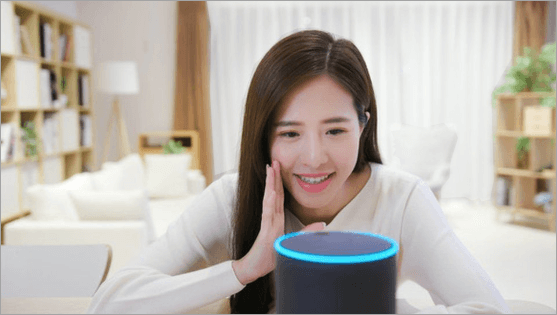
Alexa could then affirm to it: “Yes, in a few seconds”. Convenient and not supported by all devices, this method can also not work in noisy settings or when the device firmware does not support voice-change features.
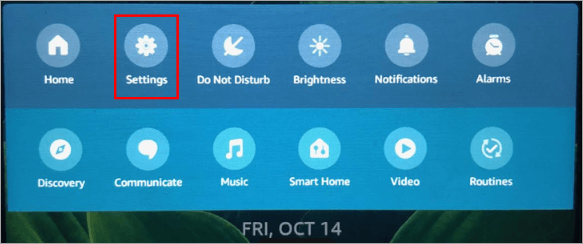
UI (E.g. Echo Show touchscreen) on-device: how to change the name on an Alexa device using UI
[Via Alphr]
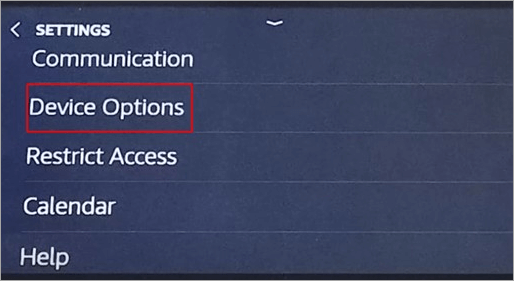
Assuming the device has a screen (Echo Show), it is possible to set the wake word on the display itself. The user goes to Settings -> Device Options -> Wake Word by swiping down (or using settings) and selecting the desired new word in the list. This eliminates the necessity of having the app at such a time.
Proxy of unsupported devices (proxy through Echo): how to change the name on an Alexa device in case it is unsupported:
- In case you have a device that is not from Alexa and are using wake words on it, the wake word can be disabled on some Alexa-enabled devices that are not produced by Amazon (e.g. some smart speakers or soundbars).
- Some people have suggested this workaround to achieve this, but note that it the solution is dependent on which third-party device you have: Just put two Amazon Echo devices in the same room, switch the wake word, and redirect voice control through the device. Others have turned off the third-party device’s onboard microphone and have left it listening to the Echo. One user of Sonos explains that they combined the Echo and the Sonos in the Alexa application and have the Dot (Echo) serve as the listener.
- These options allow users to opt on voice, applications or direct interaction, based on preference and the device used.
How to Change Alexa Name to Custom Name on Different Alexa Device Versions
Instructions that are device specific:
The devices vary in ability or UI.
Some of the most common Alexa hardware includes the following instructions:
#1) Echo Dot/Regular Echo Speakers
How to change Alexa’s name to a custom name on the Echo Dot/Regular Echo speakers:
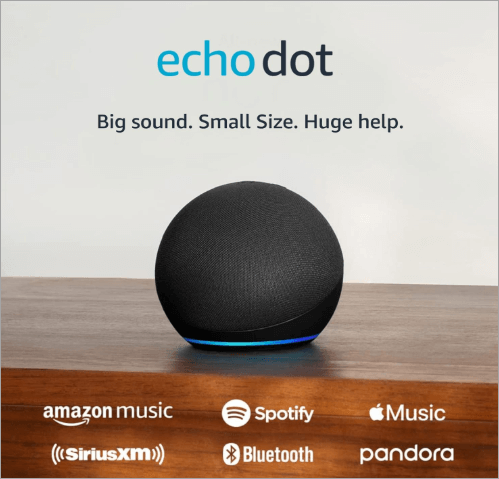
They (meaning Echo Dot devices) are dependent primarily on the Alexa application or voice recognition approach. The user will need to follow the instructions presented in section 4, one by one, or use the command Alexa, change wake word, and answer orally.
#2) With Touchscreen
How to change the name of Alexa on the Echo Show (with touchscreen):
Step 1: Swipe downward to open the control panel or the Settings menu. (A gear icon may be found in the upper-right)
Step 2: From Settings, tap Settings -> Device Options (or Device Settings).
Step 3: Keep scrolling until you get to the Wake Word and tap it, and choose the desired wake word.
Step 4: Confirm your selection of the new wake word, then wait for the device to receive the required update, and test if everything is back to normal.
The route is usually faster for users who may not want to use the mobile application (UI route).
#3) App on Fire TV
How to change Alexa’s name in the app on Fire TV? Fire TV/Alexa-enabled televisions/Fire TV Cube:
There are Fire TV products that contain Alexa. In these situations, the wake word option is usually under the Alexa application on related devices, but not on the TV interface. The user installs the Alexa app, finds the entry of the TV device in the app (where it exists), and customizes the wake word through the device settings.
Renaming Alexa Device via a Third-party Manufacturer or Soundbar
As noted, in most third-party devices, there is no wake word change. Some users have complained that their soundbars (that have built-in Alexa) do not provide the option to choose different wake words.
Indicatively, Samsung 930C customers complain that the app does not have their wake word option, and voice command to change the wake word leads to an error that states that the device is not compatible.
In such scenarios, users are forced to accept “Alexa” or utilize a proxy Echo.
Various Devices/Group Settings
Since wake word settings are saved on each device, changing one device won’t automatically update the others.
Therefore, in the case of a multi-device home, the user has to go through it process by process. It is clearly stated in Amazon documentation that the change of wake words is specific to the device-by-device level.
How to Change Each and All Other Wake-Word Names
There is a wake word name that Alexa currently supports (predefined names). These can be updated over time; however, using the latest updates, the available options are: Alexa (default), Amazon, Echo, Computer, and Ziggy.
Also, Amazon has celebrity wake voices (e.g., “Hey Samuel” to Samuel L. Jackson, or Hey Melissa to Melissa McCarthy) that modify the speech of Alexa, but which are not the wake word. Some of those cost a small fee.
To change to any of those:
- Go through section 4 (through the app) or section 5 (voice or device UI).
- On the list of the desired words in the waking phrase, press the name you want (e.g. Echo, Amazon, Ziggy, Computer, etc.).
- Confirm the choice.
- Wait to have the change installed/activated.
- Test: Pronounce the new wake word.
Due to the fact that the device only highlights those names, you are not allowed to use an arbitrary custom word (such as your name).
Numerous users on Reddit and other online forums ask to get custom wake words, yet Amazon does not allow it beyond the above. As an example, one enquired whether you can use Jarvis instead of Tony, but it is not officially supported in the firmware.
Should you find the need to revert later on, you just repeat the steps and select Alexa (or another).
Troubleshooting the Problems Related to Changing Alexa Name
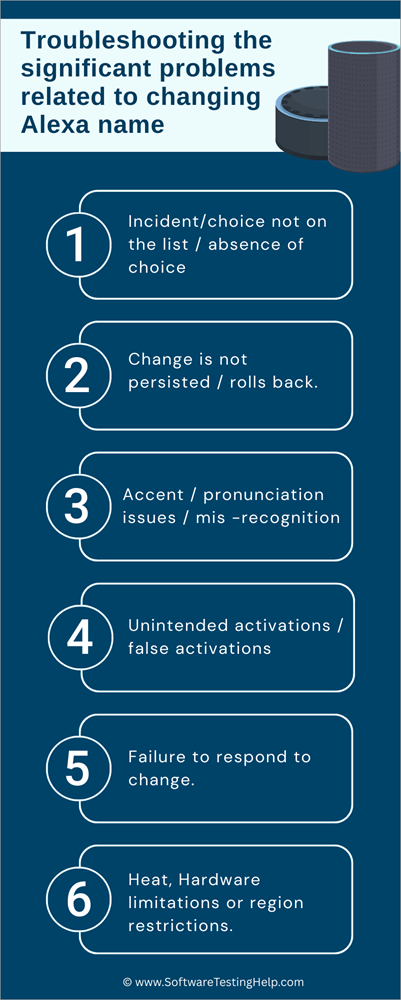
What are the most significant problems experienced during switching Alexa wake words and their solutions?
The following are some of the common complaints based on support forums, community forums, user comments, and the practical solutions.
#1) Incident/Choice Not on the list/Absence of Choice
Problem: The user enters the settings of devices, and there is no opportunity to find a section called Wake Word, or they cannot change it.
Reason: The device might not allow changing the wake words (as is typical with third-party devices), or its software is too old.
Solution:
- Assess whether the device is a non-Amazon Alexa device (e.g., a smart speaker/TV with Alexa built in). A good number of them do not allow wake word change.
- The device and the Alexa app should be updated to the latest versions. In some cases, they are introduced through updates.
- Reboot (unplug, wait, and plug in again).
- In case it is still unavailable, use the proxy Echo workaround (grouped in the Alexa app) or leave without having the option of wake word change.
#2) Change is not Persisted/Rolls back
Problem: Once a new wake word has been selected and verified, one would like to go back to the previous one or have no changes.
Possible cause: Network problems, failure to sync the app, or the phone did not download wake-word firmware.
Solution:
- Make sure that the device has a good connection to WiFi.
- Reconnect the Alexa app (log out and log in).
- Restart the device.
- Attempt another attempt using voice command (where possible) as opposed to the app.
- When several devices are concerned, make sure that it is the right one that is being adjusted.
- Ensure that there are no updates to the firmware and recheck.
#3) Accent/Pronunciation Issues / Mis-recognition
Problem: Once the wake word has been reconfigured, it is no longer recognized or misunderstood.
Cause: The model used in the wake word detector might require issues in detecting the user’s accent, noise around, microphone placement, or the novel word is phonetically similar to the ambient speech.
Solution:
- Select a wake word that is different enough in your accent environment (e.g., “Echo” or “Computer” as opposed to Alexa, as it is too similar to common speech).
- Install the Echo device in an area that is not close to walls or reflective surfaces.
- Minimization of background noise (fan, TV).
- Restatement or retrain, or re-speak instructions.
- In the Alexa application settings, train the voice so Alexa can learn to understand your voice.
#4) Unintended Activations/False Activations
Problem: The device does not always pay attention to the wake word, and it picks up on hearing voice when it is called Alexa (in TV, in conversation), as well as when other words that sound similar are said.
Cause: Wake-word engine is a statistical stimulus; it can be caused by similar phonemes or loud sounds. Although the wake word of the device was changed, the Alexa service backend is still aware of the term Alexa.
Solution:
- The old wake word should be uttered nowhere close to the device.
- Attempt to use a wake word that is not so commonly applied in a casual conversation (e.g. “Ziggy”).
- In case of misfires, keep on repositioning the device or change the sensitivity of the microphones (where applicable).
- Resorting to muting the microphone is the last option.
#5) Failure to Respond to Change
Problem: Once the wake word has been changed, the gadget will not react in any way (no reply) or appear to have become stuck.
Reason: The equipment might have failed to install the firmware update appropriately or it is in the middle of updating.
Solution:
- Restart (pull the plug, wait, and then plug it back in).
- Delay (there are devices that require time).
- Restart the settings (factory reset) of the device, reconfigure, and attempt the change again.
- Report customer concerns to Amazon customer support in case of a hardware problem.
#6) Heat, Hardware Limitations or Region Restrictions
Problem: There are reports of users being unable to use a certain wake word (e.g. Ziggy) or voice command because of the region or model of the device.
Reason: Amazon occasionally blocks the features of wake words or voice commands to specific locations or versions of the firmware.
Solution:
- Look at the regional support documentation of Amazon.
- Update firmware and app.
- Resort to the app method in case the voice method does not work.
- Contact Amazon customer care to determine whether your gadget is qualified.
- Take the default options of your region in case there is a need.
- There have been numerous reports of users in forums complaining of frustrations attempting to change their settings to a different name other than Alexa, since they have a person in their home with the same name, and only to discover that the device they are using (soundbar or TV) does not allow them to change their wake-word. A user of Samsung complained that despite their attempts to use voice recognition and app techniques, the device reported it is incompatible. Grouping with an Echo Dot is offered as a workaround to redistribute the burden of listening by the Samsung Community.
By knowing and implementing one or more of these resolutions, the majority of users will be able to solve frequent wake-word change failures.
What is Wake Word: Purpose of Alexa Name
The name that people commonly refer to is the wake word in Alexa language (it is also known as the wake phrase). The wake word is a short word or trigger (e.g., Alexa) that the local software in the device always listens to. On hearing that word, the device activates and starts streaming voice input to be processed.
The wake word is critical for privacy (or the device does not listen to you all the time) and responsiveness (or the device will only respond when called).
Amazon incorporates the wake-word engine with a lightweight, fast, and robust design towards false activations. The wake words are not a nickname of the device, but they are an active voice trigger, which users can use to assign their own names or labels in the app.
Since the process of voice recognition of the wake-word depends on signal processing, filtering ambient noise, and voice models, Alexa does not provide real alternatives, but just a few built-in ones.
Reconfiguring the wake word allows a user to simply change the default wake word on that device; that is, when that user speaks a different word, that device will respond (but not other devices using the default wake word, which use “Alexa”).
How to Identify the Name/Wake Word of Your Alexa Device
A user should ensure that he/she know which wake word his/her device is in use before altering anything. Here is how one determines it, in case you want to first do so and learn how to change the name of Alexa:
- Mobile App: The user can view this by going to the Alexa mobile app (Android or iOS), tapping Devices, then picking the particular Echo or Alexa device under Echo and Alexa, tapping it, then tapping Settings, and scrolling down to Wake Word and is greeted with the option that is currently turned on (e.g., Alexa, Echo, Amazon, Computer, or Ziggy).
- Device Settings: Provided the device is an Echo Show (has a screen), the user can go to on-device Settings -> Device Options (or similar menu) and see the Wake Word entry to see the current setting. Many users and guides on the internet have cited this alternative concerning the Echo Show devices.)
- There are those people as well who say, Alexa, what is your wake word. However, this voice command is not a universal one: the device can either repeat its own name or utter its Alexa. Many users like to check the app for clarity.
- Some devices will not show a wake word, so you might struggle with changing it, anyway. This is the case, for instance, for third-party Alexa-enabled devices or soundbars. The wake word in such cases is not possible to change on that hardware. As an example, Samsung soundbar users complain that they cannot change the wake word as their device does not have this feature.
- After you have had the knowledge of the wake word being active, then you can choose to leave it or change to the other option available.
Frequently Asked Questions
These are the common queries that users would pose, and brief responses are provided.
1. Is it possible to use a completely personalized wake word (e.g. my name)?
Currently, Amazon restricts the options of wake words to the default ones (Alexa, Echo, Amazon, Computer, Ziggy). The platform cannot execute random custom words in consumer firmware. Amazon does not support such names as Jarvis or Jarvis-Alexa, which users request with regular devices.
2. Will other Echo devices also get the new name if/when I change the wake word on one device?
Other devices will retain their wake words since the wake word option is per device. You have to modify individually all Echo or Alexa devices that you desire. The Amazon documentation focuses on that.
3. Can I revert later to “Alexa” as the wake word for the device after I change the wake word?
Pick up and repeat the process, and select the option of Alexa as a wake word. After implementing the change, the device will be reverted.
4. Does the device lose my voice history or skill settings when the wake word on the device is changed?
All voice data, skill configurations, and Alexa history are not deleted upon changing the wake word. It merely influences the word that activates the device.
5. Why am I unable to change the option of a wake word on my soundbar /smart speaker?
Not all third-party Alexa devices allow changing wake words since Amazon does not expose such functionality to all devices. It may not be available in the firmware. There are suggestions by some users to combine an Echo to support voice input.
6. Does the modulation of the voice or behavior of Alexa depend on the alteration of the wake word?
The awakening phrase has no connection to the voice (tone, accent) or capabilities of Alexa. Nevertheless, there are celebrity voice selections that can be associated with wake phrases, such as Hey Samuel. Such are distinct choices.
7. How long should I take before I can request a change of the wake word on my Alexa device?
One or two minutes or so. The device makes the local update and loads the new wake-word model, and indicates the readiness. Amazon responds that they will support in a few minutes.
8. What is the reason that the device can still react to the “Alexa” even when I switch to the Echo (or some other)?
Due to the fact that the Alexa cloud backend is still sensitive to the word Alexa, there is a possibility of cross-activation or a misheard word occasionally. The local model can occasionally malfunction. The application of a unique wake word and minimized ambient noise is useful.
9. Does it have an option of changing the wake word through Alexa voice routines or scripts?
Alexa routines/skills are not automated with regard to wake word change. It has to be performed through the use of an app, device interface, or voice recognition.
Conclusion
We now conclude this guide on how to change Alexa’s name, which took you through the processes of changing Alexa’s wake word on different versions of the device from Amazon.
Take note that reconfiguring the Alexa wake word is an effective personalization option that will decrease accidental activations, prevent conflicts (i.e., when someone is called Alexa), and might make interactions feel fresher or more entertaining.
If you have a chance to do the personalization for your Alexa device, then you need to consider doing it. Although the feature is restricted to a few built-in services (Alexa, Echo, Amazon, Computer, Ziggy), the procedure is rather simple for anyone without any skills: it can be accomplished through the Echo Show, voice command, or the interface of the device (in the case of the Echo Show).
Nevertheless, this change is not supported by all Alexa-capable devices or third-party devices, and clients frequently report such problems as a lack of settings, inabilities to save new ones, or misidentifications.
With step-by-step instructions and, importantly, by updating firmware and using the workarounds that are documented, the vast majority of users can rename the wake word of their device.
It is important to make the choice carefully (using a separate, pronounceable word), and the user needs to always test the new word so that Alexa will react regularly.
Research Process: The total time involved to complete and publish this article is approximately 37 hours. This content was created through a structured research approach to ensure accuracy and reliability.
For more quick AI Tools-related guides, you can explore our range of tutorials below:
- Alexa Not Connecting to the Wi-Fi Internet – Quick FIX
- Amazon Alexa vs. Google Home: Which is the Best Assistant
- Why Is My Alexa Blinking Yellow Light & How to Fix It
- The Top 10 Artificial Intelligence Software
- Top AI Testing Tools for Your AI-Powered Testing
- Top 10 Competitive Intelligence Tools To Beat The Competition
- Top AI Agent Development Service Company
- The 15 Best Personal Robot Assistant (AI-Enabled)
Was this helpful?
Recommended Reading
-

Through this tutorial, you will identify and understand some effective ways to Fix Alexa not Connecting to Wi-Fi Issues: I have a third-generation Amazon Echo and I use it for various things, like a speaker for my TV, alarm, smart devices in my house, and so on. Sometimes it goes…
-
Get to know all about the several aspects of Amazon Alexa vs Google Home to identify the one which best suits your requirements: Recently, smart technology has become a hot topic for simplifying your home life. You may wish to add simple security features, such as weather updates and timers,…
-
Enjoy a seamless Alexa WiFi connection with our expert guide. Troubleshoot and learn how to connect Alexa to WiFi in minutes without the Alexa app and fix all common issues: The introduction of AI-powered devices has revolutionized the world in recent years. These devices have several merits and demerits. While…
-
Is your Alexa blinking yellow light? Here is a complete troubleshooting guide with step-by-step fixes and simple solutions to put an end to Alexa's yellow light blinking issues: The light ring (or light bar on the Echo Show devices) is blinking yellow, and likely, you have noticed that. This is…