Modify your home address on Google Maps in just a few taps from our step-by-step guide. Follow these simple instructions to change home on Google Maps in iPhone or Android to get accurate directions:
Sometimes, we need to change our saved address in Google Maps. It could be for any reason; you might move to a new house, enter the wrong address, or simply want to update your location.
Your saved Home address makes it easier to get directions, estimate travel times, and navigate home with fewer steps. You might not figure out how to change the home address on Google Maps.
Update Home Address on Google Maps: Quick Guide
Fortunately, it is straightforward to change your home address on Google Maps whether you are using Android, iPhone, iPad, Windows, Mac, or Chromebook. The steps are slightly different depending on the device and version of Google Maps you’re using.
In this article, you will learn how to change your home address on Google Maps via mobile apps, including Android and iPhone, and desktop websites, along with related issues like how to add another address, how to temporarily use another location, or simply how to remove the saved address.
Here is the video guide on how to edit home and work addresses in Google Maps:
How to Change Home on Google Maps in Android
You can change your home address on Google Maps on your Android phone directly through Google Maps or through your Google Account:
#1) Through Google Maps: You can change the Home address on Google Maps simply by following the given steps:
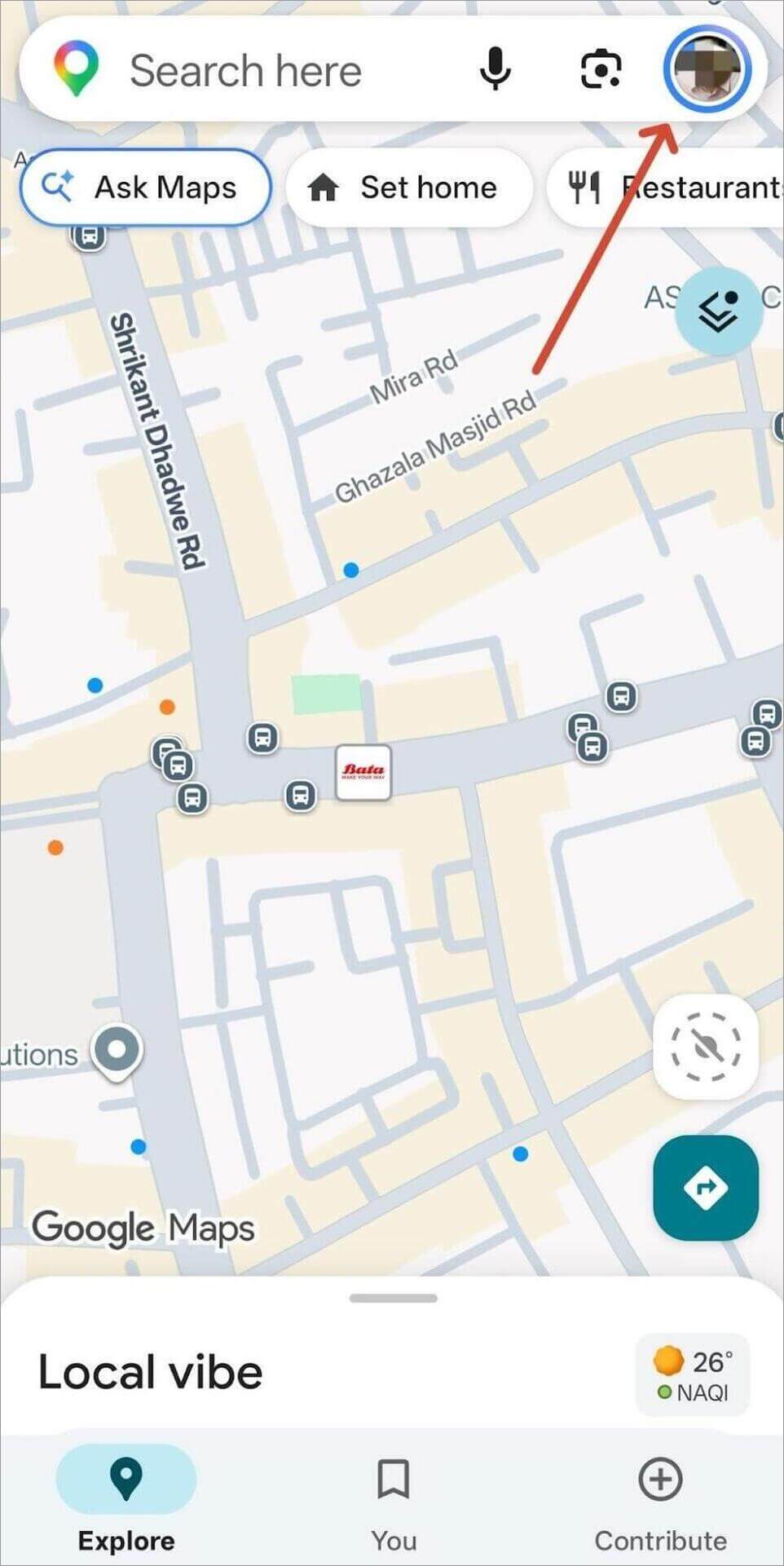
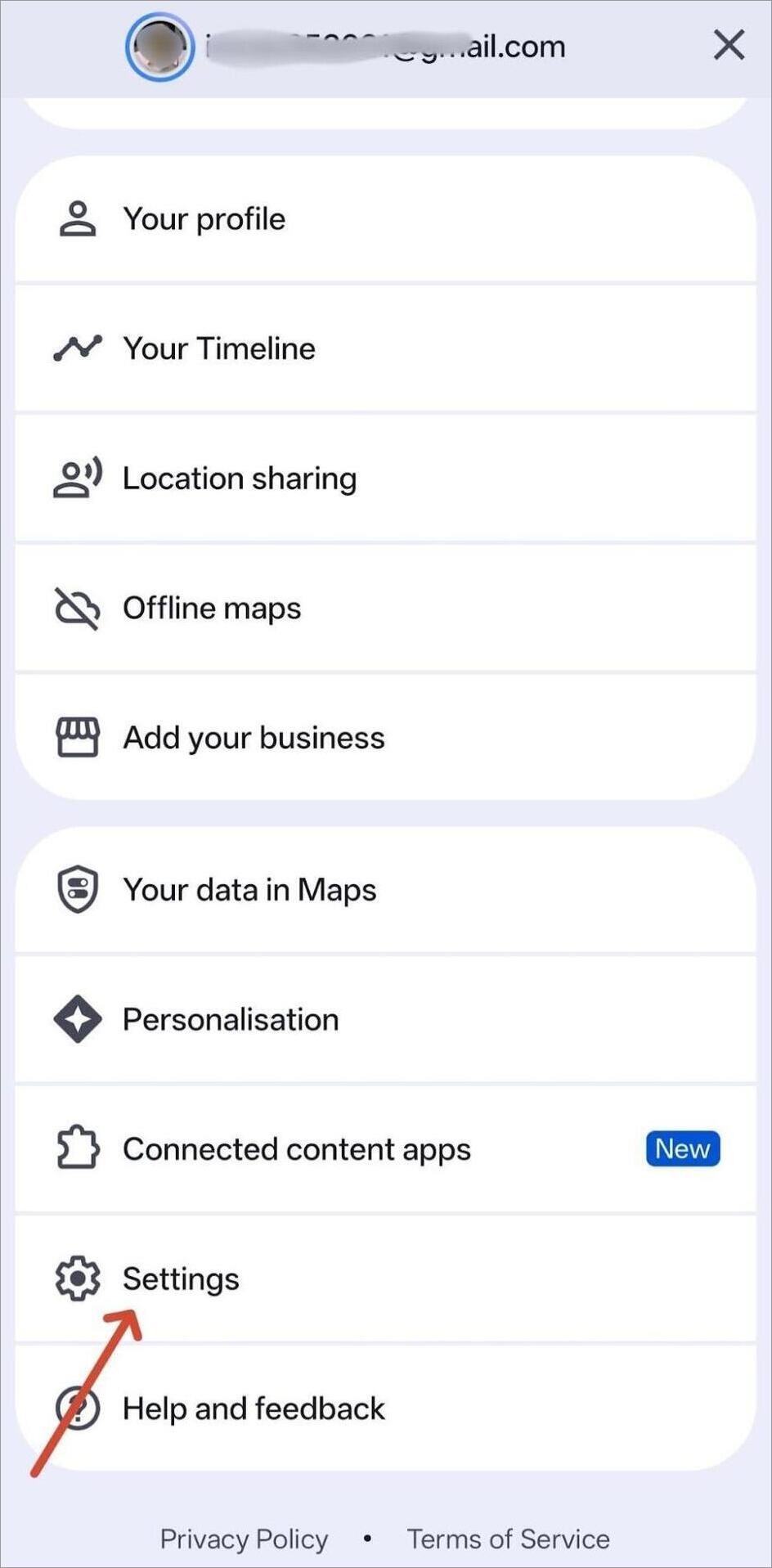
Step 1: Go to Google Maps and tap on your profile picture in the top-right corner.
Step 2: Here, scroll down and select Settings.
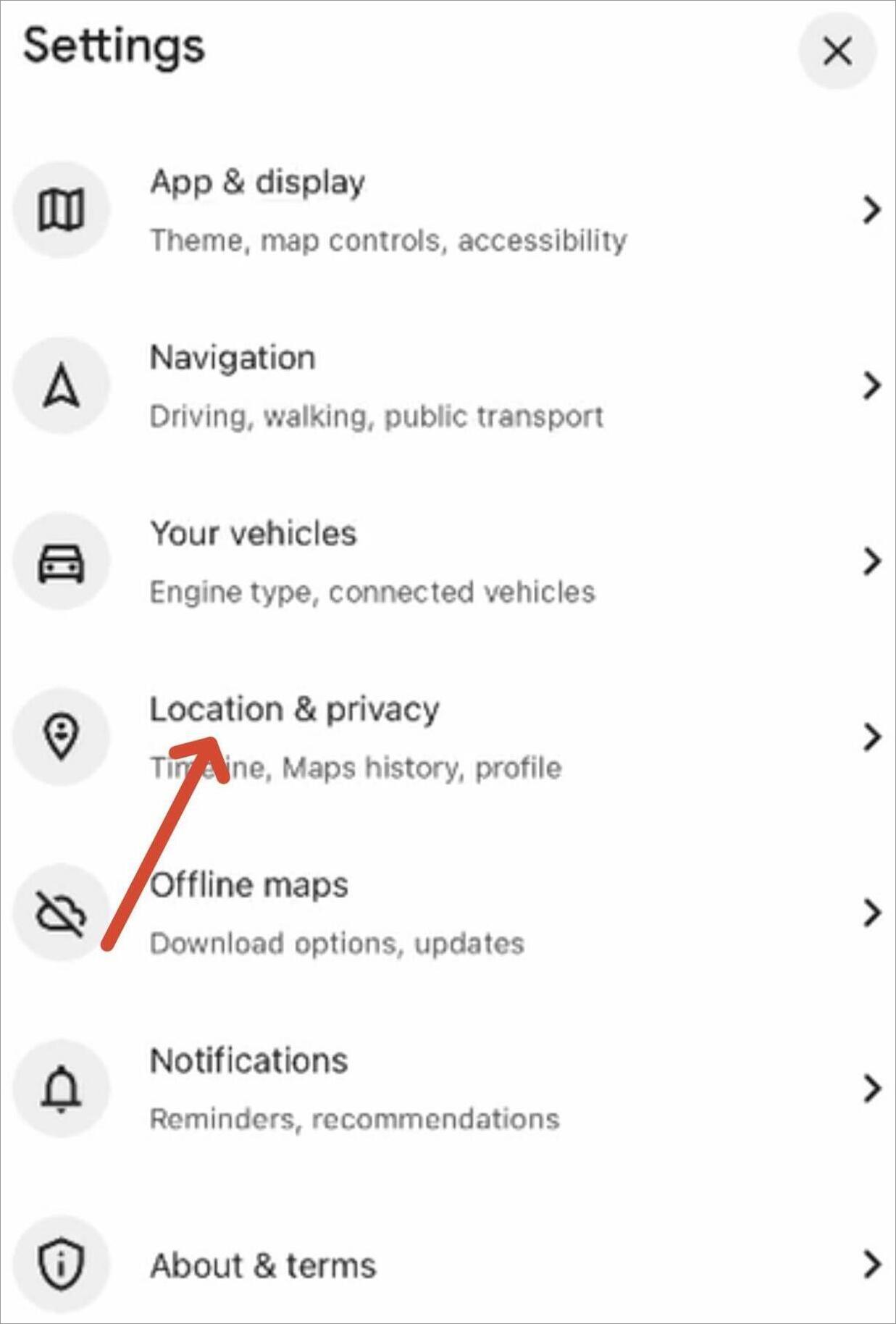
Step 3: You need to select the Location and Privacy option.
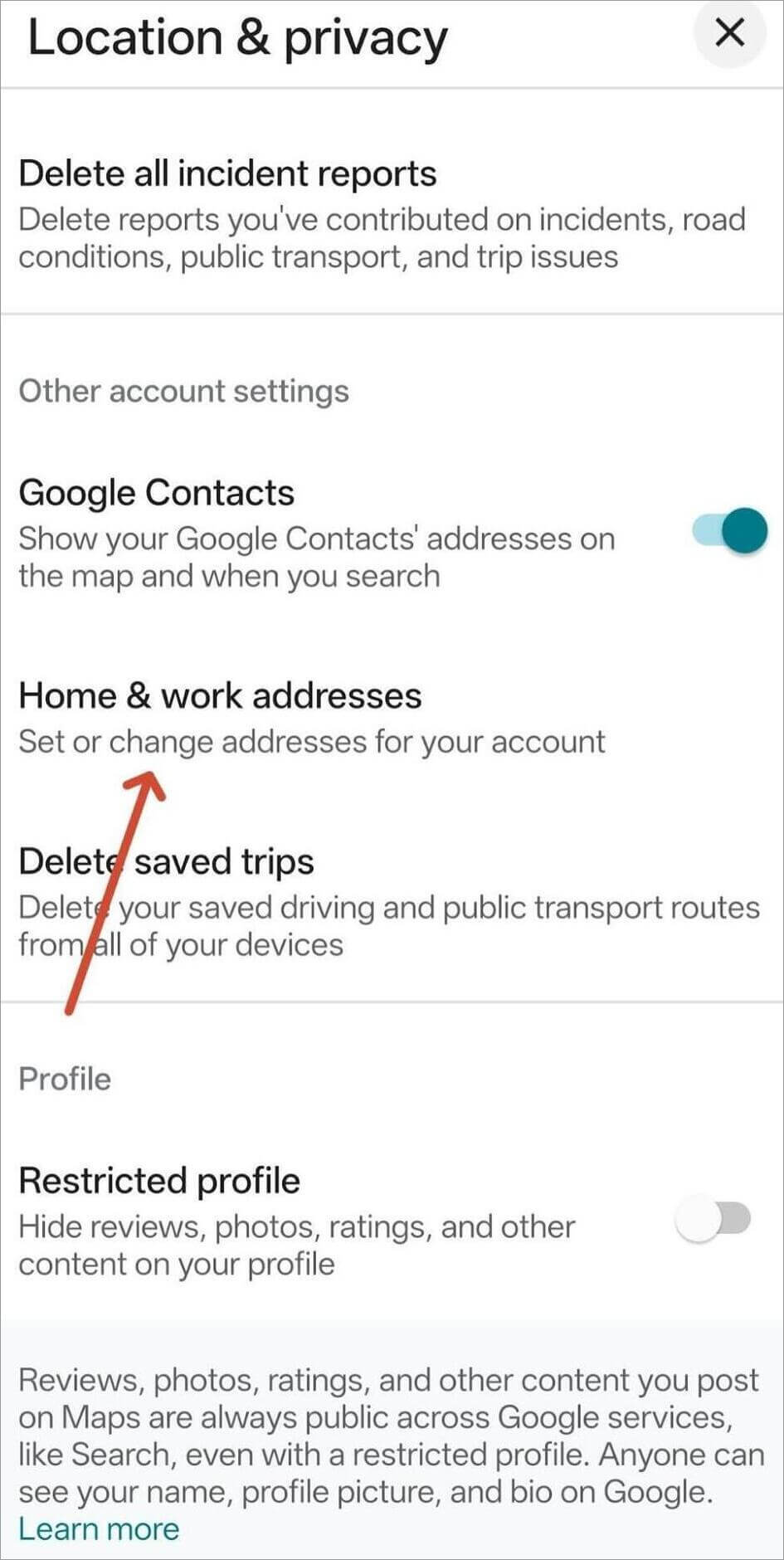
Step 4: Here, select “Edit home or work”.
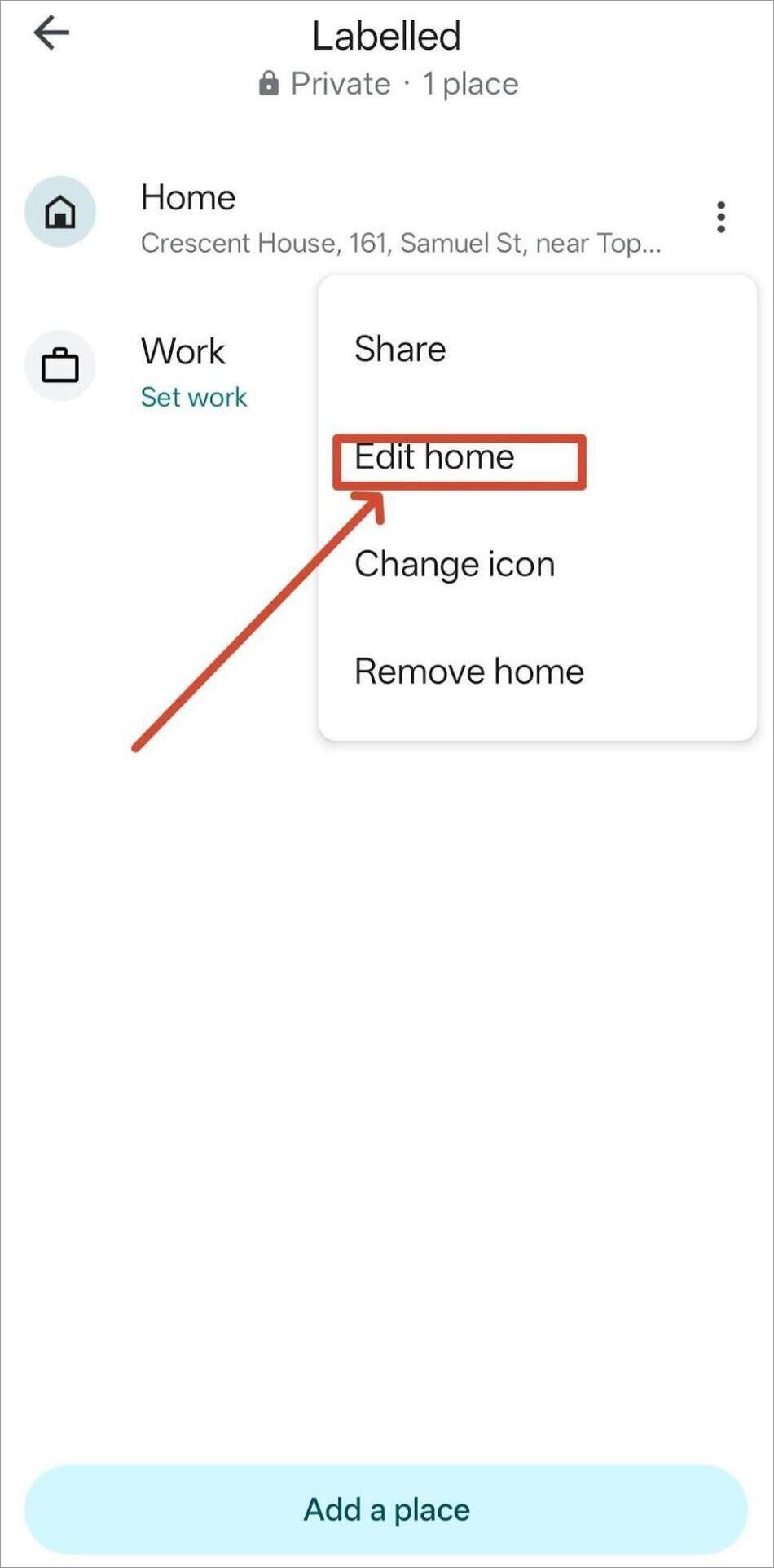
Step 5: Now you can change your Home address and your Work address saved on your account. To change Home, press the three dots given with the option and select Edit Home.
Step 6: Here, you can change the address.
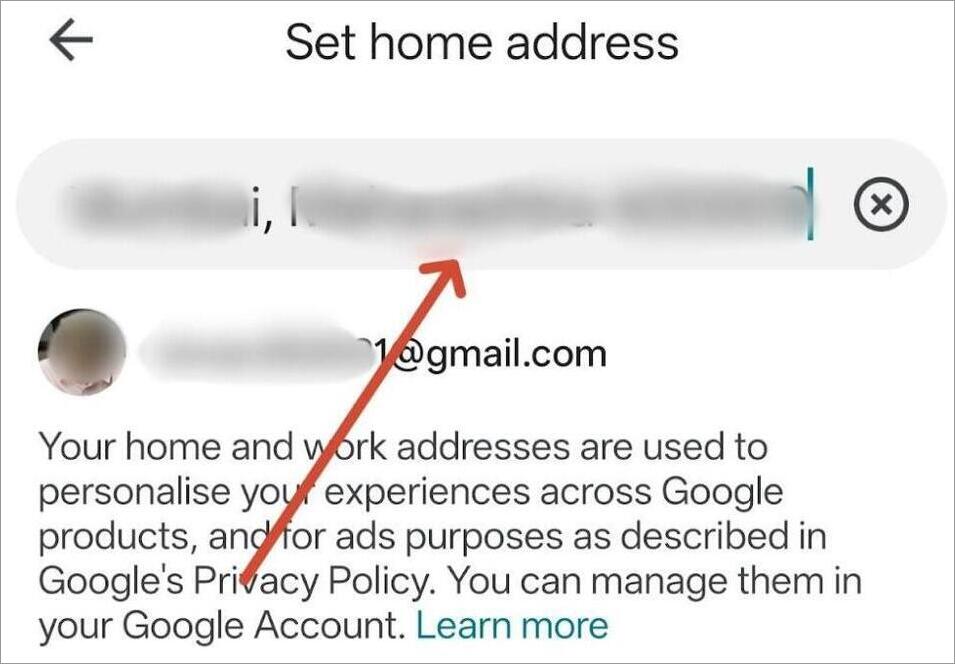
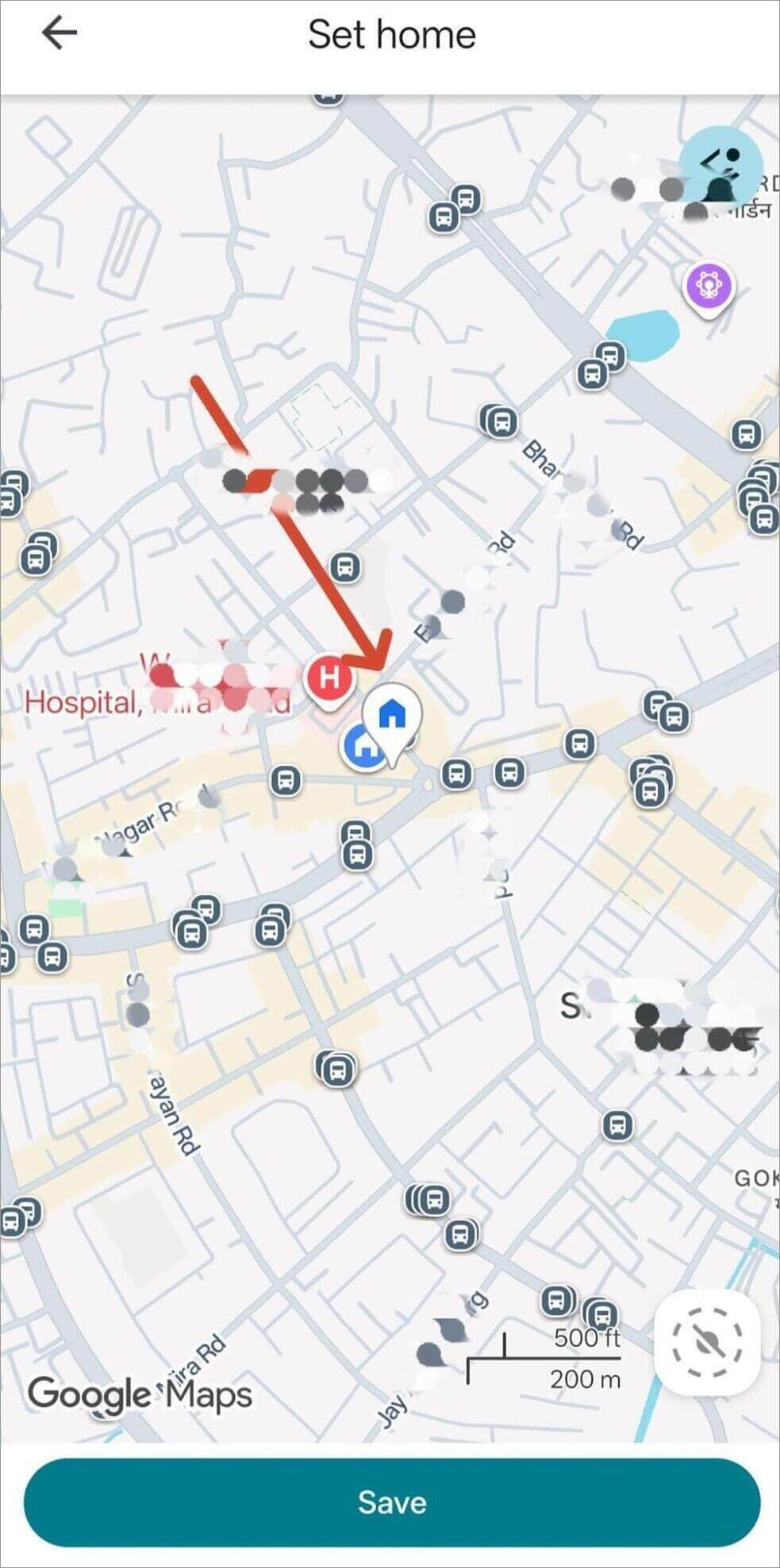
Step 7: If your address is not positioned accurately on the map, then you can pin it accurately and save the changes.
2. Through Google Account: Google uses your home or work addresses to personalize the experiences across its products, including relevant search results and directions.
You can also change your Home on Google Maps via Google account as per the given steps:
- Step 1: Open your device settings and select Google.
- Step 2: Select Manage your Google Account and tap on Personal info.
- Step 3: Select the Home address and enter your new address.
- Step 4: Now, you can save it.
How to Edit Home Address in Google Maps on iPhone and iPad
Changing Home on Google Maps on iPhone and iPad is similar. To update a home address on Google Maps, include the following steps:
Step 1: Open Google Maps and select your profile.
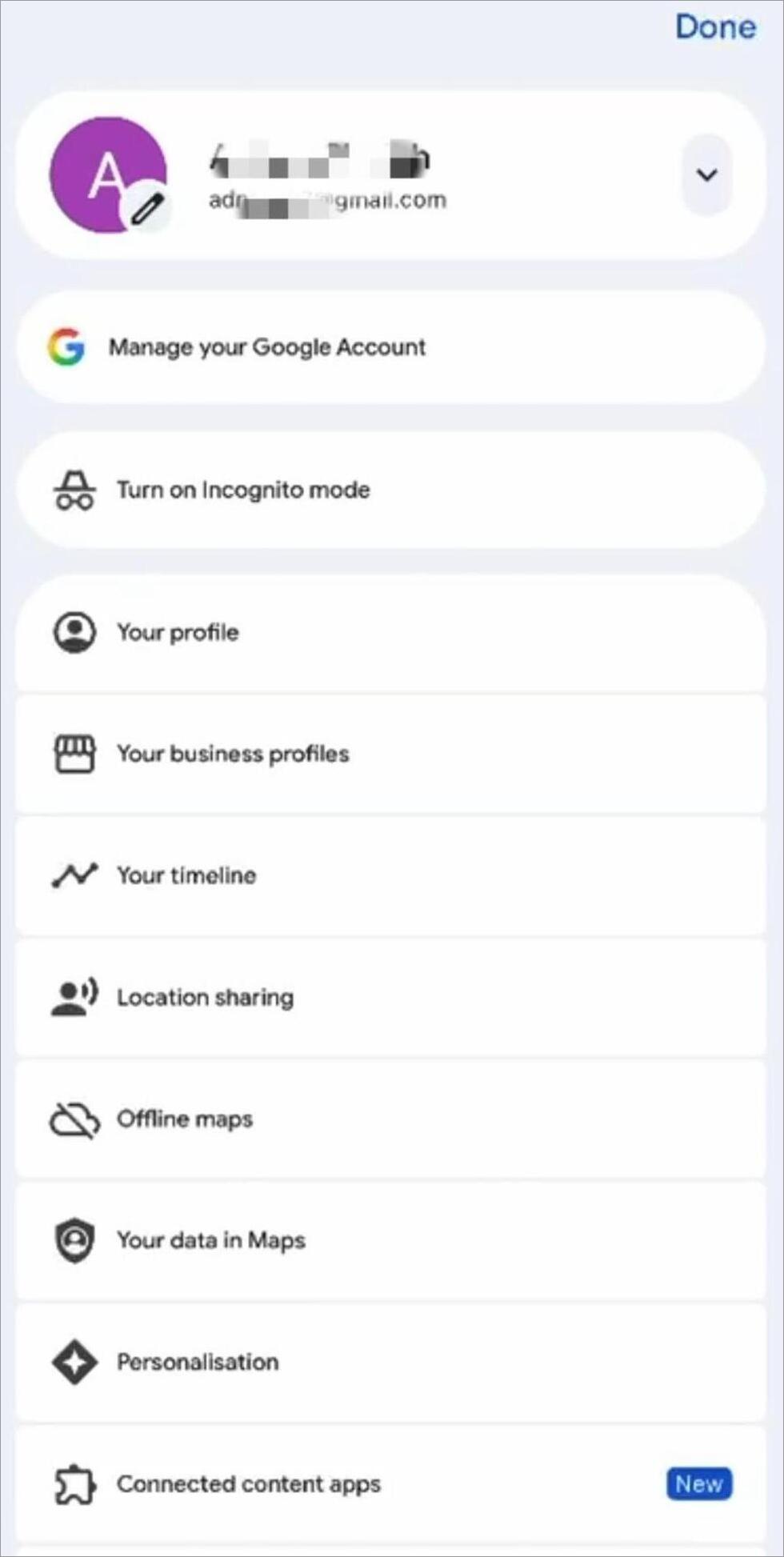
Step 2: Now, press Settings.
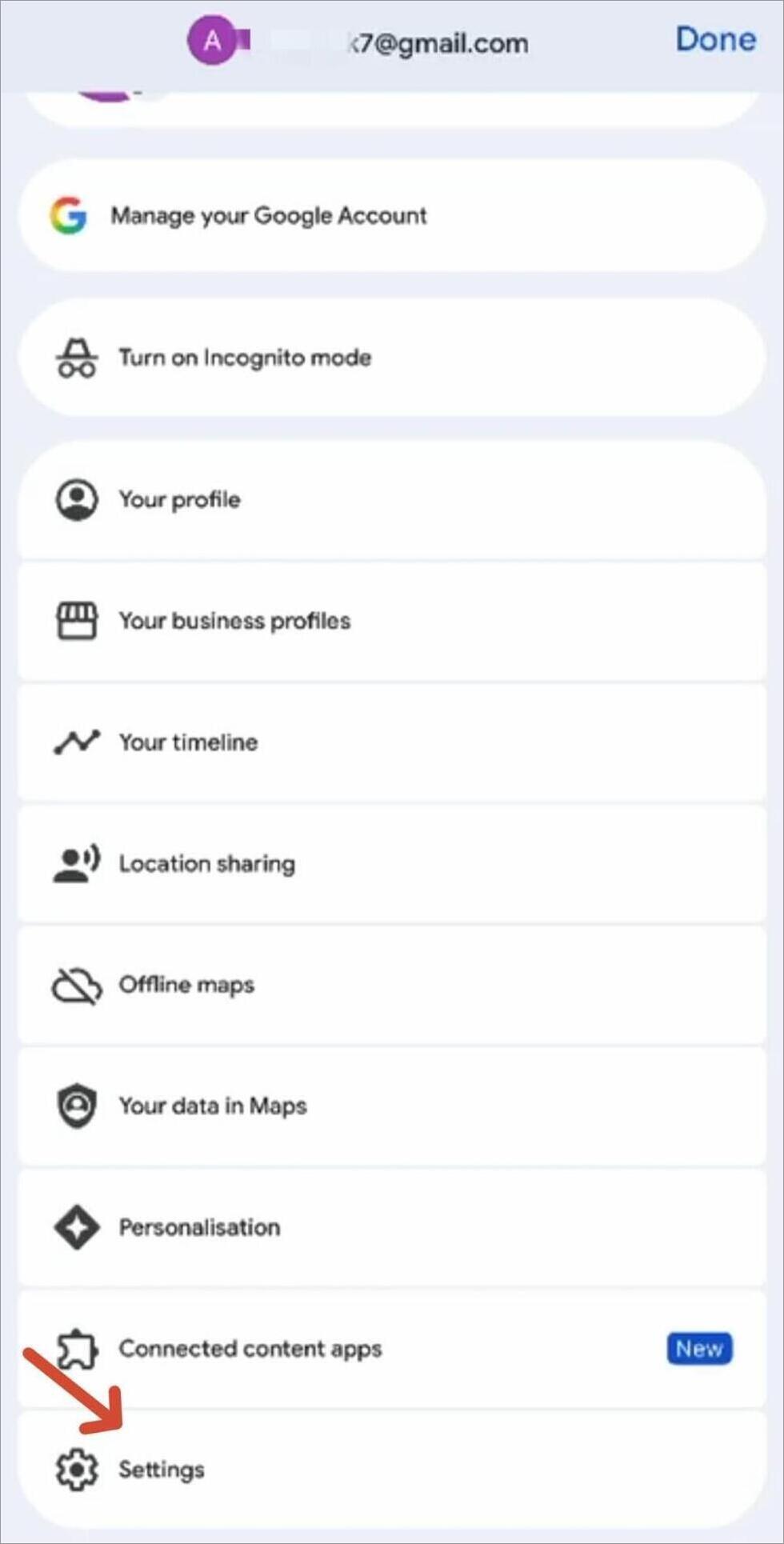
Step 3: Here, select Location & Privacy.
Step 4: Scroll down and press Home and Work addresses.
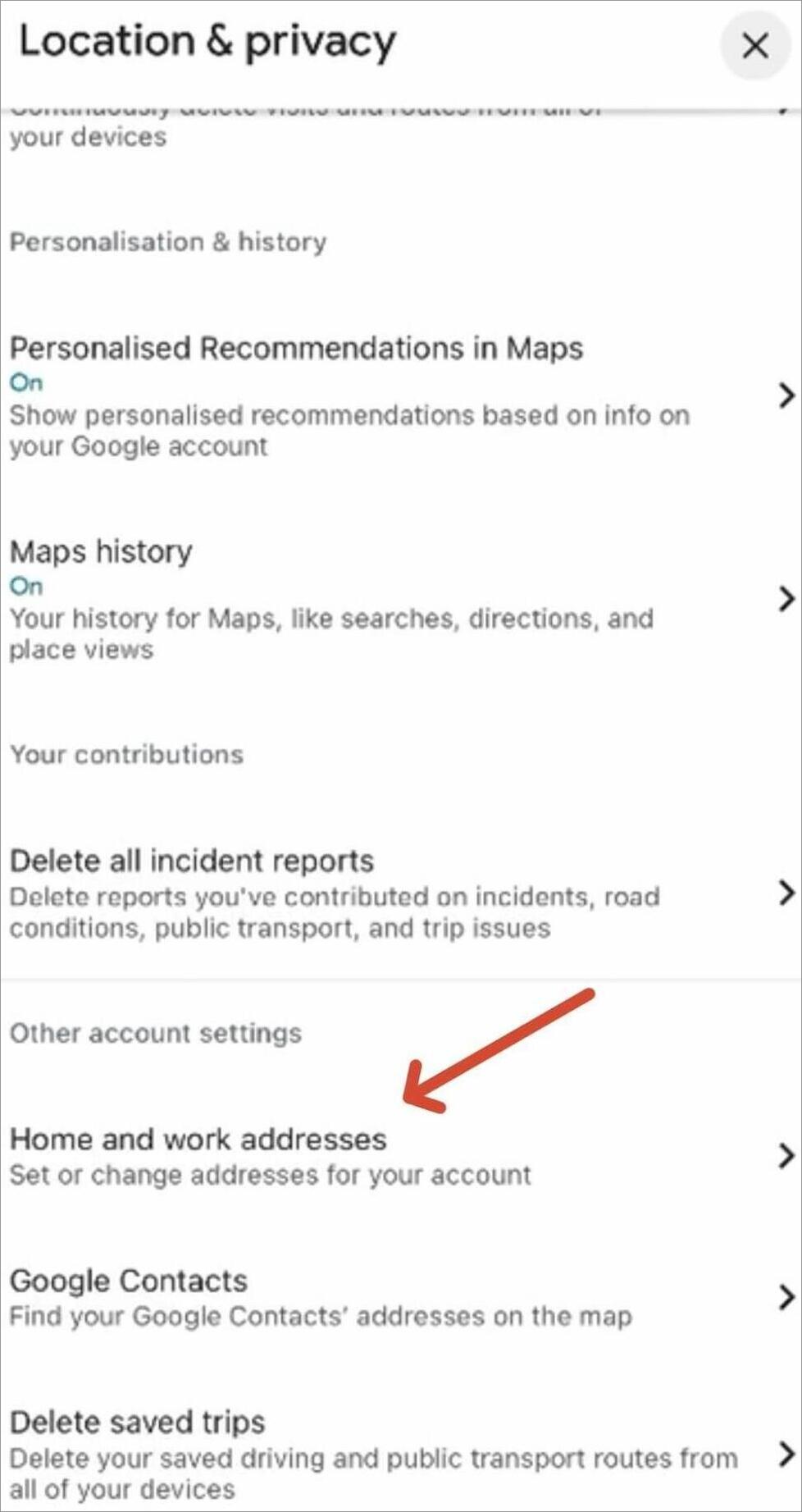
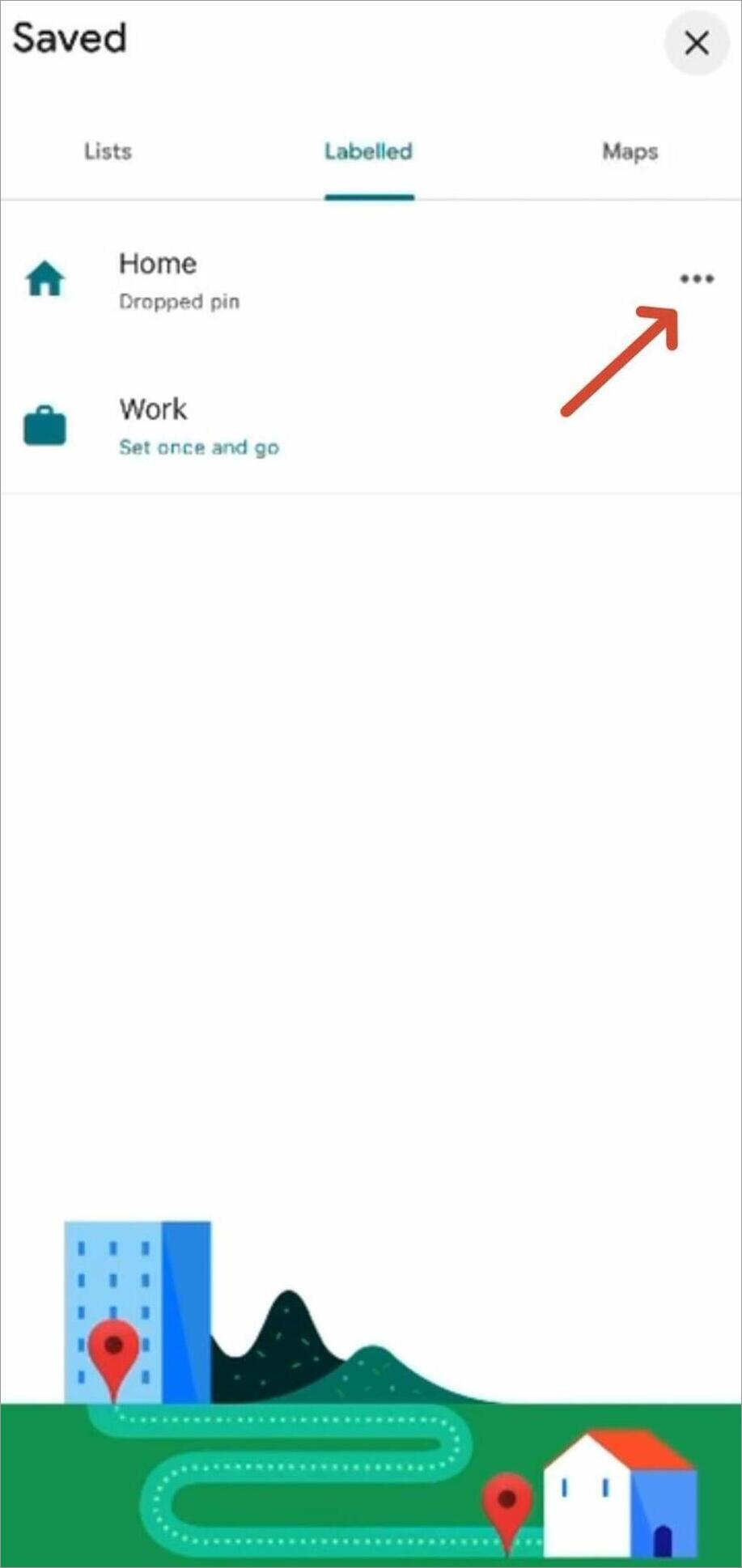
Step 5: You will see all the labeled addresses. Press the three dots on Home.
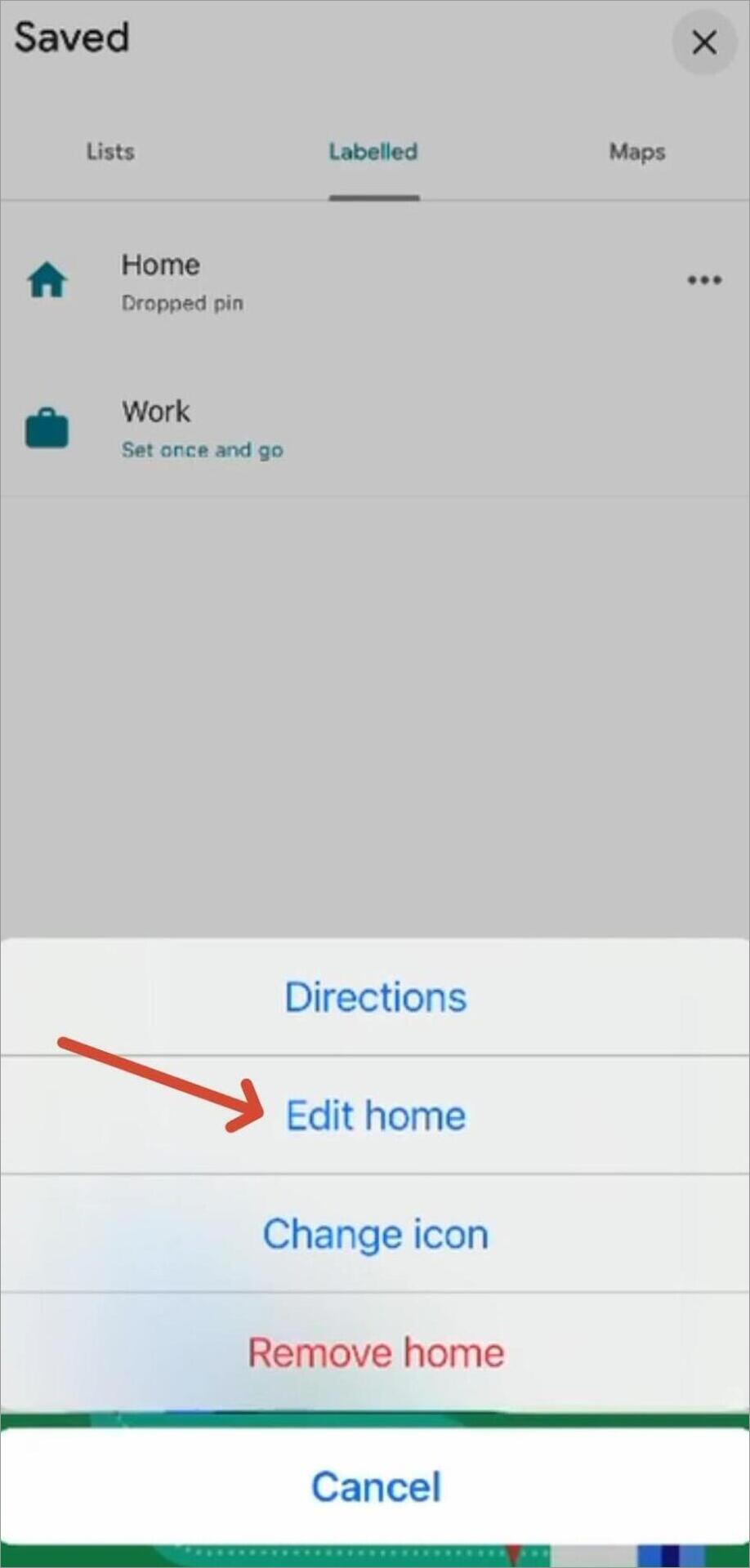
Step 6: Press Edit Home and change the required address.
Through Google Account:
You can also change the Home address through your Google Account.
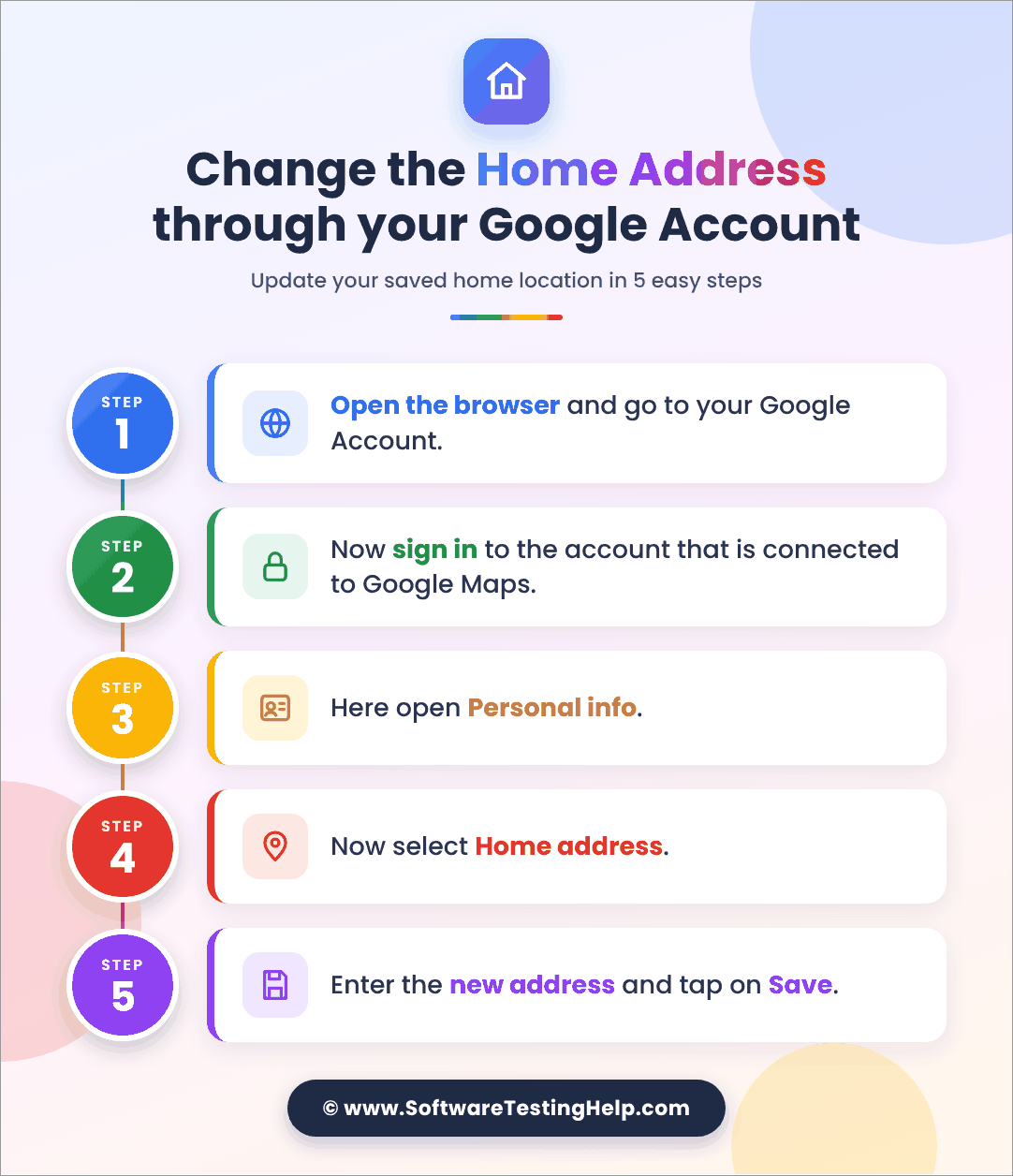
- Step 1: Open the browser and go to your Google Account.
- Step 2: Sign in to the account that is connected to Google Maps.
- Step 3: Open Personal info.
- Step 4: Select Home address.
- Step 5: Enter the new address and tap on Save.
Change Home on Google Maps on Desktop: Easy Guide
On the desktop, you can change the Home address through the browser. You can do the same on Windows PC, Mac, or Chromebook as per the following steps:
Step 1: Open Google Maps in the browser.
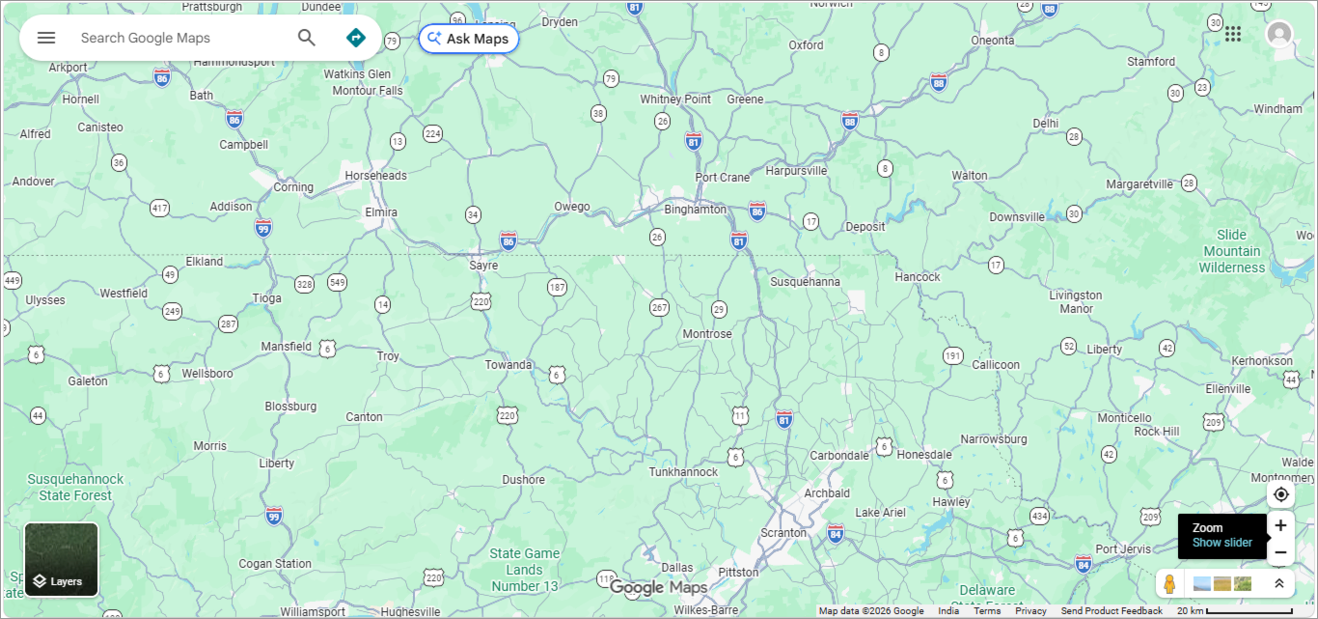
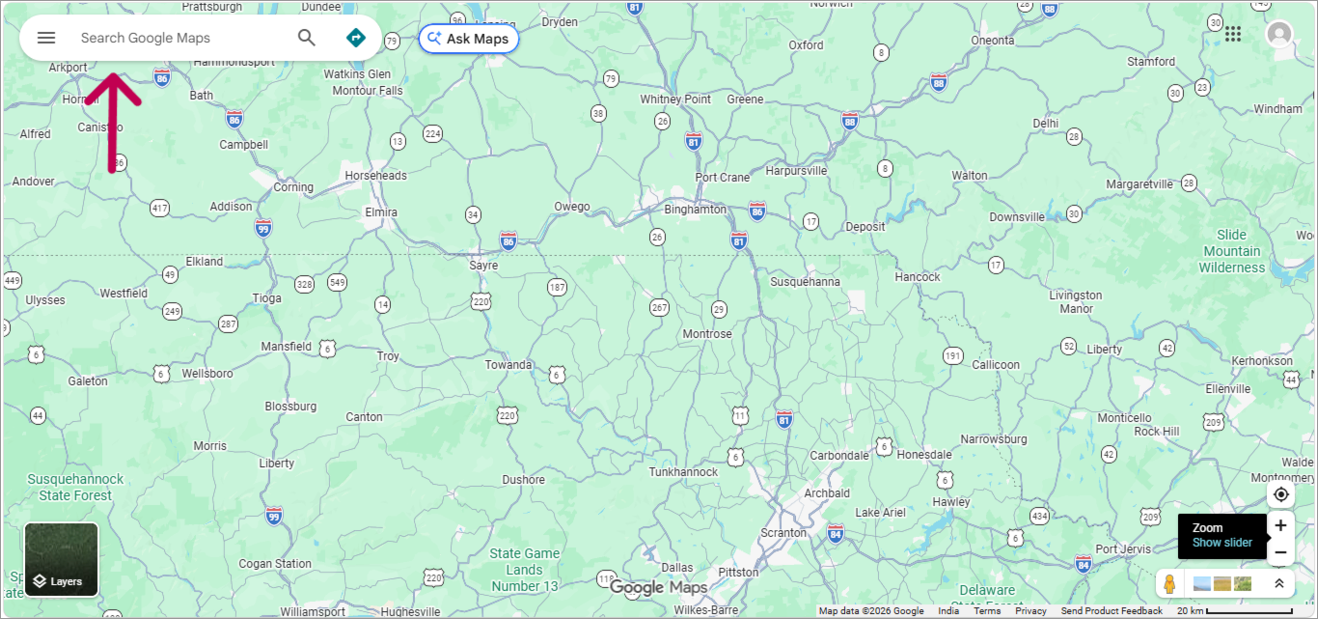
Step 2: Click on the search bar.
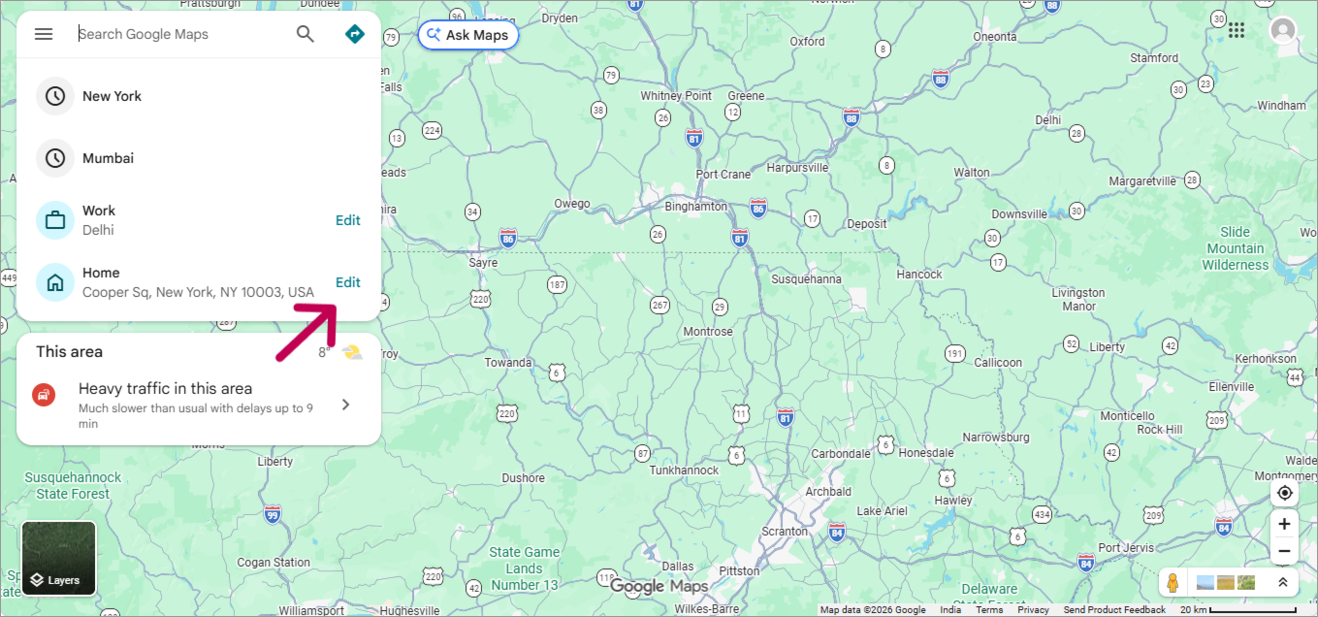
Step 3: You will see your saved addresses. Click on the edit option given next to the Home label.
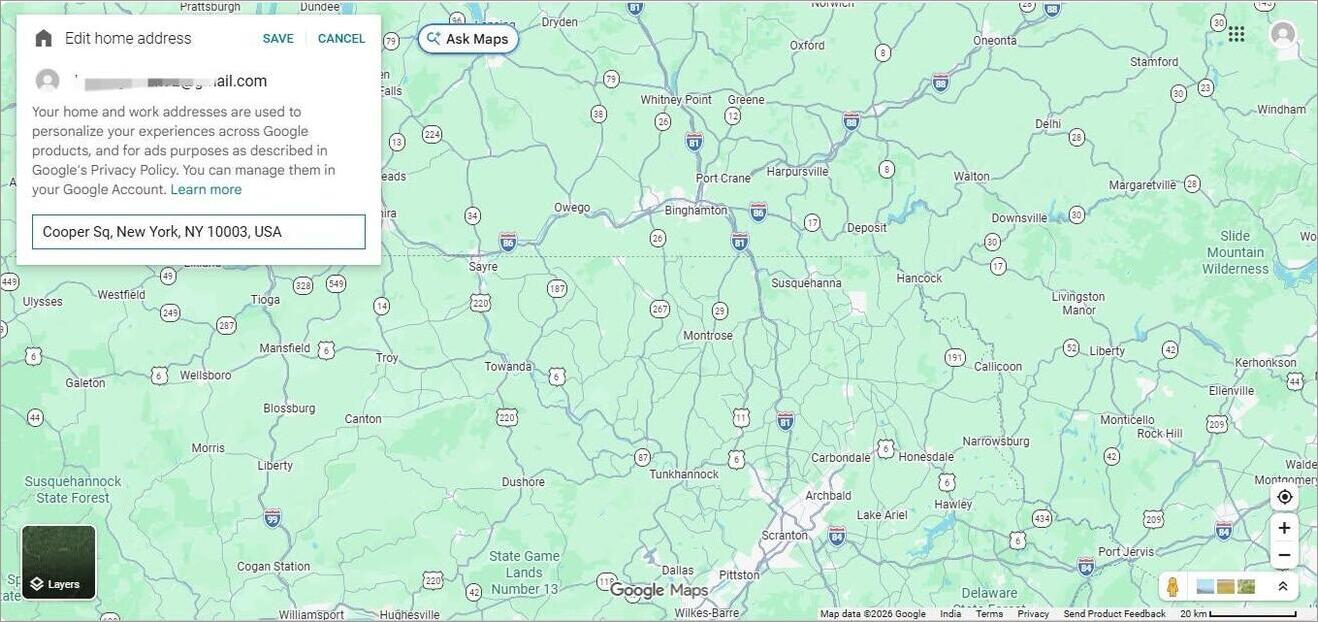
Step 4: Now, you can edit the address and save it.
How to Add Multiple Home Addresses
Sometimes, we need to save more addresses in situations where you stay in more than one place. In that situation, you can save multiple addresses in Google Maps.
You can do it simply by following the given steps:
Step 1: Open Google Maps.
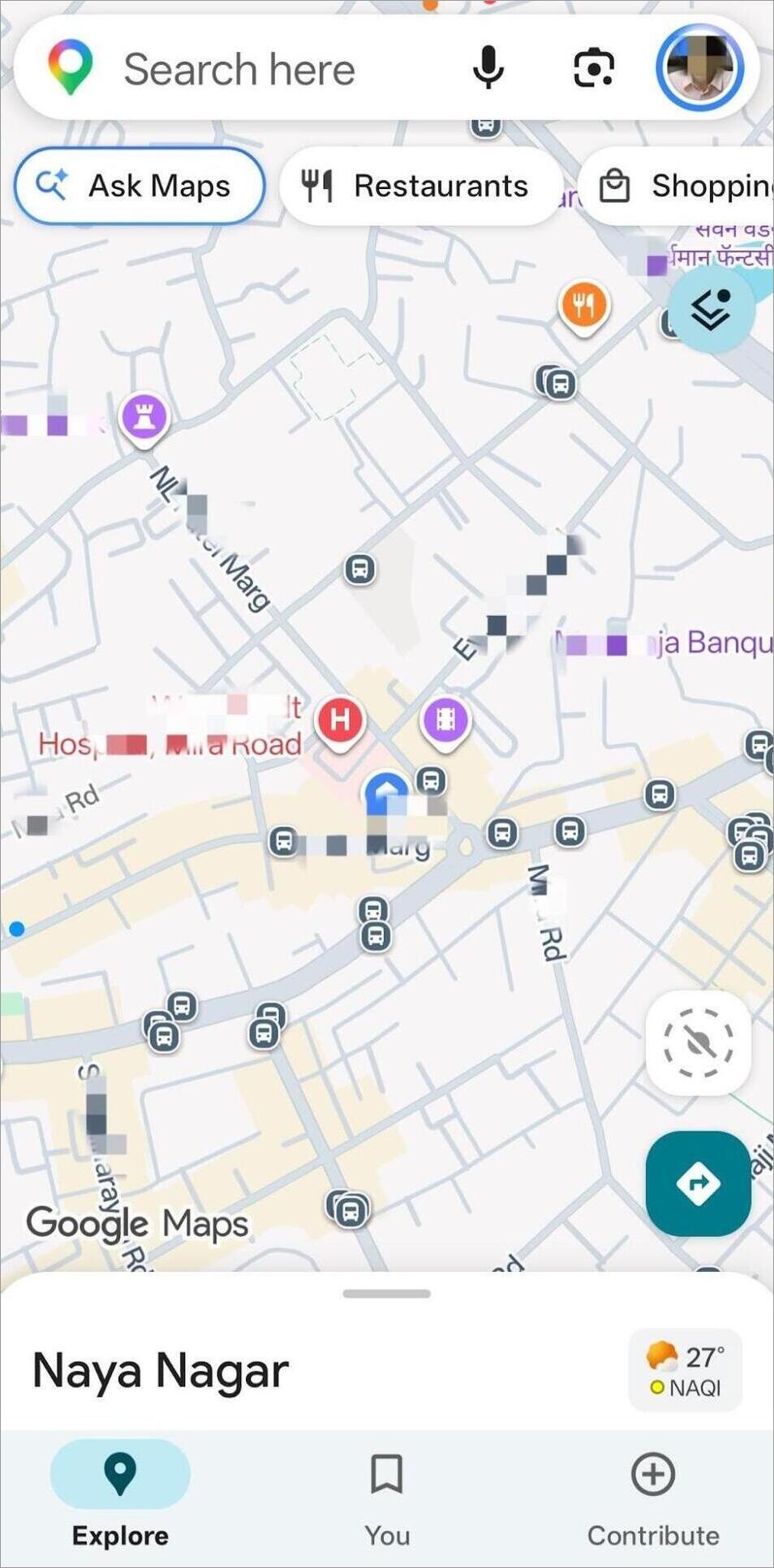
Step 2: Select the “Saved Icon” given at the bottom.
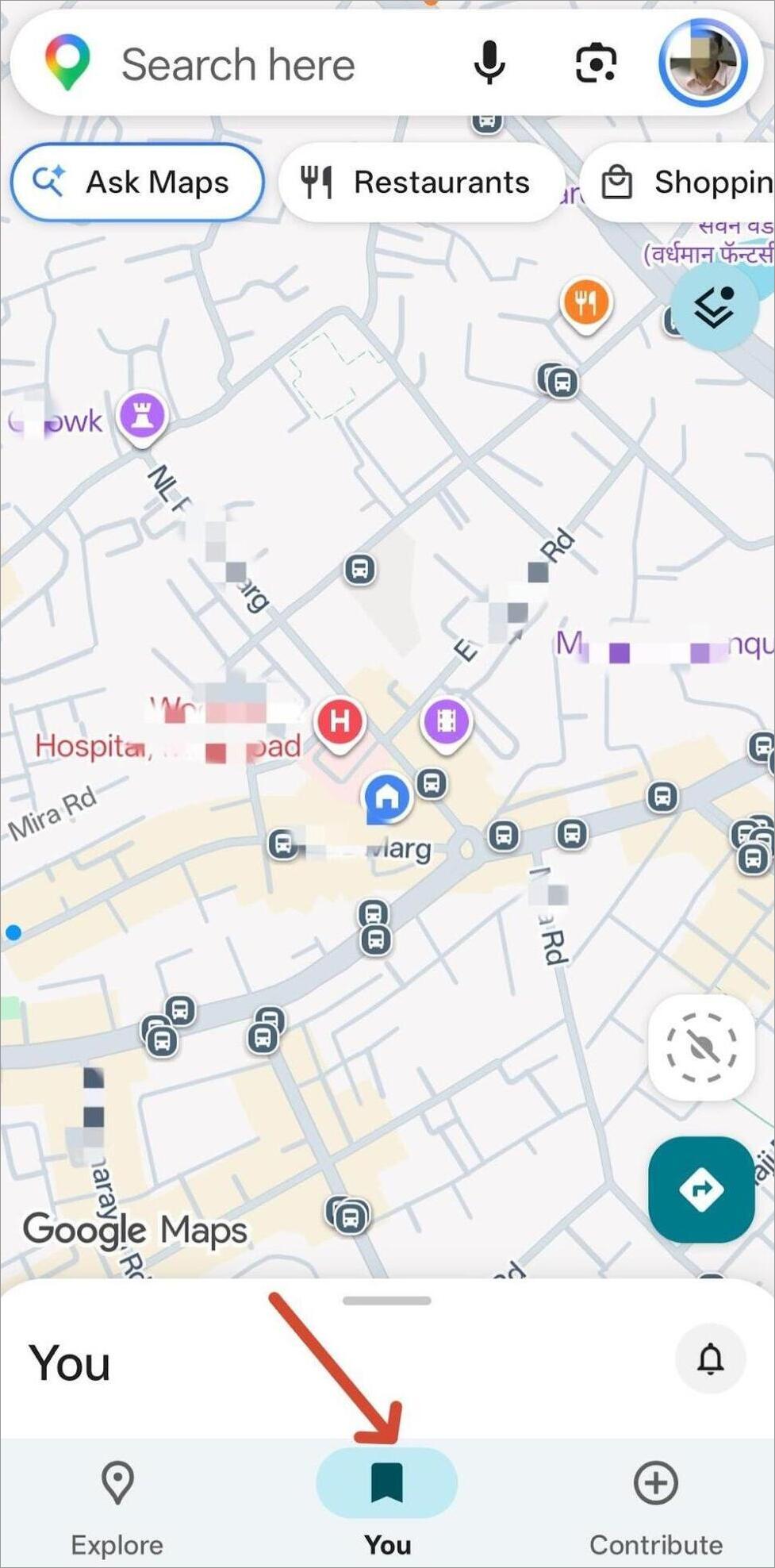
Step 3: Scroll down and find the “Labeled” option.
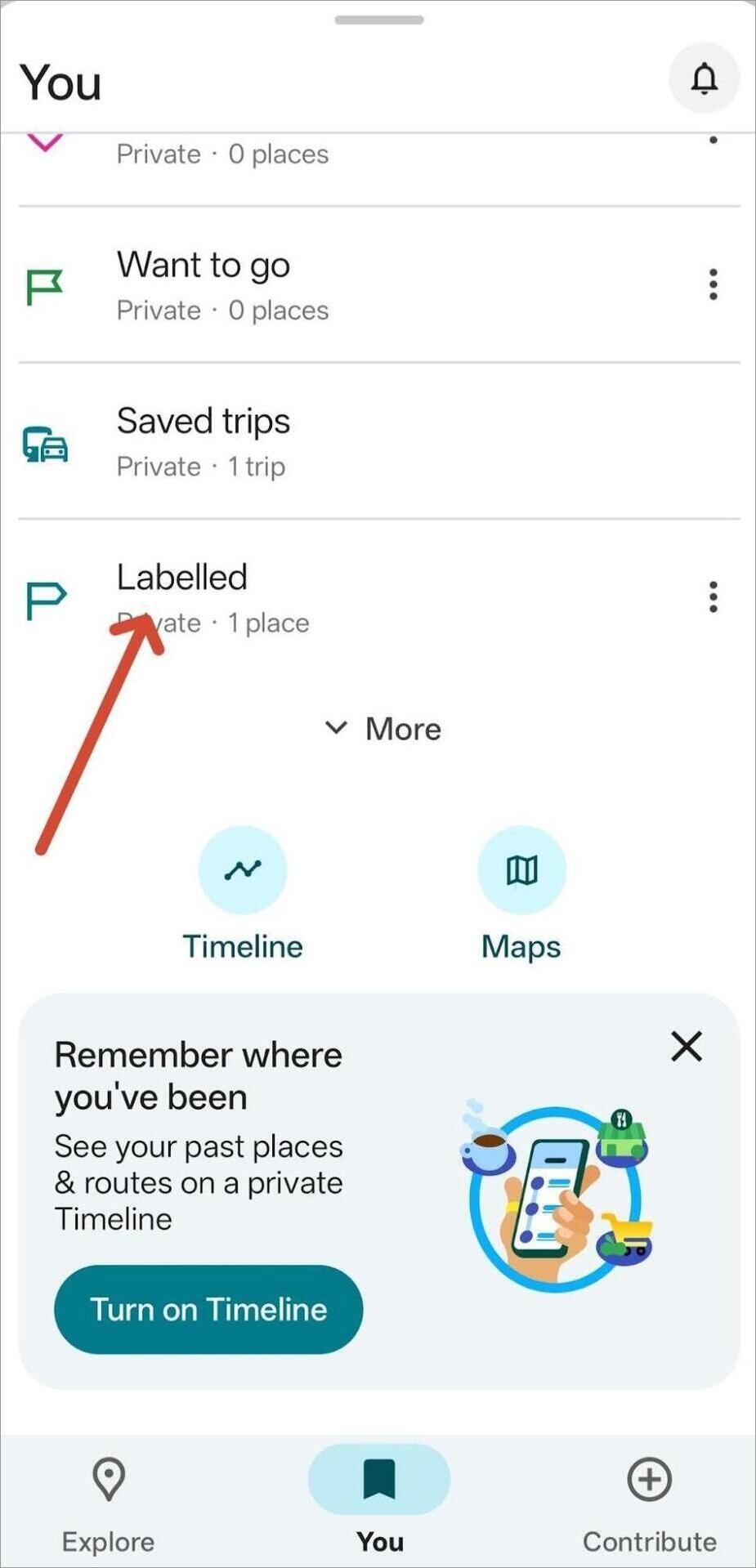
Step 4: Now, press the three dots on the Labeled option.
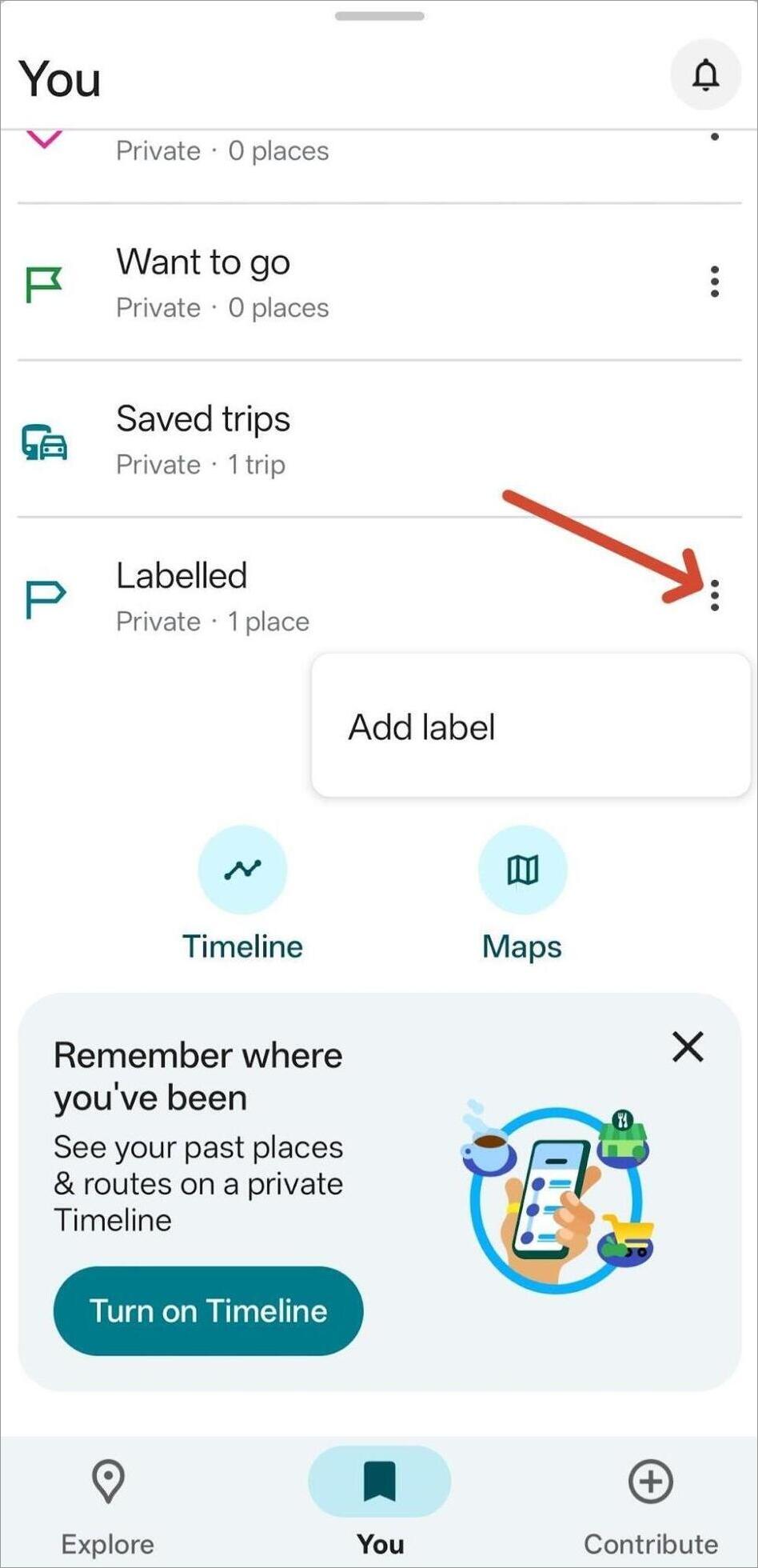
Step 5: Here you can add a new address. Also, you can pin it accurately on the Maps.
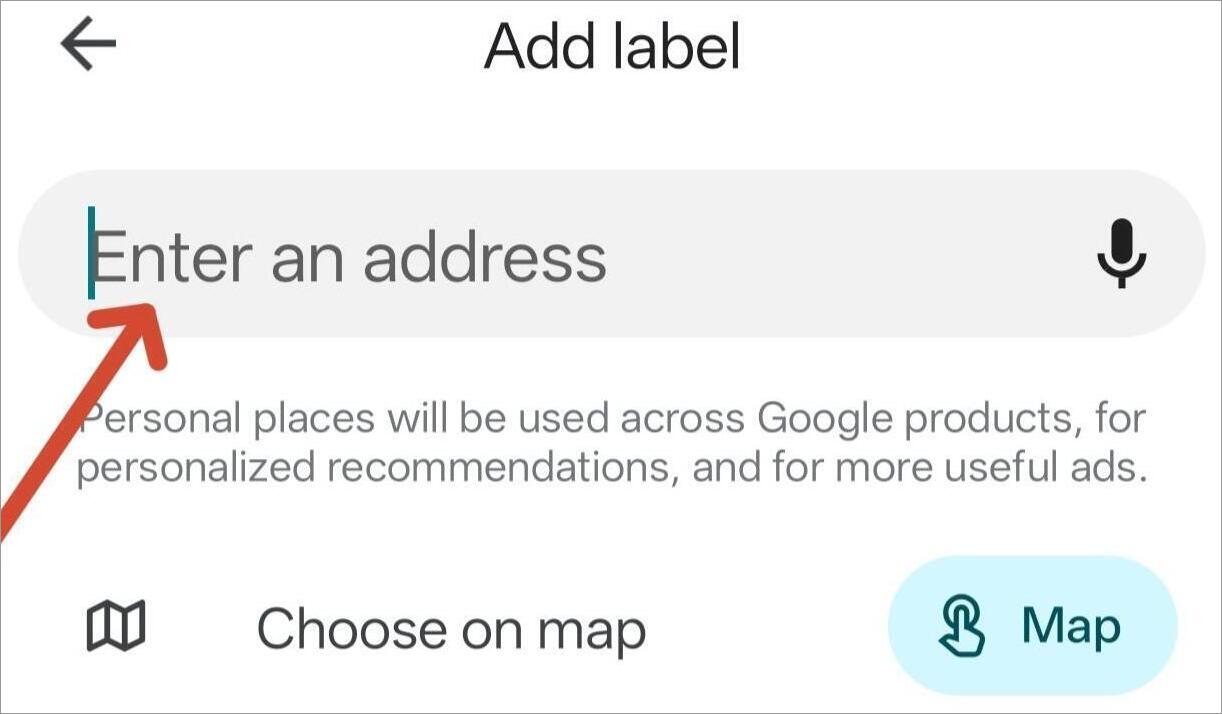
Change Home Icon on Google Maps – Quick Steps
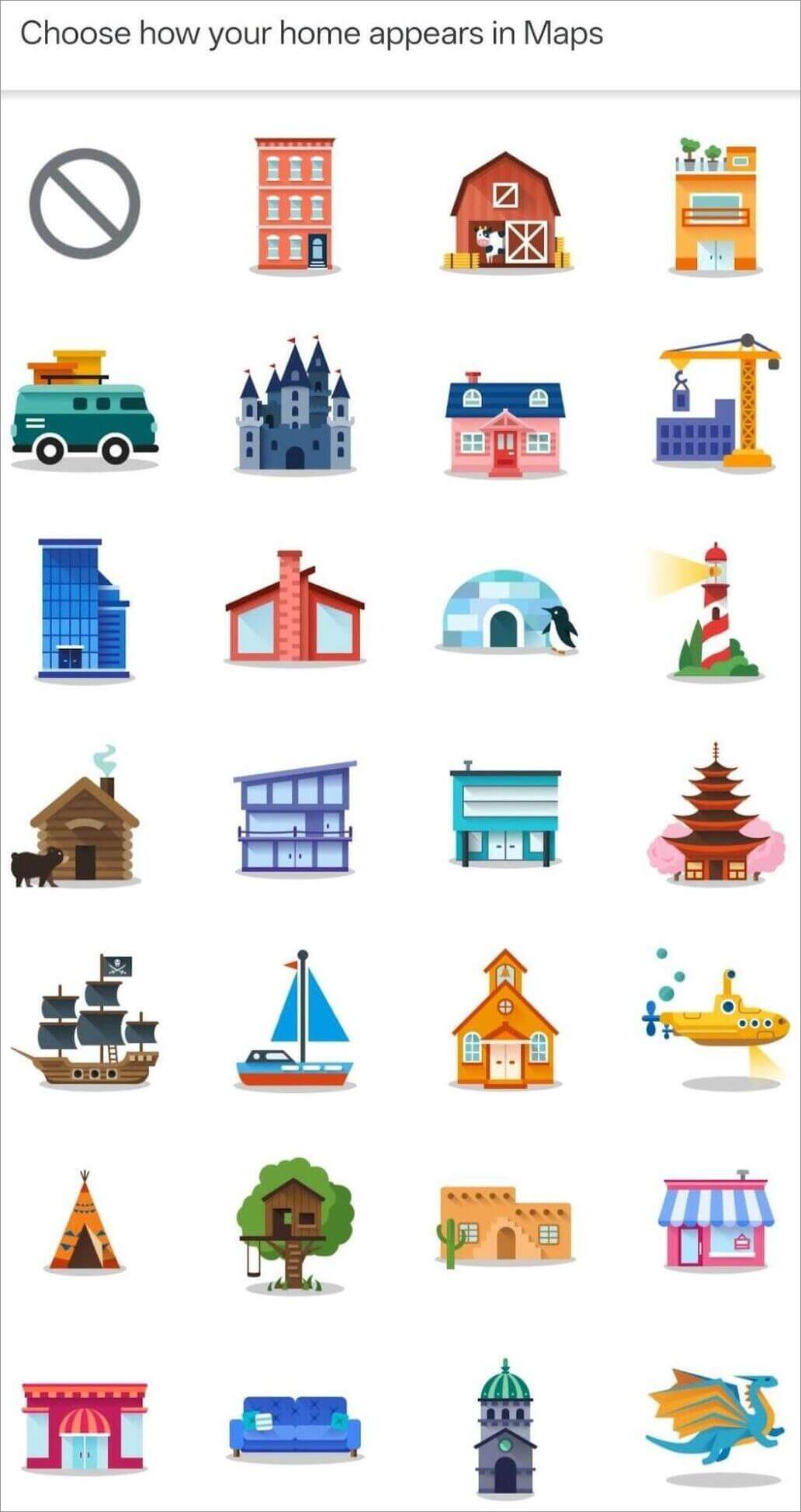
You can insert an icon on the Home address and also you can change it later. To do the same, you need to follow the given steps:
Step 1: Open Google Maps and click on the Saved icon.
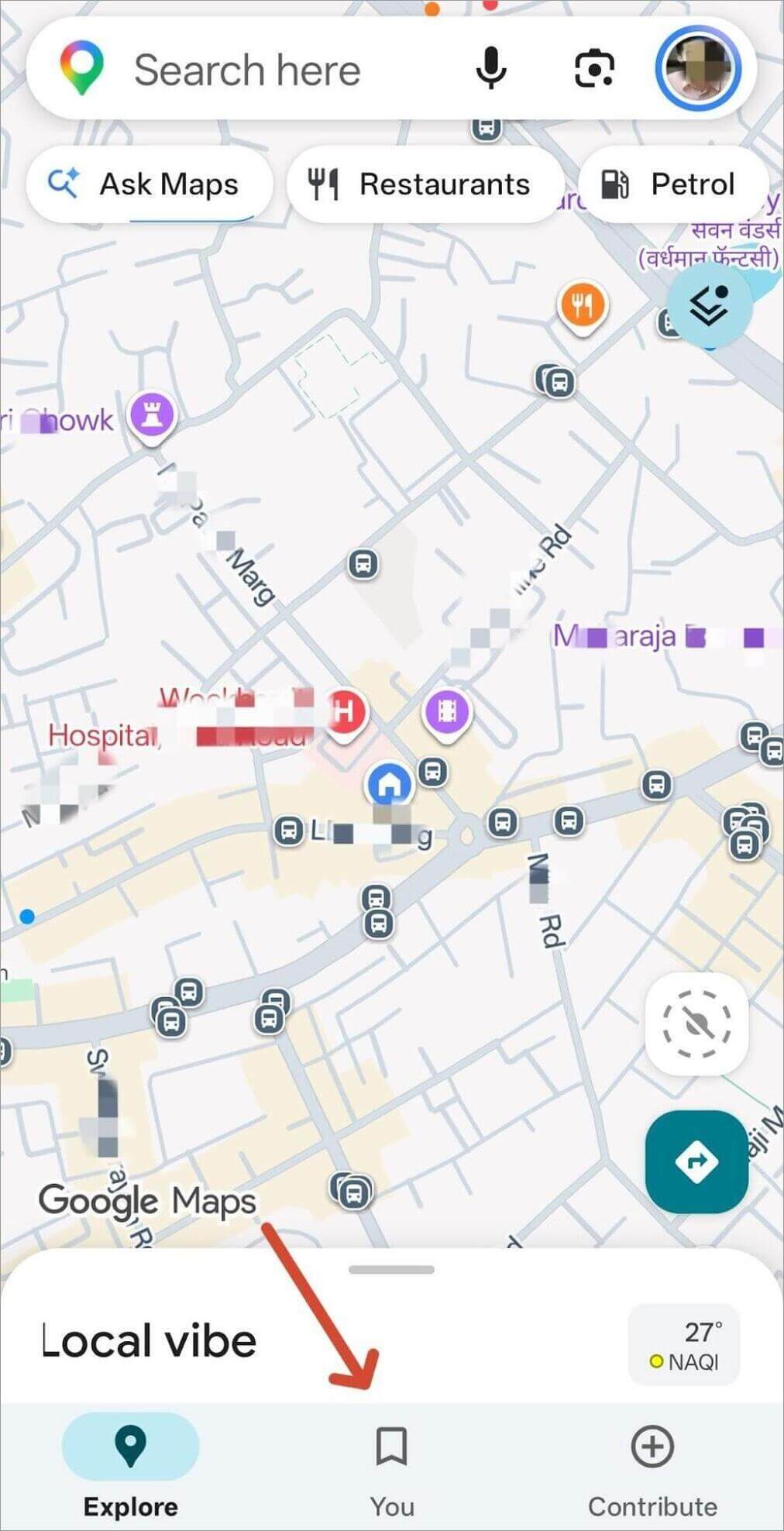
Step 2: Here, click on the three dots given with the Home option.
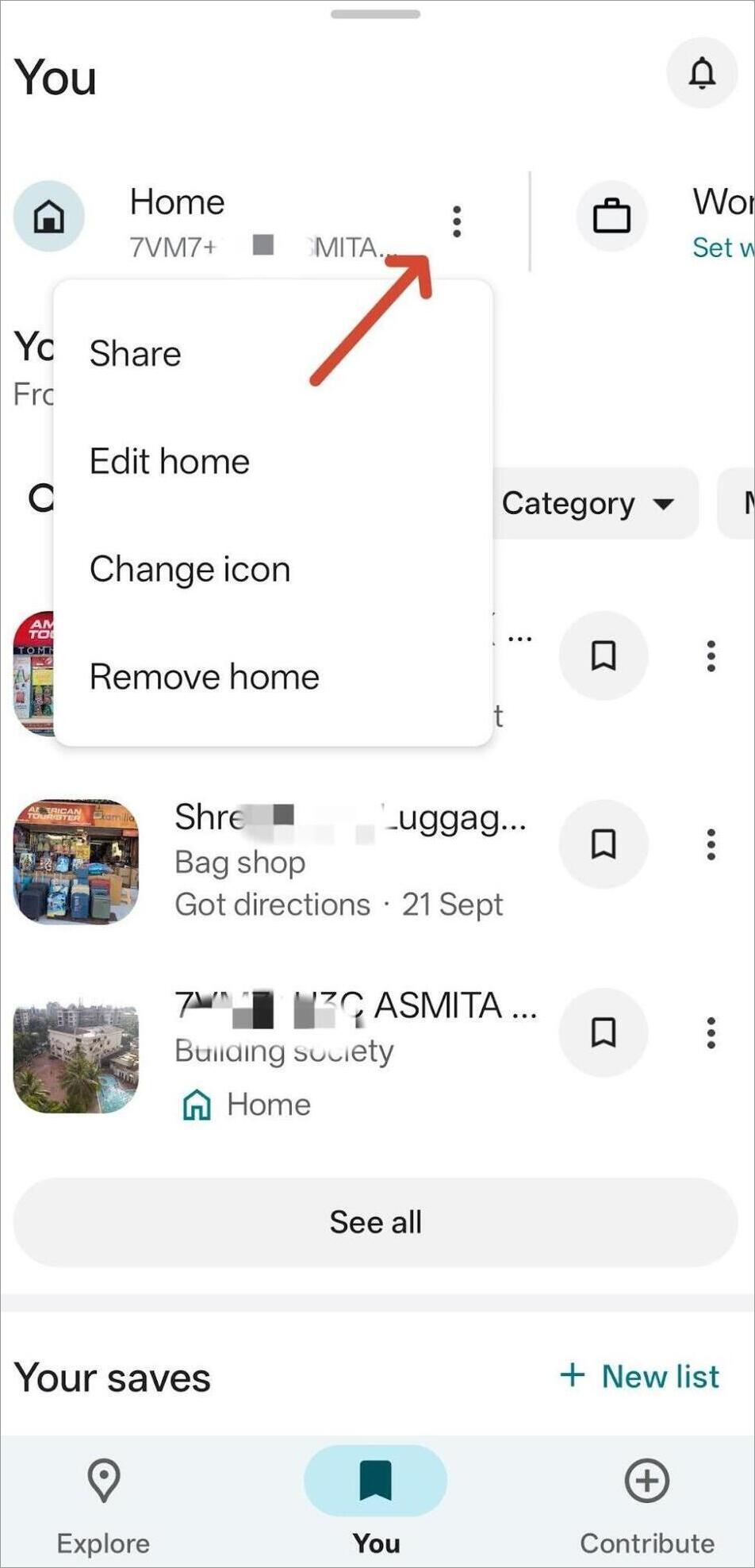
Step 3: Now select the change icon from the options.
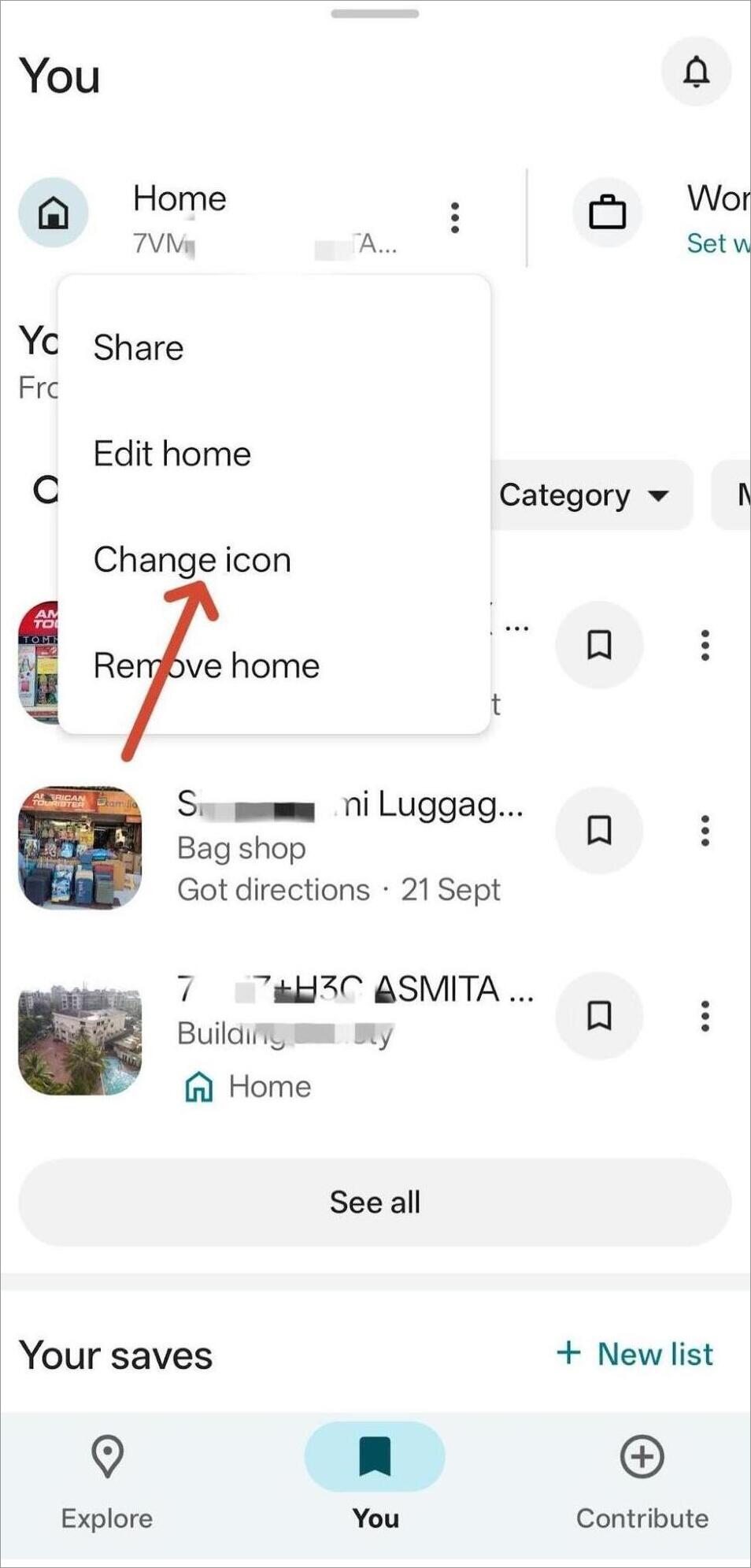
Step 4: You can insert or change the icon for your address or label. You will find various icon options. Select one and save it.
How to Temporarily Change Home For Directions (Without Editing the Saved Address)
If you are staying at some place temporarily and need directions from there in Google Maps then you don’t need to change your Home address. Instead, you can save a temporary starting location or save the new address under a new label as Temporary Home or Guest House, etc.
To set the temporary starting location, follow the given steps:
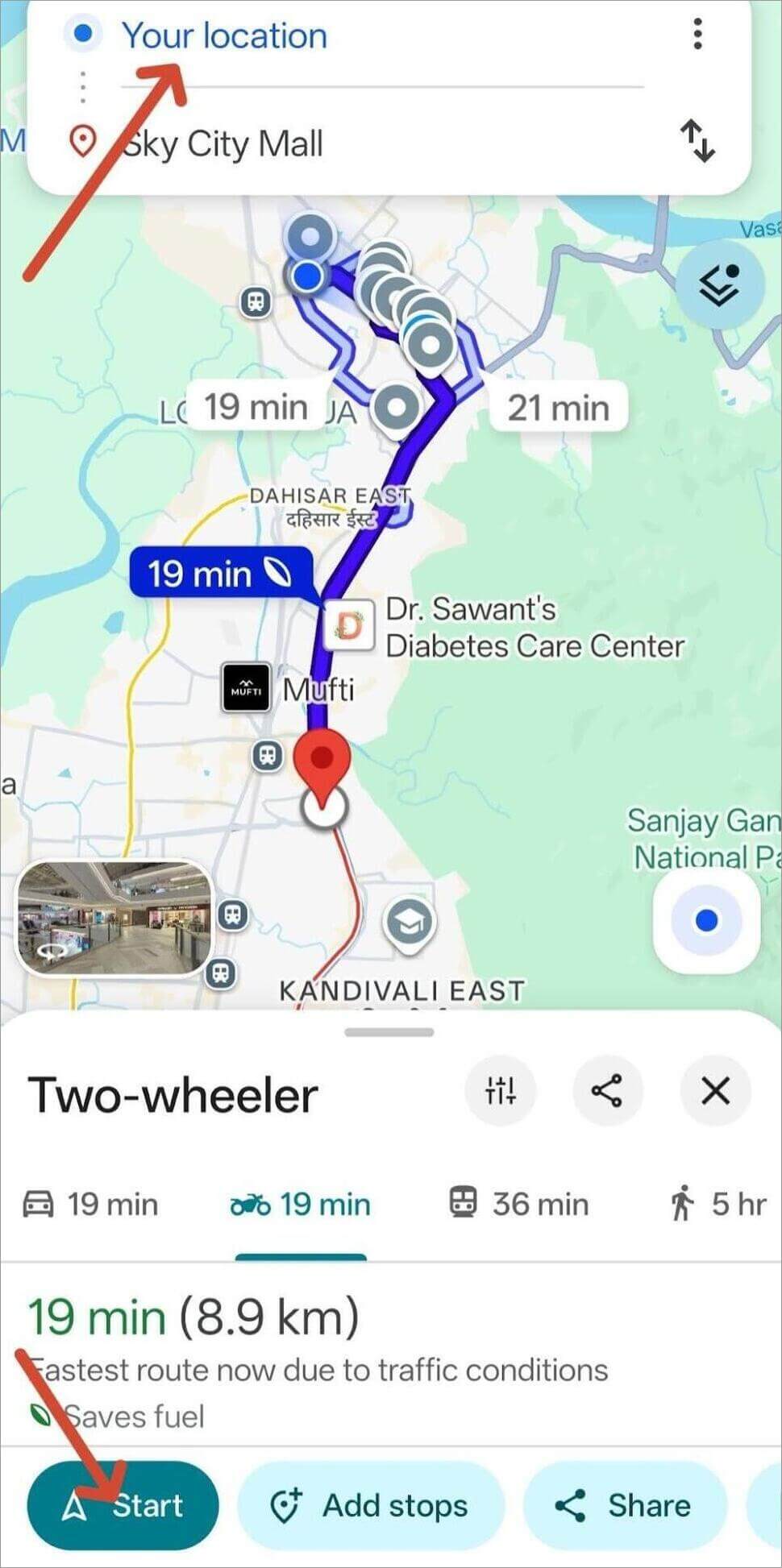
Step 1: Open Google Maps and insert the destination point.
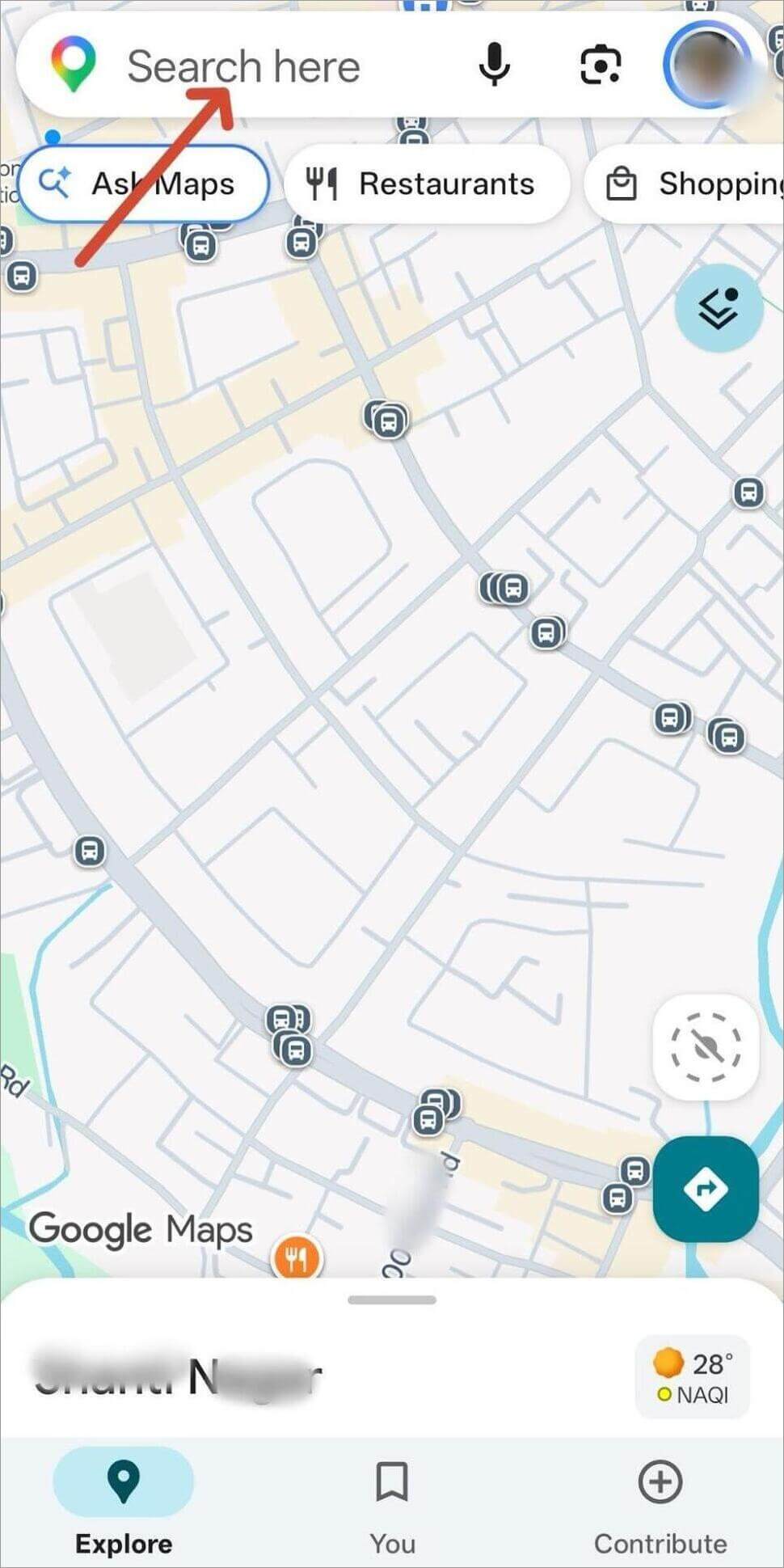
Step 2: Click on the directions option given at the bottom.
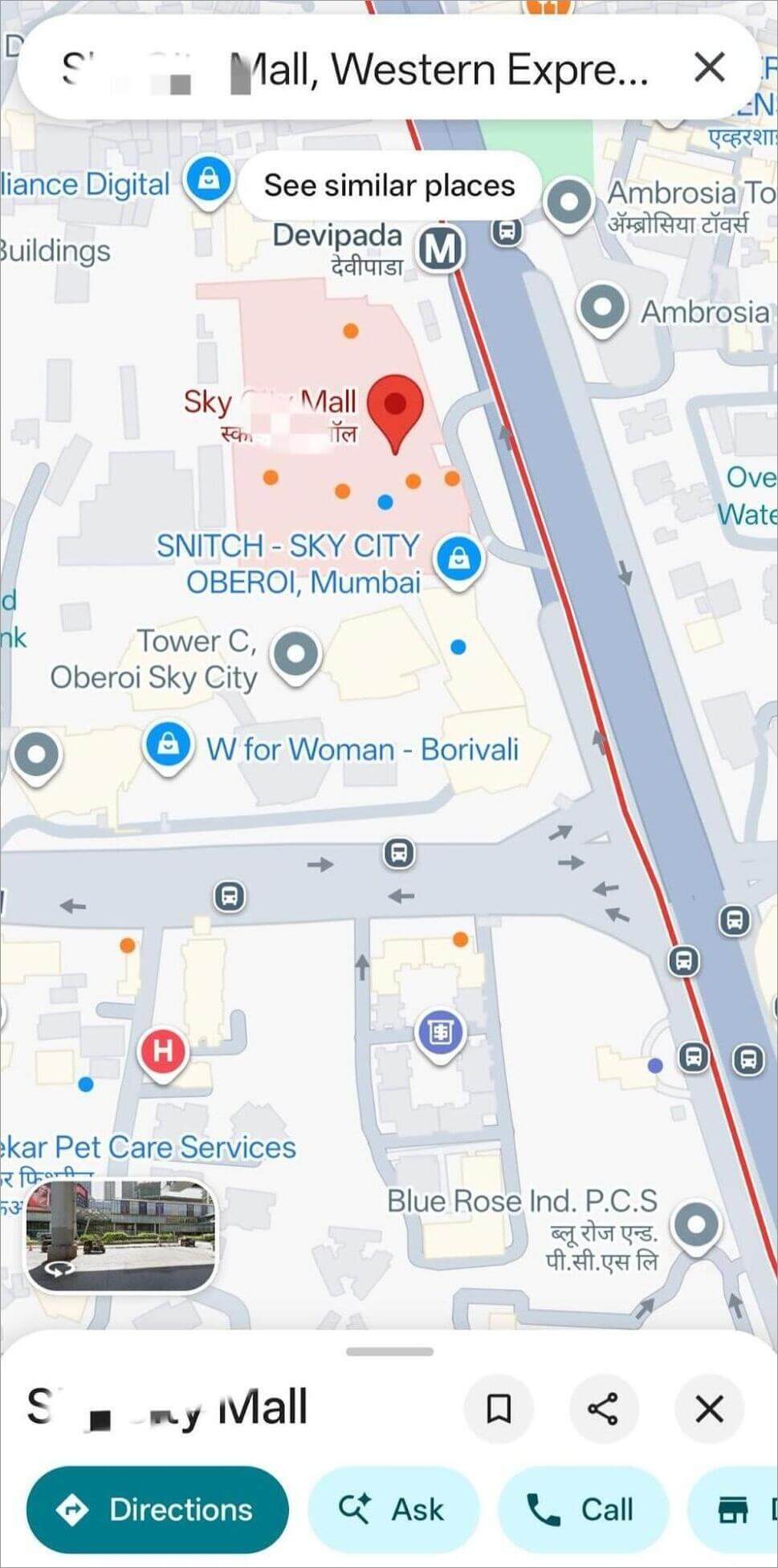
Step 3: Type in your current temporary location.
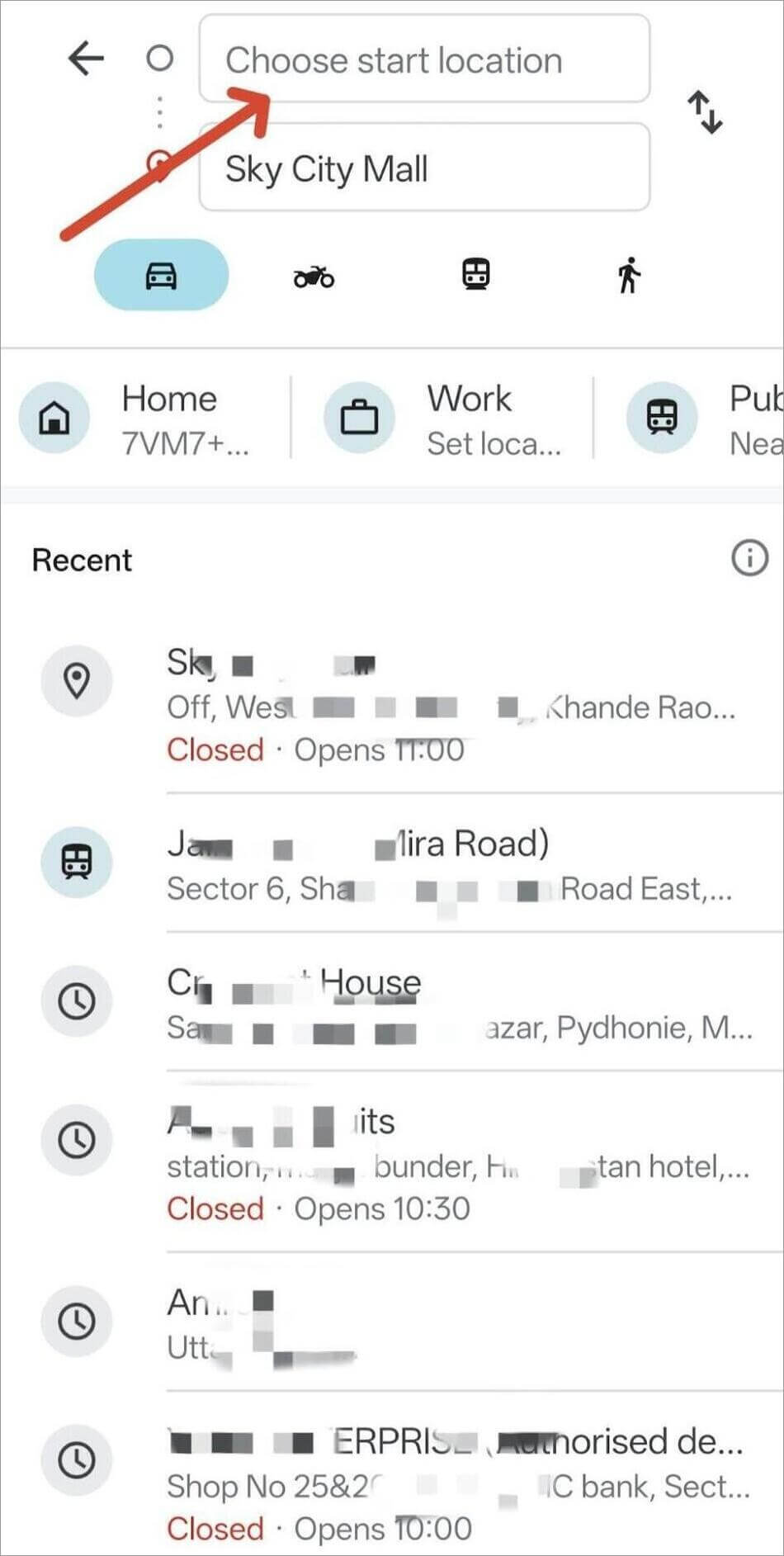
Step 4: Select your preferred transportation and start the navigation.
Steps to Remove Your Home Address From Google Maps
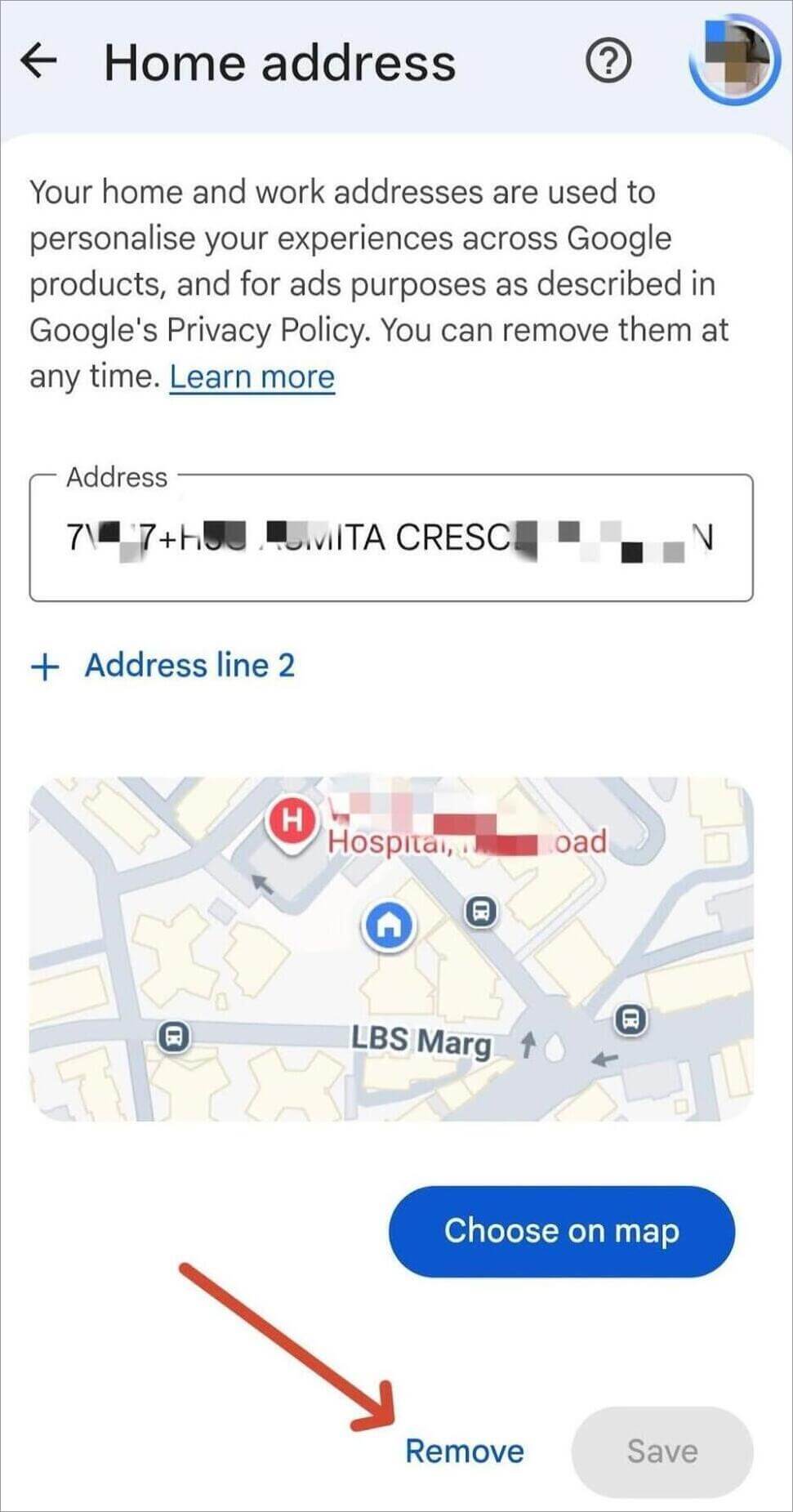
If you no longer need the Home address and simply want to remove it, then you can do it via your Google Account as shown in the given steps:
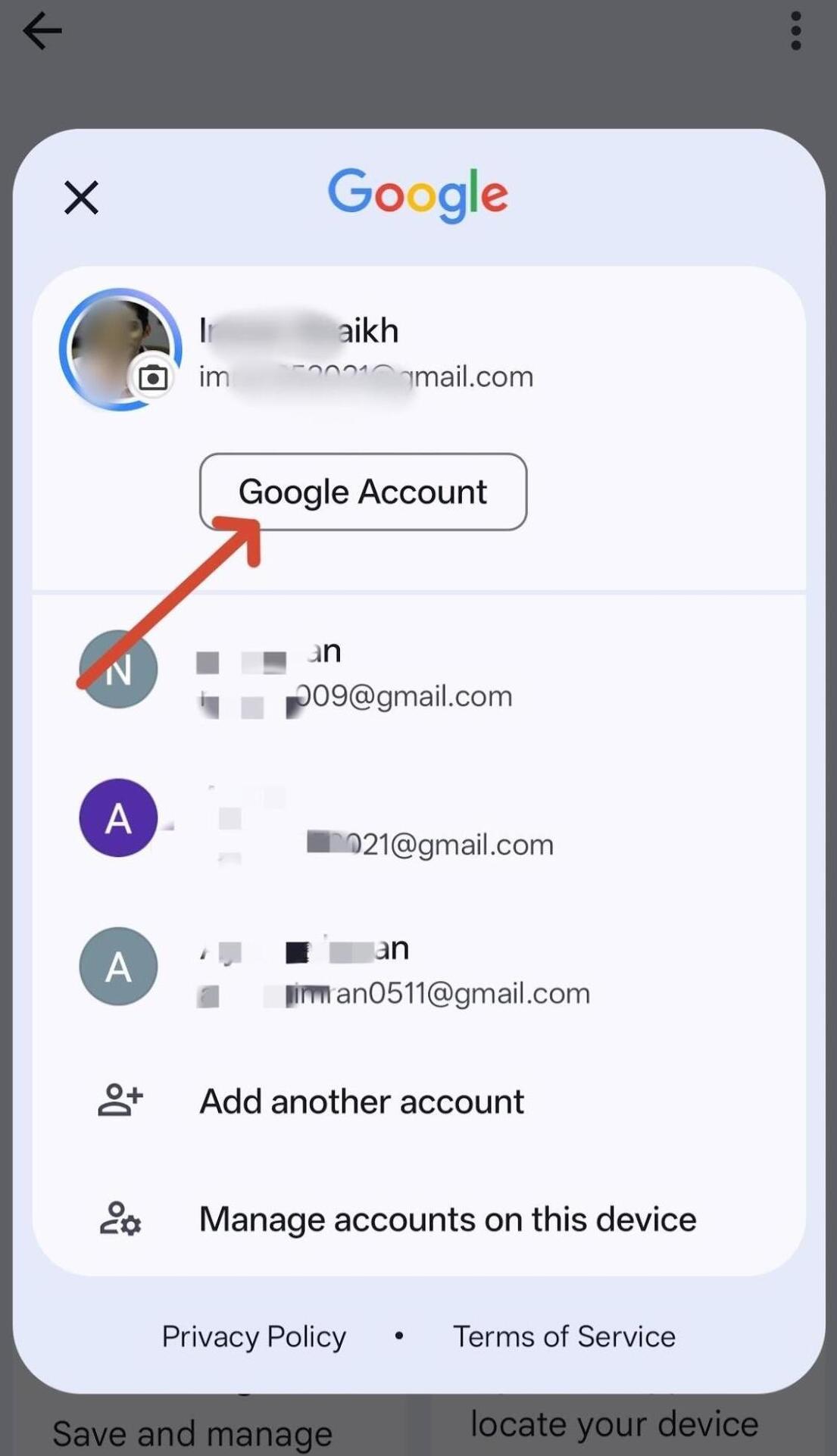
Step 1: Open Settings and select Google account.
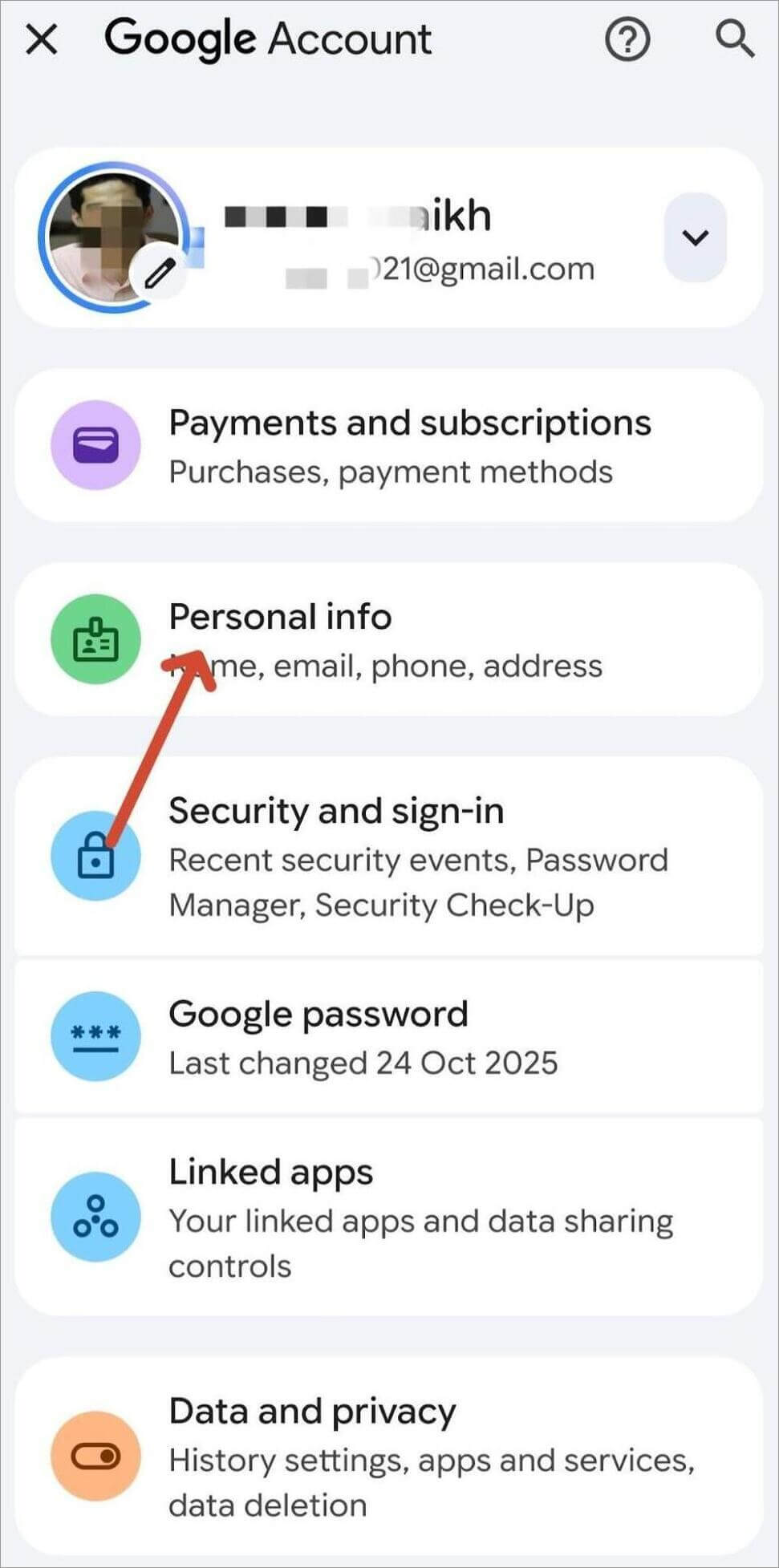
Step 2: Select Personal info.
Step 3: You will see your home address. Tap on it.
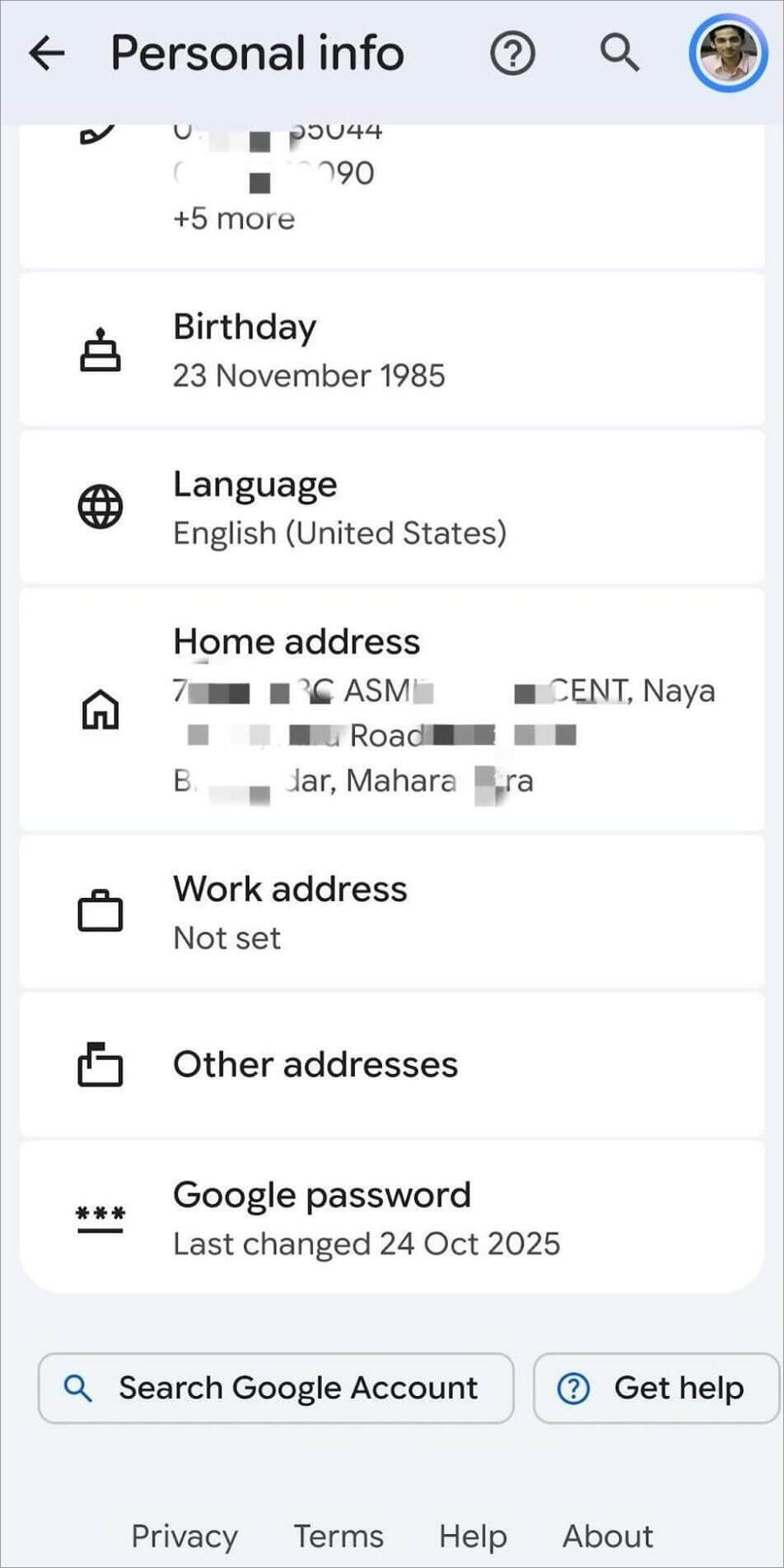
Step 4: Press Remove
For iPhone:
Step 1: Go to the Google account.
Step 2: Select Personal info.
Step 3: Press on the home address.
Step 4: Select Remove
Frequently Asked Questions
1. How do I change my home address on Google Maps?
You can change your home address on Google Maps simply by opening Google Maps > Profile picture > Settings > Edit home or work. You can also change it via Google account > Personal info > Home address.
2. How do I edit home address in Google Maps if the pin is in the wrong place?
You can manually pin the address on Google Maps to edit the home address if the pin is in the wrong place. For this, you can simply use the ‘Choose on Maps’ option and drag the pin to the exact location.
3. Can I have two Home addresses in Google Maps?
Yes, we can have as many addresses we want but not under the same label. You can use labels like second home, holiday home etc for the other home address.
4. How to remove your home address from Google Maps?
You can simply remove the Home address from Google Maps through your Google Account > Personal info > Home address > Remove.
5. Does changing my Home address affect my Google Account?
Yes, Google uses your address to give personalized experiences across Google products. Changing your home address will affect the same.
6. Why does Google Maps keep my old home address?
Sometimes, as you update your home address on a device you notice it has not been updated on the other devices of the same account and continues to display the old address. This could be due to sync time or delay in synchronizing changes. You can refresh the app and allow a short period for synchronization and reopen the app.
Conclusion
The correct home address is necessary to be registered as it can affect the Google experience and also at the time to get directions, estimate travel times, and navigate home with fewer steps. You may have moved to some other place, entered the wrong address, or simply wanted to update your location.
You can change the Home address on Google Maps from your iPhone, Android, Desktop, Mac etc simply by following the mentioned steps. Every device has its own steps for changing the Home address. You can also change it through your Google Account itself.
Hence, changing the Home address is simple. The key is to make sure you’re editing the correct personal Home setting rather than the public map data.
Research Process: The total time involved to complete and publish this article is approximately 42 hours. This content was created through a structured research approach to ensure accuracy and reliability.
For more related guides, you can explore our range of tutorials below:
- How to Drop a Pin in Google Maps: Quick Simple Steps
- How to Draw (Show) a Radius on Google Maps: Step-by-Step
- How to Change Google Form Header Image Size
- [6 Ways] How to Share Your Location on iPhone with Others
- Top Route Planning & Optimization Software
Was this helpful?
Recommended Reading
-

Google Maps not working? Find out if Maps is down and fix GPS, loading, navigation, voice, Android, iPhone, and browser problems. Does your Google Maps app not work, take a long time to load, display an empty map, provide incorrect directions, or fail to detect your location? There may be…
-
This tutorial will clearly show you how to draw a Radius on Google Maps using free tools. Need to measure distance within a specific area on Google Maps? While Google Maps doesn’t offer a built-in radius button, you can still draw and display a radius circle using simple tools and…
-
Here you will learn the easy steps about how to Drop a Pin in Google Maps for Android / iOS devices and desktops: Google Maps is no doubt a huge discovery. It is one of the most popular mobile applications in the world and is offered by Google, whose name…
-

Visualize real-time global cyber threats with the best Cyber attack maps. Explore the digital battlefield and know more about the top cyber threat maps to easily track online attacks: A cyber attack map is the same as a cyber threat map. It’s a tool that can get a real-time visual…