Quickly learn how to add Spoiler in Discord as a text or image on desktop and mobile from here. This in-depth guide educates you on how to Hide text and images in seconds with Discord Spoiler Tags:
Don’t you just hate it when some random guy on the internet gives away a major spoiler for a show or movie you were about to watch? I’ve fallen victim to film and TV show spoilers on Discord more times than I can count.
So you cannot imagine just how happy I was when Discord introduced the “Spoiler Tag” feature in 2019. Of course, I would be even happier if people used this feature every time they discuss or reveal major plot points on the forum.
Discord Spoiler Tag: Quick Ways to Hide Text & Images

My goal in writing this article is to make sure everyone using Discord knows how to add a “Spoiler” tag.
Quick Answer: How to Add Spoilers in Discord?
Spoiler tags let you hide part or all of a message on a Discord channel or server. You can mark a text message as a spoiler by typing || before and after the text or starting your message with the /spoiler markdown.
Images can be tagged by clicking on the “eye icon” that appears as soon as you upload an image or by clicking the “pencil icon” followed by checking the “Mark as Spoiler” box.
Here is the video guide on how to do a spoiler on Discord:
What is a Spoiler Tag in Discord?
I would describe a Spoiler Tag in Discord as a formatting feature that lets you hide part or all of a message in a channel or server. Simply put, adding this tag means you are basically marking your message as a spoiler, warning others that it may contain key information they wouldn’t want to see or read.
By adding a spoiler tag, your text message will be hidden behind a dark or greyish highlight, whereas images or videos will be hidden behind a blurry overlay with a label that says “Spoiler”.
Anyone who wants to read or see what’s hidden behind the tag can simply click or tap on the blocked or blurred message.
Methods to Add a Spoiler in Discord While Sending a Text Message
Have a look at the various methods that are used to add a spoiler in Discord while sending a text message.
#1) Method I
Marking a text message as a spoiler is rather simple.
Here’s how you do it:
- In the chat box where you’ll type the message, start with a “/” followed by “spoiler “. Look at the image below to know what to type.
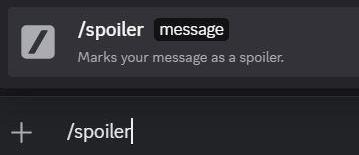
- With the /spoiler tag typed, proceed to type your message and hit the “Send” button.
- You’ll see the sent message hidden behind a dark or greyish highlight.
#2) Method II
Instead of adding the /spoiler tag before typing the message, you can type the message first and then add the “||” symbols (Shift + Backslash on a US keyboard) before and after the message. This is yet another way of marking a message as a spoiler.
- Start by typing your message in the chatbox.

- Once you’ve finished typing, add “||” before and after the message.
- Hit the “Send” button.

The published message will be highlighted in grey or dark bars, indicating to others on the server that it may contain spoilers.
#3) Method III
Another method involves highlighting your typed message and then adding the spoiler tag with just a single click.
- Type the entire message in the chatbox.
- Highlight it, and you’ll see a floating bar hovering above the text.
- Click on the “Eye” icon, and you’ll see the “||” appear before and after the message.
- Hit send, and the message will be covered.
Ways to Add a Discord Spoiler to Images and Videos
Now that you know how to spoiler text on Discord, let’s turn our focus to media files (images and videos). The process is a bit different but simple, nonetheless.
Here’s how you do it:
- In the chatbox, click on the “+” icon to upload an image or video. Do not hit the send button just yet.
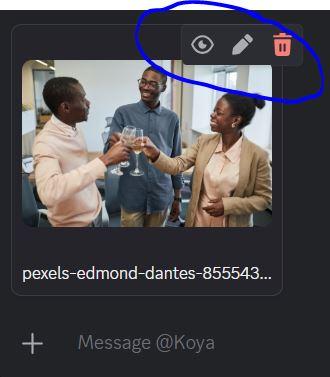
- With the image or video uploaded, you’ll see three icons appear above the uploaded file.
- Click on the “eye” icon, and the file will instantly be marked as a “Spoiler”.
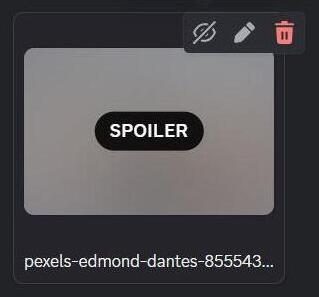
- Alternatively, you can click on the “pencil” icon and check the “Mark as Spoiler” box in the window that opens.
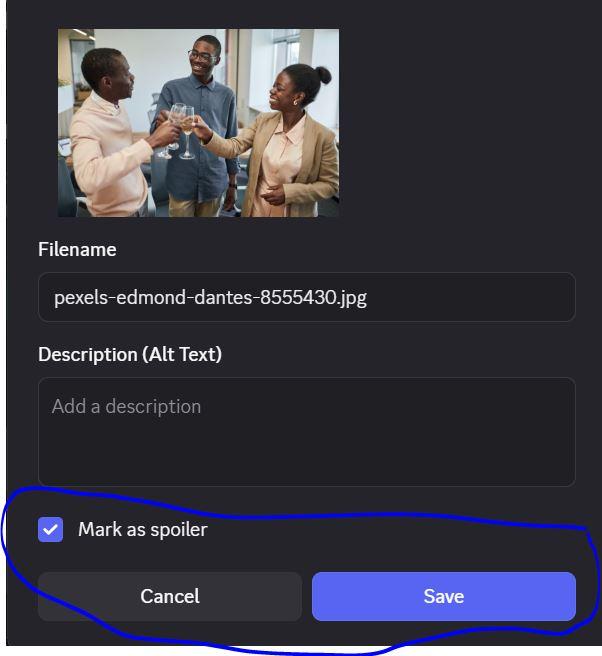
Hit the send button once you are done.
Steps to Add a Spoiler in Discord Mobile
The process or methods to add a Spoiler remain, at least when sending a text message. You can use “||” symbols or add the “/spoiler” command within the chatbox of your Discord app to mark it as a spoiler.
With images, the method is slightly different.
Here’s how to spoiler an image on Discord mobile:
- Click on the “+” icon to first upload your file.
- Once the file is uploaded, don’t hit the send button. Instead, tap on it, and you’ll see an array of options appear.
- Tap on the box that says “Mark as Spoiler”.
- Hit “Send” to publish the message.
Another thing you can do is change the file’s name in your phone’s storage to start with “SPOILER”. This will automatically hide the file as soon as it is uploaded to the server.
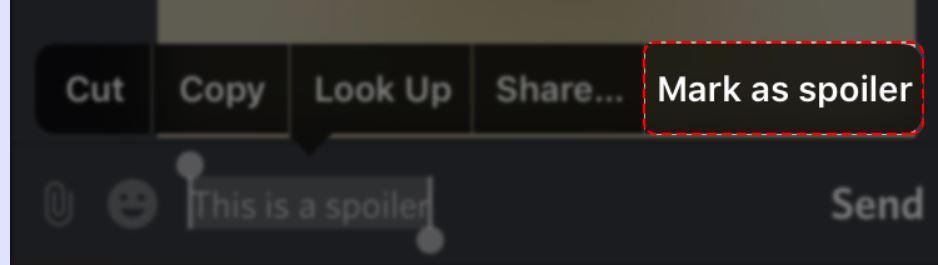
iOS users can use a shortcut by highlighting the typed message and then tapping on “Mark as Spoiler”.
If you are inserting a link or URL to the file, simply add the “||” before and after the link to hide it.
How to View a Spoiler in Discord
Uncovering a spoiler in Discord is probably the simplest thing you’ll do on the platform.
For Text-based spoilers, all you have to do is click on the grey block covering the text.
For Image-based spoilers, all you have to do is click on the Spoiler badge or blurred overlay. Doing so will immediately reveal what’s being covered.
How to Turn Off Discord Spoiler Tags
Perhaps you are one of those rare folks who don’t mind reading spoilers. If that is the case, Discord offers you the chance to just disable the Spoiler Tag completely.
Here’s how you do it:
- Click on the “Gear” icon to open User Settings. You’ll see this option on the bottom-left side of your screen.

- Select Text and Images from the left-hand side menu.
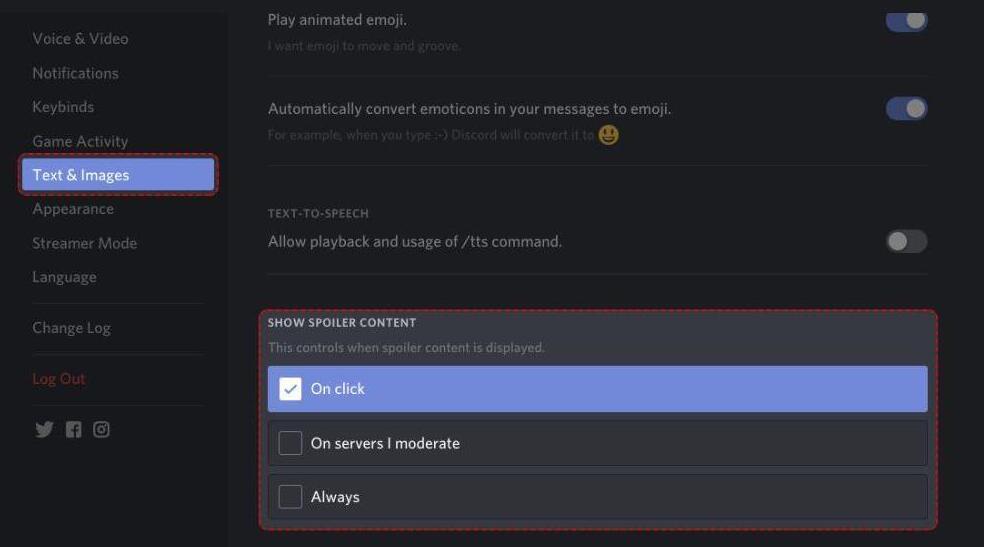
- Scroll down until you see the “Show Spoiler Content” option.
- Click on “Always” to disable the spoiler tag, with the other two options being “On-Click and “On Servers I Moderate”.
Limitations of Spoiler Tag in Discord
Here are some of the limitations pertaining to Spoiler Tag in Discord.
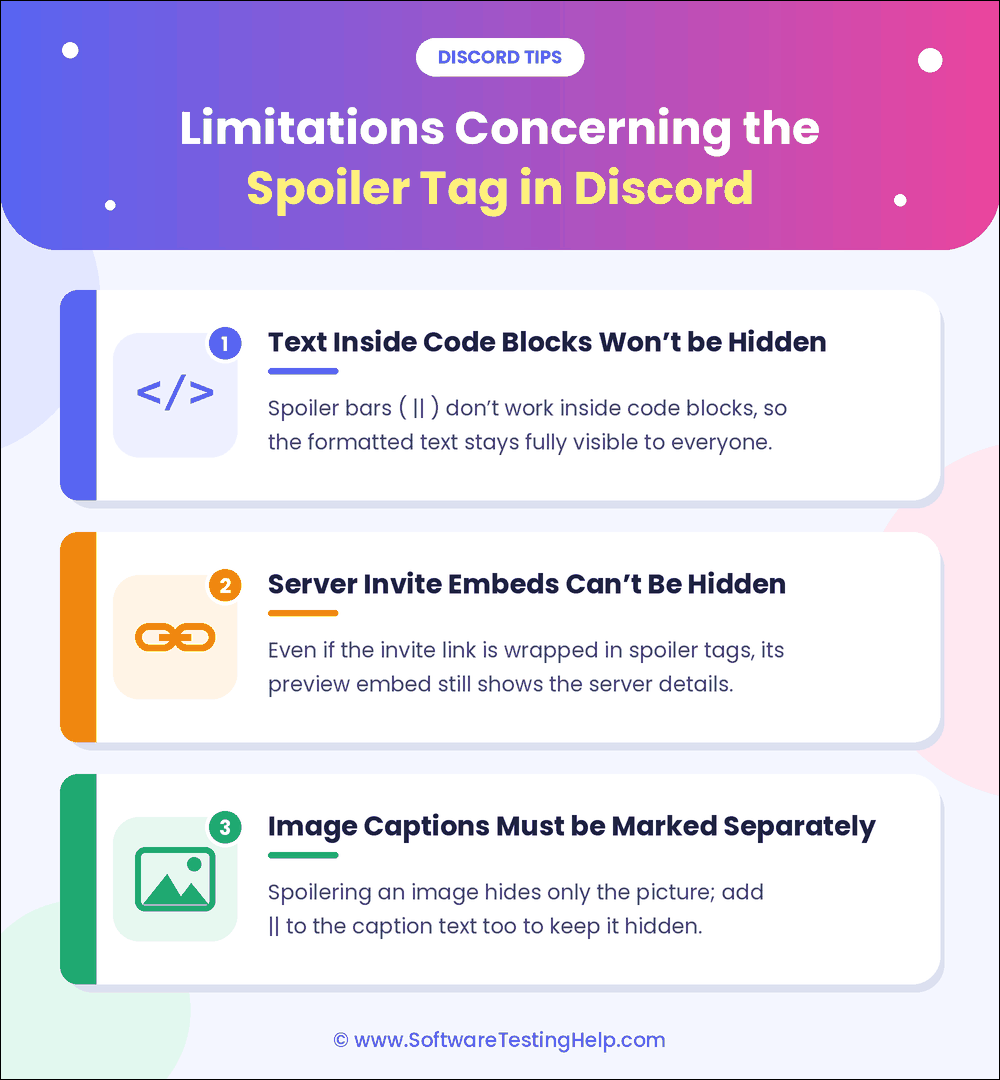
#1) Text Inside Code Blocks Won’t be Hidden
Discord treats code blocks (“`) like text blocks. Any element wrapped inside a code block, even if it is the “||”, will be treated as plain characters. As such, even if you insert a spoiler markdown inside a code block, it will be fully visible.
#2) Server Invite Embeds Can’t Be Hidden
Discord is known to generate server invites dynamically with the help of rich embeds fetched from link URLs. These URLs can bypass spoiler markdowns. Simply put, wrapping an invite link with “||” will prove ineffective.
#3) Image Captions Must Be Marked Separately
When you click on the “eye icon”, the blur overlay will only appear on the image and not the text or caption accompanying it. You’ll need to highlight or wrap that text or caption separately with “||” markdown to hide it.
Frequently Asked Questions
1. How to add a spoiler in Discord mobile?
You’ve got multiple methods to add a spoiler on Discord mobile. For text, the best way would be to add the “||” symbol before and after your typed message. iOS users can simply highlight the text and then choose “Mark as spoiler” from the menu that pops up.
For images, you’ll need to first upload the image, tap on it, and then tap on “Mark as Spoiler”.
2. What does “||” do on Discord?
The “||” symbol, if added before and after a message inside the Discord chatbox, serves as a Spoiler tag. You are basically hiding a message by adding this symbol before or after a message or an added link/URL.
3. How to add a spoiler on Discord PC?
You can add a spoiler on Discord PC by doing the following:
1. Add the “||” at the start and end of your message.
2. Starting your message with the ‘/spoiler” tag
3. Highlighting your message and then click on the “eye” or “pencil” icon.
4. Uploading the image and then clicking on the “eye” or “pencil” icon.
4. Why is the spoiler tag not working?
This could happen for one of the following reasons:
– It could be a simple formatting error. Make sure you are using the proper markdown (||). You don’t want there to be a space between the text and the markdown appearing before and after it. E.g. ||text||
– The spoiler tag will be ineffective if the text is being wrapped in code blocks. E.g. “`||text||“`. Remove those backticks and the spoiler tag will work just fine.
– Go to Discord’s Text and Image settings and make sure the Show Spoiler Content section is set to “On-Click” rather than “Always”.
– If image compression is enabled in Discord’s settings, the platform will ignore the Spoiler markdown. Make sure image compression is disabled and try adding the spoiler tag again.
5. Can you spoiler a link?
Yes, you can add a spoiler tag to a link in the same way you would to a text. Simply type || before and after the link. Make sure there isn’t a space between the parallel pipes and the link. Hit enter, and the link will be hidden beneath a grey box.
6. How to remove a spoiler from a message you already sent?
Discord offers you the ability to edit a message that was already sent. Simply click on the Spoiler-tagged message and select Edit message. Then remove the || markdown wrapping the text. This will remove the spoiler tag.
Conclusion
The internet is dark and full of spoilers. Adding a spoiler tag when discussing a major movie or TV show plot point is a very considerate and respectful thing to do. It is just common Internet courtesy at this point to only reveal spoilers by marking them as such.
Forums and community platforms like Discord have made it simple by introducing the “Spoiler tag” feature. As you can see for yourself, using it is simple. You can blur or highlight text and images in a few steps with ease.
I suggest you put this guide into practice right away to discuss your favorite piece of media the right way on Discord.
Research Process: The total time involved to complete and publish this article is approximately 37 hours. This content was created through a structured research approach to ensure accuracy and reliability.
For more-related guides, you can explore our range of tutorials below:
- How to Italicize Text in Discord
- How to Bold in Discord Quickly – Text Formatting in Discord
- Why Is Discord Not Opening on Windows PC?
- How To Clear Discord Cache Files on PC and Mobile
- Discord Servers to Make Friends
- Discord Timestamp Generator For Universal Timezone
Was this helpful?
Recommended Reading
-

Join the most active Discord communities for gaming or studying and build new connections. This step-by-step guide helps you discover the best Discord servers to make friends worldwide: What’s the first thing that comes to mind when you think of making friends online? If you immediately thought of platforms like…
-
Discover the top-rated Discord Timestamp Generator to convert date/time as per your timezone. Pick the right Discord Timestamp Maker to create timestamps instantly in all Discord styles: Discord is one of the most popular social media platforms, designed for gamers to communicate with each other in real-time while playing. It…
-

Learn the simplest way to make your text stand out in Discord chats. Discover the quick discord text formatting tricks to explore how to bold in Discord quickly and emphasize important messages: Discord is a gaming and communication application that acts as a social media platform where users can connect…
-
Is your Discord application experiencing some slowdowns? Follow these simple steps and get your Discord Cache Cleared on PC, Mac, iPhone, or Android device in minutes. The Discord application stores certain files, like images, emojis, GIFs, and many others to increase the speed of loading and ensure fast access to…