Are you getting Yahoo as your default search engine all the time in your web browser? Follow the simple steps below to instantly solve the problem of Yahoo Keeps Opening In Chrome and switch back to your favorite search engine in just a few minutes:
We spotted several people asking, ‘Why does my search engine keep changing to Yahoo?’ And it’s surprisingly quite a common issue! We understand your frustration and are here to help you with the reasons and solutions for the issue.
First of all, understand why it’s happening – it usually happens due to malware that comes with Potentially Unwanted Programs (PUPs) on your device. This malware is created to alter your computer in specific ways.
Why Does Yahoo Keep Opening in Chrome?
In case Yahoo is opening automatically through Chrome instead of Google or any other search engine, it is most probably because your search engine or homepage has been changed to Yahoo or you have accidentally installed a browser add-on, freeware or even a browser hijacker which changes your Chrome settings. Sometimes even the malware or syncing of your Chrome profile might also be the reason why you keep getting Yahoo as your search engine.
How To Remove Yahoo From Chrome (Step-by-Step Guide 2026)
For example, it may direct you to Yahoo through an intermediary website so that the intermediary account gets paid every time you click on a link after Yahoo opens in your browser.
But since it’s happening due to malware, it can be quite harmful too. Like it would transfer your browsing data to another device without your knowledge, which is quite scary!
So it’s very important to tackle this matter as soon as possible.
Why Does My Search Engine Keep Changing to Yahoo?
Reasons that can cause the default search engine to keep changing to Yahoo:
- You may have accidentally set Yahoo as your default browser
- It’s possible you clicked a malicious link by mistake.
- A browser hijacker virus may be causing the issue
- You may have permitted an application you recently downloaded to change your default browser to Yahoo.
- Perhaps your browser settings were altered without your knowledge.
- There may be some malware on your device
- Chrome extensions can also cause the issue
- You may have downloaded an unwanted application when prompted while installing other software on your device.
- Yahoo Redirect Virus- It’s a browser hijacker virus that causes your browser to automatically redirect to Yahoo. This can be fixed by running an anti-virus scan, deleting suspicious apps and extensions, and resetting browser settings.
Signs that tell you that Chrome is hijacked:
- Unusual behavior, like the default search engine keeps changing to Yahoo, etc.
- Unfamiliar extensions appear in the browser.
- Other websites may redirect you.
- You would see too many ads and pop-ups.
- Chrome would run very slowly or would crash too often.
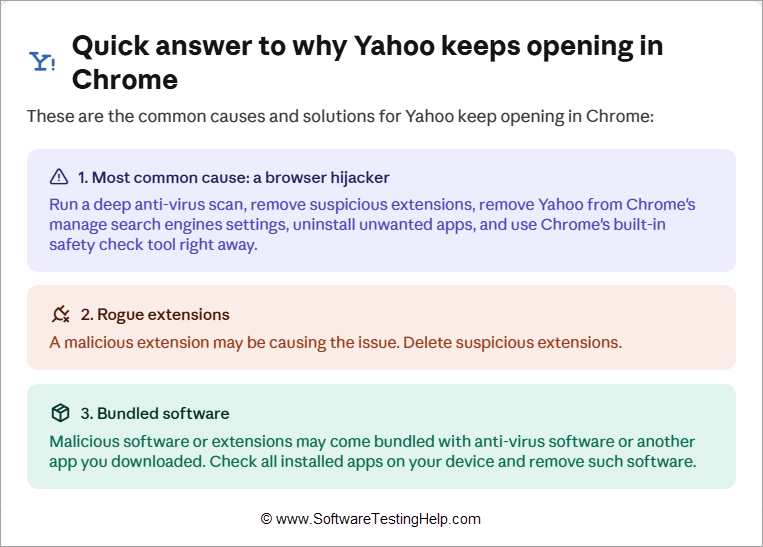
These are the common causes and solutions for Yahoo keeps opening in Chrome:
- Most Common Cause: A browser hijacker. Users must run a deep antivirus scan, remove suspicious extensions, remove Yahoo from the Manage Search engine settings in Chrome, uninstall unwanted apps, and use Chrome’s built-in Safety check tool right away in such cases.
- Rogue Extensions: A malicious extension may be causing the issue. Delete suspicious extensions.
- Bundled Software: Some malicious software (or extensions) may be bundled with your antivirus software or another app you downloaded. So check all the installed apps on your device and remove such software.
How to Fix Default Search Engine Keeps Changing to Yahoo
To remove Yahoo search from Chrome, users can take the following measures:
Method 1 – Remove Yahoo from Chrome Search Engine Settings
A browser hijacker can modify the settings in Chrome. It can set Yahoo as the default browser in the Chrome search engine settings. Or, while installing an application, you may have permitted it to change the default browser to Yahoo.
If this issue is happening to you, first of all, check your search engine settings by following these steps:
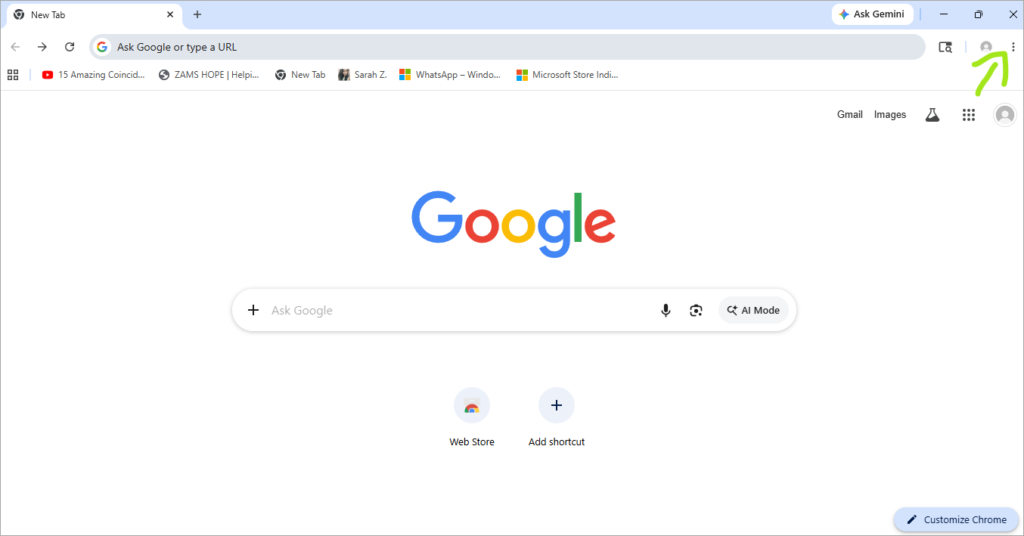
- Open Google Chrome and click on the 3-dot menu icon.
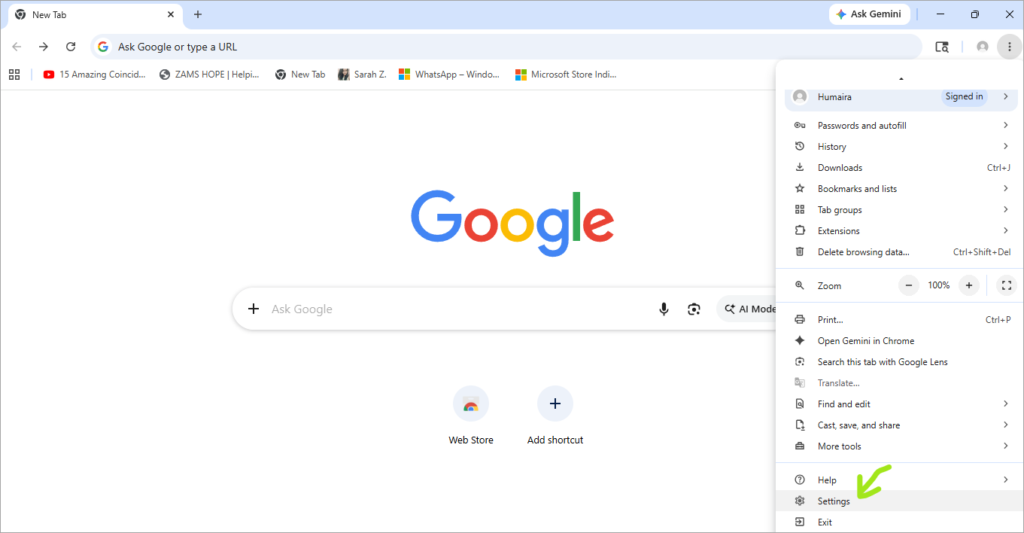
- Go to Chrome Settings
- Click on Search Engine
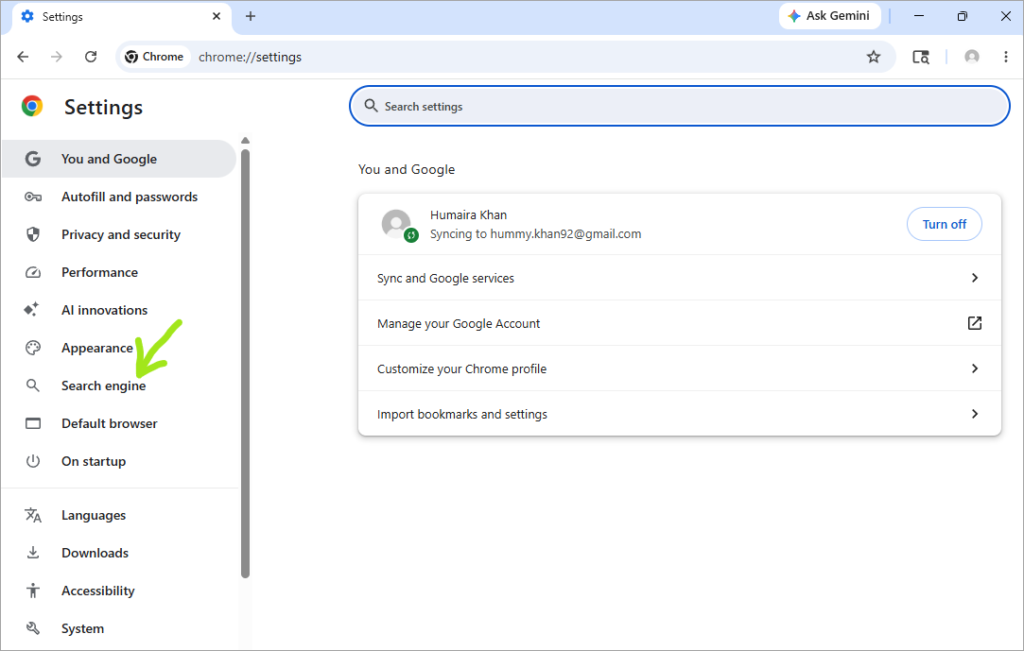
- Select Manage search engines and site search
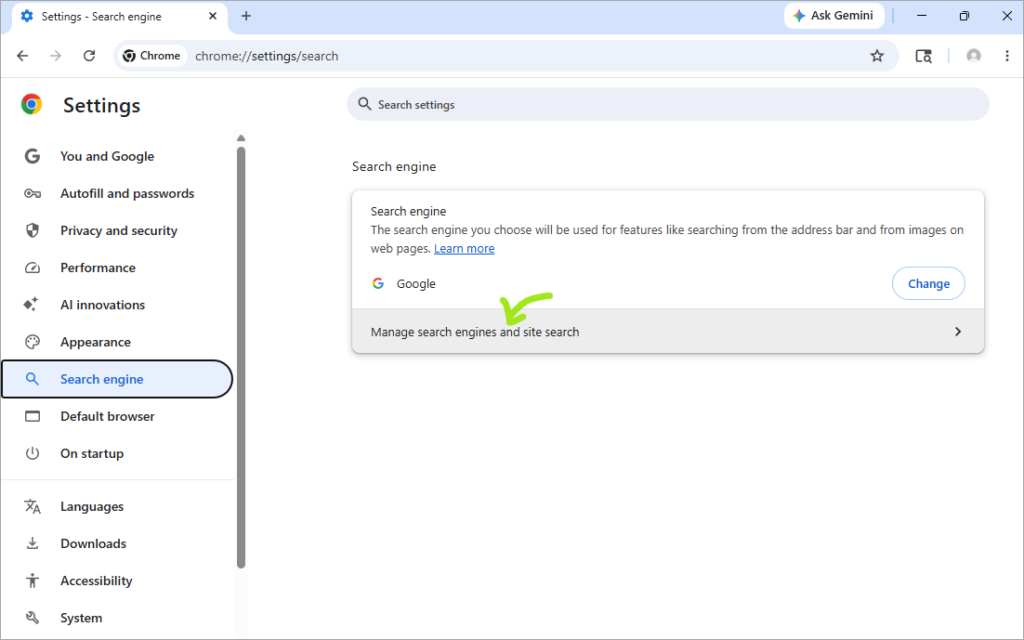
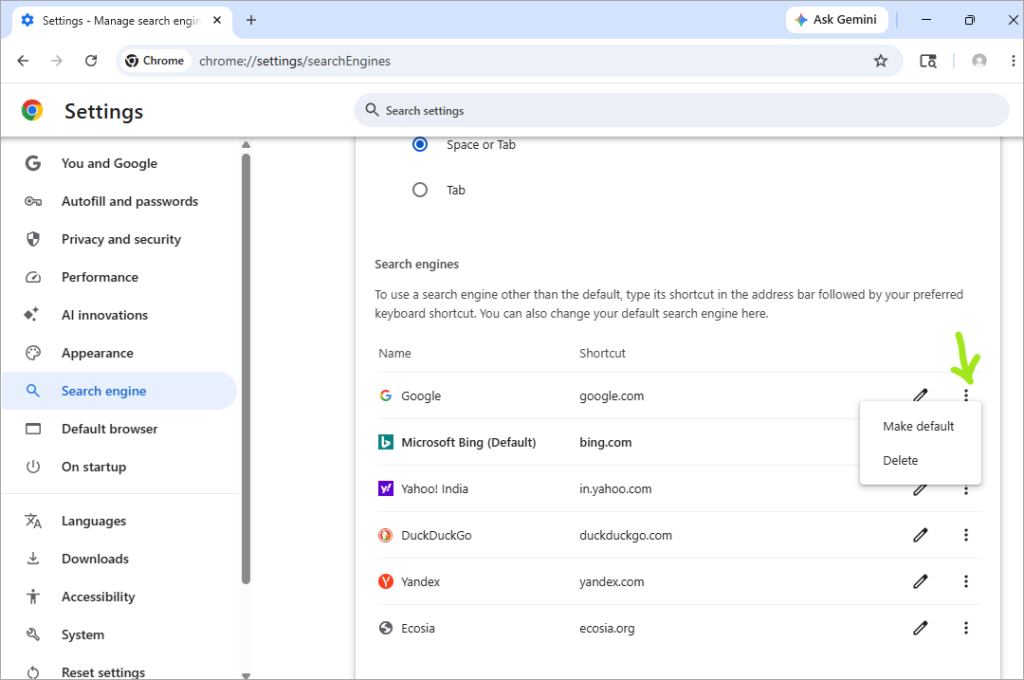
- Under the heading “Search engines”, there will be a list of search engines.
- Click on the 3-dot menu icon located near your preferred search engine, and then click on Make default.
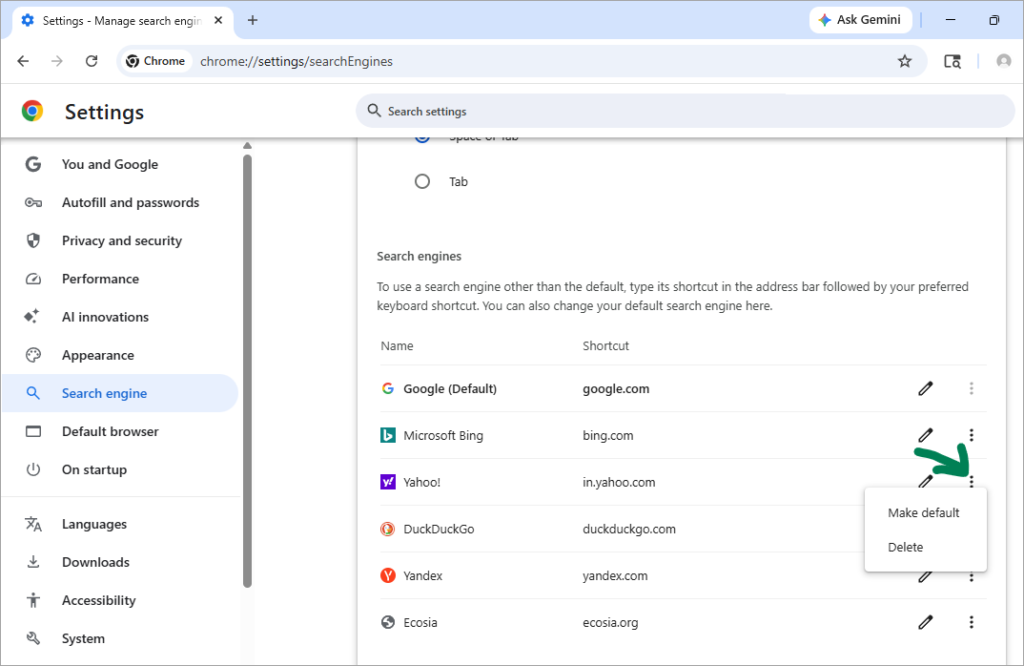
- Now find Yahoo! Click on the 3-dot menu icon located near Yahoo search, and select Delete.
Method 2 – Delete Unwanted Programs from Your Device
If the problem started right after you downloaded an application on your device, then you must uninstall the application right away to get rid of the issue.
Plus, while downloading an application, you may have been prompted to install another useful application, and you did install it, which is now causing the issue. And sometimes, a useless, hidden app gets downloaded with another application, and you don’t even know about it.
If that’s the case, you would need to uninstall such apps right away.
This can be done by following these steps:
- Right-click on the Windows icon
- Click on Installed apps

- Now go through the list of apps installed on your device to find suspicious, useless apps.
- If you find such an app, then click on the 3 dots located near the app’s name and then select Uninstall to remove that app from the device.
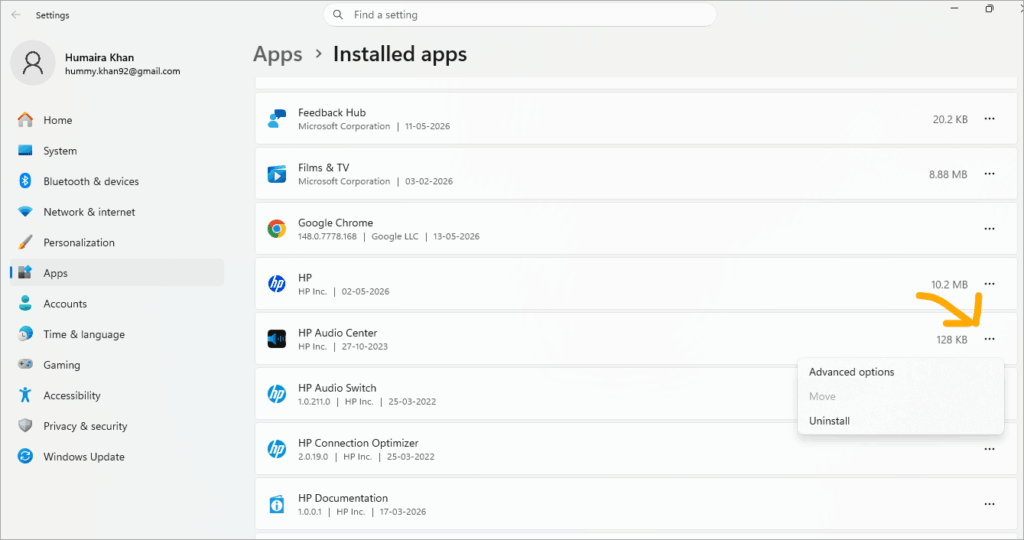
- Now Restart your laptop and open your browser to check whether this process worked for you or not.
Method 3 – Scan with Antivirus or Anti-Malware Software
This issue mainly arises due to a browser hijacker virus. In order to troubleshoot the issue, get reliable antivirus software or extend the subscription of the existing software installed on your device if required.
You can run a full system scan afterwards to detect and remove malware from the device.
Method 4 – Remove Suspicious Chrome Extensions
If you have recently added a Chrome extension, then try removing it to check if it’s causing the issue.
You can remove Chrome extensions by following these simple steps:
- Open Chrome on your PC
- Click on the 3-dot menu icon located in the upper right corner of your screen
- Now select Extensions, and then click on Manage Extensions.
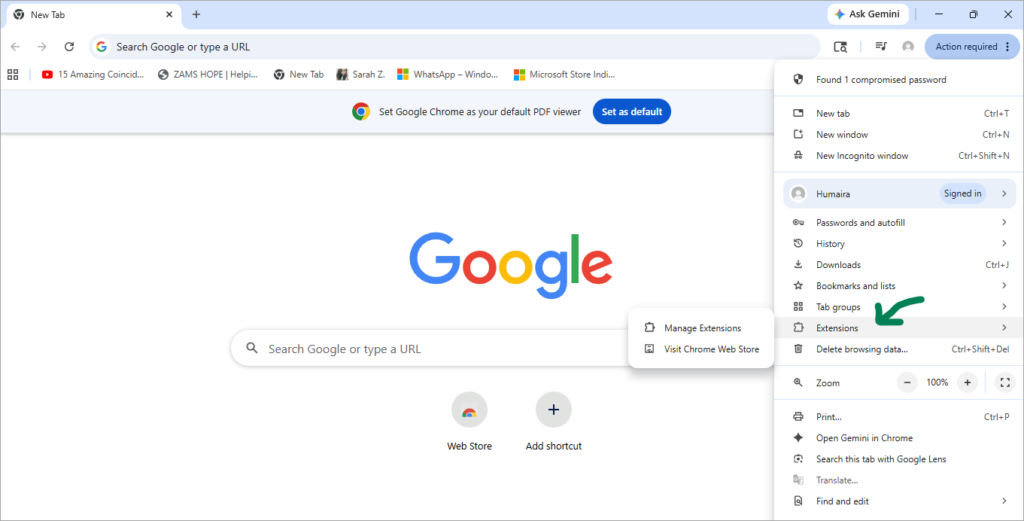
- Now you will see the list of extensions you have added. Remove the unwanted and suspicious ones by clicking on Remove.
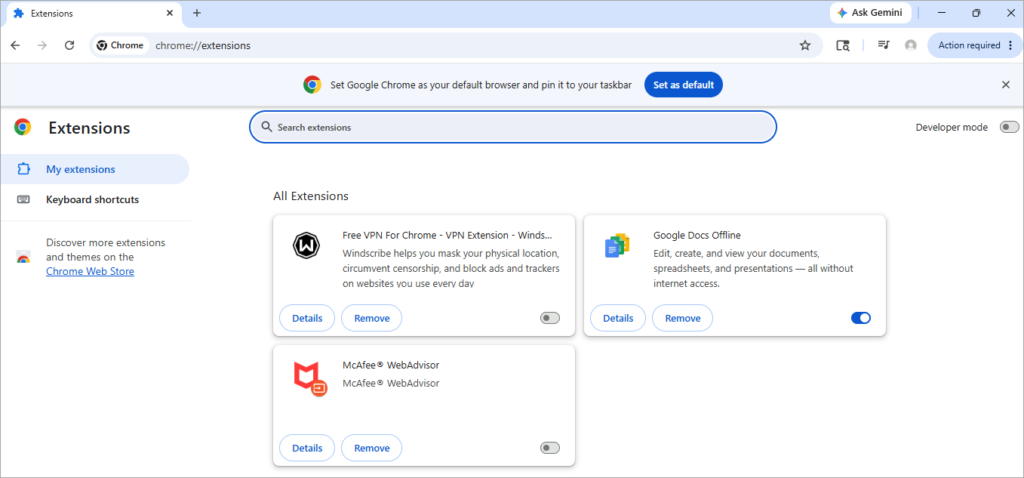
Isolate the extension with the issue:
- Disable all extensions using these steps:
- Open Chrome
- Click on the 3-dot menu icon located in the top right corner of your screen
- Now select Extensions and then choose Manage extensions.
- Now turn each extension off.
After doing this, check whether Yahoo keeps opening resolves or not. If it does resolve, then the issue was caused by an extension. Now enable extensions one by one to check which one is causing the issue.
Method 5 – Reset Chrome Browser Settings
There can be some issues with the browser settings. Either the browser hijacker may have changed the settings, or there may be some virus or malware on the device causing issues.
Whichever is the case, you must reset the browser settings after downloading anti-virus software, running a deep scan, and uninstalling the unwanted apps from the device.
To reset settings in Chrome, follow these steps:
- Go to Chrome
- Click on the 3-dot menu icon located in the upper right corner of your screen
- Now select Settings
- Click on Reset Settings
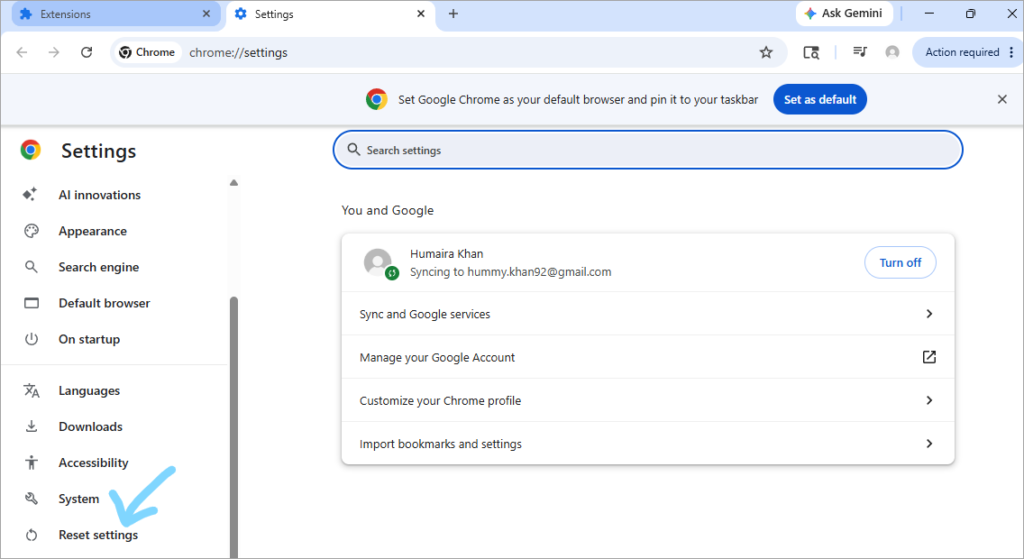
- Select Restore settings to their original defaults
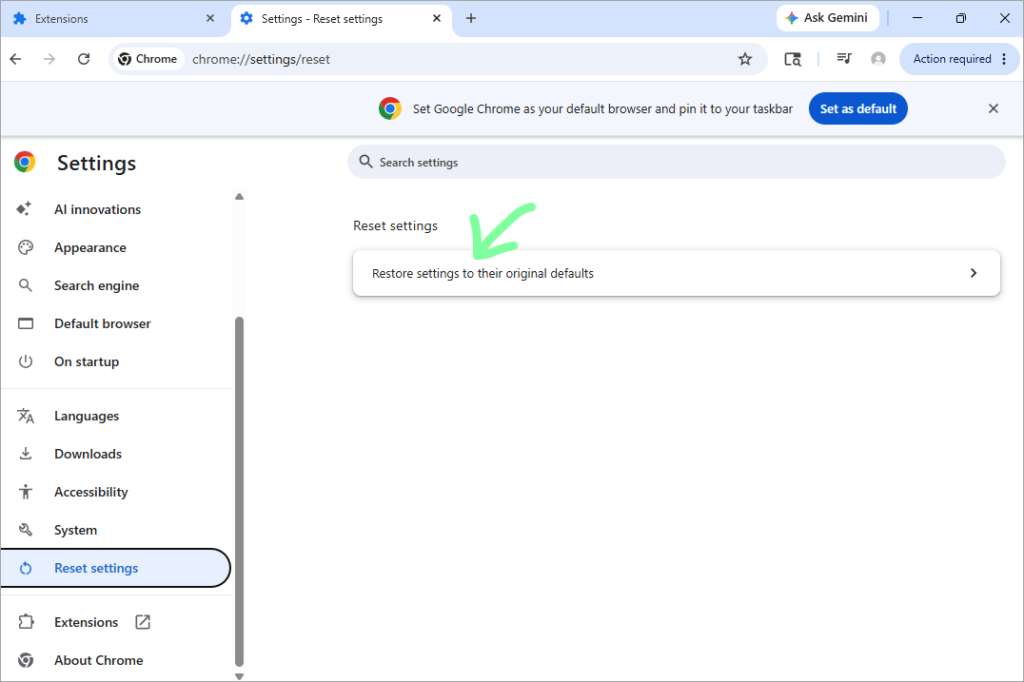
- Click on Reset Settings.
If you are using Firefox, then follow these steps to reset your browser.
- First, click on the 3-line Menu icon located in the upper right corner of your screen
- Select Help
- Click on More Troubleshooting Information
- Now select Refresh Firefox
- Again, select Refresh Firefox to confirm.
To reset Microsoft Edge, you would need to do as stated below to reset your browser.
- Open Microsoft Edge
- Click on the 3-dot menu icon located in the upper right corner of your screen.

- Now click on Settings
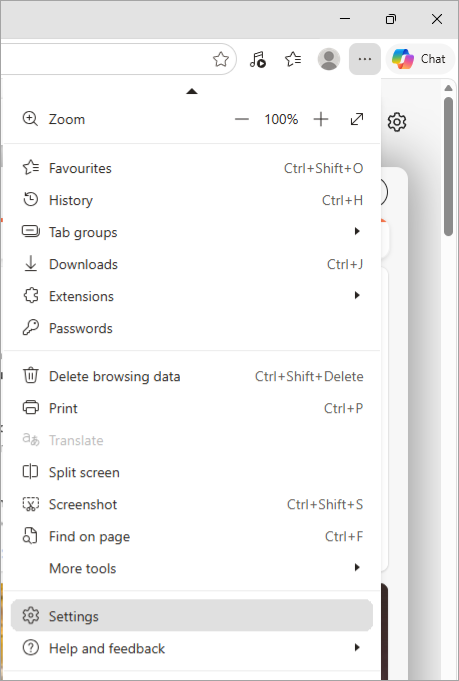
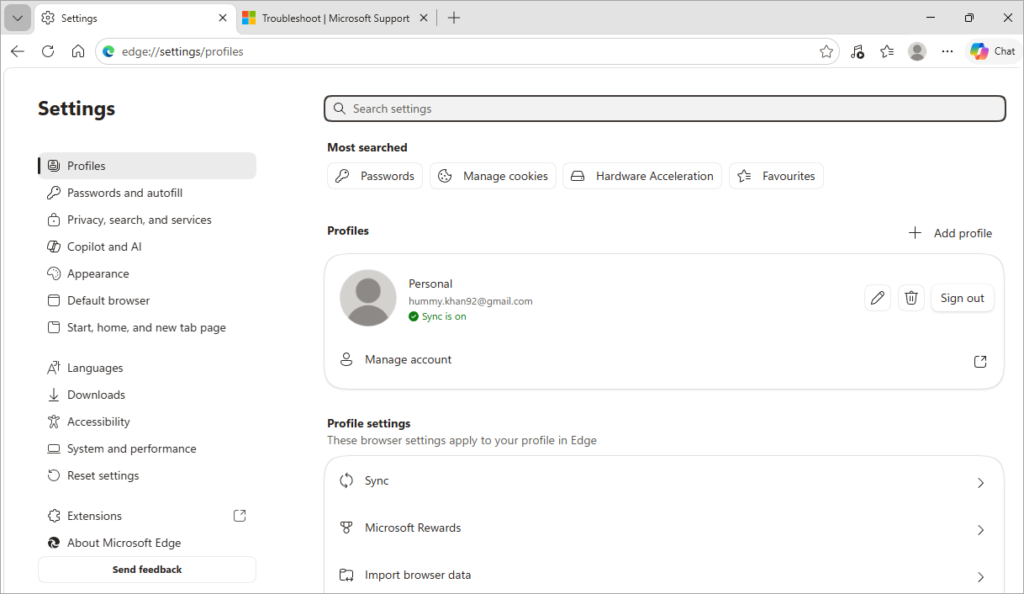
- Select Reset Settings
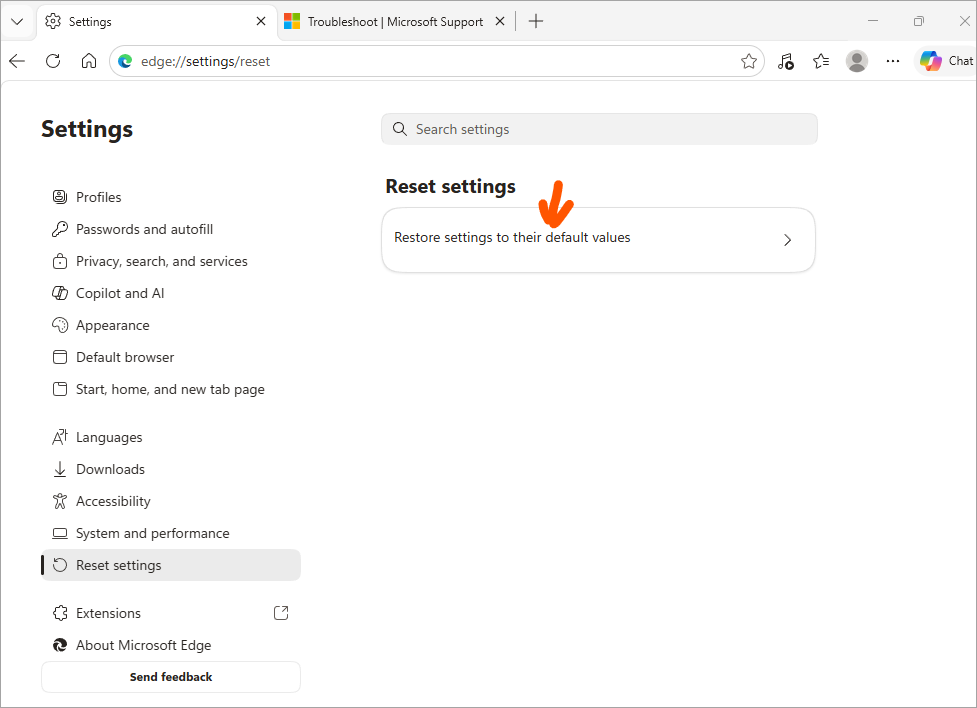
- Now choose Restore Settings to their Default Values
- Click on Reset to confirm.
Safari does not have a Reset option. But users can clear their browsing history, cache, and extensions if they are facing issues.
This can be done by following these steps:
- To clear History:
- Open Safari
- Select History
- Click on Clear History
- Then select Entire history. This will clear all browsing history.
- To remove website data:
- Open Safari
- Click on Settings (or Preferences)
- Go to Privacy
- Choose Manage Website Data
- Select Remove All
- Confirm.
- To remove extensions:
- Open Safari
- Go to Settings
- Choose Extensions
- Uninstall unwanted extensions.
- To Clear Cache:
- Go to Settings
- Now select Advanced
- Enable Show features for web developers
- Now choose Develop
- Click on Empty Caches
Method 6 – Run Chrome Safety Check
Chrome has built-in safety tools.
You can run a safety check by following these steps:
- Open Google Chrome
- Click on the 3-dot menu icon located in the upper right corner of your screen
- Now click on Settings
- Select Privacy and Security
- Under the heading Safety check, there will be an option: Check now (or Go to Safety check). Click on it.
- Follow the instructions on your screen if you find issues to be solved.
Method 7 – Deep Clean Your Device
Deep cleaning of the device with the help of some Malware Removal Tools can also remove the browser hijacker software. Some tools that can be used for this purpose are:
- Malwarebytes
- AdwCleaner
Restart your device after running the scan.
Method 8 – Remove the ‘Search Provided By Yahoo’ Program
‘Search provided by Yahoo’ is an installable program that can cause this issue. Have a look at these points to troubleshoot this issue:
- Check all installed apps by following these steps:
- Right-click on the Windows icon
- Select the option: Installed apps
- Now you will see all the installed apps on your device.
- If you find such an application, click on the 3 dots located near it, and then select Uninstall.
- Sometimes this extension comes bundled with your Antivirus software. You can easily remove this extension. You may find the extension with the name ‘Secure Search’, which may cause this issue. Delete all suspicious extensions.
Method 9 – Check Chrome for “Managed by Your Organization” Policies
Sometimes when there is a Browser hijacker on your device, you see the message ‘Managed by your organisation’ when there is a rogue enterprise policy controlling the device.
In such a case, you must check Active Chrome Policies.
This can be done by following these steps:
- Open Google Chrome
- Type chrome://policy in the search bar
- Now you will see the list of Policies/ restricted settings enforced on your device
- If there is no such policy, you will see ‘No Policies Set’ on your screen.
If you see some policies (which may have been set due to the Browser Hijacker), then follow these steps to delete such policies through Registry Editor:
- Press Windows key and R key simultaneously
- Now type regedit and press Enter
- Now find these locations in the Folder Tree you see on your screen.
- HKEY_LOCAL_MACHINE\SOFTWARE\Policies\Google\Chrome
- HKEY_CURRENT_USER\SOFTWARE\Policies\Google\Chrome
- HKEY_CURRENT_USER\SOFTWARE\Google\Chrome
- If you see any folder having some policies that are causing the issue, then right-click on the folder and then select Delete.
- If you can’t delete the folder, then
- Right-click on the folder
- Click on Permissions
- Now tick on Deny for SYSTEM or Group Policies to reclaim control.
Method 10 – Run Microsoft Defender (Windows Security) Scan
You can do this with these steps:
- On your PC, click on the search bar and type in Windows Security.
- Open the Windows Security app
- Select Virus & threat protection
- Now click on Scan options and then choose an option from:
- Quick scan
- Full scan
- Custom scan
- Microsoft Defender Antivirus (offline scan).
Watch this YouTube video that explains how to use Microsoft Defender to scan for viruses on your PC:
Why Is Yahoo Still Opening After I Fixed Chrome?
If you were facing the ‘Why is my search engine Yahoo and not Google’ issue, and you tried the above-stated methods to troubleshoot it, you would most probably have solved the issue.
But, if Yahoo still keeps opening in Chrome, you can take these additional measures:
- Update your device. A pending software update can cause issues with the device. So check for updates.
- Your antivirus may be changing the default browser. Your antivirus may be automatically redirecting you to Yahoo, due to some security reasons. Try disabling the antivirus software to check whether this causes the issue. If that’s the case, you may check the software’s settings or contact their customer support services for additional help.
- Disable sync:If you are unable to solve the issue, you must disable the Sync feature in Chrome. The sync feature automatically syncs Chrome Settings across all of your devices with the same Google account. So if the browser issue arises in one device, it will most probably sync to another device as well. So disabling the sync feature would be a good idea in such a case.
You can turn off sync by following these steps:
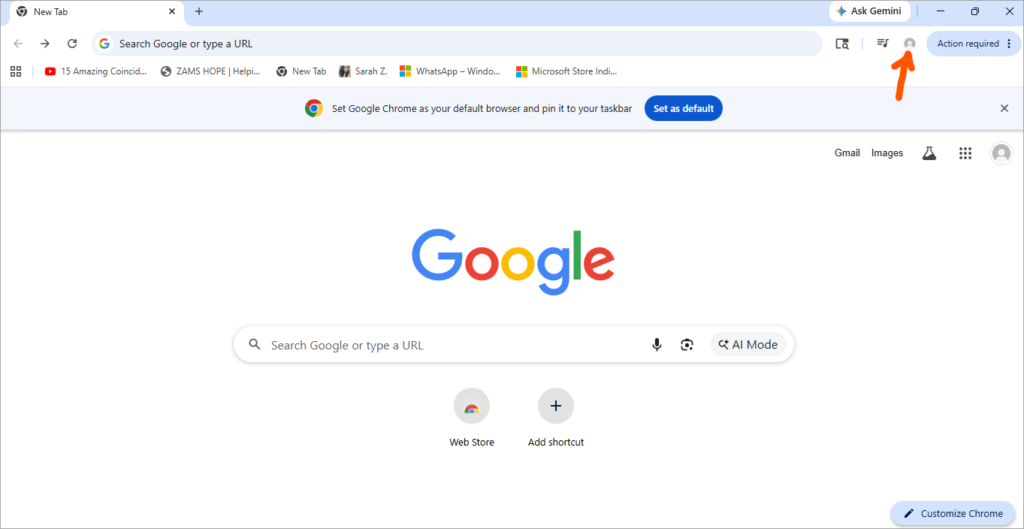
1. Go to Google Chrome
2. Click on your Profile picture
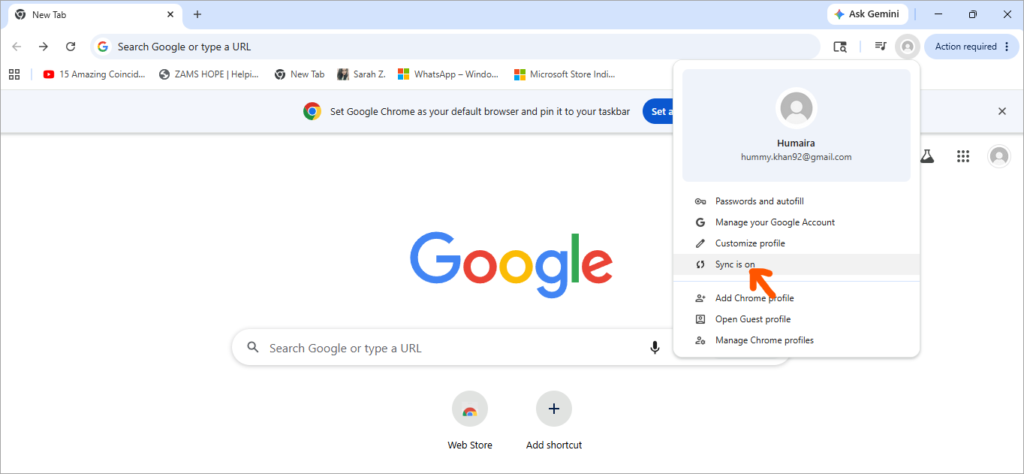
3. Click on Sync is on
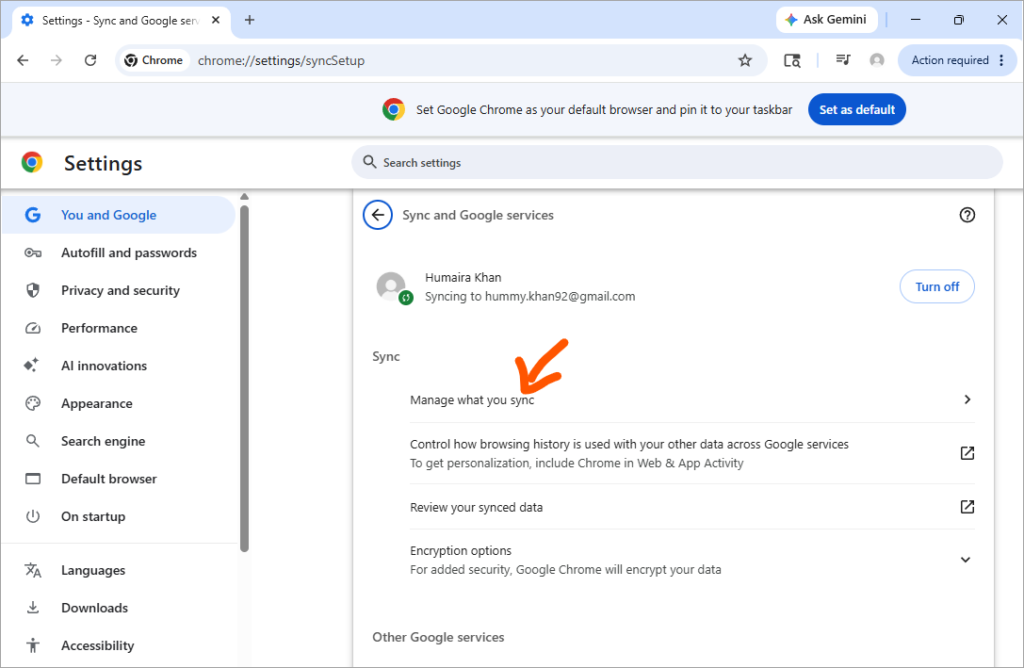
4. Under the Sync and Google services section, find Manage what you sync. Click on it.
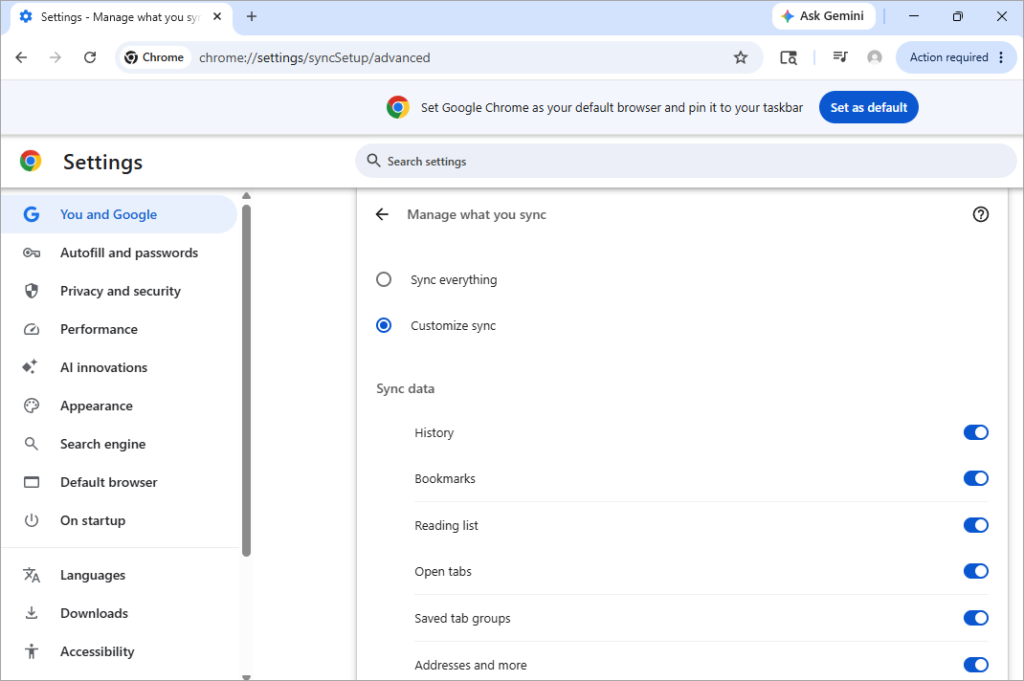
5. If the option Sync everything is enabled, then enable the Customise Sync option and disable all sync options.
- Fix Browser shortcuts: A Browser hijacker may have changed your browser shortcut’s Target field. Check and correct this setting by following these steps:
- Right-click on Chrome’s (or other Browser’s) shortcut
- Now choose Properties
- Click on Shortcut
- In the Target field, check whether the line ends with .exe
- If there’s anything written after .exe, remove it.
- Select Apply
- Click on OK.
- You can also try reinstalling Chrome if the problem persists.
- Remove any Yahoo URLs from the On Startup menu of your browser.
- This can be done by following these steps:
- Open Google Chrome
- Tap on the 3-dots located in the top right corner of your screen
- Now select Settings. This will open Chrome Settings.
- Now click on the On startup option located in the left-side panel
- Under the heading Open a specific page or set of pages, look for the Yahoo URL.
- Remove Yahoo URLs by hovering your cursor over each of them, then clicking on the three dots to the right of the page, and then selecting Remove.
What if Yahoo keeps opening on Mac: If Yahoo keeps opening on your Mac, you must take these measures:
1. Remove Yahoo search from the Safari browser.
Here is the video guide on how to remove Yahoo search from Chrome on Mac:
2. MacOS has built-in security tools. But if you are facing issues, you can try using antivirus software. Some of the reliable antivirus software for Mac are Bitdefender Antivirus for Mac, Norton 360, and Intego ONE.
3. Clear browsing history, website data, cache and extensions.
4. Delete recently downloaded and unwanted apps from the device.
5. Check for software updates.
Preventive measures to avoid this issue
- Switch to Safe Browsing: Follow these steps for enhanced protection from dangerous sites, downloads, and extensions:
- Go to Chrome
- Click on the 3-dot menu icon
- Click on Settings
- Now select Privacy and Security from the left side panel on your screen
- Enable Enhanced Protection.
- Users must avoid clicking on suspicious links and downloading unreliable third-party apps.
- Be careful while installing apps and giving permissions. Do not be in a rush during the installation process.
- Keep your antivirus updated to keep your device safe from unwanted issues.
- Keep your devices updated.
- Delete browser history to remove data about browser hijacking
- Do not insert unknown hard drives into your PC. Make sure you have active antivirus software if you use a hard drive on your device.
- Users can use a VPN to avoid disclosing their IP address. Some VPNs, like Surfshark, even encrypt the internet traffic, which can be quite helpful in safeguarding from attackers.
How to Prevent Chrome from Switching to Yahoo Again
Having sorted out the problem, it becomes necessary not to let Chrome change to Yahoo again. The common causes are any unexpected browser add-ons, preloaded software, or browser hijackers that might be able to change Chrome’s settings without your consent.
- Be careful when installing software: When installing any software for free, make sure to go for custom/advanced installation. That will enable you to turn off all the additional elements that may change your default search engine and homepage.
- Download Extensions Only from Trusted Sites: Make sure to download only those Chrome extensions that are available at the Chrome Web Store and also check the developer of such extensions. Uninstalling unnecessary extensions is also advised.
- Keep Google Chrome and Anti-virus Software Updated: Periodically update Chrome and anti-virus software. Updates increase the level of security and can detect potential unwanted programs (PUPs).
- Check Chrome Settings Periodically: Periodically check the default search engine, startup pages, and installed extensions in Chrome. This will help you avoid the takeover by Yahoo or other search engines.
- Scan the Computer for Malware: Make regular scans of your computer with the help of Microsoft Defender or another reputable anti-malware program. This will help to get rid of browser hijackers and unwanted software.
Frequently Asked Questions
1. How do I stop Yahoo from hijacking the browser?
Usually, Yahoo takes control of the browser with the help of an extension, bundled program, or hijacker. In order to solve this problem, you should uninstall suspicious extensions, recently installed programs, restore your default search engine to Google (or other provider you use), reset Chrome if needed, and scan your system for malware to remove unwanted software.
2. Why does Yahoo keep opening in Chrome?
If Yahoo keeps appearing in Chrome, it means that either your search engine or startup page have been modified by a browser extension, free software bundle, browser hijacker, or synchronized Chrome settings. Check your settings, remove suspicious extensions, and scan your PC for malware.
3. Why does Yahoo keep opening in Chrome even after I delete it?
If Yahoo keeps coming back to Chrome after being removed, it means that Chrome Sync, browser extension, or malware might be resetting it back. Disable Chrome Sync, remove suspicious extensions, run a malware scan, and reset Chrome if it doesn’t help.
4. Why does Yahoo keep opening in Chrome on Android?
On Android, Yahoo keeps appearing in Chrome due to the changes in your default search engine in Chrome or recent installation of the application which modified the browser. You need to open Chrome > Settings > Search Engine, choose search provider you need, clear Chrome cache, and uninstall suspicious applications.
5. Why does my search engine keep changing to Yahoo with McAfee?
In case McAfee WebAdvisor is installed, this can be the cause of such behavior, as this extension sets Yahoo as the default search engine. However, if this is not the case, check your computer for browser hijackers or PUPs.
6. How do I reset Google Chrome settings?
To reset Chrome, go to Settings -> Reset settings -> Restore settings to their original defaults and click Reset settings. This will restore the homepage, startup page, search engine, and disabled extensions for Chrome without any data loss.
7. What happens when I reset Chrome?
By resetting Chrome, all of its settings will be restored to the defaults. Extensions will be disabled, and temporary data, like cookies, will be deleted. The list of your bookmarks, browsing history, and saved passwords will be left untouched.
8. What is CanisLupusBaileyi extension?
CanisLupusBaileyi extension is a malicious extension that is known for changing your default browser to Yahoo or any other browser, or changing your homepage. Plus, it also fills your device with too many ads.
If you are facing such issues with your device, do as stated below:
• Delete the extension right away
• Use an anti-virus software to run a deep scan on your device
• Reset your browser settings
• Set your default browser to Chrome
• Delete Yahoo or other suspicious browsers from the search engines list.
9. Does reinstalling Chrome remove the Yahoo redirect?
No, this won’t necessarily be effective. Uninstallation and reinstallation of Chrome will not delete any malicious programs or extensions installed on other parts of your computer. You should first uninstall unwanted programs and suspicious extensions and perform a malware scan before reinstalling Chrome
10. How do I remove Yahoo from Chrome on Mac?
On Mac, you need to remove suspicious extensions, set the default search engine, delete Yahoo from the list of search engines, review startup pages and check your Mac for adware
11. Why am I suddenly getting pop-ups in Chrome?
Pop-ups are usually appearing due to some malicious extensions or adware that has been installed or websites with notification permissions granted. Uninstall malicious extensions, revoke notification permissions, update Chrome and scan your computer for any malware.
Conclusion
It can be quite irritating if your search engine automatically keeps changing to Yahoo. Browser hijackers are not usually very notorious, but you never know when they will become a big problem!
Users are recommended to adopt safe browsing practices, which include:
- Avoid installing third-party applications and suspicious links.
- Avoid visiting suspicious sites.
- Keep your antivirus software up-to-date and regularly run deep scans.
- Use a VPN while browsing, especially when you use a public WiFi.
Research Process: The total time involved to complete and publish this article is approximately 43 hours. This content was created through a structured research approach to ensure accuracy and reliability.
For more browser-related guides, you can explore our range of tutorials below:
- The Top 10 Browsers For PC (Web Browser Ranking)
- The Top 8 Browser Security Solutions for Enterprises
- The 10 Best Browsers for Android
- IE Tester Tutorial – Internet Explorer Browser Testing Online
- Best 6 Enterprise Browser Solutions (TOP SELECTIVE)
- Top 10 Private Browsers for iOS & Android (SECURE)
- What is Cross-Browser Testing: Tools for Desktop & Mobile
Was this helpful?
Recommended Reading
-

Review and compare the list of the Best Chrome Extensions along with the features to select the must have Google Chrome Extensions: Google’s Chrome browser is one of the most popular web browsers around. Millions of users across the globe use this browser daily. This browser’s functionality can be enhanced…
-
Read this Review of Free & Commercial Pop Up Blockers along with their Features, Pricing, and Comparison to Select the Best Ad Blocker for your needs: We will review and rate the top 8 ad blockers that are available on the market today. Pop-up blockers are software products that block…
-
Want to protect your company from a wide variety of attacks? Read this review to select among the list of the Best Enterprise Browser Solutions: Web browsers are perhaps the most vulnerable aspect of an enterprise’s IT infrastructure. Browsers have long acted as entry points for all sorts of malware…
-
This tutorial compares the top 10 Browsers for PC. You can select the fastest and best web browser most suitable for you: The word ‘browse’ can be used in many contexts and can have different meanings in different scenarios. For instance, ‘to browse’ means to scan, skim, or read and…