


Reset MacBook Air to Factory settings in minutes with this step-by-step guide. Learn how to Factory Reset MacBook Air to erase and restore your Mac even without a password:
Struggling with a slow-running MacBook Air, or perhaps you are thinking of selling it? These are both situations that warrant a complete reset of your MacBook Air.
By complete reset, I mean wiping it clean to get rid of all the data it contains. The most efficient way to accomplish this would be via a factory reset of the device.
MacBook Air Factory Reset: Step-by-Step Guide
A quick factory reset could help optimize your MacBook’s performance or ensure that all your personal data is erased before you hand the device over to its next owner.
Although simple, performing a factory reset can be confusing, as the method itself varies depending on the MacBook Air model you are using.
[Via Apple]
My goal with this article is to clear any doubts you may have on this topic. As such, consider this article your comprehensive guide on how to factory reset MacBook Air systems with ease.
So, without much further ado, let’s dive in.
When Should You Factory Reset Your MacBook Air
You should perform a factory reset of your MacBook Air at least once a year to resolve any performance issues that may be affecting it. However, sometimes a factory reset becomes necessary.
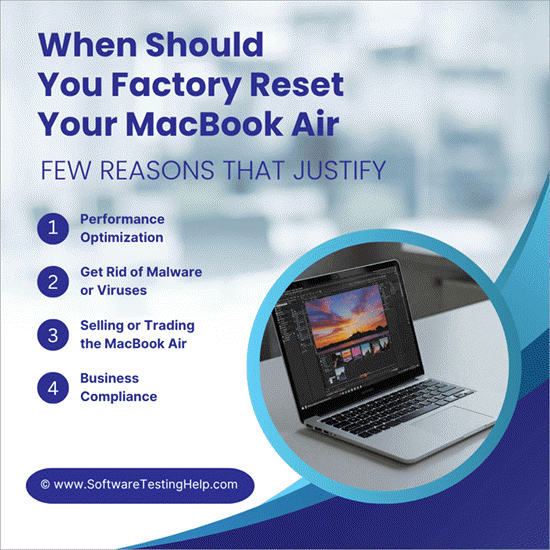
Below are a few reasons that justify an immediate MacBook Air factory reset:
#1) Performance Optimization
You may have noticed your MacBook Air performing more slowly than usual after being used for a long time. Given some time, the apps, the build-up of cached files, and the background programs will inevitably drag your Mac’s performance.
You’ll experience lag and frustrating delays when launching a simple app or program on the system. A factory reset will wipe your system clean, clear out years of build-up cache, and delete apps affecting your system’s performance. A factory reset will leave you with a cleaner system that performs impeccably.
#2) Get Rid of Malware or Viruses
Cache and resource-intensive apps aren’t the only culprits of slow-performing Mac systems. Malware and viruses may also wreak havoc on your system.
Now I know what you might be thinking. Aren’t Mac devices supposed to be immune to malware attacks? While Mac devices are known for their strong security, no system is 100% immune to cyber threats.
So, if your MacBook experiences issues, it is probably because of malware or a virus that you’ll need to neutralize. A factory reset is the best solution to the problem of malware or virus infestation.
#3) Selling or Trading the MacBook Air
It would be quite foolish to hand over your MacBook Air with all of your data still intact in the device. You don’t want the new owner of that device to access information that’s personal to you. You could try deleting the data one by one. However, there would still be a risk of some data escaping this purge.
A factory reset is the most effective way to wipe off a system that’s about to be sold. This reset will erase any stored data, documents, saved accounts, and passwords from the MacBook Air. Once erased, this data cannot be recovered.
4. Business Compliance
Systems in enterprise environments must be wiped clean regularly to stay compliant with rules set by bodies like HIPAA and GDPR. This ensures companies are taking the measures necessary to secure sensitive data from the threats of breach and theft at all times.
Steps to Follow Before You Reset MacBook Air to Factory Settings
As I mentioned before, a factory reset essentially means a complete overhaul of your system. All the data it contains, from stored documents to saved passwords, will be erased. Therefore, you must prepare yourself before taking such an extreme step.
The preparatory tips below will ensure you don’t end up regretting the decision to factory reset a MacBook Air.
#1) Use Time Machine or iCloud Drive to Back up Data
A complete reset would mean all of your media files, documents, and apps would get erased. You might need them later. So, I would strongly advise you to back up all important files before you hit that factory reset button on your MacBook Air. If you are looking for a Backup Software, feel free to read our detailed guide on Best Backup Software.
You can choose to back up data on your Mac via the Time Machine feature or by uploading that data to your iCloud Drive.
i) To Back Up Data via Time Machine
1. First, connect an external storage device to your MacBook.
2. Click the Apple Menu displayed in the upper left corner of our screen.
3. Go to System Preferences and select “Time Machine”.
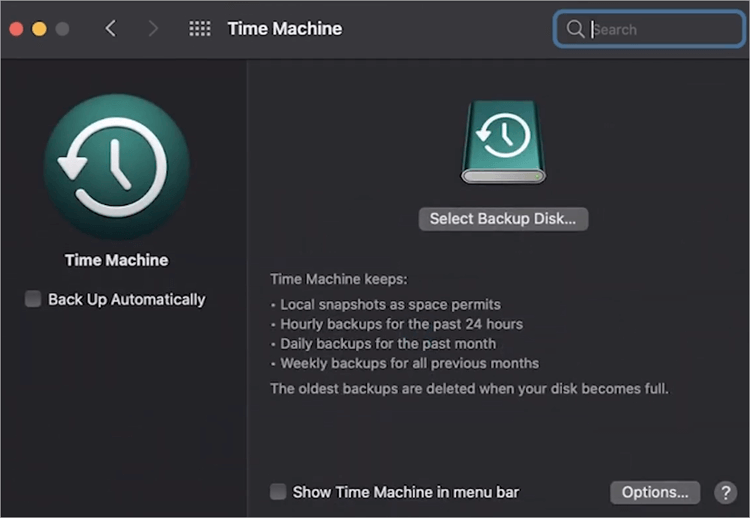
[Via Tech InsideriClou]
4. Click on “Select Backup Disk”.
5. Select the external storage device connected to your Mac and then select “Use Disk”.
6. Finally, hit the “Back Up Now” option to initiate the backup.
ii) To Back Up Data via iCloud
1. Click the Apple Menu, displayed in the upper left corner of our screen.
2. Go to System Preferences.
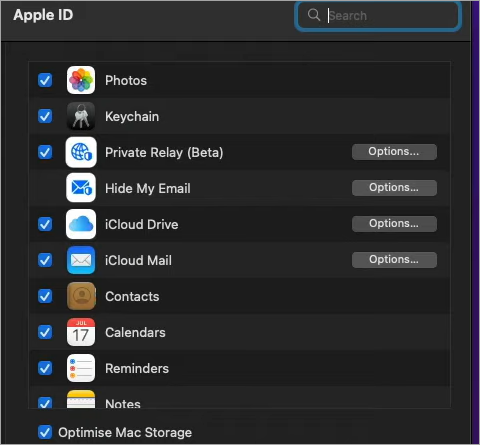
3. Under System Preferences, select Apple ID => iCloud.
[Via MinorCo]
4. Sign in to your iCloud Account.
5. Uncheck the “Optimize Mac Storage” checkbox.
6. Select the data and apps you wish to back up.
#2) Sign Out of all Your Apple Accounts
Remember, Apple devices are known for their strong security features. There is one feature you must consider when selling the device.
This feature, called the Activation Lock, essentially makes it impossible for a Mac device to reactivate in the event it is lost or stolen. This same feature will also render your Mac device useless if it is handed over to a new owner.
The new owner of the device won’t undertake a fresh setup if you are still signed in. As such, follow the steps below to ensure you sign out of your Apple accounts:
i) Sign Out of iCloud
- Click on the Apple menu, displayed in the upper left corner of your screen.
- Go to System Preferences and select Apple ID.
- Click on Overview.
- You’ll find the sign-out button here. Click on it.
ii) Sign Out of Messages
- Open the Messages app.
- Select Messages displayed on the top menu bar.
- Select Preferences.
- Go to iMessage and then hit the Sign Out button.
#3) Unpair Bluetooth Devices
Even with your MacBook Air completely erased, it may still connect to old Bluetooth signals once it comes in range of such a device. Unpairing all Bluetooth connections will ensure this does not happen after a factory reset.
Here’s how you do it:
1. Click on the Apple Menu, displayed in the upper left corner of your screen.
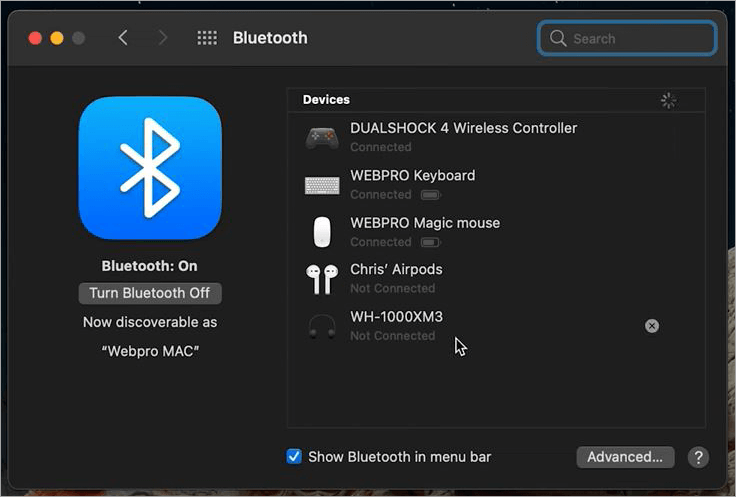
2. Go to System Preferences and select Bluetooth.
[Via WebPro Education]
3. Select all devices you wish to unpair and simply click on the “X” button that appears next to each option.
#4) Reset NVRAM
NVRAM, also known as non-volatile random access memory, stores important user settings like your screen’s resolution, time zone, and volume preferences. It makes sense to clear these settings before you decide to perform a factory reset.
This will also ensure your device doesn’t crash immediately when it restarts after a sudden reset.
Here’s how you reset NVRAM:
- Switch off your MacBook Air.
- Turn it back on and immediately press the keys option + command + P + R.
- Hold these buttons for at least 20 seconds before releasing.
How to Factory Reset MacBook Air
Once you’ve taken the appropriate preparatory measures, let’s finally discuss how to reset a MacBook Air to factory settings. It is a straightforward process that varies slightly depending on the Mac model or OS version you are using.
#1) On macOS Ventura 13 or Later
1. Click on the Apple menu displayed in the upper left corner of your screen.
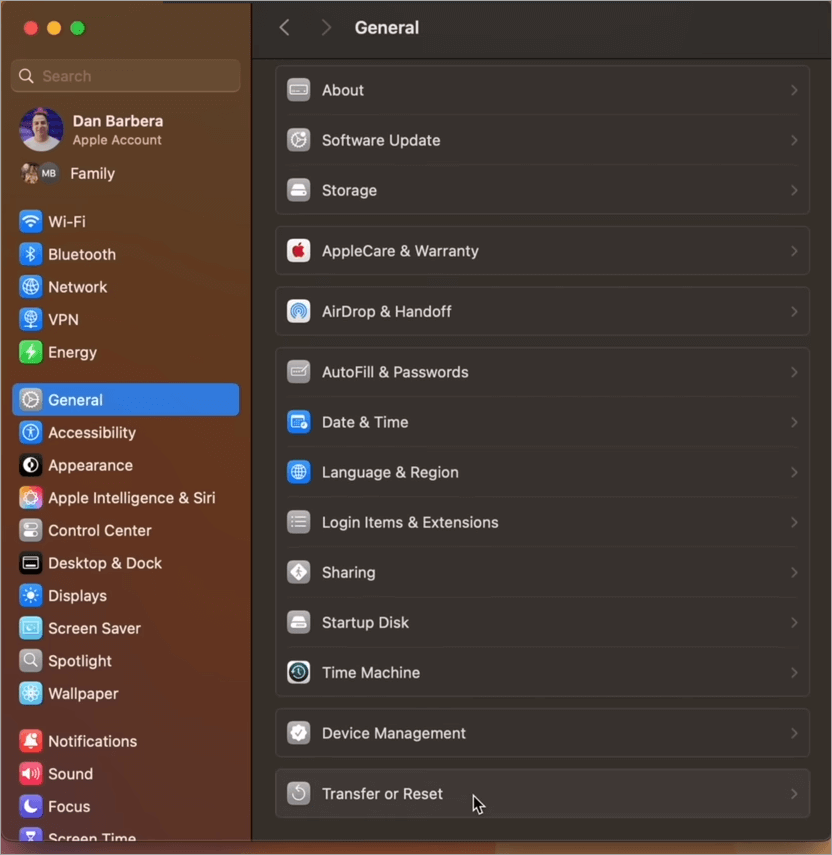
2. On the sidebar, click on General.
3. Scroll down until you find the option – Transfer or Reset, as shown below. Click on it.
[Via MacRumors]
4. Click on Erase All Content and Settings.
#2) On macOS Monterey
1. Click on the Apple menu as shown below.
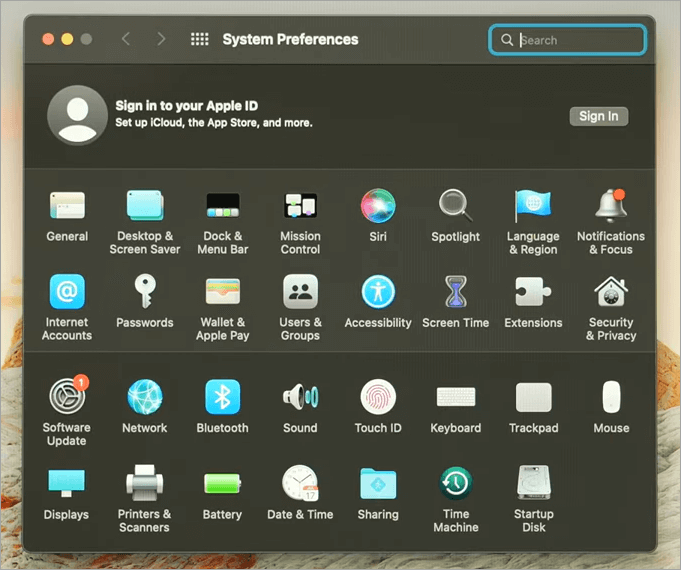
2. Select System Preferences as depicted below.
Erase All Content and Settings pop-up will appear as shown below.
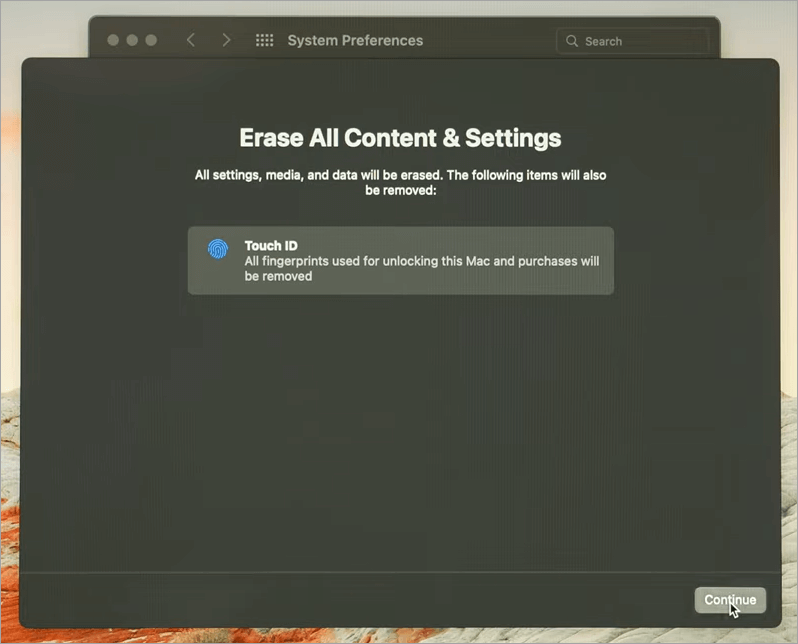
3. In the System Preferences menu, find and click on Erase All Content and Settings as in the image below.
[Via Apple Support]
The process thereafter on both OS versions will be the same and is as follows:
- You will be presented with a summary of data, media, and system settings that will be erased.
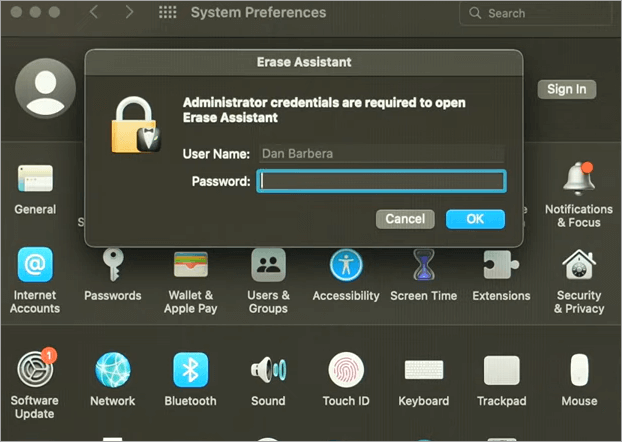
- You’ll be asked to sign in with your administrator credentials. You might also back up your Mac.
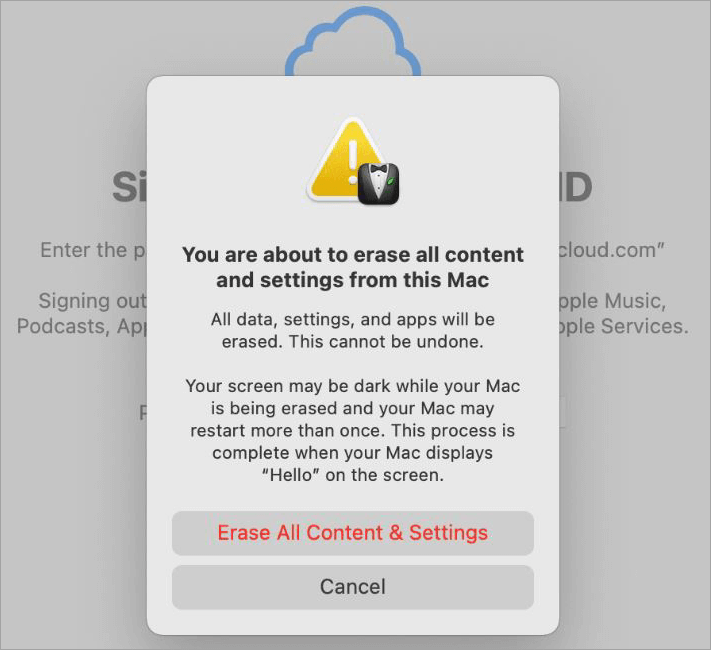
- Click “Erase All Content and Settings” to confirm the reset.
- Your system will restart automatically after hitting the button.
- Upon reactivation, you’ll be asked to click on the “Restart” button as shown below.
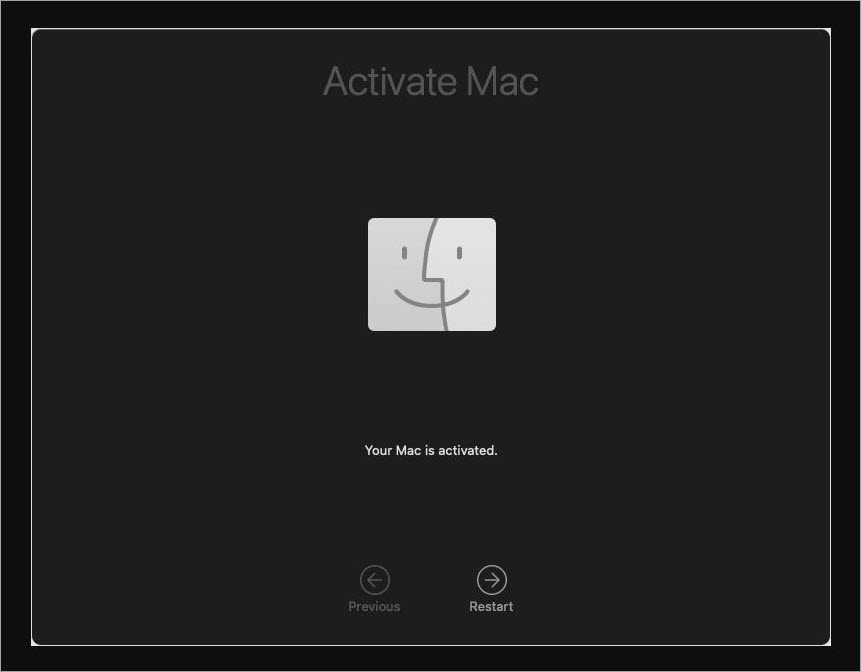
- As your Mac restarts, you’ll have to go through a guided setup process. It will be like you’ve just unboxed and started your MacBook Air for the first time.
#3) On Older macOS Versions
The process in the older version may seem complex, but it is easier to follow once you get a gist of it.
1. First, shut down your Mac system.
2. If you are using an Apple Silicon device with an M1, M2, or M3 chip, simply press and hold the power button to restart the device. If you are using an Intel-based Mac with a T2 chip, press the Command + R key alongside the power button to restart the device.
3. Select Disk Utility. You’ll find it in the MacOS Utilities window that appears below.
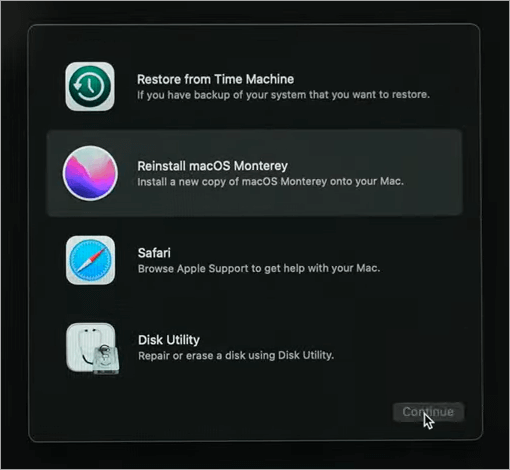
4. Click Continue
5. Click on Macintosh ID, displayed in the sidebar as in the image below.
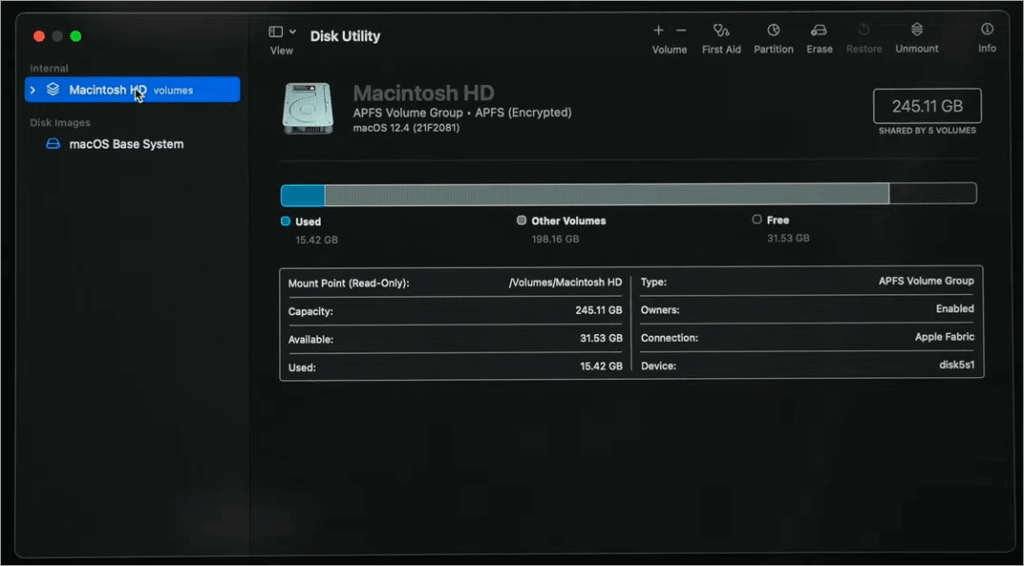
6. Hit the Erase button, displayed at the top of the window.
7. Close Disk Utility once the erase action is complete.
8. Now, reinstall macOS from the Utilities window.
Follow the setup instructions on your screen to initiate the installation process.
As your system enters recovery mode, you’ll be presented with the option to reinstall your macOS, recover data from “Time Machine” or “iCloud”, or access other utility tools like the “Terminal”.
#4) Without Password
This section briefs you on how to Factory Reset MacBook Air without a password.
Don’t worry if you’ve forgotten your MacBook Air’s password. You can still perform a factory reset by following the steps below:
- Shut down the Mac
- Press and hold the Command + R keys
- Select Utilities => Terminal from the opening menu.
- Now type – resetpassword
- Simply follow the instructions on your screen to reset your password.
- With your password reset, simply follow the erase and macOS reinstall steps I’ve already shared.
I suggest you refer to the table below for a quick summary of the above processes:
| OS Version | Factory Reset Guide |
| macOS Ventura 13 or later | Apple menu => System Settings => General => Transfer or Reset => Erase All Content and Settings. |
| macOS Monterey | Apple menu => System Preferences => Erase All Content and Settings. |
| Older macOS versions | Shut down Mac => Press Command + R => Enter macOS recovery => Disk Utility => Click on Macintosh HD => Erase => Close Disk Utility => Reinstall macOS. |
| Without Password | Shut down Mac => Press Command + R => Enter macOS recovery => Utilities => Terminal => Type – resetpassword => reinstall macOS. |
Warning: A factory reset will erase all your data. This means everything from your media files and documents to your saved passwords will be gone. I suggest you back up the data important to you and note down credentials to different accounts before moving forward with this process. You cannot reverse a factory reset.
Troubleshooting Common Issues With a MacBook Air Factory Reset
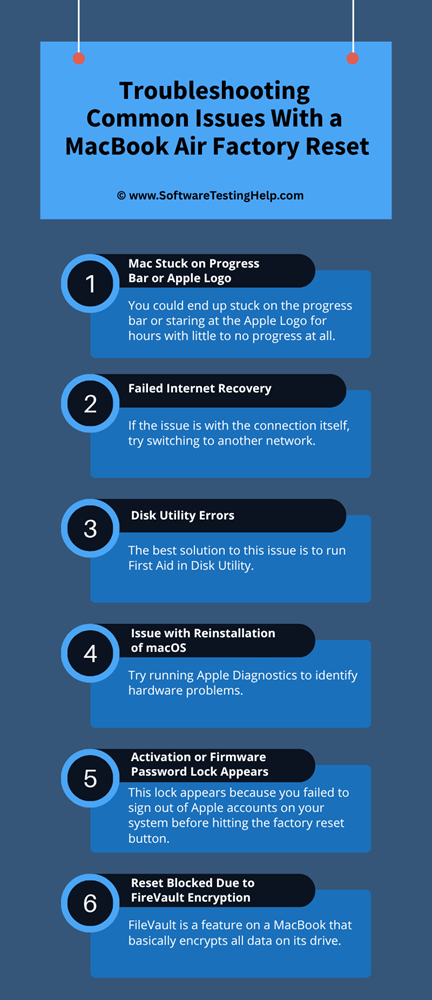
I can only hope that you have a flawless experience when attempting a factory reset. However, there is always a chance of you running into an annoying issue hindering the reset of your MacBook Air.
I am listing down the issues you might face and actions you can take to resolve them on your own.
#1) Mac Stuck on Progress Bar or Apple Logo
You could end up stuck on the progress bar or staring at the Apple logo for hours with little to no progress at all.
If this happens, immediately hold your MacBook’s power button for 10 seconds to force-shut your system. Follow this up by holding the Shift button to restart your system in Safe Mode.
#2) Failed Internet Recovery
You could encounter this issue because of a weak or slow internet connection. I would recommend making sure your macOS is within range of your Wi-Fi router.
If the issue is with the connection itself, try switching to another network. If that fails, try connecting your Mac directly to an Ethernet cable for better speed.
#3) Issue with Reinstallation of macOS
This is another common issue you may face during a factory reset. Check your internet connection first. A corrupt hard drive may also be at the bottom of this issue. Try running Apple Diagnostics to identify hardware problems.
The best way to fix this issue is to reboot your system and then use the Option + Command 9 + R Key to reinstall macOS directly from Apple’s servers.
#4) Activation or Firmware Password Lock Appears
This lock appears because you failed to sign out of Apple accounts on your system before hitting the factory reset button. If you are the owner of this device, disable these security settings and sign out of all Apple accounts before attempting the reset process again.
If you aren’t the original owner of the device and ask them to disable these settings from their iCloud account. If you can’t reach them, try contacting Apple’s support team instead. They might help you remove this lock without the need to enter credentials.
#5) Reset Blocked Due to FireVault Encryption
FileVault is a feature on a MacBook that basically encrypts all data on its drive. As a factory reset needs access to a drive to erase the data within it, an enabled FileVault will act as a hindrance in its way, thus blocking the reset process.
You can bypass FileVault encryption by entering the requested administrator password or FileVault key. If you don’t have this key or can’t remember it, your other option is to initiate the factory reset via macOS Recovery. As I mentioned already, you can access macOS recovery mode by pressing Command + R keys.
#6) Disk Utility Errors
The best solution to this issue is to run First Aid in Disk Utility. This will hopefully fix any errors or issues affecting your system’s disk. Retry the entire process after you run First Aid.
The Single User Mode: An Alternative to Factory Reset on Older Intel-Based Mac Devices
If your goal is to perform some essential system maintenance tasks, perhaps a complete factory reset isn’t a wise idea. Instead, you could restart your Mac in “Single User Mode”, which is essentially a minimalist Unix-based environment.
To enter Single User Mode, all you have to do is the following:
- Shut down your Mac
- Restart it while holding down the keys Command + S
You can use Single User Mode to perform various tasks like repairing disks without data loss, deleting system files, and resetting admin passwords.
Using Apple Configurator 2 to Revive an Unresponsive MacBook
Your factory reset may come to a halt, as it could become unresponsive midway through the reset process. This is an issue that might leave you with oodles of frustration and rage. If this happens with your device, the first thing I’d suggest you do is take a deep breath, calm down, and know that there is a way around this problem.
Also, make sure your functioning Mac device has Apple Configurator 2 installed on it.
The process is a bit tedious, and you’ll need a functioning app alongside your unresponsive one for this method to work.
- First, connect your unresponsive MacBook to an active Mac device through a USB-C cable.
- Press and hold the Power, Control, Option, and Shift buttons together on your keyboard to force your unresponsive Mac into DFU mode.
- Now, on the healthy Mac, open Apple Configurator 2.
- You’ll see DFU displayed on your screen. Click on it.
- Go Action => Advanced.
- Select “Revive” if you wish to fix your device without erasing data. Select “Restore if you wish to fix your device by erasing data.
- Follow the instructions displayed on your screen to complete this process.
- Your unresponsive MacBook will restart automatically, as the process concludes.
Frequently Asked Questions
1. What happens when a MacBook Air is reset?
A factory reset will basically restore a MacBook Air to its original condition. It does so by doing:
• All system preferences, apps, and documents are erased.
• Apple ID and iCloud credentials are deleted.
• The startup disk is completely erased.
• A fresh version of your macOS is reinstalled.
2. Is it possible to reset a MacBook Air without deleting data?
No, that will only defeat the purpose of a factory reset. The entire point of a factory reset is to wipe your MacBook Air clean by erasing saved credentials, documents, apps, and data.
3. How long does a MacBook factory reset take?
A factory reset entails the complete erasure of all data a MacBook Air contains and the reinstallation of macOS on it. As such, the process is long. The entire process from start to finish can take you anywhere from 60 to 90 minutes.
4. Is it recommended to reset a MacBook regularly?
Yes, I strongly recommend resetting your MacBook Air regularly, at least once every year, regardless of whether you wish to sell the device or boost its performance. Regular resets will ensure your system’s performance and security are top-notch all the time.
5. Can resetting the MacBook Air remove malware from the system?
Yes, a Factory Reset can be a very effective way to remove malware from your MacBook Air.
This reset will wipe out all apps and data that have already been plagued by malware without your knowledge and restore your system to its original factory settings. As such, you get a fresh system that is free from any malware or viruses.
Watch this video tutorial for easy steps to erase and factory reset your Mac:
Have a look at the video tutorial below to know how to revive or restore your Mac:
Conclusion
So, there you have it, a definitive answer on how to reset a MacBook Air to factory settings. It is okay to feel overwhelmed by this process, especially if this is your first time trying to reset your MacBook. Follow the instructions as I’ve laid out based on the OS version you are using, and you’ll be fine.
I would strongly recommend considering the preparatory tips I’ve outlined above before attempting a factory reset. Those tips will ensure you can retrieve lost credentials and data, if and when necessary.
Research Process:
The total time involved to complete and publish this article is approximately 36 hours. This content was created through a structured research approach to ensure accuracy and reliability.
For more quick Factory Reset-related guides, you can explore our range of tutorials on Windows/Mac issues below:
- How To Factory Reset Windows 10 On Your PC (Top Methods)
- Does A Factory Reset Delete Everything? Step-by-step Guide
- How To Reformat Windows 10 To Factory Settings – 3 Methods
- FIXED: There Was a Problem Resetting Your PC (7 Solutions)
- How To Reinstall Windows 10: Reload Windows 10
Was this helpful?
Recommended Reading
-

In this tutorial, you will understand the myths & facts to get the answers to your most common query: Does a Factory Reset Delete Everything on a phone: Most people factory reset their device to make the software work as well as make the device new. Or, you will need…
-
Are you struggling with the "There was a problem resetting your PC Error? Here are the step-by-step methods for repairing system files, fixing WinRE, and completing your windows PC reset. If your computer displays the message "There was a problem resetting your PC. No changes were made," it might be…
-
Go through some impressive methods, explained stepwise in this tutorial to recognize the best way: How to Reset Instagram Password: It takes diligence to maintain security online, especially on social media accounts like Instagram, Facebook, etc. And with having to remember so many passwords, from bank accounts to emails, social…
-
In this guide, you will come across step-by-step solutions to factory reset Windows 10 when your PC won’t start. If your Windows 10 PC is running slowly, experiencing errors, or won’t boot properly, performing a factory reset can help restore it to its original state. A reset removes system issues,…


