


Why does Chrome use so much RAM on your computer? Explore the proven methods along with expert solutions to fix Chrome using so much memory issue and avoid high RAM consumption to speed up your browser:
Chrome is one of the widely used and popular web browsers you can find online. When you compare Chrome with other web browsers available, you discover that Chrome consumes more system resources than the others.
When you launch your System Task Manager and check the activities, you notice that Chrome utilizes the most resources and memory.
Table of Contents:
Reduce Chrome Memory Usage: Easy Steps

This now raises questions like Why is Chrome using so much memory compared to others? How to reduce Chrome memory usage?
Despite this high memory issue, Google Chrome remains a top browser because of its speed and the efficient way it renders pages. It also offers a very easy user browsing experience because of its user-friendly design that is simple and seamless to navigate.
Chrome is still being used despite this memory consumption issue because of the vast extensions available from its Web Store. Chrome’s simplicity is out of this world, allowing users to easily customize their browsing experience as they use this tool for their day-to-day activities.
Aside from the above benefit, Google always makes sure that Chrome is regularly updated to ensure it is fully secured and protected against current threats that are available online.
The syncing functionality offers different devices the benefit of being able to access their bookmarks, history, and other settings they have on a specific device, which can be synced to other devices.
Further Reading => Learn how to check what kind of RAM you have
Why Does Chrome Use so Much RAM
Even though Google has made several efforts to optimize Chrome so that the performance will improve but we can still confirm that Google Chrome is still consuming a lot of RAM resources due to the way its architectural design is.
Chrome is designed to run each tab, extension, and plugin as a separate process, which allows for better stability and security, but there is another shortfall: it means if you have 20 tabs open, it means you have 20 different programs running at the same time with each consuming memory.
Chrome is not like other browsers that use a single process for all tabs and extensions opened. This kind of design helps with stability during one tab crashing and not affecting others, but it consumes more memory during this process.
Another cause for this is the preloading and prediction features that can help to forecast the website you are likely to visit next. This process alone utilizes system memory, which can account for the shortfall in system memory.
Also Read => Compare the Top RAM for Gaming
How to Fix Chrome Using So Much Memory & Improve User Experience
Just as it is very seamless using Chrome for our daily browsing tasks, it is equally easy to reduce or remove the issue of Chrome’s high memory usage.

1. Using Chrome Task Manager to Monitor and Control Memory Usage
You can launch Chrome’s Task Manager by following these steps:
- Click the three dots icon at the top.
- Navigate to “More tools” and click “Task Manager”.
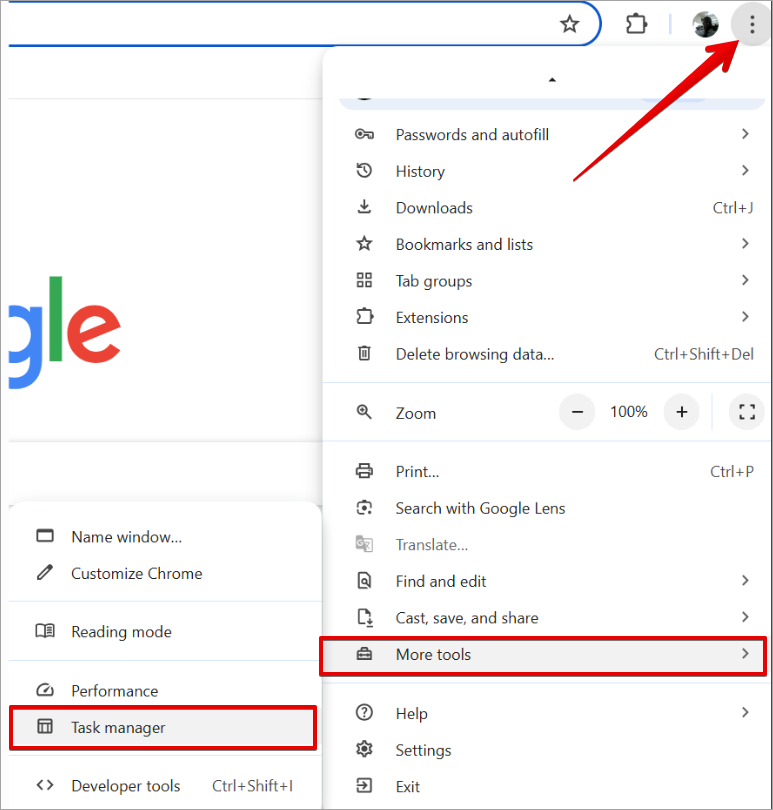
After the Task Manager opens, you will see columns with Task, Memory footprint, CPU, Network, and Process ID. This column has its own set of statistics:
- The Memory footprint column shows the amount of Chrome RAM usage or utilization for each tab or extension.
- The CPU column shows the level of your processor’s power currently being consumed by the current process.
- The Network column shows the real-time network activity for each process.
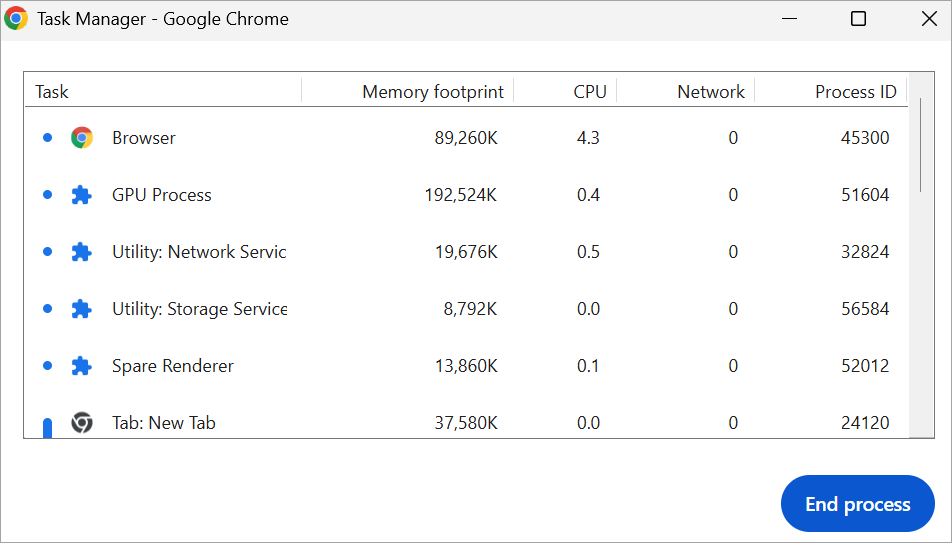
With this view, you can check the pattern of the memory usage to know when something is wrong or when there is a specific process that is utilizing high memory resources. You can correct the situation quickly by selecting the process and clicking the End process button.
Also Read => How to Open Task Manager on Windows, Mac, and Chromebook
2. Using hardware acceleration to improve performance
If you want a seamless experience while browsing video content or a website with heavy graphics, then you will need to activate hardware acceleration, which will improve performance and responsiveness.
Follow the steps below you enable hardware acceleration in Google Chrome:
- Click the three dots icon at the top.
- Scroll down and click on ”Settings”.
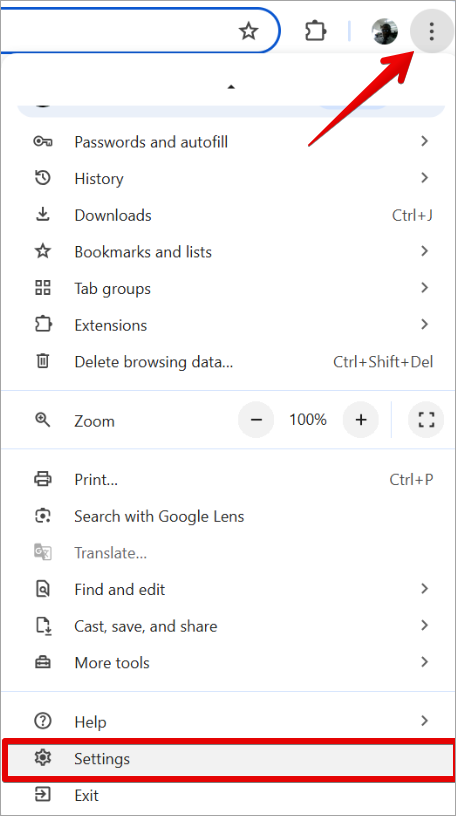
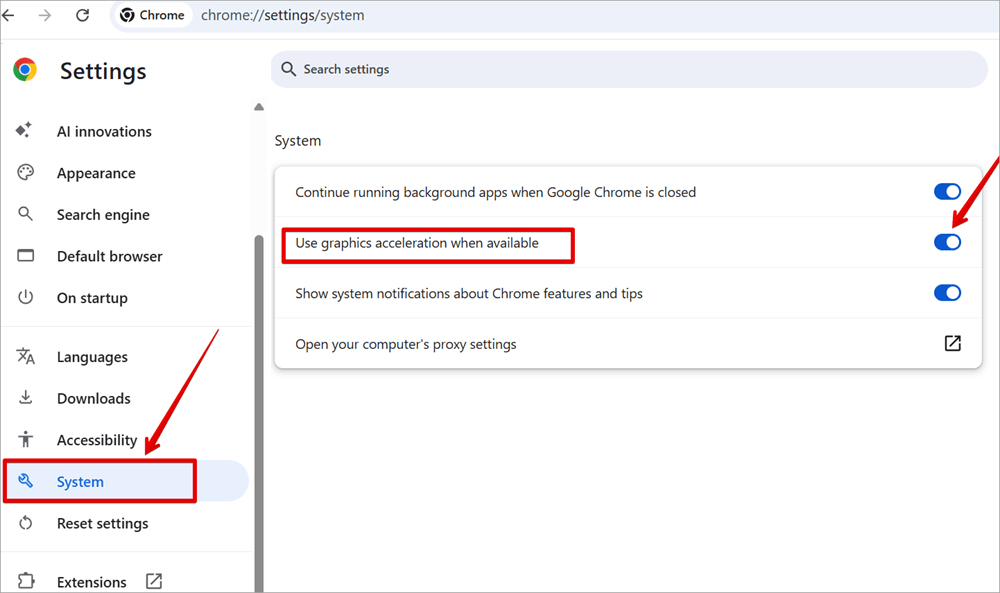
- Click on the settings below, scroll down, and click on “System”.
- On the System options, toggle on the “Use hardware acceleration when available”.
3. Ensure the Preload and Prediction features are disabled.
Follow these steps to disable the preload and prediction features in Google Chrome:
Further Reading => How to Block a Website on Chrome
Disable Preload Features:
- Click the three dots icon at the top.
- Scroll down and click on ”Settings”.
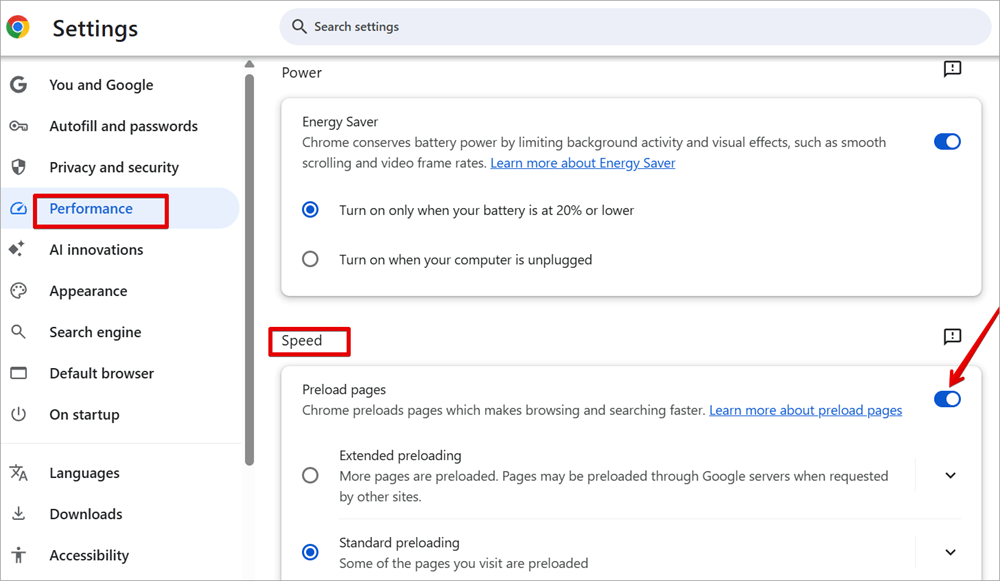
- On the Settings left section, click on “Performance” and from the right side scroll down to the “Speed” section. Toggle off Preload pages.
Disable the Prediction Features:
- Click the three dots icon at the top.
- Scroll down and click on ”Settings”.
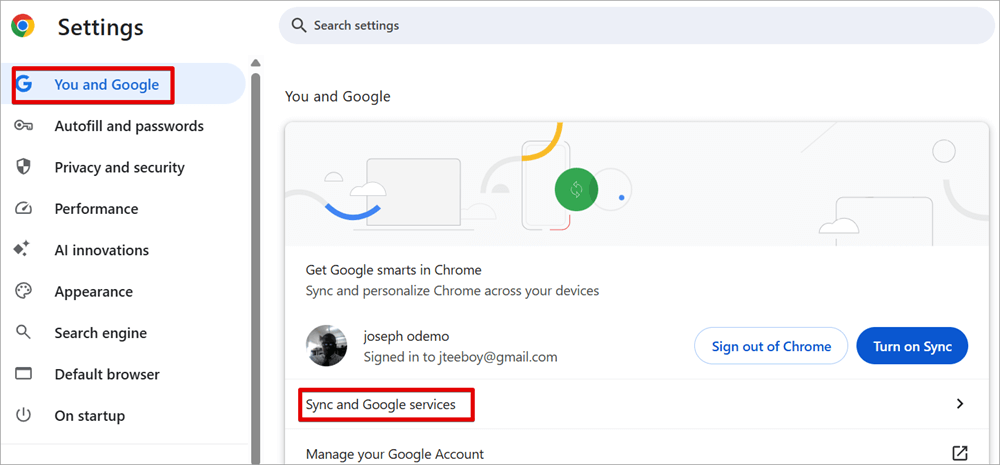
- On the Settings left section, click on “You and Google” and from the right side, click on “Sync and Google services”.
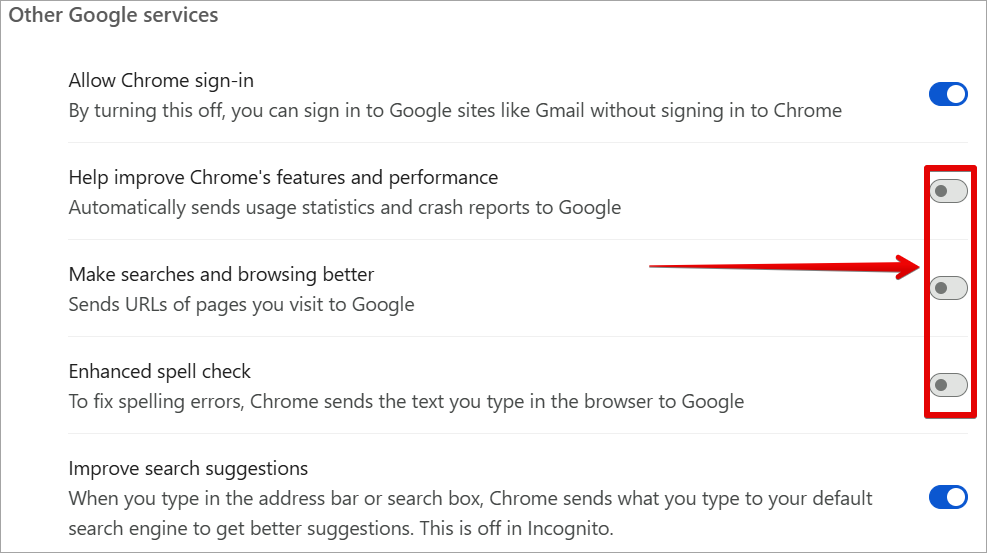
- Under “Other Google services”, you can toggle off these options: “Help improve Chrome’s features and performance”, “Make searches and browsing better”, and “Enhanced spell check.”
When this is done, it will directly improve the performance of the browsing.
4. Disable Chrome background apps from running
The following steps will help you disable any Chrome background apps from running.
- Click the three dots icon at the top.
- Scroll down and click on ”Settings”.
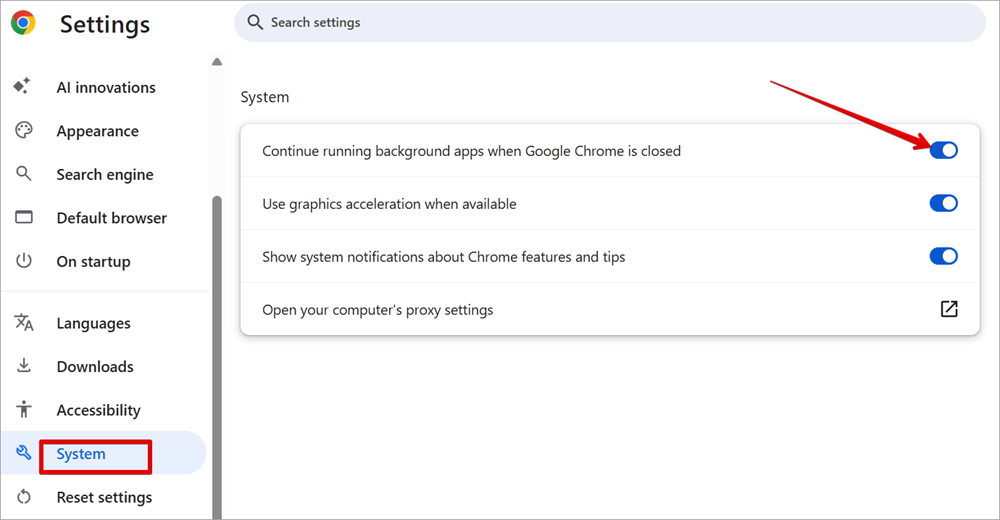
- On the Settings page, click on “System” and toggle the “Continue running background apps when Google Chrome is closed.” option to OFF.
Further Reading => Learn the Quick Ways to Split Screen on Chromebook
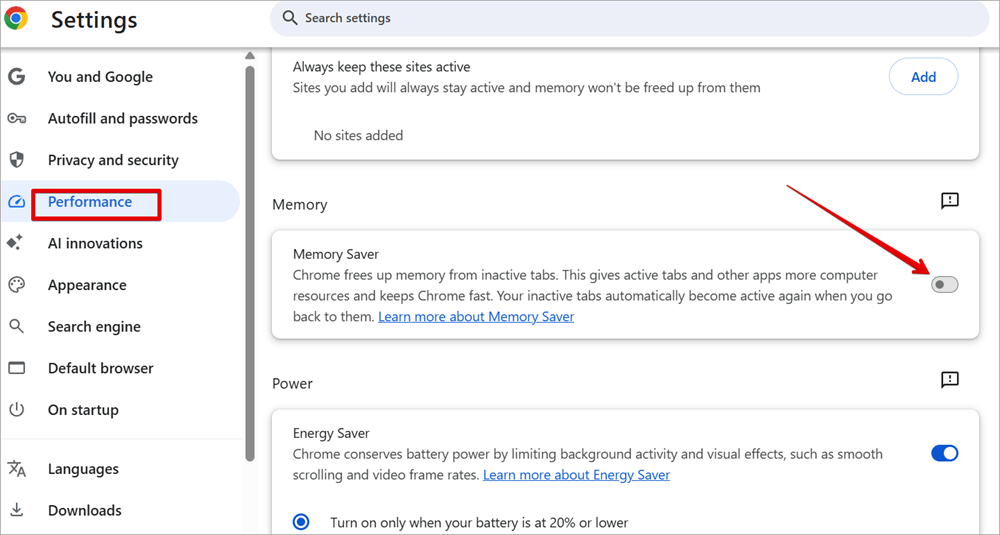
5. Enable Google Chrome Memory Saver Mode
When you enable Memory Saver Mode, it will reduce the RAM consumption by deactivating any tabs not in use.
- Click the three dots icon at the top.
- Scroll down and click on ”Settings”.
- On the Settings left section, click on “Performance” and from the right side scroll down to the “Memory” section. Toggle ON the Memory Saver.
6. Clear the Google Chrome cache and cookies
Another way to reduce RAM consumption is by clearing Chrome cache and cookies:
- Click the three dots icon at the top.
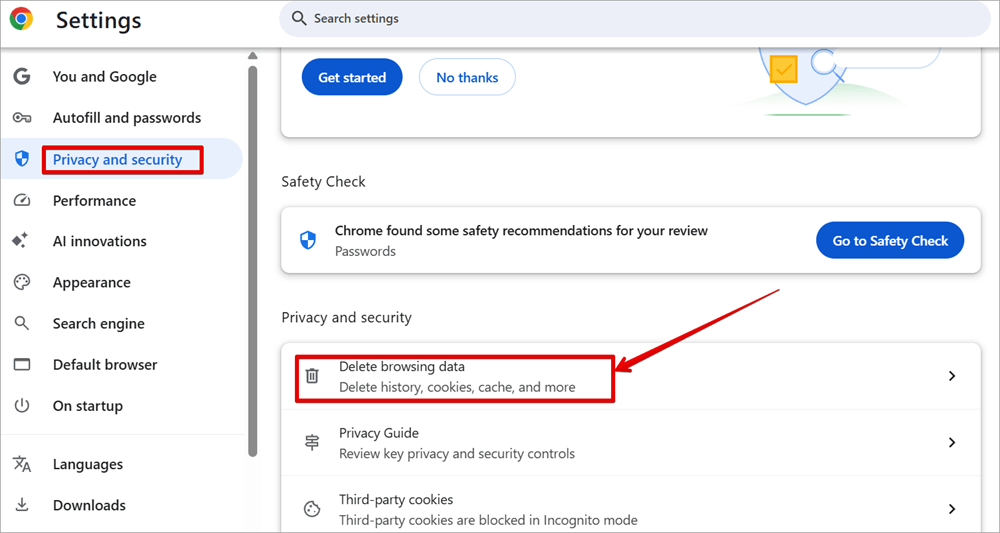
- Scroll down and click on ”Privacy and security”.
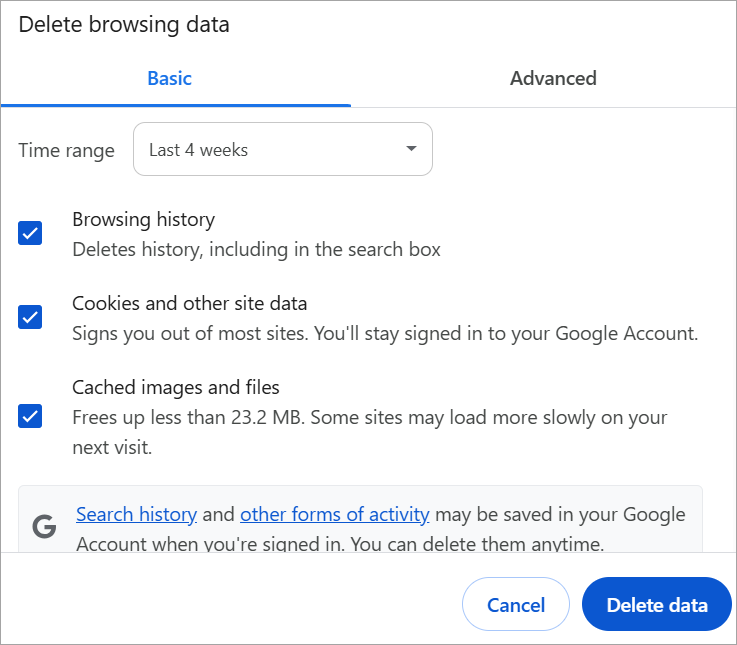
- Click on “Delete browsing data.” You will see a pop-up window; Click on the Basic or Advanced tab.
- Under the Basic and Advanced tab, you can check the boxes for “Browsing history,” “Cookies and other site data,” and “Cached images and files.”
- On the Time range drop-down box, select the time range of the cached data you want to clear its data.
- Click the “Clear data” button.
7. Disable or Remove Unused Extensions
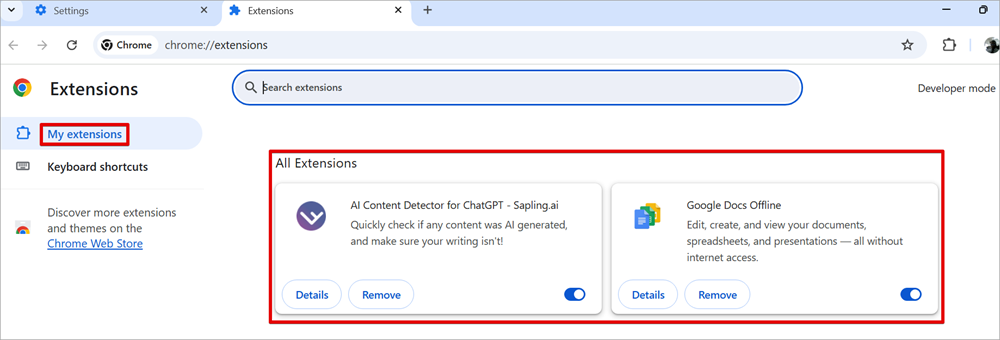
Another way you can improve user experience while browsing or reduce Google Chrome memory consumption is by disabling or removing any extensions that are no longer in use:
- Click the three dots icon at the top.
- Scroll down and click on ”Extensions”.
- On the Extensions page, click on “My extensions”. You can browse or search for the extensions you don’t regularly use through the list of installed extensions. Disable the extension by toggling the button to OFF, but if it’s an extension you no longer use, then you can click on the Remove button.
8. Closing Unused Tabs
Another thing that can consume a lot of memory while using Google Chrome is opening a lot of tabs at the same time. When you only open tabs you are currently working on will help ensure that you are never stuck because of a memory issue.
Close all unnecessary tabs and refresh your system. Check your System Task Manager and confirm the amount of memory your Chrome is consuming.
Suggested Reading => How to uninstall Chromium Browser
How to Use Extensions to Make Chrome Use Less Memory
We now know that extensions can increase the memory consumption of your Chrome, but some extensions can help reduce it. Some of these extensions are:
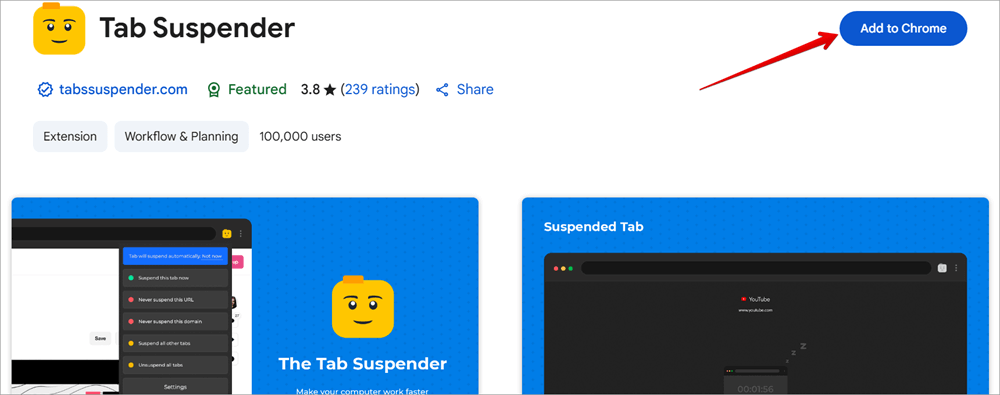
1. Tab Suspender: This extension can help save memory usage and improve your computer performance by reducing the load on the memory resource. It was developed to manage the amount of memory consumed by open tabs by suspending inactive tabs to further make a computer operate optimally.
Search for Tab Suspender online. Open the installation page and click Add to Chrome. This will automatically add the extension to your Google Chrome list of extensions.
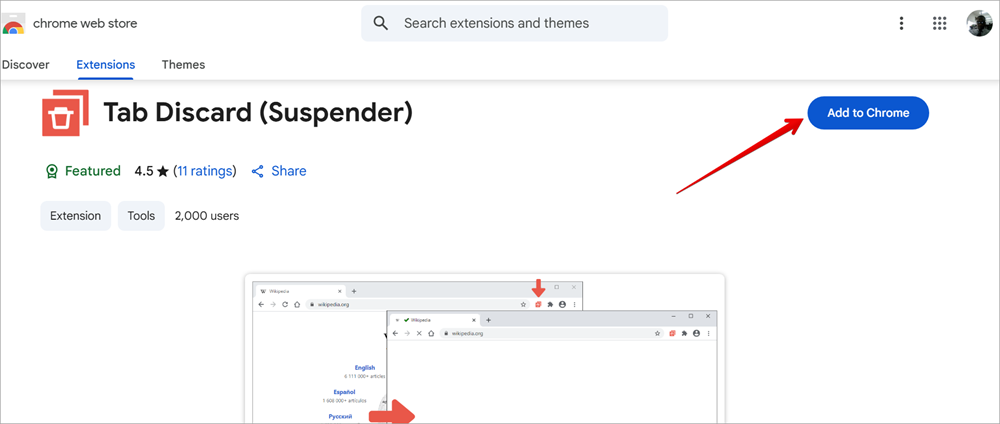
2. Tab Discard: Tab Discard is an extension or addon that can suspend all inactive tabs when you have several open tabs. With this extension, the browser will use the least amount of memory for a better browsing experience.
Search for Tab Discard online. Open the installation page and click Add to Chrome. This will automatically add the extension to your Google Chrome list of extensions.
Resetting Google Chrome
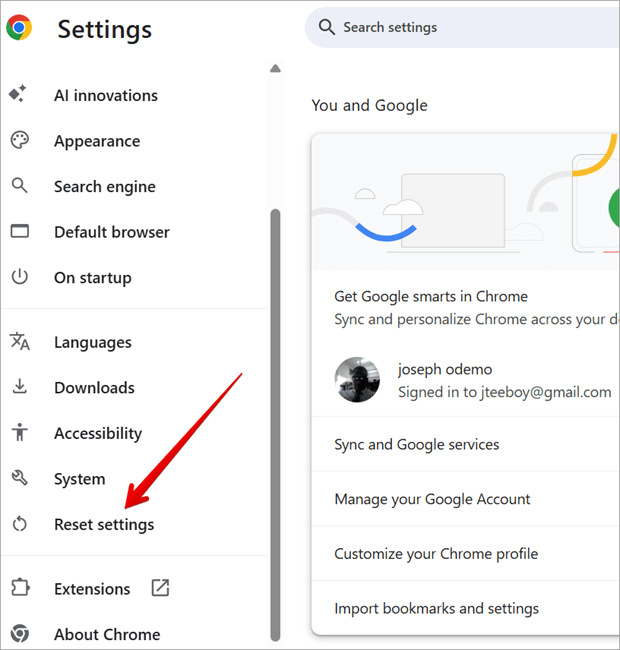
After trying the above methods, you may still find Google Chrome using so much memory. The next thing you can do is to reset the Chrome application and observe to see if the performance has improved. You can navigate to the reset settings via the Chrome Settings.
Here is a video on how to fix Chrome using too much memory on Android:
FAQs to Stop Google Chrome Using Too Much Memory
1. How do I clear Chrome browser cache or memory?
• Navigate to Settings by clicking the three dots icon at the top.
• Scroll down and click on ”Privacy and security”.
• Click on “Delete browsing data.” You will see a pop-up window; Click on the Basic or Advanced tab.
• Select the time range of the data you want to delete.
2. How to make Chrome faster?
There are several ways you can improve the performance of your Google Chrome.
1. Update your Chrome
2. Reset your Chrome
3. Clear the cache on your Chrome
4. Making use of suspenders extensions
5. Disabling background apps
6. Enabling hardware acceleration
3. How to solve cache issues?
The first thing you can do if you are encountering this issue is to clear your browser cache and cookies.
The process of clearing your browser cache will remove any outdated or corrupted files, causing the issue. But after doing this, and the issue still persists, then you might need to reset your browser to its default settings.
4. Is it safe to delete the cache in Chrome?
There is no doubt that clearing the cache is a safe and effective way to resolve browsing performance issues without affecting your data or settings. Some of the issues this will fix are slow browsing, outdated files, and corrupted files.
5. What is the shortcut key for clearing the cache in Chrome?
You can instantly use this keyboard shortcut key to open the “Clear browsing data” window, where you can choose what data to clear and for what time range.
• Ctrl + Shift + Delete on Windows OS or Linux OS.
• Command + Shift + Delete on Mac.
6. How can Chrome be out of memory?
• When you have many pages and windows running.
• When you have a lot of cookies and sites cached.
• When you have Insufficient memory resources.
• When you are using an old and outdated Chrome version.
7. Is Edge better than Chrome?
Both of them offer the same basic and advanced features that help prevent tracking and the in-private mode that works the same way as Chrome Incognito.
Some will choose Chrome ahead of Edge, while some will prefer to use Microsoft Edge instead of Chrome, so it depends on the specific task the user wants to achieve.
8. How do I find out which Chrome tab is using memory?
You will need to launch the Task Manager, and when it opens, you will see columns with Task, Memory footprint, CPU, Network, and Process ID. Each column has its own set of statistics, but the Memory footprint column will show you the tab that is consuming the most memory.
9. Which uses more RAM, Edge or Chrome?
Through tests conducted, it is observed that Edge uses fewer RAM and CPU resources when compared with Chrome. Some users may argue this, but findings give a higher percentage of consumption to Google Chrome than Microsoft Edge.
Suggested Reading => How to Uninstall Microsoft Edge
Conclusion
When you don’t know why is Chrome using so much memory, then use the above simple methods to ensure you are free from the issue of memory, and you can continue to enjoy a good browsing experience on your Chrome.
But you will have to be careful when tuning these Chrome settings to achieve your goal because any mistake in touching the wrong settings may further compound the Chrome issue and may result in a permanent removal of the browser from your system.
Was this helpful?
Recommended Reading
-

Review and compare the list of the Best Chrome Extensions along with the features to select the must have Google Chrome Extensions: Google’s Chrome browser is one of the most popular web browsers around. Millions of users across the globe use this browser daily. This browser’s functionality can be enhanced…
-
This Tutorial Explains the Step-by-Step Process to Automate Web Applications on the Chrome Browser in an Android device with Screenshots and Examples: To automate a Web Application on Android device, follow the steps listed below: Connect the mobile device or Create an Emulator Get details of the mobile device ChromeDriver…
-
This tutorial explains why do we need to clear browser cache and different methods to Clear Cache in browsers like Chrome, Firefox, etc.: A few decades back no one would have ever imagined that a connection of numerous computers can lead to an evolution of the world's largest network, which…
-
This tutorial includes various stepwise methods to explain How to Open Task Manager on Windows, Mac, and Chromebook: Everyone using a computer opens the task manager every now and then. Your PC is slow, you want to close a program that has stopped responding; you want to optimize your system,…


