


Are you looking for Android Guided Access just like Apple’s Guided Access? Explore how to do Guided Access on Android to gain deep insights into the Guided Access capabilities offered by Android:
I am always worried about people snooping into my phone. That fear is only heightened whenever someone requests to borrow it for another reason.
If you are a people pleaser like me, appearing rude is the last thing you’d want to do in this situation. So you give away your phone and hope to God that the person using it doesn’t violate your privacy and boundaries.
If only you could restrict device access to a single app. The good news is that this is possible through a little-known feature called “Guided Access”.
Origin of Guided Access Android: Complete How-To Guide
A vast majority of folks do not know that they can restrict their device’s access to a single app. If you are one of those people, consider this article a crash course on Guided Access, especially for Android phones.
Guided access isn’t a new feature, and most iOS users will be familiar with it. It was first introduced when iOS 6.0 was released back in 2012. Its purpose is simple – to restrict any user’s access to a single application. Once an iOS device is set to “Guided Access”, the phone’s use will be restricted to a single app unless this restriction is lifted via a passcode.
Refer to this video to understand how to limit your iPhone to one app with Guided Access:
Guided Access on iOS can achieve:
- Restrict access to a single application
- Disable motion
- Disable touch input
- Disable all hardware buttons on the device
You are locking down the entire device except a single application.
How Guided Access Works on iOS
Here’s how you set up Guided Access on the latest iOS devices:
#1) Open Settings
Via YouTube
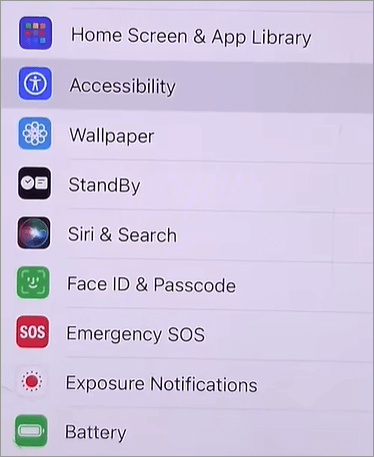
#2) Navigate to Accessibility -> Guided Access.
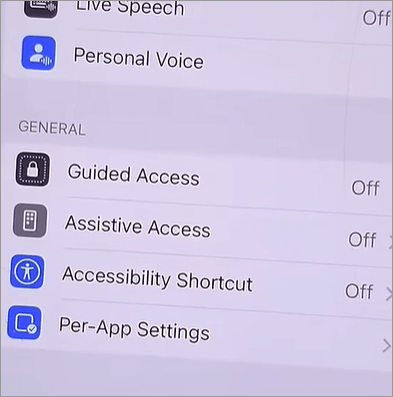
#3) Tap on the toggle to turn on Guided Access.
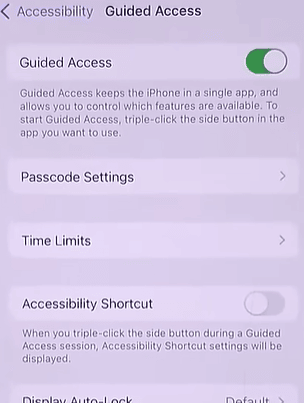
#4) Now tap on Passcode Settings to set a passcode. Remember this passcode as you’ll need it to disable Guided Access.
Guided Access is now set on your phone.
To use it;
- Open the app you want to use Guided Access on.
- Once open, triple-click the side button.
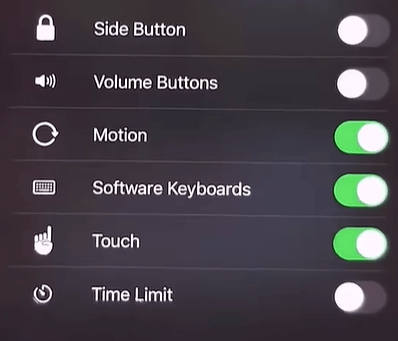
Guided Access is now on. You’ll see an options tab at the bottom of your screen. Tap on it to control what buttons and touch inputs are allowed.
Is There Guided Access on Android
Guided Access was a feature introduced for iOS devices. While not explicitly spelled out as Guided Access, Android devices of today possess a feature that functions in the same manner. The feature on Android that serves this function is called “App Pinning”.
This feature is more or less similar to Guided Access on iOS, and you can use it to lock your device to a single app.
How to do Guided Access on Android
#1) Open the settings on your app.
#2) Navigate to Security and Privacy > App Pinning. In some devices, this feature might be labeled as Screen Pinning. In some devices, it is under ‘More Security Settings’
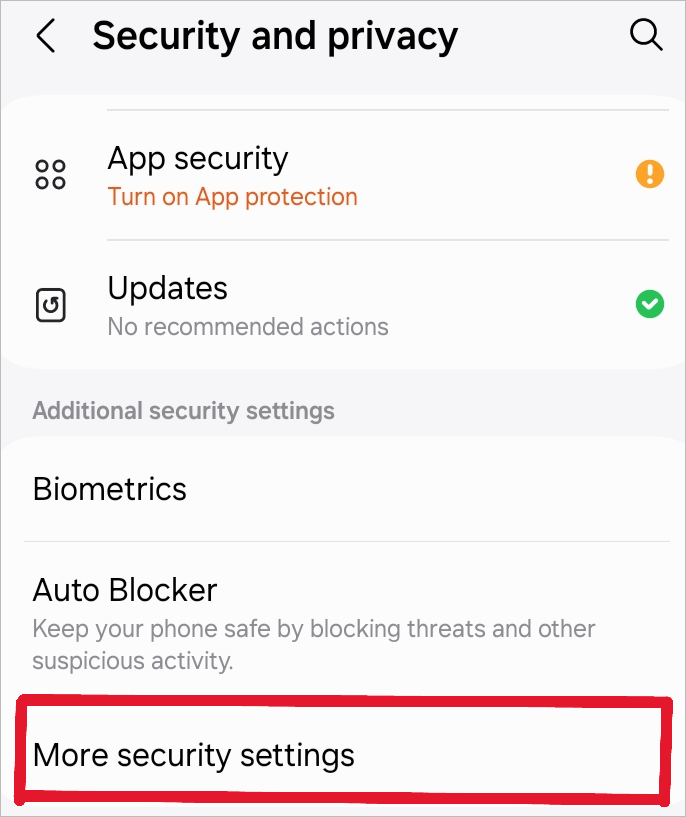
#3) Open App or Screen Pinning and tap on the toggle to activate it.
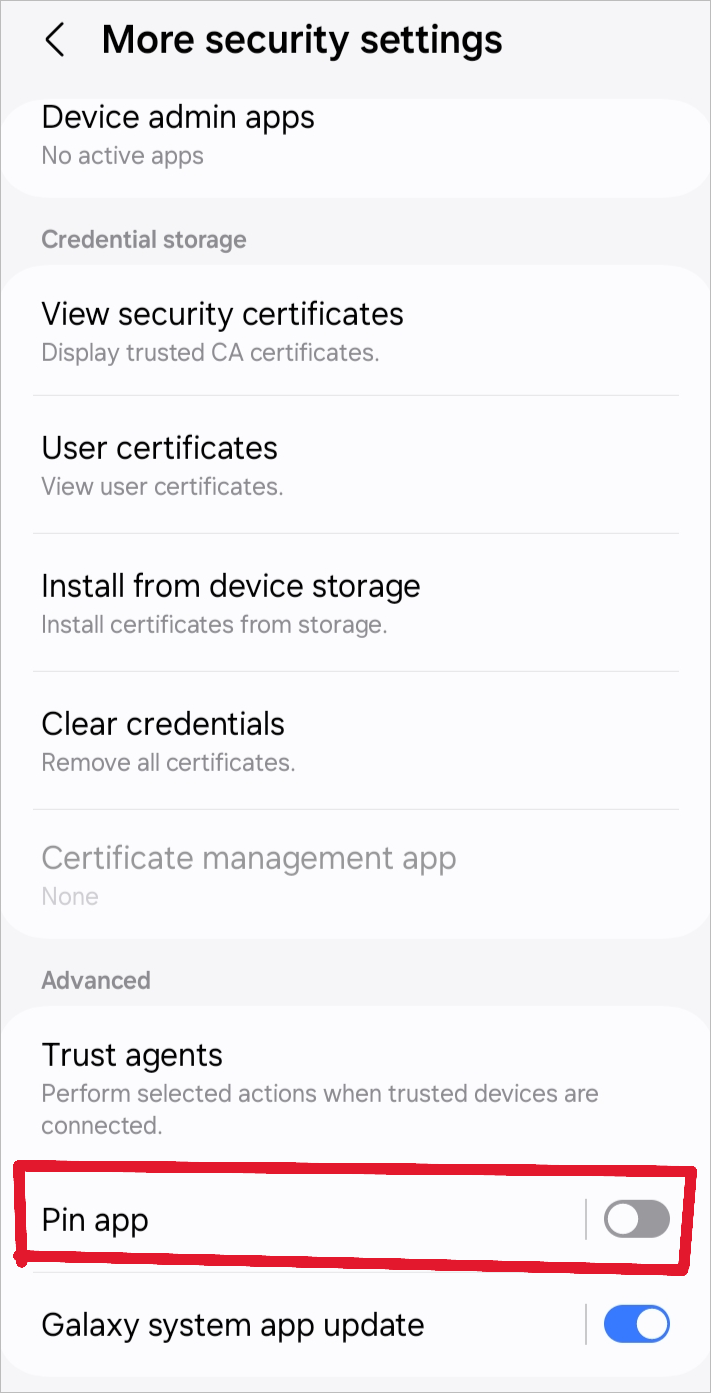
#4) Set a passcode, pattern lock, or a fingerprint to unlock your device later.
Once App Pinning is on, open the app you want to use this feature on.
#1) Once open, tap on the small square button at the bottom or swipe up to open the App overview.
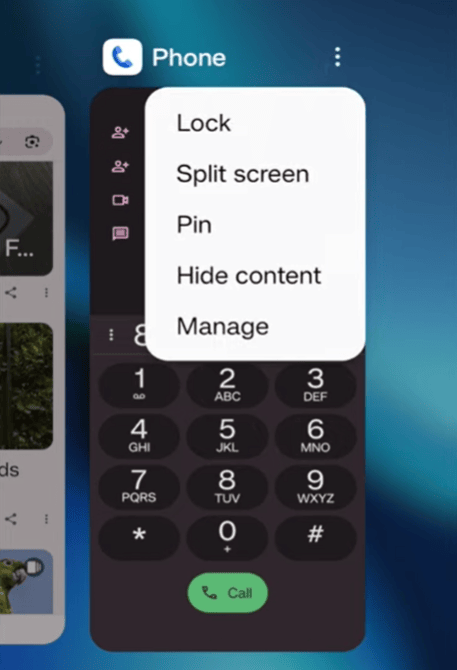
#2) Tap on the App icon or the three dots above and select “Pin” from the menu.
Your device is now locked in this app. You’ll be able to exit the locked screen through a pin or passcode you’ve set up before. This feature is available on devices operating on Android 5.0 and later versions. Most Android brands and devices available today have this feature, and you’ll be able to access it via your device’s settings section.
I’d still suggest keeping your phone up-to-date before you activate Screen or App pinning. Locking down screens or apps on a phone with updated software is simply more efficient. There is also little to no risk of you facing issues like a system freeze with an updated device.
Comparing Apple Guided Access With Android Guided Access
Both Apple’s Guided Access and Android’s App pinning features serve the same goal, albeit in different capacities. You’ll be able to lock down your phone to a single app with both features. However, you’ll also find Apple’s Guided Access far more resourceful than Android’s version.
For instance, Apple Guided Access lets you disable certain sections of your iOS device. You can use the feature to disable your phone’s touch input, motion sensors, and even certain hardware buttons. Android’s App Pinning doesn’t afford you this privilege.
You can also set a time limit when activating “Guided Access” on an Apple smartphone. This way, you decide how long an app will remain in use. A phone reboot in iOS does not deactivate Guided Access.
In contrast, Android’s App Pinning feature is straightforward in what it accomplishes. You shouldn’t expect much more than the basic ability to restrict access to a single app. One thing Android has over iOS here is the fact that it is easier to set up App Pinning than it is to activate Guided Access.
If you wish to use Guided Access on Android to its fullest potential, it would be best to turn your attention to third-party applications (more on that later).
Also Read =>> How to Transfer Apps from Android to Android phone quickly
Uses of Guided Access Android
Right off the bat, I can think of many reasons that warrant the use of Guided Access. Here are some scenarios where the application of Guided Access makes sense:
1. Restricting a Child’s Access to Certain Apps
Parents must supervise their children’s smartphone activity. While there are many features out there that let parents control and monitor their child’s cell phone usage, App Pinning is perhaps the most convenient of all the methods they can adopt.
By locking a child’s smartphone to a single app, they can restrict access to other parts of the phone. Parents don’t have to worry about their child making their way to an online shopping app or visiting other shady and dubious websites on the internet.
Suggested Read => Best Parental Control apps for iPhone and Android
2. Locking Devices in School
Digital educational content has made its way into schools and colleges. Teachers and students are now using mobile devices and tablets to dispense and consume educational content. That said, these devices can leave students susceptible to distractions.
It is quite easy to get distracted by playful gaming apps and addictive social media channels that are easily accessible via a phone or tablet. With Guided Access, teachers and administrators can pin apps that only offer educational content. Everything else gets locked away.
3. Companies Can Lock Work-Related Devices
Many companies still distribute work-related devices (laptops, phones, and tablets) to their employees. These devices aren’t cheap, and businesses would like to ensure their devices are only being used for work-related tasks and nothing else.
Guided Access makes this possible. Companies can pin a work-related app to a device before handing it over to their employees. This way, they don’t have to worry about employees using official devices for anything other than work.
4. Digital Signage and Displays
Digital Signage is the screens you see when visiting a retail or fast-food restaurant. These digital signages are always displaying promotional content designed to inform and incite a purchase from visiting customers.
Without Guided Access, there is a chance of these digital displays failing and showing content that has nothing to do with the store’s business. Pinning an app that only shows a specific type of content can solve this issue.
Limitations
As I mentioned before, Android’s App-Pinning feature is very limited in its capabilities, especially compared with Apple’s Guided Access. Unlike with Apple, you can’t set a separate PIN code to unpin an app on Android devices. Anyone aware of your phone’s PIN code or pattern lock will easily bypass the pinned screen.
Users can still use hardware buttons on the phone to shut down the screen or turn the volume up and down. They’ll also be able to access other parts of the screen.
App pinning is also quite tedious if you have to do it on a larger scale. Any device reboot will result in an app becoming unpinned. You’ll then have to manually configure the app to lock the device to it. The process only becomes time-consuming and overwhelming for businesses that want to use Android Devices as kiosks for digital signs and displays.
Solution to Bypass Android Guided Access’s Limitations – MDM Software
Android’s App Pinning is quite a simple way to lock a device to a single app. It can be user-friendly and quite effective at an individual level. However, the feature proves insufficient and downright impractical when you consider the requirements of businesses.
If you are a business that wishes to use Android Devices for digital signage and promotional displays, your best bet is to rely on Mobile Device Management solutions.
Suggested Read => Best Android Application Testing Tools
These apps go above and beyond to make up for the faults of App-Pinning. Now, there are a plethora of apps out there that promise robust Guided Access for Android devices.
In my opinion and personal experience, the following are some of the best you can try today:
#1) MiniOrange
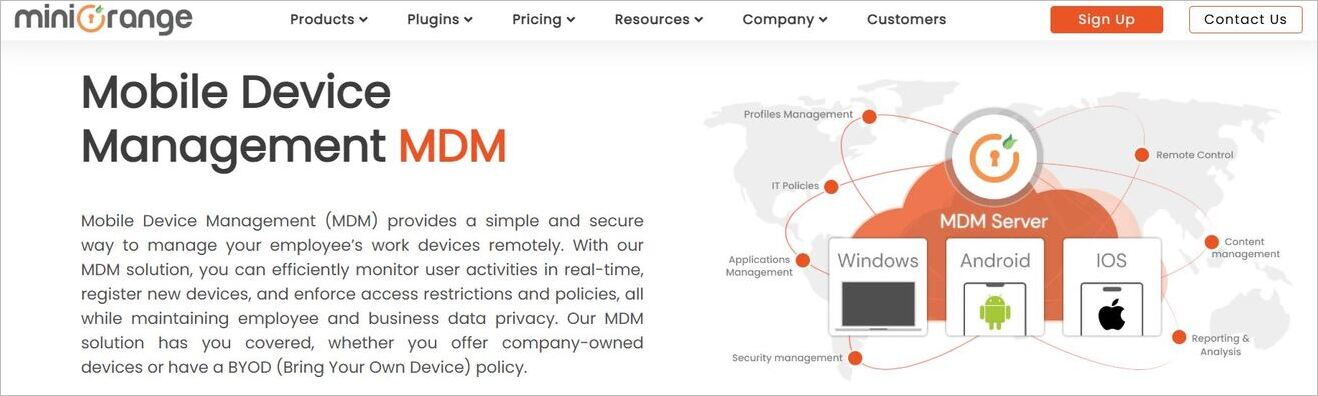
MiniOrange is a software I’d recommend to businesses that wish to manage their employees’ work devices remotely. This tool can easily lock a device to a single app or a controlled selection of applications.
You can easily configure the settings of Guided Access remotely anytime you like. You can also create and enforce customized Guided Access policies, which will automatically apply to relevant work devices.
Website: https://www.miniorange.com/unified-endpoint-management/solutions/mobile-device-management
#2) ManageEngine Mobile Device Manager Plus

Guided Access for Android can be accessed in ManageEngine’s Mobile Device Manager via the feature – Kiosk Mode. Similar to MiniOrange, you can count on this app to lock a device to a single app or a selection of apps.
The software is easy to deploy and highly customizable. You are also granted unattended remote access to Android devices, making it easier to remotely troubleshoot any issue.
Website: https://www.manageengine.com/mobile-device-management/
Also Read => ManageEngine OpManager Network Performance Monitoring Tool
#3) AirDroid
AirDroid is yet another solution that is quite revered for its impeccable mobile device management capabilities. You can count on the app to deploy Guided Access to multiple devices on a scale. You’ll be able to do everything App-Pinning doesn’t accomplish, which ranges from locking hardware buttons to blocking access to certain apps altogether.
Website: https://www.airdroid.com/mdm/
#4) SureLock

SureLock also does a good job of deploying Guided Access on Android, which is on par with the experience you get on iOS. Besides locking the device to one application, you can also control which parts of your phone are accessible and inaccessible.
You can lock down your phone with a custom password, lock access to the phone’s notifications and settings, and even block navigation.
Website: https://www.42gears.com/products/kiosk-software/
Further Reading => Top MDM Software
FAQs on App Pinning
1. Can Android do Guided Access?
Yes, Guided Access is available on Android devices as App Pinning. This feature is available on Android devices since version 5 was released. Unlike Apple’s Guided Access, however, App Pinning is limited in what it can do. It will lock your device to a single app. Besides this, it is missing key abilities that make iOS Guided Access so effective.
2. What is the alternative to Guided Access on Android?
App Pinning is Android’s answer to Apple’s Guided Access. Like Apple’s app locking feature, App-Pinning can also lock a device to a single app. However, it does not lock touch input, motion, and hardware buttons on the device. You’ll need to use a mobile device manager to get these features.
3. How do I enable screen pinning on Android?
Enabling screen pinning is quite simple on Android. Follow the guide below:
1. Open settings
2. Privacy and Security
3. Select App or Screen Pinning and tap on the toggle to activate this feature.
You’ll now be able to use this feature to lock your device to any app you wish.
4. How to screen pin on Samsung?
To pin a screen or app, make sure the App Pinning feature on your Android is enabled. You can follow the guide I’ve mentioned in this article to learn how to enable App Pinning. Once done, simply follow the guide below:
1. Open the app you want to pin and swipe up.
2. On the overview of the app, tap on the icon or two dots above to open a menu.
3. Select “Pin” from this menu to pin the screen.
5. What to do if App Pinning is not working?
There are three things you can do to solve this issue. Try tapping, disabling, and enabling App Pinning in your settings. If this fails, reboot your device and try again. Finally, I would suggest keeping your device’s software updated.
Conclusion
So there you go. I’ve covered everything that can be said about Guided Access on Android. All Android-compatible devices today can pin an app, which could serve you in multiple ways. You could use it to lock your device to a single app with ease. Parents can use it to control their child’s cell phone usage.
Employers can use it to make sure their employees aren’t misusing work-related devices. That said, App-Pinning might not cater to the needs of large enterprises. This is where I’d suggest opting for mobile device management tools like ManageEngine MDM Plus or MiniOrange.
Regardless, I hope this guide helped you learn how to turn on Guided Access on Android devices. Locking your Android phone to a single app is simple, and this article will help you accomplish that without hassle.
Was this helpful?
Recommended Reading
-

Read this review of the top Free Second Phone Number Apps for Android. Compare and select the best app for the second phone number: Are you in need of a disposable number? Is handling your work and personal contact via a single phone number overwhelming to you? If so, check…
-
Compare the top Parental Control Apps to discover the Best Parental Control apps for iPhone and Android most suited for your children: The rapid advancement of technology poses a risk to children. Various studies have shown negative physical and mental effects of smartphone usage at earlier ages. Parental control apps…
-
This tutorial is a complete step-by-step guide that explains the top 3 useful methods to find ways on how to Unlock a Disabled iPhone: Security is the best part of having an iPhone. No one can unlock your phone and access your data unless they know the password. As much…
-
Review and Comparison of Top Mobile Device Management MDM Software with Features and Pricing. Select the Best MDM Solutions for Your Organization: Mobile Device Management (MDM) tools enable IT managers to get a bird's-eye view of the device security policies, network inventory, and application management. They play a crucial role…


