Learn the simplest way to make your text stand out in Discord chats. Discover the quick discord text formatting tricks to explore how to bold in Discord quickly and emphasize important messages:
Discord is a gaming and communication application that acts as a social media platform where users can connect globally and talk while playing in real time.
The developers originally designed it for gamers to play and connect easily. Due to its availability to other communities, its usage has become widespread. Here, users can connect via existing topic-based servers or through emails.
It offers a vast variety of features where you can find nearby friends, can block unwanted people or unnecessary content, parents can monitor their children’s activities, a student hub can be created for students to communicate with people from their school, and so on.
Discord Text Formatting – Complete Guide
Discord is a popular social media platform offering voice, video, and text communication. It has been used by over a hundred million people. Currently, it has 150 million monthly active users and 19 Million active servers per week.
It is best for connecting with friends or nearby friends who have common interests while you play for free. You can chat with different text formatting options in real time as well.
Click here for the YouTube channel link
This article is for readers who want to make their conversation impactful with different text formatting in Discord. We discussed Discord, supported by its working, features, pricing, and different text formatting options, including how to make bold text in Discord.
We have also provided certain FAQs, market share of Discord and text formatting tools, expert advice, and a list of text formatting options you can use in Discord.
In research by Verified Market Reports for the forecast period of 2023-2030, the text editor market share is expected to rise with a CAGR of 5.96%. It was valued at $100.2 billion and is expected to reach up to $150.3 billion in 2030.
People are now concerned in presenting their text in a more appealing way at every platform. Likewise, Discord also offers various text formatting options like headers, masked links, lists, code blocks, block quotes and many more.
Also, Read=>> Compare Best Discord Voice Changer
Features:
- Gaming: It was primarily created for gamers to give them a quality experience where they can interact with friends in real-time while they play.
- Real-time Chat: It allows you to talk to the other players while you play in real-time. You don’t need to switch off apps to connect with others.
- Nearby Feature: With this amazing feature called a nearby feature, you can find new friends that are active near you. You can easily connect with them.
- Content Block: It makes you block unnecessary and unwanted content thereby allowing you to block unwanted users whom you don’t want to see.
- Family Centre: It enables parents to watch the online activities of their children by making an account and linking it to the child’s account.
- Student Hubs: Here, the students can create different student groups where they can share and get stuff related to the school or connect with the school’s private server.
- Group Chat: It provides you with the facility to create groups and interact with each other in real-time.
- High-quality Streaming: It includes high-quality streaming with low latency. Whether you want to watch a movie or play a game, you will always have the best-in-class experience.
- Easy Switch: You can easily switch it on different devices. If you need to play on a PC, you can switch it to a PC. When you feel like opening it on a mobile, you can do so.
How to Use Discord
Discord is a simple platform that anyone can use for exchanging messages.
Refer to this video:
You can use it step by step as given below.
Step #1: Open the Discord app on your mobile or desktop.
Step #2: Here you will see the signup box where you need to first create your Discord account by filling in your details.
Step #3: Now, as you are signed in, you need to create or find a server with friends you want to interact with. For creating the server, press the add icon symbolized as + on the left of the screen.
Step #4: Here you can add the details of the server you want to create, like its name and image.
Step #5: Now you need to send the link of your server to your friends. Here you can customize the link expiry.
Step #6: When the friends join the server, you can start interacting with them and make the best use of Discord.
Suggested Reading =>> Resolve the Discord Not Opening Error
Text Formatting in Discord
In Discord, you can stand out in your conversations and make an impact with the text formatting options that are hidden but can be used easily. It takes the help of a markdown for formatting the text. You can bold the important words make them italic or underline them.
There are various other options available that you can try apart from bold, italic, and underline, including big heading, smaller heading, link text, code block text, emojis, quote indent, and so much more.
Markdown

It is a simple markup language developed by John Gruber and Aaron Swartz in 2004 that enables you to make your text rich with various text formatting options. It includes the use of plain-text-formatting syntax or different symbols or characters like *, _, #, ),(,{,[, etc before and after the text that you want to format and make your text stand out.
It is one of the most popular text formatting languages used by many writing apps and blogging platforms and includes simple types of coding that anyone can use.
By using it, you can make your text look bold, italicize it, underline it, make headings, add links, bulletin numbers can be added, text can be written in blocks, and so on by just writing simple codes.
It is far simpler than the text formatting that MS Word or HTML code provides and is supported on various platforms like Discord, Reddit, etc. In Discord you can use it to make your text conversation look more interesting and appealing with different text formatting options like bold, italic, underline, big heading, smaller heading, link text, code block text, emojis, quote indent, and so much more.
How to Bold Text in Discord on a Desktop
We can easily make the text bold in Discord on the Desktop by following the given steps:
Step #1: Open the Discord app and select the channel where you need to bold the text.
Step #2: Write the message that you desire to be in bold text.
Step #3: Now you need to select the text that you want to make bold with the help of a mouse or trackpad.
Step #4: A text formatting box will appear right above the message box. Here you need to select the discord bold command or capital B given on the left side.
Step #5: Your text will appear bold and now you can send it. In this way, we can have big text discord or bold discord letters on the desktop.
How to Bold Words in Discord on Mobile
For discord bold letters on mobile, you need to check the given steps:
Step #1: Grab your mobile and open the Discord app.
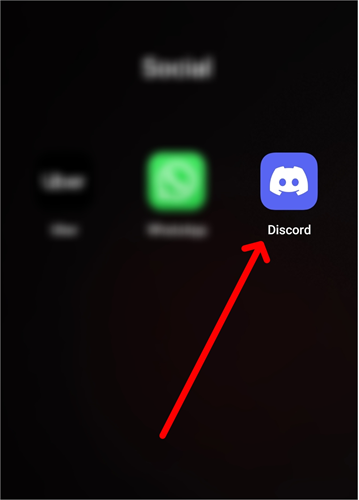
Step #2: Open the chat server where you want to send bold text messages and type your message in the given box as shown in the picture.
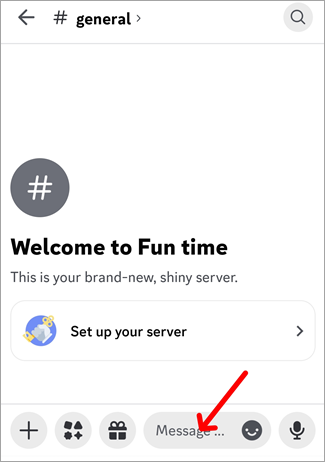
Step #3: Now type the message and add two pairs of asterisks before and after the desired text. The total number of asterisks would be four. It would look like **text**.
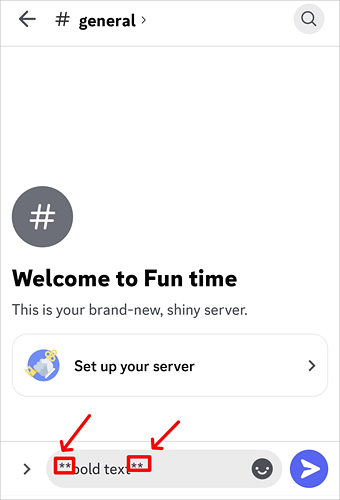
Step #4: Now you need to press enter and see that your text appears in bold letters.

In this way, you will make bold text in Discord on mobile.
Further reading =>> How to fix Discord not opening error
List of Discord Text Formatting Options
- Bold: To Bold the text, you need to apply two asterisks before and two asterisks after the text. Like this- **Bold**
- Italics: For Italics, you need to apply one asterisk before and one asterisk after the desired text. Like this- *Italics*
- Underline: To underline the text, you need to use two underscores before and two underscores after the text. Like this- __Underline__
- Strikethrough: For strikethrough, you can apply two hyphens before and two hyphens after the desired text. Line this: –Strike through–
- Combinations:
- Underline bold: For an underline along with making the text bold, you need to put two underscores and two asterisks before and two underscores and two asterisks after the text. Like this- __**Underline bold**__
- Bold italic: To make the text look bold and italics, you need to apply three asterisks before and three asterisks after the desired text. Like this- ***Bold Italic***
- Highlighting text: To highlight the text, you can use an acute before and after the text. Like this- `Highlighting text`
- Highlights: For unique highlights, you can use a backslash and acute before and after the desired text. Like this- \`Unique highlight\`
- Hidden text: By putting two hypes before and after the text, you can hide it. Like this- ||hidden text||.
- Block text: Three acutes before and after the text can make it a block text. Like this- “`Block text“`
- Embedded sentence: >Single greater than symbol before the sentence will make the sentence an embedded sentence.
- Color sentences: We can easily write sentences in different colors with Color syntax, but it does not work on mobile, so to use it, you need to open Discord on your desktop. Under this, you will have a total of 7 types of syntax language named Yaml, fix, diff, tex, CSS, elixir, and md. By using three acutes “` and the name of Syntex be it a yaml, fix, CSS, etc, writing the text and putting three acutes after it “`.
- All text would appear in teal color when we use the yaml and if we put a hashtag # before the text, it would appear grey.
- If you use fix syntax- the color of the text will change into orange.
- Under diff, everything would appear grey but if we put a plus sign + before the sentence, it would change its color to green and for red color, we need to put the minus sign.
In this way, we can change the color of the text by using different syntax languages.
Pricing
- Pricing subscriptions are:
- Discord Nitro classic: $4.99 per month
- Discord Nitro: $9.99 per month
- Free version available.
- A basic free version includes 50MB uploads, custom emoji, and a unique Nitro badge on your profile.
Suggested reading =>> How to fix the Discord A Fatal Javascript Error
Frequently Asked Questions
1. How do bold words in Discord?
To make the text bold in Discord, you can use two pairs of asterisks and write the word in between them. Like **bold**.
2. Can I format text in Discord?
Yes, we can format text in Discord. Although Discord does not provide text formatting directly, it supports the markdown system. You can easily format text by applying codes before sending the message.
You can inject some flavor into your everyday text chat with formatting options like headers, masked links, lists, code blocks, block quotes, and much more.
3. How to make text look different in Discord?
We can make the text look different in Discord by using text formatting options or markdown for formatting by typing simple codes like writing text in between 2 pairs of asterisks for bold, writing text in between 3 asterisks on both sides for italics, and so on.
Further Reading => How to Italicize Text in Discord
4. What text style does Discord use?
Discord uses the Markdown formatting system for simple, plain text formatting. It includes writing simple characters like *, _, #, ),(,{,[, etc before and after the text that you want to format and make your text stand out.
Conclusion
To grab attention to the key points and to make a lasting impression on the readers, you need to highlight them. So is the bold in Discord. You can make your text look bold by just adding two pairs of asterisks (*) on both sides of your desired text.
It uses the simple text formatting system called Markdown which is based on plain-text-formatting syntax or the use of different symbols or characters like *, _, #, ),(,{,[, etc. We mentioned how to bold text in Discord mobile and on desktop.
Along with making your text bold, it supports various other text formatting options where you can italicize the text or underline it, you can write the text in blocks as well to make it stand out, it even enables you to write the text in different colors just by using simple text formatting codes.
Was this helpful?
Recommended Reading
-

Understand what Discord Fatal Javascript Error is and refer to this step-by-step guide explaining 7 methods to fix Discord Fatal Javascript Error: Discord is an instant messaging and digital distribution platform that has been specifically designed for creating communities. Discord users can communicate with each other using voice calls, video…
-
This tutorial explores and compares the best Discord Voice Changer software with pricing. Select a professional or free voice changer for Discord from this list: Nothing can match the popularity of Discord Voice Changers today. The idea of being able to distort your voice to the point of it becoming…
-
Read this review with features to compare and select the best Discord Emoji Maker to create unique emojis as your requirement: Text conversations can be boring and sometimes confusing without expressions. Emoticons, emojis, and Gifs are there to resolve that problem. Emojis add a lot of vibrancy and meaning to…
-
Discord won’t open on PC? Find out why Discord won’t open on your PC and resolve the issue in 10 simple step-by-step solutions quickly. If you are experiencing the issue of Discord won’t open on your PC, you are not alone. Many users have reported problems such as the application…
-

Looking to translate text into styled and rich content? Read this review to compare the top and best Rich Text Editors and select the one that is best suited for your requirements: Rich text editors are software that affords its users the privilege of creating, editing, and formatting text. What distinguishes…
-

Quickly convert your unstructured text data into perfect format with these Top Text Analysis Tools. Pick the best Text Analysis Software of your choice to gain valuable insights from open-ended text: The organization creates an inventory of data assets by leveraging data management tools and metadata. With the help of…
-
Best sites reviewed to Send Free SMS (Text Message) online to Mobile free of cost. Sending free text messages online has become easier than ever, due to a growing list of websites that let you send SMS without needing a phone or mobile plan. Whether your phone is switched off,…
-
Here we review and compare the top Text Editors for Windows and Mac to guide you in selecting the best text editor for your requirements: Text editors are very helpful when it comes to precisely and correctly writing your code while avoiding formatting difficulties. It is especially common when someone…