Are you eager to know Why Does Instagram Keep Logging Me Out? This tutorial will help you find the common causes and ways to fix them quickly.
Instagram randomly logging you out can be frustrating, especially when it interrupts scrolling, posting, or managing your account. This issue often occurs due to app glitches, outdated versions, security checks, or login conflicts across multiple devices.
In this guide, I’ll explain why Instagram keeps logging you out and share effective troubleshooting methods to help you stay logged in without disruptions.
Table of Contents:
- Why Does Instagram Keep Logging Me Out
- Common Causes of Instagram Auto Logout and How to Fix Them
- #1) Server Outage
- #2) Corrupted Cache, Cookies, and Storage Files
- #3) Bugs Due to Corrupted or Deleted App Config/Storage Files
- #4) Hacking and Related Attempts
- #5) Use of a VPN
- #6) Use of Suspicious Bots to Grow Account Activity
- #7) Already Logged in on Multiple Devices and Sessions
- #8) Error on Third-party Services Used to Log into Instagram
- #9) Need to Re-authenticate Account
- #10) Outdated App Version
- Frequently Asked Questions
- Conclusion
Why Does Instagram Keep Logging Me Out
Instagram may keep logging you out due to security checks, app-related glitches, or account-specific issues. Suspicious login activity, outdated app versions, corrupted cache data, or the use of third-party tools can all trigger automatic logouts from your Instagram account.
In some cases, password changes, authentication errors, or policy violations may also cause repeated sign-outs.
We will see all these causes in detail and solutions to fix them in the following section.
Common Causes of Instagram Auto Logout and How to Fix Them
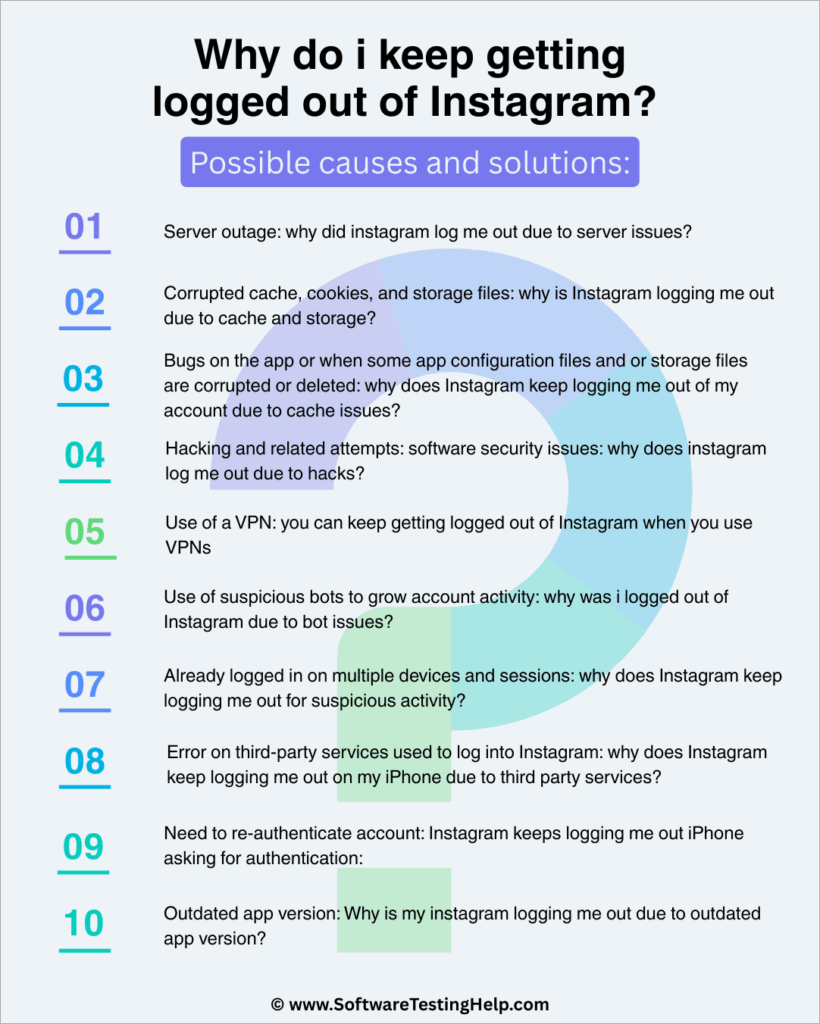
There could be several possible reasons for being logged out of Instagram. Some of the major causes are explained below, along with the best solutions.
Here is a video tutorial on Why Does Instagram Keep Logging Me Out? (Mobile & Laptop Fix!)
#1) Server Outage
Why did Instagram log me out because of server issues?
Here is where to begin in troubleshooting the problem, although Instagram and Meta servers are anticipated to be 99% up most of the time. A server outage simply means the app cannot relay any data via the Instagram servers.
What to do to resolve this issue:
The Downdetector website can, for instance, show if the Instagram and Meta servers or any other Internet service have an outage. It helps to confirm that this is the issue. In addition to waiting for Meta to resume server connectivity, you can also report persistent issues of outage through their support staff.
#2) Corrupted Cache, Cookies, and Storage Files
Why is Instagram logging me out due to cache and storage?
Internet services, including web and mobile apps, temporarily store user files for regularly used services to improve speed and user experience.
Malware can corrupt these files. These files get corrupted for several reasons, e.g., by malware, through power failure, and interference or modification by other services, e.g., system lockup apps, viruses, and stored files, etc. Learn how to remove Malware in Android phone from our detailed guide.
Overcrowded caches can also be a problem, for instance, when the device has little storage space left. Corrupted and overcrowded files cause glitches, such as forcing intermittent closures of the service.
What to do if the problem is a corrupted and or crowded cache:
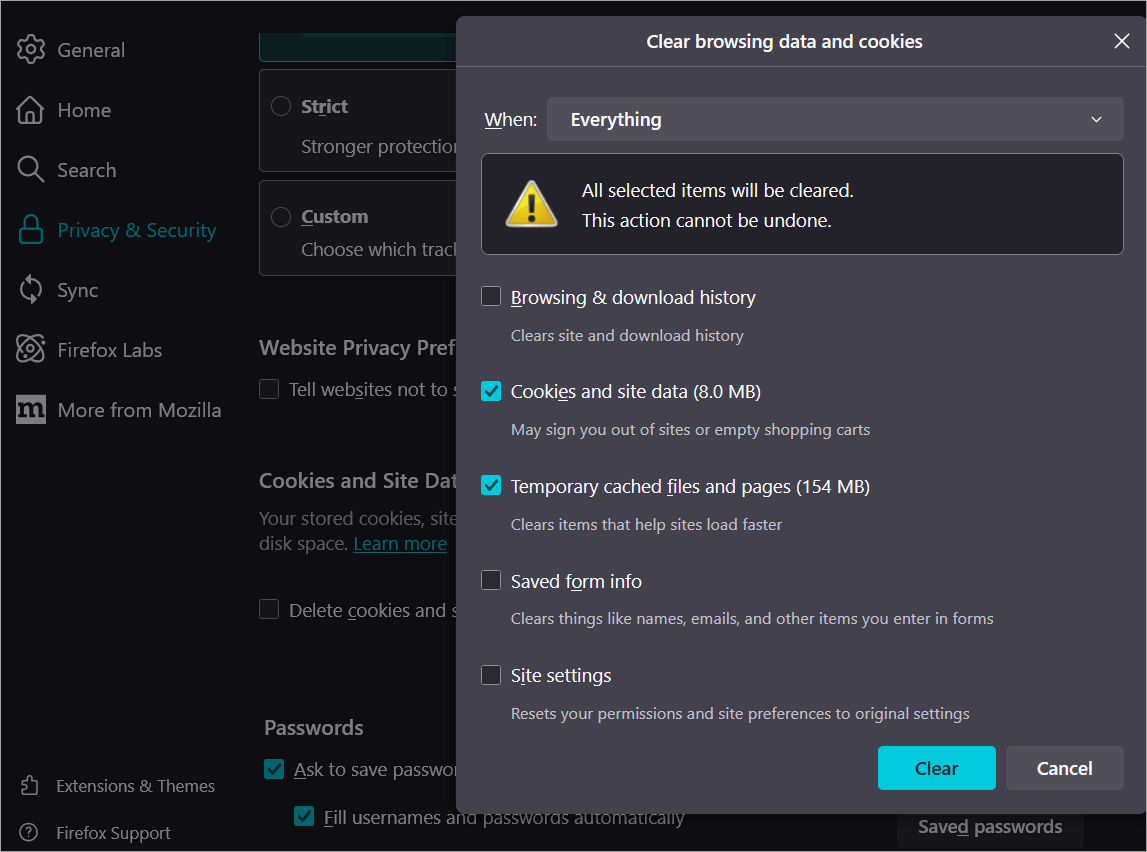
The first course of action is to prevent cache overloading events on the browser, e.g., by setting the cache on the browser to clear automatically after closure of the browser. This is for users who log in to their Instagram accounts via web browsers.
This is achieved via browser settings. For Firefox, go to Settings -> Privacy & Security -> Cookies & History -> check the box for ‘Delete Cookies & Site Data when Firefox is Closed.
For Chrome, open the toolbar (the three lines to the right of the URL window), then select Show advanced settings -> Content Settings, and in the Cookies option, select to keep local data only until the browser is closed.
Here’s how to do it on Edge: Click Settings, then search cache.
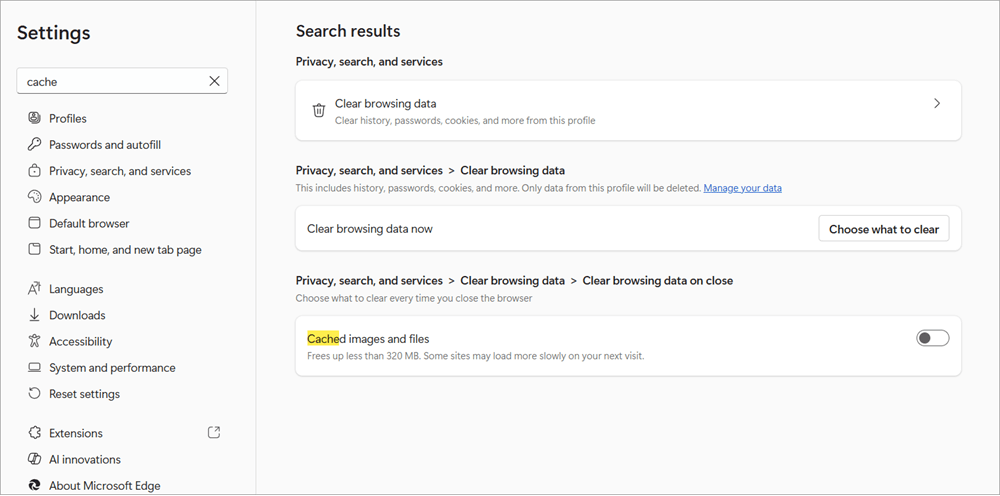
Click the ‘Choose what to clear’ button and choose by ticking on what to clear.
Press the Clear Now button.
There are various ways to clear cache data on apps on Android and iOS automatically. The first is to set the battery to optimize for apps. Go to Settings -> Battery and Device care -> Optimize Now.
On other Androids, it is Settings -> Battery -> Battery Usage, then select the Instagram app to see how it uses battery and tick on the Optimized option. You can also go to Settings and search for Battery Usage and proceed as above.
The second is through the Android Auto settings. Go to Settings and search for Auto Cleanup from the search settings bar.
Tap on the Auto Cleanup option and turn on the memory and cache auto clean up option (which, for instance, cleans the cache after some time, such as when the device is locked for five minutes). From this setting, you can exclude some apps from the cache auto-clean operation.
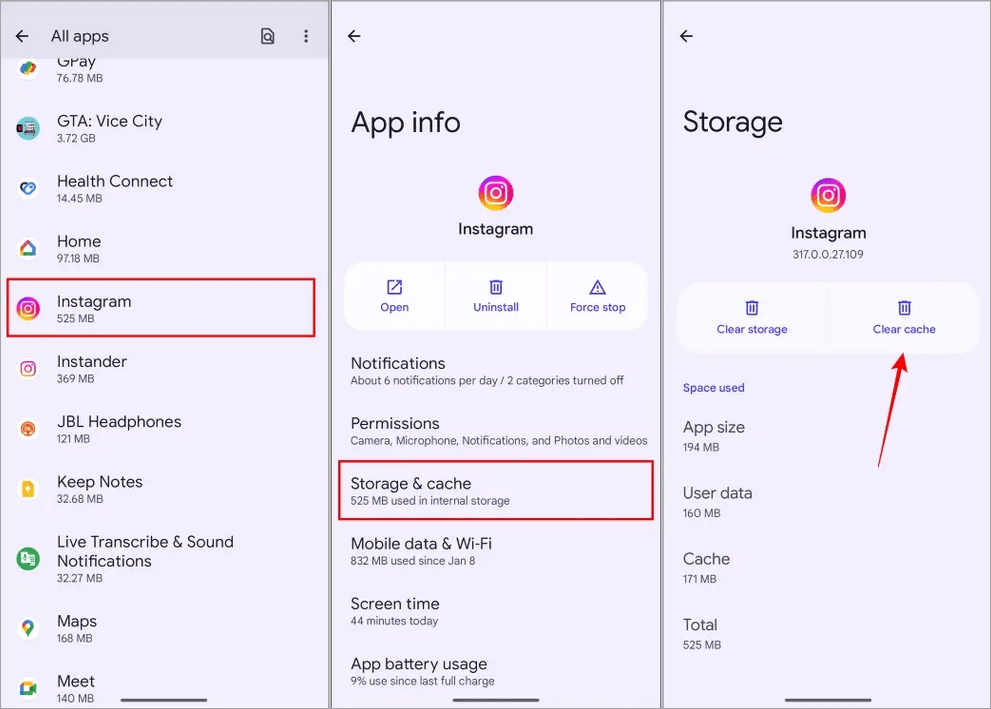
To manually clear the cache on Android, go to Settings -> Apps and pick the desired app from the list, tap on it, then select Storage and Cache -> Clear cache or entire storage data.
Setting to auto-clear the cache and cookies may mean you have to enter login details every time; therefore, consider only the manual clearing of the cache.
Setting an auto-clear of cache and storage is advisable because social media apps like Instagram usually leave a huge amount of data that takes up a lot of space on the device. You won’t be surprised that it takes over 50 GB after using it for a few months.
Setting auto-clear can prevent the need to manually keep clearing the cache and save you time.
In cases where you cannot clear Instagram cache files, e.g., when using iPhones, the solution can be uninstalling/deleting and re-installing the app. Check our detailed guide on how to clear Instagram Cache on Android and iPhone.
#3) Bugs Due to Corrupted or Deleted App Config/Storage Files
Why does Instagram keep logging me out of my account due to cache issues?
Unpredicted log in and logout – among other misbehaviors – can be experienced if the device suffers from malware, a virus, or when the Instagram app is affected by the operation of other apps, or power issues, storage, and configuration files can get corrupted or deleted.
What to do if the app malfunctions:
Update the app: Go to the Android or Apple App Store, search for Instagram, tap on it, and then tap the Update button to update. Then re-launch the app.
Uninstall the app: Delete or uninstall the app on your Android or iPhone. To manually delete Instagram from an iPhone, search for the app on the home page.
Tap and hold it for some seconds until a menu pops up. Select Remove App from the list of menu options in the pop-up and confirm removal. To reinstall Instagram, go to the App Store, search for the app, and reinstall and log back in.
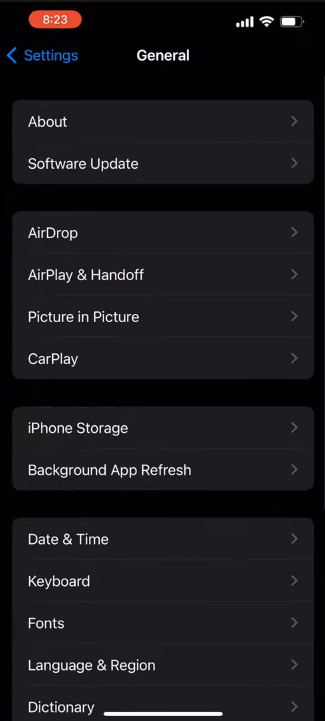
Also on iPhone, go to Settings -> General -> iPhone storage and select the Instagram app.
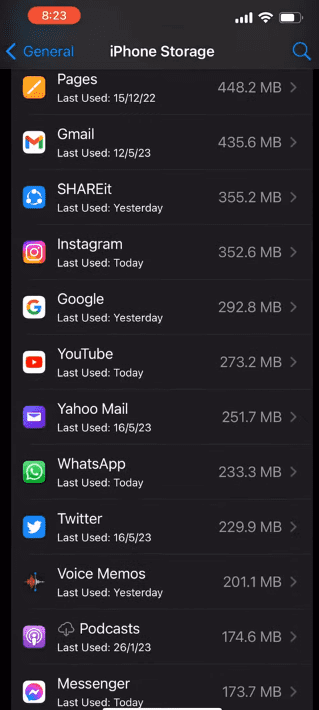
Tap the Offload app button. Confirm to offload in the pop-up that appears.
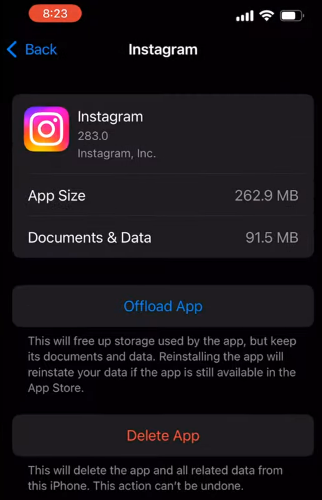
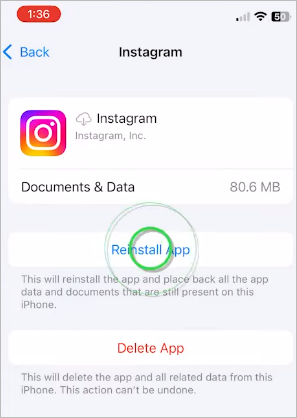
Reinstall the app by tapping on the Reinstall button, as shown below.
#4) Hacking and Related Attempts
Software Security Issues: Why does Instagram log me out due to hacks?
Instagram software and data security protocols may detect and categorize as security breaches some unfamiliar usage tendencies. An example is regular logins on multiple accounts using the same device, use of different IPs multiple times, and unusual changes in the account user location.
Why does my Instagram keep logging me out due to security issues?
The one action it does to protect user information is to log them out automatically, and this behavior can persist every time you log in if the vulnerability has not been addressed.
Besides, hacking on apps does mean exposure of user data, and changing these particulars and/or code by hackers can result in such behavior.
If the app logs out an account automatically after detecting unusual usage behavior related to software security, then it may require the user to change their Instagram password. It will take you through those steps.
How to solve issues arising from software and data security concerns:
Enable 2FA authentication on all accounts. Second, change the password in case you suspect irregular activity on your account. If unable to log in with the same password, try recovering the password, and if the app does not send a reset code/link, you may contact Instagram support.
Instagram notifies users through security@mail.instagram.com. Whenever an email has changed, and within that email, a user can select the Secure my account option if he or she is not the one who effected the email change.
There is a process given by Instagram on how to recover a hacked account here https://www.instagram.com/hacked/
Besides, users can request a login link to their accounts from Instagram staff. It can be sent to email by visiting the login screen and tapping Get help logging in. Account owners can also submit a request via phone to get help accessing their account, in which case you will need to prove that you own the account.
#5) Use of a VPN
You can keep getting logged out of Instagram when you use VPNs.
Use of VPN apps and settings can cause a persistent log out whenever you log in if Instagram detects unusual usage of IPs.
In this case, try disabling the VPN service and logging in to Instagram.
#6) Use of Suspicious Bots to Grow Account Activity
Why was I logged out of Instagram due to bot issues?
Instagram can keep logging you out and sending you to the sign-in page to verify that you are a human, in case you have been using bots, for instance, those used to grow follower and viewer statistics.
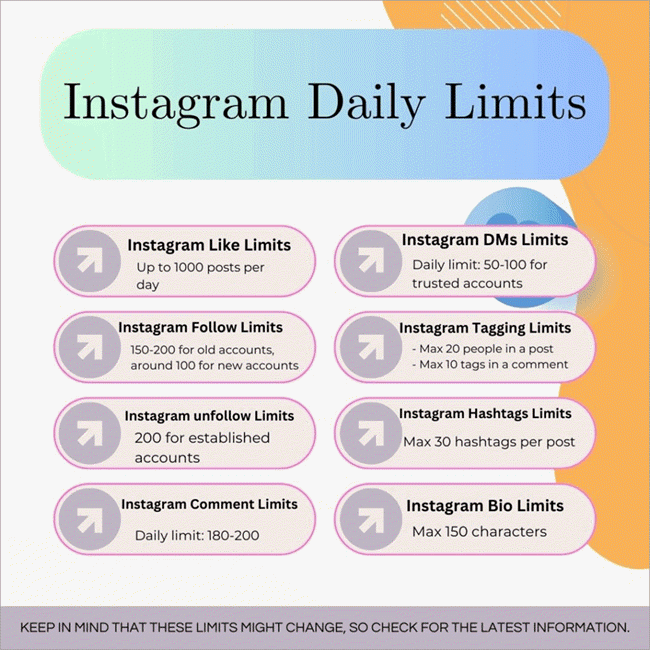
In such a case, the persistent log-out error may happen if you violate the daily limits on following, commenting, and liking. It will flag those as suspicious activities and may keep logging you out of your account until the issue is resolved.
How to resolve bot usage problems:
The usual way to deal with this problem is to avoid using bots on Instagram. Remove suspicious bots.
#7) Already Logged in on Multiple Devices and Sessions
Why does Instagram keep logging me out for suspicious activity?
If this is the case, changing the password on one device can cause an automatic logout on the other. Ensure you log in on a single session and device each time.
How to remove multiple logins and sessions:
To remove a device connected to Instagram, open the app on Android or iPhone and tap on the account profile picture. This launches the profile menu.
Tap the hamburger icon at the top right corner, select Settings and Privacy -> Accounts Center -> Password and Security. Under the security checks, tap on the Where you are logged in option, which reveals the active sessions, locations, and devices.
On the Account login activity page, tap on the Select the devices to log out option, and remove the devices and sessions you want to remove. Tap log out on the confirmation message displayed.
Here is a video on how to remove devices connected to your Instagram Account:
#8) Error on Third-party Services Used to Log into Instagram
Why does Instagram keep logging me out on my iPhone due to third-party services?
Instagram allows logging in using multiple services such as Google Sign In, Facebook, Zapier, and less famous ones such as Buffer. If you have connected Instagram to third-party apps and allowed them to access your profile or to log in using them, a software security error may cause automatic logout on Instagram.
How to delink third-party services linked to Instagram:
Delinking or disconnecting Instagram from these services might also help prevent the auto logouts. One challenge of connecting third-party apps/services – including Facebook – to Instagram is that the latter can get compromised if and when the third-party is breached.
To remove apps connected to your Instagram account, go to your Instagram account Profile settings -> Security -> Apps and Websites and choose Revoke Access next to the app that you want to disconnect.
Refer to the video below on How to Check & Revoke Third Party Access:
#9) Need to Re-authenticate Account
Instagram keeps logging me out, iPhone is asking for authentication.
Instagram app sometimes requests a user to re-authenticate their account if they have not logged in for a while without logging in. Instagram also sometimes requires this if you have made significant changes to your account.
Resolving Re-authentication Problems:
To resolve the need for re-authentication, you need to submit the information that Instagram needs to verify with you. For instance, it may send a code to your email or phone number, which you need to enter on the login interface.
Besides, you can verify your phone and email by going to Profile -> Settings -> Account -> Request Verification. Fill out the application form and send it, and wait for them to verify the account. After this, you will receive a message.
#10) Outdated App Version
Why is my Instagram logging me out due to an outdated app version?
If the previous version of the app has a bug, it may trigger login issues. Update Instagram regularly via iPhone or Android app store to be sure you are up to date with software security patches on the app.
Another usual method to resolve the login issues on Instagram is to use Facebook credentials to sign in.
Here are the quick fixes to try for Instagram keeps logging me out on iPhone:
Frequently Asked Questions
1. Why did my Instagram log me out randomly?
Instagram logs users out randomly for a number of reasons, including corrupt cache, overloaded cache amidst low remaining storage, bugs on the app, hacking attempts, suspected security breaches, multiple login sessions on multiple devices, etc.
The way to deal with these issues may include reinstalling the app, clearing the browser and app cache, and changing the password.
2. Why does my Instagram automatically log in without entering the password?
Entering a password to log into Instagram can be skipped if you have set “remember me” or “remember password” or “Stay Signed In”, which is an option presented during login, or if you have activated other automated login features on the browser and/or app, for instance via plugins.
You can clear the cache and cookies of the app or browser to stop this, and ensure you do not tick this option when logging in.
3. Why does Instagram log me out when I log in with another device?
Logging in to multiple sessions can cause this error if you haven’t logged out on the first device. Instagram software may attempt to protect the account owner by logging out one or both of the devices, just in case there is unauthorized access to accounts.
Switching too frequently between two or more accounts on the devices can also cause this error.
The way to solve the problem is to set up two-factor authentication or 2FA. It is also advisable to update the password.
4. How do you see what devices are logged into your Instagram?
Launch the Instagram app installed on your device. Tap Profile to launch the profile settings, then navigate to Accounts Center -> Password and Security -> Where you are logged in.
This will bring up a list of devices, sessions, and locations in which you are logged in. You can tap on any of those accounts, scroll down to the Select devices to log out option, and select the devices to log out.
Conclusion
The most common issues that cause the Instagram app to keep logging out randomly are cache and cookies overloads and corruption, bugs, outdated app version, viruses, logging in on multiple devices multiple times within a short period, and a lack of account authentication.
Most of these issues can be resolved by clearing the device and browser cache, updating the app, verifying your mobile number and email, logging out of other sessions where you are logged in, and deleting and reinstalling the Instagram app.
Research Process:
The total time involved to complete and publish this article is approximately 35 hours. This content was created through a structured research approach to ensure accuracy and reliability.
For more Instagram-related guides, you can explore our range of Instagram tutorials below:
- How to Turn Off Quiet Mode on Instagram
- Quick Ways to Fix Instagram Stories Not Showing
- How to Turn Off Active Status on Instagram
- See Who Unfollowed You on Instagram
- Best Time to Post on Instagram for More Likes
- [10 Quick Methods] How to Post on Instagram From Your PC
Was this helpful?
Recommended Reading
-

Quickly learn how to clear Instagram cache on iPhone and Android to free up storage. Understand the simple steps on how to clear cache on Instagram to fix the app issues for both operating systems: Instagram is a social networking service platform where users can share their pictures with loved…
-

Review and comparison of the the top Instagram Story Viewers with features and pricing to help you select the best Instagram Viewer: Launched exactly a decade ago, Instagram quickly became a new favorite online hangout spot for people across the globe. The online photo and video sharing platform has only…
-
A quick compilation of the steps on how to mute someone on Instagram. Explore the multiple ways to unmute someone's Instagram story & also see what happens when you mute someone on Instagram: Instagram is a great platform to share pictures, showcase creativity, and stay connected with friends and family.…
-
Is Facebook's random and Automatic log-out problem annoying you always? This simple guide includes some of the quick fixes for the issue - "Why does Facebook keep logging me out": There are many causes of this error, such as Facebook automatically logging out of a user account without their intent.…