Are you looking for easy ways to schedule text messages on iPhone? This step-by-step guide will assist you in managing and scheduling text messages on your iPhone to send personal or business messages at the right time without delays.
Scheduling a text message on an iPhone can be extremely useful when you want to send reminders, birthday wishes, or important messages at the perfect time. While iOS doesn’t offer a direct “schedule message” button in the Messages app, there are simple and effective ways to schedule texts using Apple’s Shortcuts app and other built-in options.
In this guide, I’ll walk you through step-by-step methods to schedule a text message on your iPhone easily. Also, I‘ll cover how to schedule a text to an Android from an iPhone and which third-party apps to use for this purpose.
Table of Contents:
- Can you Schedule a Text on iPhone: Complete iOS Guide
- Quick Answer to How to Schedule a Text Message on iPhone
- How to Schedule a Text Message on iPhone in the iMessages App
- How to Use the Send Later Feature in a Group Chat
- Can I Use the Send Later Feature Through RCS & SMS/MMS
- Steps to Schedule a Text on iPhone Using the Shortcuts App
- Ways to Schedule Send a Text on iPhone Using iPhone Text Scheduler
- How to Schedule a Text on iPhone to Android
- Comparing Methods for Scheduling Texts on iPhones
- Issues While Scheduling Text Messages on iPhone and How to Fix Them
- Frequently Asked Questions
- Conclusion
Can you Schedule a Text on iPhone: Complete iOS Guide
Yes, it is possible to schedule a text message on an iPhone; however, it cannot be done through the Messages app on an iPhone. Unlike some Android phones, iPhones do not support the ‘schedule message’ feature for iMessages and SMS.
However, Apple has some reliable alternatives for users to schedule their text messages through the Shortcuts app and Reminders app.
Using these methods, you can schedule iMessages or SMS texts to be sent at a specified date and time for personal reminders, business, or alerts. This process is applicable for the latest iOS versions without the need for jailbreaking your iPhone.
The text scheduling feature is available in the iMessages app, but only iOS 18, iPadOS 18, macOS Sequoia, watchOS 11, visionOS 2, or later versions support this feature.
In the sections below, we’ll explain the available options, supported iOS versions, and step-by-step methods to help you schedule text messages on iPhone efficiently.
Discover how to set up text messages to send later on your iPhone with iOS 26 by watching this video.
Quick Answer to How to Schedule a Text Message on iPhone
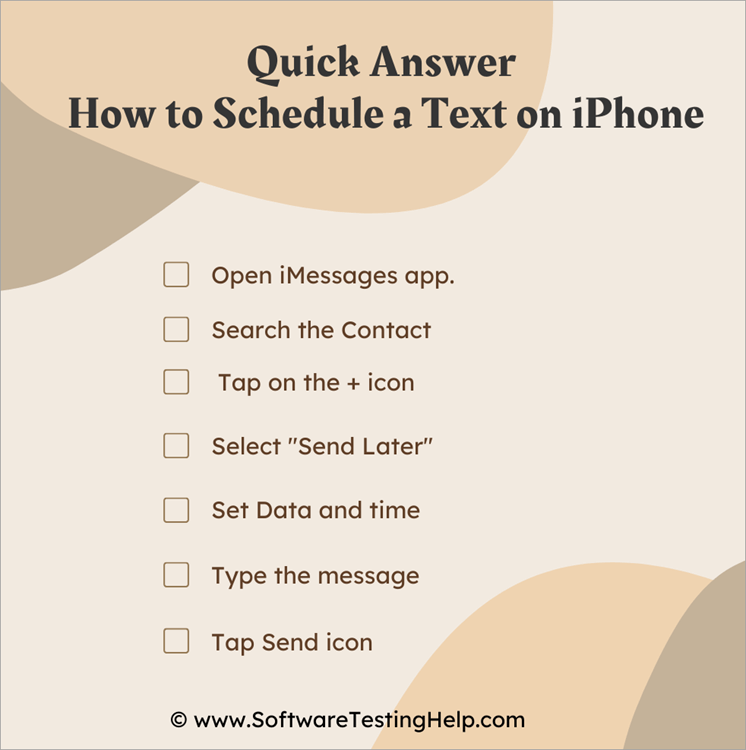
Here are the steps for scheduling a text on an iPhone:
- Open iMessages app.
- Search the Contact
- Tap on the + icon
- Set Data and time
- Select “Send Later”
- Type the message
- Tap Send icon
Different Purposes for Scheduling a Message on iPhone
Text scheduling is done for different purposes, like sending a personal message, reminding your clients about their appointment, business marketing, etc.
Business Marketing
Maintaining a good relationship with customers is one of the most important tasks for a business. And for this purpose, businesses maintain continuous communication with their customers by wishing them on specific occasions, and by informing them about their latest products, offers, exclusive discounts, etc.
However, the issue at hand is listed below:
- How to send scheduled messages in bulk?
- How to schedule the messages to be sent at a specific time, so that the customer will have some spare time to go through the message?
We’ll discuss how you can do all this easily and quickly using apps.
Appointment Reminders
We all have to admit that sometimes we forget important dates like our appointments with a doctor, a lawyer, a business client, etc. All of us, at some point in time, have faced issues because of forgetting our important appointments or tasks.
So, many of the businesses today take this task of reminding their clients about the upcoming appointments. This avoids wasting their time and the need to reschedule appointments. If you are in search of an appointment scheduler, then read through our detailed guide on the Top Appointment Scheduling Software.
If you are a business (like a healthcare organization, a beauty salon, etc.) and you want to schedule a text message to be sent to your client at a specific time regarding their appointment with you, then you can just use the iMessage app (or some other app from the App Store) to do so.
Read the article further to learn how to schedule a message on iPhone, how to schedule a text to Android from iPhone, how to use the Shortcuts app for scheduling messages, and which third-party apps to use for this purpose.
How to Schedule a Text Message on iPhone in the iMessages App
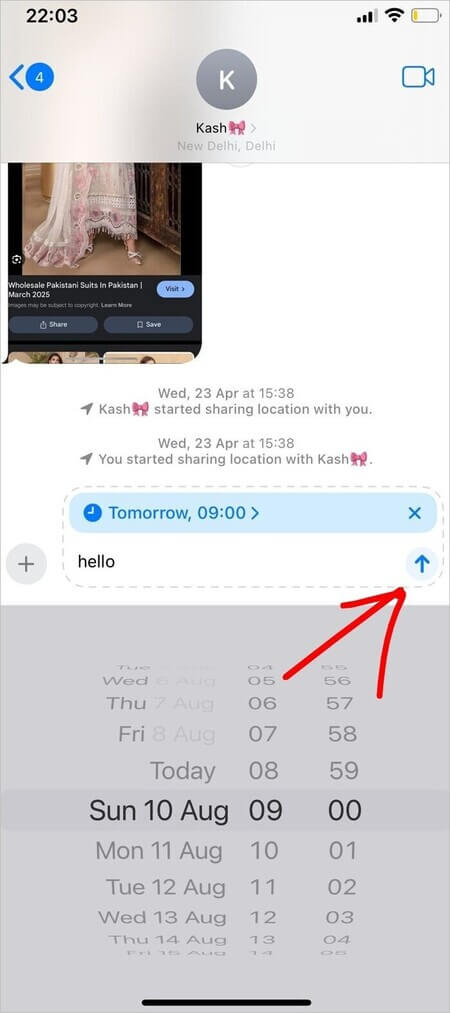
To use the iOS 18 Send Later feature, follow these steps:
1. Open the iMessages app.
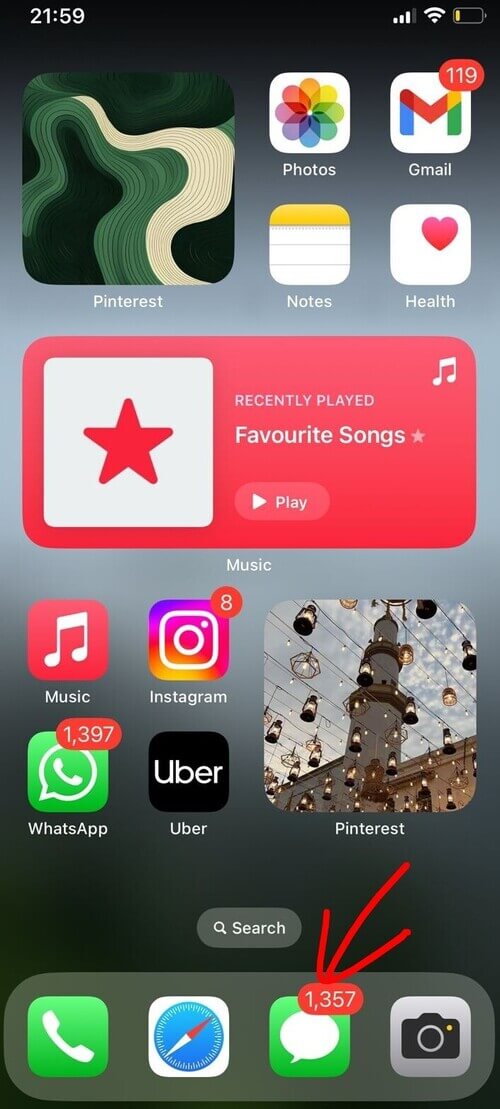
2. Search for the contact you want to send the scheduled message to.
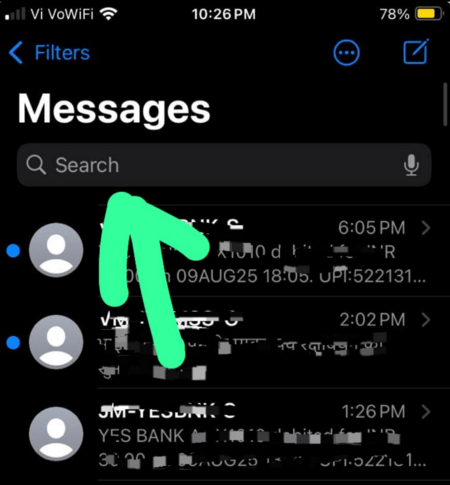
3. Tap on the + icon.
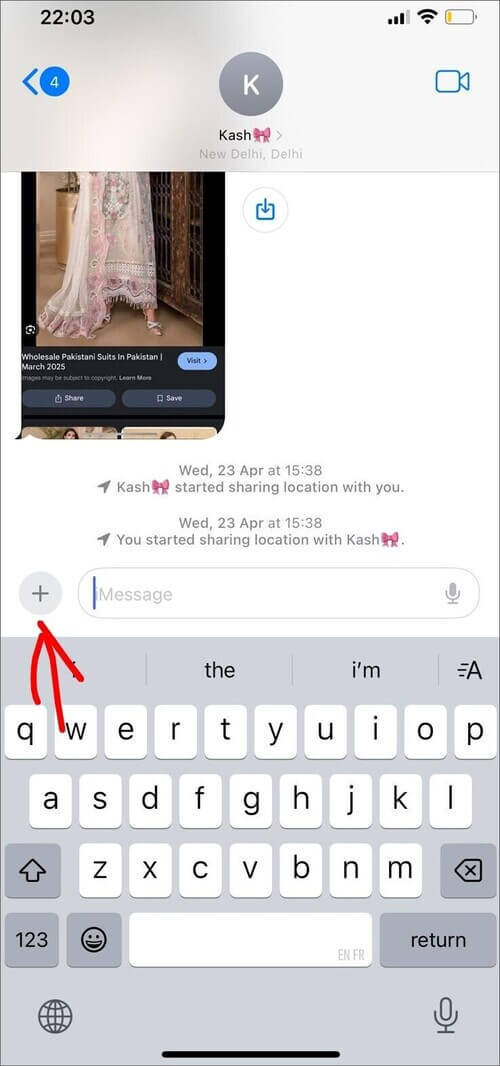
4. Now select Send Later
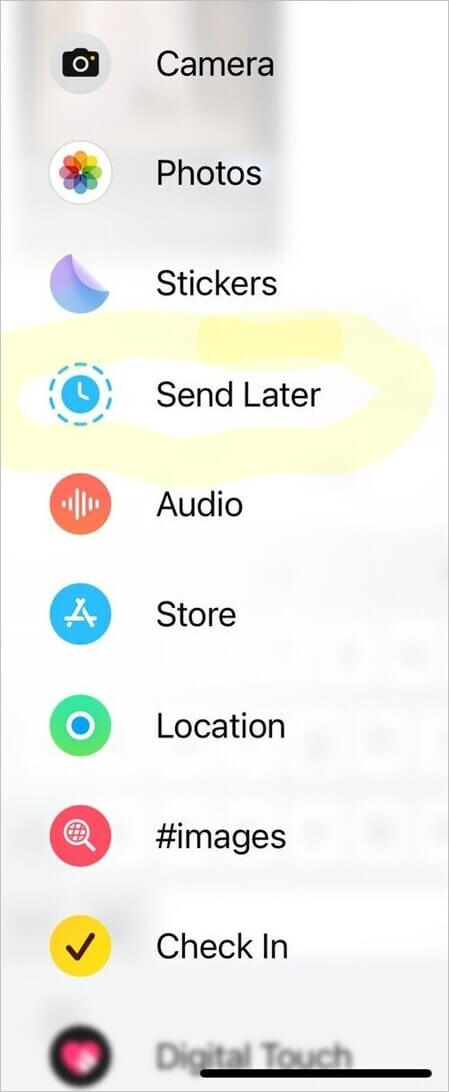
5. Set date and time for the message.
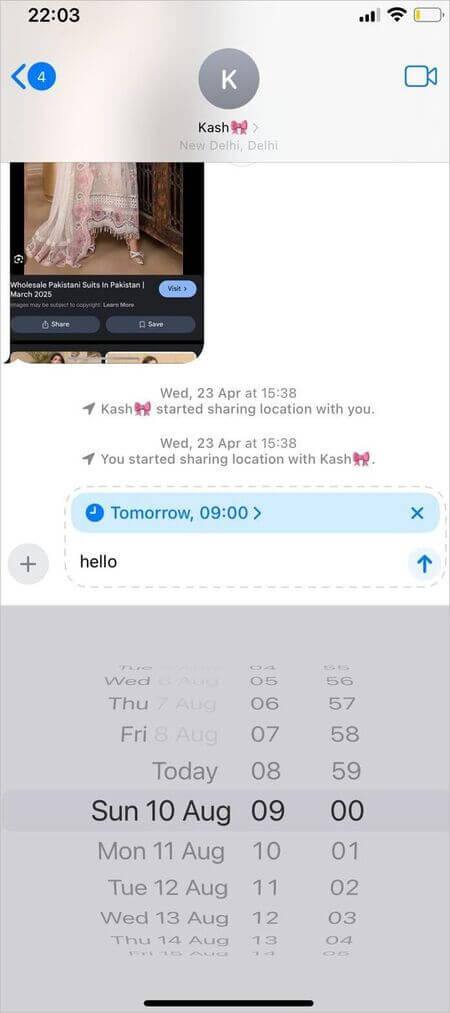
6. Now type in the message.
7. Tap the Send icon.
How to Edit a Scheduled Message on iPhone
Here’s how to edit a message you’ve scheduled in iMessage:
- Go to iMessages.
- Find the message you have scheduled from the list of messages. You would most probably find the scheduled message at the bottom of your sent messages.
- Now tap and hold your finger on the scheduled message.
- Select the Edit option from the menu.
- Change as needed, then send the message.
How to Edit Date & Time of a Scheduled Message on iPhone
Go through these steps to understand the process:
- Open the iMessages application.
- Find the scheduled message.
- You will see the scheduled date above your message. Tap on the Edit option next to it.
- Now you can change the date or choose to send the message instantly.
How to Use the Send Later Feature in a Group Chat
If you want to schedule a message in a group chat, you can do it by following these steps:
- Open the iMessages app.
- Open the chat where you want to schedule the message.
- Tap the + icon located beside the text input bar.
- Now select the Send Later.
- Choose the date and time for your message.
- Now enter the text.
- Tap the Send icon.
Can I Use the Send Later Feature Through RCS & SMS/MMS
iMessage, RCS, and SMS/MMS are different ways of sending messages on an iPhone. iMessage texts can be sent and received from iPhone, iPad, Mac, Apple Watch, or Apple Vision users only; RCS and SMS/MMS messages can be sent to non-Apple users as well.
The Send Later option is available within the iMessage app (one with blue bubbles) only. RCS and SMS/MMS messaging (with green bubbles) do not offer the Send Later feature.
Please note that only iOS 18 and later versions are compatible with the Send Later feature.
If the Send Later option is not available in your iPhone version, you can use the Shortcuts app or other third-party apps for scheduling a text message.
iOS devices offer the Shortcuts app to schedule a recurring message. The Shortcuts app comes built-in on iOS 13 and higher versions. If you don’t have the app, you can install it from the App Store.
Steps to Schedule a Text on iPhone Using the Shortcuts App
The steps may vary slightly with different iPhone models.
Follow these steps:
1. Open the Shortcuts app.
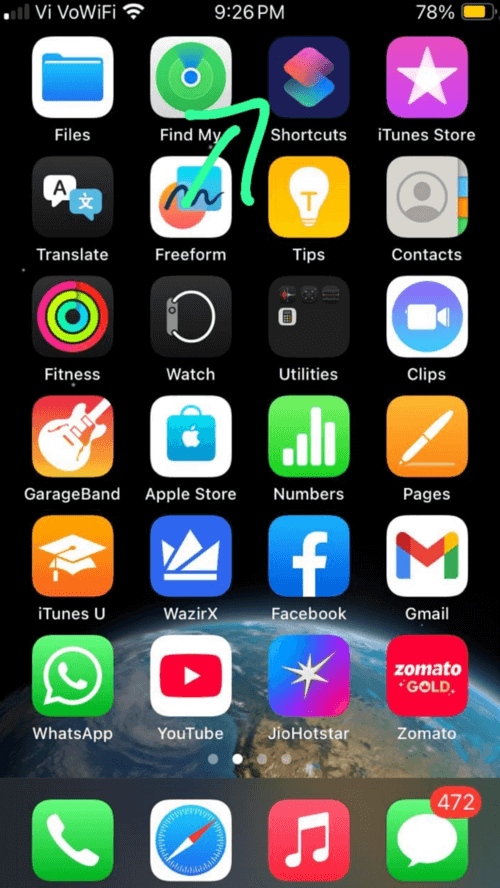
2. Tap on Automation.
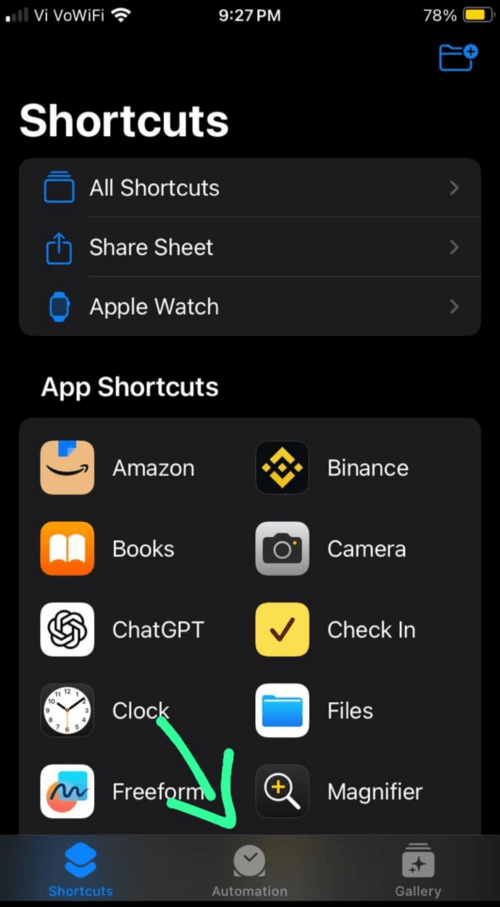
3. Now, select New Automation.
4. Click on Time of Day and then set the date and time for your automated message.
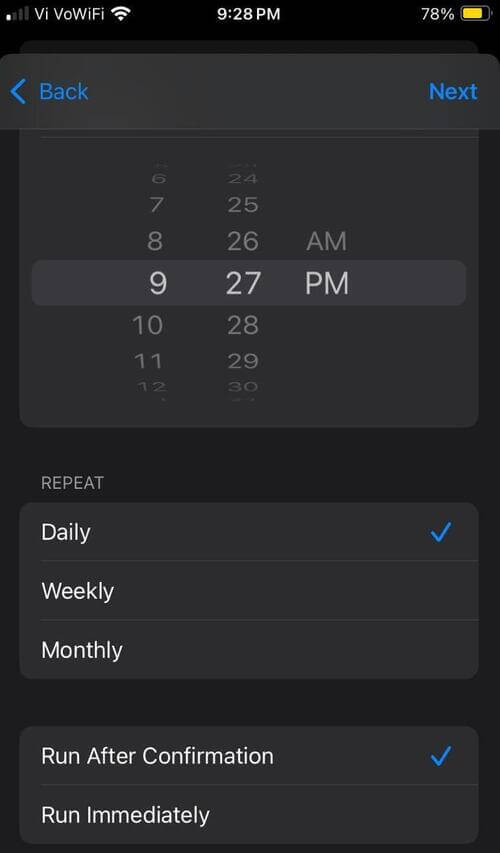
5. Select the Run Immediately option so that the message gets sent automatically, without you having to give your consent every time. Alternatively, you can choose Run After Confirmation, and you will send the message only after your confirmation.
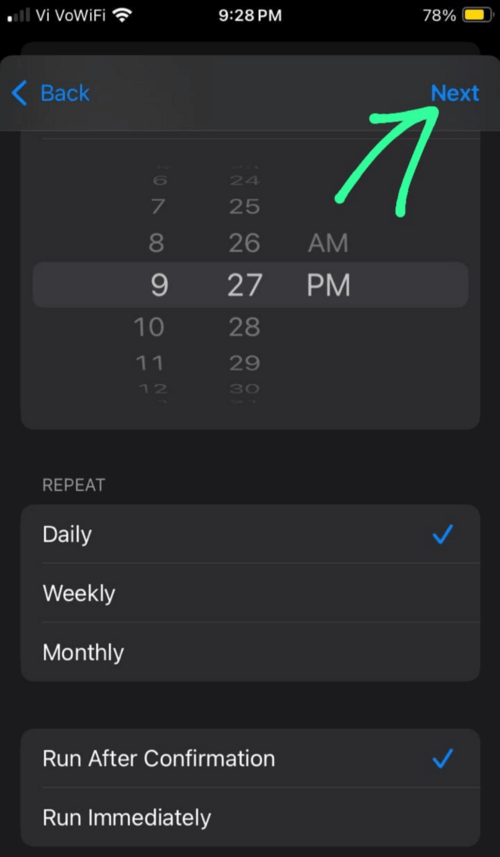
6. Once you have set the date and time of your automations, tap on Next as in the image below.
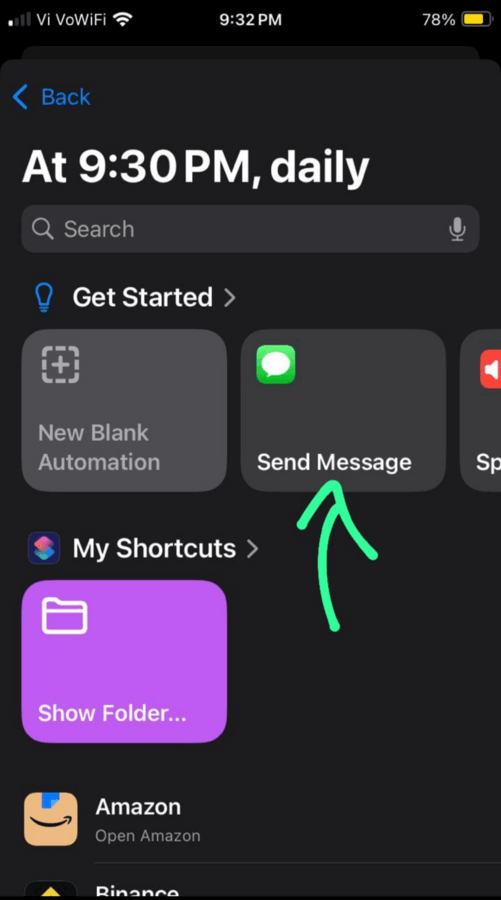
7. Tap on Send Message as shown below.
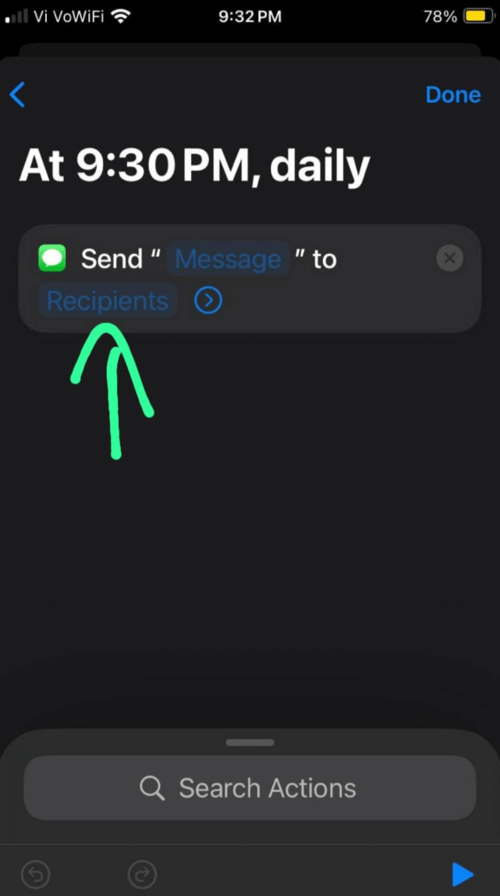
8. Next, select Recipients as depicted below.
9. Then tap on the + icon to choose the contacts to which you want to send the message. You can add multiple contacts here.
10. Tap on Done
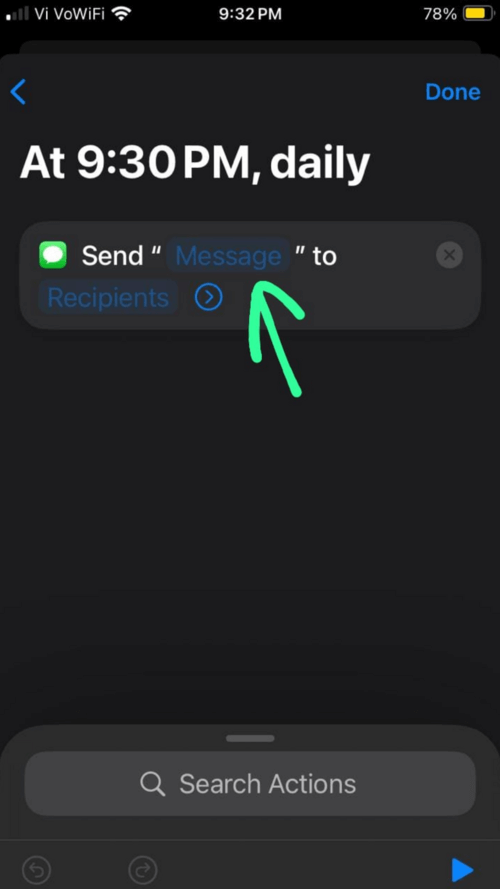
11. Now tap on Message as in the image below.
12. Then type in your message.
13. Tap on Done.
14. The automated recurring message is now scheduled.
15. You can stop the recurring message at any time by following the steps:
- Open the Shortcuts app
- Tap on Automation
- Swipe left on the automation you want to stop recurring
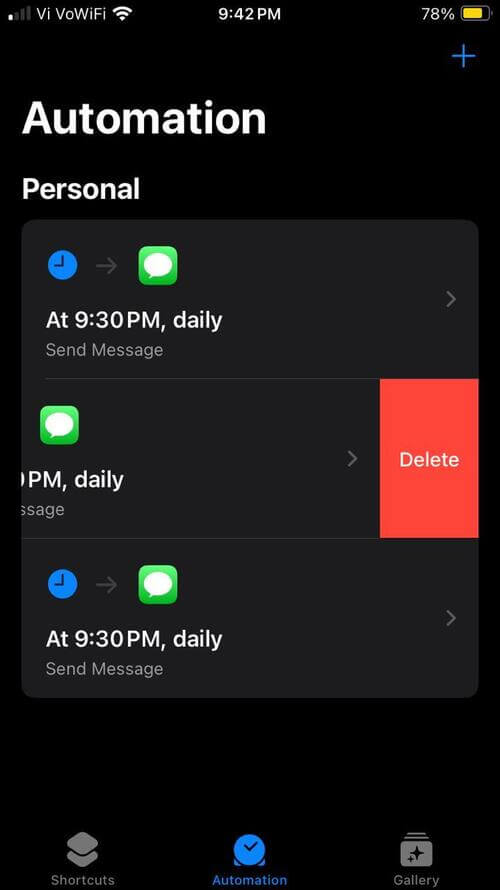
16. Tap on Delete.
If you don’t want to schedule a recurring message, you can use a third-party application to schedule a text message. Watch this short reel illustrating the benefits of the Shortcuts app.
Ways to Schedule Send a Text on iPhone Using iPhone Text Scheduler
Some of the best apps for scheduling a text message on an iPhone are:
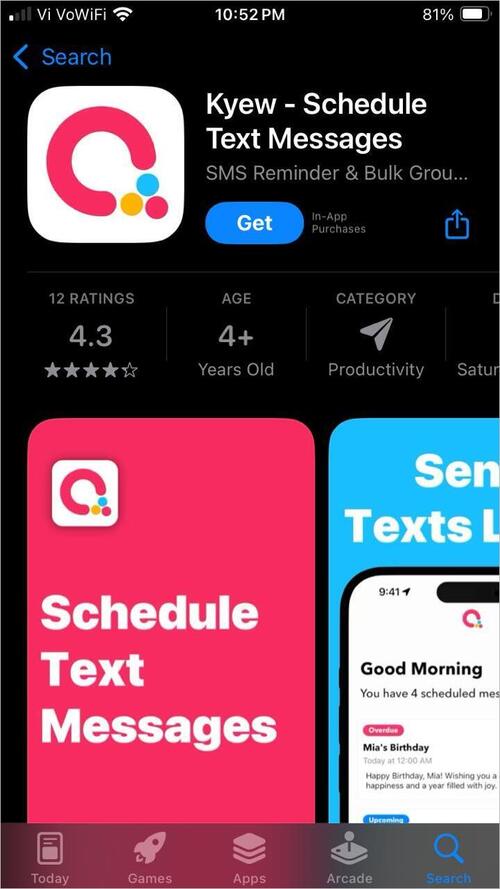
- Kyew: It allows users to,
- Schedule text messages to send later
- Mass text bulk SMS
- Send recurring messages
- Add photos, videos, and files to the message
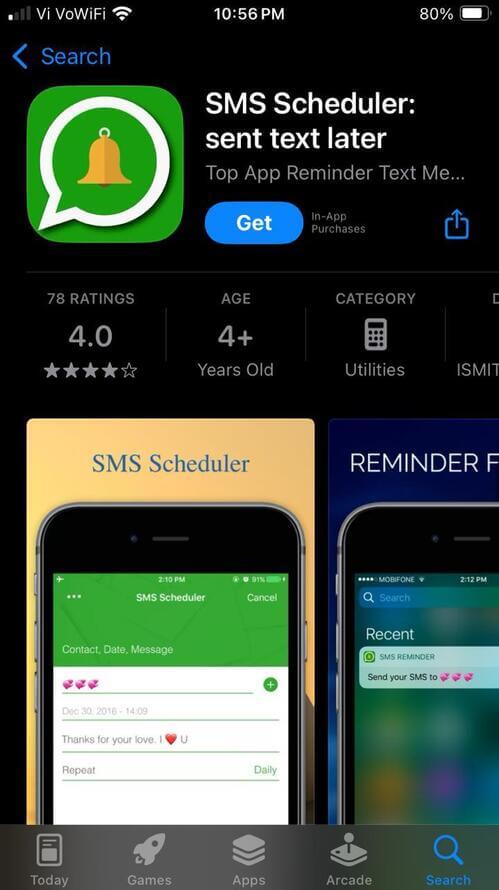
- SMS Scheduler: This app offers the following features,
- Reminds users to send a message with the chosen frequency
- Send a scheduled message
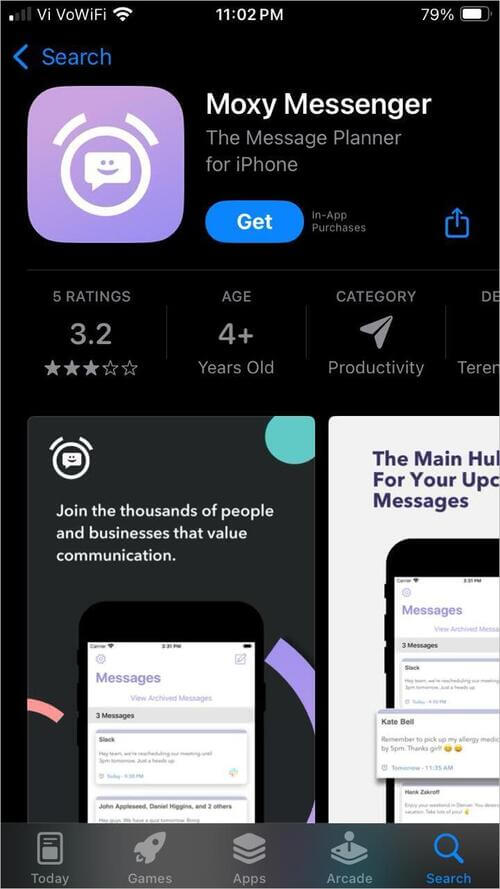
- Moxy Messenger: With this app, you can
- Schedule texts and emails
- Set reminders
- Let’s you schedule unlimited messages
- Supports SMS, iMessage, Apple Mail, Google Mail, WhatsApp, and group messages.
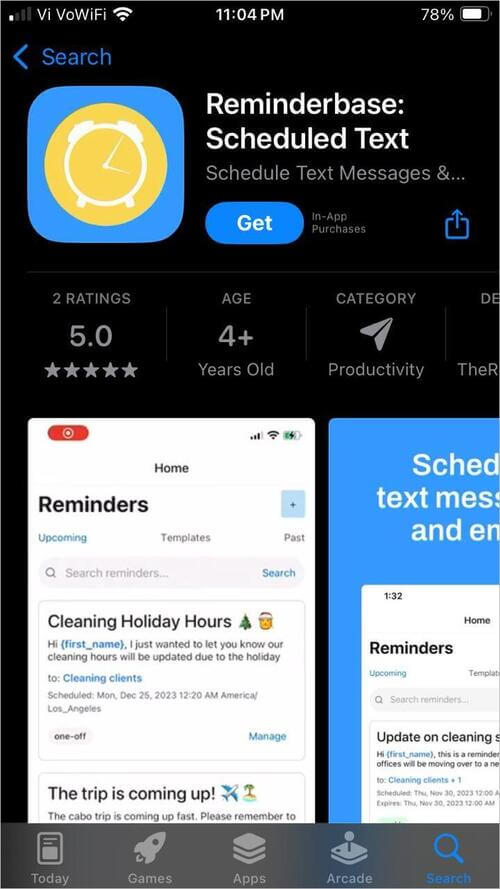
- Reminderbase: This app allows users to
- Schedule text messages and emails
- Add images to the text
- Import appointments to set reminders
- Send text messages in bulk.
How to Schedule a Text on iPhone to Android
You can schedule a text from an iPhone to an Android using third-party apps. Several third-party apps are straightforward to use and allow users to send scheduled messages for free.
Note: The iMessages app does not allow you to schedule a text to Android phones.
Comparing Methods for Scheduling Texts on iPhones
| Send Later through iMessages | Shortcuts | Third-party apps | |
|---|---|---|---|
| Features | Lets you insert images, audio to the message; You can schedule a message up to 14 days prior to sending; You can edit the text or the date and time of the scheduled message before it gets sent to the receiver. | Lets you automate recurring messages; Lets you schedule unlimited messages. | Offer advanced features for bulk scheduling of texts; Allow you to insert images, audios and videos in the messages. |
| Pros | No need to download another app. | Comes in-built in most of the iPhone models | Unlimited scheduling. |
| Compatibility | Not compatible with all iPhone models | Works on all iPhones | You can easily find an app compatible for your device, from the App Store. |
| Price | Free | Free | Scheduling a text message is usually free with most of the third party apps. But they contain in-app purchases for premium features. |
| Ease of use |  |  | |
| Reliability | Reliable | Reliable app | Reliable if downloaded from the App Store |
| Suitable for | Personal use | Personal and professional use | They can be quite useful for personal as well as professional use. |
| Advice | This feature is the best for scheduling a text quickly. But if you want more advanced features (like bulk sending at once), try third-party apps from the App Store. | If you don’t want to download a new application in your phone, you can use Shortcuts. | Many third-party apps offer advanced features like bulk scheduling of texts, inserting photos, videos and files to the message, and much more. |
Issues While Scheduling Text Messages on iPhone and How to Fix Them
Users may face issues when scheduling a text on an iPhone if the Shortcuts automation is not enabled properly or if notifications are turned off. In the section below, we will see some of the common issues faced by users and the respective troubleshooting steps.
1. “Send Later” isn’t Functioning:
Your phone might have these problems if Send Later isn’t working:
- Your phone may need an update. Check for updates in your phone’s settings.
- iMessage works with a Wi-Fi network or mobile data. Make sure one of them is on.
- With iMessage Send Later, you can send messages to iOS users only. If you are trying to send it to an Android phone, it won’t work. You’ll have to use a third-party application for that purpose.
- Check whether or not iMessage is enabled on your iPhone. Go to Settings, then select Messages, and then turn iMessage ON if it was off.
2. “Send Later” is not Visible:
Here’s why the Send Later option might be missing from your phone:
- Your phone may not be compatible with it. Make sure you are using iOS 18 or later versions if you want to use the Send Later feature.
- There can be a bug. Try restarting the phone.
- Check for system updates.
3. The Send Later feature Vanishes when Messaging Android users:
Yes, the Send Later option will disappear if you try to send a message to an Android user. The message will automatically convert into a standard SMS or MMS message. This is because the Send Later feature is available in iMessages, and through iMessages, you can send messages to iOS users only.
4. Send Later Feature Compatibility Issues:
To use the Send Later feature, you must have one of the following devices:
- iOS 18
- iPadOS 18
- MacOS Sequoia
- WatchOS 11
- VisionOS 2, or later.
The Send Later feature works only on these devices or their later versions.
5. What happens when your iPhone is Offline at the scheduled send time:
You don’t need to worry about connecting your device to the internet at the scheduled time, because the message will get sent at its time, even if your device is off. This is because the Apple servers encrypt and store the Send Later messages until they are sent.
Frequently Asked Questions
1. Can I send a delayed SMS on my iPhone?
iOS 18 users can send delayed SMS to their contacts using iMessages by following these simple steps:
• Go to iMessages app
• Open a chat
• Tap on the + icon
• Select the option – Send Later
• Now select Date and Time for the message to be sent on
• Type the Message in the text field
• Tap on the Send icon.
If you don’t have this feature on your iPhone, you can use the Shortcuts app, which lets users automate recurring messages to be sent at a specific time each day, or specific days of each week, or dates of every month. Or else you can download a third-party app for this purpose.
2. How to schedule a message on iMessage?
If your iPhone supports this feature, you can schedule a message by doing as stated under:
• Go to the iMessages app
• Open a Chat
• Tap on the + icon
• Select the option- Send Later
• Now select the Date and Time to schedule the message
• Now enter the text inside the text field.
• If you want to insert photos, audio, etc. then tap on the + icon again, then tap on the desired option (for adding an image/audio etc.)
• Now tap on the Send option. The message will be sent at the scheduled time.
3. Where is send later option on the iPhone?
Send Later option is available in iMessages. Open iMessages, then tap on a conversation. You will see a ‘+’ icon beside the text input field. Tap on it.
Then you will see a list of options, including Send Later. Select it, and then set the Date and Time for scheduling your message to be sent at a specific time later.
4. Can you schedule a text message on Android?
This depends on the features offered by your Android model. Most of the new models offer this feature. You can schedule a text message on an Android by following these steps (the steps would vary with different Android models):
• Go to Messages
• Tap on the Search icon
• Enter the name of the contact to whom you want to send a scheduled message
• Tap on the contact result you get
• Now click the ‘+’ icon located beside the text input field
• Select Schedule Send
• Select Date and Time and then tap on Set.
• Now, input your message
• Tap the send icon.
5. Why can’t I receive Messages on iMessage?
There can be several reasons why you cannot receive messages on iMessage, for example:
• You must have an internet connection to send or receive messages through iMessages. So, check your internet connection if you are facing issues.
• Check whether iMessage is turned on or not in your iPhone’s settings, by following these steps:
a. Go to Settings
b. Now select Messages
c. Make sure iMessage is Turned ON.
d. If it was already turned on, then turn it off and then immediately turn it back on. This can fix glitches (if there are any).
• Check for system updates. Sometimes the functions of a smartphone behave abruptly when there is a pending software update.
Conclusion
The conclusion will offer you an understanding of how to schedule messages to your contacts in the best way.
If you want to schedule texts for personal use:
- The Send Later option available on the iMessages app is the best. It is easy to use, reliable, free, and does not require you to download an additional app for this purpose.
- For automating daily, weekly, or monthly recurring messages, the Shortcuts app is the best option.
- Third-party apps are easier to use than the Shortcuts app. Plus, they can provide a wider set of features for texting and scheduling at a centralised place.
If you want a scheduler for professional use:
- The Send Later option in the iMessage app may fall short of features that you would like to have. It allows you to schedule one message at a time.
- The Shortcuts app can schedule many messages at a time (by adding multiple contacts to the recipients list). It is used to schedule recurring messages. If you want the recurring message to stop, just delete the scheduled message at any time.
- You can look for a third-party app for professional use, based on your unique requirements. They offer advanced scheduling features like scheduling texts and emails, bulk scheduling, and more.
Research Process:
The research process focuses on understanding the real problems users face when scheduling text messages on iPhone, exploring how iOS and the Shortcuts app actually work, reviewing common user searches and support discussions, checking Apple’s official guidance, and then matching each issue with simple, proven fixes.
Total time taken to research and publish this Guide: 50 Hours (Approx)
For more iPhone-related guides, you can explore our range of tutorials below:
- How to Ping iPhone from Apple Watch and Vice Versa
- How to Use Apple AirTag for Android Devices
- How to Fix If Your Apple CarPlay Not Working
- How to Request Desktop Site on iPhone
- How to Create and Send a Poll in iMessage on iPhone and iPad
- How to Set Timer on Your iPhone Camera (Easy Ways)
- How to Fix Find My iPhone Not Updating Location
- How to Share Your Location on iPhone with Others
- Why Am I Not Receiving Emails on iPhone
- How Do Apple AirTags Work: Pricing, Range & Setup Process
Was this helpful?
Recommended Reading
-

Review and Comparison of the top free SMS Tracking Apps Without Target Phone. Pick the best SMS Tracker of your choice from this exclusive list: From knowing your child is safe at all times to catching a cheating spouse in the act, one could have many legitimate reasons to track…
-

Here you will find a review of the top Mass Text Messaging Services. Compare the features, pros, cons, etc to identify the best mass texting service: Bulk text messaging services are invaluable for marketing goods and services to prospective customers. Bulk messaging campaigns help boost the visibility of the brand…
-
Are you worried about blocking spam messages on your Android phone? This tutorial explains methods for How to Block Text Messages: SMS is hardly ever used anymore for communication. Traditional text messages have been surpassed by instant messaging apps. SMS is still useful for receiving alerts and information, though. When…
-

Deeply explore how to ping iPhone from Apple Watch and locate your misplaced device quickly. This feature of how to ping Apple watch makes your phone emit a sound even when it is in silent mode: iPhone users can locate their iPhones by pinging them from an Apple Watch. When…