


This tutorial explains how to open EPUB Files on Windows, Mac, or Android and different browsers using free tools and plugins to access your digital books.
EPUB is one of the most widely used eBook formats, but many users are unsure how to open an EPUB file on different devices. Whether you’re using Windows, Mac, or Android, opening EPUB files is easy once you have the right reader.
In this guide, I’ll show you the simplest and easiest ways to open and read EPUB files across different platforms, including free apps, tools and browser plugins, so you can start reading without any hassle.
Table of Contents:
- What is an EPUB File
- Best Free EPUB Readers for Windows, Mac, and Android
- #1) Epubor
- #2) Adobe Digital Editions For Windows And Mac OS X
- #3) Calibre For Windows And Mac OS X
- #4) Kobo App For Windows And Mac OS X
- #5) Microsoft Edge For Windows 8 and 10
- #6) iBooks for iOS
- #7) Google Play Books for Android
- #8) Universal Book Reader for Android
- #9) ePUB Reader for Windows
- #10) Converting EPUBs for Kindle
- #11) Browser Plugins Like EPUB Reader
- Common Issues When Opening EPUB Files and How to Fix Them
- Frequently Asked Questions About EPUB Files
- Conclusion
What is an EPUB File

EPUB is a popular digital eBook format used for storing and reading books, magazines, and other written content on electronic devices.
The file type is called EPUB, which is short for Electronic Publication. The beauty of EPUB is that the text and images will scale to fit the different sizes of screens.
Unlike PDF files, EPUB files offer the flexibility of changing the font size, style, and layout, which makes them the best choice for use in eReaders and other portable devices. Due to this flexibility and compatibility, the EPUB format is used in most eBook applications and platforms.
Suggested Reading =>> Popular Epub Viewer software
Recommended OS Repair Tool – Outbyte PC Repair
In the event you are unable to open epub files on your PC, we suggest you use the Outbyte PC Repair tool to fix the problem. The software serves as a magnificent vulnerability scanner that checks the system for errors and automatically resolves them.
Outbyte might check your system for missing or damaged files, malware, or unwanted programs that might be preventing you from opening epub files and suggest corrective steps to resolve the issue.
Features:
- Full System PC Scan
- Privacy protection
- Check the system for updates
- Identify and remove malicious files and programs.
Best Free EPUB Readers for Windows, Mac, and Android
Some devices support EPUB files while for others, there is a handful of software that you can use for accessing them. Here’s how you open an EPUB file format on different platforms.
#1) Epubor
Epubor offers its users a ton of free to read eBooks on its platform. Besides this, it also offers Mac and Windows software that can be used to remove DRM, convert eBooks into other formats, and decrypt Google, Kindle, Adobe, Kobo, and Sony books.
To use the software to open ePub files:
- Download and install the file on your system
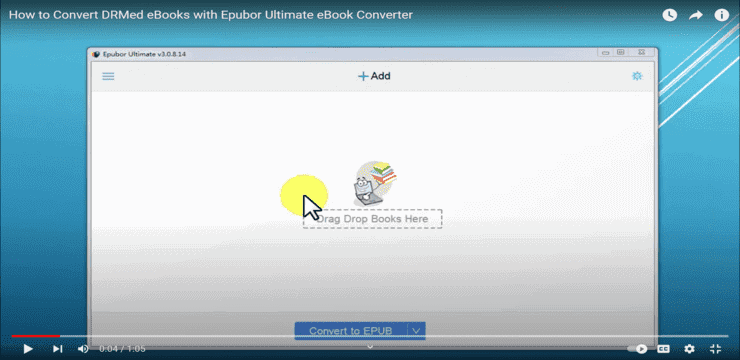
- Launch it and add an ePub file you wish to read.
- Then, simply click on it to start reading.
Price: Windows: $24.99, Mac: $29.99
#2) Adobe Digital Editions For Windows And Mac OS X
ADE or Adobe Digital Editions is yet another option you can use for Windows and Mac OS X to open EPUB files.
- Download ADE on your system.
- Click on Files
- Select Add to Library

- Select the EPUB file you want to open
- Click Ok
Now double click on the file to start reading it.
Price: Free
Visit Adobe Digital Editions Website >>
#3) Calibre For Windows And Mac OS X
Calibre is the best option for opening an EPUB file on Windows and Mac OS X. It supports almost all ebook file formats and hence is said to be the most powerful tool of its kind. Its library management features are outstanding and it is easier to share books with others and on your devices using Calibre.
- Download and install Calibre on your laptop.
- Click on “Add Books”

- Select the book you want to add
- Click Ok
OR,
- Right-click on the book you want to open.
- Select Open With
- Click on Calibre.
- If you don’t find it in the list, click on More Options
- Select Calibre
- Click Ok
Your EPUB book will appear in Calibre. Just click on it and start reading.
Price: Free
Website: Calibre
#4) Kobo App For Windows And Mac OS X
Kobo app is yet another good option for opening EPUB files on Windows and Mac OS X. You can also use it on your Blackberry.
- Install the app.
- Launch it and click on Update Library.

- It will scan your system for EPUB files and add them to your library. Double click on the book you want to read.
- Use left and right arrows for flipping through the pages.
If you don’t want all the EPUB files in the app, select the ones you want to add, right-click on it and go to the Open With option. Now, select Kobo and click on OK.
Price: Free
Website: Kobo
#5) Microsoft Edge For Windows 8 and 10

[image source]
If you are using Windows 8 or 10, you can use Microsoft Edge, the older version to open EPUB files. It is a pre-installed browser that comes with your system. Just double-click on the EPUB you want to open or right-click on the files, select open with and click on Edge.
Suggested reading =>> How to uninstall Microsoft Edge
Price: Free
Website: Microsoft Edge
#6) iBooks for iOS
iBooks app on iOS is more than capable to open EPUB files, however, getting these files on an iOS device is a challenge. But if you already have an EPUB file on your iPhone, all you have to do is tap on the file, it will add itself to iBooks, a pre-installed app on your iPhone. Then you can click on the My Books options on your iPhone to find and read your EPUB books. Other ways to open the file format on your iOS are:
- Tap on the EPUB file
- Click on the share button

[image source]
- Tap on Open in.
- From the Open menu pop up, select open in iBooks
This will open your EPUB file on your iOS device. Or,
- Email the file to yourself as an attachment.
- Download the file.
- Tap on it to go to the Open menu
- Select open in iBooks.
Price: Free
Website: iBooks
#7) Google Play Books for Android
Google Play Books is a free ebook reader for Android.

To get the app, follow the steps below:
- Open Google Play Store
- Search for Google Play Books
- Click on Install
- Click Accept
- Launch Google Play Books
- Tap the menu icon, the three horizontal bars at the top left corner.
- Go to settings
- Click Enable PDF Uploading to allow PDF upload as well along with EPUB.
- If you have the file on your Android device, click on it and it will open in Google Play Books, if not
- Mail yourself the file
- From your Android device, access your email and download the attachment.
- And then click on the EPUB file to open it.
Price: Free
Website: Google Play Books
#8) Universal Book Reader for Android
Universal Book Reader is another good option for opening EPUB files on your device.

If you have the files on your Android device, here’s how you can open them using Universal Book reader:
- Download and install the latest version of the app.
- Launch Universal Book Reader.
- Click on the Bookshelf.
- Select Yes when the app asks if you want to import all the ebooks.
- You will be able to see all the ebooks in the app.
Now, open the one you want to read.
Website: Universal Book Reader
#9) ePUB Reader for Windows
ePUB Reader is the best way to open EPUB files on Windows phones.

- Download and install the ePUB Reader.
- Save your EPUB files on SkyDrive
- Open the app
- Swipe right twice and you will be on the Source page.
- Tap on Sky Drive and sign in.
- Select the EPUB file you want to open
You will be able to read the file now.
Price: $2.59
Website: ePUB Reader
#10) Converting EPUBs for Kindle
To read EPUBs on Kindle, you will need to convert them to MOBI format. You can use Cloud Convert to do the job.
- Open Cloud Convert
- In the convert section, select EPUB
- In the To section, select MOBI

- Now, click on the select file option
- Go to the file you want to convert.
- Select and click ok.
- Click on convert.
- When the file is converted, click on Download.
- The file will be downloaded on your device.
- Connect your Kindle to the device.
- Click on the Kindle’s name to open it on your system.
- Drag and drop the MOBI file in your kindle, or copy and paste it.
- When you are done, eject your kindle.
Now, you can read your ebook on your Kindle.
Also read =>> Converting PDF Format to Kindle Format
Price: Free
Website: Converting EPUBs
#11) Browser Plugins Like EPUB Reader
You can also use your browser to open the EPUB files. There are many good extensions and plug-ins available for browsers that can open this file format for you. Now that Edge from Microsoft is based on Google’s Chromium engine, all the extensions that are available for Chrome should be available for both Edge and Opera. Firefox has its own library, so you will have to search for a suitable extension.
EPUB Reader is a popular extension for Chrome that is used for opening EPUB files. It is free and extremely simple to use. Once you add the extension to your browser, all you have to do is click on the EPUB file and it will open in your browser. If you have a file downloaded, right-click on it, go to the Open With option, and select your browser.
To add the extension, follow these steps:
- Search for the extension in your browser.
- Click on Add to Chrome

- You will be able to see the icon on the top right corner of your toolbar.

- Click on the three vertical dots on the extreme right.
- Go to more tools
- Select Extensions

- It will take you to the extensions page.
- Drag the switch to the right side to enable the extension.

- To open an EPUB file, click on the EPUB Reader icon.
- You will see a folder icon

- Click on the folder to find the EPUB file.
- Double-click on it to open it.
You will be able to read your EPUB book on your browser.
Price: Free
Website: Browser Plugins
Common Issues When Opening EPUB Files and How to Fix Them
There are instances where you may experience some errors while opening an EPUB file. Some common problems that occur while reading EPUB files, along with their solutions, are as follows:
EPUB File Won’t Open: This issue is normally due to the file being corrupted or the reader app not fully supporting the EPUB file format. The file should be opened using a different reader app, or the file should be re-downloaded from a trusted source.
EPUB Shows Formatting or Layout Issues: If text appears to be broken or images are not loading correctly, this does not necessarily mean that the EPUB file is faulty, merely that it is not fully compatible with the current application being used to open the file. The application itself may need updating, or the file needs to be opened within a different application, such as Calibre.”
EPUB File Opens as ZIP or Unknown Format: EPUB files are actually ZIP archives. If your device recognizes the file as a ZIP archive, ensure the file extension is .epub and use an EPUB reader instead of a file extractor.
EPUB Not Opening on Mobile Devices: This is often due to missing reader applications or denied storage permissions on an Android device. You should install a trusted EPUB reader application and allow it access to device storage.
DRM-Protected EPUB Files: Some EPUB files are DRM-protected and can be opened using particular apps, which are connected to the original store where the purchase was made. Use the official app, which is associated with the purchase of the file.
Also Read =>> Comparison of Best EBook Readers
Frequently Asked Questions About EPUB Files
1. How can I open an EPUB file on my phone?
You can use Google Play Books to open an EPUB file on your phone. You can also go for a universal book reader to open the EPUB digital book on your phone.
2. Can I open an EPUB file on Adobe Reader?
You can use Adobe Digital Editions to open your EPUB files on Mac and Windows. To open them on Adobe reader, you will have to convert EPUB files to PDF file format.
Recommended reading =>> Steps to convert Kindle books to PDF file
3. Can I read an EPUB file on Chromebook?
You can use the OverDrive app to read an EPUB book on your Chromebook. Borrow the book you want to read, select the bookshelf in the app and click on the ebook in the app to read it. You can also use the Chrome browser.
4. How can I open an EPUB file on my Nook?
If your Nook is DRM-protected, you can’t. If it’s not, hook your Nook to your computer and drag and drop the EPUB file to My Documents folder on your Nook. You should be able to read the book with just a click.
Conclusion
Hopefully, this guide will assist you in opening and reading an EPUB file on any device and operating system without any issues.
It is obvious that the process of opening an EPUB file is quite simple as long as the appropriate application is being used. Whether the operating systems are Windows, Mac, or Android, most EPUB files can be opened quite easily without any problems.
In the event that a problem occurs, such as the file not being opened or the layout not being proper, another application can be used to help fix the problem and open the file.
Research Process:
- This guide is based on hands-on use of popular EPUB readers, along with common issues people run into when opening EPUB files. I tried the tools across different devices and cross-checked what actually works in everyday use.
- Total time taken to research and publish this Guide: 40 Hours (Approx)
Was this helpful?
Recommended Reading
-

In-depth review of popular Epub viewer software with features, pricing, and comparison. Select the best Epub reader platform for reading eBooks: Even in the advent of the digital age, books have still held a stronghold over entertainment, knowledge, and infotainment. The fact that books are still been relevant today despite…
-
Comprehensive review and comparison of the best Readers to help you select the best eBook Reader based on your requirements and budget: In today's world, it's quite fascinating to learn about the relevance that books have even with the onslaught of entertainment options at our disposal. Their transition into digital…
-
This Tutorial Explains What is a .JSON File Format and Discusses Various Softwares Tools to Open a JSON File in Windows, Mac, Linux & Android: Most of you must have struggled to open a JSON file at some point in time. In this tutorial, we will discuss all about the…
-
This Hands-on Tutorial Explains What is a Zip File, How to Create and Open a Zip File on Windows, Mac, Android & iOS using ZIP File Opener Utilities: ZIP archive format is the most widely used archive file format. These formats are useful when we wish to transfer large files…
-
This tutorial explains what a .BIN file is, how to open BIN files with or without using a program, how to convert BIN to ISO, and the best apps to open and read .BIN files on your PC. You may have come across the .BIN file extension and wondered what…
-
In this guide, I’ll explain how to open CAL file on Windows and Mac and which CAL file viewer tools work best. This guide will help you open CAL file Step-by-step using the best CAL file viewers quickly and easily. A .CAL file can be confusing if you’re not sure…
-
If you are looking for ways to open EPS file, then this guide will walk you step by step through using different Graphic design software and EPS file viewer tools. Before you attempt to open the file, there are certain things you must know. But first things first .EPS file…
-
Struggling to open or watch MKV files? This tutorial covers the best tools to open MKV files on Windows, Mac, Android & iOS. You’ll also learn how to convert MKV files to MP4 for smoother playback on any device. The VLC media player is the best way to open and…


