Are you curious how to open MKV files and how to play MKV files on Windows, Mac, Android, iPhone, or Smart TV? This guide is going to walk you step by step through opening and watching an MKV file.
The VLC media player is the best way to open and play an .MKV file. You can also use Windows Media Player, DivX Player, etc., or you can use media codecs. You can even convert them to an easily readable file format like AVI or MP4.
In this guide, we’ll show you how to open and play MKV files on Windows 11/10, Mac, Android, iPhone/iPad, and Smart TVs using compatible media players such as VLC. We’ll also explain why some MKV files fail to play, how codecs affect playback, and when converting MKV to MP4 is actually necessary.

Play MKV Files in Browser Without Installing any Software
Want to Play your MKV file but you do not feel like downloading VLC or any other media player software? Then this player is the solution for you. This free web-based player allows you to upload (through drag-and-drop or browsing) your .mkv file and play it immediately, directly on this webpage.
Upload your MKV file below:
STH MKV Player
Please pay attention: most contemporary MKV files (H.264/VP9 video and AAC/Opus audio) should be supported by this player, but older files using less popular codecs might not play in the browser. If this occurs, then the player will notify you and suggest a way to convert your file for free.
What is a MKV File?
Matroska video files, or MKV is a file type of video that is used for containing movies or TV series in a single file format. The uniqueness of MKV is that it is able to contain video, audio, subtitles, and chapters in a single file format, rather than in different file formats. This makes it very useful for containing high-quality videos and downloading movies.
You may come across MKV files while working with HD or 4K videos. However, opening these files is not possible on all devices. This is why you may require a supportive media player to open and play them. In the next section, we will discuss three of the best tools or software used to open and play MKV files.
MKV files originated in 2002 in Russia. They are open-source and available for free. With time, the format improved, and it became the basis for the WebM multimedia format.
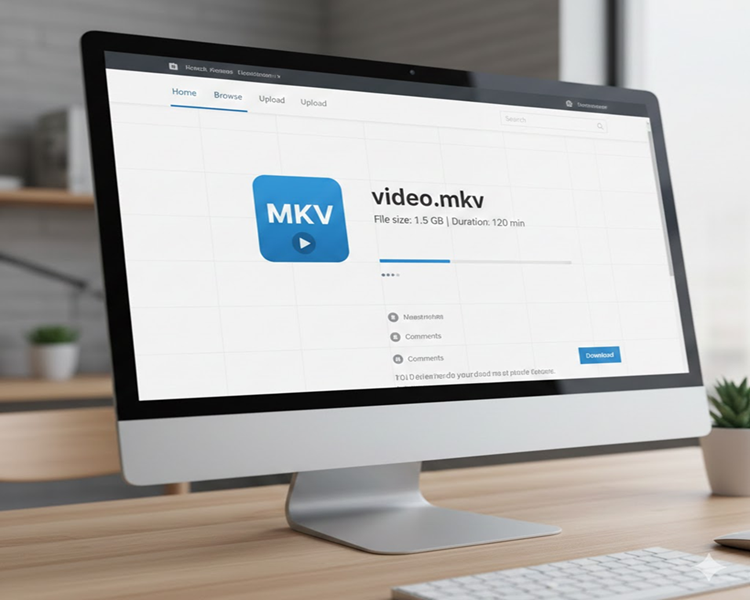

Characteristics of the MKV Format.
- The Universal Container: It works with almost any video and audio compression format and is perfect for the archive of high-definition movies and anime.
- Advanced Features: The MKV has a unique ability to store all the Blu-ray disc features including chapters, menus, metadata, and audio/subtitle switchability.
- No Loss in Quality: It is not compressing the media, but just storing it. Therefore, the MKV rip would be of the same quality as the original one.
- Hard to Play: Due to its open-source nature and advanced capabilities, the standard players like Windows Media Player or older mobile default players sometimes struggle to play them without third-party codecs or specialized software.
How to Open MKV Files on Windows 11/10 and Mac (2026 Guide)
You can use any of the following tools to open MKV files:
#1) Play MKV Files Using VLC Media Player

[Via enterinit]
VLC is the most popular media player that can open .mkv files. It can be used for all operating systems: Windows, Mac, iOS, and Android.
Steps to use VLC to open the MKV file:
- Download VLC media player from the App Store or Google Play Store
- Install the freeware
- Run VLC
- Use a corresponding button or drag-and-drop option to add your MKV file to VLC
- Click Play
You can also make VLC your default player for opening and playing MKV files. Then you can open them just with a double-click.
For Windows:
- Go to the MKV file you want to open
- Right-click on the MKV file
- Select Open With option

- Go to Choose Another App.

- Check the box next to Always use this app to open the .mkv files option.

- Hit Ok to save the changes.
Price: Free
Download from: https://www.videolan.org/vlc/download-windows.html
#2) DivX

DivX is an award-winning video software with which you can play various files like DivX, AVI, MKV, etc. on your Mac and Windows devices. The download package includes DivX Player for high-quality video playback, DivX Converter for converting videos, and DivX Media Server to cast media from your computer to your TV.
Steps to Open MKV File with DivX:
- Download and install DivX.
- Open DivX Player and go to Files.

- Click on the option and select the Open Video option.

- Now find the MKV file you want to open and play it.
- If you can’t play the MKV file, you can use the DivX converter to convert the MKV file into another file format.
- Open the DivX converter.
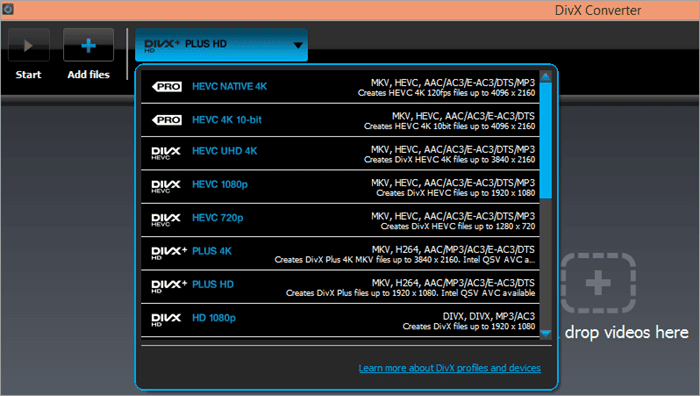
- Go to the Add Files option or drag and drop the video.

- Next to Add Files are the options for the output files; pick one.
- At the bottom right-hand-side corner, select where you want to save the output file.
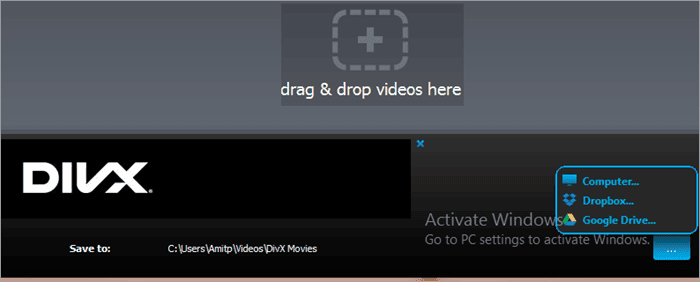
Now you can open this converted MKV file in DivX.
Price: Free
Download from: https://www.divx.com/en/software/divx
#3) BSPlayer
It is a media player that you can use to open files like MKV. It is suitable for users of less capable computers and has over 70 million users.

Steps to open MKV File with BSPlayer:
- Download and install BSPlayer
- Launch the player
- Right-click on the player

- Go to the Open File option
- Find the file and select it
- Click Ok
Now the MKV file will open
Price: Free. However, you can buy the Pro for 29.90 USD for more features.
Download from: http://www.bsplayer.com/bsplayer-english/download-free.html
How to Play MKV Files on Mac
Use a Dedicated Mac Media Player (Recommended) Rather than trying to convert the file, install a free third-party media player which will decode MKV files automatically:
- IINA – Native Mac application for macOS optimized for Apple Silicon with clean scrubbing and HDR support.
- VLC Media Player – Cross-platform media player which can open almost any MKV file without additional setup.
- Use the finder to pick the MKV file
- Right-click on the file
- Select Get Info to open the info window
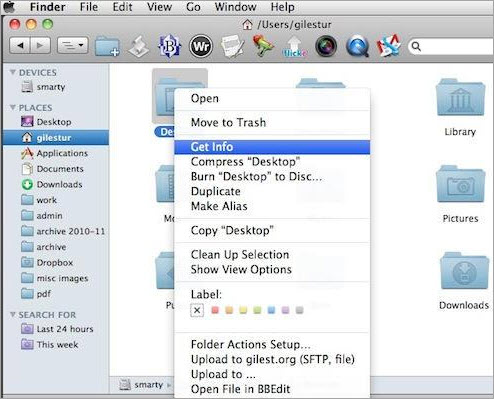
In the window, click on the triangle beside the Open With option.
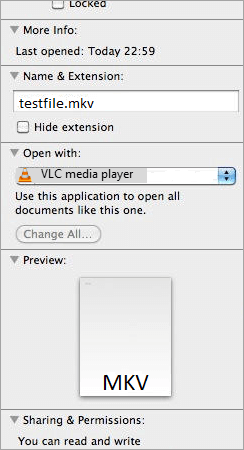
- Select VLC from the app list.
- Click Change All to open all MKV files with VLC.
Can QuickTime Player Open MKV Files?
No, QuickTime Player does not have native capability to handle or playback MKV files.
QuickTime was designed to handle only the selected formats of file containers by Apple (.mov, .mp4, and .m4v), and because of the absence of the MKV container profile, double-clicking an .mkv file will prompt an error message.
How to Play MKV Files on iPhone and iPad
The native apps like Photos or Files will not be able to open MKV videos on iOS devices since there is no native iOS decoder supporting the Matroska container format.
If you want to watch MKV videos on an iPhone or an iPad, you have to install a special third-party iOS media player that can read the file and which comes with internal codecs.
VLC for Mobile (best free alternative):
- It is an 100% free application with no ads or additional in-app purchases.
- It Plays MKV containers without any problems, supports multi-track audio and subtitles and allows you to transfer files using Wi-Fi network directly to the app.
Steps to use it:
- Download VLC for Mobile or Infuse from the App Store.
- Open the Files app and find the downloaded .mkv file.
- Tap on the file > choose the Share icon (it is a square with an upward arrow).
- Choose VLC or Infuse from the list of applications to start playing the video.
How to Play MKV Files on Android
To play MKV files on Android devices, download a third-party media player application from the Google Play Store since the native gallery applications do not contain decoder plugins for MKV containers and embedded audio formats like AC3 and DTS.
Top 3 Apps to Open MKV Files on Android
- VLC for Android (Recommended)
- Best For: Free to use playback without any advertisements and paid content.
- Key Features: Multi-track audio support, embedded subtitles, hardware decoding capabilities.
- Steps To use: Download VLC for Android app → Allow access to Storage → Select your file in Directories or Video section.
2) MX Player
Best For: Multi-Gesture controls (Swiping for controlling volume, brightness and seek bars) and hardware optimization for multi-core processors.
Tip: In case you face problem in playing audio track from MKV in MX Player, then you have to download E-AC-3/DTS codecs.
3) BSPlayer / Nova Video Player
Best For: Automatic downloading of subtitles and online streaming of MKV files through network shares.
How to Play MKV Files on Smart TV
Direct playback of MKV files on a Smart TV may give you errors as “File Format Not Supported” or even playback of a video without sound.
Although modern Smart TVs (Samsung Tizen, LG webOS, Sony Android TV) can detect the MKV container format itself, there might be issues with the lack of in-built decoders for various audio formats (DTS or TrueHD, for example) or video codecs (HEVC/H.265) used in the file.
Method 1: Direct USB Playback via TV Media Players
The easiest way to play MKV file is with the use of USB flash disk or an external hard drive:
1. Format your USB Drive: Format your USB drive into NTFS or exFAT file system (FAT32 does not support storing MKV movie files over 4GB in size).
2. Move the File: Copy .mkv files onto your USB drive and connect it to the USB port of your Smart TV.
3. Using Player Apps
o Android TV / Google TV: You can download the VLC for Android TV or Nova Video Player from Google Play store. These apps are capable of decoding MKV audio and video streams.
o LG (webOS) & Samsung (Tizen): Launch Media Player app in the TV home dashboard, browse your connected USB drive and select the desired file.
Method 2: Using Plex Media Server (Good Option for Non-Compatible TV Models)
In case the native player of your Smart TV is not able to decode the audio or video stream, set up a Plex Media server to auto-transcode the video stream without altering the file.
• Install the Plex Media Server software on your computer (PC or Mac) and add the folder where you have stored your MKV files.
• Install the free Plex app on your Smart TV (LG, Samsung, Sony, Apple TV, Firestick).
• Log in to stream your entire MKV collection through the home Wi-Fi network
Quick Device-Based Guide to Play MKV Files on various devices
| Platform | Recommended App / Method | Native Support Status | Quick Action |
| Windows 10/11 | VLC Media Player / MPC-HC | Limited (Requires K-Lite Codec Pack or paid HEVC extension for Movies & TV) | Install VLC, right-click the file, and select Open With |
| macOS | VLC / IINA Player | None (QuickTime Player does not support MKV natively) | Drag the MKV file into IINA or VLC, or set VLC via Get Info |
| Android | VLC for Android / MX Player | Varies by manufacturer | Open the file using VLC or MX Player directly from your file manager app. |
| iPhone / iPad | VLC Mobile / Infuse | None (Native Files & Photos apps do not decode MKV) | Import the MKV file into Infuse or VLC via iTunes/Files app for instant playback. |
| Smart TV / Consoles | Plex / Kodi / USB Playback | Varies by TV model and audio codec | Store on a Plex server for auto-transcoding, or stream via Kodi on Android TV/Firestick. |
How to Fix MKV Files That Won’t Open
A MKV file cannot be played could be because of outdated software such as media players, incompatible codecs, corrupt files, or incompatibility with hardware acceleration.
Below are some steps you can undertake sequentially to resolve the issue.
Method #1: Update VLC Media Player
Old versions of VLC media player may fail to open files due to newer video codecs used inside MKV containers.
To solve the problem, follow the steps outlined below.
- Step 1: Launch VLC media player.
- Step 2: Click on Help > Check for Updates.
- Step 3: Download and install the latest version.
- Step 4: Restart VLC and try opening the MKV file again.
Method #2: Install Missing Codecs
The MKV format is a video file format that contains various codecs. When the video file does not have the required codecs installed on the computer or mobile device, MKV files may not play properly.
Common symptoms:
- Black screen but with sound
- The video file plays without audio
- Error messages when playing the file
Fix:
- Download and install a reliable codec pack.
- Use a player with built-in codec support, such as VLC.
- Verify whether the file uses H.265, DTS, or other unsupported formats.
Method #3: Disable Hardware Acceleration
The use of hardware acceleration might lead to some problems, such as stuttering, a green screen, or freezing.
How to do it in VLC:
- Go to Tools > Preferences.
- Pick the Input/Codecs tab.
- Click on Hardware-accelerated decoding.
- Disable this option.
- Apply the changes and restart VLC.
Such a solution will likely solve the problem with the playback of MKV files on old computers and laptops.
Method #4: Repair the MKV File
Sometimes, a broken download process leads to file corruption.
Possible fixes:
- Re-download the video.
- Copy the file again from the source.
- Use special software that repairs the video index.
- Test the MKV file in other media players.
Corruption signs are:
- The video stops working in the middle of playback
- No audio track is found in the file
- Crashes every time you try to open an MKV video
Method #5: Convert MKV to MP4
When your system doesn’t recognize the audio codecs contained in the MKV container format, you might consider converting it into MP4 to ensure better compatibility.
When to convert:
- Smart TV unable to play MKV videos
- Unable to view on iPhone
- Errors shown in Windows Media Player
- Unsupported Audio codecs
VLC Not Playing MKV Files? Try These Fixes
While the majority of MKV files can be played using VLC media player, some problems may arise as a result of incompatibility of the codec used, a damaged file, wrong settings, or a hardware acceleration conflict. The following troubleshooting techniques will help you enjoy smooth playback of MKV files with VLC media player.
No Audio in MKV Files
A very common problem with playing MKV files with the VLC player is a lack of sound. This typically occurs when the MKV file uses an audio codec that your system and/or VLC player cannot play.
Try these fixes: Update your VLC Player to the most recent version.
- See whether the audio track is selected via Audio -> Audio Track.
- Open the same file on other media players.
- Make sure that the speakers/headphones you’re using function properly.
- Convert the audio track to a different file format.
VLC Green Screen While Playing MKV Files
When you play MKV video files using VLC, if it shows green screens, there is an issue concerning graphical operations or hardware acceleration.
Steps for fixing the issue:
- Go to Tools -> Preferences.
- Choose Input/Codecs.
- Hardware-accelerated decoding.
- Set the value to Disabled.
- Restart the VLC player after saving the preferences.
Please make sure that you have the latest graphics drivers installed on your computer.
Subtitle Problems: MKV videos usually have more than one subtitle track. Occasions arise when the subtitles don’t appear, are wrong, or are not synced with the video.
Steps to fix:
- Click on Subtitle > Sub Track and choose the right subtitle track.
- Make sure your VLC version is up-to-date to support new subtitle types.
- Check if subtitle functionality is enabled within the VLC application.
- Find and use an external subtitle file if the current subtitle track is faulty.
- Tweak subtitle timing through VLC’s subtitle delay settings.
Media Codecs to Open MKV file on Mac and PC
In addition to the above three media players used to open MKV files, there is another method to open and play .mkv files, and that is the media codec. Using a media codec, you can encode or decode any type of digital media file.

You can find many free codecs online that you can use for this purpose. You can download K-Lite Codec Pack from here and Media Player Codec Pack from here. These two are the most popular Codec packs used to open MKV files.
A codec is a software program that compresses or decompresses videos, songs, and similar digital data media files. In fact, all media players use these codecs for creating and playing digital media files.
Pros of Codecs:
- You can play all video files using your favorite media player.
- Media codecs also allow you to reproduce various video and audio files you come across online.
Cons of Codecs:
- Since they are free, they usually carry malware and adware that might harm your PC.
- They support many multimedia files, so they might steal your hard drive space. It would be foolish to install a codec pack for playing only one video format.
How to Convert MKV Files to MP4 with Easy Tools
If for some reason, the above two methods don’t work for you, you can convert the .mkv file to formats like MP4, AVI, etc. Then you can play them on your favorite app.
#1) Freemake Video Converter
How to open .mkv file on Windows?
Well, for a Windows-based PCs, you can use Freemake Video Converter. It is a tool with a beautiful design and an easy user-interface. You also get astonishing numbers of formats for output options.

Steps to Convert MKV to MP4 or AVI with Freemake Video Converter:
- Download and install the tool in your system.
- Go to the +video button and add the MKV file. Or you can simply drag and drop the file here.
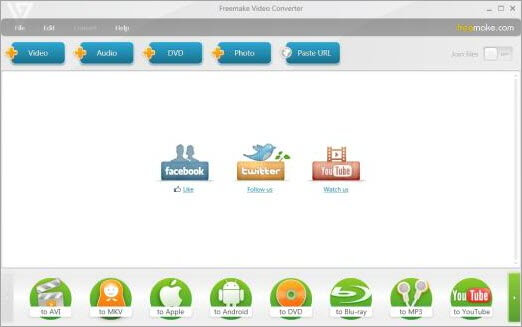
- If you need to, you can also edit the video. The software has an inbuilt editor with which you can cut, rotate, or join videos.
- Select the output format, preferably AVI or MP4.
- You can pick from a ready preset or custom create one.
- Click Convert to transform the MKV file into the selected format.
In a few minutes, you will have the converted file that you can watch later offline or upload it.
Price: Free
#2) Handbrake
If you are looking for answers to how to open mkv files on Mac, we have the answer here. Mac users can use Handbrake. It is a little complicated as compared to Freemake. But it is not that difficult to use.

Steps to Convert MKV to MP4 or AVI with Handbrake:
- Download and install Handbrake on Mac.
- Launch it.
- Go to the Open Source button to add files, or drag and drop the .mkv file.

- Pick the output format, preferably MP4, and a ready preset if you need it.
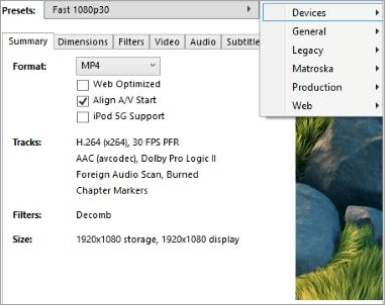
- Now go to the Audio and Subtitles tabs to select the tracks you want to keep for future files.
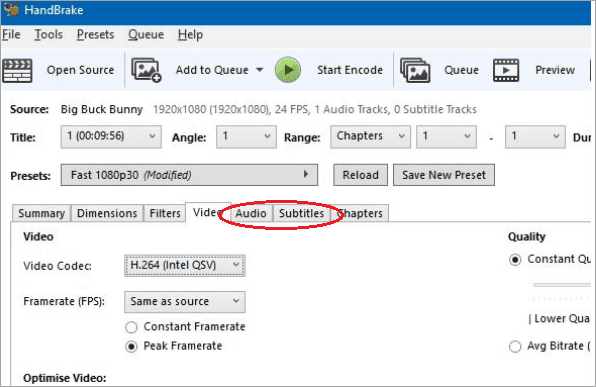
- You can also customize Codec, Framerate, bitrate, etc.
- Click Start to run the process of conversion.
In some time, you will have the converted MKV file.
Price: Free
#3) VLC
We know that the VLC player can play almost any video format. Also, it can convert them to a more universal format like MP4. You can use it for almost all the platforms.
Convert MKV to MP4 with VLC:
- Download and install VLC from its official site.
- Open VLC and go to the Media Tab. You will find it in the upper-left corner.
- From the dropdown menu select Convert/Save.

- Now click on the Add button and find the file you want to convert.
- Select the .mkv file you want to convert, then hit the Convert/Save button. You will find it at the bottom of the window. See the video here.
- In the Profile section, select Video – H.264 + MP3 (MP4).
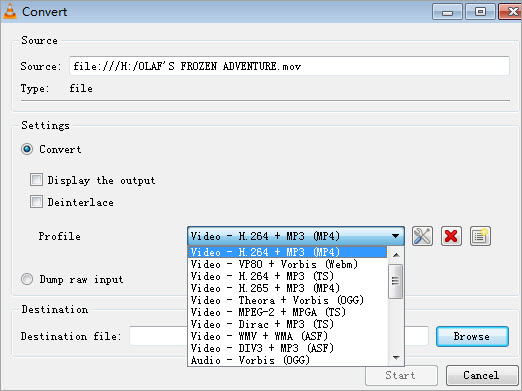
[Via enterinit]
- Now select Edit selected profile icon.
- Go to the Encapsulation tab and select MP4/MOV.
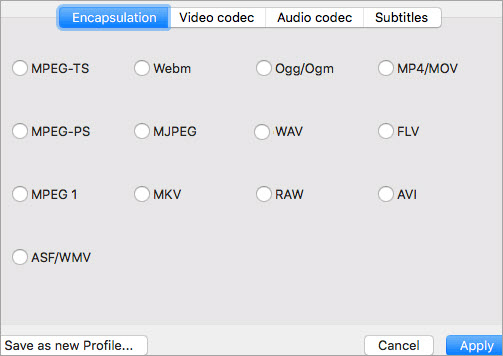
[Via EaseUS]
- Check both Video and keep the original video track on the video codec tab.
- Do the same for the audio codec tab.
- Click Save.
- Under the Destination option, specify where you want to save the output.
- Click Start.
Your video will be ready in some time.
Price: Free
#4) CloudConvert
If you would rather not download any program and want to convert MKV to MP4 Online, you can convert MKV to MP4 online. Many websites offer you this service. Cloudconvert is one of the best options available.
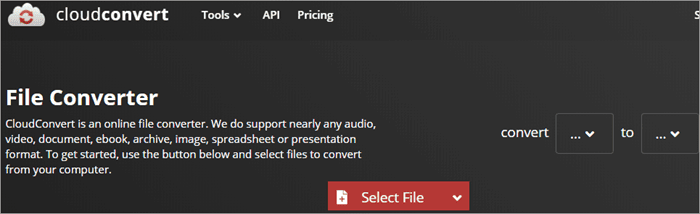
Convert MKV to MP4 using CloudConvert:
- Open the website from here and Signup.
- Go to Convert. In the first box, select MKV, and in the other select MP4. You can also use it to convert MP4 to MKV.

- Then go to the Select File option and select the file you want to convert.
- You can customize the Options.

- Then click on Start Conversion.
Your file will be ready to download and use in a while.
Price: Free
#5) Wondershare Uniconverter
If you are a Media Player fan, you will need to convert the MKV file to a format it supports to open and play it, since Media Player doesn’t support the MKV format. For this purpose, you can use Wondershare Uniconverter for both Windows and Mac.

Converting MKV File To Media Player Supported format:
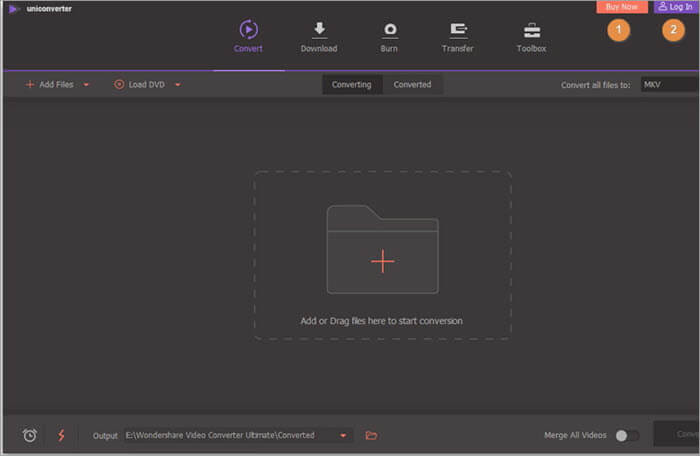
- Launch Wondershare Uniconverter.
- Click on the Add File icon on the toolbar.
[Via NAGA11 Platform
- Now, go to the folder with your MKV file.
- Click Open to import the file or just drag-and-drop the file.
- Go to the Output Format option.

[Via promo2day]
- From the dropdown menu, select a format that Media Player supports, like WMV.
- Click on the Start All button to start the conversion.
In a while, you will get the file in the selected format. You can then open it in the Media Player.
Price: You can use the free trial version, but it isn’t much help. You can buy the Annual Plan for one year, one PC at $29.95. Or, you can go for its Perpetual Plan, which is for one PC for a lifetime and is available at $45.96. Its Business Plan is available for $161.91 for 2 Pcs. For over 2 PCs, the price will vary.
#6) HitPaw Edimakor
Not every video application or device is compatible with the MKV format, especially mobile devices. For this purpose, you can’t miss HitPaw Edimakor if you want to join MP4 or VAI files effortlessly. Edimakor is a powerful yet intuitive video converter that seamlessly addresses your conversion needs, available for Windows and Mac.
Steps to Convert MKV to MP4 or AVI with HitPaw Edimakor:
- Download and install HitPaw Edimakor in your system.
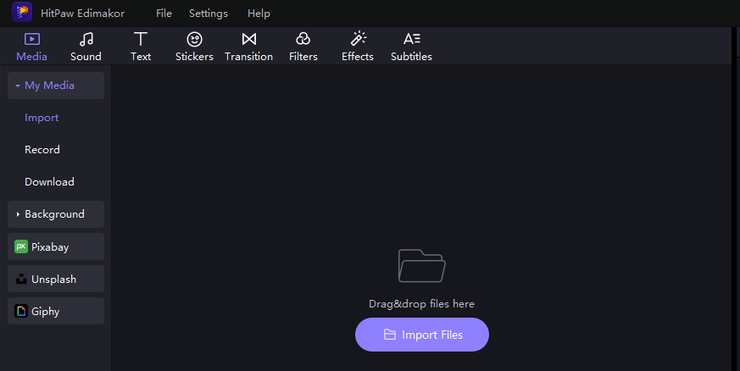
- Choose “Create a video”.
- Select “Import Files” from the Media section.
- Click on “Export” button at the top right corner.
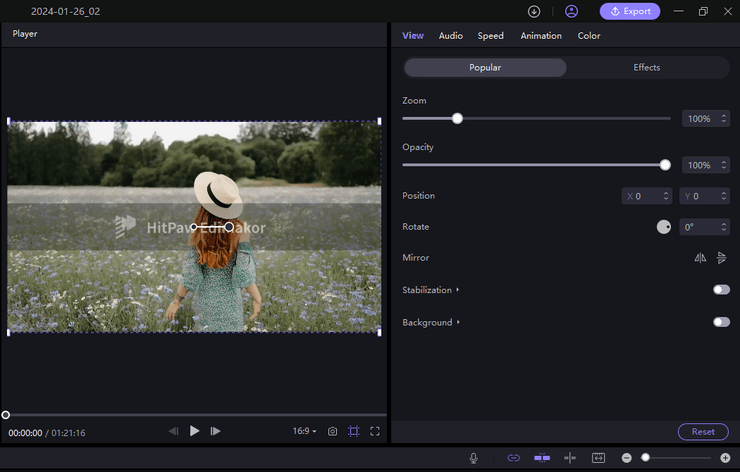
- Go to the Output Format option.

- Select a format supported by your media player from the drop-down menu, such as MP4/AVI.
- Click on Export button to start the conversion.
Price: You can use the free trial version.
FAQs About MKV File
1. Is MKV a better format than MP4?
MKV is known for converting DVDs and Blu-Ray discs to video files, while MP4 is a more widely supported format for playing video on a browser. Also, it has less file overhead. Each one is better for certain uses while not as good for others.
2. How do I convert MKV to MP4?
The easiest and quickest way to convert a .mkv file into MP4 is through VLC.
– Open VLC Media Player
– Go to Media → Convert / Save
– Click Add and select your MKV file
– Click Convert / Save
– Choose Video – H.264 + MP3 (MP4) as the profile
– Click Browse, choose a save location, and click Start
Your MKV file will be converted to MP4 and ready to use.
3. What is the best MKV Player?
There are a handful of MKV players that you can use to open MKV files. For example, you can use VLC for Windows, Mac, and Linux. DivX is a free video converter that you can use for Windows and Mac. You can simply play the MKV files on BSPlayer, which is easy to use.
4. How to play MKV files on Sony Bravia TV or Smart TV?
You can easily convert MKV files for smart TVs using Wondershare UniConverter:
– Download and install Wondershare UniConverter on your PC
– Add the MKV file using drag and drop or + Add Files
– Click the arrow next to Output Format
– Go to Device → select your TV brand (Sony, Samsung, LG, or Panasonic)
– Click Start All to begin conversion
– Once done, open the Finished tab and transfer the file to a USB drive
After this, you can plug the USB into your TV and play the video smoothly
5. How to play MKV files on Android
To play MKV files on Android, install a versatile third-party player like VLC for Android or MX Player from the Google Play Store. Once installed, simply tap the MKV file, select your newly installed player (VLC/MX Player).
6. How to open MKV file Mac
To play MKV files on a Mac, install a third-party media player like VLC, IINA, or Elmedia Player, or use a streaming app like Plex for server-based playback, avoiding the need for conversion for simple viewing.
7. How to open MKV file in Premiere Pro
Premiere Pro do not allow you to open MKV files directly, you need a a converter like OBS Studio (Remux Recordings) or Handbrake to change them to MP4.
8. How to play MKV files on iPhone
The easiest method to play MKV files on your iPhone is by using a third-party media player app like VLC or Infuse. The other method is to convert the MKV to a natively supported format (MP4/MOV) on your computer.
9. Can I play an MKV file on VLC?
Yes, VLC Media Player is capable of playing MKV videos without needing any extra codecs. It is considered one of the best choices when it comes to opening MKV files on Windows, Mac, or Linux operating systems.
10. Can VLC convert MKV files?
Yes, VLC includes a built-in conversion feature that allows you to convert MKV files to MP4 and other formats. Simply go to Media > Convert/Save, select your MKV file, choose an output format, and start the conversion process.
11. Why won’t my MKV files play?
There might be several reasons causing this issue, including missing codecs, corrupt files, incompatible audio codecs, an old media player, or problems related to hardware acceleration.
12. How to play MKV files on Windows 11?
MKVs can be played directly on Windows 11 in some cases, but their compatibility will vary depending on the codecs that the MKV file uses. To ensure a better experience, VLC Media Player should be used.
13. How to play MKV files on TV
Several Smart TVs have the ability to play MKVs either via a USB port or via media streaming applications, although the availability will vary based on both the manufacturer and the codecs used in the video file. In this case, converting the MKV to MP4 becomes necessary.
Conclusion
MKV file format might not be that popular, but they are quite useful in some places. And they are future-safe as well. There are many ways to open an MKV file like using an MKV player, use a VLC player, download codecs, or convert them into a more readable format.
However, using a VLC media player is one of the best options as it is a cross-platform application and is easy to use. Also, people are well versed in using it. You can simply use it to run an MKV file, and if not, you can use it to convert the format into MP4 or AVI format.
So, next time when you come across the MKV file format, don’t be confused. You have many ways to handle it. If one doesn’t work, go to another. But always remember to keep the original untouched, in case something goes wrong. You wouldn’t want to lose the file forever, would you?
Research Process
- To write this article, we tested opening and playing MKV files ourselves using different devices and media players to see what actually works. We also looked at the common problems people run into and explained the solutions in a simple way.
- Total Time Taken to research and publish this guide: 30 Hours (Approx)
For more video file-related guides, you can explore our range of tutorials below:
- 15+ Best Video To MP4 Converters in 2026 (Updated List)
- Top 10 BEST Video Player For Windows 10 And Mac [2026 List]
- 10 Best Free Video Maker Tools & Apps for Stunning Video
- 7 Best MOV To MP4 Converter
Was this helpful?
Recommended Reading
-

This tutorial explains what a JNLP file is and how to open it on MacOS, Windows 10, and other Windows versions, and also open it using Chrome and Firefox. Can’t open JNLP file? The JNLP file won’t open as you would a regular file; instead, it is used for launching…
-

This tutorial explains what is .Key file and How to open .key file with 4 Easy ways on Windows and Online. Also see how to convert the KEY file to PPT, PDF, ZIP Opening a .KEY file is usually a problem for most people, especially on Windows, since it won't…
-
In this Tutorial you will learn What Is SWF (Small Web Format) File, How to Open It on Windows, Mac and Android Safely Using Best SWF Player Software and Convert SWF Files to MP4 and HTML5. Most of the modern browsers don’t support Flash player, and many people are looking…
-
This tutorial explains what is a 7z file extension. Also learn how to create and open .7z file in Windows, Mac, and online: In this tutorial, we will provide you with an understanding of this file format in detail. We will also learn to create and open files in 7z…