Are your OneDrive files not syncing anymore? Troubleshoot the prime reason behind the OneDrive not Syncing issue and resolve it within minutes without any data loss:
Microsoft OneDrive is a file-storage application developed by Microsoft. It allows registered users to save, share, back up, and synchronize all their files from all their devices.
If you are a Microsoft 365 user, you will have OneDrive as the storage system that offers 5 gigabytes of storage space free of charge, but with different paid subscriptions of 100 GB, 1 TB, and 6 TB storage options available.
Table of Contents:
OneDrive Stopped Syncing? Explore All Possible Solutions

OneDrive is simple to use, and many users rarely find any issues like the cloud storage not syncing. However, this does not mean it’s 100% perfect and flawless, and it will not work perfectly all the time.
Why is My OneDrive Not Syncing?
Here comes the big question: Why is my OneDrive not syncing? There are many reasons why OneDrive is not syncing. This event can limit your access to important files and break your workflow. The following steps are quick ways to resolve the issue of OneDrive not syncing.
A tough situation, like issues with your OneDrive account settings or corrupted files, can take longer to diagnose and fix. But the good thing is that there is always a solution, and any file already stored in the cloud will be safe.
Further Reading => How to Disable or Turn Off OneDrive
Here is the video that will tell you all that you need to know about Microsoft OneDrive.
OneDrive Tutorial for Beginners: All You Need to Know
- Internet connection
- System error
- Storage capacity
- Update issue
- Antivirus blocking
How do I Fix OneDrive Sync Issues
Here are the tips and ways to fix OneDrive syncing issues:
1. Simple Device Restart
It may be surprising to you that a simple restart can do the magic. What you may need could just be a full restart of your device, whether Windows PC, a Mac PC, or it’s your mobile device. This may reset all connections that is needed for a functional OneDrive app, after this, retry syncing your OneDrive documents.
2. Restart the Authentication Process
Immediately you start your system, it is expected that your OneDrive will start running if you have finished setting it up previously. But it may surprise you to find out that OneDrive is not running or starting. You will notice that the OneDrive icon in the Windows System Tray looks grayed out, and when you place the cursor on it there is this message “Not signed in” it means you may be logged out.
If you want to immediately fix this, click the OneDrive icon on the Taskbar and click Sign in, input a valid email address to complete the authentication process.

3. Check Your Internet Connection
Just checking your internet connection may correct a OneDrive syncing error. If the internet speed is not adequate and fast enough may cause the syncing problem.

4. Enabling OneDrive Icon
If you are unable to see the OneDrive icon in the Taskbar notification area, right-click on the Taskbar and click Taskbar settings.
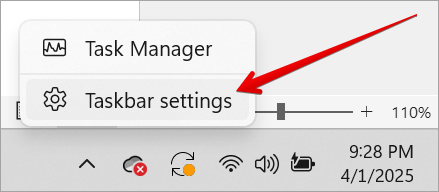
If you are using Windows 11, click the Other system tray icons drop-down and enable Microsoft OneDrive by toggling the button to ON. After this, you can now confirm if the OneDrive icon appears in the Taskbar.

You can also manually load the program by opening File Explorer and navigating to this location: C:\Program Files\Microsoft OneDrive\.
Inside the OneDrive folder, you can double-click the OneDrive.exe file to start, and it will now display on the Windows System Tray as an icon.

5. Increase Storage Capacity
OneDrive will stop syncing your files immediately if there is no space on your local storage or cloud storage. Sometimes you may want to sync a very large file that will need a significant amount of storage space. What you can do is free up space on your internal storage by deleting old files or compressing your files.

You can also upgrade the current cloud storage plan so it can accommodate file syncing.

6. Confirm OneDrive Syncing is not paused
Confirm that OneDrive has not been paused accidentally and that your files are still syncing. Sometimes, if your computer is in battery saver mode or you are using your phone’s internet hotspot, this can also pause your OneDrive from syncing. If you want to continue the process of syncing, click the OneDrive icon and click on the message that says: “Your files are not currently syncing.”

7. Update Your Operating System
Sometimes you will notice that your OneDrive App is not syncing. The simple way to correct this is by just updating your computer operating system. You can update any of your devices, which could be a personal computer, an Android, or macOS mobile.
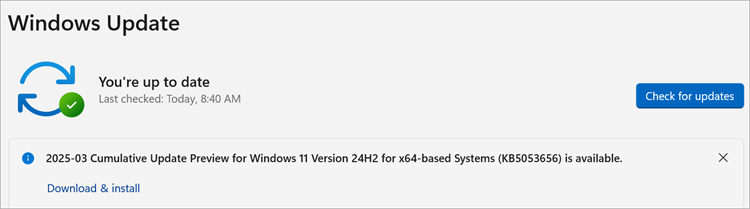
To update the Windows 11 system, browse to your computer settings, where you will see ”Windows Update.” This place will confirm to you if your system is out of date, so you can update it.
8. Close other applications
We have cases of OneDrive not Syncing Specific Files because the file may be used by another application. The simple solution to this will be just to close the file running on another application and give OneDrive some minutes to refresh, and once the file is synced, you will be able to open it again and continue your work.

9. Update OneDrive
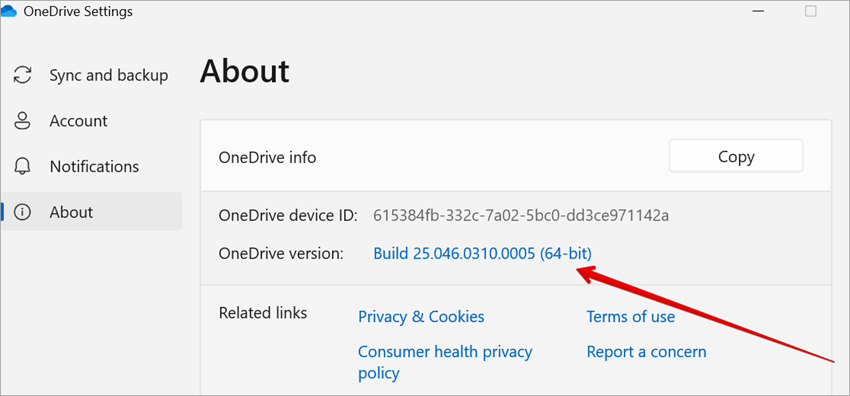
It’s expected that OneDrive will automatically update to newer versions when you update your Windows Operating System. Moreover, you can update this application manually by clicking on the OneDrive icon in the toolbar and selecting “settings.”

In the OneDrive Settings window, click the “About” tab and click on the OneDrive version number. This will redirect you to another page where you can download Windows or Mac’s latest version.

10. Resynchronization of Files and Folders
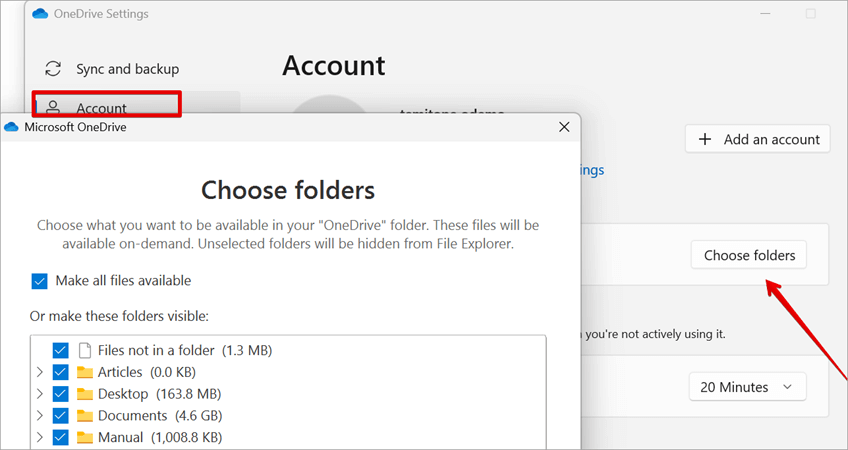
In case you are not able to see or access specific folders and files on your system. It could be that the files and folders were not added to the OneDrive synchronization process. Navigate to the OneDrive settings, click the Account tab, and pick Choose folders. If the folder that requires synchronization is not checked, ensure this is done and click OK to sync the files.
11. Disable Anti-virus
Antivirus software can block the synchronization of files. It’s a security monitoring tool that is used to check for incoming data. Though antivirus is meant to block malicious programs, sometimes it can prevent genuine software like OneDrive from running correctly. This is called a false positive and should not be treated as a security issue.
Every antivirus behaves differently and must have a way to add an exemption rule that will capture the OneDrive synchronization process or a way to temporarily disable the antivirus so that the synchronization can be quickly completed and the antivirus can be restarted.
Suggested Reading => Best Antivirus for Android
12. Refresh Account Credentials
When you change your Microsoft account password, this can stop OneDrive from syncing your files. So the simple solution to resolving this syncing issue is by forcing OneDrive to forget the login details and restarting the application.
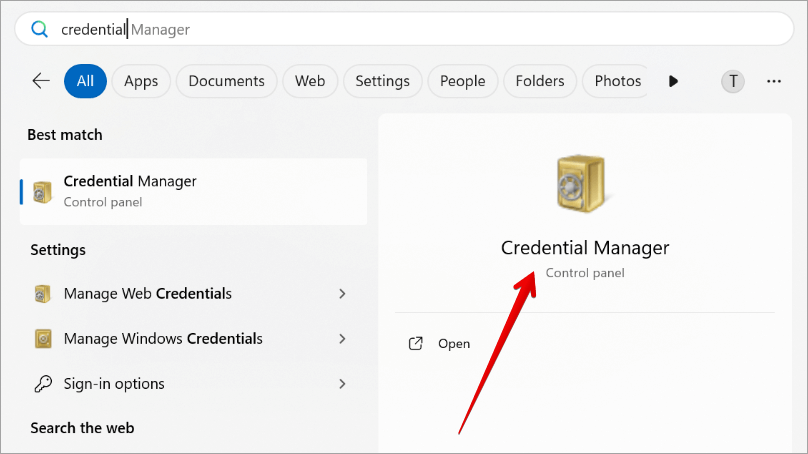
Navigate to Windows Credentials by searching for “credentials.” Then click Credentials Manager, and then click on the Windows credentials tab. Delete any entries with “OneDrive cached credentials”. Restart the OneDrive application.
13. Remove Any Files with Error
Sometimes you can have files having syncing issues despite trying different ways to fix it. Your best solution option will be to remove the files from OneDrive and try doing the synchronization again. But before doing this, make sure you pause syncing.
14. Try Unlinking and Relinking OneDrive from your System
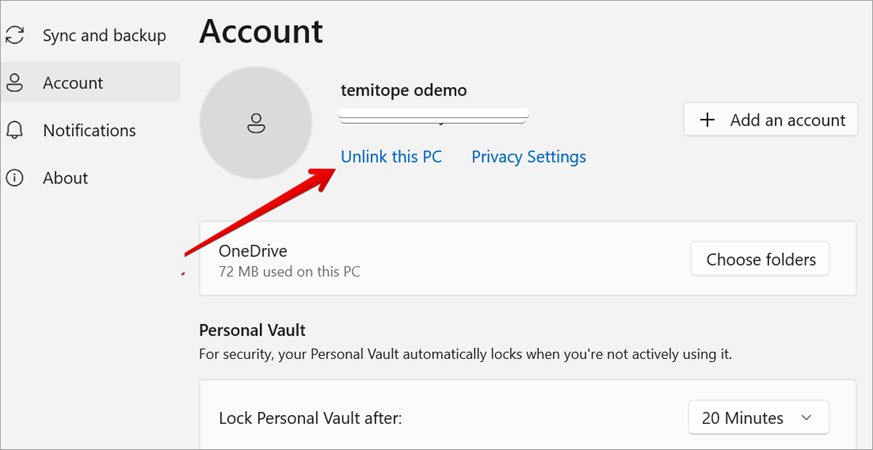
Going through the process of unlinking and relinking the OneDrive can resolve the sync issues. Open OneDrive Settings, navigate to the account tab, and click Unlink this PC, confirm the unlink process, and restart OneDrive. Enter your email and password to sign in to your Microsoft account, and agree to use the existing OneDrive folder. This will relink your account.

How to Stop Windows 10/ 11 From Saving Files to OneDrive | Remove the red cross on folder icons
15. Confirm Your Account Is Not Frozen
Sometimes your subscription may have expired, and Microsoft may have suspended the account, so you will need to do something about your subscription.
Please note that your data is safe on Microsoft OneDrive servers, but you will need to settle the subscription issue so that your account can be unfrozen before you can access your sync files.
16. Seek Help from the OneDrive Community
Many times you may try everything to resolve a syncing issue, but it still does not work. We have OneDrive communities online, and in addition to that, we have official Microsoft forums where you can view posts from other users who may have encountered the same issue. Alternatively, you can create your new post to ask questions.

OneDrive Won’t Sync on Mac
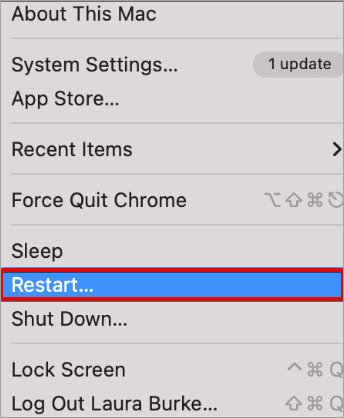
Some of the solutions we have on Windows can also resolve the sync issues on Mac, but in different steps. Sometimes, just a quick restart of your MacBook system can resolve this issue, which means everything refreshes on a new note.
Further Reading => Top MacBook Air Alternatives to Look For
1. Clearing OneDrive Cache on your MacBook
A corrupted OneDrive cache can sometimes cause syncing issues. You can delete the OneDrive Cache by searching for the folder called “com.Microsoft.OneDrive” and deleting it. This will automatically remove the cache files that may be causing the syncing problems. By restarting OneDrive and signing the application will rebuild the deleted cache file.
2. Configure Open OneDrive to start at Login
Confirm that OneDrive automatically opens during the startup of your Mac system. If it does not start, then it means there could be something wrong with the settings. Following the steps below can help you resolve this issue.
- Search for OneDrive in the menu bar and click on it.
- Navigate to Help & Settings and open Preferences.
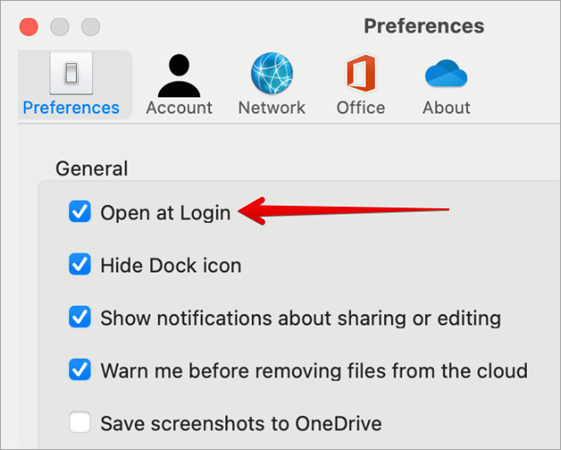
- Under the General section, check the open at login option box.
Another option is to use the Mac settings menu to open OneDrive at login.
- Click the Apple icon at the upper left corner of the menu bar.
- Open the System Preferences menu.
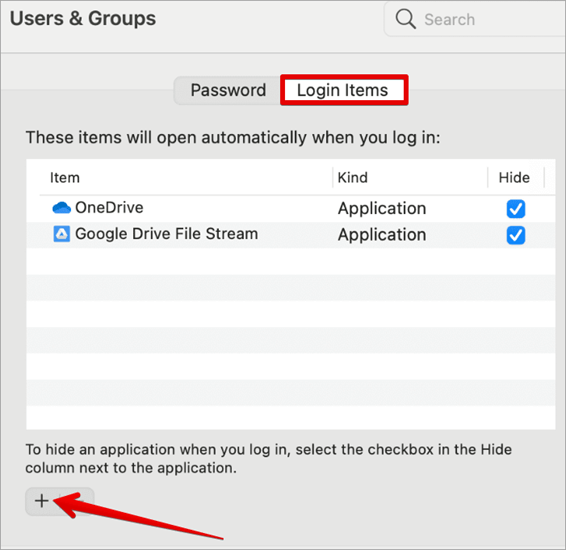
- Navigate to the Users & Groups page and click on the Login Items button, and click on the + icon.
- Select OneDrive from the applications menu.
After this configuration, anytime you start your Mac system, the OneDrive service will run at startup too.
3. Update OneDrive and macOS
When both macOS and OneDrive are outdated, it can cause a syncing file issue. Follow the steps below to confirm that your software is up to date:
- Update OneDrive by clicking on the OneDrive icon in the menu bar and clicking Check for updates. Install any available updates.
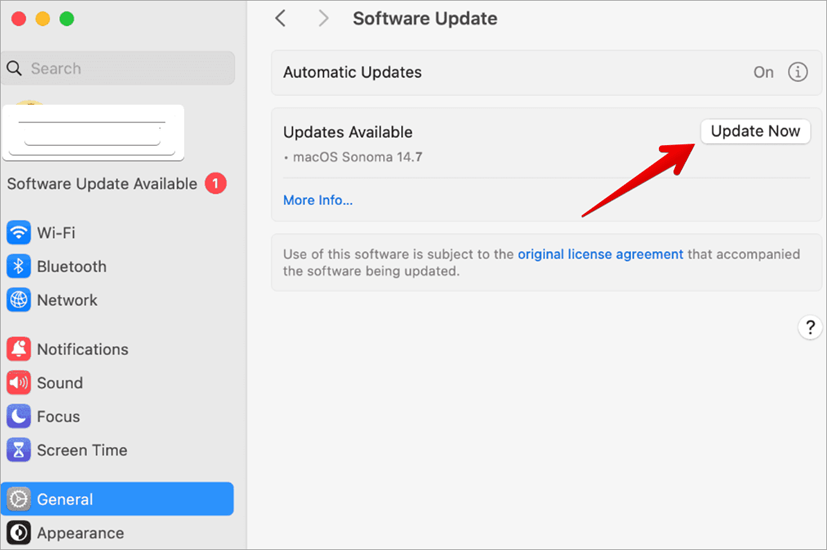
- Update macOS by navigating to System Preferences > Software Update. When you see any pending macOS updates, go ahead and update it. This update may instantly correct the syncing issue.
- When you discover that updating is not working you can try re-installing OneDrive: Just uninstalling and reinstalling OneDrive may just do the magic of resolving the issue causing the sync failure.
- Check for Compatibility, this will ensure that the version of OneDrive you are using is compatible with your current version of macOS. When there is an Incompatibilities issues may result to sync failures.
- After updating or reinstalling software, restart your system so that all the changes can be applied and resolve all the syncing issues.
4. Check for specific folder issues
If you notice that this sync issue is specific to a folder you are trying to upload or sync? Walk through the tips below that can help resolve this issue.
- Ensure the file name is shortened and not longer than 400 characters.
- Ensure the file name does not contain special characters like ?./ \ <:*>” |
- For any files above 250 GB, you can compress it into a smaller file. If you are using a personal account, confirm that you are not using files bigger than the allocated 15gb.
5. Remove the Download Limit Rate
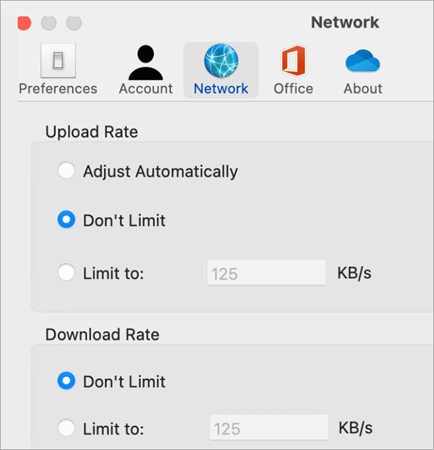
There is a OneDrive feature that allows you to set a download limit on a Mac device. If you have configured those settings, then you will need to remove it by following the steps below:
- From the menu bar, click on OneDrive.
- Navigate to Help & Settings and open Preferences.
- Under Network select Don’t Limit for the download Rate.
OneDrive Not Syncing – FAQ’s
1. How do I fix OneDrive not syncing?
We have various reasons causing this issue, and there are many ways you can use to resolve it, like checking the OneDrive system settings, internet connection, restarting your system, carrying out an update,e e.t.c
2. Why are my files not uploading to OneDrive?
If you don’t have enough space, it won’t be easy to upload any files to your OneDrive storage. Check how much space you have left or get more storage space by going to the storage space section. Please note that once you exceed your storage allocation, you will not be able to upload, edit, or sync any files.
3. Why is OneDrive not connecting?
Confirm your login credentials are valid by logging into your Microsoft Account. You can also check your system’s network settings, such as the firewall, VPN, or internet connection. You may also want to check online for some recommended solution steps.
4. How do I resync Microsoft OneDrive?
Navigate to the OneDrive settings, Click the Account tab, and select Choose folders. If the folder that needs synchronization is unchecked, make sure you check it and click OK to sync the files.
5. How do I restore or relink OneDrive?
Open OneDrive Settings, navigate to the account tab, and click Unlink this PC, confirm the unlink process, and restart OneDrive. Enter your email and password to sign in to your Microsoft account, and agree to use the existing OneDrive folder. This will relink your account.
6. How to Sync Your Files to OneDrive on a PC?
• Open OneDrive on your system.
• Login with your Microsoft account.
• Click on the “Add files” or “Add folders” button.
• Navigate to the location of the folders you want to sync.
• Select the files or folders you want to sync and click “Open”.
7. Why are my OneDrive files not syncing on my phone?
Confirm your phone has internet access. Some applications and features may only work with a Wi-Fi connection, and OneDrive will not work without an Internet connection.
8. How to fix OneDrive sync issues on Mac?
• Confirm that the OneDrive process is running.
• Restart the OneDrive app by selecting the OneDrive icon on the menu bar. Select Quit • OneDrive and reopen OneDrive by searching for it.
• Try updating the OneDrive sync app for Mac.
9. How do I update the OneDrive sync app on Mac?
Open the Mac App Store. Click the Update button in the toolbar. Confirm there is an update for OneDrive. If there is an update, go ahead to update. You can also check if an update button exists on the OneDrive app.
Conclusion
If you notice that your OneDrive is not working properly, then selecting one of the options above could fix the issue and help you get back on track. OneDrive is a popular Microsoft application generally used for backup, which will always make any issues encountered during its usage easy to be easily resolve.
Also Read => Top-Rated Backup Software of the Year
Sometimes, you can always confirm if the issue is a system-generated one before concluding it is from the application itself. Always stay up to date with the current OneDrive version, as this will always guide against some of these issues.
Was this helpful?
Recommended Reading
-

Analyze how to disable OneDrive with this comprehensive guide. Get simple instructions on how to fully and effectively stop OneDrive and turn off it from syncing your files to the cloud: Multiple applications come as freebies when you download one of the products – to use some of these applications…
-

This step-by-step guide explains the reasons why you should back up and Microsoft Office 365 Backup process with NAKIVO Backup & Replication: Numerous businesses manage their data in the cloud. That’s why Office 365 security is a popular discussion topic today. Some businesses think that data in the cloud is…
-
A Comprehensive List of the Best Free Cloud Storage Providers with Comparison: Know which are the best paid and free online storage companies for personal and business use in 2024. What is Cloud Storage and why does one need it? Cloud storage means storing data in a remote location that…
-
Comprehensive List & Comparison of Dropbox Alternatives With Description, Features, and Pricing to Help you Select the Best Dropbox Competitor for your need: Dropbox is a hosting service that helps you to keep all of the important data in the cloud. This software helps individuals and companies store important files…