Enjoy a seamless Alexa WiFi connection with our expert guide. Troubleshoot and learn how to connect Alexa to WiFi in minutes without the Alexa app and fix all common issues:
The introduction of AI-powered devices has revolutionized the world in recent years. These devices have several merits and demerits.
While on one hand, these devices save a lot of time and energy through voice control, are available at affordable prices, and deliver personalized entertainment, they are also subject to criticism for privacy concerns.
Table of Contents:
- Alexa WiFi Connection: Quick & Easy Setup Guide
- Ways to Set Up Alexa on Your Echo Device
- How to Set up Alexa with WiFi
- How to Change WiFi on Alexa or How to Connect Alexa to a New WiFi
- Steps to Connect Alexa to WiFi Without the App
- Alexa Can’t Connect to WiFi: Steps to Follow
- Frequently Asked Questions
- Conclusion
Alexa WiFi Connection: Quick & Easy Setup Guide
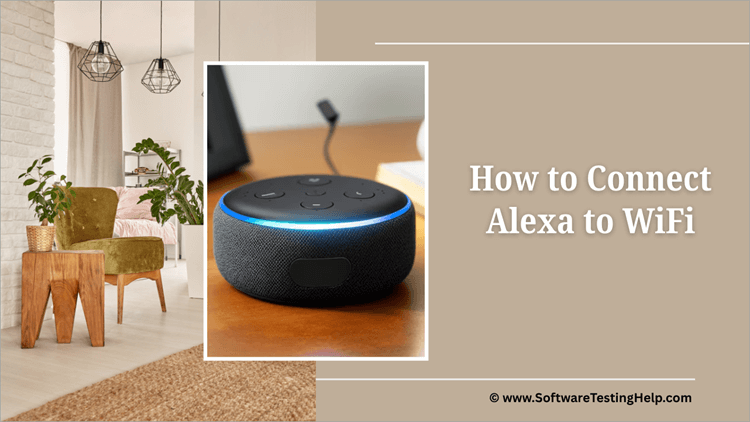
Alexa is a voice assistant tool offered by Amazon. Several devices today come with this tool installed in them. Alexa is used by renowned organizations like Apollo Hospitals and Kuwait Airways. A report by 6sense states that Alexa owns 63.61% of the total competitive intelligence market.
A study done by Statista in 2022 revealed that in the year 2018, 32 million Amazon Echo smart speakers were being shipped around the world, and this figure was expected to reach 130 million by 2026.
Further Reading => Noteworthy IoT Devices and Smart Products
Alexa is used for various purposes; for example,
- Controlling smart home devices through voice control
- Playing music
- Weather updates
- News and traffic information
- Alarms
- Shopping
- Making calls and sending messages
- Finding a phone
Alexa requires an internet connection for features like weather updates, news, traffic information, shopping, etc. Without the internet, only timers, alarms, and Bluetooth functions will work.
If you are a new user, you will need to set up Alexa on your devices first. Watch this video to learn how to set up Alexa on an Echo Dot.
Suggested Read => Fix Alexa not Connecting to Wi-Fi Issues
Ways to Set Up Alexa on Your Echo Device
Learn the simple steps involved in setting up your Alexa-enabled Echo device and get started using the smart home features.
1. First, plug in your Echo device. You will see an orange light on your device once it is powered on.
2. After a while, Alexa will announce that it is ready to set up.
3. On your smartphone or tablet, open the Alexa app.
Note: Ensure your Bluetooth is on.
4. Sign in with your Amazon account (or create an account if you don’t have one). After signing up, you can set up a voice ID so that Alexa recognizes your voice whenever you speak to an Alexa device.
If your device was bought from Amazon, it would have come pre-configured. So you’ll just have to tap on Agree and Continue, and then connect your device to WiFi.
5. If the device is not bought from Amazon, then
- Select Devices (Located at the bottom of your screen)
- Now tap on the ‘+’ sign, then select Add Device.
- Now, from the list of devices, select Amazon Echo. If you want to set up another device for Alexa, you can choose that device from here.
- Select the option Echo, Echo Dot, Echo Pop, and more.
- An orange light will glow in the Echo speaker now.
- Your app will now ask you if the orange light has turned on in your Echo device or not. If it hasn’t turned on, tap NO.
- Now your app will instruct you to press and hold the round action button on your Echo device with the dot icon for approximately 15 seconds. If your device does not have this button, then press the volume up and volume down buttons simultaneously (for 15 seconds). This will turn on the orange light.
Note: Make sure your smartphone/tablet and your Alexa device are close to each other (not farther than 10 feet).
- Now click on Continue.
6. Tap on the name of your Echo device model in the Alexa app.
7. Now you have set up Alexa on your Echo device. You can follow the instructions to choose a language, enter your address, connect to WiFi, and more, then click on Let’s go.
Further Reading => Why is My Alexa Blinking Yellow Light
How to Set up Alexa with WiFi
Follow these steps to know how to connect Alexa to Wi-Fi with the app:
1. First, download the Alexa app from the Play Store or App Store (if you do not have the app already installed on the smartphone that you are using).
Note: Make sure you download the real Alexa app, offered by Amazon.
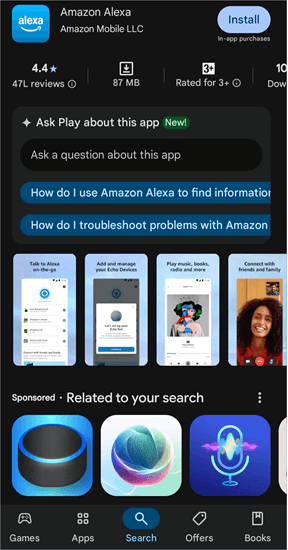
2. Once installed, open the app on your smartphone.
3. Log in with your Amazon account.
4. Now go to Devices 
5. Now tap on Device Type.
6. Now you will see a list of Alexa devices. Select the device that you want to connect to the WiFi.
Note: If you don’t find your device in the list, you will need to set up or reset your Echo device.
7. Tap on the Settings icon.
8. Then click on the Change option, located next to the Wi-Fi Network.
9. Tap on Join another WiFi network.
10. Now, in your Alexa device
- Press and hold the round action button (or the Volume + and the Volume – keys simultaneously) for 15 minutes. This will start the pairing mode.
Note: Ensure your Alexa device is connected to power.
- An orange light will glow up in the Alexa device. Tap on Yes, then click on Continue.
Note: Make sure your smartphone or tablet is not farther than 10 feet from the Alexa device.
11. In the Alexa app, select your device.
12. The app will search for the available Wi-Fi networks.
13. Select the WiFi network that you want to connect your Alexa device with, enter the password, and then tap on Connect.
Note: You can choose to save the password to Amazon, to automatically connect devices associated with your account to this Wi-Fi.
Suggested Reading => List of BEST WiFi Companies Near You
14. Now follow the instructions on the screen for choosing the language, setting up Voice ID, and more. Or, you can choose to skip these settings for now.
How to Change WiFi on Alexa or How to Connect Alexa to a New WiFi
If you have already connected your Alexa device to a WiFi network and now you want to change it, then follow the below steps.
- Open the Alexa app on your smartphone
- Select Devices
- Select your device.
- Go to Device Settings.
- Tap on Change, located next to WiFi Settings.
- Now you can connect to a new (available) WiFi network.
Steps to Connect Alexa to WiFi Without the App
If you don’t have the Alexa app, you can still connect Alexa to WiFi. You will have to use your browser for this purpose.
Follow these steps for connecting Alexa to WiFi without the Alexa app:
1. Open your browser (on your smartphone, iPad, or PC)
2. Go to alexa.amazon.com

3. Sign in with your Amazon account
4. Tap on Settings
5. Go to Devices
6. Click on Set up a new device
7. Select your Alexa device (that you want to connect to the WiFi) and make sure your device is turned on.
8. Now connect to the Amazon-XXX network and tap on Continue.
9. Now connect it to the WiFi network you want.
Further Reading => Amazon Alexa vs. Google Home – Which is best
Alexa Can’t Connect to WiFi: Steps to Follow
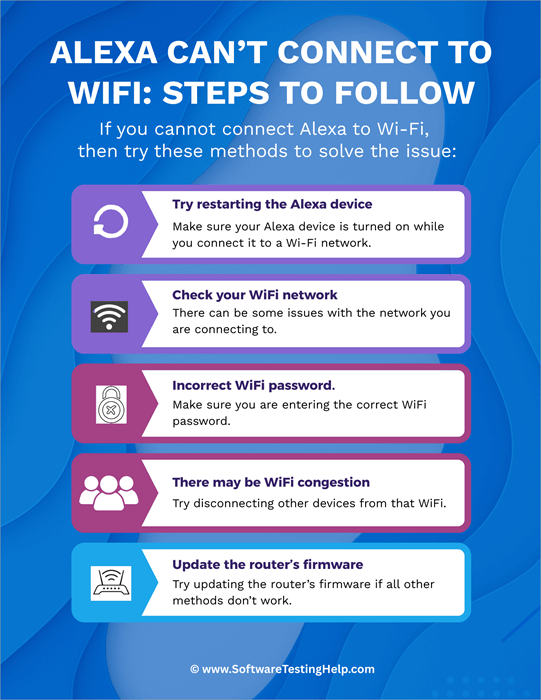
If you cannot connect Alexa to Wi-Fi, then try these methods to solve the issue:
- Try restarting the Alexa device. Make sure your Alexa device is turned on while you connect it to a Wi-Fi network.
- Check your WiFi network. There can be some issues with the network you are connecting to.
- Make sure you are entering the correct WiFi password.
- There may be WiFi congestion; too many devices may be connected to a single WiFi network at the same time. Try disconnecting other devices from that WiFi.
- Try updating the router’s firmware if all other methods don’t work.
Frequently Asked Questions
1. Why is my Alexa offline when connected to Wi-Fi?
If your Alexa has no internet access even after connecting to WiFi, there can be one of the following reasons:
• Your WiFi can have some issues. Try switching the WiFi off for 10 seconds, then turn it on.
• You may need to update the Alexa app on your smartphone
• Your Alexa device may be outdated
• Your Alexa device might not be powered on
• The WiFi router may be located far away from the Alexa device.
2. How to put Alexa in setup mode?
To set up an Alexa device, follow these steps:
• First of all, plug in the Alexa device
• Open the Alexa app on your smartphone
• Go to Devices
• Tap on Add Device
• You will see a list of devices. Choose the device that you want to set up.
• Now follow the instructions. You can connect the device to your home Wi-Fi from here.
3. How do I put Alexa in pairing mode?
Follow these steps to pair Alexa with a Bluetooth device:
• Plug in your Alexa device
• Now open the Alexa app in your smartphone
• Go to Devices
• Select your device
• Go to Device Settings
• Tap on Bluetooth Devices
• Now select Pair a New Device
• Select the available Bluetooth device that you want to connect with your Alexa device.
• Now say, “Alexa, Pair”
• The devices will then automatically pair.
4. How do I restart Alexa?
For restarting Alexa:
• Unplug your Alexa device
• Leave it switched off for 10-15 seconds
• Plug it on, again
• The device will restart in a few seconds.
5. Can I use Alexa without an Amazon account?
No. You must sign in with an Amazon account to start using Alexa. You can sign up for an Amazon account anytime for free. Alexa does not require the paid, Prime version of Amazon to function.
Conclusion
Our study about Alexa reveals that Alexa is not only highly useful and efficient but also easy to use. It can be easily set up and used within minutes. Even people with minimal experience using tech devices can set up Alexa and connect it to their home WiFi.
Their user-friendliness and hands-free control features have led to an overwhelming demand from around the world. Since Alexa is an Amazon product, it requires you to have an Amazon account to start using it.
Signing up for an Amazon account is free and quite an easy process; you would just need a phone number or an email ID for it.
Despite numerous benefits, Alexa is subjected to several criticisms; for example, it keeps on listening to its surroundings all the time. This creates concerns regarding the privacy of the person using the Alexa product.
Another issue reported by many of its users is the inability of Alexa to catch their accent. When a person has a strong accent, a lot of times, Alexa fails to understand the command.
Was this helpful?
Recommended Reading
-

Through this tutorial, you will identify and understand some effective ways to Fix Alexa not Connecting to Wi-Fi Issues: I have a third-generation Amazon Echo and I use it for various things, like a speaker for my TV, alarm, smart devices in my house, and so on. Sometimes it goes…
-
Get to know all about the several aspects of Amazon Alexa vs Google Home to identify the one which best suits your requirements: Recently, smart technology has become a hot topic for simplifying your home life. You may wish to add simple security features, such as weather updates and timers,…
-

Selecting a good travel router from the market can be a challenging task. Choose the ideal portable WiFi router from our top-rated options for premium services: Finding a safe and reliable WiFi network when traveling is undoubtedly quite challenging. Apart from other travel-related problems, some areas might even be out…
-
This WiFi Companies review will help you choose the best WiFi network for your home and enjoy high-speed internet with no hassles: A WiFi modem in your house has become a necessity at this point in time. If you survey and ask people their opinion on the said statement, eight…