


In this step-by-step guide on how to combine PDF files we will learn to merge PDF files using various tools in Windows and Mac:
What is PDF?
PDF stands for Portable Display Format. It is the biggest revolution in the world of electronic documentation.
When the world was confused and looking to share documents irrespective of software and hardware inconsistencies, PDF became the answer to all worries. PDF has become more advanced as it can contain buttons, links, and other things and feature on how to merge two PDFs
Security of data is another wonderful feature of the PDF, as you can secure and protect your data in the PDF with a password that can be accessed by only the people with the password.
In this article, we will discuss how to merge PDF files and will also talk about the tools, which will be very helpful to combine or compress PDF files.
Table of Contents:
How to Combine PDF Files

In 1991, Dr. John Warnock invented this technology under the agenda “Paper to digital”. In recent years not only has this technology revolutionized the world but it has also made life easy. Now, just by scanning any document, you can share a virtual/electronic form of the document worldwide.
There is a list of various other software which are efficient to merge PDFs. There are also instructions along with visuals that will help the users easily understand the process.
Tools to Combine PDF Files Into One Document
Some of the software are listed below:
Let us understand how to combine PDFs with the above-listed software.
#1) pdfFiller
pdfFiller is an online end-to-end PDF document manager that truly excels at rearranging or combining multiple PDF pages together. With just a few clicks, you’ll be able to reorganize your uploaded PDF pages on this platform for free. The process itself is quick and incredibly simple.
Here’s how you can combine your PDF files using this platform.
- Upload, import, or add multiple PDF files onto pdfFiller that you wish to combine.
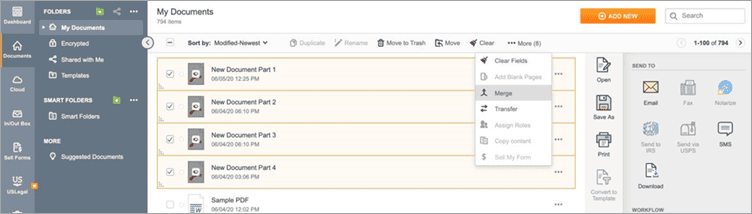
- Now select the files you wish to merge. Hit the ‘More’ button and choose the ‘merge’ option from the drop-down menu.
- You can simply drag and move the pages around to reorder their sequencing.
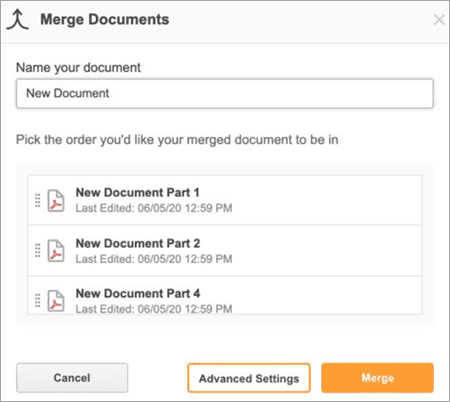
- Hit the ‘merge’ button. If you are satisfied with the rearrangement.
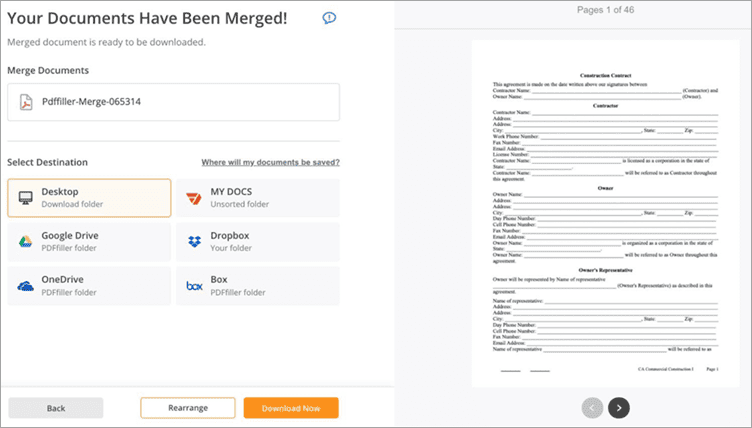
- You will find your newly combined file in the My Documents section. Download or save the file on your system from there.
Features:
- Rearrange PDF files
- Quick PDF document merging
- Edit PDF documents
Verdict: Very Simple and robust, pdfFiller makes the process of combining multiple PDF documents look as easy as a walk in the park. You can use pdfFiller to merge and rearrange your PDF documents as you wish.
Price: Basic plan: $8 per month, Plus Plan: $12 per month, Premium Plan: $15 per month. All plans are billed annually. A 30-day free trial is also available.
#2) LightPDF
LightPDF is excellent with regards to its PDF processing capabilities. This single cross-platform software can be used to compress, convert, edit, split, and of course, combine multiple PDF files.
It is incredibly simple, largely owing to its immaculate interface. If you wish to merge multiple PDF files using this software, you’ll be able to do so in a matter of minutes.
Here’s how you can combine your PDF Files using LightPDF:
- Launch LightPDF on your System
- Select the ‘Merge PDF’ option
- In the resulting interface, upload multiple PDF files.
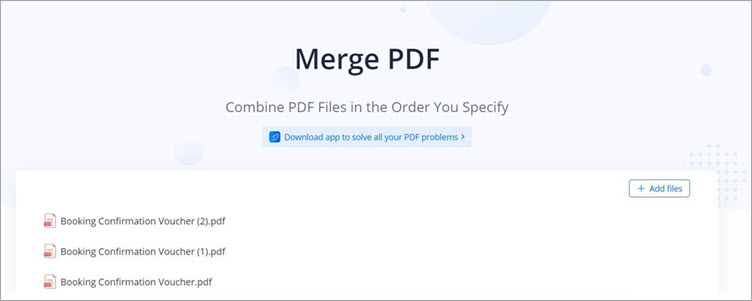
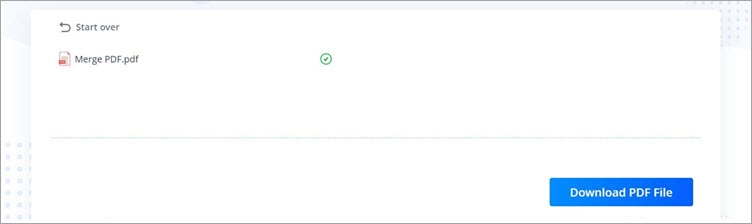
- Once the upload is finished, simply hit the ‘Merge PDF’ button given below.

- Finally, hit the download button once the merge action has concluded.
Features:
- Merge and Split PDF Files
- PDF Reader
- PDF Editor
- PDF File Conversion
Verdict: Merging PDF files with LightPDF is as easy as a walk in the park. Simply upload your files and hit the ‘Merge PDF’ button, it’s that simple. You really don’t need to be technologically proficient to use this cross-platform PDF processor.
Price:
- Free Web App Edition
- Personal: $19.90 per month and $59.90 per year
- Business: $79.95 per year and $129.90 per year
#3) Soda PDF
Soda PDF allows users to perform all the important operations on the PDF files, and the most efficient reason for choosing Soda PDF is that it is available to users in both online and offline mode. It allows working on various services like signing documents, etc. It is the solution to how to combine PDFs.
We can replicate the procedure to merge files using Soda PDF using the steps mentioned below.
#1) Open Soda PDF and click on the “Merge files to PDF’’ option as shown in the image below.

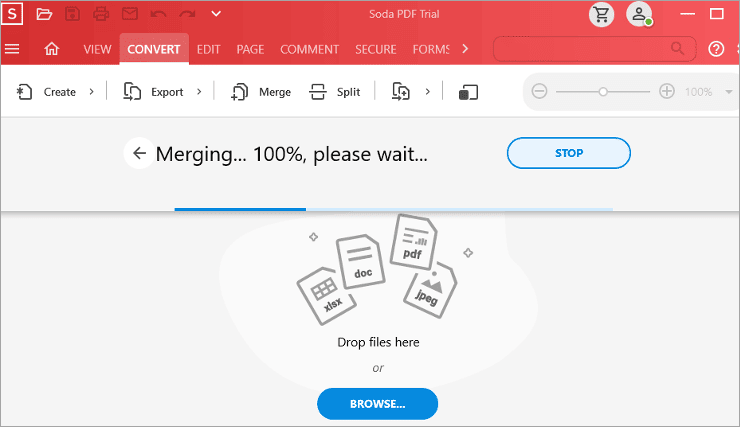
#2) The merge process will begin as shown below.
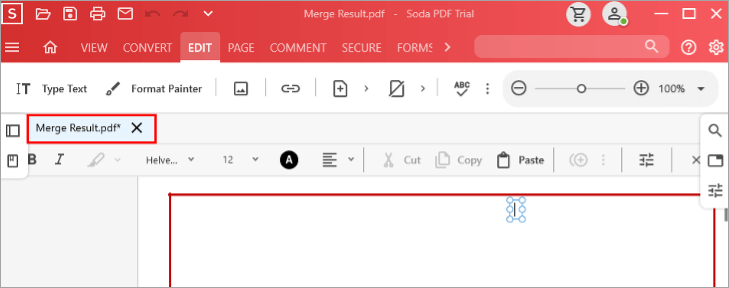
#3) The Merged file will open as shown in the image below.
Features:
- Cheap and affordable.
- Fast and reliable.
- Has a better interface that allows easy user engagement.
Verdict: Soda PDF is extremely useful software and the most important feature is that it enables users to select the order in which the PDFs are to be merged. It makes the task of merging and arranging PDFs hassle-free.
Price: USD 10.50/month.
#4) Adobe Acrobat
Adobe is a renowned company worldwide, it holds esteem reputation for its products and it continues to be the best one in the field. Adobe introduced the concept of PDF. Adobe developed Adobe Acrobat that helps users make changes in the PDF and perform various other operations easily.
The product has a sleek design and is very easy to use. It gives users a chance to easily make changes and append them to the PDF.
Follow these steps to merge PDF in Adobe Acrobat. It is a solution for how to combine 2 PDFs.
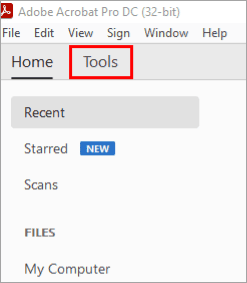
#1) Open Adobe Acrobat. A screen will be visible as shown in the image below.

#2) Now, click on the ‘’Tools’’ button.
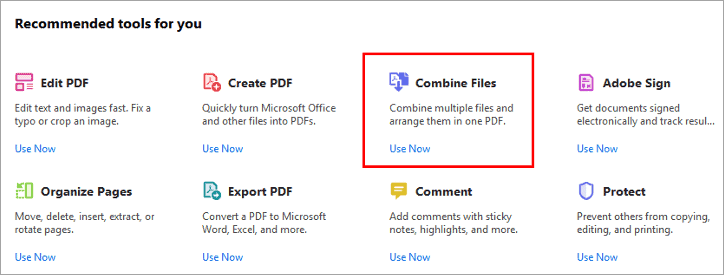
#3) Further click on “Combine Files” as shown in the image below
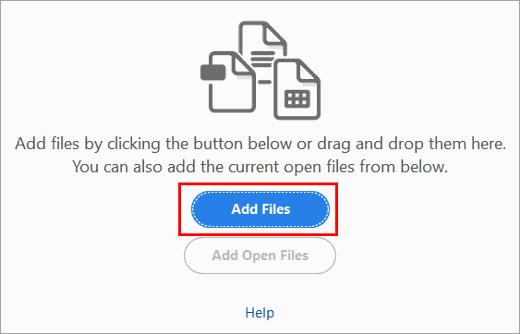
#4) A screen will be visible with a button ‘’Add Files’’. Click on this button to add PDF, which is to be merged.
#5) Now, click on the “Combine” button present as shown in the image below.

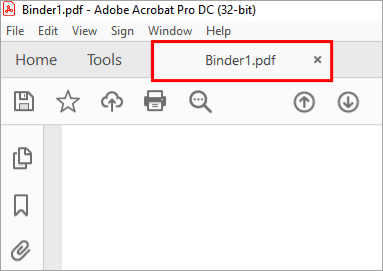
#6) The file will be merged, and a merged PDF will be visible as shown in the image below.
Features:
- Easy to use and understand.
- Works smoothly with big and heavy files, too.
- Cloud storage feature is available to avoid excess data in the system.
Verdict: Acrobat is an easy-to-use software that simplifies the process of operations performed on PDF. It is easily manageable and affordable relative to the features it provides.
Price: USD 16/month.
#5) PDF Element
IskySoft provides you with the feature to edit, combine, delete pages in a PDF. This software is equipped with various features, allowing the user to make various operations on the PDF. The software not only offers extra features but also allows users to make advancements in the PDF accordingly. It is a solution to how to combine multiple PDFs.
Follow these steps to merge PDFs using PDF Element software on the system.
#1) Open PDF Element on your system, a window will open as shown in the image below.
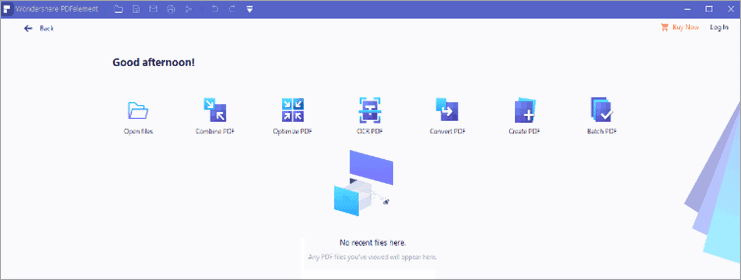
#2) Now, click on ‘’Combine PDF’’.

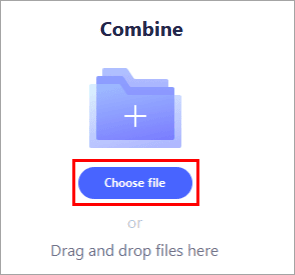
#3) Click on ‘’Choose File’’ for selecting the files to be merged as shown in the image below.
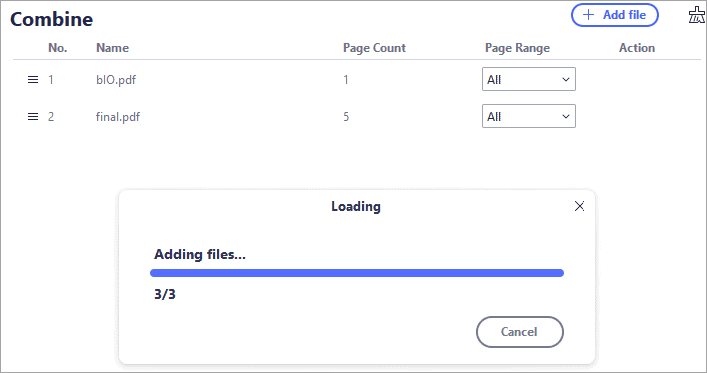
#4) Select the files to be merged and files will load as shown in the image below.
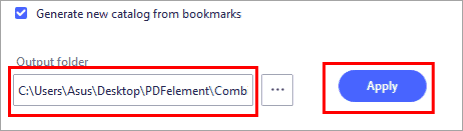
#5) Now select the output folder and click on “Apply” as shown in the image below.
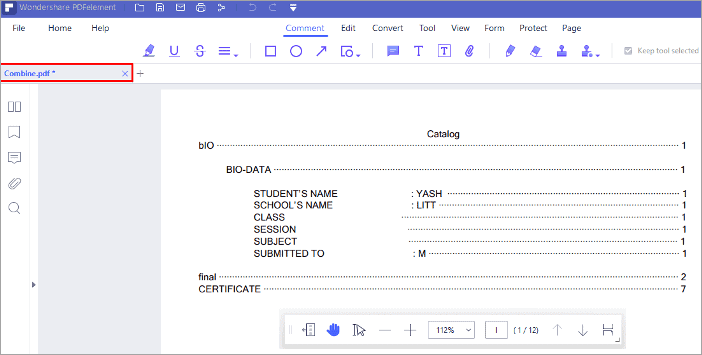
#6) The PDF will be saved to a specified output folder and the file will open as shown in the image below.
Features:
- You can add new text to the PDF.
- You can encrypt files by using a password.
- It will make your PDF searchable.
Verdict: PDF Element is a very helpful software with a cache appearance, which makes it easier for the user to perform operations on PDF files easily.
Price: USD 79/year.
#6) PDFSimpli
PDFSimpli is a web-based PDF editor that makes it to our list because of how simple and convenient it is to use. Being completely web-based, the software can be used online from anywhere and on any device to edit PDF documents. The software is exceptional in its ability to quickly merge PDF files or split them into multiple documents.
Here’s how you can use PDFSimpli to Combine PDF Files:
- Hit the ‘Merge PDF Files’ option available on PDFSimpli’s home page.
- Drag and drop multiple PDF Files that you want to merge.
- Hit the Merge Button

- Save the file on your system
Features:
- Merge and Split PDF Files
- Compress PDF Files
- Comprehensive PDF Editing
- Convert PDF Files into multiple formats
Verdict: With PDFSimpli, you get a web-based PDF editor that is brisk and simple in its ability to seamlessly merge multiple PDF files together. You can rely on this platform to split PDF files as well.
Price: Free
#7) PDF Combine
The PDF Combine from CoolUtils is an all-encompassing utility designed to simplify the process of merging multiple PDF files into one document offline. This feature ensures that your documents remain private while combining them
Here’s a quick guide to using the PDF Merge Tool:
- Setup and Start: Navigate to the PDF Merge Tool’s download section on CoolUtils’ website and download the setup file. This software provides a 30-day trial period, allowing you to test its functionalities.

- Choose Your PDFs: Select the PDF files you wish to merge. This software enables you to fetch files from your computer, network drives, or cloud services.

- Customize Your Compilation: Prior to merging, you have the option to organize the documents in your preferred sequence or choose specific pages from each PDF to be included in the compiled document.

- Merge Your Documents: After arranging and customizing your files as needed, click on the ‘Start’ button to merge them. The software efficiently combines your PDF files swiftly.
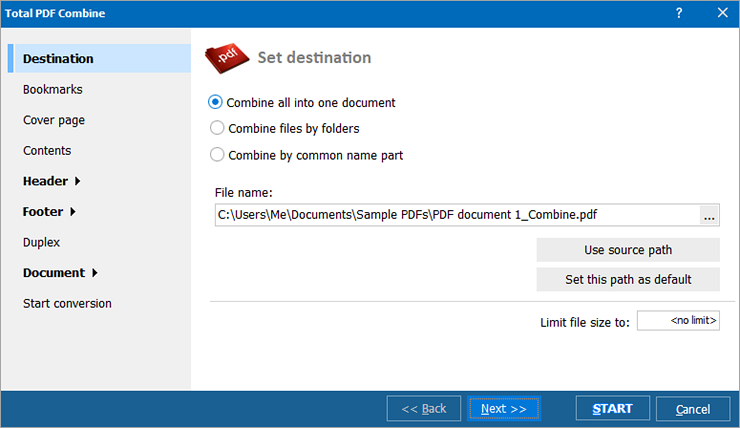
The software ensures the preservation of the original quality of your documents in the combined PDF, maintaining everything from the layout to the image clarity.
Features:
- Organize and select particular pages for customized compilation
- Preview the sequence and content prior to the final merge
- Efficiently combine large and numerous PDF files.
- Combine PDF files offline, ensuring document confidentiality
Verdict: The PDF Merge Tool by CoolUtils offers a robust solution for individuals aiming to optimize their document handling routines. Thanks to its intuitive interface, extensive customization options, and swift processing, merging PDFs becomes a straightforward and satisfying task.
Pricing: The software is available for a free 30-day trial. Subsequently, a personal license costs $59.90, and a commercial license is priced at $75.90. For those needing more advanced features, CoolUtils provides a Server License for $350, a Site License for $750, and a Royalty-Free License for $1,400, catering to businesses and professional users effectively
Online PDF Merging
The easiest and the quickest way of how to combine two PDFs files is by using online merging tools. There are several online PDF merging tools that will do the task for you.
#1) Click on the link, or visit the Online PDF Merger website as shown in the image below. Now click on the button titled “Chose PDF file”.

#2) Now, a dialog box will appear, as shown below. Chose the file you want to upload and click on ‘’Open’’.
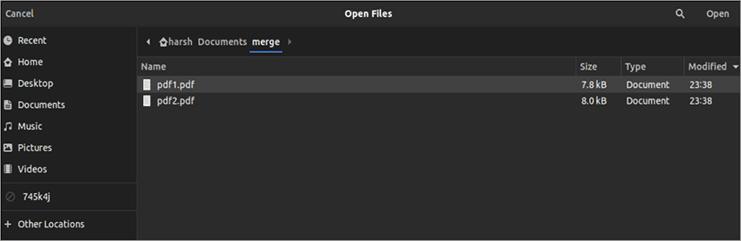
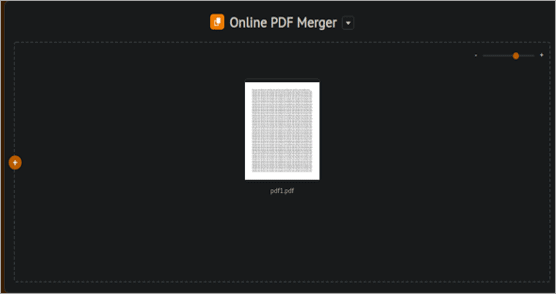
#3) The file will begin uploading, as shown in the image below.
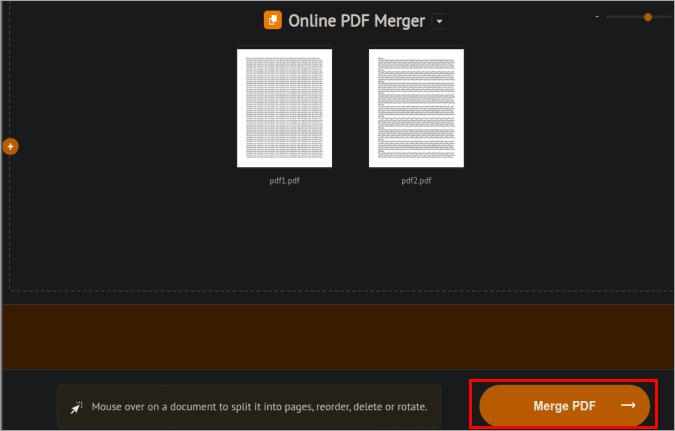
#4) Once the PDF is uploaded, click on the ‘’+’’ button on the screen, again a dialog box will appear and you need to choose another file that you want to merge, and click on open as you did before. Now click on the button titled “Merge PDF” as shown in the image below.
#5) In a few seconds, the final PDF will appear on the screen as shown in the image below. Now, click on the ‘’Download’’ button to download the merged PDF in your system.
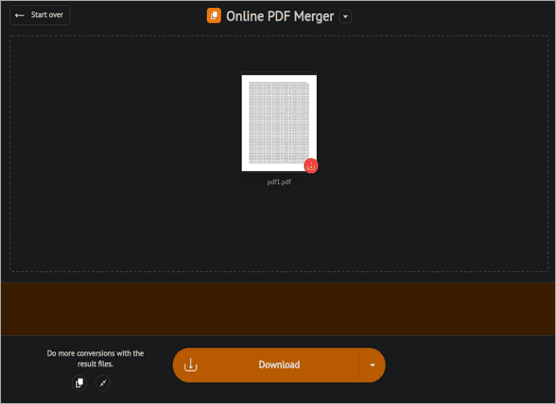
#6) A dialog box will open and you can specify the location where you want to download the resultant/merged PDF.

How to Merge PDF Files on Windows
Windows have a free tool on the Microsoft store that allows users to merge or split the PDF files easily. This method is the solution to how to merge PDF files.
#1) Open Microsoft Store and search “PDF Merger & Splitter. “As shown in the image below, a screen would be visible, click on the “Get”, and the download will begin.

#2) After the installation, click on the “Launch’’ button on the screen.

#3) Now, a “Merge PDF’’ button will be visible as shown in the image below. Click on it.
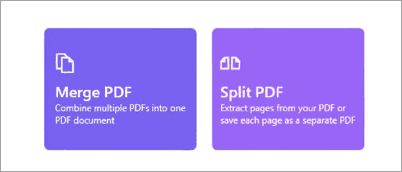
#4) A window will open and then click on the “Add PDFs’’ button present on the screen as shown in the image below.

#5) Select the PDF you want to merge and click on ‘’Open’’.
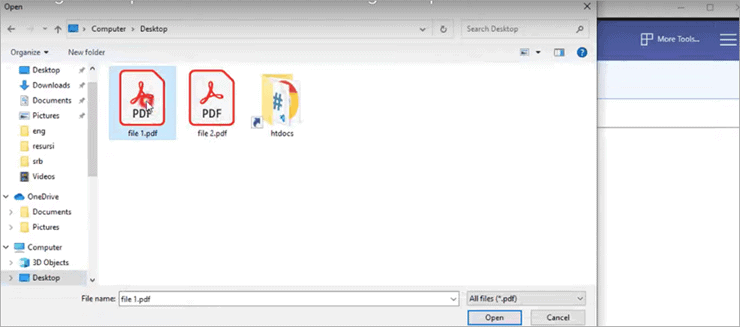
#6) There will be a “Merge PDF’’ button present on the screen. Click on it.
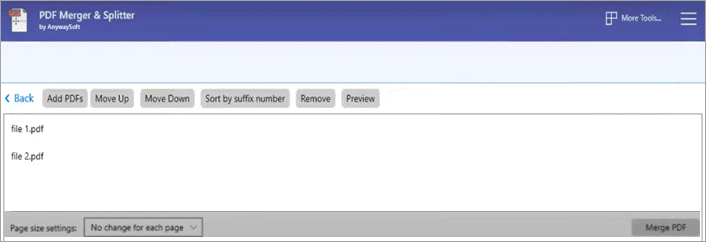
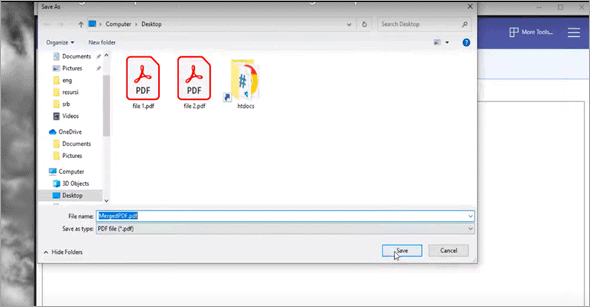
#7) The PDF will be merged, and a dialog box will appear to specify the location of the merged file, as shown in the image below. Select the location and click on the “Save” button, and the merged PDF will be saved.
How To Combine PDF Files On Mac
Follow the steps below to merge PDF files on Mac:
#1) Open PDF document in the Preview app.
#2) Now, click on the ‘’Thumbnails’’ option from the ‘View’ drop-down as shown in the given image.

#3) Now take your second PDF document and drag and drop it on the thumbnail as shown in the image below.

#4) Performing the above steps, both the PDF documents will be combined into one single PDF document. Save the PDF by pressing “Ctrl+S” from the keyboard.
Frequently Asked Questions
How do I merge PDF in Linux?
There are two ways of merging a PDF in Linux.
1. By using the online merging tools.
2. By using the terminal.
For merging files using the terminal, follow mentioned steps:-
1. Type the command “sudo apt install poppler-utils” in the terminal of the directory where PDFs to be merged are stored.
2. When the install completes, type “pdfunite pdf1.pdf pdf2.pdf merge.pdf”. This command will create a merged pdf.
Is PDF Resizer safe?
PDF Resizer is safe but always look for the trusted compressors only. You cannot be always sure that the selected compressor is secure or not, so always go for the trusted and renowned PDF resizers.
How to combine PDF files that are signed?
For combining signed images in PDF, follow the steps:-
1. Save PDF in the byte array.
2. Edit PDF using PDF document class constructor.
3. Create an object.
4. Add PDF object to the final document object.
5. Add a new signature to PDF.
How to edit PDF on Mac?
Follow these steps:
1. Click on the “Edit” option present on the top of the toolbar.
2. Then click on the “Text” button.
3. Select the piece of text you want to edit.
4. Now, edit the text in PDF.
5. Click on the blank place to save your changes.
Suggested reading =>> BEST free and paid PDF Ediing tools for Mac
How to add a page in PDF?
To insert a page in a PDF you have to use third-party software.
All you need to do is click on “Insert” and select the page you want to insert and press ‘’Enter’’.
How to edit PDF without a watermark?
1. Right-click on the ‘’PDF’’ you want to edit.
2. Click on ‘’open with > MS-Word’’.
3. Make changes in PDF and save the file.
Conclusion
PDFs are the most efficient way to save information. Also, they are the most secure and simplest way to share data because the changes can be made to PDF by using certain software and permissions which can be granted by the Admin.
Suggested read =>> How to remove password from PDF Files
In this article, we saw different ways on how to combine PDF files and make changes to them. There are different ways suggested on how to merge PDF files online, on Windows, and on Mac. All the steps have been discussed in detail and respective screenshots of the steps have been provided under the respective procedures.
Further reading =>> Best Apps to convert JPG images to PDF format
There are also some frequently asked questions that we have answered to suppress any erupting doubt.
Was this helpful?
Recommended Reading
-

Complete review of Wondershare PDFelement latest version - a comprehensive PDF processing tool including its features & comparison with other tools: When Wondershare PDFelement was first introduced, it quickly skyrocketed to fame due to its beautiful interface, amazingly pragmatic features, and unparalleled price. Even after so many years, it can…
-
List and comparison of the BEST PDF to Word Converter tools. Select an online, free, or commercial tool to convert PDF to Word document: Portable Document Format, commonly known as 0PDF, was invented with the intention of making the sharing of documents and files across multiple devices easier. The idea…
-
Review and List of the Top PDF Editors with Features, Comparison, and Pricing. Select the Best PDF Editor From This List Based on Your Requirements: PDF Editor is the application that provides the features and functionalities such as editing, converting, merging, and splitting PDF documents, to work on PDF documents.…
-
This review compares the best online free and paid PDF Compressor tools to help you select the right tool to reduce the size of a PDF file: You must be living under a rock if you don’t know what a PDF file is in the 21st century. The PDF has…
-

This iText Tutorial Discusses How to Manipulate Bulk Data into a Secure, Single PDF Report using Java and iText Library: iText is a tool to generate a consolidated report where we can manipulate bulk data into a single form of entity that holds meaningful information. iText is a Java PDF…
-
Here is a comprehensive review and comparison of the top Online Plagiarism Checker software with features to help you select the best Free Plagiarism Checker tool as per your requirements: Plagiarism is defined as copying the content and viewpoints of another without authorization. The term means presenting another's work without…
-
This tutorial explains what are XML files, how to create them, and how to open the XML file with a browser like Chrome, text editor like MS Word, Excel, and XML Explorer: XML is an acronym for Extensible Markup Language. In this tutorial, we will understand what an XML file…
-
List of the top MS Excel Interview Questions and Answers. This tutorial answers interview question on Excel with examples to help you prepare for the interview: Excel - a product of Microsoft, is a software that utilizes spreadsheets to arrange formulas, functions, and sort numbers & data in rows and…


