Technology has simplified everything, and blocking apps on Android is not rocket science anymore. Discover how to block Apps permanently on Android in a convenient way with simple built-in features:
Want to learn how to block apps on Android and iPhone devices? Well, you’ve found yourself in the right place.
I often open Instagram or YouTube, intending to coast through their feed for only a few seconds. What starts with a single reel or YouTube video quickly snowballs into an hour-long session of endless scrolling. Just like that, I’ve lost track of time.
Unfortunately, my addiction to such apps isn’t an isolated case.
Table of Contents:
- Permanently Block Apps on Android: Know-How
- Why Block an App Permanently in the First Place?
- How to Block Apps on Android
- How to Block an App on iPhone
- Ways to Block a Specific App from Being Downloaded on an iPhone
- Disabling Apps with DNS Content Policy
- Limitations of Using Built-in App-Blocking Features
- Best Third-Party Applications to Permanently Block Apps
- Frequently Asked Questions
- Conclusion
Permanently Block Apps on Android: Know-How
A survey published by Harmony Healthcare IT found that Americans spend an average of 5 hours and 16 seconds every day on their smartphones.
Needless to say, smartphone addiction has become a silent epidemic that’s consuming our lives for the worse. Most millennials and Gen-Zers today prefer chatting with people online rather than spending time together outdoors. Most folks would rather spend hours hooked to their Instagram feed than go out and touch grass.
Further Reading => Best Chat Apps for Android & iOS

via Pexels
We must put our phones down, which is only possible if we block certain viciously addictive apps for good.
So, how do you permanently block an app from your phone? Consider this article your comprehensive guide to accomplishing this without hassle.
Why Block an App Permanently in the First Place?
I can think of several good reasons to block an app or a bunch of them from your phone permanently. From the need to improve focus to basic parenting, here are a few reasons that perfectly explain why blocking certain apps is a wise decision.
1. Improve Focus
Most social media apps like Facebook, Instagram, or TikTok were designed to consume their users’ time. These apps want you to spend as much of your time on their platform as possible. As such, they hit you with one dopamine hit after another in the form of entertaining reels, shorts, and videos.
Helping improve your focus on things that matter, like studies or work, is a good enough reason to block some apps, either temporarily or permanently.
Also Read => Most Downloaded Social Media Apps
2. Improve Productivity
With no social media apps alluring you to a smartphone, you have ample time on your hands to become productive. Blocking an app could be the wisest thing you do when it comes to time management. It will be difficult at first, especially if you’ve developed an addiction to these apps.
However, you’ll soon see your productivity get better as you invest more of your time into work, studies, or things that could help you build a solid financial foundation down the line.
3. Security Concerns
Security concerns can be a legitimate reason to block an app. Maybe there is an app in your phone you suspect of violating your privacy. Some apps collect your data without consent. If you suspect any app on your device of such a violation, it would be best to block it right away.
4. Physical and Mental Well-Being
Spending hours on your phone cannot possibly be good for your physical or mental health. Our bodies weren’t designed to remain immobile for days on end, which is exactly what’s been happening today. Obesity, anxiety, depression, etc., are all ailments strongly associated with smartphone addiction.
You don’t need to be constantly informed about what’s happening in the world. An obnoxious conflict on Twitter between two anonymous handles should be of no concern or consequence to you. Blocking an app should be at the top of your to-do list if you find your life and time being devoured by the applications on your phone.
5. Parental Control
The internet is dark and full of inappropriate material that’s not meant for a child’s innocent eyes. Parents must be vigilant whenever handing a smartphone to their child. They must monitor their child’s cell phone usage and make sure they stay away from platforms like Facebook and Instagram to avoid contact with strangers.
By blocking certain apps, parents can control their child’s phone usage and protect them from a plethora of shady stuff online. Thus Parental Control Apps play a major role in today’s world.
How to Block Apps on Android
Most modern Android devices come equipped with built-in features that let you block an app with ease. Let me guide you through a few of these methods:
1. Digital Wellbeing
Digital Wellbeing is an in-built utility feature that one can find in almost all Android devices released recently. As the name suggests, this particular feature was designed to help users seek reprieve from daily app and smartphone usage.
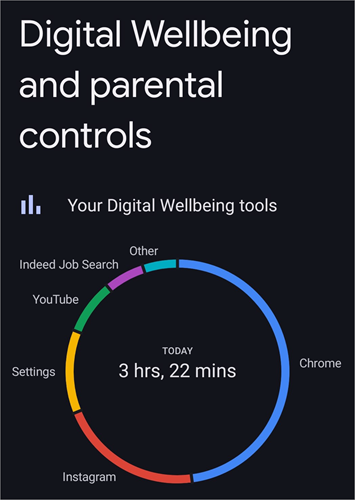
You can access Digital Wellbeing from your phone’s settings. You are greeted with stats that reflect your app, website, and overall phone usage daily as soon as you open it.
Other things you can do with Digital Wellbeing are as follows:
- App Limits:
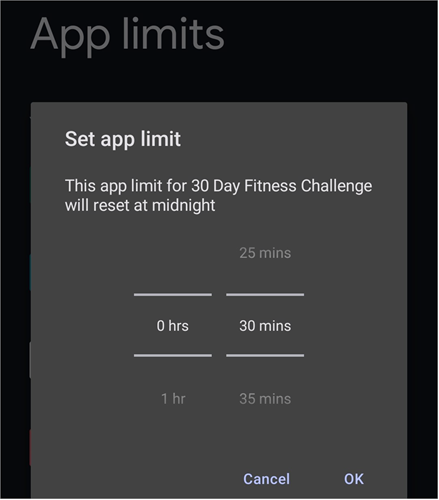
Set a time limit that restricts usage of an app. For instance, you could use this feature to set a time limit of 30 Minutes when using Instagram. Once set, you’ll only be able to use Instagram for no more than 30 minutes each day.
- Bedtime Mode:
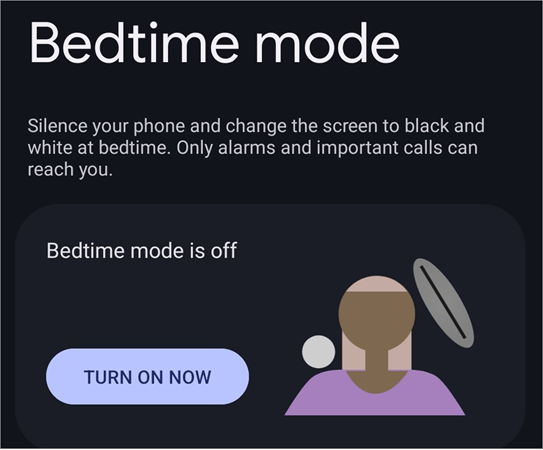
You could schedule your phone to go into bedtime mode at a scheduled time every night. Let’s say you’ve scheduled Bedtime Mode to kickstart at 11 PM every day. As soon as the clock hits 11 PM, your screen’s brightness will decrease, and all notifications and calls will be silenced.
- Focus Mode:
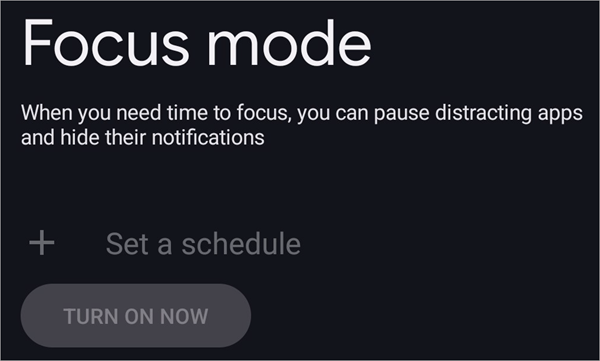
Focus Mode helps you pause certain apps temporarily. You’ll be able to pause an app and mute notifications with a single tap.
Suggested Read => How to Mute or Unmute People on Instagram
Digital Wellbeing is good if you want to block apps temporarily. You can easily go back to the settings and lift any restrictions you’ve set within a few steps. If you want to block apps permanently, I suggest you consider the following method.
2. Family Link
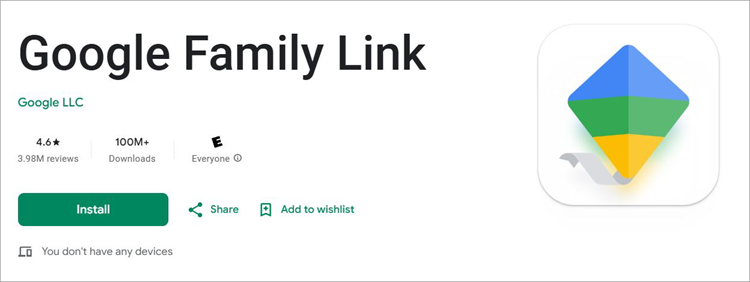
Family Link is an app available on the Google Play Store. Parents can download and install this app for free to remotely block apps on their child’s device. This app is ideal for parents who want to control what apps their child can download from the Play Store. It can also help them manage in-app purchases on their child’s device.
How to Use Family Link:
- Download Family Link on both iOS and Android devices.
- Sign up on both devices.
- Now, pick a family member’s account.
- Click on “View Apps” to check all apps available on the target device.
- Select the app and tap on the toggle next to it to block.
3. Blocking Downloads through the Google Play Store
Google Play Store also comes with built-in parental control features that you can rely on to block the download of certain apps.
How to block a specific app from being downloaded on the Play Store.
1. Open the Play Store and tap on the profile icon.
2. Go to Settings
3. Select Family and switch on Parental Controls
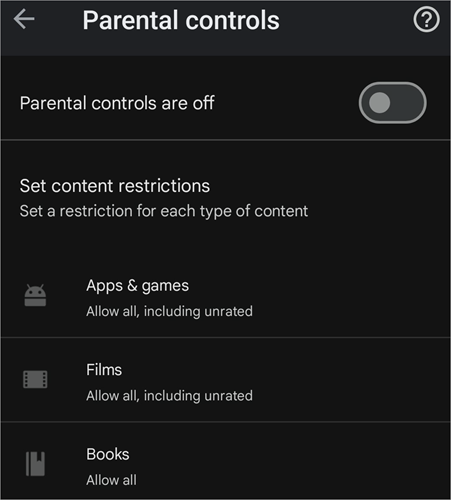
4. Proceed to create a PIN. You’ll need this PIN to lift the restrictions later.
5. Now select and tap on the category of apps (Movies, Games) you wish to block.
6. Hit the save button to conclude the process.
How to Block an App on iPhone
Similar to Android, iOS also comes with built-in features that let you block an app. The best way to block apps or set content restrictions on iOS is through its feature, Screen Time.
Further Reading => How to Delete Apps on iPhone
1. Screen Time
Think of Screen Time as the iOS counterpart to Android’s Digital Wellbeing. Screen Time was initially launched to help iPhone users keep track of their app and smartphone usage. Over the years, several new features have been introduced, expanding what Screen Time can do.
Here are all the ways you can use Screen Time to block apps and content:
i) Setting Time Limits
1. Open Screen Time
2. Locate and Select “Downtime”

3. Select a start and end time to set when Downtime will be triggered.
Once set, only phone calls and apps you’ve allowed will be accessible from the moment Downtime begins until it ends.
Suggested Read => Top-Rated Spam Call Blocker Apps to Look For
ii) Block Adult Content
The internet is riddled with Adult content that’s not meant to be seen by children. Regulating them can be hard unless you know how to use Screen Time to block this type of content altogether.
1. Open Screen Time
2. Locate and Select Content and Privacy Restriction.

3. In content restrictions, select Web Content.
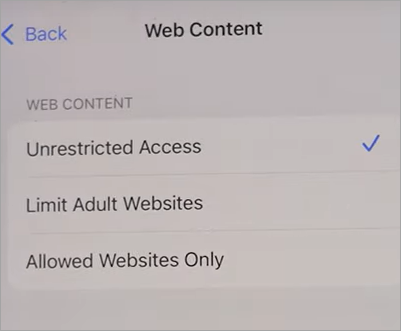
4. In Web Content, select “Limit Adult Websites”.
You can also follow the same steps to arrive at options that let you block content by region or category.
iii) Block App Downloads and in-app Purchases
Screen Time helps you block the download of any app and restrict in-app purchases in a few simple steps:
Ways to Block a Specific App from Being Downloaded on an iPhone
1. Open Screen Time
2. Go to Content and Privacy Restrictions
Further Reading => Best iPhone Spy Apps of the Year
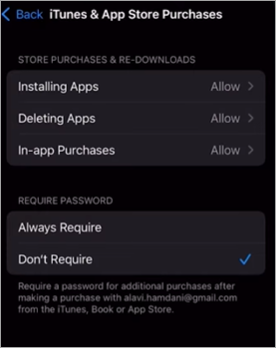
3. Select iTunes and App Store Purchases
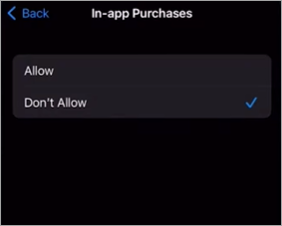
4. Select “Don’t Allow” against the options – Installing Apps and In-App Purchases.
Disabling Apps with DNS Content Policy
This method could come in handy when you are blocking apps that require the internet to operate. By creating and enforcing a DNS content policy, you could not only block the native app on your phone but also block any other version of that same app that can be accessed via your device’s web browser.
I recommend using apps like NinjaOne and Aura to create and manage DNS content policies. You’ll find my brief thoughts on both of these apps further down in the article.
Limitations of Using Built-in App-Blocking Features
Built-in features like Android’s Digital Wellbeing and iOS’s Screen Time do a fine enough job in helping you meet productivity requirements. That said, they aren’t exactly ideal if you have a strong addiction to your smartphone. Built-in features are limited in their capabilities.
Sure, they’ll set a time limit on apps and mute notifications. However, anyone who knows how to use a smartphone can bypass these restrictions with ease unless you’ve set up a passcode. As such, these features might not be the solution you seek if banning an app permanently is your ultimate goal.
Built-in features also offer little to no customization. It is difficult to enforce app or content restrictions with built-in features on a more granular level. They also lack advanced features like analytics, gamification, and the ability to track a cell phone’s location.
Finally, apps designed to bypass such restrictions are being released regularly. Some of these tools are easy to set up and free to use.
Considering these limitations, Screen Time and Digital Wellbeing may both prove insufficient in helping you block an app permanently.
Fortunately, built-in features aren’t the only tools at your disposal. You could turn your attention to an advanced third-party app blocker instead.
Best Third-Party Applications to Permanently Block Apps
#1) AppBlock
AppBlock positions itself as a well-being app that’s designed to cut down your phone usage. It works phenomenally well with both iOS and Android devices. You can use it to block apps with ease with a single tap. AppBlock is also highly customizable. It lets you customize app blocks based on time and location.
Website: https://appblock.app/
#2) AirDroid Parental Control
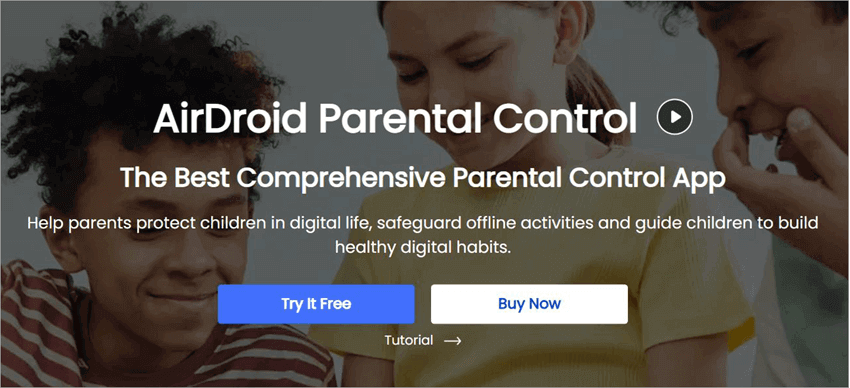
AirDroid does what you’d expect from a parental control application. Almost all of the features in Android’s Digital Wellbeing and Apple’s Screen Time are also present in AirDroid. You can set app limits, manage screen time, and remotely block certain websites with this app. Moreover, AirDroid also lets you track a cell phone’s GPS location in real time.
Website: https://www.airdroid.com/parental-control/
#3) NinjaOne
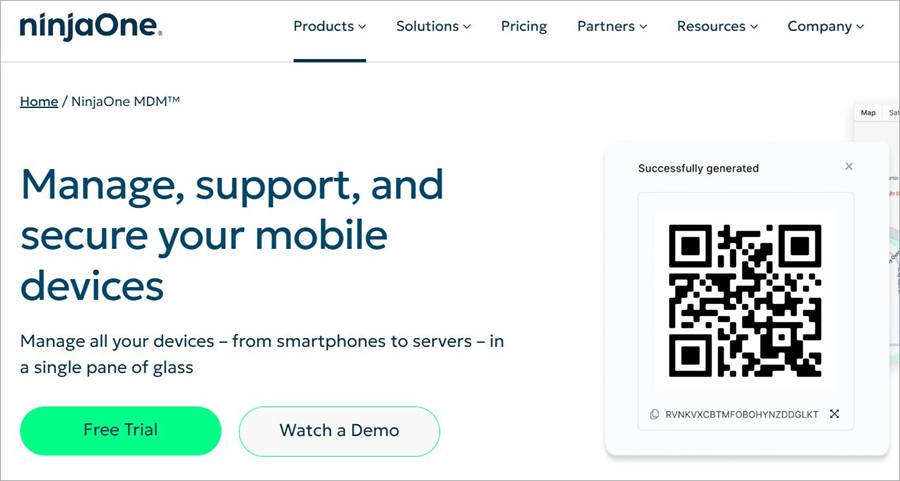
NinjaOne is yet another that I’d recommend to anyone who wishes to learn how to permanently block an app on iPhone and Android. NinjaOne sets itself apart from many of its contemporaries on this list by being an end-to-end mobile device management solution. As such, you can use to for a lot more than blocking apps.
NinjaOne can also help you track a mobile device’s location in real time on a virtual map and also take measures to protect the data it contains.
Website: https://www.ninjaone.com/mdm/
#4) Aura
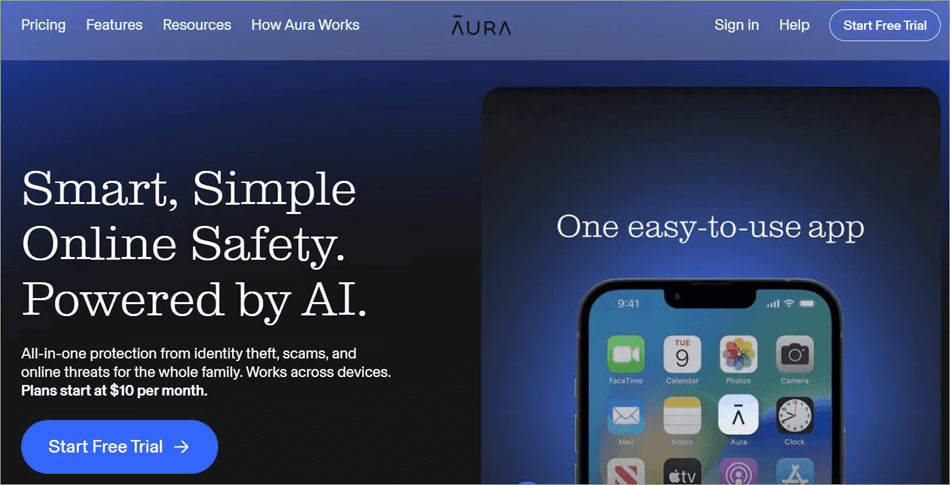
Aura earns a recommendation from me for its content filters. These content filters can be applied to enforce restrictions across apps, streaming platforms, and websites being used on a phone. Aura also comes with a feature that allows you to pause internet connectivity to a device remotely, thus making this software ideal for parents.
Website: https://www.aura.com/
Although third-party apps are good, they aren’t without their own set of limitations. Most of these apps charge a fee from their users. You’ll also need to go through the hassle of downloading, installing, and setting up this software on your devices. These are issues you don’t have to face with built-in features.
I suggest you use third-party apps if you don’t have a problem coughing up the money necessary to pay for them.
Frequently Asked Questions
1. Is there a way to permanently block an app on your phone?
Yes, there are both built-in and third-party options available to help you block an app on your phone permanently. Android Users can rely on the Digital Wellbeing feature, whereas iPhone users can count on Screen Time to block apps or manage their phone usage.
Just know that these built-in features may prove insufficient for folks who are having a tough time kicking their phone addiction. A better alternative would be to use a third-party app like AirDroid or AppBlock.
2. How do I permanently hide apps?
Hiding doesn’t mean blocking. Hiding an app would only make its logo invisible. You can hide an app on your Android device by following the steps below:
1. Open Settings
2. Go to Display
3. Tap on Home Screen
4. Scroll down until you find the option to Hide Apps.
5. Now tap on the app icon you’d like to hide.
6. Hit Done.
Further Reading => Best Hidden Spy Apps on Android
3. How to block an app from being downloaded?
Android users can block an app from being downloaded by configuring the settings in their device’s Play Store. Simply follow the steps below:
1. Open the Play Store and tap on the profile icon.
2. Go to Settings
3. Select Family and switch on Parental Controls
4. Proceed to create a PIN. You’ll need this PIN to lift the restrictions later.
5. Now select and tap on the category of apps (Movies, Games) you wish to block.
6. Hit the save button to conclude the process.
iOS Users also have the option of blocking app downloads from iTunes and the App Store by carefully following the guide below:
1. Open Screen Time
2. Go to Content and Privacy Restrictions
3. Select iTunes and App Store Purchases
4. Select “Don’t Allow” against the options – Installing Apps and In-App Purchases.
4. How to block Auto-Updates of apps?
Blocking an app’s Auto-Update is simple on both Android and iOS. All you have to do is the following:
i) On Android
Open Settings
Select Network Preferences
Select Auto-Update and tap on “Don’t auto-update apps”.
ii) On iOS
Open Settings
Navigate to App Store
Find App Update and tap on the toggle next to it to switch auto-update off.
5. How do I block app permissions
Simply do the following if you are an Android user:
1. Open Settings
2. Open Apps and Notifications
3. Tap on the App you’d want to block permissions for.
4. Now check on some or all the boxes available to configure permissions that the App has.
Restricting app permissions on an iOS device is also just as simple:
1. Open Settings
2. Locate and tap on Apps
3. Select the App you want to restrict permissions on.
4. Start tapping on the presented toggles to restrict permissions.
Conclusion
Smartphones are one of humanity’s finest inventions. They’ve done a lot of good and continue to push human civilization forward by being beacons of innovation. However, it would be foolish to completely ignore some of its negative impacts on our society as we embrace its greater contributions.
Smartphones have kept a large section of our population glued to their screens, significantly affecting human productivity as a result. The best way to regain some control over your life and time would be to block some addictive apps that frequently catch your attention.
Thankfully, there are built-in (Digital Wellbeing, Screen Time) and third-party apps (AirDroid, AppBlock) you can use to keep your phone activity in check.
You’ll find a simple guide in this article on how to block apps permanently on Android and iPhone. Hopefully, you can use this guide to cut down your screen time significantly and improve your focus on things that matter.
Was this helpful?
Recommended Reading
-

Compare the top Parental Control Apps to discover the Best Parental Control apps for iPhone and Android most suited for your children: The rapid advancement of technology poses a risk to children. Various studies have shown negative physical and mental effects of smartphone usage at earlier ages. Parental control apps…
-

Are constant ads and pop-ups disturbing your phone browsing experience? Select from the list of the best Ad Blockers for iPhone and iPad based on your requirements: One of the most annoying things about browsing the internet on your iPhone or iPad is ads. Ads and pop-ups can sometimes frustrate…
-
Are you searching for the best Hidden Spy Apps for Android? Read this review of the top Undetectable Spyware apps for Android smartphones to select the best option: A spy app can monitor the smartphone activities of your child. The apps let you monitor smartphone activities to protect your child.…
-
Read this comprehensive review to compare and select the right spyware for iPhone. Analyze the technical specifications & features to select the best iPhone spy apps of your choice: Spy apps refer to smartphone surveillance applications that are helpful for parental control and employee monitoring. There are many apps that…