Wondering how to turn off background app on Android? This guide will show you how to stop Apps running in background on Android phones and Save battery and RAM.
When an Android smartphone becomes slow, heats up or drains battery fast, background apps may be causing that problem. Background apps continuously sync data, track your location, check for new updates, etc., even when you are not using them.
This guide will show you how to stop apps from running in background on Android and control their background activities.
It will also help you understand how to block background apps on other popular Android smartphones like Samsung, Google Pixel, Xiaomi, etc., battery optimization on Android, and background app refresh vs. Android background activity.
How do you stop apps from running in the background on Android?
To stop apps from running in the background on Android phone, navigate to: Settings > Apps > App you want to restrict > Battery, select Restricted or Do not allow background activity (depending on the Android version). Additionally, you can even enable Battery Saver, restrict background data or use other battery optimization features.
How to Turn Off Background Apps in Android: Quick Guide
Thankfully, this isn’t something that requires you to wreck your head for a possible solution. Android users should rest assured that there are many simple ways to shut down apps running in the background, and I’ll be sharing those methods here with you all.
So, without much further ado, let’s find out how to stop apps from running in the background on Android phones only.
What Are Background Apps and Why Do They Run?
Any app you open on an Android device is bound to run in the background by default, even after you are done using it. You won’t see any alerts or notifications informing you of an active app unless you decide to look for one by yourself, either by opening the app switcher.
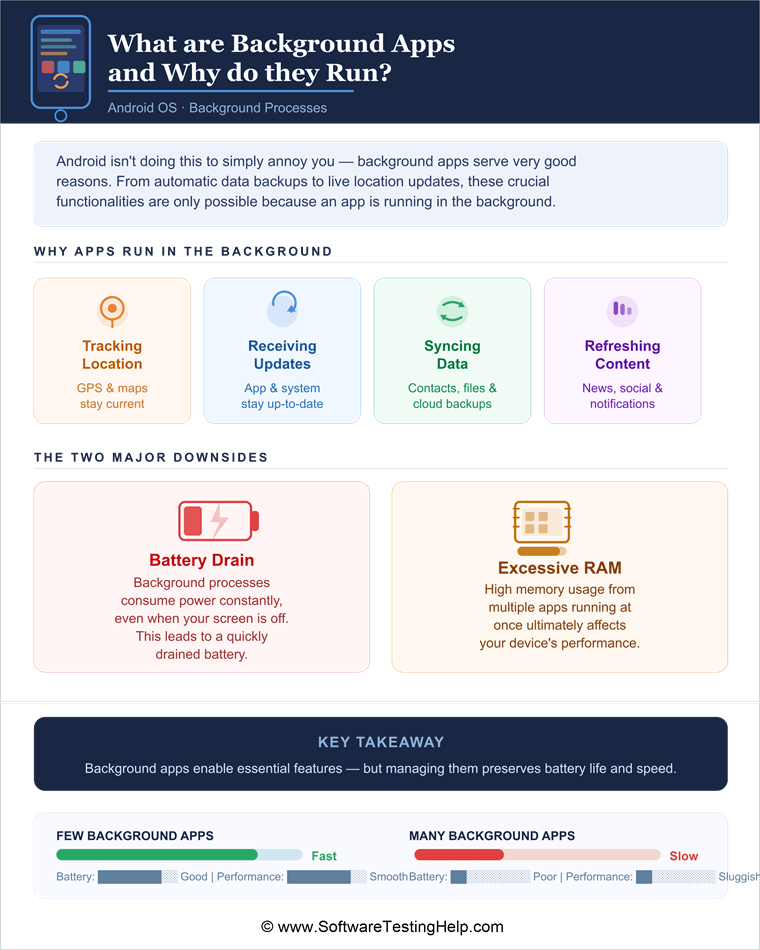
Android isn’t doing this to simply annoy you, though, and this function isn’t exactly divorced from a purpose. An Android will have one or multiple apps running in the background for very good reasons, such as:
- Tracking location
- Receiving updates
- Syncing data
- Refreshing content
From automatic data backups to live location updates, all of these crucial functionalities are only possible because an app is running in the background. There are two major downsides to this: the first is a quickly drained battery, and the other is excessive RAM usage, which ultimately affects your device’s performance.
If you notice your phone’s battery dying too soon, then it would only be wise to close all apps running in the background. I’ll show you how.
Here is the video guide on how to stop Background apps on Android:
How to Identify Which Apps Are Running in the Background
There are two effective ways to find out which app is draining resources on your Android phone.
Method 1: Use Developer Options
For this method to work, you’ll need to enable developer mode on your phone. Simply open Settings and search for “Build Number”. Once you open it, simply tap on “Build Number” seven times to enable developer mode.
The path to “Build Number” varies from phone to phone. So, my advice would be to simply search for it as soon as you open your phone’s settings.
With “Developer Mode” enabled, do:
1. Go to Settings
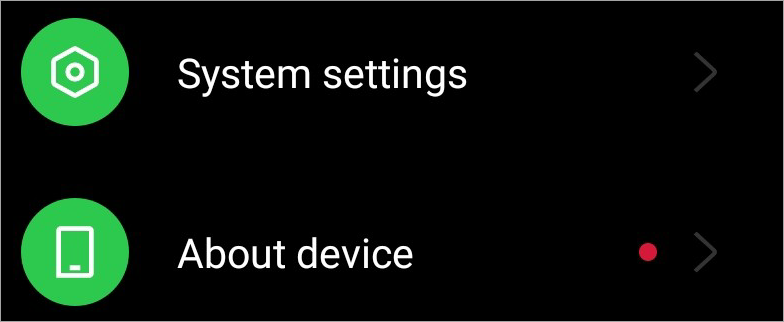
2. Scroll down until you find System Settings
3. Tap on Developer Options
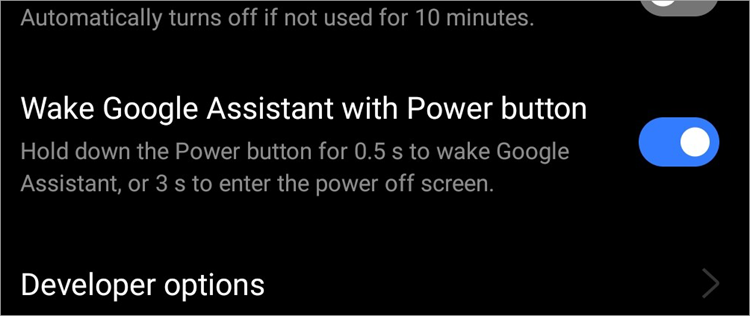
4. Under Developer options, tap on Running Services
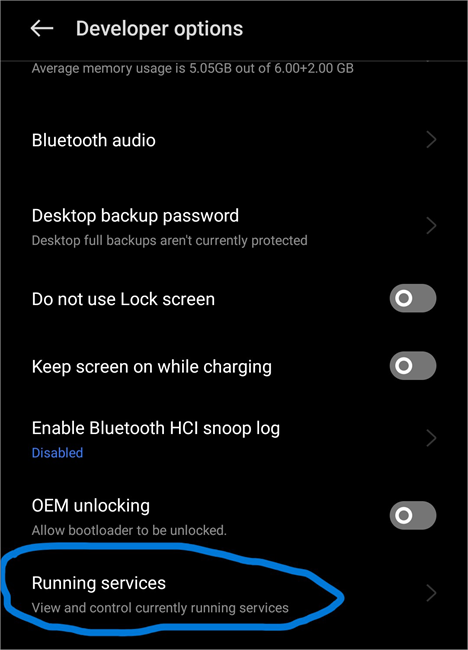
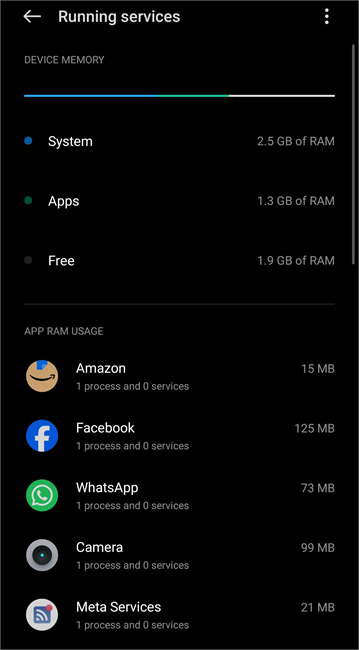
5. You’ll now see a list of all apps running in the background.
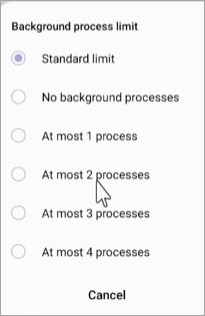
Under developer options, you can also restrict how many apps can run in the background simultaneously to save battery and RAM.
Just scroll down to the Apps section within Developer Options and select “Background Process Limit”.
Now choose from the options below:
- Standard Limit: Let the phone manage running apps dynamically.
- No Background Processes: The running app is closed the moment you open a new app.
- Select at most 1 or 2, 3, or 4 processes.
Method 2: Check Battery Usage
All Android devices give you information on the apps consuming your battery at the moment.
1. So, go to Settings.
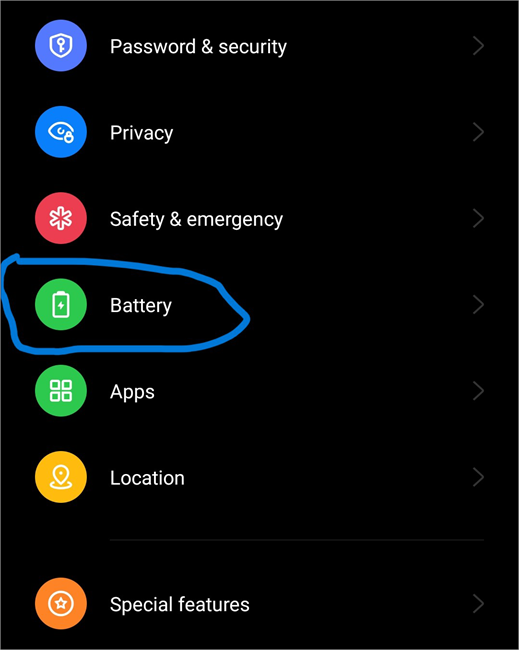
2. Scroll down until you find “Battery”. Tap on it.
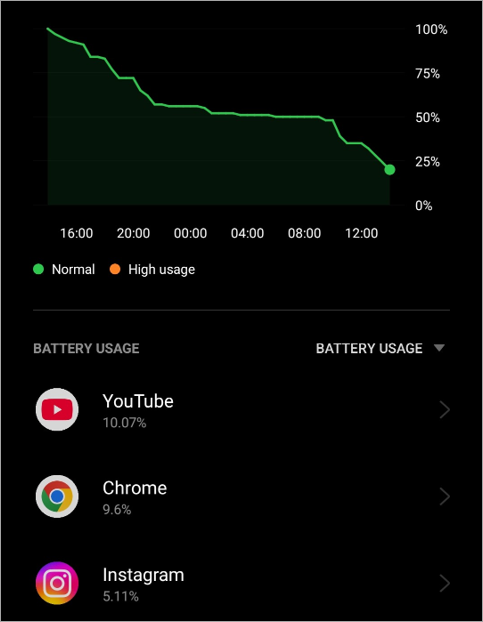
3. You’ll now see a list of all apps using your battery, from those that use it the most to those that rely on it the least.
Now that you know how to identify which apps are draining resources, let’s jump to the meat of this topic.
How to Stop Apps Running in Background on Android
We’ve already discussed how to identify apps running in the background via developer options and battery settings. Those same methods can also help you disable apps as well.
#1) Via Developer Mode
Simply follow the guide I’ve mentioned above until you’ve opened the “Running Services” window on your phone.
Then, just do the following:
1. Tap on the app you wish to close.
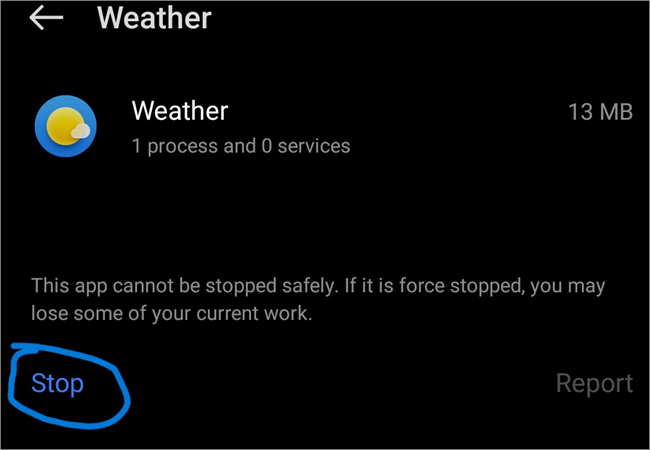
2. Tap on “Stop” to shut down the app.
#2) Via Battery Settings
Similarly, follow the guide mentioned above until you’ve opened the Battery Usage window.
Do the following once you are there:
1. Tap the app to close
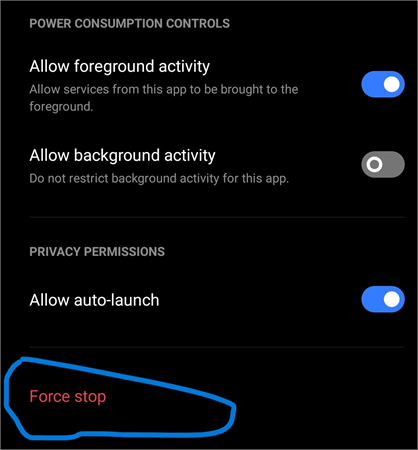
2. Tap on “Force Stop” to shut it down.
#3) Disabling Background App Refresh
Like I said before, an app often runs in the background to serve several purposes, like receiving messages or getting updates. Naturally, your phone won’t be able to perform these functions automatically if background app refresh is off.
On an iPhone, this is quite simple. However, most Android devices, whether they’re Samsung, Realme, or OnePlus, don’t have an option that’s explicitly labeled as background app refresh. However, there are multiple options at your disposal that achieve the same effect.
So, let’s learn how to turn off background app refresh on Android devices:
A. Battery Optimization
Most modern Android phones can automatically optimize apps that are draining the battery in the background.
All you have to do is:
1. Go to Settings > Battery
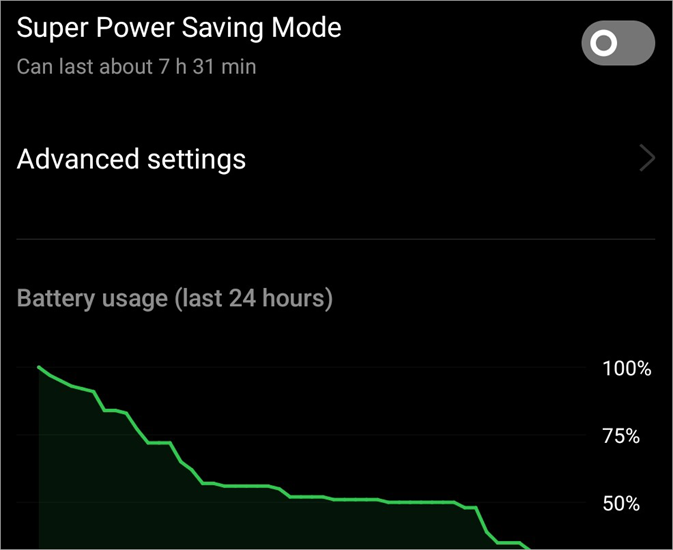
2. Select Advanced Settings.
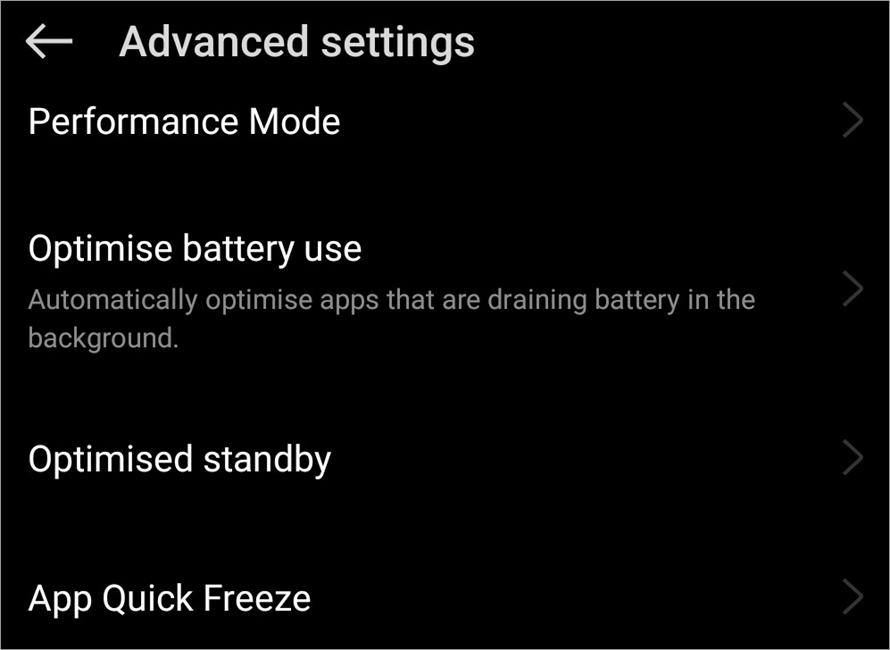
3. Tap on Optimize Battery Usage
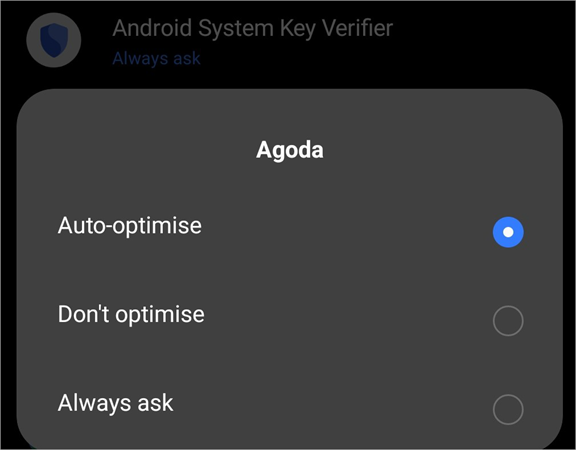
4. Select an app and choose the option – “Auto-Optimise”.
B. Use App Standby
By enabling standby mode, your phone will automatically shut down background apps whenever your screen is off, thus reducing battery consumption.
Here’s how you enable this function:
1. Go to Settings > Battery
2. Select Advanced Settings
3. Tap on ‘Optimised Standby’.
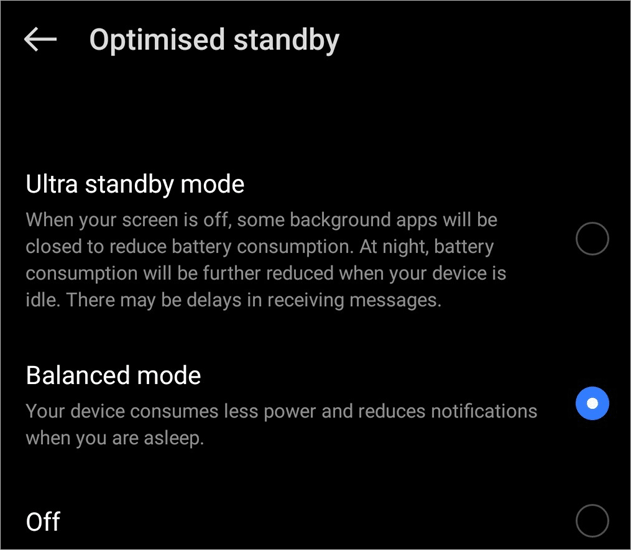
4. Turn on Standby mode.
C. App Quick Freeze
Another thing you can do is freeze idle apps. Modern Android devices can automatically freeze any idle app, thus stopping it from refreshing. This will prevent the app from performing all sorts of battery-draining functions, like receiving messages, syncing, or getting updates.
Here’s how you do it:
1. Go to Settings > Battery
2. Select Advanced Settings
3. Tap on App Quick Freeze
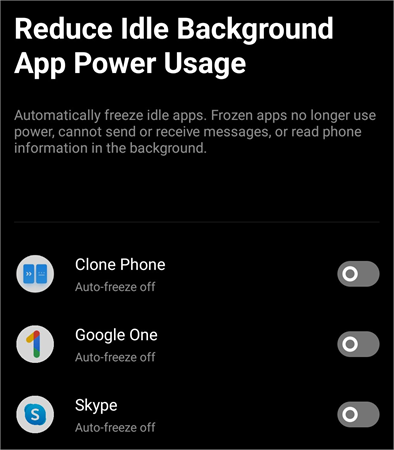
4. Simply toggle the switch on against the app you wish to freeze.
D. Turn Off Auto-Sync
This is yet another way to turn off the background on your phone. Many apps constantly auto-sync on your phone. Your phone could save battery power by simply disabling auto-sync for apps you don’t use much.
To disable Auto-Sync, do the following:
1. Go to Settings
2. Tap on Users and Accounts.

3. Simply switch the toggle off against ‘Automatically Sync App Data”.
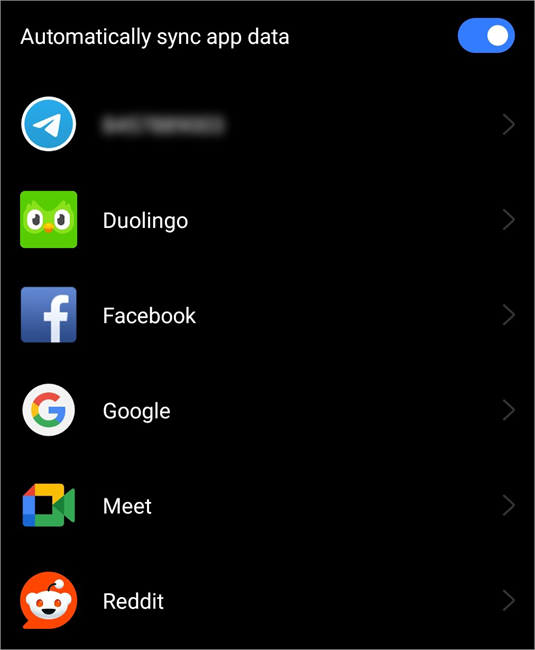
4. Or, you opt to disable syncing for individual apps here.
E. App Management
All Android phones let you permanently disable an app’s background and foreground activity. Here’s how you do it:
1. Go to Settings
2. Open Apps
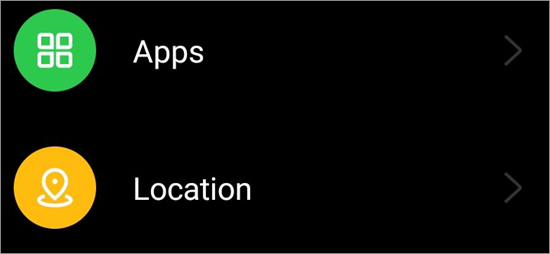
3. Select App Management
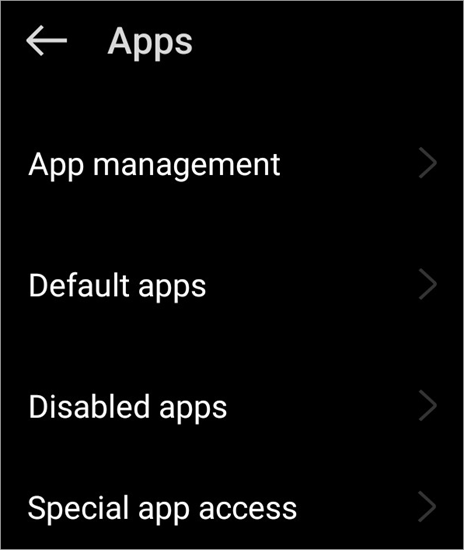
4. Tap on an app and select battery usage.
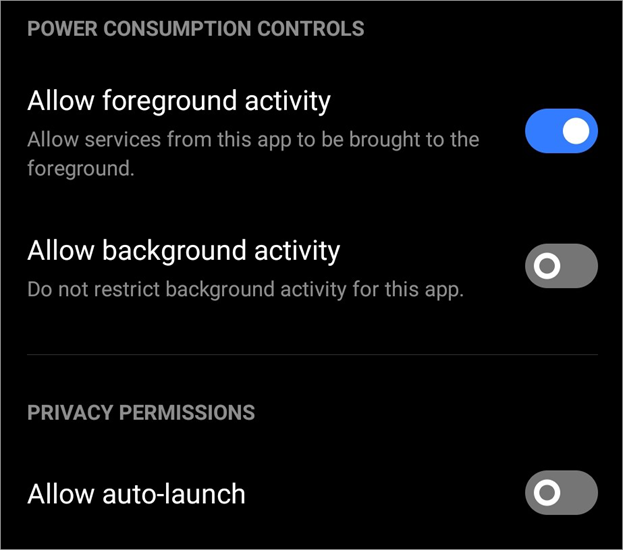
Now, toggle the switch off against the option “Allow background activity.”
F. Manually Close Apps
I left the simplest method last, mainly because it isn’t really effective in helping you reduce battery usage. That said, you can still shut down an app you are no longer using by doing this.
1. Tap on the square button that’s displayed at the bottom of your home screen.
2. This will open the app switcher, where previews of all open apps will be displayed.
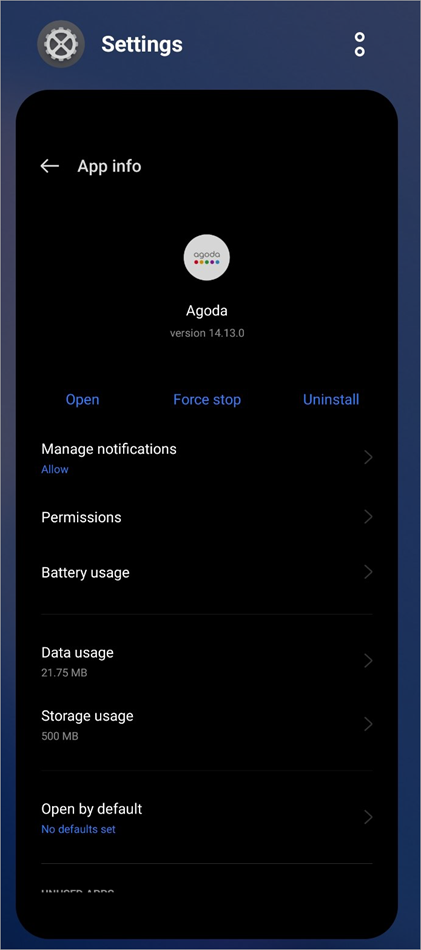
3. Simply swipe up on the app you wish to close.
G. Adaptive Battery
This is a feature that you’ll find on Android devices running on version 9 (Pie) or later. You’ll find this feature on almost all modern Android smartphone models under popular brands like Xiaomi, Motorola, and Redmi.
The feature is used natively on Samsung Galaxy and Google Pixel. Using this feature is quite simple. Once turned on, it will help you keep all background apps in check.
Here’s how you do it:
- Go to Settings
- Select Battery > Battery Saver
- Find the “Adaptive Battery” option and toggle it on.
H. Battery Saver Mode
Most Android devices come with a feature called “Battery Saver” or “Power Saver” on some phones. You can enable the Battery Saver mode on your phone by tapping on it via the “Quick Access Menu”. Simply swipe down on your phone to open the “Quick Access Menu”. Find the “Battery Saver” option. Its widget will feature a battery icon. Simply tap on it.
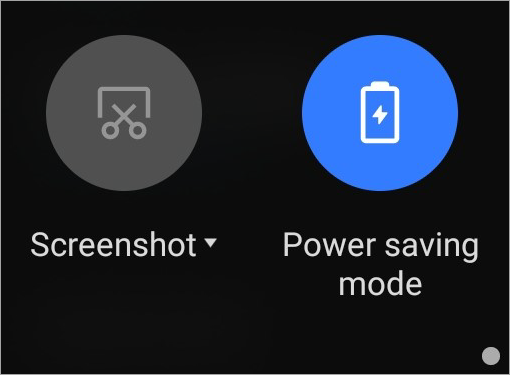
With this mode active, your phone will stop all battery-intensive features, restrict background app activity, and lower its performance considerably.
I. Update your Phone
Keeping your phone up-to-date is the best way to take care of it. New updates may carry important bug fixes, performance boosts, and battery improvements that your phone will need.
Updating your Phone’s OS is simple. Here’s how you do it:
1. Open Settings
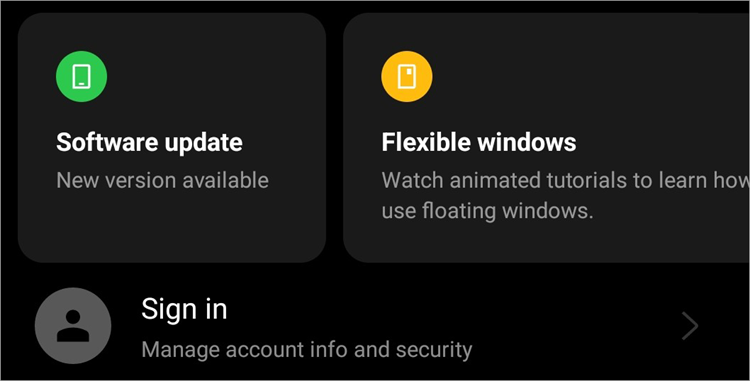
2. Select Software Update
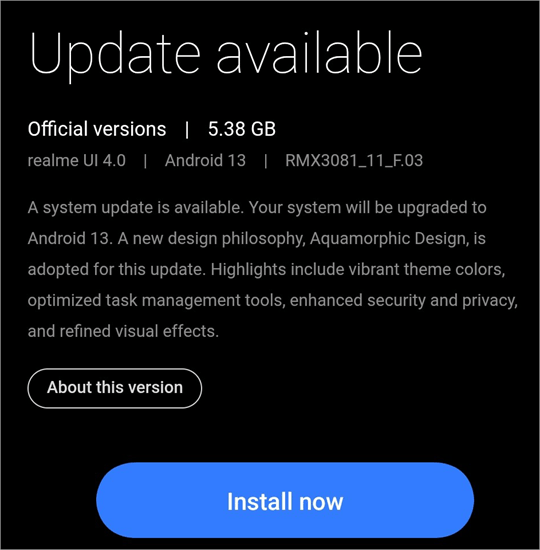
3. Check if a new update is available and tap on “Install Now” to get it.
J. Pause App Activity if Unused
This is yet another thing you can do to shut down any background-running app.
1. Open Settings > App > App Management
2. Tap on Permissions
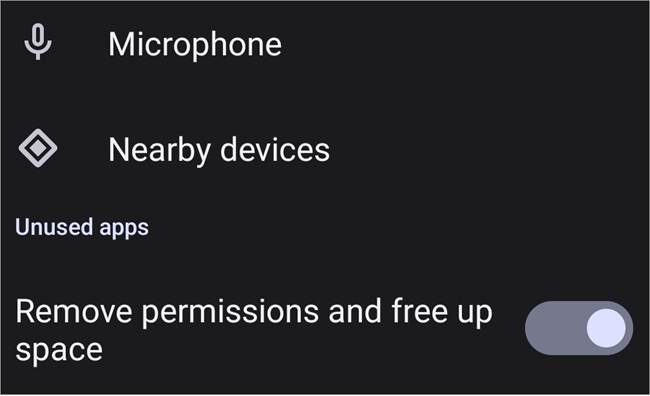
3. Scroll down to Unused App settings and switch on the toggle against the option “Pause app activity if unused”.
On some devices, like the Realme 8 Pro, this option will be called “Remove permissions and free up space.”
K. Restrict Background Data for Specific Apps
Certain apps will use your mobile’s data or Wi-Fi to receive updates or send notifications, even when you aren’t using it. Turning off Background Data will ensure these apps aren’t able to do so anymore.
- Simply go to Settings
- App > App Management
- Select the App > Select Data Usage
- Switch off the toggle against the option – Background Data.
Bonus Tips For Smart Background App Management
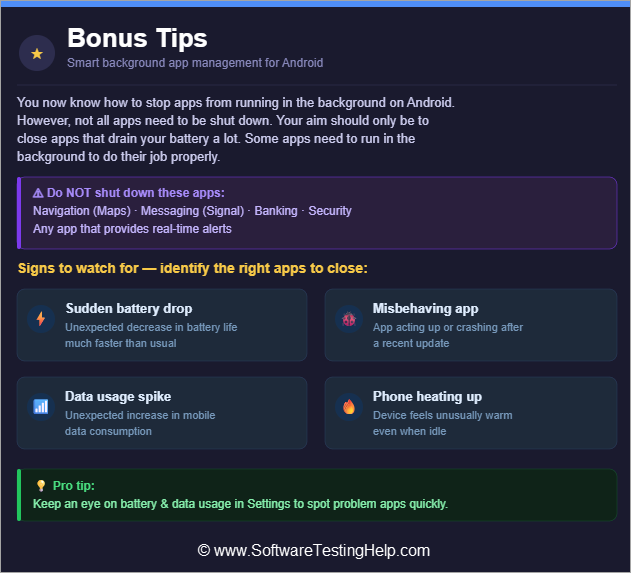
You now know how to stop apps from running in the background on Android. However, it is worth noting that not all apps need to be shut down. Your aim should only be to shut down apps that drain your battery a lot. Some apps need to run in the background to do their job properly.
Refrain from shutting down apps used for navigation like Maps, messaging like Signal, banking, security, and any other app that offers real-time alerts.
To identify the right apps to close, I suggest keeping an eye out for the following signs:
- Sudden drop in battery life.
- Misbehaving app after an update
- Unexpected data usage spike.
- Phone heating up
Also note that most apps come with a built-in auto-launch feature that enables them to silently run in the background. You can stop an app like this from running by disabling the “Auto Launch” function on your phone.
- Go to Settings
- Select Apps.
- Tap on Auto-Lauch
- Toggle the switch off against an app that you don’t want auto-launching.
Finally, always keep tabs on your battery usage. Use third-party apps like Battery Widget Reborn or Ampere to monitor your phone’s battery health in real-time from the home screen itself.
Besides restricting background apps, I would also suggest tightening your phone’s privacy and security. Review your app’s permissions regularly, use a VPN when using public Wi-Fi, keep your phone’s OS up-to-date, and make sure to only download apps you trust.
These measures will ensure your phone’s data remains safe and your privacy as a user isn’t compromised.
Best Practices to Reduce Background Activity on Android Phones
There is no need to force-stop all applications to preserve battery power. Here are some tips which may help you reduce unnecessary background processes on your Android smartphone.
Uninstall Unused Applications: Remove all those applications which you no longer need because they have other uses behind the scenes like syncing, getting your messages or notifications, or monitoring your location without your frequent usage.
Turn Off Auto Sync: Disable auto sync for accounts which do not require up-to-date information constantly.
- Open Settings>Accounts (or Passwords & Accounts)
- Switch off synchronization for services you don’t need to be continuously synchronized.
This tip will be helpful for secondary email accounts, cloud storage services, and social networks.
Install Updates for Apps: Sometimes developers provide updates to their products which help save the battery and fix some bugs responsible for unnecessary background processes.
- Launch Google Play Store.
- Proceed to Manage apps & device.
- Install updates regularly.
Apply Battery Optimization: There is built-in functionality in Android which helps reduce the amount of background processes of apps that you use rarely.
- Open Settings>Apps
- Select the application.
- Click Battery.
- Choose Optimized (recommended) or Restricted if you don’t want the app to work in the background.
Generally, applying battery optimization is safer than stopping the applications by force because it gives you an opportunity to minimize background operations without disabling notifications and synchronization.
Frequently Asked Questions
1. Why does Android keep apps running in the background?
What may seem like an annoyance is actually done for user convenience. Android keeps your apps running in the background for an ultimately satisfying user experience. An app usually runs in the background for location tracking, sending and receiving messages, real-time alerts, and checking updates.
2. How do I shut down apps running in the background on Android?
I’ve discussed various methods that can help you shut down apps running in the background.
In summary, they are as follows:
• Disabling running services via developer options
• Optimizing app usage via battery settings.
• Putting an app on standby
• Quick app freeze via battery settings.
• Force stop an app
• Swipe up an app from the app switcher.
You’ll find a detailed step-by-step guide for the methods in the above article.
3. How do I permanently stop apps from running in the background?
It is simple to permanently turn off background apps.
Here’s how you do it:
• Go to Settings
• Open Apps
• Select App Management
Now, toggle the switch off against the option “Allow background activity.”
This will prevent the app from running in the background.
4. How do I find which apps are running in the background on my Android?
It is quite simple to identify apps that are constantly running in the background. You can do so by either viewing the Running Services section via the developer option or checking your phone’s battery usage from system settings.
5. Why should I stop apps from running in the background?
There are two major reasons to stop an app from running in the background. First, shutting down an app will stop unnecessary battery drainage, thus resulting in your phone’s battery running for a longer time. Second, shutting down a background app can also avoid any unnecessary data usage.
6. Does closing apps actually save battery?
Yes, an app running in the background will drain your battery dry. As such, use the methods I’ve recommended above to close your apps when they are not in use to both save your device’s battery and free up its RAM for better, faster performance.
Conclusion
I hope this article serves as your go-to guide on how to close background apps on an Android device. Remember, simply swiping up won’t close an app on your phone. Android devices keep an app running in the background unless you take explicit measures to shut it down.
I have mentioned all of those measures with step-by-step guides for each, for your convenience. Just know that not all apps have to be shut down. Some apps, like messaging or banking apps, are critical for real-time alerts. My advice would be to find a resource-intensive app that you don’t use often and shut it down for good.
Research Process: The total time involved to complete and publish this article is approximately 42 hours. This content was created through a structured research approach to ensure accuracy and reliability.
For more-related guides, you can explore our range of tutorials below:
- Why Is My Phone So Slow? 5 Easy Ways to Speed Up Your Phone
- How to Remove Background From Picture on iPhone
- How to Remove Background From Image Using Image Background
- How to Remove Background Noise from Audio (Top 10 Tools)
- How to Block Apps Permanently on Android
- How to Transfer Apps From Android to Android Phone
Was this helpful?
Recommended Reading
-

Looking for a solution to block unwanted and fraudulent calls? Review this list of the best Spam Call Blocker for Android to block spam calls: Spam call is defined as an unwanted call or communication that occurs without any prior request and sometimes poses a threat to the person to…
-

Technology has simplified everything, and blocking apps on Android is not rocket science anymore. Discover how to block Apps permanently on Android in a convenient way with simple built-in features: Want to learn how to block apps on Android and iPhone devices? Well, you’ve found yourself in the right place.…
-
Are you worried about how to remove background noise from audio recording on iPhone, Android, or other devices? Here, we have enlisted the top tools that can help you with the same: In today's world, where presence on social media is considered to be very important for individuals, businesses, and…
-
Explore the top effective methods to Remove Malware From Android Phones. Here you will also learn about malware types and the top anti-malware tools: Malware is malicious software that can easily get into your phone while you are surfing the internet on your phone or downloading applications from malicious websites…