Do you think it is really possible to see deleted messages on WhatsApp? Discover the expert ways to see WhatsApp deleted messages without using any third-party apps on Android & iPhone:
WhatsApp has come a long way since its inception way back in 2009. Today, it is a household name across the globe and an instant-messaging app that can be found on almost every smartphone on the planet. One reason for its continued success could be attributed to its evolution.
The instant messaging app has evolved considerably over the years to make the user experience even more convenient. Among the many advanced features WhatsApp is celebrated for, the “Message-Deleting” feature is one worth raving about.
How to See Deleted Messages on WhatsApp: Ultimate Guide
While most, including me, see this feature as a giant boon, sometimes it can incite some frustration among users. Imagine receiving a message from your friend, only for it to disappear before you’ve laid eyes on it.

[Copyrights: Meta Platforms Inc.]
You’d want to know what was written before the message was unceremoniously deleted. Now there are third-party apps that help you uncover these messages. That said, you’d have to go through the hassle of downloading, installing, and sometimes even paying for these solutions.
However, what if I told you there are certain tricks to unearth deleted WhatsApp messages without using any apps? Well, you are in luck as I’ll be discussing how to see WhatsApp deleted messages by sender without any app in this little guide.
Is it possible to see messages that have already been deleted?
Short answer: Yes! It is possible to unravel a deleted message on WhatsApp. The best part, of course, is the fact that you won’t need an external app to help you. The cloud backup on your Android or iOS device would be enough to get the job done. I have nothing against third-party apps that can make this process a little simpler.
So I would recommend a few such tools in this article as well. That said, my focus would largely be on suggesting tricks that let you read deleted messages without the help of any other application.
So, without any further ado, let’s dive in.
| Solutions | Step-By-Step Guide |
| Recover deleted messages on iPhone via iCloud Backup | Make sure the WhatsApp backup to iCloud is active. Uninstall and reinstall the app. During the installation, select “Restore Chat History”. |
| Recover deleted messages on the iPhone via iTunes Backup. | Connect iPhone with an iTunes account containing a WhatsApp backup => reinstall WhatsApp on the device => Verify Account => Select “Restore” to recover deleted chat history from iTunes WhatsApp backup. |
| Recover deleted messages on Android via the Notifications log | Go to settings => Select Notification and Status => Notification History => Switch the toggle on. |
| Recover deleted messages on Android via Google Cloud | Ensure your WhatsApp and phone are connected to Google Cloud. If so, uninstall and reinstall the app. During the reinstallation, select “Restore”. This will restore all deleted messages backed up on Google Cloud. |
WhatsApp Message-Deleting Feature: Overview
WhatsApp first released the “Message-Deleting” feature in 2017 to a largely positive reception. Users like me were finally happy to have the privilege of deleting accidentally sent messages before the recipient saw them.
The feature also helped you save face in the event you’ve sent a message that can be deemed embarrassing.

The way it works is quite simple. You have 2 days after a message is sent to have it deleted. To delete a message, you have to:
#1) Open the chat window where the message was sent.

#2) Tap and hold the message => tap on the “Trash Bin” icon at the top to delete.
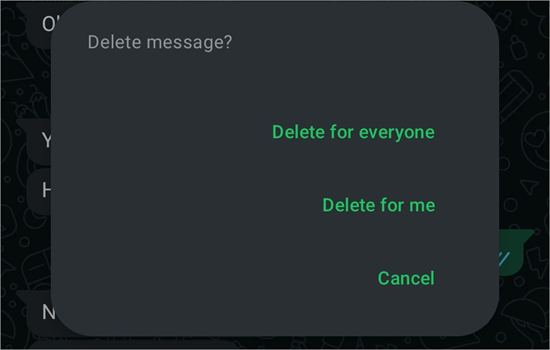
#3) You’d be given the option – “Delete For Me” and “Delete For Everyone”. The first option would mean the message is only deleted for you, whereas the latter option deletes the message for everyone within the chat window.
Once the message is deleted, the following prompt will be visible: “This Message Was Deleted”. This will let your recipient know that a message sent to them was deleted.
Once the message is deleted, it is gone permanently unless your WhatsApp messages are included in the backup of your device. More often than not, even without the knowledge of the users, their WhatsApp messages are backed up by Android and iOS devices.
That is how you could read these deleted messages long after the sender has wiped them out from chats.
Suggested Read => List of Best Free Chat Apps
How to See WhatsApp Deleted Messages by Sender Without Any App
On Android
In this section, we will get to know how to see WhatsApp deleted messages by sender without any app on Android.
Here is a video for your reference:
#1) How to See Deleted Messages on WhatsApp via the Built-In Notification System
If you are using an Android phone with OS 11 and above, then unearthing a deleted WhatsApp message will be very simple for you. Modern Android operating systems come with a built-in notification system that affords users the option to keep logs of all messages they receive on WhatsApp.
Even if these messages are deleted, your phone’s notification logs will record them.
All you have to do is enable the “Notification History” feature on your phone.
1. Navigate to your phone’s settings.
2. Tap on “Notification and Status bar” => More Settings
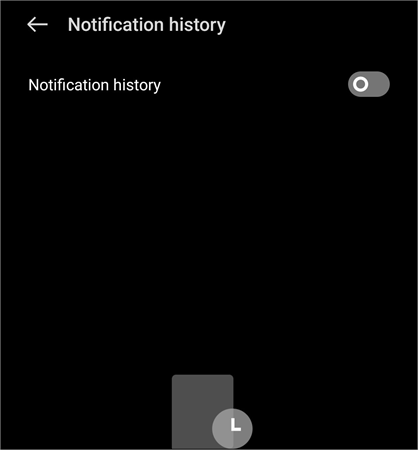
3. Find “Notification History” and switch it on.
Once done, you’ll be able to see all messages, even deleted ones, on WhatsApp. It is that simple.
#2) How to See Deleted Messages on WhatsApp via Google Drive
It is always wise to have your Android device connected to Google Cloud. This will ensure automatic backup of all messages you receive on WhatsApp. One drawback of this trick is that you’d have to uninstall and reinstall WhatsApp on your device. So, only go for this trick if you are desperate to know what the deleted message was.
To unearth a deleted message through this trick, do the following:
- Ensure your Android Device is connected to your Google Drive.
- Uninstall WhatsApp from your device.
- Reinstall the App
- During installation, you’ll be given the option to “Restore” all your chats.
Once the installation is complete, all of your old chats will be restored. This means you’ll also be able to see any deleted messages sent to you by a sender.
Suggested Reading => WhatsApp Spy Apps for Android and iPhone
On iPhone
In this section, we will get to know how to see WhatsApp deleted messages by sender without any app on iPhone.
#1) How to See Deleted Messages on WhatsApp via iCloud
Recovering deleted WhatsApp messages on an iPhone is a breeze if your smartphone is connected to iCloud. As soon as a message is sent to you, a copy of it is saved on your iCloud account. This backup is what you can rely on to read a message deleted by a sender.
To unearth a deleted WhatsApp message via this method, simply do:
- First, ensure your iPhone is connected to your iCloud.
- Now, uninstall WhatsApp from your device only to reinstall it.
- During the installation process, you’ll be presented with the option to “restore chat history”. Tap on it.
- Doing so will restore all your old chats once the WhatsApp installation process is complete.
Remember, this process only works if the iCloud data backup on your iPhone is enabled. It will be in your best interest to double-check this setting on your phone.
Further Reading => How to Disable WhatsApp from Saving Photos
#2) How to See Deleted Messages on WhatsApp via iTunes
iTunes is a great app that facilitates the smooth and secure transfer of files on an iPhone device. iTunes can also back up your WhatsApp messages. The process is quite similar to using iCloud backup.
All you have to do is ensure your iPhone is connected to iTunes with the WhatsApp backup. If so, here’s what you should do:
- Uninstall and reinstall WhatsApp on your device.
- During the installation process, you’ll be presented with the option to restore old chats. Tap on it.
- This will restore your old WhatsApp chats from your iTunes backup.
Even those messages that were deleted will be shown to you.
Suggested Reading => How to Hack a WhatsApp Account
Ways to See Deleted WhatsApp Messages Using a Third-Party Application
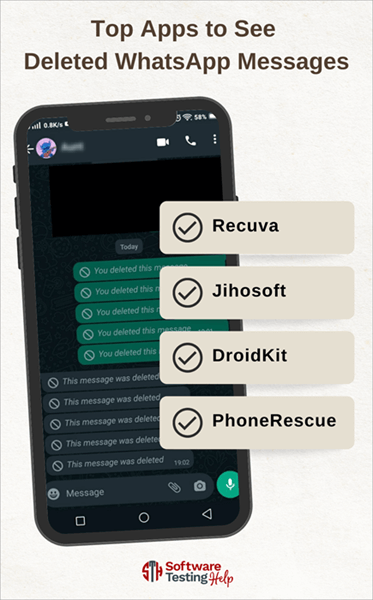
Going through the recovery methods I’ve shared above, one thing must have become crystal clear to you. These tricks will only work if your phone’s Google Drive, iCloud, or iTunes backup is active. Without this backup, the only other option left is a third-party app.
Again, your use of a third-party app will depend on how important you deem a deleted message. There are some good, user-friendly data recovery apps out there that’ll help you read a deleted WhatsApp message on both iPhone and Android.
My top recommendations would be:
#1) Recuva
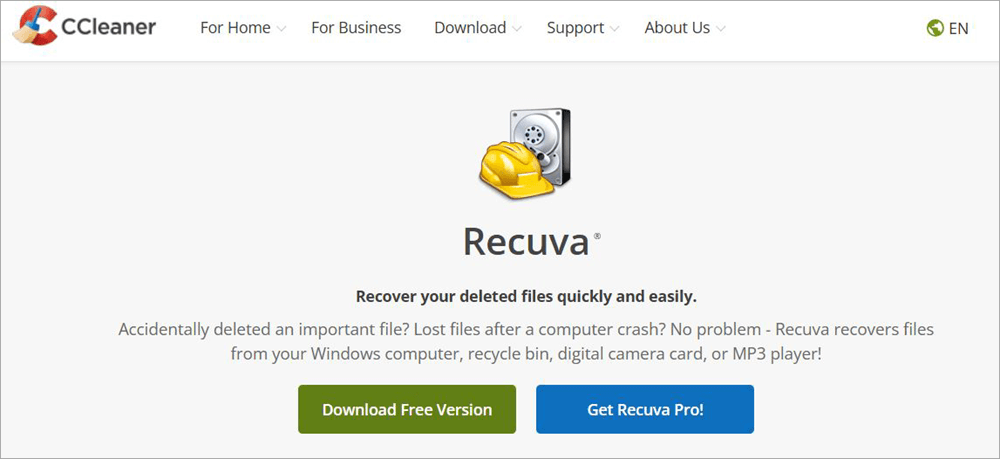
Recuva is a file recovery software for Android Devices, developed by the ever-reliable team behind CCleaner. It is available as a free and a premium solution. You can use it to recover a lot more than deleted WhatsApp messages.
While the UI does look dated, don’t let that deter you from using it. It is quite advanced in its recovery capabilities despite being free to use.
Website: https://www.ccleaner.com/recuva
#2) Jihosoft
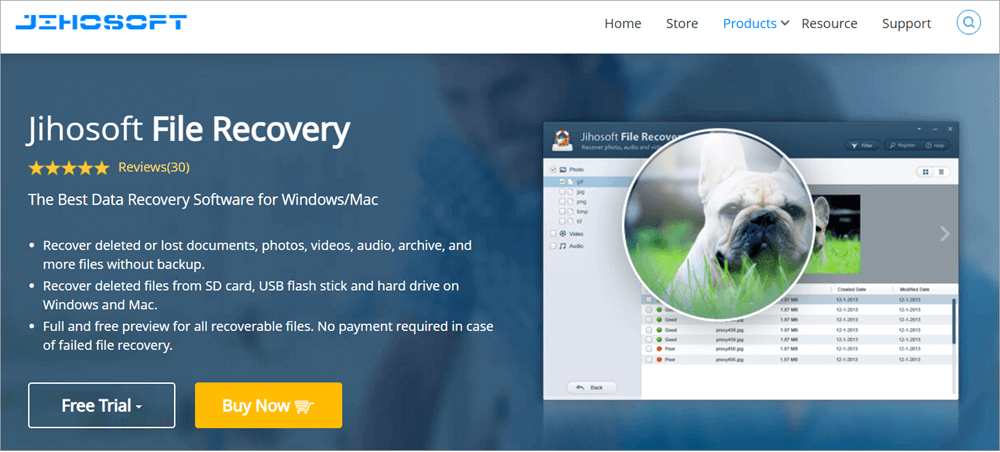
Jihosoft is another great file recovery software that supports data recovery in Android and iPhone devices. You simply plug in your device to a computer that has Jihosoft installed, let Jihosoft scan it, and then hit the recover button to retrieve any deleted messages.
Further Reading => Top Data Recovery Software
You can also use the software to create a safe backup for the data you’ve recovered.
Website: https://www.jihosoft.com/recovery/file-recovery.html
#3) DroidKit
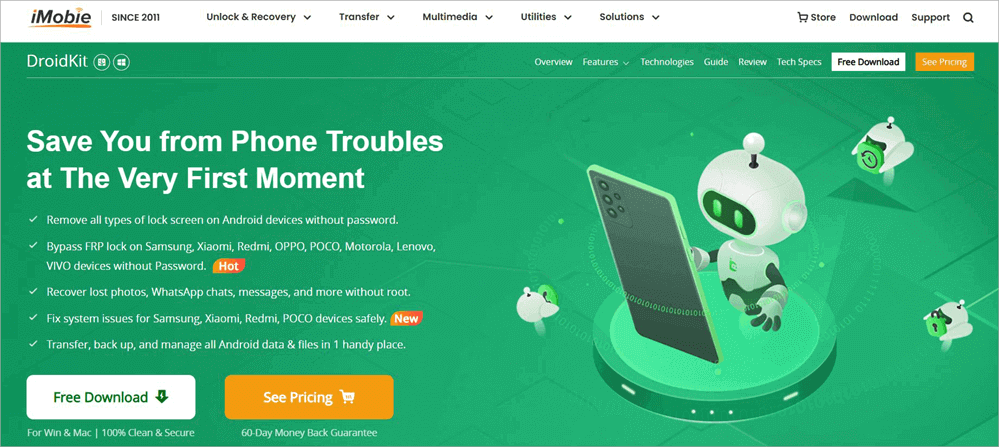
DroidKit promises to fix every perceivable issue with an Android device. This includes recovering deleted WhatsApp messages. This software is compatible with almost all Android versions.
You can preview the WhatsApp messages before choosing to retrieve them. Besides WhatsApp messages, you can also recover media files with this software without root.
Website: https://www.imobie.com/droidkit/
#4) PhoneRescue
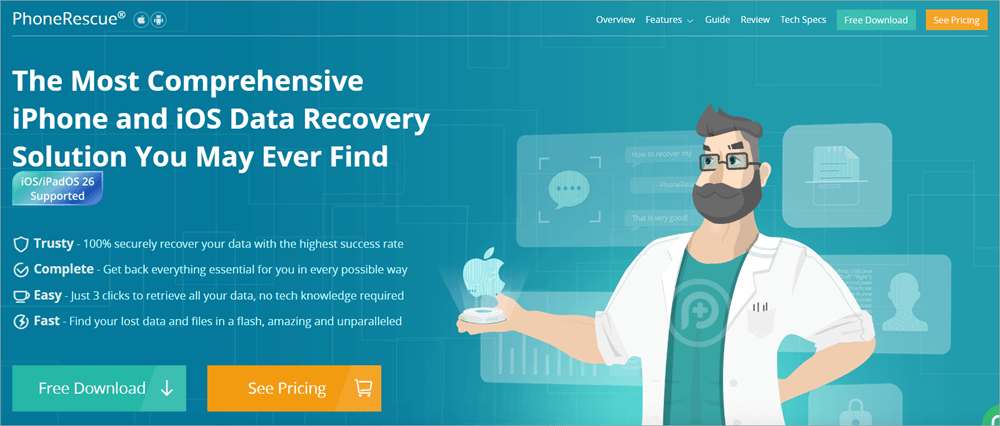
PhoneRescue claims to be the most comprehensive data recovery solution for iOS and iPhone devices. As far as recovering WhatsApp messages is concerned, that is exactly what you get. The recovery itself is a three-step process.
You preview the WhatsApp messages before retrieving them. Besides the messages, you can rely on Phone Rescue to retrieve any type of lost data, regardless of what caused the loss in the first place.
Website: https://www.imobie.com/phonerescue/ios-data-recovery.htm
How to Backup WhatsApp Data
If you don’t want the hassle of using any third-party app, I would suggest preparing your WhatsApp for automatic backups at regular intervals. Being proactive here is a sure-fire way of ensuring you can read a deleted message when the time comes.
Here’s how you can back up WhatsApp messages to Google Drive.
1. Open WhatsApp => Settings => Chats => Chat Backup
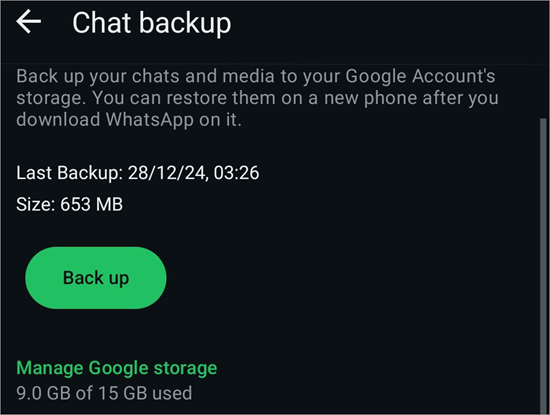
2. Here, specify the Google Account where you’d like to back up your WhatsApp data.
3. Specify the Frequency (Daily, Weekly, Monthly) at which you’d like to back up data.
4. You can also choose to manually backup data here by on the green “Back up” button.
Ensure you have enough space on your Google Drive to contain the backup.
How to Backup WhatsApp Messages to iCloud
The process is very similar to the backup process we just followed for Google Drive.
Here’s how you do it:
- Open WhatsApp => Settings => Chats => Chat Backup.
- Specify the iCloud account where you’d like to back up your data, and also mention the frequency at which the backup should occur.
- You can also tap on the green “Backup” button to trigger the backup manually.
As with Google Drive, just make sure there is sufficient space on your iCloud for a proper backup.
Further Reading => List of the Most Popular Spy Apps for iPhones
Frequently Asked Questions
1. Can you read someone’s deleted messages?
As long as your iPhone or Android is connected to iCloud, iTunes, or Google Drive with backup enabled, you can recover and read a deleted message.
Most Android devices also keep a log of all messages received on WhatsApp. As such, you could check your phone’s notification history to read a deleted message.
2. How to read a deleted WhatsApp message someone sent you on your iPhone?
You can do so by uninstalling and re-installing WhatsApp on your iPhone. When you are re-installing, simply hit the restore chat history option to retrieve a deleted message from your iCloud or iTunes backup.
3. Can deleted messages on WhatsApp be tracked?
While WhatsApp promises stringent security and privacy to its users, your deleted messages can still be retrieved by WhatsApp under special circumstances.
WhatsApp may be compelled to recover your messages at the request of law enforcement agencies if you are suspected of criminal behavior on the platform.
Although you won’t have access to a deleted message right away, you can bet WhatsApp keeps a log of all your chats.
4. Can WhatsApp messages ever be deleted?
Yes, WhatsApp messages can be deleted as you can set a timer within, and the messages can disappear automatically. You have the option to set messages to disappear after a period of 24 hours, 7 days, or 90 days.
5. Can someone access my deleted WhatsApp message?
If you’ve sent a message to someone and immediately deleted it, they could be able to recover it with the tricks I’ve suggested in this article. Outside of this chat window, others won’t be able to access your deleted messages, as WhatsApp’s end-to-end encryption is quite strong.
Conclusion
If you are someone with curiosity etched into your personality, I know how hard it can be to fight the urge to know what was behind a recently deleted WhatsApp message. Well, if you have to know, simply follow any of the methods I’ve suggested above. To ensure you have success doing so, I would suggest keeping your chat backups enabled at all times.
If you are using an Android device, make sure the notification history of your phone is on or your phone is connected to an active Google account. iPhone users should ensure that iTunes and iCloud backups are activated.
I hope this article answers the frequently asked question of “how to see WhatsApp deleted messages by sender without any app”. These methods have helped me before and could do the same for you.
Was this helpful?
Recommended Reading
-

Hunting for the best WhatsApp About Lines to define your personal tagline to the world? Scroll down and pick the right WhatsApp bio to briefly summarize all about you and express who you are. The About or Bio section on WhatsApp is one of my favorite things about the app.…
-

Are you scratching your head over what your WhatsApp Status should be? If yes, then consider this article that is perfectly tailor-made for you: WhatsApp is perhaps the most prominent application being used for conversations and messages today among the global populace. Unless you’ve been hiding under a rock, everyone…
-
In this guide, we have reviewed best WhatsApp hacking tools and Step by step method to track and monitor whatsapp activity. All of these “WhatsApp hack applications” offer an instant access to chats, but things are not that easy. The problem is that it’s hard to hack into WhatsApp chats…
-

Explore this well-researched list of the top WhatsApp proxies to unblock geo-restricted content. Pick the best free Proxy for WhatsApp and learn the setup process for complete online anonymity: Proxies for WhatsApp mask your user identity via the Internet, such as the IP, so you can unblock WhatsApp services where…