Is your iPhone’s Face ID not working anymore? Wondering how to reset Face ID? Stop worrying and explore the expert fixes to resolve the Face ID setup not working issue on iPhone & iPad instantly:
The Face ID feature allows its users to unlock their phones or make payments by scanning their faces. As the name suggests, the user’s face becomes the ID for unlocking their phone.
The feature is a great advancement in mobile security. This feature is currently offered by almost all Apple phones and iPads, as well as many new models from Motorola, Vivo, OnePlus, Samsung, and Redmi.
Table of Contents:
Face ID Setup Not Working: Expert Tips & Quick Fixes
Setting up Face ID on a phone that supports this feature is quite easy.
You can watch this short YouTube video illustrating how to set up Face ID on iPhone 18:
Why is My Face ID Not Working
The Face ID feature may not perform well because of several reasons, for example:
- Your phone’s camera may have some dirt on it, due to which it cannot scan your facial features properly.
- There can be a bug in the system, which can most probably be removed just by restarting the phone (or resetting it otherwise).
- You may not be holding the phone properly (or you may have placed it too far away from your face), which is why your phone camera can’t detect your face and would show a ‘Partial face detected’ message.
- There can be some issues with your phone’s settings.
- Your phone may need a software update, which causes some functions not to work properly.
- You may have accidentally (or intentionally) put your phone in Lost mode in the Find My app.
- The feature may have stopped working after several unsuccessful scans.
- Check whether the feature is available on your phone model or not.
- You may have enabled Content and Privacy Restrictions on your phone
- If the Face ID feature is not working after an update, maybe there are compatibility issues with the newer version.
- In some phone models, the Face Unlock feature does not work when the device has been locked for over 4 hours. You need to enter the passcode in that situation.
Further Reading => How to Set Timer on iPhone Camera
How to Fix Face ID Not Available Issue
#1) Quick Fixes to Try
1. Make sure you hold your phone in front of your face if the ‘partial face detected’ message is popping up.
2. Clean your phone’s camera so that it can detect your facial features properly. Additionally, ensure the camera is not obstructed by your finger or any other object while you attempt to scan your face.
How to clean the camera sensor
- First, blow some air on the camera, so that the excess dust gets away
- Sprinkle a little water on a microfiber cloth and then use the wet part to clean the camera lens.
Watch this short YouTube reel showing how to clean camera lenses quickly.

3. If face recognition is not working, remove your glasses/ mask, etc., if you are wearing any. Alternatively, in your phone’s settings, enable Face ID with a mask.
To do this, follow these steps:
- Go to Settings
- Tap on Face ID & Passcode
- Now allow Face ID with a Mask.
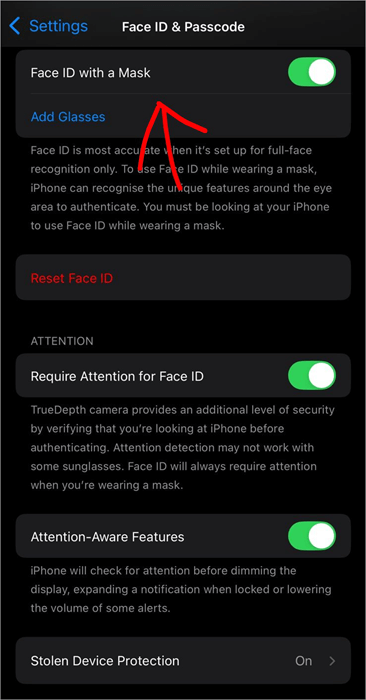
You can also tap on the option Add Glasses to enable Face ID with Glasses.
4. Distance requirements for using Face ID: If you are using Face ID, make sure you are facing the phone’s camera and the device is at a one-arm distance from you. More precisely, the distance between your face and your device should not be over 50 cm.
#2) Simple Solutions
You can fix the Face ID feature by doing some simple steps, as stated under:
1. Restart your phone. This will most probably remove any bugs from your phone.
2. Check for software updates. Follow these steps to update your iPhone.
a. Go to Settings
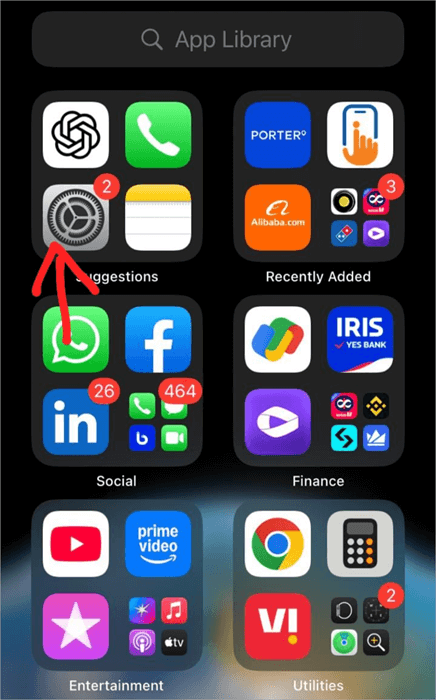
b. If an update is available, it will be marked like this:
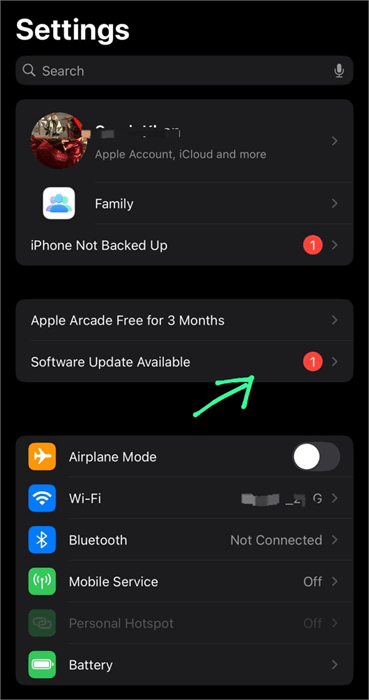
c. Tap on it and install the updates.
Also Read => How to fix iPhone iOS 15 Update Issue
3. Try doing a Forced Restart.
Follow these steps to do a Forced Restart on your iPhone (this forced restart method works on most iOS versions):
- Press the Volume Up button.
- Then press the Volume Down button.
- Now press and hold the side button until you see the Apple logo.
- Your iPhone will restart now.
#3) Checking Settings & Permissions
1. Check your phone’s Settings
a. Go to Settings
b. Tap on Face ID & Passcode
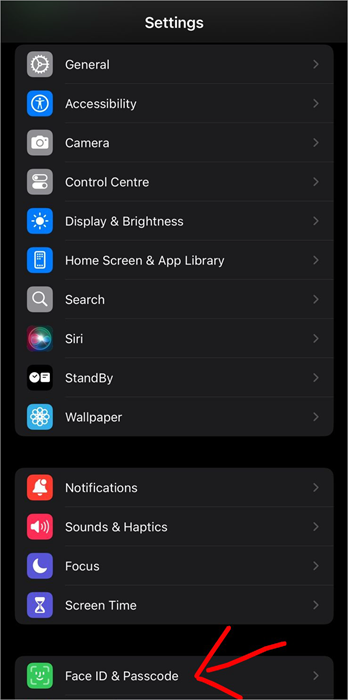
c. If you see the option- Set up Face ID, then your Face ID has been disabled somehow (or was not set in the first place).
d. Tap on Set up Face ID
e. Follow the instructions on your screen to set up your Face ID. You can also choose what you want to use the Face ID for, for example: phone unlock, iTunes and app store, Wallet and Apple Pay, Password AutoFill, or other apps.
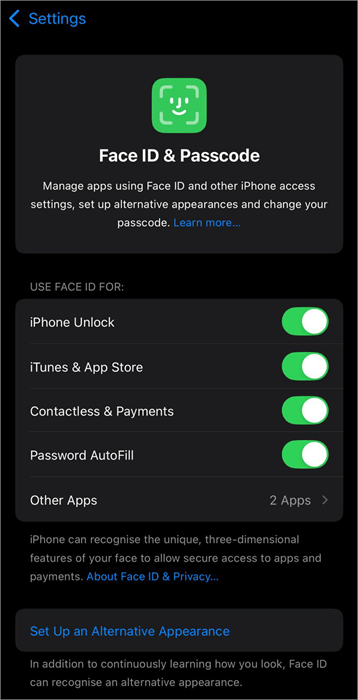
2. Check the app’s permissions: If you want to use Face ID for your banking (or another) app, but it doesn’t work, chances are that you didn’t allow the Face ID feature to be used for that app. To change this setting, follow these steps:
a. Go to Settings
b. Select Face ID & Passcode
c. Under the Use Face ID for section, there will be the Other apps option. Tap on it.
d. Now, make sure that the feature is enabled for the app you want to use it for.
#4) Resetting Face ID
If the Face ID is not working due to several failed attempts, you would need to reset it.
1. Reset Face ID: You can try resetting your Face ID if it’s not working. How to reset Face ID
a. Go to Settings
b. Tap on Face ID & Passcode
c. Select the option- Reset Face ID
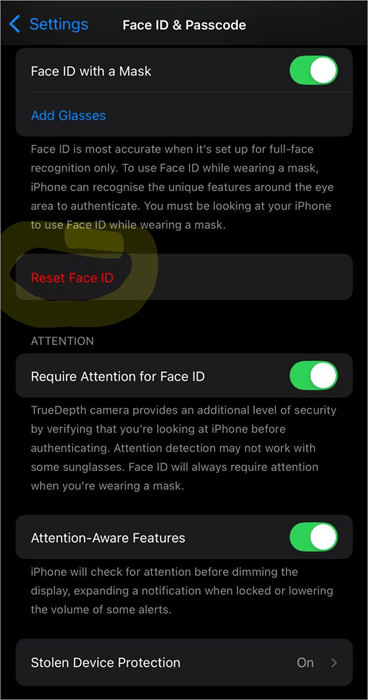
d. Tap on Set up Face ID
e. Scan your face and follow the instructions
2. Try setting up an alternate Face ID: You can add an extra Face ID with your face with spectacles or a beard, etc., so that it can easily recognize you when you look different. To add additional Face ID, do as stated under:
a. Go to Settings
b. Select Face ID & Passcode
c. Tap on the option- Set Up an Alternate Appearance
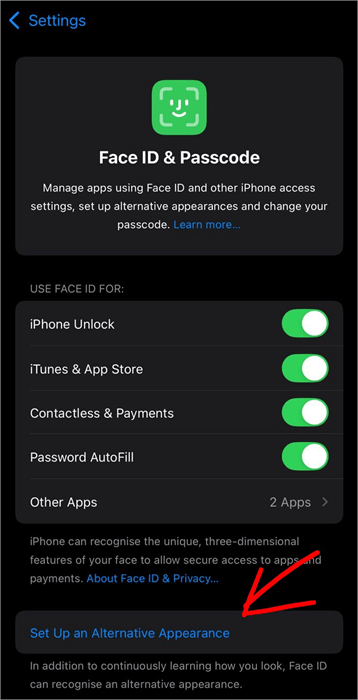
d. Follow the instructions on your screen.
Watch this YouTube video showing how to set up an alternate Face ID on iPhone.
#5) Version Specific Issues
1. Face ID Problems for iOS 18/26 Beta
If you are facing Beta 26 or iOS 18 Face ID issues, then chances are:
- There is a bug/glitch. Try restarting the phone and resetting the Face ID.
- There can be issues with the TrueDepth camera (like it may be covered with dust).
- You may not be holding the phone correctly while using the feature.
- You may have enabled Content and Privacy Restrictions on your phone.
See that your face isn’t covered. If you have enabled Face ID to work with a mask, make sure that your eyes aren’t covered with anything.
2. If the Face ID feature stopped working after an update, try this
- Restart the phone
- Clean your TrueDepth camera
- Try Resetting Face ID
- A user reported that the content and privacy restrictions were enabled in his phone after the update, due to which the Face ID feature had stopped working.
To check this feature on your phone, follow these steps:
- Go to Settings
- Select Screen Time
- Now tap on Content & Privacy Restrictions
- Now you can choose to turn the feature off or choose specific apps for which you want to use this feature.
- If nothing works, contact Apple support. There may be some compatibility issues with the newer version. The support team will guide you on how to tackle it.
3. Face ID compatibility issues with iPad Pro
Please note that Face ID is not compatible with all versions of iPad Pro. The following iPad versions support Face ID:
- iPad Pro 13-inch (M4)
- iPad Pro 12.9 inch (3rd to 6th generations)
- iPad Pro 11-inch (M4)
- iPad Pro 11-inch (1st to 4th generations)
If you have a compatible device and Face ID is not working on it, you can troubleshoot the issue by:
- Updating the device
- Making sure that nothing is blocking the TrueDepth camera
- Resetting Face ID
- Check the device’s settings by:
- Go to Settings
- Select Face ID & Passcode
- Check whether Face ID is enabled for the app you want to use it for.
- Restart the device
- Contact Apple support.
#6) App Specific Issues
1. Face ID setup for Banking App
If you want to use Face ID for your banking app, then follow these steps:
- Download the banking app on your phone.
- Your phone will ask you to set up Face ID at login. You can follow the steps to set up Face ID for your banking app.
If Face ID does not work after setup, do as stated under:
- Go to Settings
- Tap on Face ID & Passcode
- Under the heading Use Face ID for, tap on Other apps
- Now select the app that you want to use Face ID.
2. Common Third-party App Compatibility Issues
Face ID users can face issues while using it with third-party apps. A common issue users face while using Face ID for a third-party app is that they can not find the app in their Settings for enabling Face ID to be used for that app. This is because of compatibility issues.
You can try updating the app (and the phone) to its latest version to check if the issue is due to a pending update.
3. Troubleshooting App-specific Face ID Failures
If Face ID stops working for a specific app, you can fix it by:
- Updating that specific app
- Check if Face ID is enabled for that app in your phone’s Settings
- Reinstall the app and then enable Face ID for it.
#7) Advanced Troubleshooting
System-level Solutions
Reset your device’s settings. You can go for resetting the device settings to see if this can solve the issue.
To reset device settings in an iPhone, follow these steps:
- Go to Settings
- Select General
- Tap on Transfer or Reset iPhone
- Select Reset
- Now choose the Reset all Settings option.
- This way, all settings will be set to the default.
- You can now set up the Face ID again and see if it works.
Reset your iPhone. If you cannot get your Face ID feature working even after using all the above methods, you can also try a Factory Reset for your iPhone. But remember to back up your phone before resetting it.
To back up your iPhone before Resetting, do:
- Go to Settings
- Tap on Your Name
- Now tap on iCloud
- Then select iCloud Backup
- Turn on Backup This iPhone. The phone will then automatically back up daily, whenever it gets a WiFi connection. If you want to back up your phone over Cellular data, then turn on Back Up Over Cellular on or off.
- If you want to do a Backup manually, then select the Backup Now option.
Further Reading => Best Cloud Backup Services and Solutions
Contact Apple support: If none of the methods solve your issue, then you will need to contact Apple support to get assistance.
Hardware Diagnostics
1. What to do when you get a notification saying- A problem detected with the TrueDepth camera
If your TrueDepth camera has a serious issue, you would need to get it repaired, and it may cost you a good sum of money. But before that, you can try some remedies on your own, for example:
- Clean the camera with a soft cloth.
- Make sure your phone’s cover is not covering the TrueDepth camera.
- Sometimes the phone’s Screen Guard (an additional screen used to protect the original screen of the phone) gets damaged. If it’s broken in front of the TrueDepth camera, this can cause issues.
- Try Resetting Face ID.
- Restart your phone.
- Check for software updates.
- Do a factory reset.
- Some third-party apps like AnyFix can be used to fix issues related to iOS phones, including the TrueDepth camera. The AnyFix app can be downloaded after you pay for it. But the cost will still most probably be lower than getting the TrueDepth camera replaced or fixed at a service center. To use AnyFix for fixing the TrueDepth camera, follow these steps:
- Download the app on your computer and open it.
- Now, connect your iPhone to the computer using a USB cable.
- Select System Repair
- Now you will see a list of 150+ issues that can be solved using this app. Select the issues that you want to get repaired and click on Start now.
- Then you will have to select a repair mode. The Standard mode does not erase your data. Other modes remove all data. You can choose any mode from here based on the severity of the issue.
- After choosing the mode, click on Download and then select Start Standard (or Advanced/Ultimate) Repair.
- Within a minute, you will see a notification saying- Repair Completed.
- Now check if your TrueDepth camera works again.
If you have done a Third-party screen replacement for Face ID in your iPhone, this can also be the reason for issues with the functioning of the TrueDepth camera. Make sure you use Apple’s original parts to avoid compatibility issues and for proper functioning of your phone.
Further Reading => How to Fix When iPhone is Not Charging
2. Face ID issues after third-party screen replacements
Yes, the third-party screen replacements cause issues with the Face ID app. Many of the users have reported that Face ID apparently stopped working when they got their iPhone screen replaced at a local shop, instead of an Apple store. So, to avoid such issues, make sure you get an original Apple screen for your phone if you need to replace it.
#8) Professional Help
When to seek professional help?
If there is an issue with your TrueDepth camera (like physical damage) or your phone’s screen, or when Face ID does not work even after you have tried all the methods, you can seek professional help.
For physical damage to your camera or phone’s screen, go to your service center. Make sure you get an original screen replacement to get the best results. You can schedule a visit to an authorized service center for repair and other services from here.
Service for the Rear camera costs somewhere around $250. If you have an AppleCare plan, then you’ll have to pay $99 only. And the estimated cost for replacing a cracked screen may go up to $379 without an AppleCare plan, while if you have the plan, the service can be availed with just $29.
You can get an exact estimate of Face ID repair cost or other services that you want from an authorised Apple service center. People often go for third-party repairs, thinking that they would have to incur less cost, but end up facing major issues.
See this comparison between third-party repair vs. authorized repair, so that you can make a better decision:
| Third-party Repair | Authorized Repair | |
| Cost | Usually costs less than the authorised repair. | Costs would most probably be more than a third party repair. |
| Reliability/Success Rate | They may install local parts in your phone that can lead to major issues. | Highly reliable and recommended. |
| Advice | Getting your phone repaired through an authorised service center gives the best results. | Costs would most probably be more than a third-party repair. |
You can go for Genius Bar appointment booking to get Apple support through phone, chat, email, or through an in-store visit. The Genius Bar appointment booking process is as follows:
- Go to this Apple support page
- Choose whether you want software or hardware support and follow the instructions.
#9) Device Specific Guidance
For Face ID-supported Android Devices
Many Android devices support the Face ID feature. But in most of the devices, it can be used for unlocking the phone only. To set up Face ID in your Android phone, follow these steps (the steps would differ with different Android phones):
- Go to Settings
- Tap on Security & privacy
- Now select Device unlock
- Choose Face Unlock
- Enter your Pin/unlock pattern
- Follow the steps for setting up Face ID.
Sometimes the feature may not work due to:
- Several failed attempts to unlock the phone
- The phone has been locked for more than 4 hours
- You need to update the device’s software
- Something may be covering the phone’s camera
- You may be wearing a mask/sunglasses, etc.
- There can be a glitch.
- Your appearance may have changed (due to shaving the beard/ wearing a facial mask, etc.)
- You may not be holding the phone near your face.
To troubleshoot the issue on your Android device, follow these steps:
- Check for system updates
- Restart the device
- Reset Face ID
- Clean your phone’s camera
- Hold the camera at not more than an one-arm distance from your face
- You must be looking into the phone’s camera while using the Face Unlock feature
- If anything is blocking your face, remove it.
- If your appearance has changed, Reset Face ID. For this, do as follows:
- Go to Settings
- Tap on Security & privacy
- Now select Device unlock
- Choose Face Unlock
- Enter your pin/pattern
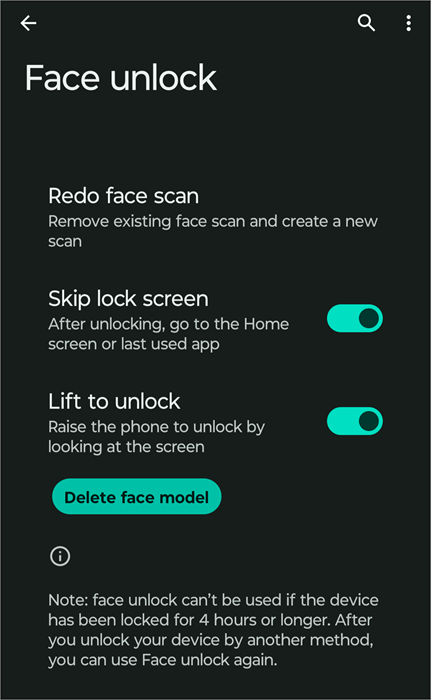
- Tap on Redo face scan
- Follow the instructions on screen.
- Contact customer support if nothing works.
Recommended Reading => Top iPhone Data Recovery Software
#10) Additional Use Cases & Security Tips
Face ID Management
1. How to Turn off Face ID
In order to turn off the Face ID feature, do as instructed here:
- Go to Settings
- Tap on Face ID & Passcode
- Select Reset Face ID.
2. How to turn off Face ID for a specific app/item
- Go to Settings
- Tap on Face ID & Passcode
- Under the heading Use Face ID for, tap on Other apps
- Now unselect the app for which you don’t want to use Face ID.
3. How to turn off Face ID for Face Masks
- Go to Settings
- Select Face ID & Passcode
- There will be an option- Face ID with a Mask. Turn it OFF.

4. How to Temporarily Disable Face ID on iPhone
You can temporarily disable Face ID by:
- Press the Side button and one of the Volume buttons simultaneously for 2 seconds.
- The sliders will appear. Now lock your iPhone.
The iPhone will now ask you for a Passcode to unlock it this time. Next time, you can unlock it using Face ID.
5. What to do when your iPhone says- Face ID not available, try again later
If you see this notification on your phone, don’t worry; it will most probably be a temporary glitch. Try these tricks to fix it-
- Restart your phone
- Check for software updates
- In your phone’s settings, see that you have disabled content and privacy restrictions for Face ID.
- Reset Face ID
The problem will most probably get fixed with these solutions.
6. If you see the notification – Face ID has been disabled, chances are that the device has made several failed attempts to recognize your face. In this case, you would need to reset the Face ID. Other reasons that can cause this notification are:
- There can be an issue with your TrueDepth camera
- You phone may need a software update
- You may have enabled Content and Privacy Restrictions on your phone
- There can be a glitch.
Users often confuse this notification (Face ID has been disabled) with Face ID disabled permanently. Please note that Face ID never gets disabled permanently (unless the feature is no longer compatible with your phone).
Security and Privacy
What to do when you fear someone may use your Face ID while you are asleep?
The Face ID feature can be used to unlock the phone, make contactless payments, AutoFill passwords and more. And yes, the feature works when you are wearing sunglasses or even when you are asleep.
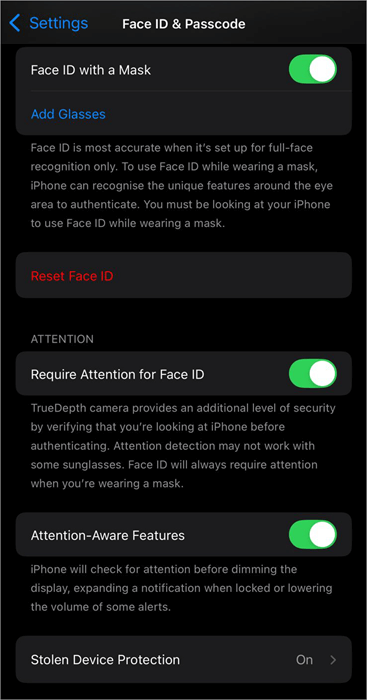
If you fear somebody may misuse your phone while you are asleep, you can use the Require Attention for Face ID feature. This feature makes sure you are looking into the phone’s camera before authenticating.
To enable this feature, Go to Settings, tap on Face ID & Passcode, turn on Require Attention for Face ID.
Further Reading => How to Unlock a Disabled iPhone
FAQ’s on How to Reset Face ID
1. Why is my iPhone not letting me set up Face ID?
There can be several reasons why your iPhone is not letting you set up your Face ID.
For example:
• Check if your iPhone supports the Face ID feature or not
• Your iPhone may need a software update
• The phone’s camera may be broken (or it may be covered with dust), due to which the phone is not able to capture your facial features properly
• There can be a bug. Try restarting the phone.
• You may not be following the correct Face ID setup procedure.
2. Why does Face ID setup keep saying move iPhone lower?
Many users have reported this issue. This happens due to one of the following reasons:
• The phone’s camera may be covered with dust, due to which it is prompting you to move the phone so that it can scan your facial features.
• Try cleaning the camera with a soft cloth.
• There can be a bug. Try restarting the phone
• Try Resetting the Face ID.
• You can also try updating your phone if a software update is available.
• Many users have reported that gently tapping on the phone’s camera often resolves this issue.
• Remove your face mask/glasses if you are wearing any.
• You may be holding your phone too far away from your face. Hold it closer.
3. Why can’t I position my face for Face ID?
The issue may be arising due to reasons like:
• The camera may be covered with some dust or your finger, etc.
• You may be holding the phone too far away from your face
• Make sure you are not wearing a mask while using Face ID.
• The Face ID feature works with/without glasses. But you can try removing the glasses if an issue occurs.
• Make sure you are looking into the phone’s camera
• Check whether your phone needs a software update. Many features don’t work properly if the phone needs a software update.
4. What causes Face ID to be disabled on iPhone?
The Face ID can be disabled due to the following reasons:
• After several failed attempts to recognise the face
• There may be an issue with the phone’s settings. Try this-
a. Go to Settings
b. Tap on Face ID & Passcode
c. Under the Use Face ID for section, check whether Face ID is allowed to unlock your phone or not.
• If the phone remains locked for several hours, then the Face ID feature can not be used to unlock it.
• There may be some issues with the phone’s hardware (like your TrueDepth Camera).
• Your phone may need a software update
• Your phone may need a service. Contact Apple support.
5. Can Face ID be fooled by a photo?
No. As per a report by Apple, the Face ID feature uses advanced technology with 3D depth-sensing for scanning your facial features, due to which, the Face ID can not be fooled by a photo.
6. Can Face ID unlock when sleeping?
Yes. Someone can unlock your phone with your Face ID even when you are asleep.
But Apple does offer a solution to this. You can enable the Require Attention for Face ID feature to make sure that the phone can only be unlocked when your eyes are open. To turn on this feature, follow these steps:
• Go to Settings
• Select the option- Face ID & Passcode
• Turn on Require Attention for Face ID.
7. What can damage Face ID on an iPhone?
The factors that can lead to damage to the phone, resulting in issues with the Face ID are:
1. Physical damage to the camera
2. Moisture in the phone’s camera.
Conclusion
The Face ID feature is quite useful for people who:
- Are you tired of remembering passwords for different accounts
- Want advanced security for their phone or banking, and other apps
- Have a broken screen, due to which it becomes difficult to enter the password.
And if you are having issues with the Face ID feature, then chances are that you would be able to solve the issue quite easily. Most of the time, the problem can be solved just by removing anything from in front of the camera (like dust, etc.), or holding the phone in front of your face, or updating your phone, or restarting it.
I would advise the users to make sure they use the Require Attention for Face ID feature if they fear somebody may use their Face ID to unlock their phone or use their Banking (or other) app while they are asleep.
Was this helpful?
Recommended Reading
-

Read this review to explore different effective methods to understand how to Record Phone Calls on iPhone: In a majority of states across the United States, the law mandates it to get consent from a single or all parties to the conversation to legally record a phone call. It is…
-
Here we will explore multiple ways to understand how to Share Your Location on iPhone with others: Sharing live locations is a useful thing today. It is especially useful when you don’t know the exact address and you would like to tell someone where you are. Be it an Android…
-
This tutorial is a complete step-by-step guide that explains the top 3 useful methods to find ways on how to Unlock a Disabled iPhone: Security is the best part of having an iPhone. No one can unlock your phone and access your data unless they know the password. As much…
-
Delve deep into the quick ways to fix find my iPhone not updating location error. This guide will help you to identify the causes behind this issue and suggest all possible solutions to get rid of the problem: Why is Find My Location not updating? If you’ve asked this question…