Quickly reset Instagram feed and customize your content preferences. Follow our step-by-step guide to take control of your suggested content and stop seeing irrelevant Instagram posts:
Bored with your Instagram feed? Do you feel you’ve been seeing the same content on Instagram lately? Wouldn’t it be better if it offered you something new and exciting?
Seek solace, because you are not alone in feeling this way. Turns out most Instagram users will encounter this issue after spending a lot of time doom-scrolling on it.
Table of Contents:
- Ultimate Guide to Reset Instagram Feed
- Possible Reasons to Reset Instagram Feed
- How the Instagram Algorithm Works
- How Instagram Determines Which Posts Appear on Your Feed
- How to Reset Your Instagram Explore Feed
- What Happens After You’ve Reset Instagram’s Feed
- Tips to Consider Before Resetting Instagram Algorithm
- Alternatives to an Instagram Algorithm Reset
- Frequently Asked Questions
- Conclusion
Ultimate Guide to Reset Instagram Feed
Although tailored recommendations are great, social media algorithms are seldom intuitive enough to take changing human preferences into account.
As such, you can expect Instagram to feed you the same old tired reels and videos unless you do something about it. By doing something about it, I mean completely resetting your Instagram feed.
Given below is the image of the Instagram feed:
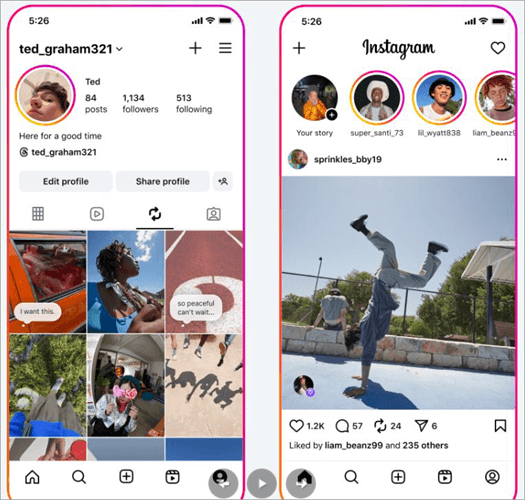
[Via Meta]
If you didn’t know you could do that, consider this a hands-on guide to learning how to reset your Instagram feed.
So, without much further ado, let’s dive in.
Here is a video guide on how to reset the Instagram Feed:
Possible Reasons to Reset Instagram Feed
Like other social media platforms out there, Instagram relies on its algorithms to recommend content.
These algorithms are constantly monitoring your activity on the platform and tailoring their recommendations based on your viewing preferences. For instance, if you are constantly engaging with anime-related reels, your Insta-feed will be riddled with that type of content.
This is great if you only watch a particular type of content on the platform. That said, human beings evolve. There was a time when cat videos would be enough to make my day. Now that I’ve aged and experienced some unusual curveballs in my life, I can barely resonate with those videos.
I would like Instagram to feed me something fresh instead of the videos it has been serving me recently. You can accomplish this simply by resetting your feed. Your Instagram’s algorithms can find themselves stuck in a loop of sorts, thus feeding you the same content again and again.
Hitting a reset will help your algorithm break out of this loop, and it will start recommending you content that’s new and relevant. Resetting your feed will also help you gain control over your experience on Instagram.
Simply put, hitting the reset button is essentially you commanding Instagram to curate a feed that’s more in line with your current preferences.
How the Instagram Algorithm Works
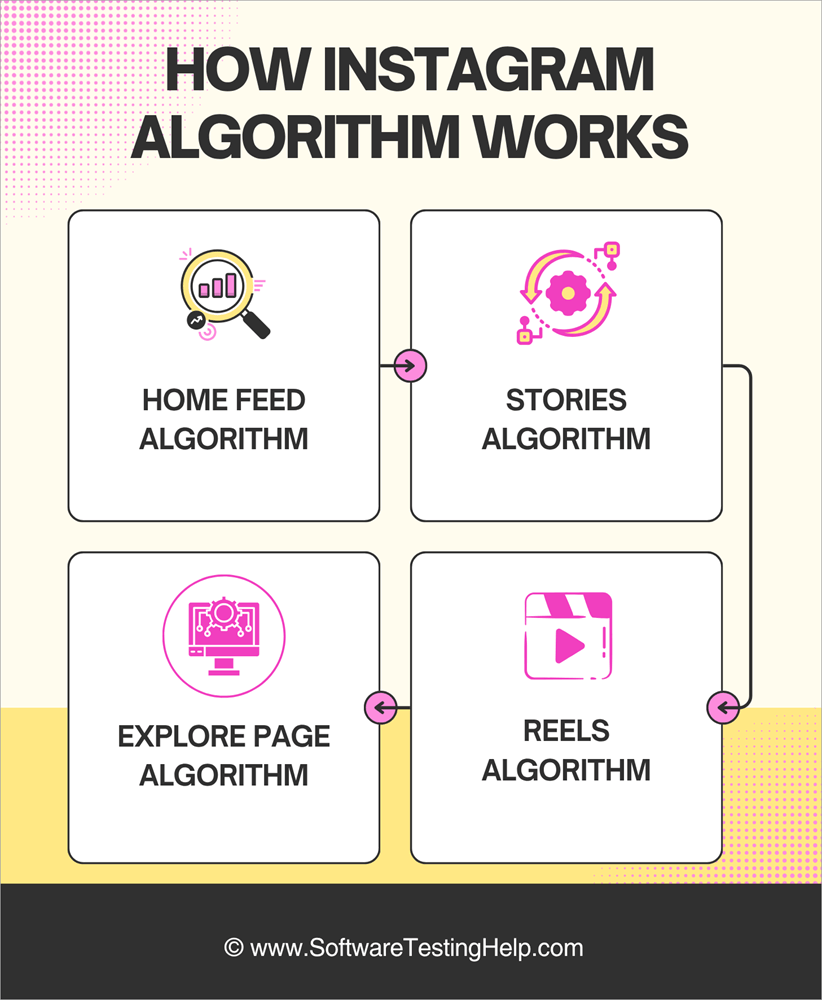
Instagram’s algorithm handles the posts and content you see on your feed every day. Instagram relies on multiple factors to influence its algorithm.
These elements are as follows:
- Home Feed Algorithm: This includes your in-feed activity, particularly your engagement as likes, shares, and comments. It also involves information about posts and the account that published them.
- Stories Algorithm: This will include the assessment of all stories you’ve viewed during your time on Instagram. The influence on stories will be heavier if you’ve engaged with the stories by commenting or sending a like.
- Explore Page Algorithm: This includes your explore page activity, particularly your engagement with posts on the explore page as likes, shares, and comments.
- Reels Algorithm: This will include the reels you viewed or engaged with recently. This will also include assessing all other information about a reel and the account that published it.
How Instagram Determines Which Posts Appear on Your Feed
Foremost, Instagram takes your activity into account when suggesting a post. That’s not all, though. Instagram will also assess your history of connecting with accounts that regularly share posts you seem to engage with most often.
Besides this, Instagram will randomly recommend a post that has been going viral on the platform recently. Posts with the most engagement on the platform appear in the feeds of nearly every active Instagram user. Posts with an immense level of engagement in the past few weeks will probably land on your feed.
How to Reset Your Instagram Explore Feed
Resetting one’s Instagram explore feed is quite simple on iOS and Android apps.
Follow the guide below, and do exactly as it says:
1. Open your Instagram app and immediately tap on your profile icon. This will take you to your profile page.
The image below shows the profile icon of Instagram:
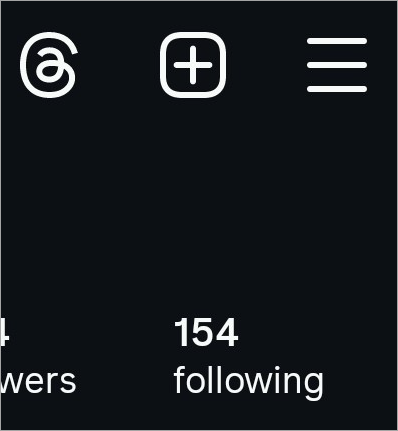
2. To open the menu, go to your profile and tap the three lines in the top-right.
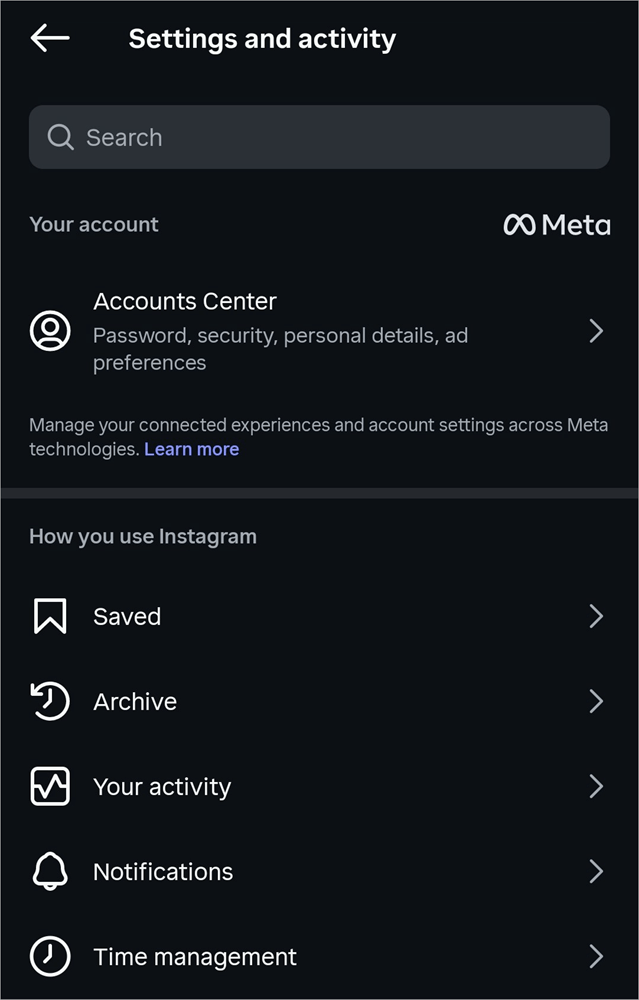
3. Go to Settings and select Activity in the menu as shown below.
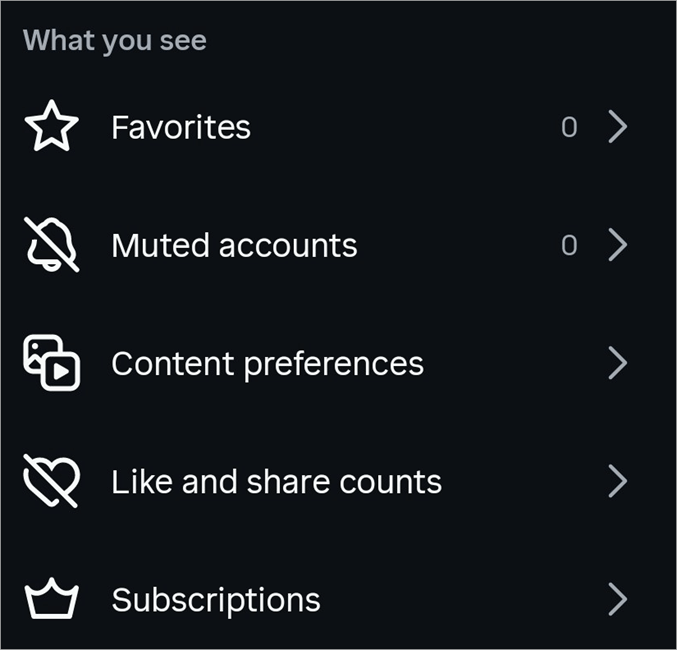
4. Under Settings and Activity, select “Content Preferences” under “What you see” as in the image below.
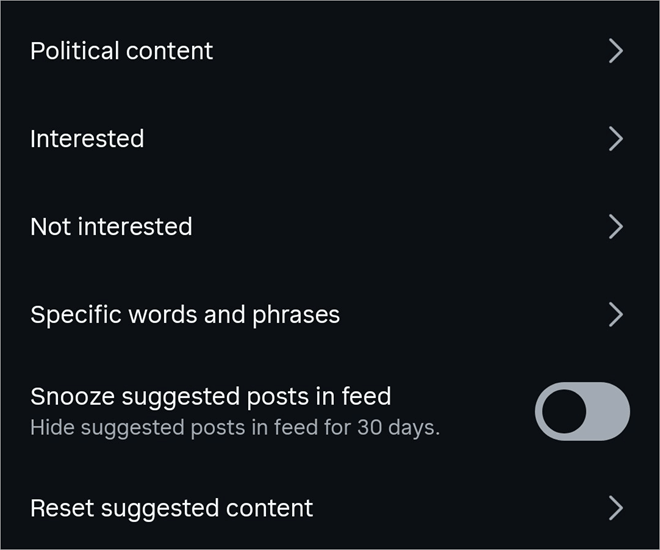
5. In the “Content Preferences” section, scroll all the way down until you find the “Reset Suggested Content” option as depicted in the image below.
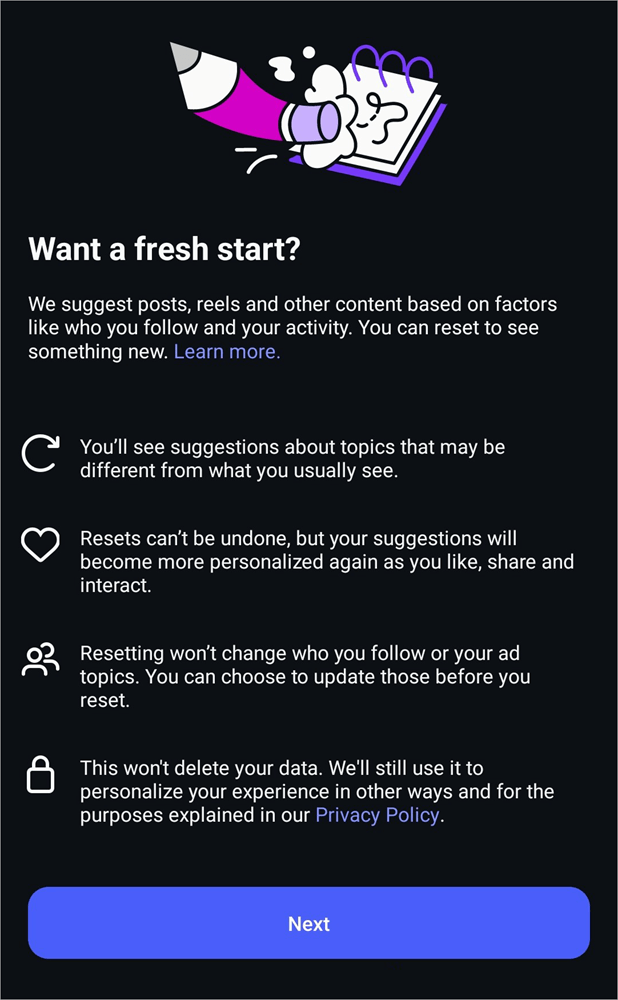
6. Tap on it, and Instagram will now ask you whether you “Want a Fresh Start”. Since that is what we want, tap on “Next” as shown below.
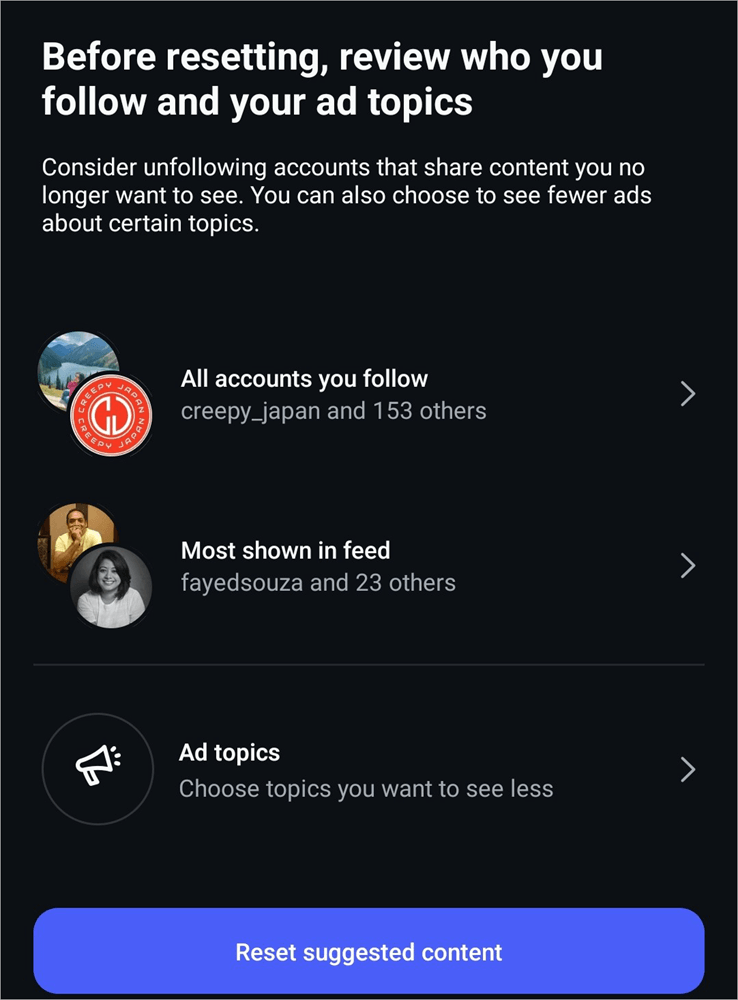
7. On the next page, you’ll be asked to consider unfollowing certain accounts or specific topics before the reset takes place.
8. Finally, simply tap on the “Reset Suggested Content” button to initiate the reset, as in the image below.
Close and restart your Instagram to see fresh content in your feed. Pat yourself on the back as you’ve now learned how to reset the Instagram feed on iPhone and Android devices.
It is that simple. Note that you can only reset your Instagram feed via the iOS and Android apps. This function does not exist on the web version of Instagram.
| Elements that are Reset | Elements that aren’t Reset |
| Instagram search feed | Followed accounts |
| Reels recommendations | Content you’ve already engaged with (liked and commented) |
| Instagram algorithm-driven content | Messages |
| Recommendations tailored to your past activity | Content you’ve published |
| Reel highlights | |
| Ads |
What Happens After You’ve Reset Instagram’s Feed
Before learning how to reset Instagram’s search feed, you should be privy to what this reset actually entails. A hard reset of your Instagram feed will impact your experience on the platform going forward.
For starters, a reset will wipe your Instagram’s algorithmic history clean. This means your recommendations will change, too. You should brace yourself at the beginning, as content recommendations might be too generic for your taste, at least after the first few days of a reset. Expect to encounter content you may not resonate with.
However, things will fade as you continue to engage with new reels and posts on the platform. Know that by hitting the reset button, you’ve also rebooted your Instagram algorithm.
It will begin assessing your behavior on the platform from scratch. Its recommendations now will be based on your current viewing behavior instead of your past activity. You should take this as an opportunity to train the algorithm for a few days by intentionally watching and engaging with posts you want Instagram to suggest to you in the future.
Tips to Consider Before Resetting Instagram Algorithm
Resetting gives you an opportunity, a chance to retrain your Instagram algorithm. Retraining can get a bit tricky, and any mistake on your end could cause your suggestion feed to become even worse than before.
So, I’d suggest you follow the tips below to influence your Instagram algorithm effectively. These tips have worked for me, and hopefully they’ll have the same effect for you.
#1) Engage with Care
With a fresh feed, finding and engaging with content will be completely up to you. Be deliberate in the way you engage with content. Only like or share a post you are genuinely interested in.
Don’t engage with content simply because it belongs to a niche that’s of interest to you. The reel or video itself should genuinely intrigue to warrant a like or comment.
#2) Use Interested or Not Interested Options
Instagram lets you mark a particular piece of content (reel or photo) as interested or not interested. By marking a post as “interested”, you’re training your algorithm to recommend similar types of content in the near future.
The image below shows the interested option:
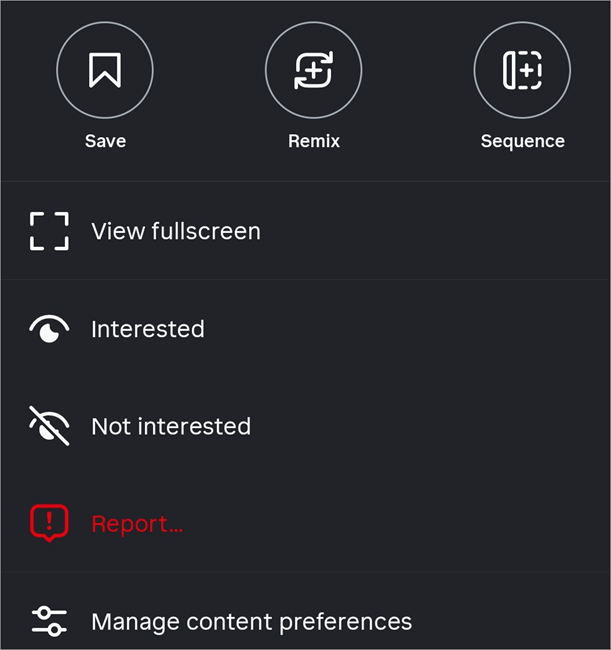
By marking a post as “not interested”, you’re letting the algorithm know never to recommend you a post with similar content again. These options will pop up every time you tap on the three dots on each reel or image.
#3) Follow New Accounts
Find Instagram accounts that regularly post reels and images that you like. This way, their posts will regularly show up on your feed. Instagram’s algorithm will assess your engagement with these new accounts and present you with a tailored recommendation accordingly.
#4) Savor the Posts You Like
Some reels and posts on Instagram are worth your time and attention. You should give them the time they deserve, along with your likes, shares, and comments. Your interest in a post or reel will serve as a signal to Instagram’s algorithm to recommend you more videos like the ones you currently enjoy watching.
#5) Mark Accounts as Favorites
Even if you don’t wish to follow an account, Instagram grants you the privilege of marking any post you come across as “Favorites”. This is another way that can help you train the Instagram algorithm.
The next time Instagram suggests you content, it will take your past “favorited” posts into account.
#6) Quick Refresh
Swiping down your feed page is a quick and breezy way to refresh your feed. Although this doesn’t amount to a full reset, you can still end up with interesting reel suggestions with a quick refresh.
I suggest you use the “quick refresh” option every once in a while, especially if you don’t wish to completely reset your feed.
#7) Switching to a Chronological Feed
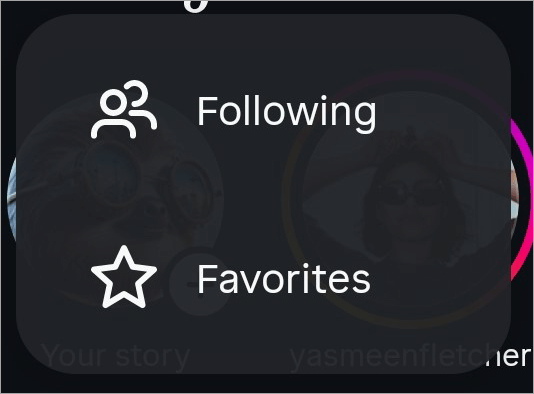
Your feed can be chaotic, and you might miss out on fresh content posted by the accounts you follow. Tap on the Instagram logo at the top of the screen and select “Following” from the drop-down menu. Doing so will cause posts to be displayed in chronological order from the accounts you follow.
#8) Clear Instagram Cache/ Reinstall App
Again, this isn’t as effective as a full reset, but uninstalling and reinstalling your app or cleaning up its historical cache can somewhat refresh your feed.
Even if you don’t want to reset your feed, clearing the Instagram cache is recommended at least every month to fix any performance issues your app might encounter.
Alternatives to an Instagram Algorithm Reset
Perhaps you are not ready to reset Instagram’s explore page just yet. If that is the case, I suggest using the measures below to get a somewhat cleaner feed without completely resetting your algorithm.
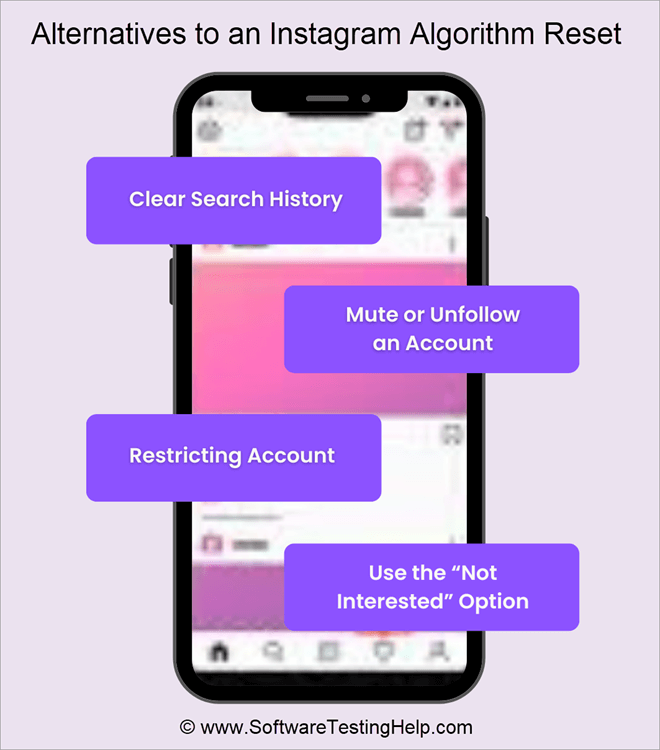
#1) Clear Search History
It is always recommended that you keep your Instagram search history clean, even if you do not intend to reset Instagram’s algorithm.
You can clean your search history by following the steps below:
- Click on Search.
- Click on X next to the recent search to remove it from your history.
- Alternatively, you can select “Clear All” next to “Recent” to clear your entire search history.
#2) Mute or Unfollow an Account
Muting someone or unfollowing them will prevent their posts from appearing in your feed. If you follow an account that’s posting content you are no longer interested in, I suggest creating a list of such accounts and then muting or unfollowing them.
This will eventually result in your feed showing you different posts. Check our detailed guide on How to Mute or Unmute People on Instagram
#3) Restricting Account
While unfollowing an account is effective, blocking accounts could go a long way in retraining your algorithm. Blocking an account will cause posts from that account to become completely invisible to you.
With no content being shown from the account being blocked, Instagram will eventually stop recommending you posts that were like the ones posted by the blocked account.
#4) Use the “Not Interested” Option
The “Not Interested” button is your best friend on Instagram for shutting down a particular type of content. Anytime you come across content you are not a fan of, I suggest immediately hitting the “Not Interested” button on that post. This will send a message to Instagram to not show similar posts in the future.
Frequently Asked Questions
1. Can I reset my Instagram explore page?
Yes, you can completely reset your Instagram explore page and the content suggested by configuring your content preference settings. However, you can only reset the explore page via the iOS and Android apps. The feature doesn’t exist on the web version of Instagram.
2. How to reset the Instagram reels feed?
Resetting your Instagram feed is super-simple. All you have to do is follow the steps below:
1. Open your profile page
2. Tap on the three horizontal lines above to open the menu.
3. Settings and Activity -> Content Preferences -> Reset Suggested Content
This should reset your reels feed. You’ll have a fresh feed and the opportunity to retrain your algorithm for future suggestions.
3. Can I manually refresh my Instagram feed?
Yes, there are two ways to manually refresh one’s Instagram feed. First, you can swipe down on your Instagram explore page, which will refresh the feed instantly. Second, you can opt for a full reset by following the methods I’ve already discussed above.
4. How to clean your Instagram feed?
For a cleaner, more organized Instagram feed, I suggest doing the following:
• Unfollow accounts whose content you no longer enjoy.
• Mark irrelevant posts as “Not Interested” more often.
• Follow accounts that post content you enjoy.
• Mark the content as “Favorites”.
• Switch to “Following” chronological feed.
5. Does deleting the Instagram app reset “Explore Feed”?
No, deleting Instagram and reinstalling it will not reset your explore feed. Instagram will still recommend content based on your historical behavior on the platform. The only effective way to fully reset your feed is by hitting the “reset suggested content” button within your content preferences settings.
6. Can I undo an Instagram algorithm reset?
An Instagram recommendations reset is permanent. You cannot reverse a reset once you’ve hit that button. I suggest deliberating on your decision carefully before you hit the reset button on your Instagram feed.
7. Does resetting affect the ads I see?
Resetting only influences your feed and nothing else. The ads you saw previously will remain intact. You should not consider an Instagram feed reset to be a measure to replace the ads you are seeing on the platform.
8. Will resetting delete my followers?
No, resetting only refreshes your feed so it can show fresh posts. It will affect the reels and images you see on your feed. Your follower count will remain intact.
9. How long does the adjustment take?
You should train your Instagram algorithm for 3-5 days after a reset to notice a change on your feed. The content you see initially will be random recommendations based on what’s popular on the platform at the time. Engage with content you like to make sure Instagram recommends posts that interest you.
Conclusion
One could have many legitimate reasons to refresh or reset their Instagram feed. Maybe you’ve grown tired of the content Instagram is feeding you lately. Perhaps your Instagram feed is full of NSFW content suggestions that might land you in trouble. Whatever your reasons, there is a very simple solution to achieving a clear Instagram algorithm.
Follow the instructions I’ve laid down in this article, and you’ll have a fresh, cleaner feed in no time. I suggest paying heed to the tips I’ve shared as well. These tips will help you train your algorithm, thus helping it recommend content you are bound to enjoy.
Now that you know how to reset Instagram’s algorithm, give this Instagram feed detox a try and explore what the new feed has in store for you.
Research Process:
The total time involved to complete and publish this article is approximately 35 hours. This content was created through a structured research approach to ensure accuracy and reliability.
For more quick Instagram-related guides, you can explore our range of tutorials below:
- How to Turn Off Quiet Mode on Instagram
- Quick Ways to Fix Instagram Stories Not Showing
- How to Turn Off Active Status on Instagram
- How to See Who Does Not Follow You Back on Instagram
- Best Time to Post on Instagram for More Likes
- [10 Quick Methods] How to Post on Instagram From Your PC
- How to Quickly Check Who Unfollowed You on Instagram
Was this helpful?
Recommended Reading
-

Explore the top effective methods and learn How to Post on Instagram From Your PC through this tutorial: Sometimes, it can be annoying to look for your phone to make an Instagram post when you have your PC at hand. Also, it can be a tiring and irritating process to…
-
Review of the best Private Instagram Viewer to View Account and profiles. A private Instagram account viewer tool will allow you to view private profiles on Instagram easily. The Instagram private profile viewer will be invaluable to parents as they make sure their children don’t indulge in dangerous activities to…
-
Review and comparison of the the top Instagram Story Viewers with features and pricing to help you select the best Instagram Viewer: Launched exactly a decade ago, Instagram quickly became a new favorite online hangout spot for people across the globe. The online photo and video sharing platform has only…
-
Be it Reels, Videos, Instagram Stories, or If You Want to Go Live, here you will get to know about the Best Time to Post on Instagram for More Likes: It's no secret that you need to create and populate your Instagram feed with intriguing content to gain more followers…