Discover how to request desktop site on iPhone in any browser. Improve your viewing experience on iPhone with this step-by-step guide on how to switch to Desktop mode on iPhone:
To request the desktop view on your iPhone, consider that you have the desired browsers readily available on your iPhone, such as Safari, Google Chrome, and Firefox.
Sometimes, users might prefer to view the full desktop view of the website in iPhone’s default/built-in browser, Safari. The desktop version view is also available on iOS for the Chrome browser.
Although the Desktop view is a temporary fix, developers may need to focus more on the Mobile-First design approach, covering the features rather than needing to switch between desktop and mobile views.
Table of Contents:
- Switch to Desktop Mode on iPhone: Complete Guide
- Quick Steps to Request Desktop Site on iPhone iOS v18+
- Desktop Mode Website on iPhone: Different Browsers
- #1) Temporary Desktop Mode for Single Safari Webpage
- #2) Permanent Desktop Mode for Single Safari Website
- #3) Permanent Desktop Mode of Safari App for All Websites: For iOS v18.5
- #4) Desktop Mode for Chrome Website on iPhone
- #5) Desktop Mode for Firefox Website on iPhone
- #6) Desktop Mode for Microsoft Edge Website on iPhone
- #7) Desktop Mode for Opera Website on iPhone
- Frequently Asked Questions
- Conclusion
Switch to Desktop Mode on iPhone: Complete Guide

Suppose over 50% of the web traffic is coming from mobile. In that case, the mobile-friendly approach is very much crucial and is essential during the development phase, as consumers are more interested in the designs of global smartphones’ ownership.
Here is a video tutorial for reference:
Quick Steps to Request Desktop Site on iPhone iOS v18+
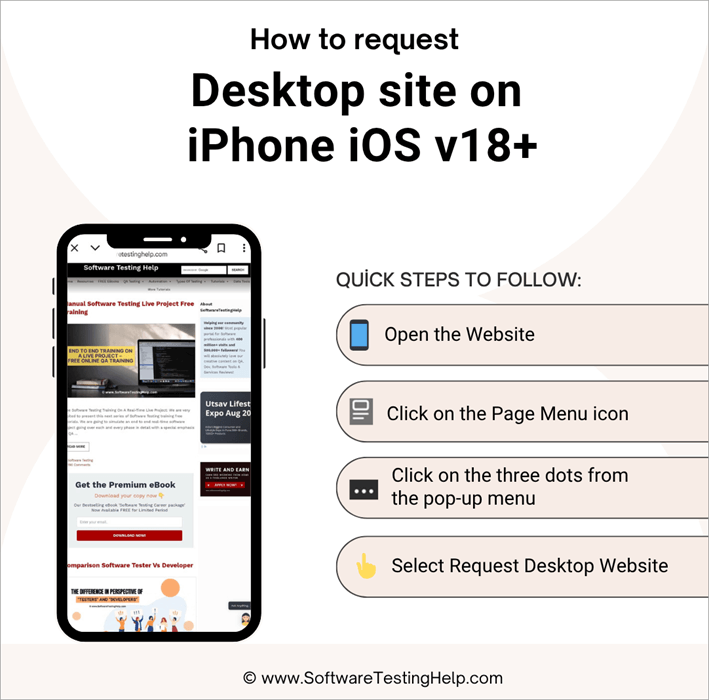
- Open the Website
- Click on the Page Menu icon
- Click on the three dots in the pop-up menu
- Select Request Desktop Website
What is the reason one should view the desktop mode of a website on a mobile browser?
One might want to view in desktop mode instead of the default mobile view of the website on an iPhone because of the following reasons:
- Better Content Consistency: Poorly designed websites for mobile sometimes break the layouts, causing misalignment in the images or even missing the content to show up altogether; hence, in this case, the desktop version looks clearer and more consistent.
- Full Access to Website Features: Some phone/mobile websites may limit access to features or even hide the advanced options and expect you to use a computer to access those advanced features. Enabling the desktop version in the website settings would allow for full functionality of the website to be offered even on smaller screens. Also, it boosts accessibility for people with visual impairments. A larger screen with a simpler desktop layout view will be a bigger advantage compared to the mobile view.
- Compatibility of Web Applications(apps): Certain admin dashboards or web-based tools like CRMs or Shopify, WordPress work properly only in their desktop version of sites.
- Helps in Testing and Troubleshooting: For web developers and or web testers who want to see how their website renders without the need for a laptop, they would request a desktop mode on mobile to verify and validate.
- Familiarity During Navigation: Often, some people prefer to view the websites in traditional desktop menu/ view, which provides a clear layout, making it easy for them to find whatever they are looking for. For example, complex e-commerce websites and / stores with many navigation menus and a wide range of options can become tricky to access on the mobile version.
Suggested Read => Top Private Browsers for iOS and Android
Desktop Mode Website on iPhone: Different Browsers
Let’s see in detail, stepwise, how to view the desktop mode website on iPhone in different Browsers:
For iOS v12 to iOS v17 and Latest iOS v18+
#1) Temporary Desktop Mode for Single Safari Webpage
Step 1: Open and navigate to the website on the Safari app on your iPhone. Type the URL (website link) you wish to visit in the address bar and tap on ‘go’ to load your website.
Note: Depending on the settings preferences of your browser app, the address bar can be located either at the top or the bottom of your screen.
Step 2: iPhone-iOS v12-v17, tap on ‘AA’ on the left side of the address bar as shown in the image below. Tap on the three dots and select the ‘RequestDesktopWebsite’.
Page menu icon for iPhone running below iOS v18:

Note: Address bar icon/ Page menu icon “aA” seems to be gone now on the latest iPhones’ iOS 18+ versions. It no longer appears on the iPhone’s iOS v18+ on the Safari browser. The new icon now appears as shown in the image below/step.
Page menu icon for iPhone running on iOS v18 and v18.5
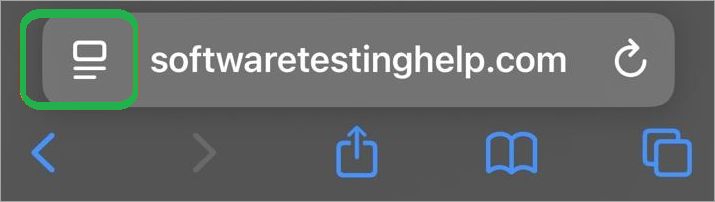
Step 3: For iPhone-iOS v18+, tap  on the left side of the address bar/Page Menu Icon as shown in the above image. Upon tapping, the pop-up menu will open.
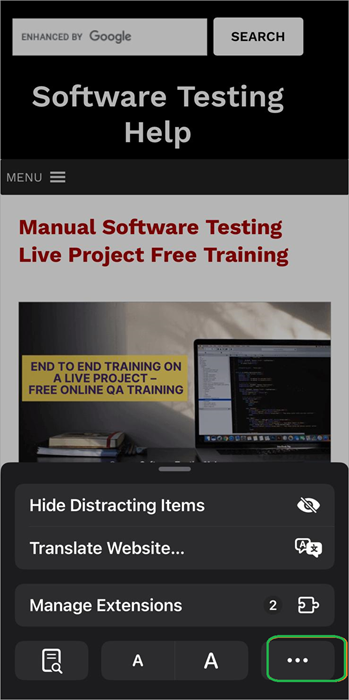
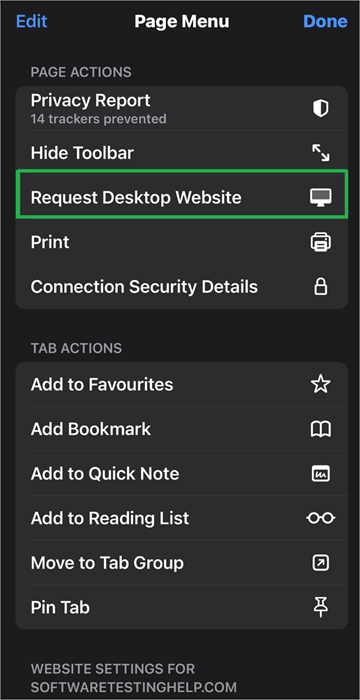
Step 4: Choose ‘Request Desktop Website’. Select this option as shown in the above image, highlighted in green, to switch from the mobile version of the website to the desktop version on your iPhone.
Note: This setting only applies to the active tab, leaving other Safari tabs unaffected.
#2) Permanent Desktop Mode for Single Safari Website
Step 1: Open the website you frequently visit and prefer to visit always in Desktop mode. You can permanently change the settings for that website in your Safari app.
Open the browser and navigate to the website in Safari on your iPhone. Type the URL (website link) you wish to visit in the address bar and tap on ‘go’ to load your website.
Step 2: For iPhone-iOS v12-v17, tap on ‘AA’ on the left side of the address bar as shown in the image. Upon tapping, a pop-up menu will open. Select the Request Desktop Website.
Step 3: For iPhone-iOS v18+, tap on  the icon on the left side of the address bar/Page Menu Icon. Upon tapping, the pop-up menu will open as shown in the image below.
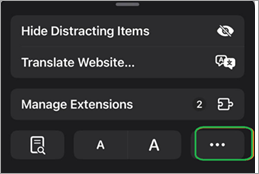
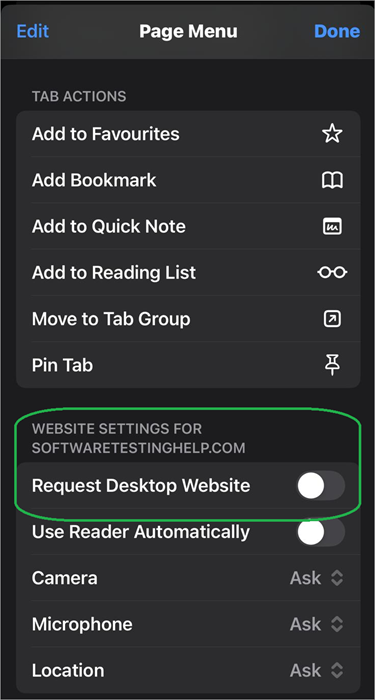
Step 4: Select the option ‘Website Settings’ in the pop-up menu. Upon tapping the website settings, a new menu screen will appear, as shown in the image below.
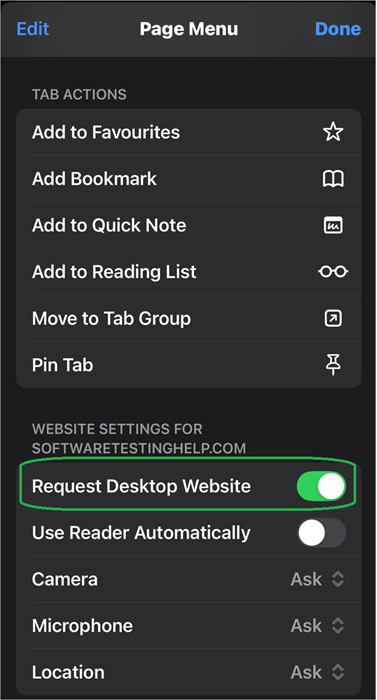
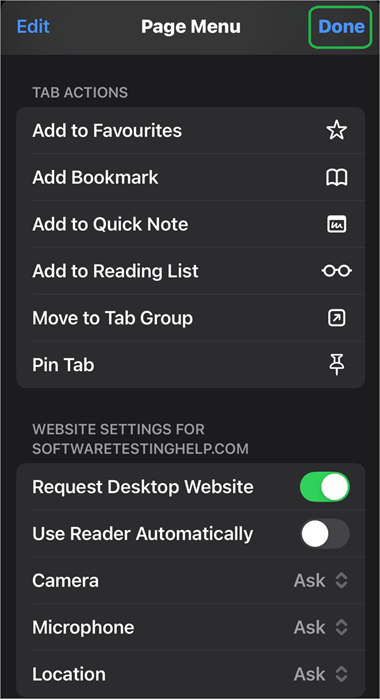
Step 5: ‘Switch on the Toggle’ as displayed in the above image and tap on ‘Done’ in the upper right corner to apply the changes for the desktop view on iPhone.
From now on, you will see the desktop mode whenever you visit any websites on Safari.
Note: You can always revert by going back to the ‘website settings’ menu the next time you visit the site.
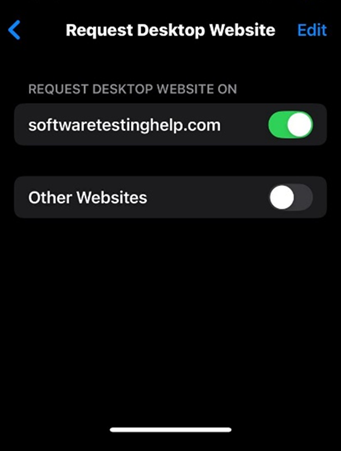
Via Phone’s Settings -> Safari App -> the toggle can be switched on.
Also Read => Apps To Mirror iPhone to iPad
#3) Permanent Desktop Mode of Safari App for All Websites: For iOS v18.5
Step 1: Navigate to the ‘Settings’ app on your iPhone, and if you prefer to open all the websites in desktop view, always on your iPhone, you can change the settings of the Safari browser to open in desktop view by default.
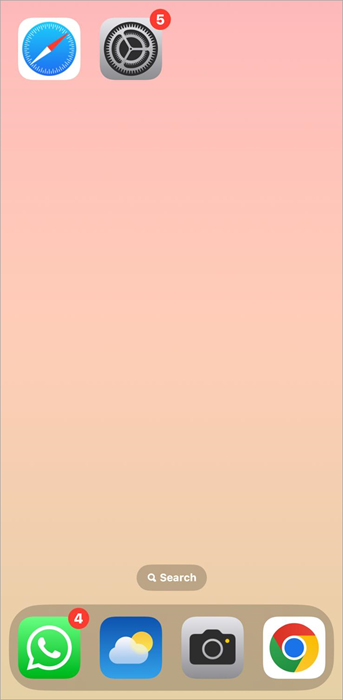
Step 2: Once you tap on the settings icon, the menu page opens. Tap on ‘Safari’ to open the new menu screen.
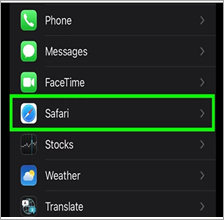
Step 3: After tapping on the Safari option, the ‘Settings for Websites’ screen will be opened.
Select the ‘Request Desktop Website’ option.
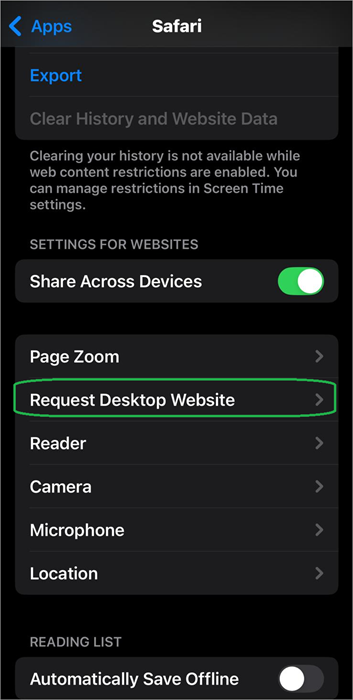
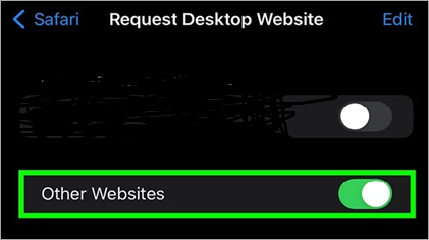
Step 4: Upon selecting the ‘Request Desktop Website’ option, you see the ‘Other Websites’ option on the new menu screen.
Toggle should be Switched On for ‘Other Websites’ on the Request Desktop Website menu screen.
From now onwards, Safari browser will open in Desktop view unless you come back to this setting section and turn this toggle off.
Also Read => How to Fix iPhone Update to iOS 15 Problems
#4) Desktop Mode for Chrome Website on iPhone
Step 1: Navigate to the website URL you want to open on the Chrome browser on your iPhone, then launch the Chrome app, type the URL into the address bar, and then tap Go to navigate to your desired website.
Step 2: Tap on the 3 dots ••• button on the menu on the bottom right corner of the screen, which will open the pop-up menu as shown in Step 3.
Step 3: Scroll through the pop-up menu until you see ‘Request Desktop Site’. After tapping on this option, the website should display in desktop mode on the Chrome browser.
Note:
i) If you visit the other pages which are part of the same website of the same current session, they may also open up in desktop view, to convert back to mobile view, open the 3 dots ••• menu button again, and tap on ‘Request Mobile Site’.
ii) There is another way to switch to desktop mode, by tapping on the Share icon on the right side of the URL bar, then on that menu, scrolling down to find and then tapping on ‘Request Mobile Site’.
#5) Desktop Mode for Firefox Website on iPhone
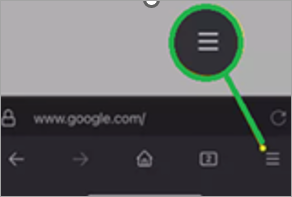
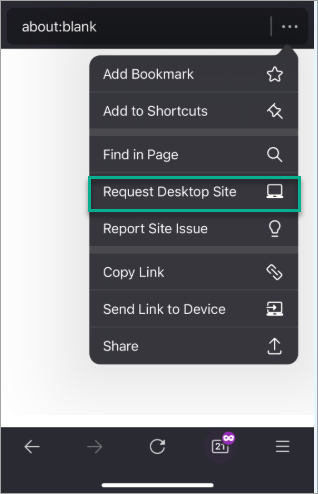
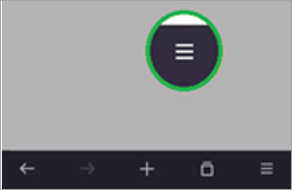
On the Firefox browser, open the website and navigate to the ‘3 Horizontal lines’ icon (More), then tap on ‘Request Desktop Site’.
[Via Blog Mozilla]
#6) Desktop Mode for Microsoft Edge Website on iPhone
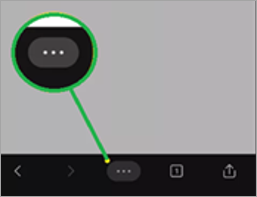
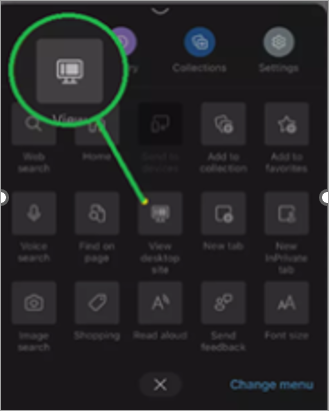
On the Microsoft Edge browser on your iPhone, tap on the ‘3 dots’ icon (More) as shown in the image below, then tap on ‘View Desktop Site’.
#7) Desktop Mode for Opera Website on iPhone
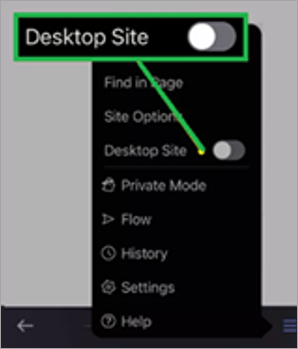
On the Opera browser on your iPhone, go to the ‘3 Horizontal lines’ icon (More) as shown in the image below then tap on ‘Desktop Site’.
Here is the YouTube video on how to close all tabs on iPhone:
Further Reading => Do you know how to Unlock a Disabled iPhone
Frequently Asked Questions
1. How to turn off the desktop mode on iPhone iOS v12-to-iOS v17 on the Safari browser?
To switch back to Mobile view on iPhone, tap on ‘AA’ and then tap on ‘Request Mobile Site’.
2. How to request desktop site on iPhone – Chrome browser?
On the bottom right, tap on 3 dots and select ‘Request Desktop Site’
3. Can the Desktop mode be switched on for iPad, too?
Yes. The steps for the iPadOS are the same as the desktop mode on iPhone.
4. How to request Desktop site on iPhone iOS v18 and above?
i) Go to the address bar and type the website you wish to visit. Once loaded, tap the Page menu icon. The pop-up menu opens with the 3 dots on the right-hand side.
ii) Tap on 3 dots, page menu opens with the option to ‘Request Desktop Website’.
Upon selecting, your website is now switched to Desktop mode.
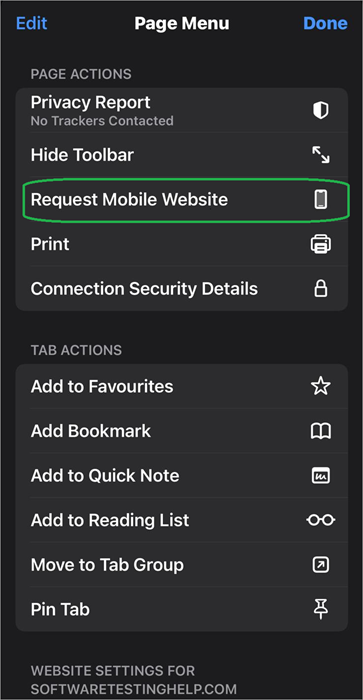
iii) To verify/confirm that the website you wish to see is actually in Desktop mode, redo the above two steps and observe that the option now should be ‘Request the Mobile Website’
Conclusion
To request desktop site on iPhone is quick, easy, and useful whenever you need full access to the full features of the desired websites or a familiar view.
Whether you are on Safari, Chrome or any other browser, each of them offers easy options to switch between mobile view and desktop view in just a few taps.
This can be very helpful in the limitation of mobile-optimization of websites and to make sure you can still have full access to all the features and content you need, even on smaller screens(iPhone).
Ideally, when designing, the focus should be on mobile-first designs for smaller screens, adhering to best practices when creating web / responsive web applications, which ensures accessibility, full access to website features, and better content consistency display.
Was this helpful?
Recommended Reading
-

This tutorial is a complete step-by-step guide that explains the top 3 useful methods to find ways on how to Unlock a Disabled iPhone: Security is the best part of having an iPhone. No one can unlock your phone and access your data unless they know the password. As much…
-
Get educated on how to create a Poll in iMessage on iPhone or iPad on group chats. Quickly gather opinions from friends & family through the iMessage poll and view the results directly: It's an undeniable fact that we all love to chat with our friends through text messages. Almost…
-
Understand how to find and access your downloads on iPhone. Learn where to find Downloads on your iPhone through simple methods based on their file type & downloading app from this step-by-step guide: Files downloaded on iPhone all go to the Downloads folder whose parent folder is Files. You can…
-

Deeply explore how to ping iPhone from Apple Watch and locate your misplaced device quickly. This feature of how to ping Apple watch makes your phone emit a sound even when it is in silent mode: iPhone users can locate their iPhones by pinging them from an Apple Watch. When…