Are you worried about your Snapchat location privacy? Discover how to hide or pause Snapchat location safely in just a few taps with our detailed step-by-step guide:
Snapchat is shaping our way of communication in the online world. So, it may have already occurred to you that Snapchat has an integrated location feature they call Snap Map that drops your Bitmoji onto a live map so your friends can look at where you are, and it is managed within the Snapchat app.
Whether it is the first time you learn about it or you have already been using it, Snapchat location can be disabled easily and effortlessly. It is good to know how and when, since location data is very personal and can trace or hurt individuals if it is abused.
Table of Contents:
- Freeze or Hide Snapchat Location in Seconds: Complete Guide
- All About Snapchat Location: Why it is Good to Pause it
- How Can You Pause Snapchat Location: Quick Overview
- Top Third-Party Tools to Spoof or Pause Snapchat Location Status
- Parental Monitoring on Snapchat
- Location History and Data Retention at Snapchat
- Common Issues with Troubleshooting Steps
- Frequently Asked Questions
- Conclusion
Freeze or Hide Snapchat Location in Seconds: Complete Guide
Knowing how to pause or temporarily turn off the location in Snapchat is a valuable privacy skill in 2026, not just to you alone, but also because your children will also use Snapchat.
There are, however, suggested and forbidden techniques, and that is what this tutorial assists you in realizing, so as not to get your account in trouble.
All About Snapchat Location: Why it is Good to Pause it
The Snapchat application has an in-built Snap Map, which displays your most recent location or where you are now, and also has sharing options (everyone, select friends, or only you). Hence, it is there so that it will help discover places, and for the sharing of content, and of course, help locate friends within your locality.
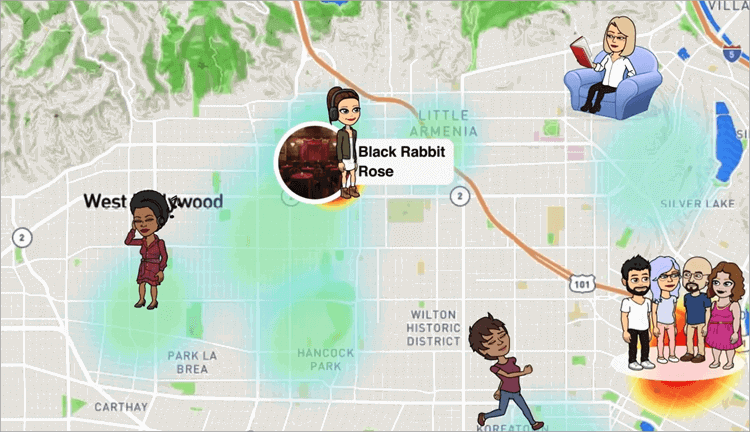
Snapchat will update your location as long as you are in the application, and will revert to your last recorded location after another session with Snapchat.
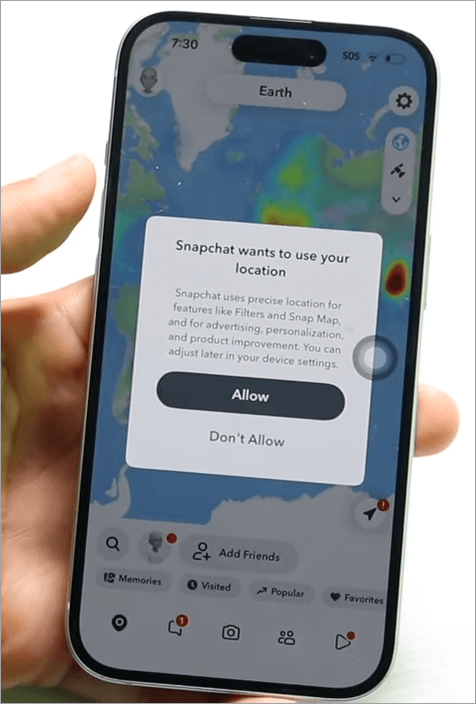
There are times when you may find switching off or disabling location sharing helpful. It can eliminate the risk of stalking, preserve privacy, and can even save battery, or block uploading of your background information for individuals who do not wish to be tracked all the time.
How Can You Pause Snapchat Location: Quick Overview
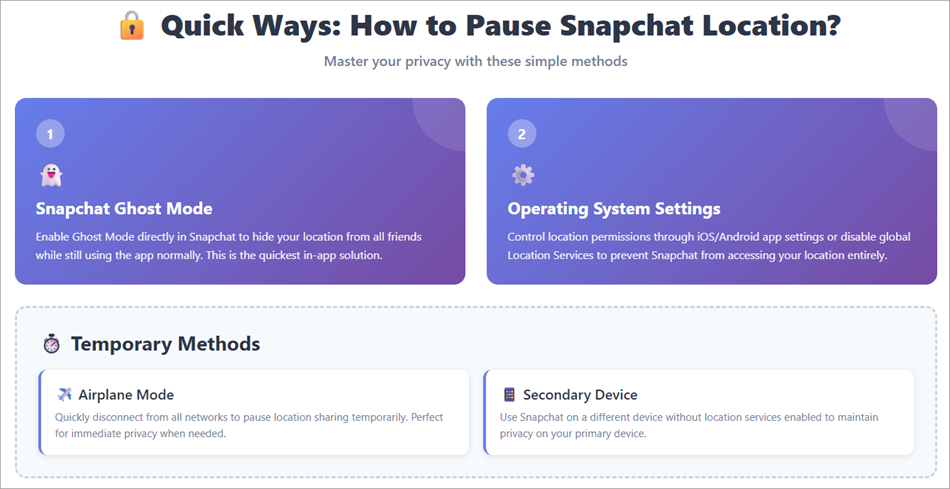
The following section discusses these methods in detail, in addition to the section below that provides detailed instructions on how to achieve pausing.
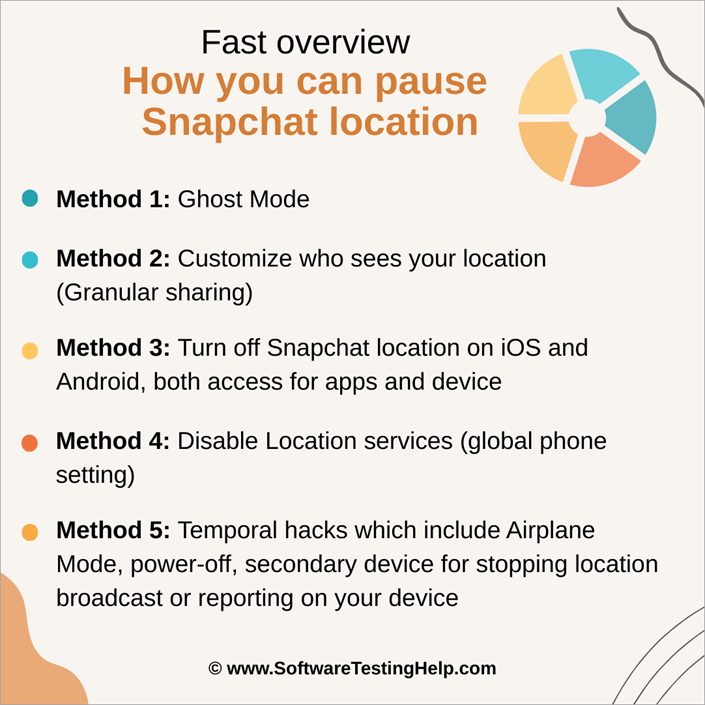
Method #1: Ghost Mode
This should be the first method for your consideration, just in case you are concerned about the legality of the processes that we are talking about: Snapchat officially approved the Ghost Mode for pausing location for the app.
The Ghost Mode option is shown in the image below:
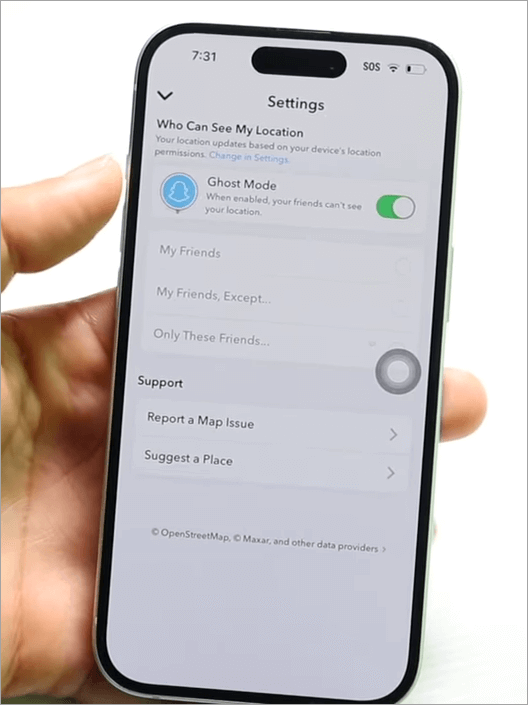
The reason for it is that it is how not to share your Bitmoji with Snap Map, hence making sure that nobody knows where you are until you switch to Ghost Mode.
What happens when you stop sharing your Snapchat location?
If friends have not turned on Ghost Mode for the app, you will still see their locations, but you can’t see their last known location or any timestamp, and the Bitmoji disappears from the map completely.
The map stops updating your live location, and friends are notified that the person is in Ghost Mode if they have turned it on. Remember, by just going offline, friends can see your last known location for about 8 hours since your last activity. Otherwise, the Bitmoji will disappear automatically after 8 hours since the last activity.
Pause your Snapchat location using Ghost mode:
Step 1: Start Snapchat and swipe twice to the right of the Camera screen to access Snap Map.
Step 2: Select the gear icon at the top of the Map screen to access Map settings.
Step 3: You can also switch Ghost Mode on and select the time you would like it to remain on (you can have 3 hours, 24 hours, or Until Turned Off).
Reason: The safest and least risky alternative since it is integrated with Snapchat and does not interfere with the Snapchat privacy model.
This implies that you will be free of worry about restrictions on your account, and you will not have security concerns as you do with other methods. You will not need to install any third-party applications or buy any software or services.
Method #2: Customize Who Sees Your Location (Granular Sharing)
There are instances in which you may be forced to conceal the location from one or two and reveal it to others. Rather than concealing your location from all people, Snapchat allows you to reveal where you are selectively to a specific group or friend, which is a good tradeoff in privacy when someone has to know your whereabouts.
How to pause your Snapchat location by customizing your who to see list:
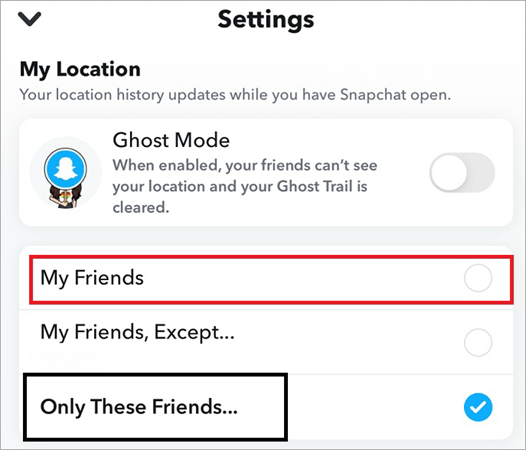
Step 1: Open Snap Map, tap the gear icon at the top of the map screen to get into settings.
Step 2: Select my friends, select friends, or only me (Ghost Mode), depending on whom you trust.
Step 3: When you choose Select Friends, you can add or remove certain people to ensure that only selected people know your live location.
The benefit of this is that the chances of stalking are extremely low since only a small group can see the data, and people who are trusted have the convenience of sharing their location.
Method #3: Turn off Snapchat Location on iOS and Android
In this section, we will see how to turn off Snapchat location on iOS and Android on both Apps and device access.
You can prevent the Snapchat app from reading your GPS by editing the app permissions in your phone’s OS. It is a powerful device-level solution for disabling location updates to Snapchat. You may already know the location access settings on your Android and iOS.
So, it is possible to stop Snapchat location by refusing the app permission to get device location status:
iOS (iPhone / iPad)
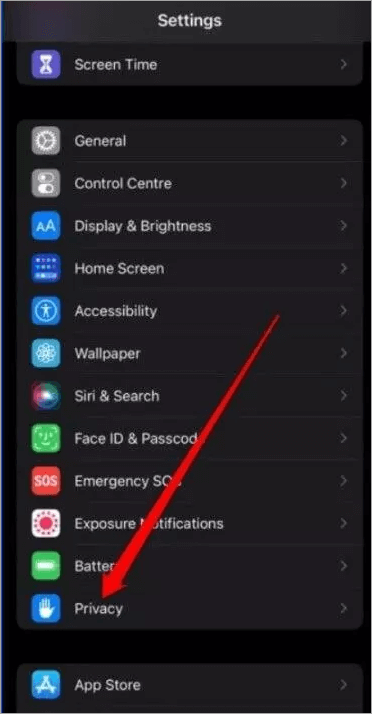
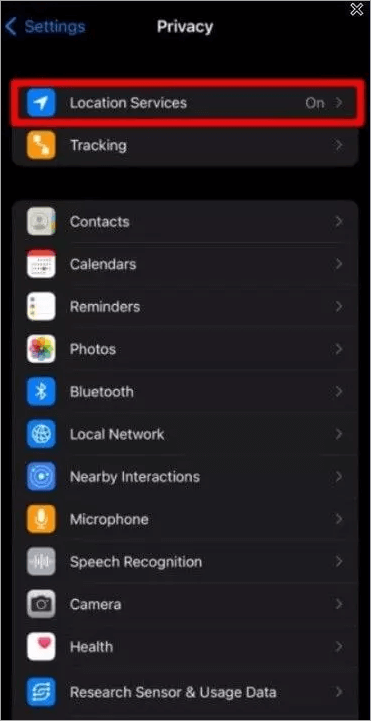
Step 1: Start at the Settings by tapping on the Gear icon or opening the settings app from the Home page > Privacy and Security > Location services.
Privacy option is shown in the image below:
The image below depicts the Location Services option:
Turn on Location Services as shown in the image below:
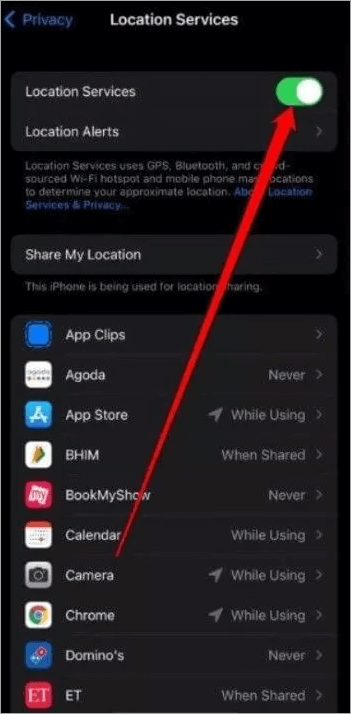
You can choose to toggle it off for all the services or apps that have those permissions active, or turn off location per app. In that case, tap on Snapchat from the list of apps with location access, even as the location toggle is tweaked on.
Step 2: Tap or click Never or Ask Next Time (or While Using the App to limit updates and scroll to Snapchat.
Step 3: When selecting Never, Snapchat cannot refresh your location or appear on Snap Map.
Alternatively, tap on Settings > Apps, then select Snapchat and tweak to the Off position for one or more Snapchat services with location access tweaked on.
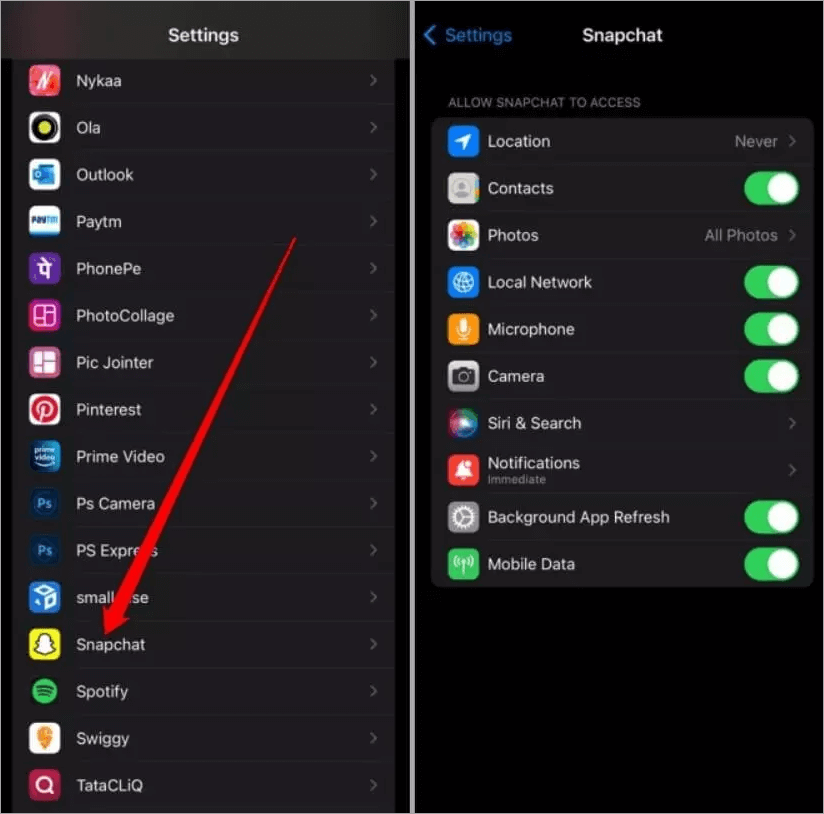
Android
Step 1: Tap the Settings app -> Apps -> Snapchat -> Permissions -> Location.
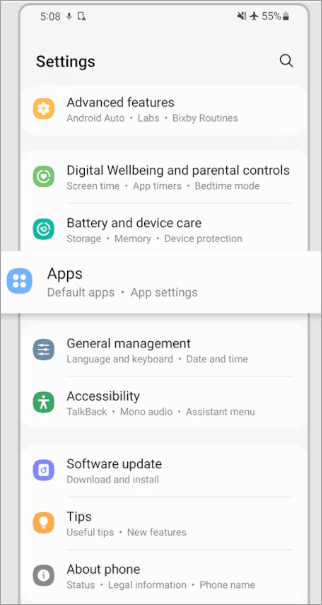
[Via samsung.com]
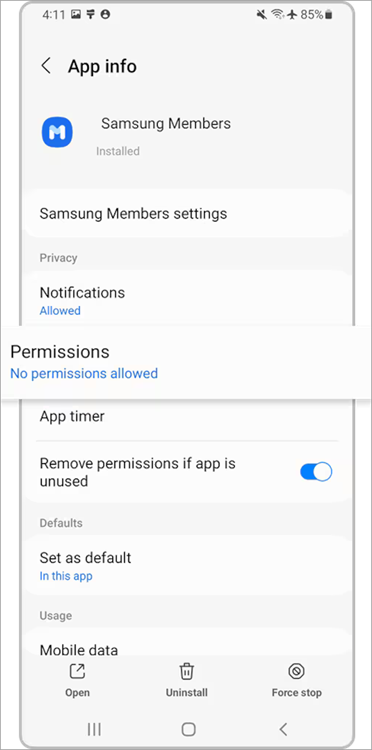
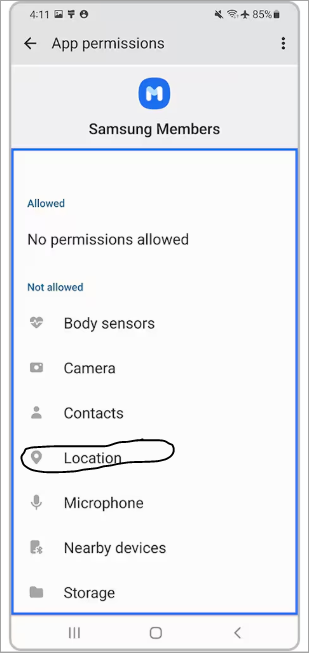
Step 2: Choose Deny or select Allow if you are using the app based on the extent to which you want to share.
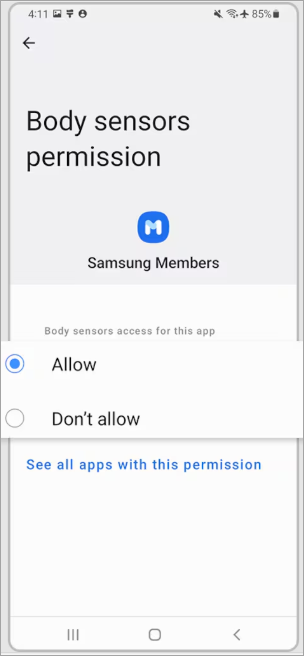
Step 3: When you refuse location access, Snapchat will not update your Snap Map location, but it will display your last known location before the permission was changed.
Other routes of tweaking this setting on your Android are by going to Settings -> Apps -> Snapchat -> App Permissions, then switching off location permissions from here.
[Via imyfone.com]
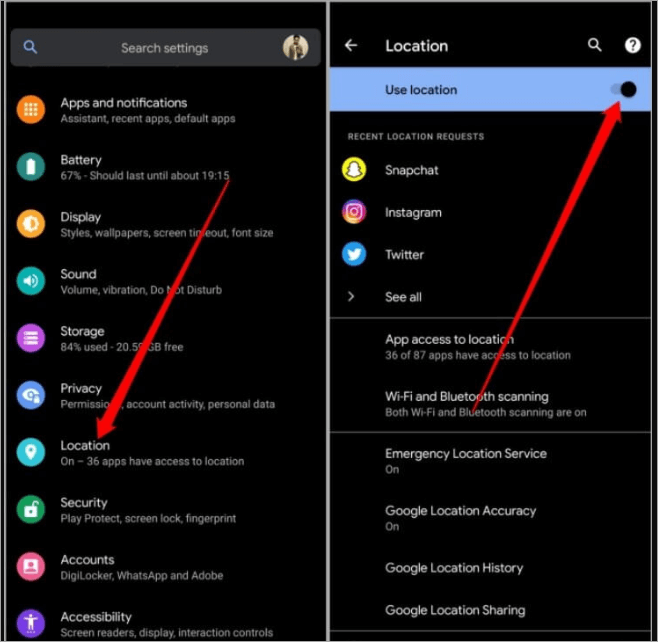
Also, go to Settings -> Locations and see the apps that already have location access permissions and tap on Snapchat to deny, or simply switch off the location toggle button from the On to Off position.
Method #4: Disable Location Services (Global Phone Settings)
For those of you who are already fed up with all apps tracking your location status data, you can simply switch it off. In some cases, the status of the location that your device or apps determine may be unknown, and therefore, this is just one of the numerous defense mechanisms you possess.
Turning off Location Services helps to disable GPS in all applications around the world, effectively halting all map and location applications, but also disabling some helpful features within the entire system.
How to turn off location services in Snapchat to stop location broadcasting:
Step 1: On iPhone, move to settings, then to privacy and security, and turn off location services.
Step 2: In Android, do the same by going to Settings -> Location and switching Use location off.
Step 3: Keep in mind that this will turn off maps, ride-hailing, and other services that depend on location, too, until you switch it on.
When to use: This technique is more effective when you want to perform a complete and temporary paralanguage to any location leaks (e.g., privacy sweep), and should be used sparingly since it is disruptive to helpful services.
Method #5: Temporal Hacks
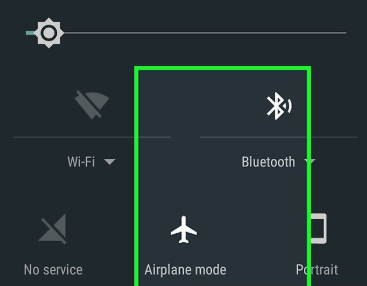
This section explains temporal hacks, which include Airplane Mode, Power-Off, and Secondary Device for Stopping Location Broadcast or Reporting on your device.
[Via wikihow.tech]
This involves employing temporary measures such as Airplane Mode, or blocking GPS and network signals by switching off your phone; although using a secondary phone leaves your main phone private.
How to pause Snapchat location using the above temporal tactic:
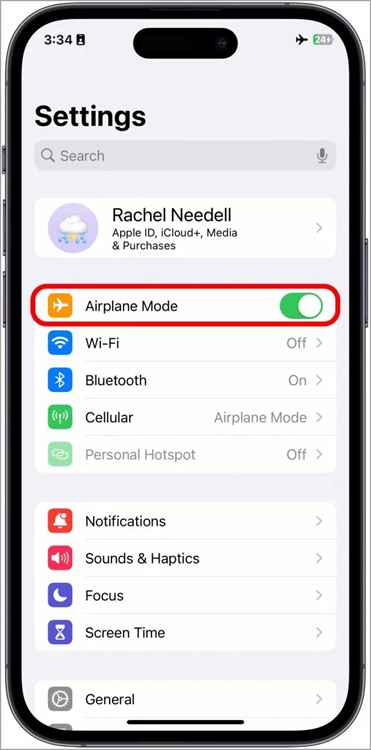
Step 1: Turn your phone off by turning the Airplane Mode on in your Control Center/Quick Settings – it disconnects your cell, Wi-Fi (when off), and prevents Snapchat updates. Thus, when it is being reported on the device using these methods of external communication on data, it is therefore suspended.
Step 2: Turn off the device to ensure no background applications, or one can use another older phone (logged into Snapchat) to look in another location (in case it is required).
Step 3: Re-enable networking. To restart normal application behavior, when you wish to see a map once more.
Reason: These are unsubtle instruments – they work, but can be conspicuous (people may realize that you went offline).
How to pause live location sharing for Snapchat:
The above option to completely turn off Location access for all or the singular Snapchat app or to put the device to Airplane mode, will pause live location reporting for Snapchat, but here are additional ways of achieving this:
Step 1: Open Snap Map and tap the Map icon, then proceed by tapping on the gear icon that always represents device Settings on such devices, which will open the Map Settings.
Enable Ghost mode option is depicted in the image below:
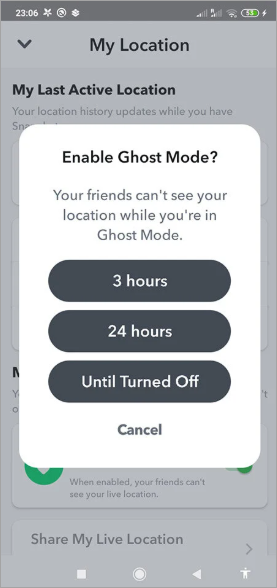
[Via phonearena.com]
Who can see my location on the Map option is shown below:
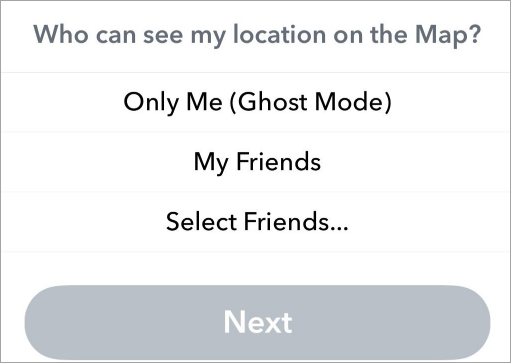
Step 2: From the list of Snap Map settings, turn on Ghost Mode and select the duration for which it lasts to deactivate live location sharing.
Step 3: Navigate to Settings -> Apps -> Snapchat -> tap on App Permissions for Snapchat and select Locations, then tweak off the access. On iOS, navigate to Settings -> Privacy -> Location Services -> Snapchat and then choose the Never option.
11Navigate to Snapchat -> Chat and choose a friend or group you chat with or want to chat with, and then tap the name of that friend, which opens the details of the chat. In the Live Location option, or the Map preview within the chat, tap Stop or Stop Sharing to halt live location sending/reporting for that specific chat or friend.
How to disable precise location and enable approximate location for Snapchat
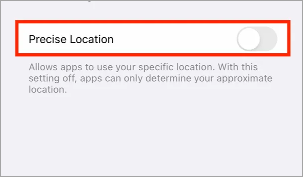
[Via fr.techtribune.net]
Step 1: On iOS, navigate to Settings -> Snapchat -> Locations and from here turn off Precise Locations. Otherwise, navigate to Settings -> Snapchat -> Locations and select the While Using the App option.
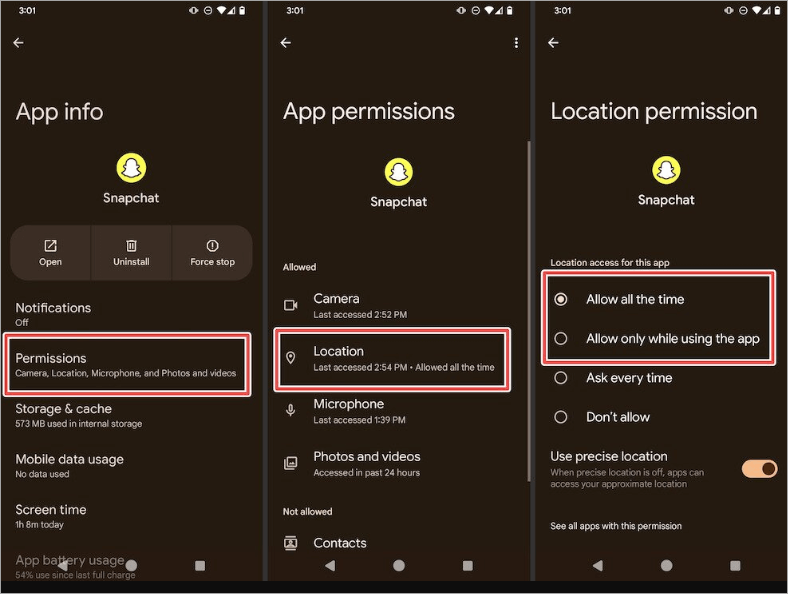
[Via addictivetips.com]
If using Android, long-press Snapchat -> tap App info -> Permissions -> Location and select to Allow only when using the app. Navigate to Settings -> Permissions -> Location and turn off the Use Precise Location.
Top Third-Party Tools to Spoof or Pause Snapchat Location Status
Here are some of the top third-party tools to pause Snapchat Location:
- iMyFone AnyTo
- Tenorshare iAnyGo
- Dr.Fone Virtual location (Wondershare)
- iToolab AnyGo / iTools Virtual Location
- Using Mock Location Applications
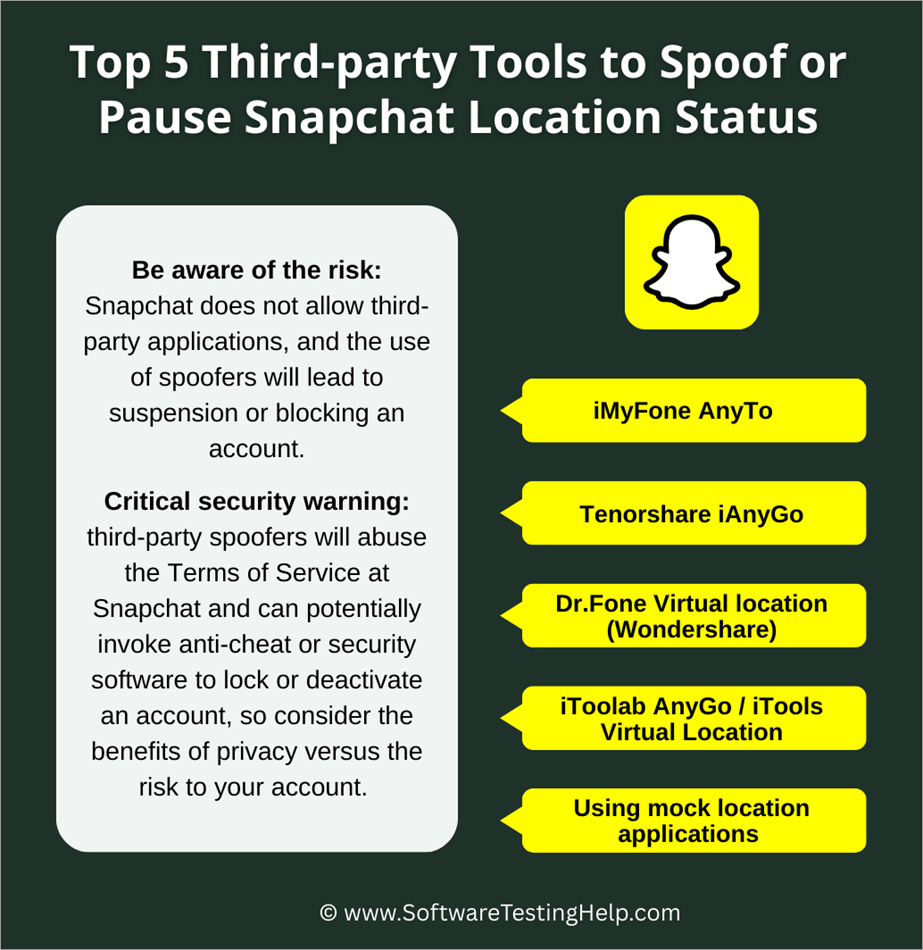
Be aware of the risk: Snapchat does not allow third-party applications, and the use of spoofers will lead to suspension or blocking of an account.
Critical security warning: Third-party spoofers will abuse the Terms of Service at Snapchat and can potentially invoke anti-cheat or security software to lock or deactivate an account, so consider the benefits of privacy versus the risk to your account.
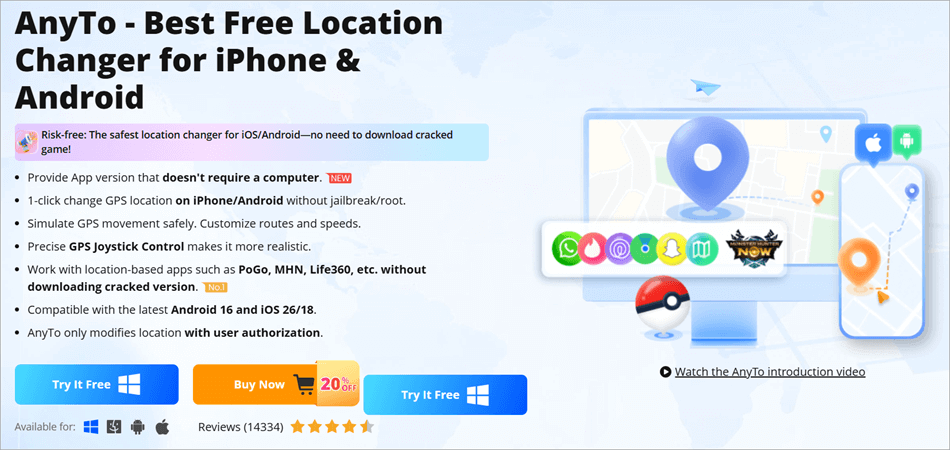
#1) iMyFone AnyTo
[Via imyfone.com]
iMyFone AnyTo is a well-known desktop/mobile location changer that is compatible with both iOS and Android and boasts 1-click teleportation and route simulation.
How to use iMyFone AnyTo to impersonate Snapchat location:
Step 1: Install AnyTo on your PC/Mac or the AnyTo mobile app.
Step 2: Use your phone and connect with the PC (when it is a desktop) or open the mobile application and select a fake location.
Step 3: Use/teleport and verify Snapchat – the Snap Map must display the spoofed coordinates.
Pros: It is a simple UI, has several route options, has been reviewed numerous times, and updated regularly.
Cons: It is a premium item, can be identified by applications, and is against the ToS of Snapchat (threat of account punishment).
Pricing: You can choose a monthly or a lifetime plan. Prices generally range from an average of 9.95 a month, between $59 – $119 for the lifetime subscription option.
[Via ianygo.com]
Tenorshare iAnyGo GPS location changer supports iOS/Android devices and is aimed at gamers and social-media users who wish to look in different locations.
How to use Tenorshare iAnyGo to impersonate a Snapchat location:
Step 1: Download iAnyGo Windows/Mac or the mobile tool of the vendor and install it.
Step 2: Attach your phone to the computer, find a desired destination, and then click Change Location.
Step 3: Check on Snapchat that the map has the new destination.
Advantages: The app is very rich in features in terms of route simulation; the cooldown timers will also help minimize detection risk.
Cons: Paid subscriptions and spoofing are against Snapchat’s policy and pose a risk.
Price: The average price is about $14.99 – $19.95/month with yearly or lifetime offers on the official websites.
[Via drfone.wondershare.com]
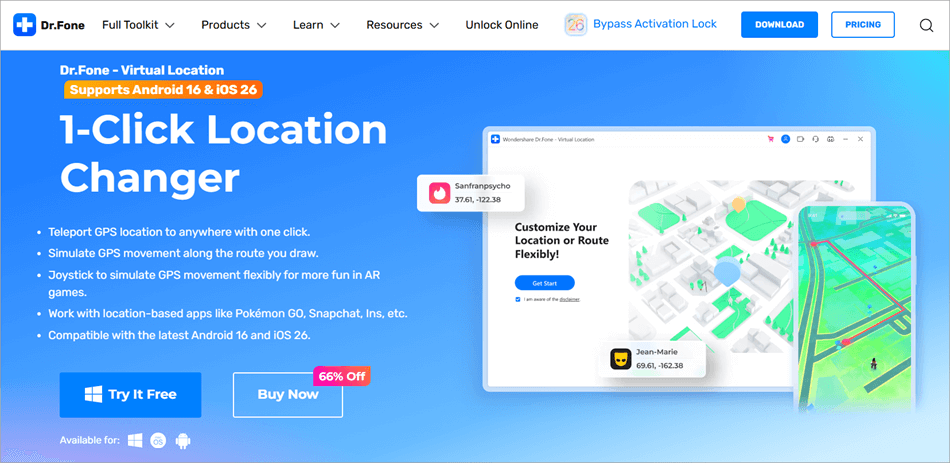
Dr.Fone Virtual Location is a desktop application that provides teleportation and route simulation of devices like iOS/Android devices.
How to spoof Snapchat GPS location using Wondershare:
Step 1: Download Dr.Fone on PC/Mac, open Virtual Location, and connect your phone.
Step 2: On the map, choose a specific location, then Teleport. Otherwise, simulate movement by clicking on a route.
Step 3: Open Snapchat to ensure that the map displays the distorted GPS coordinates.
Advantages: This software is a simple desktop workflow and a powerful simulation package.
Cons: Dr.Fone has paused updates, and there can be product continuity changes, as well as ToS issues.
Pricing: Virtual Location by Dr.Fone has, in the past, been offering monthly plans of about 4.97-9.95/month or a one-time purchase of their product based on the promotion.
#4) iToolab AnyGo / iTools Virtual Location
[Via itoolab.com]
AnyGo, by iToolab, and Virtual Location, by iTools, are desktop/PC solutions that both spoof the iPhone locations and simulate routes.
How to spoof Snapchat location using iToolab AnyGo spoof Snapchat location:
Step 1: Download iToolab AnyGo or iTools on your computer and attach the iPhone using the USB.
Step 2: Choose a target and tap on Start, and this will place the selected virtual position on the device.
Step 3: Make sure that Snapchat Snap Map shows the new coordinates.
Advantages: Desktop controls are good, and users find multi-device licenses very helpful.
Disadvantages: It normally costs money, is not always compatible with recent OS updates, and is once again against Snapchat rules.
Cost: Some plans cost monthly prices (starting at $9.95/month), annual, or lifetime business licenses; specific prices are different among vendors.
#5) Using Mock Location Applications (Android – Fake GPS, Lexa, etc.)
Android mock-location applications, such as Fake GPS Location (Lexa), allow you to specify a mock location using the phone as long as you have turned on the Developer Options and chosen the mock app.
How to spoof Snapchat location using Android mock location apps spoof Snapchat location:
Step 1: Turn on Developer Options (tapped Build Number several times), and access Developer Options. Select the mock location app and choose Fake GPS.
Step 2: Turn on Fake GPS, select a place, and tap on Start (this OS will showcase your fake location to applications).
Step 3: Go to Snapchat – in case the app does not have anti-mock checks, the app will read the fake location; however, most modern apps read mock location flags.
Pros: free or very cheap, and will run on Android without a desktop.
Disadvantages: mock location is not undetectable, may cause other applications to crash, and may leave the device stuck on a bogus location until it is cleared.
Pricing: Most of the fake apps are free with paid upgrades on Google Play.
Advantages and Disadvantages of third-party tools compared to in-built methods
- Third-party spoofers provide the ability to teleport and simulate routes, which the built-in Ghost Mode can not, but with increased risks: it can be detected by Snapchat, it is against the ToS, and there is the threat of being banned.
- Snapchat and the OS support built-in mechanisms (Ghost Mode, app permissions) and, thus, are less dangerous, easier, and should be chosen by the majority of users, as they do not want to jeopardize their accounts.
Parental Monitoring on Snapchat
The Snapchat Family Center makes it possible for parents to see their teen’s list of friends, with whom they are chatting, request and view the location of their teen, and flag and report content on safety and suspicious accounts.
Both parents and the teen must give consent by accepting the connection. With Snap Map, parents can see actual teen locations, but the teen must first allow it from the Snap Map settings by allowing their parent accounts as the only friends who can see their live locations.
The Home Safe optional feature on Snapchat lets teens select people they want to get notified of their arrival home through the Send me home safe notifications.
Otherwise, stealth tracking is not allowed, and teens can also hide their live locations from parents.
Location History and Data Retention at Snapchat
1. How long does Snapchat store location history
Up to 24 hours for precise location data; 15 minutes, 1 hour, or 8 hours for Live Location sessions, depending on your settings; up to 24 hours for Snap Map “Visit History”; and the aggregated or anonymized map data for trends, e.g., Snap Heat Maps, may be kept for longer but not tied to your account.
2. How to view/delete your location history
- To view location history on the app, navigate to Snapchat -> My Data, then log in to your account -> Submit Request to get an email of the file with location history.
- To delete location history, navigate to Snap Map -> tap on the Bitmoji -> Settings at the top right, and then scroll down to find Clear Visits. Alternatively, navigate to Settings -> Privacy Controls -> Clear Data -> Clear Location Data and confirm deleting the history.
Here are reasons and scenarios under which you may need to disable Snapchat location:
You can turn off location to avoid undesirable interaction after a breakup, to prevent an abusive partner or stalker from tracking you, to maintain personal privacy on the go, or to save battery on the go.
Technology workers and professionals will go so far as to stay put when doing sensitive fieldwork or just not disclose a home address on social media.
Benefits of taking a break at the Snapchat location:
- Location disclosure will minimize the risk of stalking and ensure safety, avoid background tracking, and provide emotional relief and control over an individual’s online presence.
Cons of Pausing Snapchat location:
- Services that depend on location settings may not work properly if they are paused. Also, friends who need it may have problems checking you in. Besides event coordination, local story suggestions, and other important aspects of device usage, turning off the location setting may also cause these to go away. Safety features that depend on or require location access may be compromised or weakened.
Pro-tips about switching your device and Snapchat location
Before: purge your friend list and delete strangers or old friends to make sure that not so many people see what you are going to post without remembering to switch off sharing again.
In doing it, use Ghost Mode or only while using permissions to a low-friction privacy posture that does not expose the account to risk.
After: Make sure to verify again the Snapchat and Operating System permission settings each time you update them. This is because OS and app updates can revert permissions or alter them.
Common Issues with Troubleshooting Steps
Check the video below to know why Snapchat location doesn’t update:
Here are some of the common issues that arise before, after and while pausing Snapchat location, along with the possible solutions to fix them.
| Problem | Possible Solution |
| Snapchat continues to display your last location even when you stop. | That is normal Snap Map will save the last place you were at until the moment you relocate or close the application; Ghost Mode will not allow new updates. |
| After having used a mock application, your phone is stuck on a spoofed location. | Opening the mock app again, then ceasing spoofing, re-rebooting the phone, or resetting Location Services may fix the actual GPS. |
| Location on Snapchat is not updating after re-enabling | Restart the application by swipping it away from recent applications and opening it again. Also can check if the location permissions have been re-enabled properly. For instance, check if the location access is activated while using the App option by navigating to Settings > Snapchat > Location for iOS; and if it is activated to Allow Only while using the app on Android by navigating to Settings > Apps > Snapchat > Permissions > Locations and ensuring Precise Location is toggled ON on iOS and Android. Also ensure Ghost Mode is off and location services is on and there is Internet connectivity. Also try logging out and in again on Snapchat or updating the Snapchat app. |
| Ghost Mode is not working properly | Turn off Ghost mode, or try clearing the cache from Settings -> Clear Cache -> Clear All. |
| Bitmoji is still showing on the map | Turn on Ghost Mode, and confirm that location permissions are enabled with Ghost Mode active. May have to wait for some time, as old locations may take eight hours to update. |
| App crashes when accessing Snap Map | Update the app from the App Store, try clearing cache from Settings > Clear Cache > Clear All. Uninstall and reinstall app if nothing is working. |
| Permission reverted after app update | Reselect the option While Using the App or Always option from the Settings -> Apps -> Snapchat -> Permissions -> Location; try reopening the Snap Map and checking that sharing is active, or updating the app. |
Frequently Asked Questions
1. Do I have the ability to stop Snapchat location without anyone paying attention?
Hide your position. Ghost Mode (official) will keep your position secret; other users can see that you are no longer sharing updates on the map. However, Ghost Mode is the safest.
2. Is it true that switching off location on my phone will turn out to be the immediate solution to Snap Map?
When you turn off Snapchat location permission or global Location Services, Snap Map will no longer update and will display your last known location until the app can update again.
3. Is it possible to use Snap Map on a desktop, and is it possible to operate it there?
Snap Map is mostly mobile; Snapchat web tools are minimally developed, and Snap Map friend-location controls are better served through the phone.
4. Is my Snap Map location going to be concealed with the use of a VPN?
No, VPN hides the IP address but leaves GPS positions the same; Snap Map uses GPS information on the phone.
5. Will Snapchat ban me if I use a location spoofer?
Snapchat does not allow third-party applications that are not authorized, and the use of spoofers may lead to either account lock or ban; this is not something to be taken lightly.
6. How long does Snap Map store my location information?
Snap Map displays your position temporarily and retains the last active position until it is updated; Ghost Mode does not allow any further updates.
7. Which is the most optimal privacy option?
Simple privacy use Ghost Mode plus tweaks in the OS permissions (Allow only while using) and only use third-party spoofers in special situations that do not endanger the account.
8. What are Snapchat’s premium location-specific capabilities?
Snapchat Premium comes with two main features specific to the app’s location settings: the ability to customize one’s Bitmoji on the Snap Map, where the user can select a pet or vehicle icon to appear next to their photo.
The user can also choose to show a visualization of where they have been historically when not in Ghost Mode.
Conclusion
Ghost Mode (an official feature of Snapchat), with reasonable OS permission configurations, such as Allow only while using, is the best, safest, and least risky method of pausing Snapchat location to practically anyone.
Ghost Mode remains safe and free, is simple to undo, and doesn’t impact the functionality of other apps, and that is why it is the default option first.
Research Process: The total time involved to complete and publish this article is approximately 42 hours. This content was created through a structured research approach to ensure accuracy and reliability.
For more quick Snapchat-related guides, you can explore our range of tutorials below:
- How to Deactivate or Delete Your Snapchat Account Quickly
- How to Send a Snap with the Cartoon Face Lens on Snapchat
- How To Download, Install and Use Snapchat for Windows PC
- How to Recover and Restore Your Snapchat Streak Without Paying
- How to Turn ON Snapchat Dark Mode on iPhone and Android
- How to Hack into Someone’s Snapchat with 10 Easy Apps
Was this helpful?
Recommended Reading
-

Delve deep into the quick ways to fix find my iPhone not updating location error. This guide will help you to identify the causes behind this issue and suggest all possible solutions to get rid of the problem: Why is Find My Location not updating? If you’ve asked this question…
-
If you are looking for solutions to track someone's location using a mobile phone, then this article provides you with the best tools to do so. In this guide, I have explained what it means to track someone through their mobile number, the techniques that work, as well as the…
-
Get educated on how to turn off location on the iPhone without notifying the other person. Hide or share your location as per your choice with this exclusive guide & find solutions to stop people from tracking you: iPhones offer their users some handy features like FaceTime, data security, screen…
-

Do you wish to track someone’s location with just their phone number? Explore this tutorial and get to know how to Type in Phone Number and find the location for free of anyone suspicious: Now you may have several reasons to track a phone’s location. Perhaps you wish to keep…