Learn how to delete an app on Roku safely in just a few taps with our quick guide. Master the simple troubleshooting tips from our experts to remove any unused apps from Roku for a clutter-free home screen:
If you are a regular user of Roku, maybe over time your home screen gets crowded with streaming services, games, and some channels you no longer use. Keeping too many channels or apps can make it challenging to locate the channels you actually want to watch.
This guide explains methods such as delete a Roku app directly from the Home screen using your remote, or remove it through the Roku Channel Store or mobile app step by step, including what to do if the Remove app option isn’t available.
How to Delete an App on Roku (Remote, Channel Store, Mobile App)
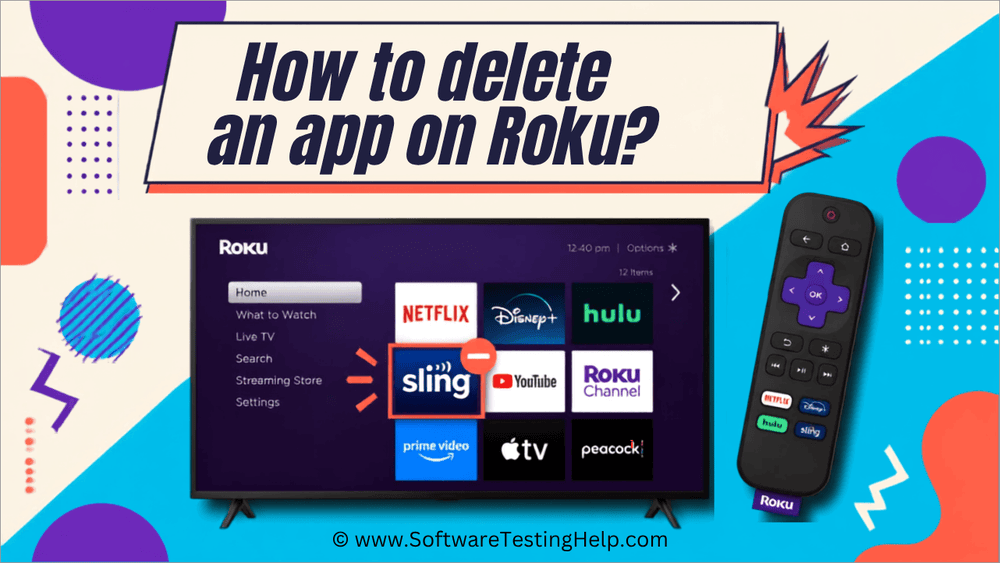
To delete an app on your Roku using the remote, press the Home button, highlight the app, press the Star (*) button, and select Remove app.
Here is the video guide on how to delete apps on Roku TV:
Delete an App From the Roku Channel Store
Here are the simple steps for removing apps using the Roku Channel Store:
- From the home screen of the Roku device, choose the Streaming Channels option. Press OK on your Roku remote to enter the channel.
- Locate the channel you want to remove.
- Once the app is visible, press OK to get more information and choose the Remove option given.
- Finally, tap Remove and press OK.
Remove an App Using the Roku Mobile App
Removing apps using the Roku mobile app
- Start the Roku mobile app.
- From the navigation bar, choose Devices.
- Tap the Apps on Roku option in your mobile app, which will give a view of all the apps installed on the Roku device.
- Click and hold an app to learn more about it and its information.
- Finally, Remove and confirm.
From Roku Home Screen
Here are the quick steps for deleting an app from the Roku home screen.
- On your Roku remote, click on Home.
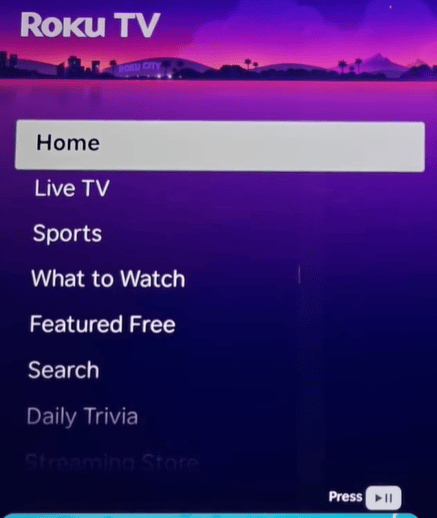
- Now, you need to highlight the app you wish to remove by moving to the right.
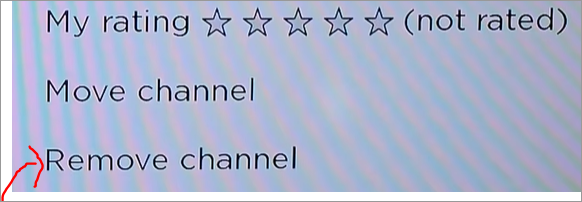
- Tap the Star * on the Roku remote, and it will open the Options menu, from where you can remove or delete the app.
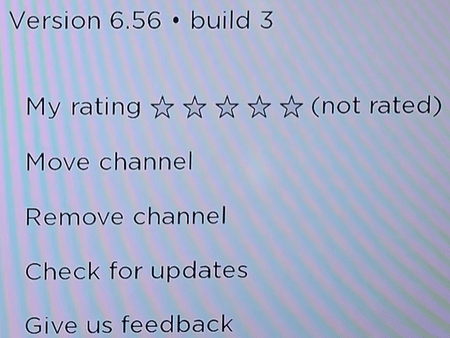
Choose Remove channel/Remove app and confirm.
Why Delete or Remove Apps From Roku Device?
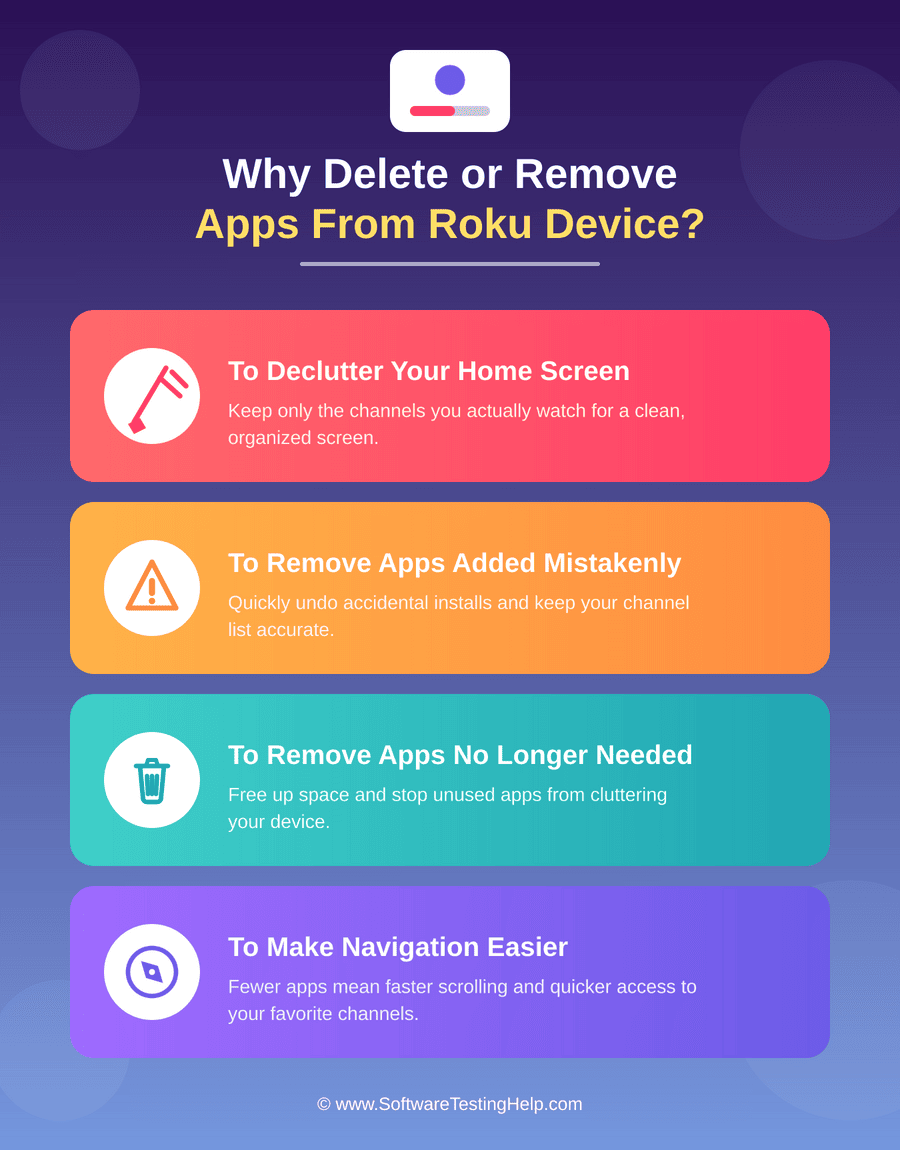
There can be several reasons why you might want to delete apps from your Roku device:
#1) To Declutter Your Home Screen: Removing apps you no longer use can help make it easier to find frequently watched services. It also makes your device more organized.
#2) To Remove Apps Added Mistakenly: There may be a case where you have added some apps by mistake. In that case, you may want to remove the app from your Roku device.
#3) To Remove Apps That Are No Longer Needed: You may have been using certain apps to watch a particular show. But once it is over, you may want to remove the app since you no longer need it.
#4) To Make Navigation Easier: Having fewer apps on the Roku screen can make navigation simpler. You will not have to scroll through several unused apps to find the streaming services you actually make use of.
What Do You Need Before Deleting Roku Apps?
Before we tell you how to delete an app on Roku TV, you need to check a few things to ensure you do not delete anything you’d actually need.
- Before the deletion of any Roku app, it is important that you cancel any active subscriptions linked to that particular channel. You would also need to turn off auto-renewal.
- You should have a Roku remote or Roku mobile app to delete any app on the device.
- Make sure you can access the home screen. This can be done by making sure that your Roku device or Roku TV is kept on and connected to the Television.
- Before deleting, ensure that you have chosen the right app for deletion, especially in cases where you have several streaming services installed on your device.
What to Do If You Can’t Remove an App on Roku
If you are unable to delete an app on Roku, it may be that you have an active subscription, a pre-installed system app, or a temporary software issue.
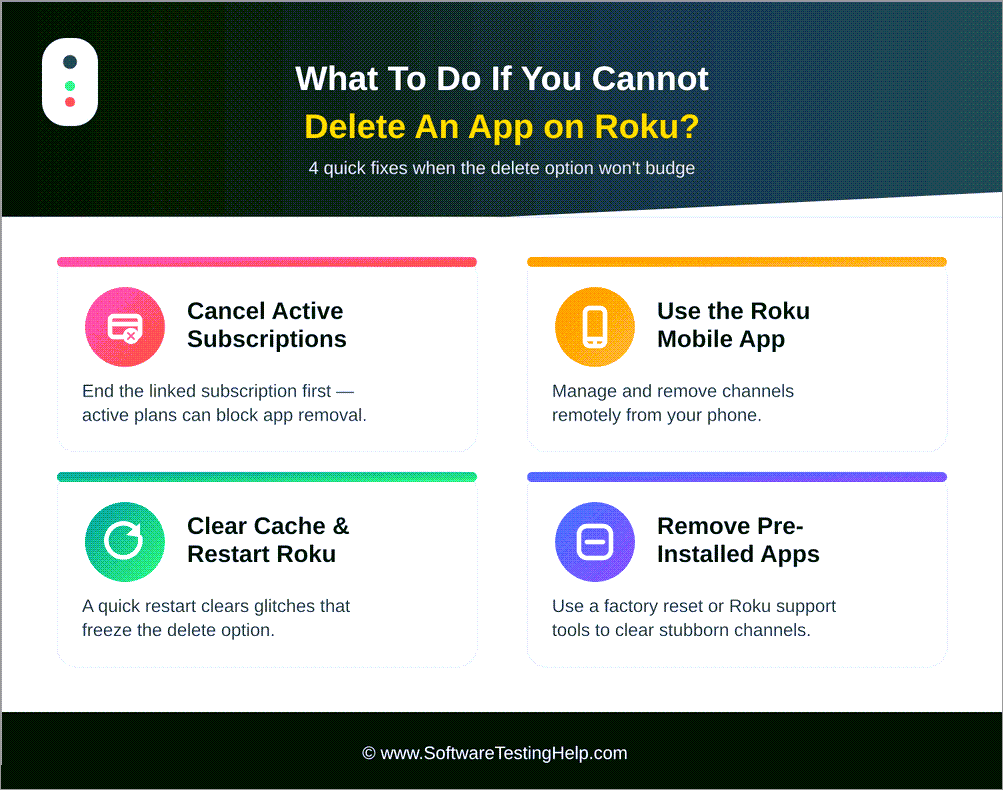
Here is what you can do:
#1) Cancel Active Subscriptions
If the app has active subscriptions, you may need to cancel the subscriptions before you remove the app.
You can do this by opening the app’s options menu, choosing Manage subscription, and following the instructions given to turn off auto-renewal and cancel the subscription. Once the subscription is canceled, you can try again.
#2) Use the Roku Mobile App
If you are unable to remove the app from the remote, make sure that you have a mobile app. You can download the app and connect your phone to the same Wi-Fi network on which your Roku device works. Go to the Apps section and delete the app from that place.
#3) Clear Cache and Restart Roku
Use your Roku remote and tap the Home button five times, followed by the Up button once. Click on the Rewind button twice, along with the Fast Forward button twice. This will clear the cache. Now, restart Roku again.
#4) Remove Unwanted Pre-installed Apps
Some of the apps or channels already installed on the Roku home screen can not be permanently deleted, but they can be moved. You can move these apps to the bottom of your channels for better organization.
How to Reinstall a Deleted App on a Roku Device:
Tips for Managing Apps on a Roku Device
Here are some simple tips for managing apps on a Roku device:
- Remove Apps you no Longer use: Consistently review the installed channels and remove the ones you no longer need or watch.
- Arrange the Apps you Frequently Use: Move the channels you use the most to the top of your home screen so they are easier to access.
- Check Your Subscriptions: Before you go on to remove any channels or apps, check if you have any active subscriptions. It is important to understand that deleting the app may not automatically cancel your subscriptions.
- Keep Roku Updated: Updates can make Roku work better, and therefore, you must ensure that your Roku device is running on the latest software.
- Reinstall Frozen Apps: If an app freezes, crashes, or experiences other similar issues, understanding how to delete and reinstall an app on Roku can help resolve the problem. From the Roku Channel Store, you can remove the app and reinstall it again.
Troubleshooting Common Issues
Here are some of the troubleshooting steps to implement for some of the common issues that arise while deleting app on Roku.
#1) If “Remove App” isn’t Showing
If the “Remove app” option is missing, then it may be that the app has an active subscription or it is a pre-installed channel that cannot be deleted. Therefore, it is essential to check if you have an active subscription and cancel it. Likewise, you must also drag the pre-installed app down to the bottom of the screen to make navigation easier.
#2) App is Not Working or Keeps Crashing
If the app is not working or keeps crashing or freezing, you can check for app updates, restart your Roku device, or remove and reinstall the app.
#3) If a Deleted App is Required Again
If you deleted an app and you want it back, then you can search for the app in the Roku streaming store and download it again.
#4) Apps Not Showing on Roku Device
This can happen for a few reasons. If you have multiple Roku accounts, it may be that you’re signed into the wrong one.
Check if you’re using the correct Roku account, and to avoid this problem, it is recommended to link all Roku devices to one account. Another reason the app might not be shown is if the app has been removed from the Roku platform.
Frequently Asked Questions
1. Does removing a Roku app cancel a subscription?
No, removing a Roku app does not cancel a subscription. Deleting the app only leads to the removal of the icon from the home screen, and Roku will continue charging you until the auto-renewal is turned off manually.
2. Why should I delete unused apps on Roku?
Deleting unused apps on Roku can help declutter the home screen and remove unnecessary apps, which makes navigation easier. Deleting also helps remove apps added by mistake or those only used temporarily for a particular show or streaming service.
3. Why can’t I delete a specific Roku app?
If you are unable to delete a specific Roku app, first check whether you have an active subscription and cancel it if needed. You should also use the Roku mobile app to remove the channel and clear the cache.
You should also restart the Roku device to clear temporary software issues. Since some apps may not be removable, you can move them to the bottom of your home screen to keep them organized.
4. Does deleting an app delete its data or login on Roku?
Yes, deleting an app on Roku deletes its local data, settings, and login tokens from the Roku device. When you download the app again, you will once again need to sign in using your username and password.
5. How do you uninstall or reinstall an app on a Roku TV?
If you want to uninstall or reinstall an app on Roku TV, you need to remove it from the home screen and then download it again from the Roku streaming store.
6. How to delete multiple apps at once?
Currently, Roku does not offer an option to select and delete multiple apps simultaneously. Apps are required to be removed individually: Home > Highlight the app you wish to remove > Star button > Choose Remove app/ Remove channel.
Conclusion
Knowing how to delete an app on a Roku device can help you keep your home screen organized while making it convenient to access the apps you actually want to use. Just keep in mind that removing apps is different from canceling a Roku subscription. So, if you have a current plan, cancel it separately through the appropriate account.
With the right steps, managing Roku apps can become seamless and quick. The next time you want to clean up your device, follow the above-stated steps to delete the apps on Roku and enjoy a hassle-free streaming experience.
Research Process: The total time involved to complete and publish this article is approximately 41 hours. This content was created through a structured research approach to ensure accuracy and reliability.
For more related guides, you can explore our range of tutorials below:
- How to Reset the Roku Remote
- How to Cancel Paramount Plus Subscription
- How To Factory Reset Fire TV Stick Without Remote
- How to Cancel Peacock TV Subscription
- How to Turn Off Roku Device
- How to Connect Roku TV to Wifi Without Remote
Was this helpful?
Recommended Reading
-

Comparison of the Best Free Android and iOS Mobile App Development Software Tools and Platforms to create stunning high-quality Mobile Apps for Your Business: App development software is an application that helps with the app development process by providing functionalities like IDE, code-free development, templates, API, data synchronization, and Analytics.…
-
Searching for similar apps to Sezzle due to the high costs, purchase limit, or availability of merchants? There are various alternatives in 2026, such as Klarna, Affirm, Afterpay, Zip, PayPal Pay Later, and Splitit, although they aren’t all the same. Some of these are ideal for buying in four installments,…
-
Review and compare the top popular and best IPTV Apps (IPTV Player) to Watch Live TV on Android. IPTV apps or IPTV players let you stream live TV channels directly on your Android device without relying on traditional cable or satellite services. With so many options available, choosing a reliable…
-
In this review, we will compare the Top Online Application Scanners that detect security vulnerabilities and suggest actions to fix them: No sane person can dispute the role that web applications play in our day-to-day lives. They are such an integral part of our modern lifestyles that it is impossible…