


Confused about what kind of RAM you have in your PC? Explore the simple methods to check what type of RAM capacity you have and learn how to check RAM without opening your PC:
Imagine this – you clicked on any of the shortcut icons from your screen or typed something on the notepad or saved one of the updated files, but you find nothing works or the system hangs until you restart.
The root cause of this behavior is your computer system is deprived of short-term memory known as random access memory. The technician will suggest you upgrade your PC’s RAM.
Table of Contents:
- What Kind of RAM Do I Have: Simple Steps to Check
- Random Access Memory (RAM)
- Types of RAM
- Factors Affecting RAM
- How to Check RAM in Windows
- How to Check What RAM I Have on Windows 7
- What Type of RAM Do I Have on Windows 10 & 11: Check How
- How to Check Memory Type Using Command Prompt
- How to Check RAM Type With PowerShell
- What RAM Do I Have: Check Type With Tools like CPU-Z
- Finding My RAM Card in Linux
- How to Check Available RAM on Mac
- Improving RAM Without Upgrading
- Virtual Memory Configuration
- Tips to Free Up More RAM
- Frequently Asked Questions
- Conclusion
What Kind of RAM Do I Have: Simple Steps to Check

All computers or computing devices that include computers, and mobiles have two types of memory, viz. read-only memory, also known as ROM, and random access memory, also known as RAM.
ROM is fixed, predefined, and non-volatile memory that stores input-output instructions for system boot-up processes and software that rarely change.
Random Access Memory (RAM)
RAM is a memory that remembers data the processor requires to open files of your choice or run the applications installed on your device.
Located in memory slots of the motherboard as microchips and stored outside of the central processing unit of your computer – random access memory (RAM) can range from 2GB to 64GB and is also known as short-term volatile memory as it is lost as soon as you reboot or turn your computer off.
RAM can read as well as write data much faster compared to its counterparts – Hard Disk, Solid State Drive, or removable storage devices like memory cards, USB flash drives, or external hard drives. It can quickly manipulate and access data required for opening files or running an application(s).
The amount of random access memory you will need depends upon the purpose – computers at internet cafes, libraries, or job search centers have 4 to 8GB of RAM and are primarily used for word processing for resume creation, browsing the web for job market research, and some multitasking like printing your cover letters and sending your resume to prospective employers.
8GB to 16GB are used for video and photo editing and online and offline gaming, and 32GB to 64GB of RAM are used for high-end graphics applications like animation, video editing, and high-end games.
Suggested Read =>> Is 8GB RAM Enough for Your PC?
Types of RAM
There are various types of RAM are available for specific use, which are explained below:
- Dynamic RAM (DRAM) used as the main memory in a computer requires to be refreshed to retain the data at regular intervals of milliseconds
- Static RAM (SRAM) also known as cache memory, will keep data in memory till the computer has a power supply.
- Synchronous Dynamic RAM (SDRAM) is faster than legacy DRAM but slower compared to SRAM, and available in DIMM and SIMM packages.
- Double Data Rate SDRAM (DDR-SDRAM) is an advanced SDRAM that transfers twice the amount of memory per clock cycle compared with SDRAM.
- Rambus DRAM (RDRAM) is a high-performance avatar of SDRAM used in graphic cards and devices used primarily in video game
- DDR5 is a type of RAM used in computers for professional and high-performance devices designed for gaming.
Factors Affecting RAM
There are various factors RAM speed and amount will depend upon are explained below.
Your computer’s processor and motherboard should align and be compatible with to type of RAM selected. RAM specifications like speed – measured in MT/s, how quickly RAM can write and read data for good performance. RAM differs based on bandwidth and speed, e.g. DDR5 has a bandwidth of 38.4 to 51.2 GB/s and a speed between 3200 to 8400 MHz.
Several chips are configured to process data for the RAM module, and RAM capacity is the ability to save more temporary data and run multiple applications at a time.
RAM selection will depend upon multitasking and for what you want to use your computer – word processing, web search, and viewing videos on social media require only 4 GB RAM, 64 GB RAM will be suitable for playing high-end games and editing media files like videos and animation.
The operating system will decide the minimum RAM capacity requirement for the program and space allocation for running the program in RAM. RAM is faster than the hard disk’s ROM memory, allowing for quick data access.
More slots in the motherboard allow the insertion of more RAM microchips for improved performance.
Further Reading => How to Reduce Chrome Memory Usage
The amount of memory computer hardware and operating system can handle depends upon the amount of short-term memory your computer has. The motherboard’s processor and bus speed dictate the speed of your computer’s installed RAM. The configuration of modules installed in the motherboard also depends on the RAM of your computer.
How to Check RAM in Windows
#1) System information
You can quickly find out what RAM your device has by following the steps given below:
- Enter System Information in the search text field near the Windows icon (Start).
- System Information App will be seen in the list.
- Click on it to see the System information Window separated by left and right panel.
- Look for Installed Physical Memory (RAM).
You will notice the label and value as shown in the image below:

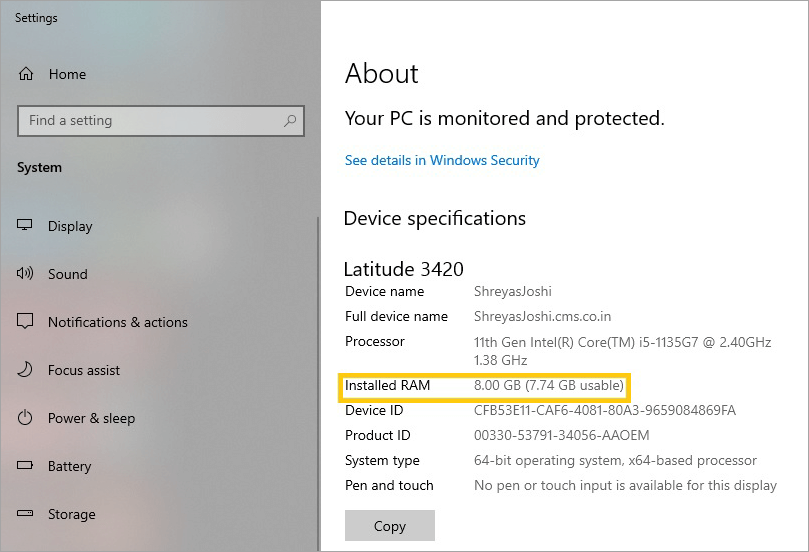
#2) About your PC
Another way you can check installed memory (RAM) is as the steps given below:
- Click on the Windows icon (Start).
- Look for About Your PC settings & click on it.
- About interface will display.
- Under the Device Specifications section, you will see Installed RAM with a value in GB, e.g. 8GB
How to Check What RAM I Have on Windows 7
#1) Properties
Properties of My Computer display metadata information about your computer:
- Right-click on the My Computer icon from your monitor screen.
- Select Properties from the menu.
- You will find installed memory and its value under the System section.
#2) Task Manager
The task manager can be used to check memory distribution and usage in the steps given below:
- You can either press Ctrl+Shift+Esc simultaneously or right-click on the Windows icon (Start) and select Task Manager from the list.
- Task Manager Window will appear.
- This will display currently running applications.
- Click on the More Details link.
- Task Manager Window with multiple tabs will display.
- The processes tab will display the total physical memory in the percentage of currently running applications.
- Go to the Performance tab & click the Memory section.
- The memory section will display memory usage, in-use, cached, and available memory.
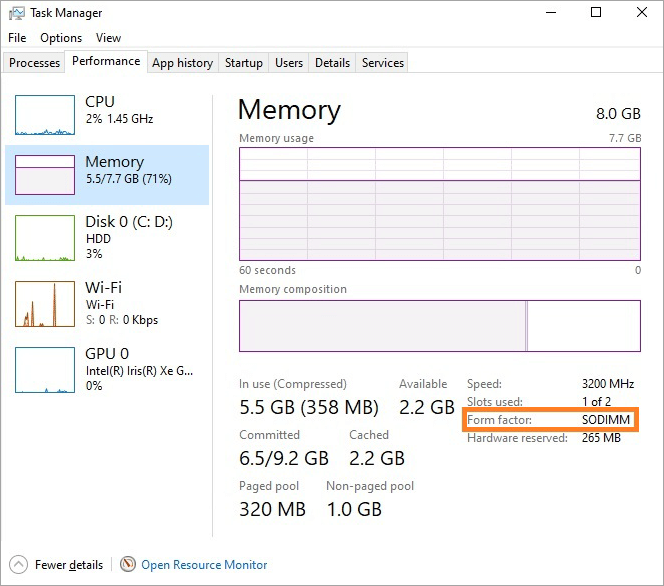
You can also find out the type of RAM installed in your computer from Task Manager, from the value Form factor–under the Memory section under the Performance tab,
In the screen shown above, the Form factor shows the value as SODIMM, which means a small outline of dual in-line memory.
A type of memory module with a smaller thickness and outline compared to standard DIMM type of memory, and SODIMM type of memory module is designed for notebook PCs. This module comes in variants of 1.8V (DDR2) and 2.5V (DDR) versions.
Further Reading => Simple Task Manager Shortcut Methods
What Type of RAM Do I Have on Windows 10 & 11: Check How
#1) Using Settings
Installed memory (RAM) can be found using the Settings option from the Windows menus.
- Right-click on the Windows icon (Start).
- Click on Settings from the list.
- Windows Settings interface will display.
- Click on the System icon from the displayed icon list.
- Click on About from the left panel.
- About right panel will display the Device specifications section.
- Installed RAM will display the value in GB.
- wmic – at the command prompt
Information about RAM can be displayed using the command prompt as the administrator
- Type cmd in the search text field.
- Right-click over Command Prompt.
- Select the Run as administrator option.
- Log in as an administrator with a username and password.
- Command Prompt window will appear.
- Type wmic memory chip list full at the command prompt.
- Press the enter key.
- It will display metadata about physical memory.
- Calculate RAM capacity by dividing the Capacity displayed by 1,073,742 to find out the RAM in GB
How to Check Memory Type Using Command Prompt
- We can find out the Type of RAM in our computer using the above command.
- Type wmic memory chip get devicelocator, memory type.
- Press enter key.
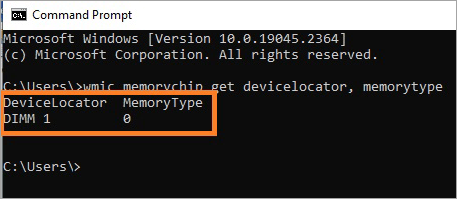
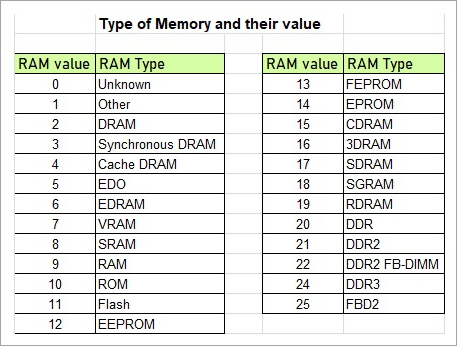
Below is a reference table to find out memory type and their corresponding values.
-
- systeminfo – at command prompt
- Open the command prompt and enter systeminfo.
- Detailed information will be displayed.
- Check for the line that says Total Physical Memory.

How to Check RAM Type With PowerShell
You can verify RAM type and other details using the PowerShell utility from a Windows computer as the steps given below
- Press the Windows icon + x on both keys simultaneously.
- Select Windows PowerShell from the menus.
- A command prompt will appear.
- Type in the command code below.
Get-WmiObject Win32_PhysicalMemory | Select-Object SMBIOSMemoryType, Manufacturer, Speed, Capacity, FormFactor
It will display details like
- SMBIOSMemoryType – Type of memory module and its numerical value.
- Capacity – RAM module size in bytes.
- Speed – RAM module speed in MHz.
- Manufacturer – Name of RAM module manufacturer.
- FormFactor – Physical form factor (eg 8 for DIMM) for RAM module.

SMBIOS Memory Type has a value of 26 on the above screen.
What RAM Do I Have: Check Type With Tools like CPU-Z
CPU-Z is freeware software available online and comes with in-built support for Windows 11 (https://www.cpuid.com/softwares/cpu-z.html) for Windows x86/x64 to get various information about RAM listed below
Information about the chipset, mainboard, name, and number of processors, package, process, and cache levels available in your device
Specifications like size, type, module, and timing of RAM
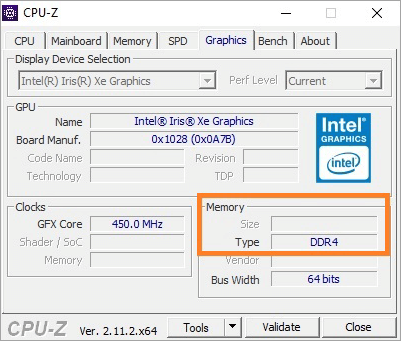
You will find details about RAM memory and other hardware installed in your computer using the CPU-Z tool
- Your processor information from the CPU tab.
- Motherboard details from the Mainboard tab.
- Information about type, graphic card, clocks your RAM has from the Memory tab, module size, memory type, and slots available, from the SPD tab.
- The bench tab will display the processor and related memory consumption graphically.
Finding My RAM Card in Linux
There are multiple commands to find RAM in devices with Linux OS.
Go to the terminal for a command prompt
- systeminfo – this command will display various details along with the total physical memory of a system.
- grep MemTotal /proc/meminfo – will display (memTotal) total memory available.
- cat /proc/meminfo – display RAM breakup.
- top – will display running processes in your device. It can also display system memory and CPU each process consume when we add tags to the command.
- htop – is an improved version of the top command that will display color-coded system processes along with resource usage in a user-friendly interface.
- free – display memory utilization of the system over an interval, it displays actual RAM and virtual (swap) memory. it also predicts potential issues related to the Linux system. The free command provides a detailed breakup of memory (total, used, shared, free, cache, and available memory).
- vmstat – displays real-time system performance along with details about scheduling CPU, disk, memory, processes, and block IO. This command also gives a breakup as output displayed in the free command.
- hwinfo – gives information on multiple hardware components.
- dmidecode – sudo dmidecode displays the maximum capacity of system memory and its distribution.
Grafana and Prometheus are the latest monitoring stacks that display RAM in Linux-based computers.
How to Check Available RAM on Mac
There are multiple reasons, to select MacBook over Windows or Linux-based computers, some of them are explained below
Apple Inc. has designed an intuitive interface for exceptional user experience and reliable computing devices, offering lightweight especially made for students for its portability.
Macbook has built-in security and privacy for user data with iCloud backups and end-to-end encryption for messages. Long battery life, a sleek modern design, and makes it convenient for students to carry and work anywhere.
About this Mac
In case your MacBook has multiple design and video editing applications installed and runs out of RAM. You can follow the below steps to find out the RAM capacity of your MacBook.
- You click on the Apple icon at the top left edge of the monitor screen.
- Click on About this Mac from the menus.
- Look for Memory from the list and check its value.
Activity Monitor
You will find a menu bar for Mac computers at the top of your monitor screen
- Click on the Apple image icon of the macOS menu bar.
- Click on the Go option from the menus.
- Click on the Utility interface.
- Double-click on the Activity Monitor icon from the Utilities.
You will see the following list in the Activity Monitor interface:
- Processes and applications that are unresponsive and energy consumed by your computer.
- Activity Monitor has separate tabs for CPU, Energy, Memory, Disk, and Network and displays details like the percentage of energy utilized in each category.
The memory tab of Activity Monitor will separately list details like Memory Pressure, Total Physical Memory, memory utilized, Swap memory used, and Total size of Cache files.
The tests will declare how much RAM your Mac computer requires, and the graphical representation of memory pressure will displayed below
The green memory pressure line will inform you RAM of your computer is efficient.
Yellow memory pressure line will inform that there is a requirement for some extra RAM for your computer
Red memory pressure will inform that your computer RAM is not sufficient and needs to be replaced with higher-value RAM
How to check your memory for errors
For Windows computers – you have an in-built Windows Memory Diagnostic application in your search menu next to the Windows (Start) icon
OR
Open the command prompt and type mdsched
- Press Enter to open you will be prompted to enter the administrator’s log-in credentials,
- A dialog box will request you to –Restart now and check for problems option.
- Click on this link.
- The computer will begin to restart.
- Windows memory diagnostic application will start running and verify if there are any memory-related issues observed.
- You will find in Event Viewer to look for issues.
There are three categories of scans for the Windows Memory Diagnostic tool:
- Basic – there will be only 3 (three) tests
- Standard – 8 (eight) Tests take some time to execute
- Extended – there are around 17 (seventeen) tests which take longer to execute
CPU-Z is a tool with an interface that allows you to check the compatibility of your system and the specifications of RAM. It also validates if RAM modules are properly fitted and connected in the correct slots in your motherboard. In case the tool displays an error or message related to a mismatch, you can follow the instructions and upgrade your RAM or replace it with a new one.
MemTest86 is a reliable and easy-to-use tool that checks the RAM for any error, depending on the speed and size of RAM installed in your computer.
Improving RAM Without Upgrading
RAM is short-term memory utilized in running multiple applications, i.e. in multitasking. Limiting the number of applications used at a time will improve RAM. The use of a minimum number of browsers and closing ones not in use can dramatically help RAM.
Another way to improve RAM without upgrading is to keep the computer in sleep mode. While in sleep mode, RAM stores the state of the computer. When you are away from your computer for a short time, like going for a stroll or for a lunch or coffee break, you should keep your computer in sleep mode.
You can configure sleep mode by selecting the Windows icon (Start), Click on Settings and selecting System, followed by Power & sleep in the left pane, and setting interval under the Sleep section, like the Computer can go automatically to sleep mode when it is on battery power after an interval of 30 minutes OR when the computer is plugged in or being charged, the computer can go to sleep after 15 minutes.
Cleaning your computer at regular intervals, removing files or folders and applications that are rarely used, scanning regularly for viruses or malware, and closing multiple browser instances will give improved performance.
Using an external hard drive or cloud for storage, updating the operating system, and turning off the auto-launch of the application are some of the other ways you can improve RAM without upgrading. We discussed improving RAM without upgrading or inserting additional memory chips in the slots. There is one more way to improve RAM.
Virtual Memory Configuration
It is essential to set virtual memory to its maximum to prevent the occurrence of the memory messages. Following are the steps you can carry out for virtual memory configuration.
- Click on the Windows icon (Start)
- Select Control Panel
- Click on System from the available options
- Click on Advanced System settings
- Click on the Performance tab
- Under Performance Click on Settings
- Check for Advanced Settings
- Look for Virtual Memory & Click on it
- Click on the Change button
- Deselect the checkbox by the side of the label – Automatically manage paging file size for all drives
- Click on Custom Size,
- Enter digits in the minimum and maximum value of size in the box provided
- Click on the Set button to save the configuration
- Finally, click on the OK button
Tips to Free Up More RAM
To free up more RAM, you can use the tools like Avast Cleanup (http://www.avast.com/cleanup). It can run and execute while your computer is in Sleep mode and perform multiple tasks like removing desktop shortcuts that are not often used and history across Windows and other applications.
It stops all those background applications and frees up memory, making these applications run faster. It scans and cleans registry files of your Windows computer and resolves the issues related to it. It cleans cookies, temporary data, and traces from various browsers like Chrome, Firefox, and Edge.
It deletes leftover files that are left unsaved from common programs to reclaim storage space. You can also perform the Hard drive defragmentation for quick access to files.
Frequently Asked Questions
1. Why is RAM known as short-term memory?
RAM temporarily stores data and will lose the data when the computer is turned off. This is the reason why RAM is known as volatile or short-term memory.
2. What factors RAM depends on?
Random access memory depends upon:
• Processor
• Motherboard
• Operating system
• Number of applications or programs running
• How Computer is used for
• Architecture
• Speed & latency of bus and processor
3. How can I improve RAM without upgrading?’
You can improve RAM without upgrading or inserting additional memory in the following ways:
• Limit the number of applications and browsers running simultaneously
• Turning sleep mode on for a select interval
• Scan the Computer for viruses or malware
• Configure auto launch of application
• Setting or adjusting virtual memory
4. What signals will inform you that your computer needs more RAM?
Some of the symptoms or warnings listed below that say your computer requires more RAM:
• The computer freezes randomly or frequently.
• Your computer reboots due to low RAM.
• Computer uses 60 percent higher RAM.
• System lags or takes time to react when you move your mouse.
• Applications or programs become non-responsive.
• Computer monitor displays a blue screen – known as the screen of death.
5. What is the disadvantage if you install DRAM?
For keeping data, DRAM is required to be refreshed occasionally.
6. Faster accessing data and instructions used often, where is SRAM preferred?
SRAM is used in cache memory for quick data access.
7. What memory type is used in Graphics Processing Units?
GDDR SDRAM – graphics double data rate (GDDR) synchronous DRAM is used in GPU – graphics processing units.
8. How do I know if my RAM is DDR3 or DDR4?
There are many ways to identify your RAM type as DDR3 or DDR4.
The total No of Pins and RAM Types are as follows:
• DDR4 – 288
• DDR3 – 240
• DDR3 SO DIMM – 204
• DDR4 SO DIMM – 260
You can quickly verify your RAM type by downloading a tool from CPUID.com which will tell you what RAM type (DDR3 or DDR4) you have on your computer.
9. Is 16 GB DDR4 RAM suitable for gaming?
It is recommended to have 16 GB DDR4 RAM for speedy response and suitable for users who are casually using their computer for gaming
Conclusion
Random access memory (RAM) also known as read-write memory or short-term memory, is short-lived memory to run the applications installed and open the files until the computer is turned off.
Computer applications use various types of RAM. In this article, we have discussed various factors that affect RAM and various ways to find RAM in your computers.
Was this helpful?
Recommended Reading
-

This article reviews and compares the top 32GB RAM Laptops to help you select the best laptop with high memory that suits your requirements: It takes a lot of testing to find a useful laptop for graphic design, games, or other useful activities. However, the majority of us imagine pricey…
-

This article lists and compares the top RAM for Gaming along with features, specifications, etc to help you select the best RAM for Gaming: Are you looking forward to upgrading your PC? If you have a fascination for playing games, you'll require better specifications. Having a higher RAM will be…
-
Review and comparison of the top 16GB i7 and Gaming Laptops to help you enhance your work by selecting the best 16GB RAM Laptops: Planning to upgrade your laptop to help you get both your professional and gaming sessions on the go? Having a 16GB RAM laptop is all you…
-
List of the Top Computer Stress Test Software: Best CPU, GPU, RAM, and PC Stress Test Software in 2024. Stress testing is a type of performance testing that validates the highest limit of your computer, device, program, or network with an extreme load. Stress testing will check the behavior of…
-

How to Test and Fix Memory Leak for Android Applications: Memory optimization is a bigger challenge for any developer before pushing an app to the play store. Performance of an app is equally important as its functionality. This article is based on the Heap analysis of an application through DDMS…
-

List and Comparison of the top Memory Leak Detection and Management Tools for Java, JavaScript, C, C++, and Visual Studio on Linux, Windows, and Android Systems: This tutorial will introduce you to a new concept which is nothing but Memory Leak Management. Our system programs tend to get some memory…
-
This tutorial reviews and compares the top Graphics Cards with pricing to help you select the best graphics card per your requirements: Playing your favorite games on your PC is an amazing experience. But to get indulged in this, you will require a dynamic PC setup. With the best Graphics…
-
Read this review of the top RTX 2070 Super with technical specifications to choose the best RTX 2070 Graphics Card for gaming: Do you want to play your favorite game like pro gamers? Consider upgrading your GPU and hardware specifications to a new one. All you need to do is…


