Explore all possible solutions to fix the iPhone not charging issue. Discover the typical reasons for iPhone charging port issues along with some expert tips to maintain it in good condition:
Smartphones are a part of almost everyone’s life today. They are not just used for calling and texting but for clicking pictures, uploading them on social platforms, online shopping, making notes, setting alarms, watching videos, booking cabs, and much, much more.
A report by Oppo claims that about 86% of the world’s population were smartphone users in the year 2023.
Table of Contents:
iPhone Charging Port Not Working: Quick Fix
A report by SlickText states that in a study, it was found that 46% of the surveyed parents feel they are addicted to their mobile phones, while 52% of the teens stated they spend long hours on their smartphones, even while being with their friends.
iPhone is one of the top leaders in the smartphone market. A report by Business of Apps reveals Apple generated USD 390.8 billion in revenue in 2024.
Another report states that there are currently 1.38 billion active iPhone users in the world, and iPhone has a whopping 27.73% share of the total smartphone market globally.
Here is a video that shows the solution if your iPhone is stuck on a charging screen:
Common Charging Issues in iPhone
iPhone users frequently report problems with their iPhone’s charging. Users report issues such as:
- iPhone stopped charging at 80%
- iPhone 13 charging port not working
- iPhone 15 charging port not working
- iPhone charging port not working after cleaning
So, in this article, we have come up with the reasons and solutions related to this issue. Read the article further to get the knowledge you are looking for.
Further Reading => How to Turn Off SOS Mode on iPhone
How to Fix When iPhone Not Charging
Several common issues can prevent your iPhone from charging. This list details some of the most frequent problems.
- The charging cable might be broken somewhere
- The main socket that you are using for charging your phone may not have power
- Your iPhone’s port may have been clogged with dust
- Your iPhone’s port may have some physical damage
- The charger may be wet
- Your iPhone could be overheating
- You may be using an incompatible charger
Also Read => Best iPhone Chargers
Now let’s have a look at the solutions for the iPhone not charging.
1. Change your Charging Cable if Broken: If your charging cable is damaged somewhere, it must be causing the issue. You should change the cable to solve the issue.
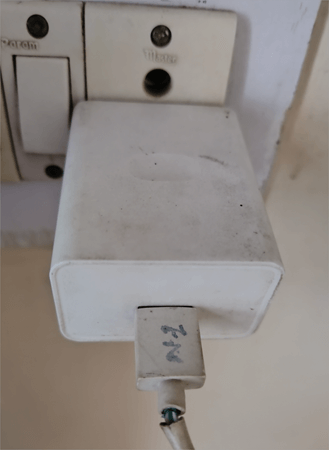
2. Insert the Charger in Another Socket: Sometimes we plug in the charger in a socket with no power connection, and sometimes we forget to turn the power switch on after inserting the cable in the socket. And sometimes we don’t insert the charger correctly into the socket.
So, check if these are the reasons for the issue. You can try inserting your charger into another socket.
Suggested Reading => Why is my Apple Carplay not Working
3. Clean your Charging Port: Try blowing some air into the charging port so that if there is some dust inside, it will be blown away, or you can use a soft brush to clean the port. Make sure you do not use a hard, pointed object for cleaning the port, as it can cause physical damage to the port.
You can try visiting a service center to get your charging port cleaned in severe cases.
4. Visit a Service Center if there is Physical Damage: If your phone (especially the charging port) has some physical damage, then you would need to visit the service center to get it fixed.
5. Restart your iPhone: Try restarting your iPhone. Restarting the phone will most probably solve a glitch.
Further Reading => iPhone Not Updating Location: Quick Fix
6. Leave the phone for some time, then charge it afterward: If your iPhone has heated due to excessive usage, it may stop charging. iPhones sometimes get too heated during charging, which is why they stop charging mid-way, and people wonder why their phone stops charging at 70% or 80%, etc.
7. Try Changing the Charger: You may be using an incompatible charger, or you may have bought a local charger, which may be causing the issue. It is also possible that your original iPhone charger may have some issues.
If you can find another charger, then try charging with it. If the phone charges with the second charger, then it will become obvious that your previous charger has some issues, and it needs to be replaced.
8. Update your phone: If you do not update your phone software when required, it may start functioning improperly. So keep your phone updated.
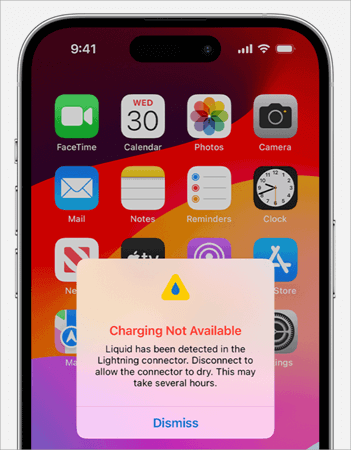
9. Leave your phone to dry: If a wet connector has been inserted. If you insert a wet charger in the port, your phone will notify you that charging is not available. Leave the connector to dry for some time and then insert it when ready.
Further Reading => How to Fix Liquid Detected in Lightning Connector
For example, if you have inserted a Lightning connector for charging in your phone and your iPhone detects water, then your phone will alert you like this:
And if you insert a USB-C to USB-A cable and the phone detects water in the port, then it will notify you like this:
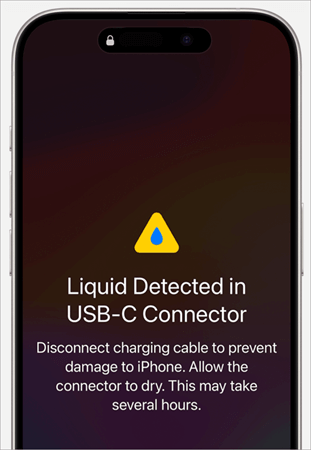
So you must remove the connector immediately if you see such a notification and leave it to dry; otherwise, it can cause permanent damage to the connector or cable.
10. Leave your Phone on charge for a while: If your phone’s battery has been dead for a long time, then the phone takes a while to turn on after being put on charge. Restart your phone after 5-10 minutes of charging if this is the case.
11. Wrong USB Wire: There is a chance that you may be using a USB cable that is not designed to charge phones, but for something else.
12. Remove the Adaptors: If you are using a charging accessory like a charging adaptor or an extension cord, remove it and plug in your iPhone charger directly into the main socket.
13. Issues with your Phone’s Battery: There is a chance that your iPhone’s battery is not in good condition; that is why your phone is not charging. If you visit the service center, they’ll help you out with this issue by replacing the battery.
14. Try Wireless Charging: The wireless charging feature is available for iPhone 8 or later. You can buy a wireless charger from the Apple Online Store.
15. Factory Reset: You can also try doing a factory reset on your phone so that all settings will go back to default. This will solve any issue related to the iPhone’s settings.
16. Contact Apple Support: If no solution works, you can contact Apple support services. They would help you in troubleshooting the issue.
17. If your device stops charging at 80%: If your device stops charging at a point like 70%, 80%, etc., then there would be one of the following reasons:
- Your iPhone might have become hot.
- The ‘Optimized Battery Charging’ feature may be enabled on your phone. When this feature is enabled, the iPhone slows down the speed of charging after 80%. This feature helps in maintaining the health of your iPhone’s battery. Turning this feature on will send a notification to your phone.
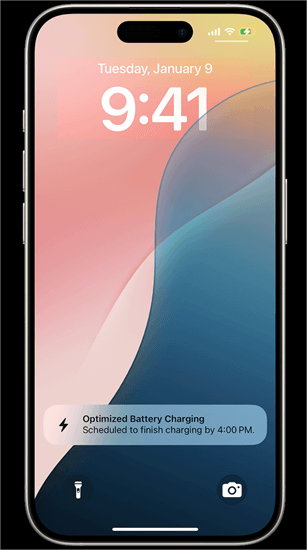
You can touch and hold the notification to change the setting and get your phone fully charged sooner.
Suggested Reading => Explore the Top Portable Chargers
Frequently Asked Questions
1. How do I fix my iPhone charging port?
To fix your iPhone’s charging port, you can try these methods:
Clean it using a soft brush. You can also use a soft cloth or cotton for cleaning.
• If this does not work, visit a service center to get it cleaned or fixed if some physical damage has occurred.
2. How much does it cost to replace an iPhone charging port?
If your iPhone’s charging port is permanently damaged and cannot be fixed, you will need to replace it. The replacement cost usually ranges from $50 to $150.
3. Is it safe to buy non-Apple chargers?
Buying a non-Apple charger for your iPhone rarely harms the phone.
But you must stop using the non-Apple charger if you face issues like
• The charger does not fit properly
• iPhone stops charging frequently.
4. Why is my iPhone not charging?
There can be several reasons why your iPhone would not be charging. For example:
• It’s not properly plugged in
• The cable wire can have some issues
• The charger can have some issues. Try using another charger to check if your phone charges.
• Overheating may cause your iPhone to temporarily stop charging.
• The charging port might be clogged with dust or be wet.
• The charging port may have some physical damage.
• Your extension cord might be the source of the problem.
5. Will Apple fix my charging port for free?
Apple may change or fix your charging port for free if the iPhone is in the warranty period. They may even replace your entire device if it’s new. But for old devices, pay a fee to get the charging port fixed or replaced. The charges vary, depending on the iPhone model.
6. What damages an iPhone’s charging port?
An iPhone charging port can be damaged if:
• Too much moisture or dirt gets filled up inside it
• It gets physical damage due to falling, etc.
• You try to clean it with a sharp, metal object.
7. Can I put water in my iPhone charging port?
Water in the iPhone charging port can cause permanent damage to the port and the connector. Your iPhone would even notify you if the connector you are using is wet.
Conclusion
We can now conclude that you can easily get your phone to restart charging by following simple steps. One thing to note is that you must keep your iPhone’s charging port in good condition in order to save it from permanent damage.
What to do to keep your charging port in good condition:
- Keep it clean. Regularly clean it with a soft brush and soft cotton to remove dust and moisture.
- Never use a sharp-pointed object for cleaning the charging port.
- Never insert a wet charger into the iPhone’s port.
- If possible, use Apple’s original charger for your iPhone.
Was this helpful?
Recommended Reading
-

This tutorial is a complete step-by-step guide that explains the top 3 useful methods to find ways on how to Unlock a Disabled iPhone: Security is the best part of having an iPhone. No one can unlock your phone and access your data unless they know the password. As much…
-
Delve deep into the quick ways to fix find my iPhone not updating location error. This guide will help you to identify the causes behind this issue and suggest all possible solutions to get rid of the problem: Why is Find My Location not updating? If you’ve asked this question…
-
Here you will find the top effective step-by-step methods with screenshots to remove malware from the iPhone: This article tells you about the methods that can help you remove malware from the iPhone, the precautionary measures that you should adopt to avoid any threat to your device, and ways to…
-
Get educated on how to turn off location on the iPhone without notifying the other person. Hide or share your location as per your choice with this exclusive guide & find solutions to stop people from tracking you: iPhones offer their users some handy features like FaceTime, data security, screen…