Is your Apple Watch not counting steps accurately? Unveil the expert solutions from our step-by-step guide to fix Apple Watch not tracking steps and restore accuracy to achieve your fitness goals:
Apple launched the first Apple Watch in 2015, which had fitness monitoring, wireless communication, and many other useful features.
Apple Watch is known to be the world’s best-selling wearable device, the reasons being the popularity of the brand- Apple, and the several health benefits that the Watch delivers.
Table of Contents:
Apple Watch Not Recording Steps: Proven Fixes
Apple Watch (watchOS 26) users receive numerous benefits, such as:
- Automatically counts your steps, tracks the stride length (distance covered in each step), and more.
- It tracks your blood pressure and even notifies you of chronic high BP and hypertension.
- It has an ECG app that can generate your ECG like a single-lead electrocardiogram.
- Provides information about your daily health status, including heart rate, respiratory rate, wrist temperature, and more.
- Senses water temperature and even the depth at which you are when you are swimming or doing any other water activity.
Apple Watch users can sometimes face issues like the Apple Watch not counting steps, the Apple Watch not connecting to the app, etc. So, in this article, we have provided solutions for issues related to the Apple Watch not tracking steps.
Here is the video guide on how to fix the Apple Watch not counting steps:
Why is my Apple Watch Not Counting Steps?
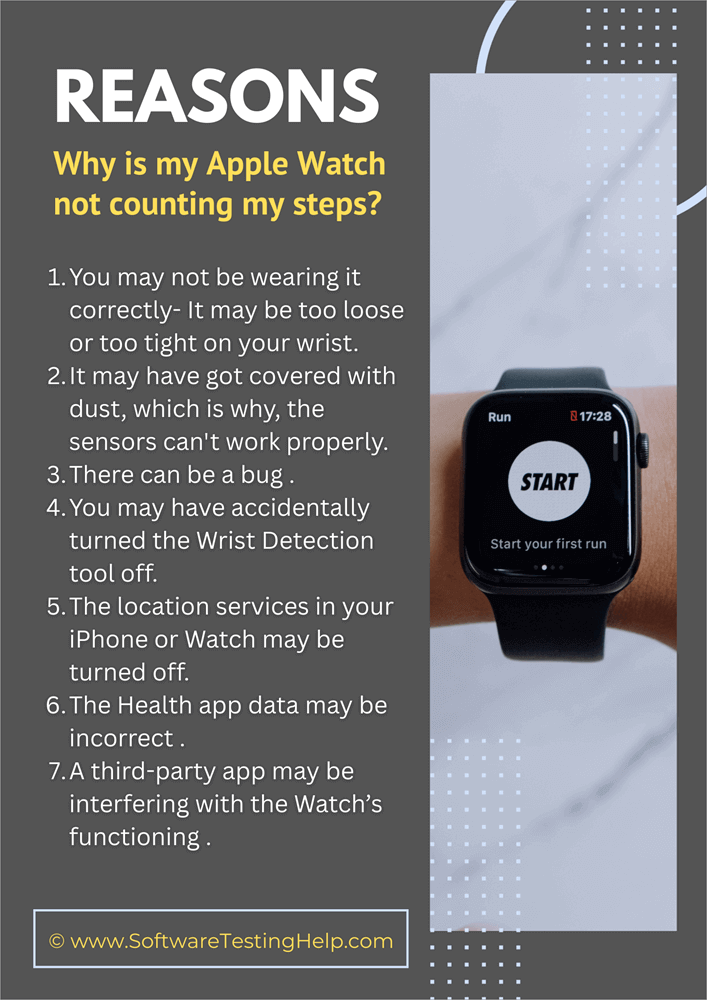
If your Apple Watch is not counting your steps, it is most probably due to one of the following reasons:
- You may not be wearing it correctly. It may be too loose or too tight on your wrist.
- Dust might have covered it, preventing the sensors from working properly.
- There can be a bug.
- You may have accidentally turned the Wrist Detection tool off.
- You might have turned off location services on your iPhone or Watch.
- The Health app data may be incorrect.
- A third-party app may interfere with the Watch’s functioning.
How to Fix Apple Watch Not Tracking Steps
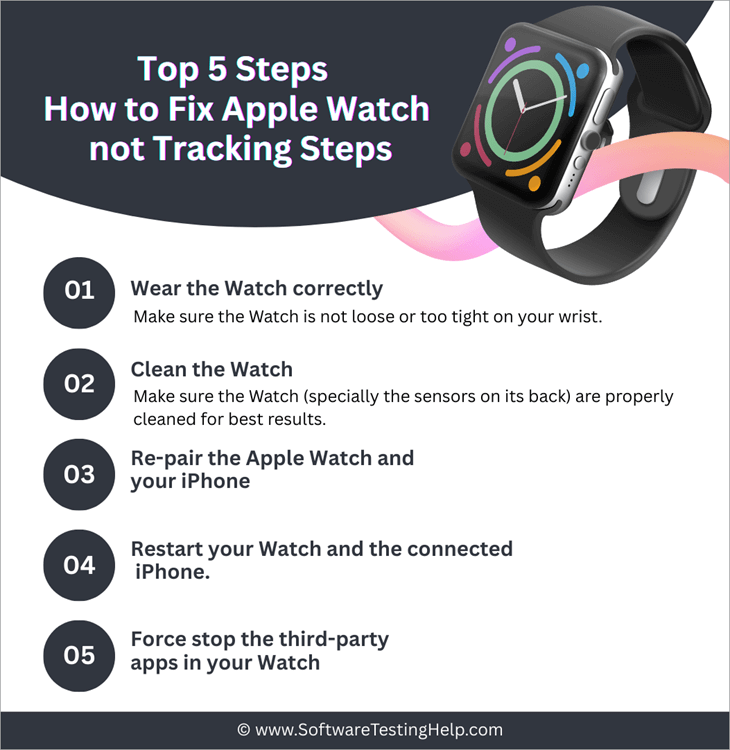
Here’s how users can independently address this problem:
1. Wear the Watch Correctly: Make sure the watch is not loose or too tight on your wrist.
2. Clean the Watch: Make sure the Watch (especially the sensors on its back) is properly cleaned for best results. You can use a slightly wet soft cotton cloth for cleaning your Watch.
3. Re-pair the Apple Watch and your iPhone: This will most probably fix the issue. Go through Apple site to find details about how to unpair your Apple Watch from your iPhone.
You can follow these steps to add the Watch to the Watch App on your iPhone:
- Put your Watch and iPhone close to each other
- Now, in the Watch app on your iPhone, go to the My Watch tab
- Select All Watches
- Tap on Add Watch
- Follow the on-screen instructions.
A key point to note is that the Apple Watch automatically backs up your data when you unpair it. And when you pair it with your iPhone again, tap on Restore from Backup to get all your data back.
4. Restart your Watch and the connected iPhone: If there’s a bug, it will get fixed by doing this. To restart your Apple Watch, you will have to do as stated under:
- Press and hold the side button on your Apple Watch.
- A slider will appear on your Watch’s screen. Swipe right on it.
- This will switch off the Apple Watch.
- To turn it on, long-press the side button until you see the Apple Logo on the Watch’s screen.
To restart your iPhone, follow these steps:
- Long-press the Power and Volume Down buttons simultaneously.
- A slider will appear on your iPhone screen. Swipe right on it.
- The iPhone will get switched off.
- Now, press and hold the Power button to turn the phone back on.
5. Force stop the third-party apps on your Watch: Though there is very little probability, the other apps on your phone can also interfere with the step-counting feature. Try force-stopping the third-party apps to check whether or not they are causing the issue.
Here’s how to make an app quit on your Apple Watch:
- Press the Digital Crown twice.
- App Switcher will be launched. Find the app you want to stop and then swipe left on it.
- Now tap on the cross ❌ icon.
6. Check the Wrist Detection tool on your Watch: Make sure Wrist Detection is on in your Watch. If you have accidentally turned it off, then you can change the setting by following these steps on your Apple Watch:
- Go to Settings
- Select Passcode
- Now turn on Wrist Detection.
7. Make sure the location services are turned on: For many features of the Apple Watch to work properly, you need to turn Location Services on.
You can turn the Location services on by following these steps in your Apple Watch:
- Go to Settings
- Select Privacy & Security
- Select Location Services
8. Check the Health app data on your Apple Watch: Many of the Apple Watch features work according to the health data entered by the user. So make sure you enter the correct data.
9. Make sure the tools like Heart Rate, Respiratory Rate, and Fitness tracking are turned on: You can do it by following these steps:
- In your Watch app, go to My Watch
- Select Privacy
- Now switch on Heart Rate, Respiratory Rate, and Fitness Tracking.
10. You can try resetting the fitness calibration data: Resetting this will erase all fitness-related settings on your Apple Watch. If there is an issue with these settings, it will be solved. You can reset the fitness calibration data by doing as stated below.
- In the Watch app on your phone, go to the My Watch tab.
- Now go to Privacy
- Select Reset Fitness Calibration Data
- Confirm.
11. Try resetting Apple Watch Sync data: If none of the above-stated solutions work, you can try this one.
Follow these steps to reset Apple Watch Sync data:
- In the Watch app (on your iPhone), open the My Watch tab.
- Select General
- Tap on Reset
- Select Reset Sync Data
12. Try turning the Low Power mode OFF: If you use your Apple Watch in Low Power mode (or Power Saving mode), several features won’t work automatically in the background. The step counting still works, but won’t update automatically unless you look for it.
To turn the Low-Power mode on or off on your Apple Watch, do as stated under:
- Go to Settings on your Watch
- Select Battery
- Now switch Low Power Mode on or off.
13. In Health App, try setting up Apple Watch as a primary data source:
You can do this by following these steps:
- Go to the Health app on your iPhone
- Tap on Search
- Select a Health category
- Go to Data Sources & Access
- Tap on Edit
- Now move the Apple Watch to the top of the list
14. You can also try doing a factory reset on your Watch:
The following steps will make this possible:
- Go to Settings on your Watch
- Select General
- Tap on Reset
- Select Erase All Content and Settings
- Now enter your password
- Select Erase All to confirm.
15. Contact Customer Support: If the problem persists even after trying everything, then there must be some technical issue with your Watch. You should book a Genius Bar appointment at the Apple Store to get expert help.
How to Use Health App on iPhone or iPad
This section explains the ways to use the Health app on iPhone or iPad to count steps and measure walking and running distances.
For this purpose, first, you need to set up the Health app. You can do it by following these steps:
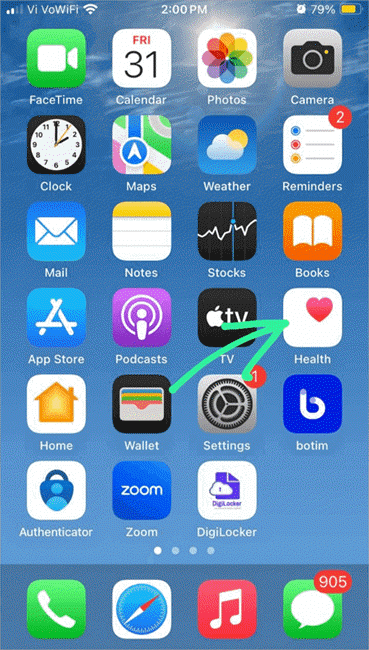
1. On your iPhone, open the Health app as shown below.
2. Select Summary
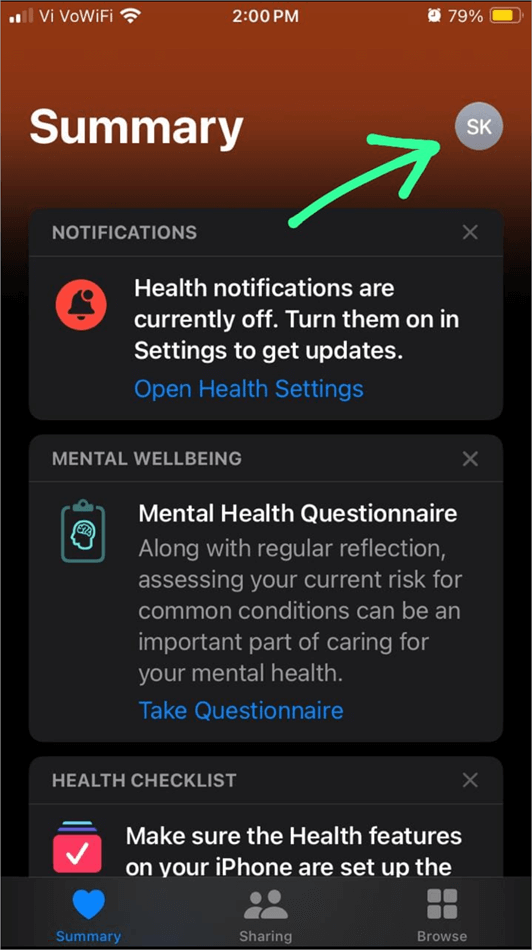
3. Now tap on your Profile Picture as shown in the image below.
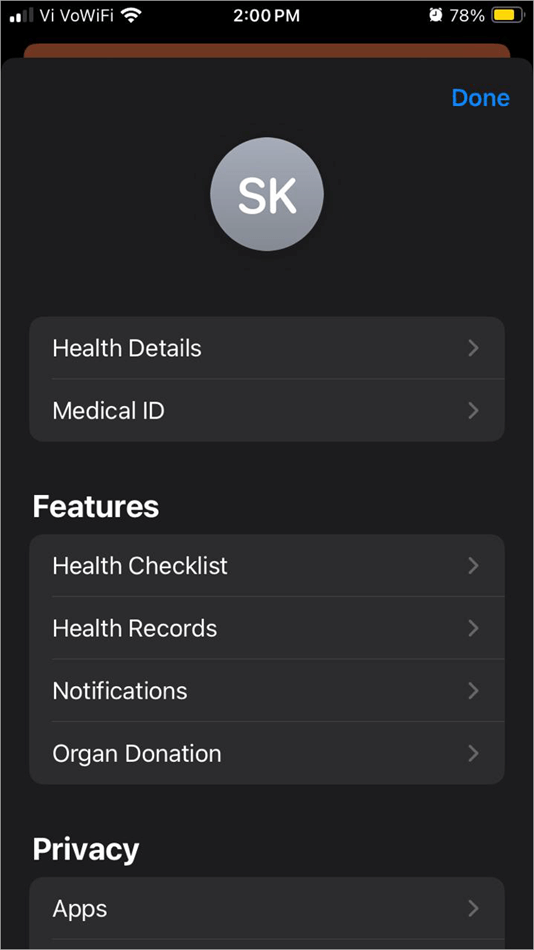
4. Select Health Details as shown in the image below.
5. Tap on Edit option as depicted below.
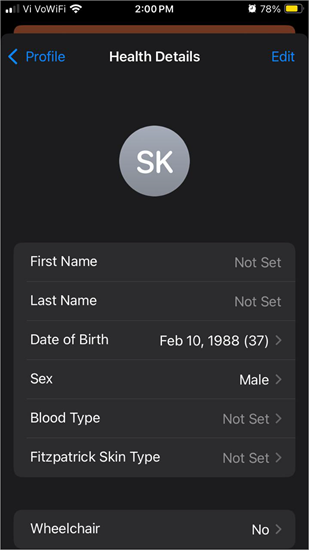
6. Now add your health information correctly and then select Done as in the image below.
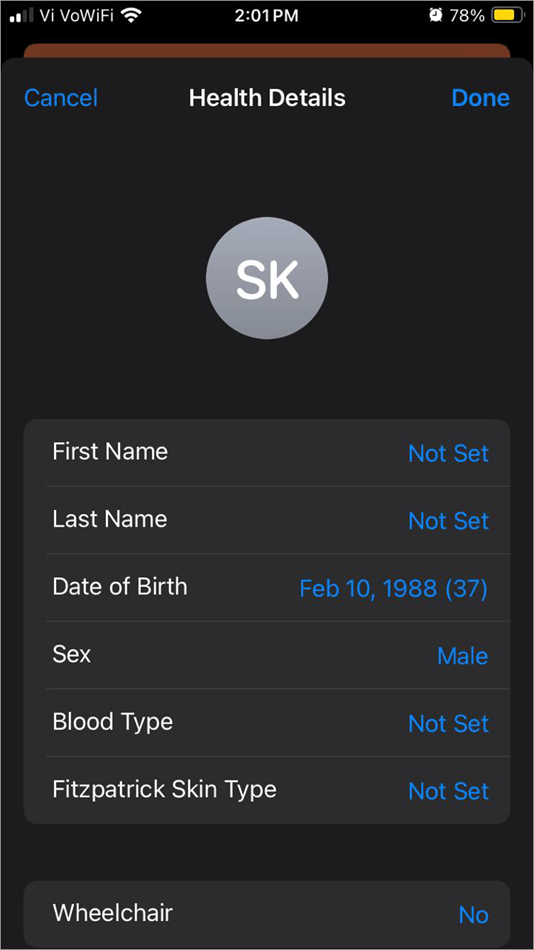
Once you have set up the Health app, you can track your health over time on the app by doing as stated under:
1. Open the Health app on your iPhone as shown below.
2. Select Summary
3. Scroll down to find Highlights as shown below.
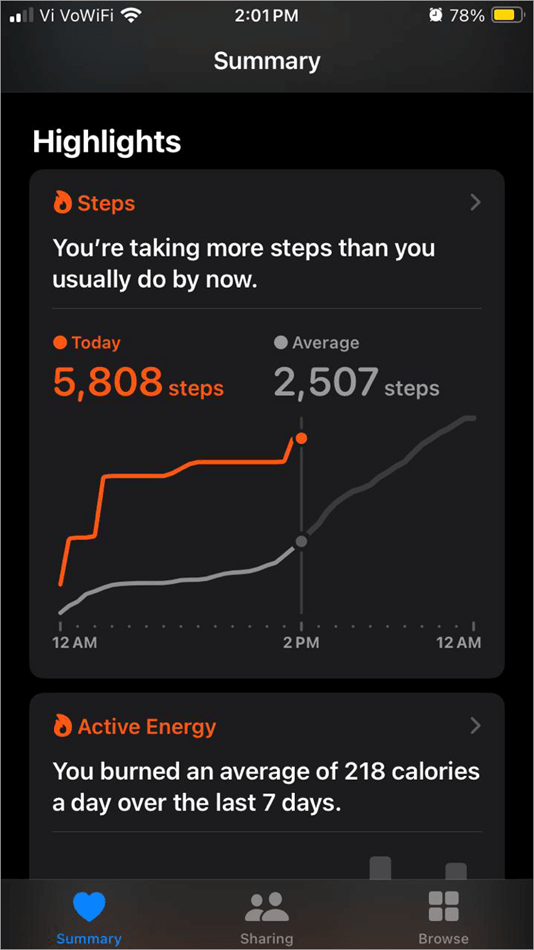
4. Now you can access your health data over time. You can tap on any data for more detailed information.
iPhone is Not Tracking Steps Without Watch
If your iPhone is not tracking your steps without the Watch, you can take these measures:
- Check software updates.
- Check for Health app updates.
- Go to Settings, select Privacy & Security, tap on Motion & Fitness, and make sure Fitness Tracking and Health are turned on.
- Make sure the health information entered in your Health app is correct.
- Go to Settings, select Privacy & Security, tap on Location Services, then tap on System Services, now turn off Motion Calibration & Distance for a while, and then turn it back ON.
- If the problem persists, contact Apple Support.
Apple Watch Not Counting My Steps Correctly
Here are solutions for the Apple Watch over-counting or under-counting the steps:
- The Watch may be loose or too tight on your wrist
- Dust may have covered the Watch sensor.
- Check your Health app data. It should be entered correctly for the proper functioning of fitness tools.
- Make sure Location Services are on.
- Make sure Fitness Tracking is turned on in your iPhone. Follow these steps to do so:
- Go to Settings
- Select Privacy & Security
- Select Motion & Fitness
- Check the Fitness Tracking and Health options.
- Restart your Apple Watch and the connected iPhone.
Indoor Vs. Outdoor Tracking Differences
If your iPhone displays different health metrics in indoor and outdoor workouts, it is because during outdoor workouts, your iPhone’s GPS tracks speed and distance, while indoor tracking uses the Watch’s heart rate and accelerometer to track workouts.
So you would get slightly different readings (for calories burned, etc.) for doing an indoor vs outdoor workout for the same period of time.
Treadmill Tracking Issues
Apple Watch users face issues with treadmill tracking because the Watch tracks their activities through wrist movements.
Watch this short YouTube video to learn how to get more accurate metrics while doing indoor workouts:
Frequently Asked Questions
1. How can I get my step count on my Apple Watch?
The Apple Watch automatically counts the steps taken by its user. The users can view their step count anytime by doing as stated under:
• Press the Digital Crown of your Watch.
• The App screen will open. Select the Activity app.
• Scroll down to find details about the step count.
2. Why is my Apple Watch not showing step count?
The most common cause of this issue is dust on the Apple Watch’s sensors. Another common reason is the Apple Watch being too tight or too loose on your wrist. If this is not the case with you, then there is a possibility that:
• You may not have enabled Wrist Detection
• The Location services may be turned off
• The Health app data may not be entered correctly
• There can be a temporary technical glitch (which can be solved by re-pairing the Watch).
• If these are not the issues, then contact Apple Support for assistance.
3. How do I get my steps to show on my Apple Watch screen?
There is no built-in setting on the Apple Watch that allows users to get their steps to show on their Apple Watch screen. But you can still do it with the help of some third-party apps like StepsApp, Duffy, and more.
4. Does Apple Watch call an ambulance if you fall?
Apple Watch allows you to set up Fall Detection. This feature uses the motion sensors to detect a hard fall and alerts your emergency contacts in such a case.
Turn on the Fall Detection feature for this purpose by following these steps:
• Open the Settings app
• Select SOS
• Now select Fall Detection
• Turn it on.
Make sure Wrist Detection is turned on for this feature to work.
5. Is it okay to wear an Apple Watch 24 7?
People generally find it safe to wear their Apple Watch 24/7. But it can have some bad effects, like:
• Increased anxiety
• Constant distraction
• Skin irritation
• Sleep disruption
• They emit electromagnetic radiation (though it is in very low quantities, but prolonged use can cause several harms).
6. What is the coolest thing you can do with an Apple Watch?
The Apple Watch comes with several awesome features, which include-
• Automated step counts, heart rate detection
• Instant iPhone locating tools (You can just swipe up on your Apple Watch and tap on Vibrating phone. Your iPhone will start vibrating, so that you can find it easily.)
• It can be used to answer calls and read texts.
• Suitable for settling invoices.
7. Why does my Apple Watch count steps when I’m driving?
Many Apple Watch users ask why their Apple Watch counts steps while driving. So let me tell you, it happens rarely, usually when your car goes on a bumpy road, and the watch senses some movements.
8. Does Apple Watch count steps without an iPhone?
Yes, the Apple Watch has an in-built feature of counting steps. You can check your steps and other activities at any time. Apple Watch even allows you to make calls, send messages, track your daily activities, and much more.
9. How accurate is the Apple Watch step counter?
I would say the Apple Watch step counter is very accurate. However, because it uses your wrist’s motion for step counts, irregular actions or wearing the Watch incorrectly will result in incorrect readings from the Watch’s sensors.
10. Can I calibrate my Apple Watch without an iPhone?
For accelerometer calibration on your Apple Watch, you need to adjust some settings on your iPhone first (for improved GPS accuracy), which are stated as follows:
• Go to Settings on your iPhone
• Now select Privacy & Security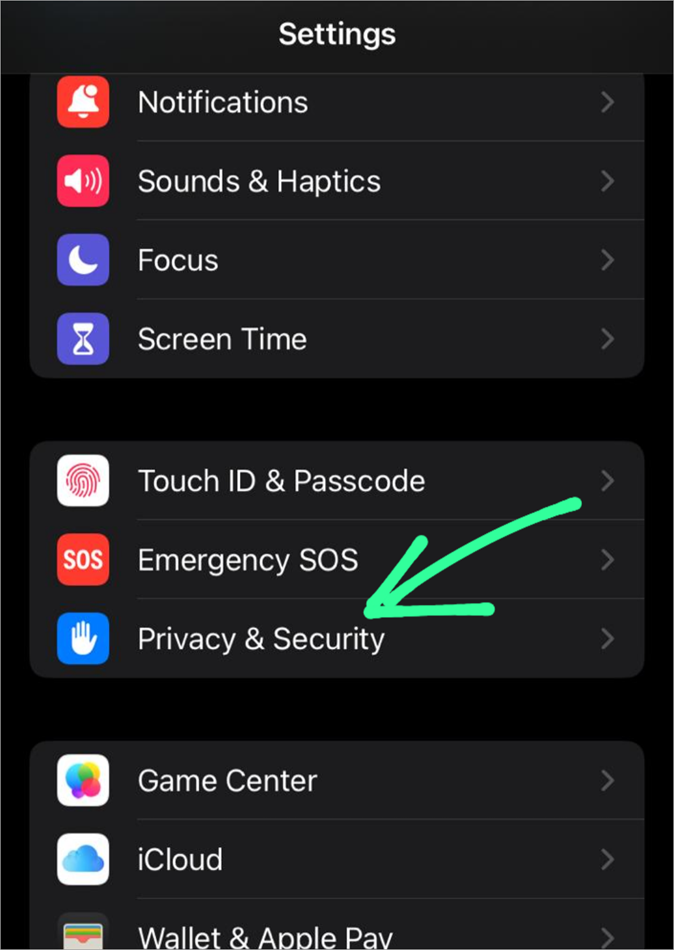
• Find Location Services
• Make sure it is turned on.
• Then scroll down to find System Services. Tap on it.
• Make sure the Motion Calibration & Distance option is turned on.
Once you have done this, you will need to follow some steps in your Watch, which are as follows:
• Wear your Watch and go to an open outdoor area.
• In your Watch, open the Workout app
• Select Outdoor Run (or Outdoor Walk)
• Tap on More for setting a goal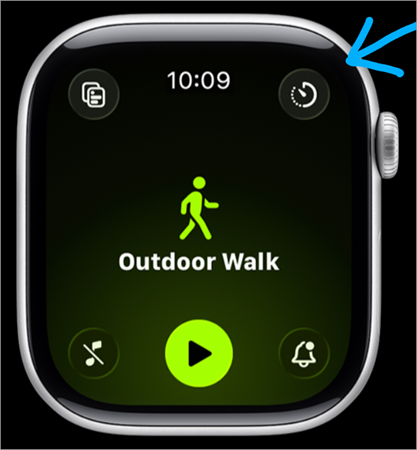
• Now select Goal
• Now walk or run for around 20 minutes.
If you wish, you can finish this 20-minute workout in phases also. If you usually work out at different speeds, then try repeating the process (the 20-minute workout) for different speeds. This whole process will improve the accuracy of your activity metrics.
Conclusion
Counting steps is an innovative and highly useful feature offered by iPhones and Apple Watches. You can access data about your activities, such as exercise and flights climbed, in addition to your steps. You can easily access these features on your iPhone with simple steps.
We spotted some users reporting ‘Apple Watch not counting steps’. So, in this article, we included all the measures that can be taken to solve this issue.
If none of the above solutions work for you, you can look for Apple support. Go through this link for learning about several support options offered by Apple.
Research Process: The total time involved to complete and publish this article is approximately 36 hours. This content was created through a structured research approach to ensure accuracy and reliability.
For more quick Apple-related guides, you can explore our range of tutorials below:
- The Top 20+ Apple Watch Apps (Latest Top Sellers)
- How to Ping iPhone from Apple Watch and Vice Versa
- How to Fix If Your Apple CarPlay Not Working
- How to Use Apple AirTag for Android Devices
- How to Remove or Delete Apps on iPhone Permanently
- The 19 Best Task Tracker Apps and Software
- How to Set Timer on Your iPhone Camera (Easy Ways)
Was this helpful?
Recommended Reading
-

Deeply explore how to ping iPhone from Apple Watch and locate your misplaced device quickly. This feature of how to ping Apple watch makes your phone emit a sound even when it is in silent mode: iPhone users can locate their iPhones by pinging them from an Apple Watch. When…
-

Here you will find a list of Android Smartwatches reviewed and compared for you with features and technical specifications to select wisely: Want to use the next stage of hand wearable that will keep track of your fitness regime? Having a good smartwatch will help you achieve it. The Android…
-
This tutorial reviews and compares top Apple Watch Apps to help you select the best apps for Apple Watch that suits your requirements: The Apple Watch has been around for a good number of years now. Long enough to find itself on the wrists of several people across the world.…
-
Get to understand How do Apple AirTags Work along with its advanced technology, activation process, cost, security features, etc in simple terms with examples: AirTags are the latest smart device from Apple. These are little trackers shaped like pucks that you can use to locate something stolen or misplaced in…