Learn how to hide Instagram post from someone without blocking them. Follow our quick guide to hide tagged posts on Instagram easily and keep your content private from specific people:
If you are here, you must have an ex, a boss, or someone else who interferes too much in your life, and you want to keep some things private from them. We understand your frustration. Everyone needs privacy in their personal matters.
So if you are using Instagram and some not-so-wanted people put out bad comments on your posts, then I’m sure you would want to hide your posts from them in the future.
Hide Tagged Posts on Instagram: Quick Guide
When your boss follows you on Instagram, and you have to post a meme regarding your job, or specifically your boss, then you would also look for ways to hide your post from the boss (well, you don’t want to get fired!).
There can be many other reasons for wanting to hide an Instagram post from someone, like you chilled out with one friend and want to post those pictures on Instagram, while you feel like the other friend would feel left out when they see you partying with the other friends.
So you would want to upload the photos, but you want to hide them from your friend who missed the party. Here comes the main question: Is it really possible to hide your Instagram posts? Let’s find out.
This video guide will show you how to hide your Instagram posts from someone without resorting to blocking them.
Can You Hide Posts From People on Instagram?
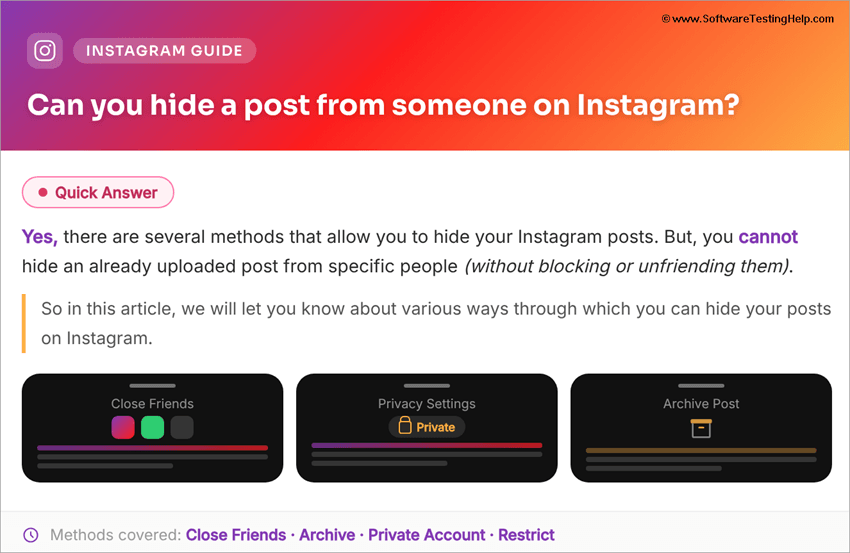
Yes, there are several methods to hide your Instagram posts. But you can not hide an already uploaded post from specific people (without blocking or unfriending them).
So, in this article, we will let you know about various ways through which you can hide your posts on Instagram.
How to Hide Instagram Post From Someone
Have a look at the different methods listed here for hiding a post; each method is useful in a different situation.
How to hide a certain post from someone on Instagram:
#1) You Can Make Your Account Private
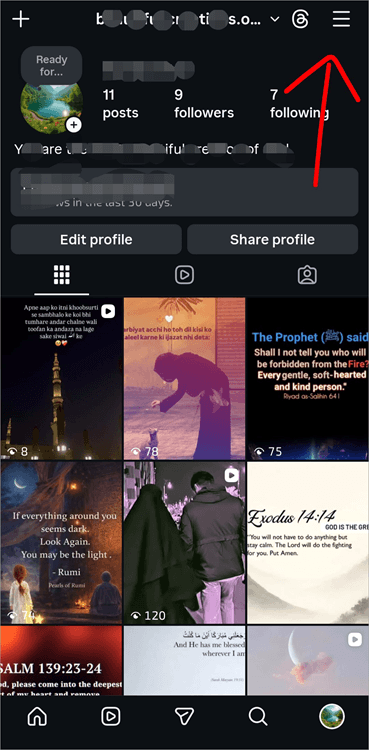
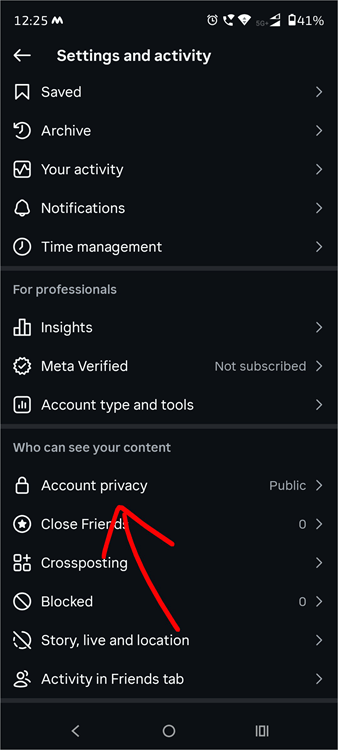
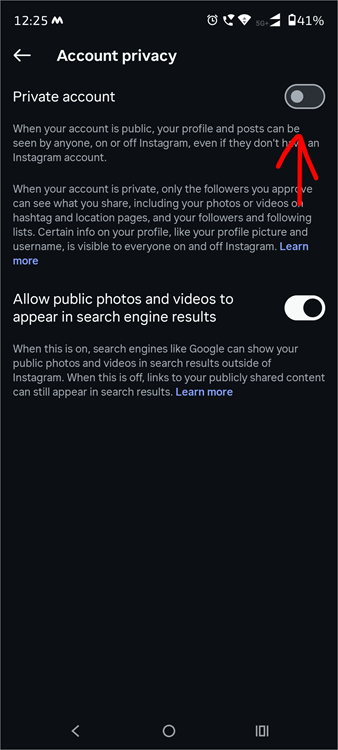
If you want to hide your posts from someone, you can go to Account Privacy and make your account private. This way, only the accounts that follow you will be able to see your posts.
To make your Instagram account Private, follow these steps:
- Open your Instagram account
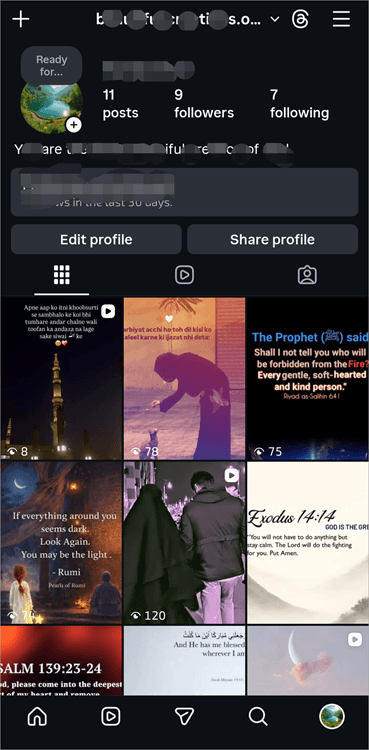
- Tap on the 3-line menu icon located in the upper-right corner of your screen.
- Scroll down to find the option: Account Privacy. Tap on it.
- Now turn ON the Private Account option.
Remove a Follower without blocking
If the person you want to hide your post from is following you, turning the account Private would be of no use. You will have to remove them from your Followers. This way, they will not be able to see your posts.
To remove someone from your Followers list on Instagram, do as stated below:
- Go to their profile
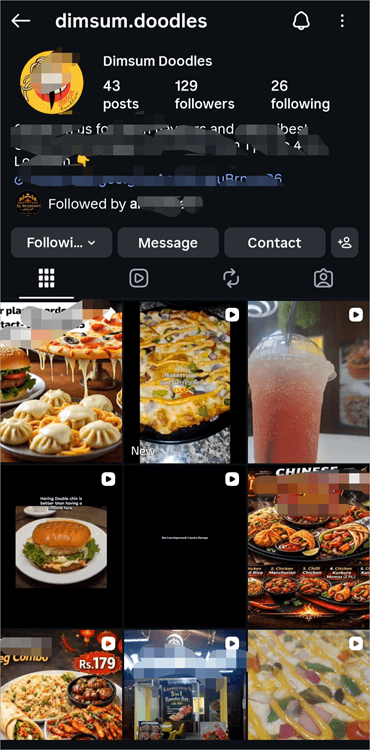
- Tap on the 3-dot menu icon located in the top right corner of their profile.
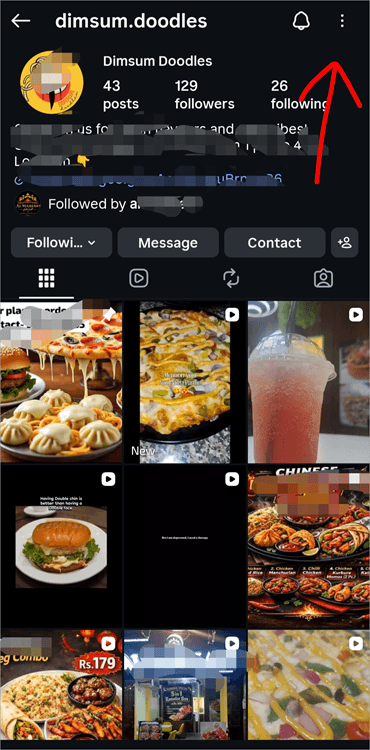
- Tap on Remove follower.
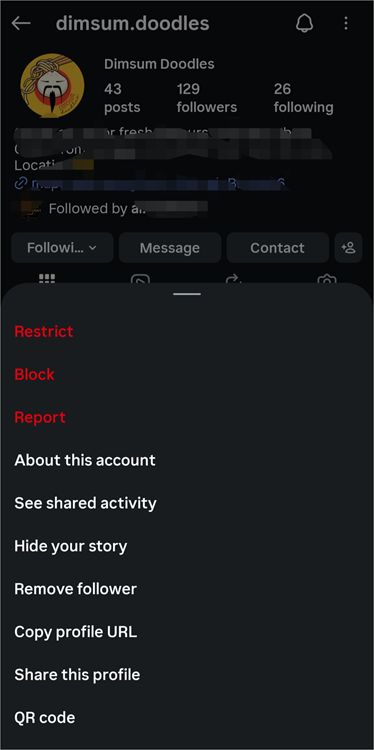
The person will no longer follow you and will not be able to see your posts unless they send you a Follow Request, which you accept. This is also called Soft Blocking.
#2) Use the Restriction Feature
This feature does not hide any posts. So if you restrict a person’s profile, they will still be able to see all of your posts, but won’t be able to comment on them unless you approve the comment.
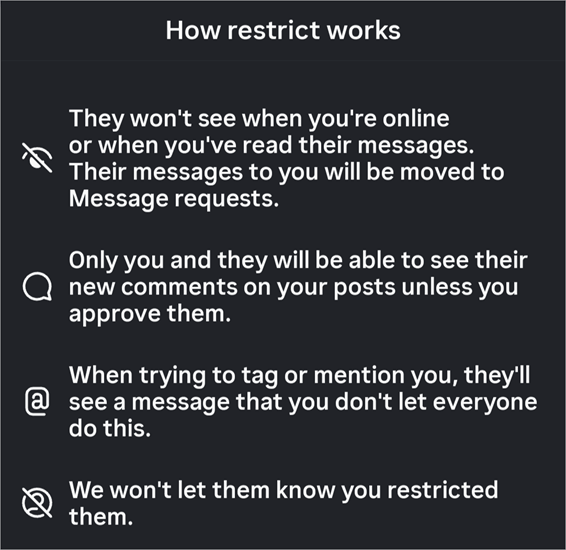
If you want to restrict a person on Instagram, follow these steps:
- Go to their Insta profile
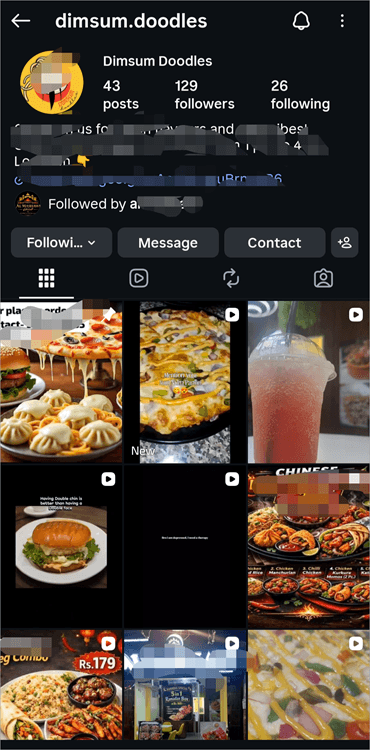
- Tap on the 3-dot menu icon located in the upper right corner of the screen
- Now tap on Restrict.
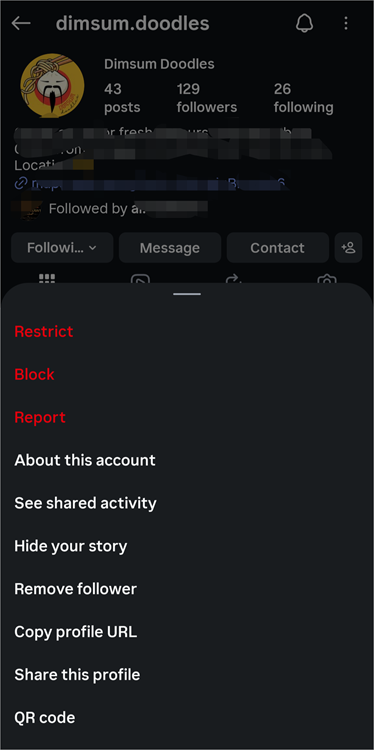
In order to Unrestrict them, just tap on the 3-dot menu icon on their profile and select Unrestrict.
#3) Block the Person
You can simply block the person from whom you want to hide your posts. This way, they won’t be able to see your posts or message you, or even find your profile on Instagram.
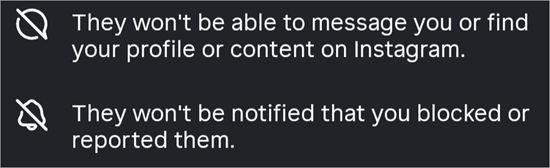
To block someone on Instagram, follow these steps:
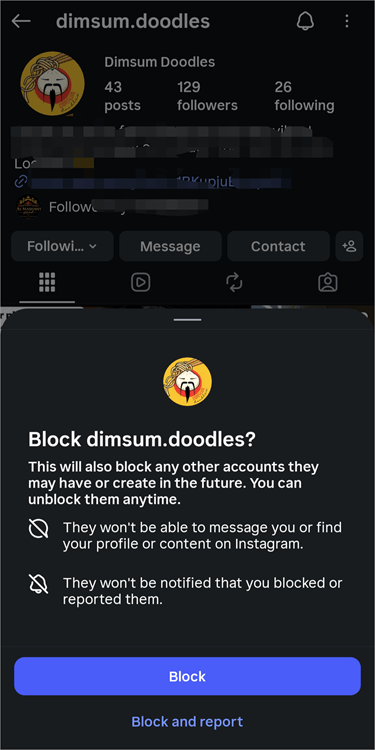
- Go to their Instagram profile
- Tap on the 3-dot menu icon on the upper right corner of their screen
- Select Block
- Again, select Block. (You can also choose the Block and Report option if you have serious issues with the person)
#4) Archive Posts You Want To Hide
If you fear that the person will learn that you restricted them or blocked them, and that will cause an issue, then you can try archiving your post. This way, the post will remain on your profile but won’t be visible.
You can archive a post by doing as stated under the following:
- Go to your Instagram profile
- Open the post you want to archive
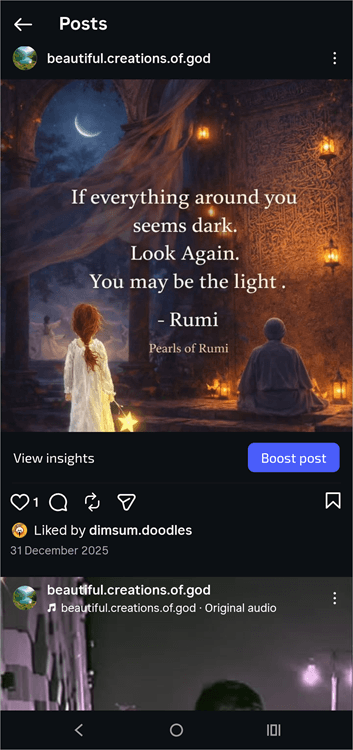
- Tap on the 3-dot icon on the upper-right corner of the post
- Now select the option – Archive.
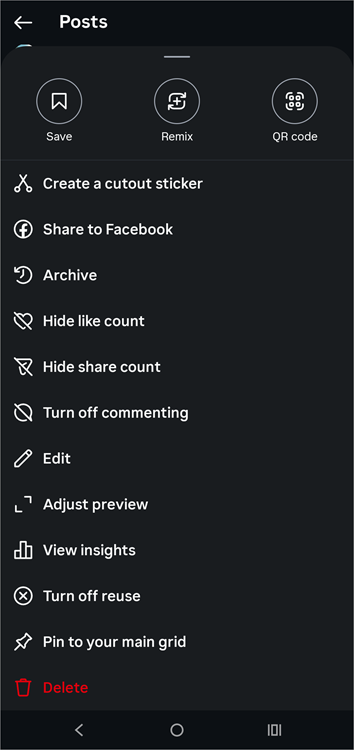
- The post will instantly disappear from your profile.
This method is useful if you don’t want to delete a post but want to hide it.
You can add the post back to your screen by following these steps:
- On your Home Page, tap on the 3-line Menu icon.
- Select Archive
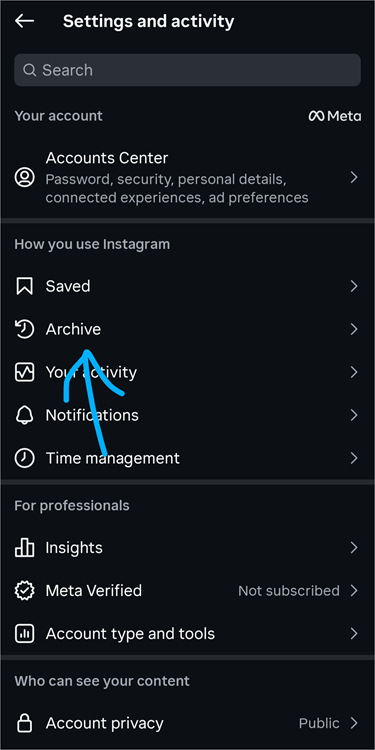
- Your archived post will be visible now. Tap on it, then tap on the 3-dot icon on its upper right corner, and then select the option – Show on profile.
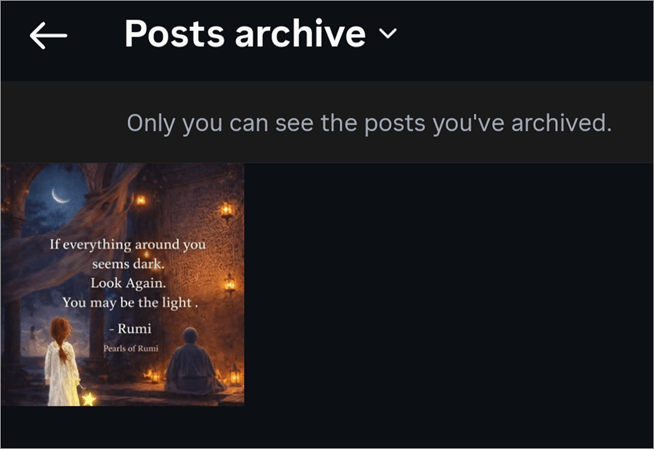
- If you don’t see your Archived photo after tapping on the Archive option, then tap on the Stories Archive or Live Archive option at the top on your screen, and then select Posts Archive.
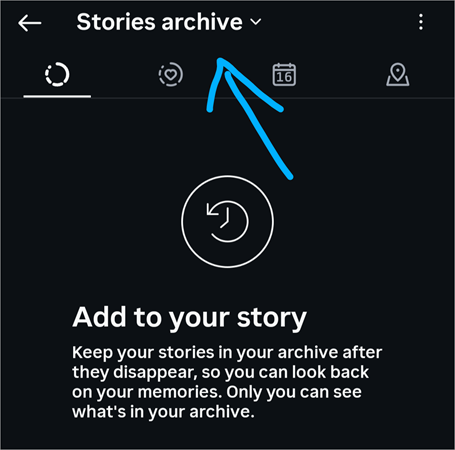
- Now you will be able to see the post you archived. You can tap on it, then tap on the 3-dot icon on its upper right corner, and then select the option – Show on profile.
#5) Upload the Photo/Audio on Your Story
Instagram allows users to hide their Story from specific people. So if you want to upload something on Instagram and hide it from specific people, then go for uploading it on your Story.
To hide your Story from specific people, you can choose a group of ‘Close Friends’. And then upload the Story for Close Friends only. This way, only the people selected in the Close Friends group will be able to see your Story.
This can be done by following these steps:
- Go to your Instagram profile
- Tap on the 3-line Menu icon in the upper right corner of your screen
- Now scroll down to find the option – Close Friends. Tap on it.
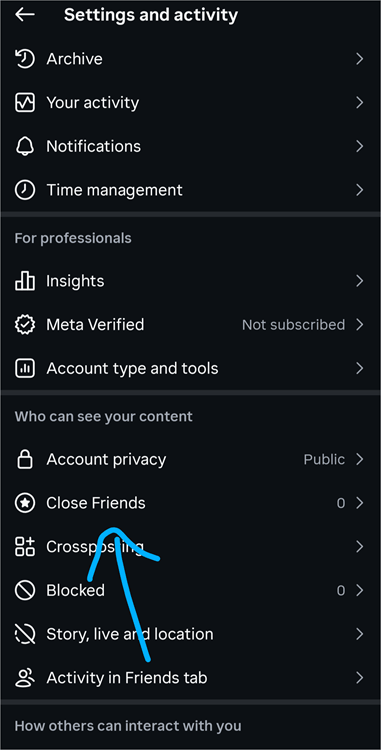
- Now search for the names of your friends, whom you want to show your story to.
- Select them and tap on Done.
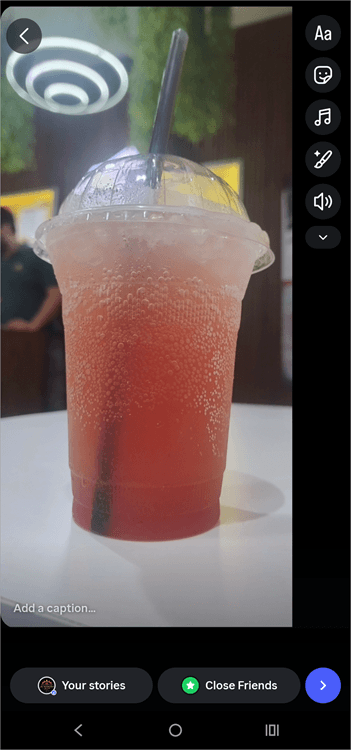
- Now you can upload a story and choose only Close Friends to see your story in the following way:
- Go to your Instagram Home Page
- Tap on the + icon located in the upper left corner of your screen.
- Select the option – Story
- Now you will see the photos and videos saved in your phone’s Gallery. Select the one you want to post.
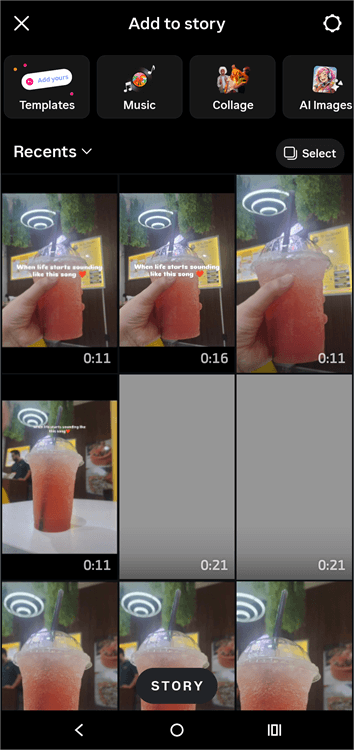
- Then select the Close Friends option. (You can also select the Your Stories option if you want to show the story to everyone).
#6) Use the ‘Hide Story and Live’ Feature
Use the ‘Hide story and live’ feature to hide your posts uploaded to your Story. Another way to hide your Stories and Live from some specific people is as follows:
- Open your Instagram profile
- Tap on the 3-line Menu icon located in the upper right corner of your screen
- Now scroll a little to find the options – Story, Live and Location. Tap on it.
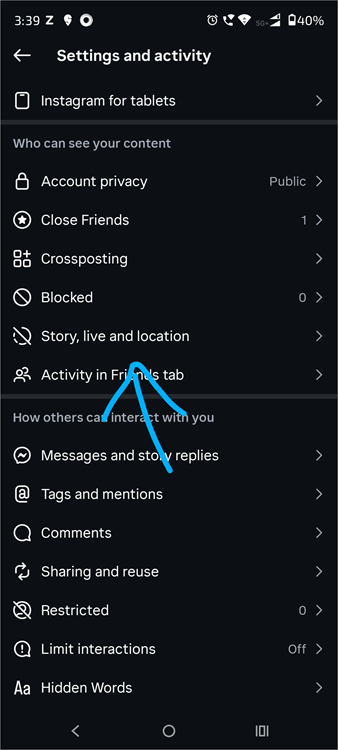
- Choose Hide story and live from
- Add names and then select Done. Your further Instagram Stories as well as Live sessions will be hidden from the selected people.
#7) Use the Audience Selector Feature
A very small number of people know about this feature. It is the only feature that allows you to hide your Instagram posts from specific people.
Users can upload a specific post for only their ‘Close Friends’ by following these steps:
- Open your Instagram profile
- Tap on the ‘+’ icon located in the upper left corner of your screen
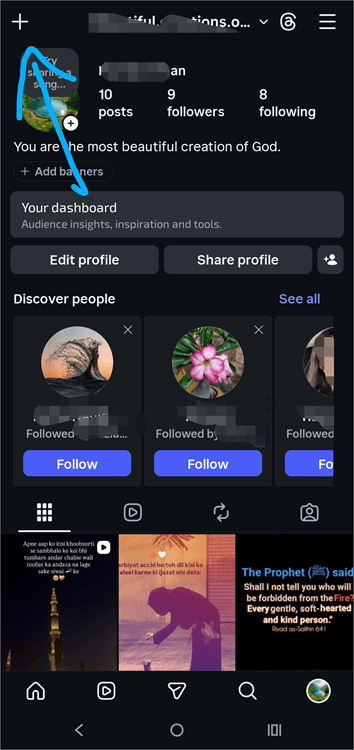
- Select Post
- Select a photo/video from your Phone’s Gallery
- Edit it, if you want, then tap on Next
- Now tap on Audience
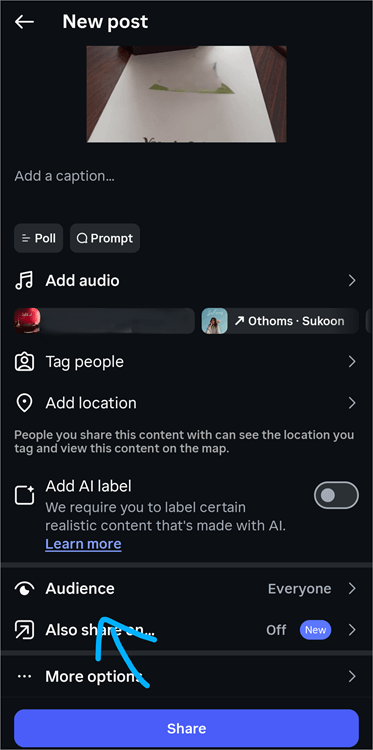
- Now you will see 2 options:
- Everyone
- Close Friends
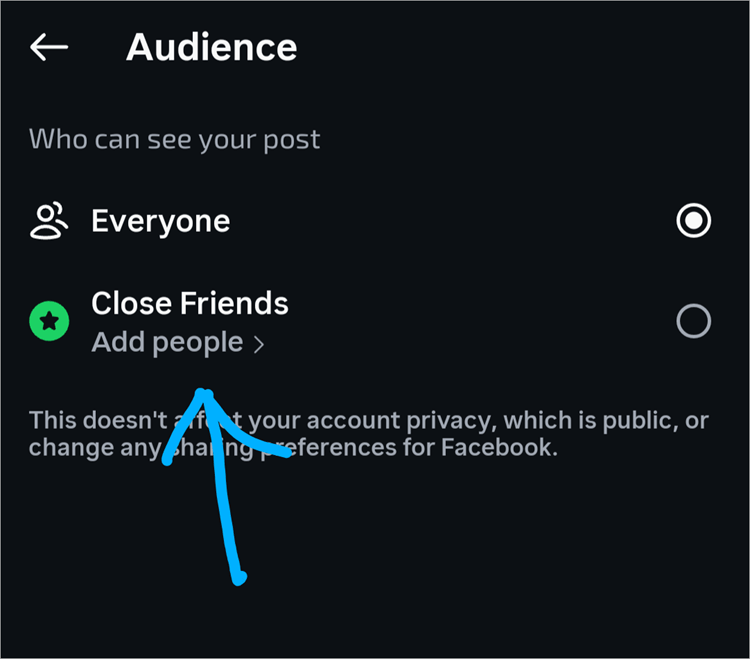
- There will be the option to Add People under ‘Close Friends’. Tap on it to add specific people to the close friends list and tap on Done.
- Select the Close Friends option, then select the Back option
- Now tap on Share. The post will be uploaded for people selected in the Close Friends list only.
Please note that the already uploaded posts can not be hidden from specific people using this feature.
Let’s compare all the methods we talked about in the article for hiding a post
| Make your Account Private | Restriction Feature | Block the person | Archive the post | Upload the photo on Story | Hide Story and Live from | Audience selection feature | |
|---|---|---|---|---|---|---|---|
| Best for whom? | Those who want to show their posts and stories to specific people only. | Those who want to restrict unnecessary comments on their posts. | Those who want to Block all access to their profile, due to harassment, or other reasons. | Those who want to hide a post temporarily. | Those who want to upload something and want to hide it from specific friends. | Those who want to hide their Stories and Live sessions | Those who want to upload an Instagram post while hiding it from specific people. |
| Benefit | Unknown people don't get access to your posts unless you approve their Follow Request. | You don't need to Block the person. Restriction feature limits a user's access to your profile. | The Blocked person can't even find your Instagram account in search. | This method works for those who don't want to Block the person or delete the post, but hide it. You can Add the post back to your Home Screen, anytime. | This method lets you hide something you upload on Instagram, from some specific people, without Blocking them. | This way, you can hide your Instagram Story from specific people. | It is the only feature that allows users to hide their Instagram posts. |
| Drawback | Your friends may find it difficult to find you on Instagram. | The person will still be able to see your posts and stories. | The person may find out that they are Blocked, if they search for your profile through another account. | The post gets hidden from all of your friends, not from a single, specific person. | This method can not be used to hide a post from a person. | This method does not hide your Instagram posts. | You can not hide the already uploaded posts using this feature. |
| Does it hide a post from someone on Instagram? | Yes, if the person is not Following you on Instagram. If the person Follows you, then he/she will still be able to see all of your posts. | No | Yes. In fact, it hides your Instagram account from the Blocked person. | Yes. It hides the post from all of your Instagram friends, until you add it back to the Home Screen. | No. It hides a Story though. | No | Yes |
| Can the other person find out that you tried to hide the post? | If you have Removed someone from your Followers, then they would find it out. But, if the person was not a Follower, and you have turned your Account Private, then it's fine. | They won't be notified. It's just that they won't see your online status, and their comments won't show up on your posts, unless you approve them. | Yes. By searching for your account from someone else's account, they can find out that you have Blocked them. | No. The person won't know that you are hiding a post. | No, they can't find out, until and unless they see your Story from someone else's account (whom you choose in the Close Friends list). | They can only find it out if they access your Story or Live sessions through someone else's account. | No. |
Mute Feature to Stop Viewing Instagram Posts
This feature does not hide Instagram posts, but is used to stop viewing posts from specific people. This feature is useful for those who don’t want to see someone’s Posts, Stories, or live sessions on Instagram without blocking them.
Another plus point of this feature is that the people muted cannot find out that you have muted them. Plus, you can still interact with them normally through DMs.
To mute a person on Instagram, follow these steps:
- Go to their Instagram profile
- Tap on Following
- Select Mute
- Now choose what you want to mute. You can choose any of the posts, stories, etc.
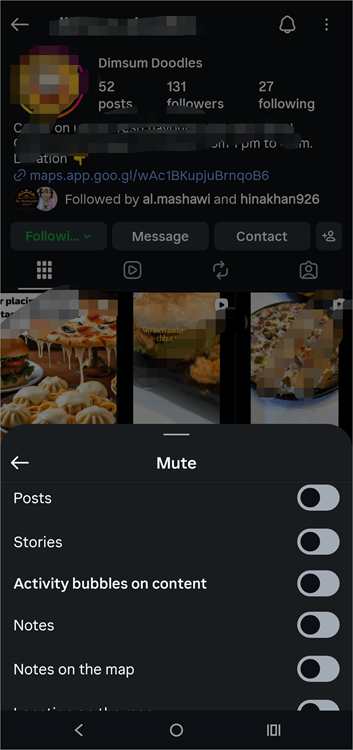
- Then select the back option.
Frequently Asked Questions
1. How to hide tagged posts on Instagram?
If you want to hide a tagged post on Instagram, follow these steps:
• Open your Instagram profile
• Tap on the tagged post that you want to hide.
• Now tap on the 3-dot icon located on the upper right corner of the post
• Tap on Tag Options
• Select Hide from My Profile.
2. How to tell if someone is hiding posts from you on Instagram?
First of all, let me tell you, Instagram does not offer a feature to hide posts from specific people. They can use other methods like blocking and turning their account Private, to hide their posts.
If you see these signs, there are chances that someone is hiding their posts from you on Instagram:
• You won’t be able to find their account in search, but you can find it when you search for it from another account- this means they blocked you.
• You are removed from their followers list – this can be a sign of hiding a post.
• If someone’s account suddenly goes private, this means they don’t want everyone to see their posts.
3. Can I restrict someone from seeing my posts on Instagram?
Instagram does have a Restriction feature. But it does not restrict someone from seeing your posts on Instagram.
To restrict them from seeing your posts, you can either turn your account private and remove them from your Followers, or block them, or simply post a Story for Close Friends, instead of a Post.
4. What’s the difference between soft block and block?
Blocking someone on Instagram prevents them from accessing your account on Instagram. In this case, even your previous chats would appear with the name ‘Instagram user’.
On the other hand, ‘soft block’ is the name given to the case when you turn your account private and then remove someone from your Followers list. This way, they won’t be able to see your posts, but they can search for you and message you.
5. Can I block someone without unfriending them on Instagram?
No, it’s not possible to block someone without unfriending them on Instagram. Blocking someone automatically unfriends them.
If you just want to hide your posts, you can go for archiving the post that you want to hide. And if you want to stop their comments on your posts or stop unwanted messages, then you can restrict their profile.
This way, their comments would need to be approved by you to be added to your posts. Plus, their comments will be visible only to you and the one who commented.
6. Can you hide a Reel from someone on Instagram?
Yes, there are various ways to hide a Reel from someone on Instagram, for example:
• You can unfriend them and then make your account Private. This way, they won’t be able to see any of your Posts, Reels, and Stories.
• You can Block them – this way, your Reels will be hidden, and they won’t be able to even find you on Instagram.
• You can archive the reel to hide it from your profile. You can unarchive it anytime later.
• You can select Close Friends as the Audience while uploading your reel.
7. Does Instagram notify someone when you hide your story from them?
When you upload your Story for Close Friends, or hide your Story from specific people, then:
• The person from whom the story has been hidden won’t get notified.
• If you upload the Story for Close Friends, then a green circle (instead of the red circle that appears when you upload a Story) will appear around your profile picture, which will be visible to your Close Friends only. This way, they can know that the Story is uploaded for specific people only. But those from whom the Story is being hidden won’t be notified.
8. Can you hide Instagram posts from one person without them knowing?
If you want to hide your Instagram posts from a single person, you can do one of the following:
• Make your account private and unfriend them. But if you unfriend them, they will get to know that you are trying to hide something.
• You can choose the Audience for your posts while uploading them. This way, only the selected people would be able to see the posts. But this method won’t work for the already uploaded posts.
• You can archive the posts for some time to hide them. But this method hides the posts from everyone.
9. What’s the difference between Block and Restrict on Instagram?
Blocks and corresponding Restricts will be as follows:
• The blocked person can’t access any of your posts, reels, and stories: If you restrict a person, they will be able to see your posts. But they won’t be able to comment on them.
• The blocked person can’t send you a message: Restricted people can still send messages. But their messages will automatically move to the ‘Message Requests’ folder.
• They can’t find you on Instagram. Even your earlier messages will appear with the name ‘Instagram user’: The Restricted person can find you and can see all of your posts.
Conclusion
In this article, we provided solutions to a much-talked-about question of Instagram users: Can you hide Instagram posts from people?
Since Instagram doesn’t allow users to hide a post from specific people, we provided different methods that can be used to hide a post.
Each method we provided is suitable for a different type of situation. Blocking someone prevents them from seeing your posts and stories or even finding your account on Instagram.
Soft block, or turning your account Private, while unfriending a person, also stops them from seeing your posts and stories. But they can still message you and find you on Instagram. Archiving a post can be helpful for temporarily hiding a specific post, and the Restriction feature stops unwanted comments from specific people on your posts.
If none of the above are actually useful, the users can go for uploading a Story, instead of a Post, because Instagram allows you to hide your Story from specific people.
For more Instagram-related guides, you can explore our range of tutorials below:
- How to Mute or Unmute People on Instagram
- How to Hide My Followers on Instagram: Quick Steps
- How to Turn Off Active Status on Instagram
- [10 Quick Methods] How to Post on Instagram From Your PC
- Best Instagram Story Viewers [Free and Anonymous]
Was this helpful?
Recommended Reading
-

Explore the top effective methods and learn How to Post on Instagram From Your PC through this tutorial: Sometimes, it can be annoying to look for your phone to make an Instagram post when you have your PC at hand. Also, it can be a tiring and irritating process to…
-
Be it Reels, Videos, Instagram Stories, or If You Want to Go Live, here you will get to know about the Best Time to Post on Instagram for More Likes: It's no secret that you need to create and populate your Instagram feed with intriguing content to gain more followers…
-

Are you a captivating Instagrammer seeking to know how to find likes on Instagram? Read this tutorial to know how to see likes along with their significance on an engagement-based platform: It is almost hard to explain the appeal of “Likes” on social media. I remember someone aptly describing it…
-
Do you get tempted to share impressive content of your friend's Instagram story on your profile? Read this quick guide to explore how to Repost a Story on Instagram in simple steps: Becoming popular on Instagram isn’t child’s play. You need to be diligent and consistently create content daily. This…