Is Netflix freezing or lagging constantly and ruining your movie night? Learn how to fix when Netflix keep freezing on any device and enhance your streaming experience in minutes with our expert solutions:
Is Netflix freezing up on your computer lately? If so, I would first suggest you take a deep breath to shake off that awful feeling of frustration. This is a common problem with platforms like Netflix. Chances are that an average Netflix account holder will eventually encounter this issue at least once while using the platform.
The issue, however, can become even more frustrating if it happens to you repeatedly. You don’t want Netflix to leave you stranded on a frozen screen since its subscription isn’t exactly cheap.
Netflix Live Freezing: Proven Fixes to Stream Perfectly
Fortunately, this isn’t as big a deal as one might presume. You can stop Netflix from freezing again, provided you know what’s causing the issue and how to troubleshoot it.
[Via What’s On Netflix]
This is where my expertise comes in. In this article, I would like to shed light on why Netflix freezes and the tricks you can employ to fix this issue for good.
So, without much further ado, let’s dive in.
Why Does Netflix Keep Freezing?
Check the video below to know why Netflix keeps freezing:
As I said before, Netflix freezing isn’t a unique issue only faced by a few unlucky subscribers. Anyone can face it at anytime and there could be several reasons why this keeps happening. Network issues are perhaps the most prominent reason for Netflix, or any app for that matter, freezing or getting stuck on the loading screen.

#1) Unstable Internet Connection
Netflix needs a stable, superfast internet connection to showcase its content library in the best picture and sound quality possible. If the network connection itself is weak, you are bound to face issues, with a frozen screen being just one problem you could face.
#2) App Glitch
If your internet connection is fine, then perhaps the issue is with the app itself. A glitch or bug plaguing Netflix’s app will obviously affect its performance. A quick app update or calling the platform’s support team often resolves these glitches.
#3) Stored Data and Cache
Your app will end up accumulating and storing a lot of data and cache after significant use. This data needs to be refreshed periodically for Netflix to function smoothly.
#4) Outdated or Incompatible Device
Netflix works just fine on almost all streaming-compatible devices out there. That said, some devices are weak compared to others when you look at their technical specifications. A device with low-performance specs can struggle to keep up with Netflix’s modern UI.
#5) Outdated Software
It is recommended to run Netflix on a device with a modern operating system and video drivers. There is a likelihood of Netflix freezing if you are running it on a system with an outdated OS or other necessary software.
Quick Fixes: Immediate Solutions When Netflix Freezes
There are many things you can do to stop your Netflix from freezing. The tricks below are easy to follow and can resolve the problem in no time, so you can get back to streaming as usual.
#1) Update the App or your System’s Software
Make sure to constantly check your iPhone or Android phone’s app store for Netflix app updates. A quick update will not only fix your Netflix freezing but also boost the app’s performance. Besides the app, make sure your phone or computer’s OS is up-to-date as well.
#2) Verify your Internet Speed and Connection
A good, stable internet connection is critical to Netflix working smoothly. Check your internet connection’s speed. Run a speed test and make sure you are at least getting speed that’s as fast as 25 MBPS. If not, change your internet service provider or upgrade your existing plan.
#3) Reset or Reboot your Modem
Something as simple as restarting your modem or router can pull Netflix out of its frozen state. I would recommend you switch off your modem or router and wait for at least a minute before restarting it.
#4) Clear Stored Cache
Years of accumulated cache/data are bound to slow your Netflix account down. I would clear your Netflix cache and data regularly. This will help the app perform optimally for your entertainment.
#5) Sign out and Log in Again
This is yet another very simple way to get your Netflix to perform well again. Simply sign out of your account and log in again.
#6) Disable VPN
Netflix doesn’t respond kindly to the use of VPN. So, make sure you aren’t using any when streaming on the platform. Check for any active VPN connections, disable them, and try again.
#7) Uninstall and Reinstall the App
This is my last resort whenever an app isn’t working properly on my phone. I just uninstalled and reinstalled the app again. 9 out of 10 times, this trick has worked like a charm for me. You could do the same with Netflix if greeted with a frozen interface.
#8) Disable Hardware Acceleration in Your Browser
Hardware acceleration, especially in specific browsers like Chrome or Edge, can cause Netflix to freeze or even crash. With hardware acceleration on, your system may sometimes struggle to decode a video on the streaming platform. This can put a lot of stress on your GPU, thus eventually leading to a complete Netflix crash.
Needless to say, it is best to simply have this feature disabled within your browser for Netflix to work properly.
Follow the steps below to disable this feature on Chrome:
1. Open Chrome
2. Go to Settings > System
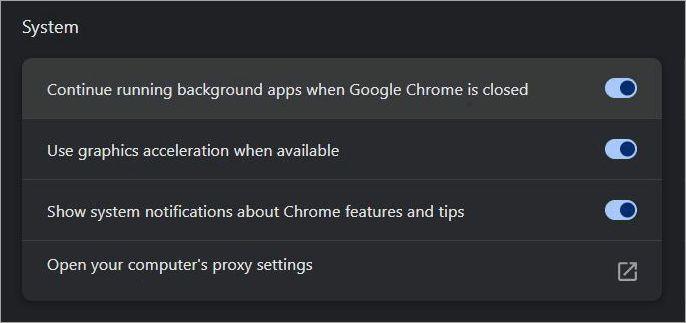
3. Find the option that says “use graphic acceleration when available” and click on the toggle to disable it.
On Edge, you’ll find the option to disable graphic acceleration by navigating to Settings > System and Performance > Graphic Acceleration.
Device-Specific Netflix Freezing Troubleshooting Solutions
The trick that’ll work the best for you will probably depend on the device you are using to stream Netflix on. As such, I believe it is a good idea for me to get even more specific. So, below are device-specific troubleshooting solutions I hope help you stop Netflix from freezing ever again.
Troubleshooting Steps for Netflix Freezing:
#1) On Smart TVs
i) Restart the TV
Before you do anything else, unplug your device from the power. Wait for at least a minute before switching the power on. If the problem persists, move on to the next trick.
ii) Update the App
Updating the Netflix app on a Smart TV is quite simple.
Just do the following:
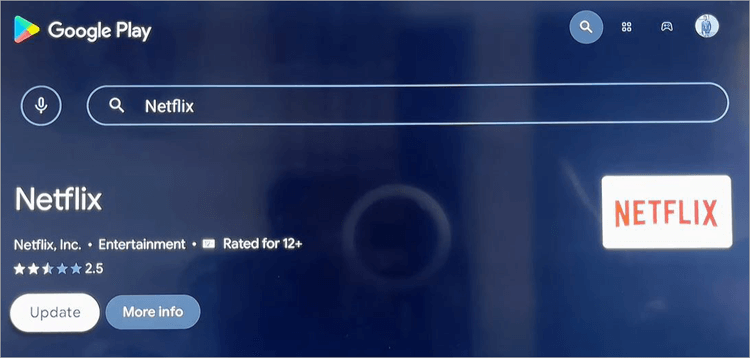
1. On your TV’s home screen, find and select “Apps”
2. Open the Play Store app.
[Via BscholarlyTV]
3. Navigate to the My Apps option and select Netflix > Update.
iii) Sign Out of Netflix
First, press the back button on your TV’s remote to get to Netflix’s main menu. Depending on the TV you are using, you’ll find the menu either at the top or the left corner of your screen.
- Find and select “Get Help”
- Select Sign Out > Select Yes.
After signing out, wait a few seconds and sign in to Netflix again.
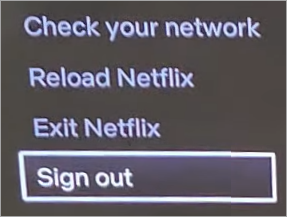
If your device is stuck on an error screen, do the following to sign out without hassle.
- Select More Details
- Hit the “Reset” or “Sign Out” button.
[Via WorldofTech]
- Once signed out, wait for a few seconds before you sign back in.
If you are having trouble locating the “Get Help” or “Sign Out” buttons. I suggest you manually pull up the menu by pressing the following buttons on your remote in the given order:
Up, Up, Down, Down, Left, Right, Left, Right, Up, Up, Up, Up.
This should trigger the menu on your screen. Select Sign Out from the menu.
iv) Contact the Device Manufacturer
If Netflix is working fine on other devices you own but not on your TV, you’ll need to contact the device’s manufacturer. They might suggest updating the device’s firmware or resetting it to its original factory settings.
#2) On Android Phones and Tablets
Here are some of the troubleshooting tips to resolve the Netflix freeze issue on Android Phones and Tablets.
i) Reboot Phone
The easiest thing you can do to fix this issue on your Android phone is to completely switch your device off. You’d want to turn the device off and not just lock it. Wait for a few minutes before you switch it back on. Once switched on, try Netflix again.
ii) Reset Home Router or Modem
If a quick phone reboot didn’t do the trick, try to restart your home router and modem. Unplug both of them, wait for 30-60 seconds before plugging them back in. Now, start Netflix to see if this helped.
iii) Improve Wi-Fi Signal
Your Netflix is probably struggling to function as usual because of a weak network connection. So, try each of the following tips to see if anything helps:
- Make sure your mobile and router are close to each other
- Ensure that your router does not connect to too many wireless devices nearby.
- Make sure nothing is blocking your router’s signal to your device.
- Make sure your Internet speed is at least 25 MBPS.
#3) On iPhones and iPads
Similar to Android, rebooting your Apple devices or resetting your home’s router or modem can fix the issue of Netflix freezing on an iPhone or iPad. Besides those tips, you can also employ the following troubleshooting solutions to stop Netflix from freezing on an Apple handheld device.
i) Reset the Netflix app
An iPhone or iPad lets you reset an app in a few simple steps. Here’s how you do it:
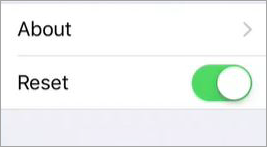
1. Navigate to your phone’s home screen and select Settings.
2. In the Settings section, find and tap on Apps > Netflix
3. Simply slide the Reset switch.
[Via mrhackio]
4. Once the app’s reset, give Netflix a try again.
ii) Reinstall and Install App
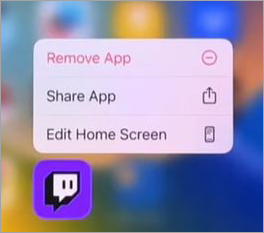
Uninstalling and reinstalling the app on your iPhone can resolve any issues plaguing Netflix on the device. To uninstall an app, simply tap and hold the Netflix app on your iPhone or iPad until a menu opens. Then, tap Remove App > Delete App > Delete to uninstall the app quickly.
[Via Solve Your Tech]
Once uninstalled, go to the App Store, find Netflix, and install it on your device again. Try signing into the freshly installed Netflix app to see if this has resolved the issue.
iii) Quit All Recent Apps
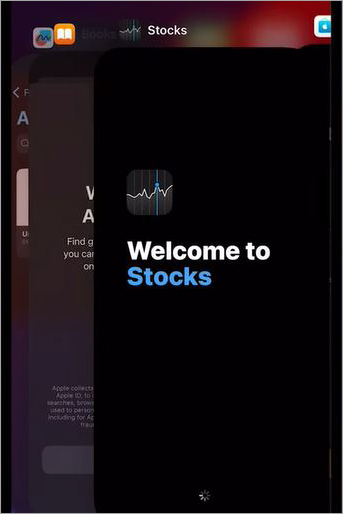
iPhones and iPads let you easily quit all open apps on the device. You can do so by adhering to the following steps:
1. First, open the App Switcher. Press the Home button on your device twice to open the App switcher. If your phone doesn’t have a Home button, simply swipe up on your screen from the bottom and hold.
2. You’ll now see a list of apps that are open on your device. Swipe up on all the apps to quickly stop them.
[Via TechSimplify]
3. Once you’ve quit all the apps, try opening Netflix again.
#4) On Computers (Windows, Mac, Chromebook)
There are three very simple solutions to stopping your Netflix from freezing on a computer.
They are as follows:
i) Restart your Computer
First, you’ll need to shut down your computer. Based on the computer you are using, the process to shut down your system will be:
- Mac: Click on the Apple Menu at the upper left side of your screen and click Shut Down.
- Windows: Click on the Start menu at the bottom, then click on Power and select Shut Down.
- Chromebook: Click on the time presented to you in the bottom right side of your screen, then click on Sign Out and hit the Shut Down button.
Leave the computer shut for a few seconds before restarting it. Once restarted, sign in to your Netflix account.
ii) Clear Cookies from Browser
- Open your Browser on the computer and type the following in the address bar – netflix.com/clearcookies. Hit Enter to get signed out of your account.
- Sign in to your Netflix account again and try watching a video to see if this did the trick.
You can also clear cookies by wiping out your browser’s history, but the above option is more convenient, as you are only targeting Netflix instead of the sites you are also active on.
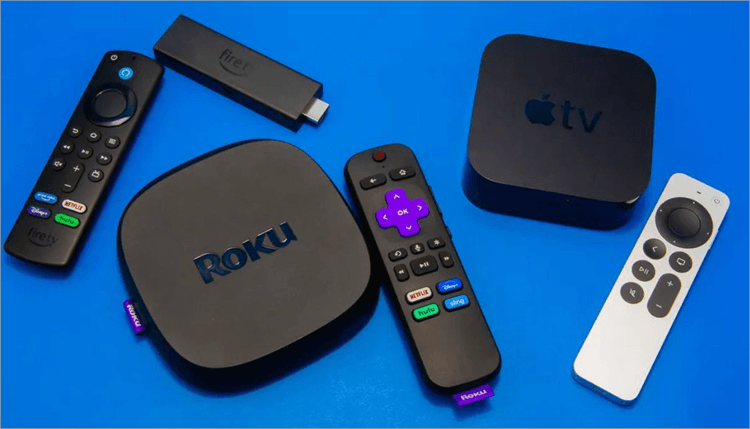
#5) On Streaming Players (Fire TV, Apple TV, Chromecast, Roku)
Most of the tricks and tips we’ve discussed above also apply when you’re dealing with a frozen Netflix screen on streaming media players.
[Via CNET]
Here’s a rundown of everything you can do to resolve this issue on your streaming media player, like Fire TV Stick, Roku, etc.
- Restart your router or modem
- Check Wi-Fi connection
- Reboot the streaming media player
- Sign out of Netflix and sign in again
- Remove and reinstall Netflix
- Contact the streaming player’s manufacturer if all else fails
Netflix Freezes With Multiple Monitors: Steps to Follow
Netflix can freeze with multiple monitors. This could either be because of graphic driver conflicts or HDCP connection failures, which commonly occur if you’re trying to plug in a screen while Netflix is active and playing a video.
If the issue pertains to HDCP connection failure, just make sure all monitors are plugged in before you start a video on Netflix. Also, make sure the graphics drivers on your system are up-to-date.
You could also try adjusting the refresh rate of your display monitor to 120hz or lower. Enabling hardware acceleration in your browser could also cause this problem. As such, disable hardware-acceleration before starting Netflix again.
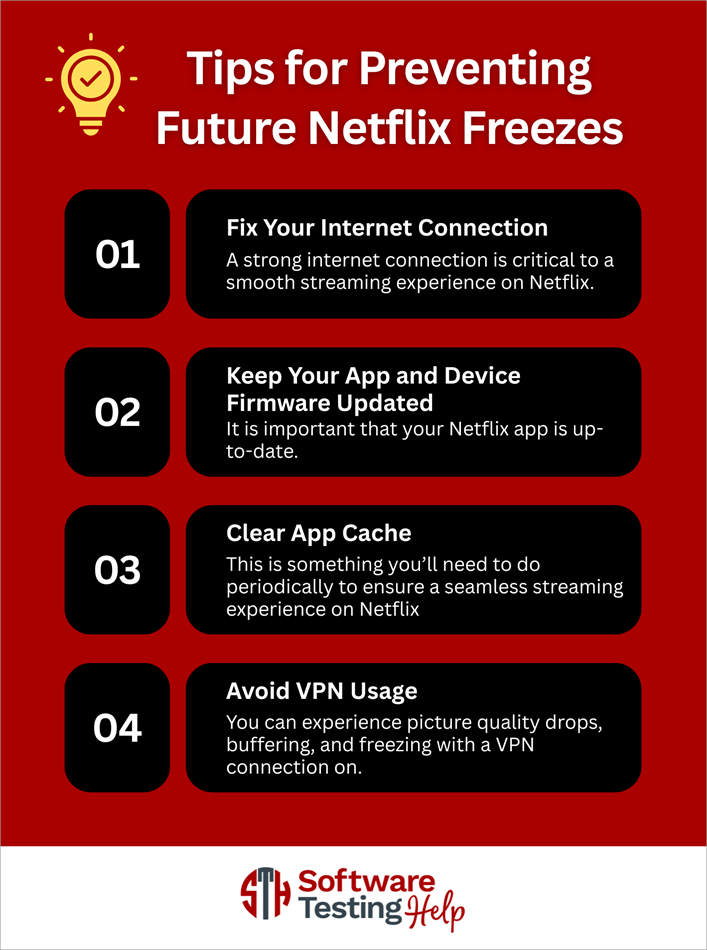
Tips for Preventing Future Netflix Freezes
You know what they say, prevention is better than a cure. Now that you know why Netflix is freezing up and what to do about it, I would also like to lay out a few additional tips to prevent this problem in the future.
#1) Fix Your Internet Connection
A strong internet connection is critical to a smooth streaming experience on Netflix. So make sure you acquire a network connection from the best internet service provider. Make sure your speed is at least 25 Mbps.
Improve your router’s signal by keeping it closer to the devices on which you are using Netflix. Using a wired Ethernet connection would be even better, as you will get a relatively stable connection.
#2) Keep Your App and Device Firmware Updated
Your Netflix app must be up-to-date. Frequent updates take care of bugs and glitches that can hinder your app’s performance. Besides the app, it is also important to keep your device’s firmware updated as well.
#3) Clear App Cache
This is something you’ll need to do periodically to ensure a seamless streaming experience on Netflix. Clear your app’s cache regularly, as this will result in you getting rid of any corrupted data that could potentially affect your app’s performance and cause screen freezes.
#4) Avoid VPN Usage
It is always recommended not to use a VPN when you are using a streaming platform like Netflix. The platform itself does not encourage this, as it can significantly affect your stream.
You can experience picture quality drops, buffering, and freezing with a VPN connection on. To get the best Netflix experience, disable the VPN on your devices before you start streaming.
When to Contact Netflix Support
Contacting support should be your last resort. I would recommend reaching out to Netflix’s support team once you’ve exhausted all the potential solutions I’ve suggested above. Once you are sure the problem isn’t with your device or network connection, reaching out to Netflix’s support team makes sense.
Most of the time, a Netflix freeze isn’t an issue serious enough to warrant a call to customer support. The solutions I’ve shared above will help you just fine. If they don’t, you can contact support via your Netflix account and expect a response briskly.
Frequently Asked Questions
1. How to fix Netflix freezing?
You can take several measures to fix the problem of Netflix freezing constantly.
The most prominent solutions are:
• Restart device
• Sign out and sign in again to Netflix
• Uninstall and reinstall the Netflix app
• Clear cache and data from the Netflix app
• Check the internet connection and Wi-Fi signal.
2. Why is Netflix so glitchy on Smart TV?
If you are experiencing glitchy or distorted pictures when streaming a Netflix video, it could be because of two reasons. This is probably an issue with your device or the streaming player connected to your smart TV. You’ll need to contact the device’s manufacturer, or you may have to replace the device.
3. How do I clear Netflix cache?
Here’s how you can clear Netflix cache without hassle:
On Android
• Open Settings > Apps > Netflix > Storage and Cache > Clear Cache.
On Apple
• Open Settings > General > iPhone storage > Netflix app > Select Offload • App to clear cache.
On a Web Browser
• Simply clear browsing history to clear the cache and cookies.
4. How to make Netflix run smoother?
You can make sure Netflix runs more smoothly by using a fast internet connection. Streaming on a high-performance computer or smartphone also helps. Regularly clear your app’s cache and data.
Also, update your app periodically to proactively get rid of app glitches and bugs that affect performance.
5. Why should I clear my Netflix cookies?
Besides improving your stream’s performance, clearing Netflix cookies could also help in securing your privacy online. Clearing cookies will ensure certain websites cannot track your behavior or online activity. As such, you’ll keep yourself safe from cybercriminals who can hack cookies to acquire and sell your private information online.
6. What does error code NW- 3 – 6 mean?
This error on Netflix basically means that your home router or device’s DNS settings have stopped the platform from opening. The best way to fix this issue is to either restore your device’s default connection settings, restart your home router, or contact your ISP. Read through our detailed guide on How to Fix Netflix Error Code NW-2-5
7. What does error code ui-800-3 mean?
Error code ui-800-3 could either refer to a problem with a network issue blocking Netflix, or it could also mean that the information stored on your device must be refreshed.
This error can be fixed by restarting your device or router. You could also try restoring your device’s default connection setting and see if that works. Another way to fix this error is by signing out and signing back into Netflix.
Conclusion
“Netflix and Chill” has sort of become an anthem today across the United States. An average American today would like to do nothing more than kick back and relax while watching their favorite Netflix show or movie after a day of hard work.
So, I understand just how frustrating it can be to sign into Netflix and find yourself stuck on the loading screen.
Fortunately, a frozen screen does not mean your Netflix is broken beyond repair. You can employ any of the above-suggested solutions to stop the platform from freezing ever again. Knowing how to use these tips and tricks will help you immediately resolve this issue whenever it may arise.
Hopefully, you won’t encounter a frozen Netflix screen in the future. Even if you do, find solace in the fact that you now know just what to do to solve this issue.
Research Process: The total time involved to complete and publish this article is approximately 41 hours. This content was created through a structured research approach to ensure accuracy and reliability.
For more quick Streaming-related guides, you can explore our range of tutorials below:
- The Best Free Live TV Streaming Services
- How to Get Netflix Unblocked at School or Work
- 10 BEST Video Streaming Services [List Compared]
- ESPN Live Sports Review: Best Streaming Service for Die-Hard Fans
- How to Change Netflix Region & Watch it from Any Country
- Netflix Student Discount: Does It Offer + Alternatives
- Ways to Fix When Fire Stick Won’t Load Home Screen
Was this helpful?
Recommended Reading
-

Through this tutorial, you will understand how to change Netflix region & watch it From Any Other Country and access its content library also: Netflix has become a staple for entertainment across the globe. Its endless content keeps you company when you are traveling or bored. However, we often get…
-

Have you seen NW-2-5 on your TV when trying to open Netflix? Looking for ways to fix the Netflix code NW-2-5 error? Explore the causes & to solve Netflix error code NW-2-5 to watch your favorite shows: The error "Netflix has encountered an error. Retrying in X seconds: code: NW-2.5'…
-
Learn how to Logout of Netflix on a Smart TV from our step-by-step guide. Discover the easy ways to sign out of Netflix on all Smart TVs and log out securely in minutes: Leaving Netflix on a smart TV may sound like a straightforward process, yet it is surprisingly hidden…
-
Does Netflix offer a student discount in 2026? Find out the latest update and explore the best student-friendly streaming alternatives that save money. If you’re a student trying to cut entertainment costs, you might be wondering: Does Netflix offer a student discount in 2026? With streaming prices rising and student…