Understand how to find and access your downloads on iPhone. Learn where to find Downloads on your iPhone through simple methods based on their file type & downloading app from this step-by-step guide:
Files downloaded on iPhone all go to the Downloads folder whose parent folder is Files.
You can access the Files folder through the Files app on the iPhone’s default home menu. There, however, are different ways of quickly accessing any file downloaded through the Internet browsers installed on iPhones, as discussed below.
Table of Contents:
- Where are Downloads on iPhone: Step-by-Step Guide
- How to Access Downloads on iPhone Using Files App
- How to Find Downloads on iPhones Using Internet Browsers
- Accessing Downloaded Files on the Safari Browser
- Where are My Downloads on my iPhone on Chrome Browser
- Find Downloads on iPhone on Firefox
- Where to Find Hidden Files on iPhone or iPad
- How to Find Downloaded Apps on iPhone & iPad
- Saving & Accessing Files on Third-Party Cloud Services
- FAQs on Where do Downloads go on iPhone
- Conclusion
Where are Downloads on iPhone: Step-by-Step Guide
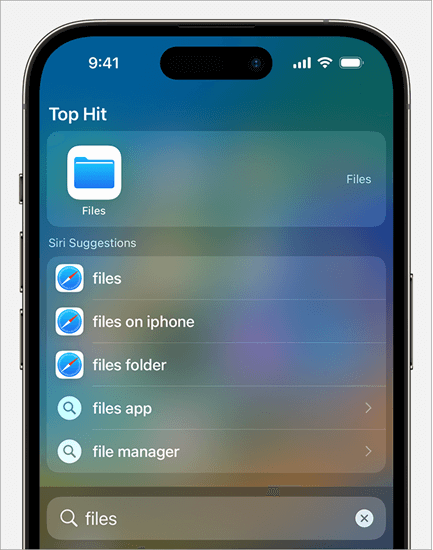
Spotlight search feature is the quickest way to find a downloaded file if you know it by name. It is activated by swiping down from the Home screen on the iPhone.
Quick Answer: Where to find downloads on your iPhone or iPad:
| What to find? | Where to find |
| How to find downloaded photos on iPhone | Use Files App -> Open Downloads folder Or Open a dedicated Music App using which you have downloaded the music like Apple Music/Spotify, etc. |
| How to find downloaded music on iPhone | Use Files App -> Open Downloads folder or open a dedicated Music App that you can use to download music like Apple Music/Spotify, etc. |
| How to find downloaded apps on iPhone | Swipe left on Home Screen -> App library -> Search the app |
| How to find hidden files | Files Apps -> Tap the more icon (Three dots) ->View Options -> Show all extensions. [Tap the Browse tab at the bottom of the screen] |
If you are interested in opening the exact iPhone Downloads folder or changing the default downloads folder, copying, or modifying the Downloads folder, use the following methods.
How to Access Downloads on iPhone Using Files App
[image source]
Most people use the Files browser app on their smartphones to access downloaded and other files. Here are the steps to find Downloads for queries relating to where downloads are on iPhone and where downloads go on iPad:
Step #1: Scroll to find the Files app on your iPhone home screen. If the app is not among those on the Home Screen, swipe from the center and search for the Files app.
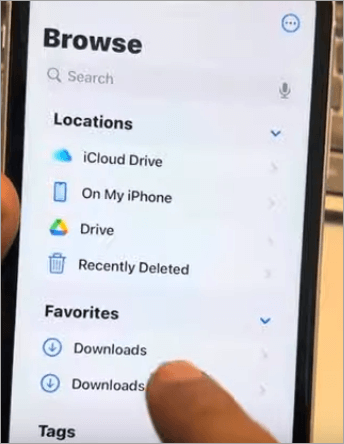
Step #2: Tap the Files app icon and navigate to Browse tab -> iCloud Drive, under which the default iPhone Downloads folder falls. Tap the folder to find all the downloaded files.
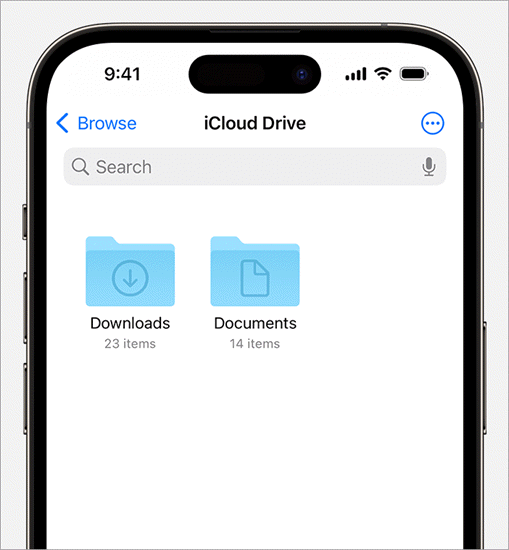
Depending on which OS version is in use, you might see the downloaded files grouped into other folders when you navigate to Files -> Browse -> On My iPhone, e.g. Firefox file for files that are downloaded from the Firefox browser. Open the desired category and tap the Downloads folder in it.
Further Reading => iPhone Desktop Mode: Complete Step-by-Step Guide
Here is the YouTube video on How to move iPhone storage to iCloud:
How to Find Downloads on iPhones Using Internet Browsers
All files downloaded through Internet browsers on mobile can be accessed quickly while the user is on the browser, without having to use the Files app. Different browsers have different criteria for finding these files as described below:
Quick Answer for “Where to find downloads on iPhone”:
| What to find | Where to find |
| Files downloaded on Safari | Page Settings -> Downloads Button |
| Files downloaded on Google Chrome | Tap “More Downloads” -> Tap the file to open OR Files App -> Browse -> On My iPhone -> Chrome Folder |
| Files downloaded on Firefox | Tap the Menu button at the bottom of the screen -> Downloads -> Open the required file |
Suggested Reading => How to uninstall Chromium Browser
Accessing Downloaded Files on the Safari Browser

Step #1: While on the Safari browser, and after you download the file, tap the Page Settings button.
Step #2: Tap the Downloads button to find downloads on your iPhone.
Step #3: Find and tap or double-tap the file of interest to open it. You can touch and hold to copy, share, or remove the download.
You can change the default downloads storage location on Safari on iPhone: Go to settings -> Select Apps -> Safari App -> Downloads -> choose available storage locations -> navigate to the exact sub folder in which you want the downloads to be saved. (E.g. of available storage locations: iCloud Drive, local storage (On My iPhone), and connected third-party storage locations, etc.)
Where are My Downloads on my iPhone on Chrome Browser
When a file is downloaded on the Chrome browser and after it is downloaded, you can see it (as well as the download process) in a horizontal bar at the bottom of the Chrome window.
For those with queries relating to where are my downloads on my iPhone, as long as you have not changed the default Downloads folder on Chrome, all the files downloaded via the browser can be accessed as follows:
Step #1: While on Chrome, tap More Downloads.
Step #2: Tap the file of interest to open it. Touch and hold to copy, share, or remove the file.
Alternatively, after downloading, the process will show at the bottom of the screen as the file is downloading. Once done, tap Open in to open the Downloads folder which contains the downloaded file.
Alternatively, use the Files app -> Browse -> On My iPhone and open the Chrome folder which contains files downloaded through the Chrome browser.
To change the default Downloads folder:
Tap the three vertical menu dots on the top right of the screen -> Settings on the browser -> Select Downloads -> Tap Change button -> Choose your new location -> Close the Settings tab.
Once the default Downloads folder is changed, you will need to identify this folder when using the Files app to open the downloaded files. Open the Files app then tap Browse and navigate to the folder selected as the defaults downloads location.
Expert Tip: To save a file directly on a new folder or in the cloud when downloading it, long tap on the media you want to download on the web browser. Select Open Media in the new tab.
Tap the “Open in” option that appears at the bottom of the new tab. This will open the Sharing menu. Select “On my iPhone” or any built-in cloud storage and tap “Save.” This method can be used to save a file on a different folder every time you download it since the iPhone won’t remember the location where the previous download was saved using this method.
Thus if you want to save all the downloaded files in one folder without having to change every time you do a download, simply change the default folder as described in the process for changing the default Downloads folder.
Here is the video on how to use iCloud:
Recommended reading => Top 10 Browsers for PC
Find Downloads on iPhone on Firefox
Step #1: Tap the menu button at the bottom of the screen. Tap Downloads to open the list of files previously or being downloaded.
Step #2: Tap on a file to open. Tap and hold on to one or multiple files to copy, share, or delete the file.
Note: It is not possible to change the default Downloads folder on Firefox on iOS devices, but it is possible to save each downloaded file separately on a different directory on your device or connected cloud services.
The latter is achieved using the Save As option on the Firefox browser which can be set to appear as a pop-up every time you attempt to download a file on Mozilla browser. The good thing is that Firefox will remember the previous save location and thus this can act as your setting of the default Downloads location.
To make Save As appear each time, go to the Settings menu on your Firefox app on iPhone then General>Downloads and tap it, select the option to “Always ask you where to save files.”
When you tap a file to download, the option will pop up, and on tapping Save As it will show you file locations available including SD memory, iCloud, and connected third-party cloud services in addition to local phone memory. Choose a folder in which to save the file being downloaded.
Remember you can access the chosen download locations using the Files app>Browse option.
Where to Find Hidden Files on iPhone or iPad
You do not need a third-party app to hide files on iPhone or iPad. To unhide files, follow the below steps.
Step #1: Open the Files app.
Step #2: Tap the More Icon, or the three dots in a circle at the top-right corner of your screen. Tap View Options. Tap Show All Extensions. Tap the Browse tab at the bottom of the screen if you are not already there. You can now see all the files including the hidden ones.
Additionally, photos and videos default Apple apps as well as other third-party apps can hide files for security purposes. To find hidden files on any app, here are the steps:
Step #1: Open the app, e.g. the Files app, to display the folders if any.
Step #2: Tap and hold the folder that has hidden files, and select Compress from the action menu that shows.
Step #3: Send the resulting zip file to your Mac, e.g. via AirDrop.
Step #4: Unarchive the zip file on the Mac.
Step #5: Press Shift+cmd+, in the Finder to show hidden files.
Also Read =>> Recover Deleted Files After Windows 11 Update
How to Find Downloaded Apps on iPhone & iPad
If the interest is to download apps for installing on iPhone and iPad, the recommended process of downloading is to use the iPhone Apple Appstore. Simply open the app store and search for your app to download it. Once that has been achieved, the apps are located in the App Library.
Once you access the App Library, the apps you use are at the top of the screen and the top level of their categories. Apps are organized into categories and can be searched from the categories.
Step #1: Go to the Home Screen. Swipe left past the Home Screen pages to see the App Library.
Step #2: Tap the search field at the top, and enter the name of the app in which you are interested. Alternatively, scroll up and down to browse all the applications which are organized in alphabetical lists.
Step #3: Tap the app to open it.
Hiding some Home Screen pages brings the App Library closer to the first Home Screen page.
To show hidden pages, go to the Home Screen, touch and hold the Home Screen wallpaper until app icons begin to jiggle. Tap the dots at the bottom of the screen and the thumbnail images of the Home Screen pages will appear with checkmarks below them.
Tap to remove the checkmarks to hide pages. To show the hidden pages, tap to add the check marks. Tap Done on an iPhone with Face ID or press the Home button on the other iPhone models.
Saving & Accessing Files on Third-Party Cloud Services
Where do I find Downloads on my iPhone using Third-Party Cloud Apps
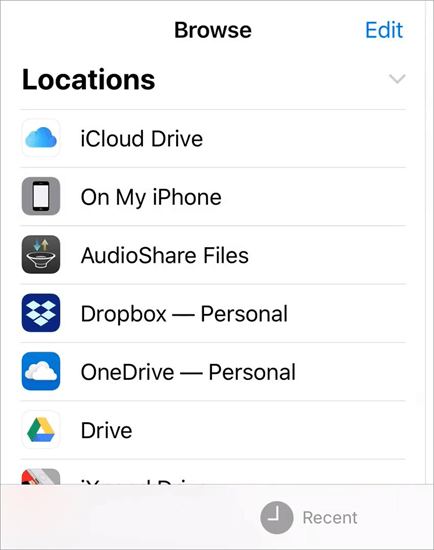
The default and built-in cloud storage location on iPhone is iCloud. Using iCloud means you can access the files saved on your iPhone with and on other devices e.g. Mac and desktops (using iCloud for Windows for Windows computers) as well as through the web at iCloud.com.
This is possible if you set up the iCloud drive on your iPhone to sync on other devices. On your iPhone, go to Settings, tap your name, tap iCloud, tap Drive, and then turn on Sync this iPhone.
iPhone users can add third-party cloud services like Box, Dropbox, OneDrive, Adobe Creative Cloud, and Google Drive. To do so, you must download each or any of these on your iPhone create an account with the services, and/or set them up for usage as storage drives on your account.
Once this is done, open the Files app on your iPhone, tap the Browse tab, tap the More button represented by three dots in a circle, and tap on the Edit button.
The next thing is turning on the third-party app services that appear under the Edit menu. Toggle on the button against each to turn it on and tap Done. Check with your cloud services provider if the service does not appear under this menu.
Once a third-party cloud service is turned on, you can directly save and browse files in them through the Files app and tapping on the Browse option. All the synced storage including third-party cloud services and SD card storage will appear under this menu.
As previously described, you can directly save a file being downloaded from the browser to any of these cloud apps the long-tapping the file you want to download on the website, then selecting Open media in the new tab, then choosing the ‘Open in’ option at the bottom of the new tab which opens the Sharing menu, then choosing the cloud service that has been synced.
You can also create a new downloads folder or set a new default downloads folder in any of the added third-party cloud services. On Chrome for instance, tap the three vertical menu dots on the top right of the screen which opens the Settings menu, select Downloads, then tap the Change button and choose the new location on the desired cloud service by navigating to the appropriate cloud folder.
Also Read =>> Best Managed Cloud Service Provider For Your Business
FAQs on Where do Downloads go on iPhone
1. Where is the iPhone’s default download location?
Unless changed, the default Download location on iPhone is under Files>Browse>iCloud Drive. Open the Files app from the iPhone’s Home Screen, tap Browse, then iCloud Drive, and find the Downloads folder.
2. Where do Downloads on iPhone get stored?
The default location for saving downloaded files on iPhone is the Downloads folder under the Files -> Browse -> iCloud option. Otherwise, you can change the default downloads folder.
If it has been changed and you do not know the new location, you can change it on Chrome by tapping the three vertical dots on the top right corner of the browser to open the Settings menu, then select Downloads tap Change, and choose your new downloads storage location.
On Mozilla, you can use the Save As option (to set it to show whenever you download a file go to Settings on the browser -> General -> Downloads and tap it, then select the option to “Always ask you where to save files”) to save each newly downloaded file on same or different folders.
3. How to access local files on your iPhone?
To use the Files app, search for the Files app on the Home Screen on your iPhone, then tap Browse at the bottom of the screen. From here, you can see recently opened files by tapping the Recents option at the bottom of the screen, or open the available file locations including iCloud and other third-party cloud locations synced to the device.
4. Where do I find hidden Downloads on my iPhone?
If an app for instance Files is hidden, you can unhide it by opening the App Store app. Tap the My Account button or your photo, or your initials at the top of the screen, tap your name or Apple Account, then scroll down and tap Hidden Purchases and find the app that you want. Tap Unhide.
If the Files app is uninstalled or deleted, reinstall it from the App Store. Open the App Store app search for Files and install it.
If the Files app is not uninstalled or hidden, try navigating to Files>Browse> iCloud Drive (under which the default Downloads folder falls) and unhiding hidden files on the iPhone.
If the default Downloads folder is changed to local drive go to Files>Browse>On My Device and search for the downloads folder being used. From here unhide files. Navigate to Files>Browse>then choose synched cloud storage locations if that’s where the default download folder has been changed to reside and unhide any hidden files.
Use the Spotlight feature on your phone to search for the downloaded file or folder by name. Swipe down from the Home screen to activate the Spotlight search feature and type what to search.
Sometimes the files and folders downloaded appear hidden because you changed the default downloads storage folder from your browser. Try visiting the browser page where you downloaded it again. From the Safari browser, access the
Settings app on your iPhone Home Screen then tap on Apps -> Safari then tap Downloads and choose the new storage location.
After this, try re-downloading your files to the new location, and accessing them using the Files app (then tap the Browse option at the bottom of the screen and navigate to the exact storage location).
5. Why can’t I see my Downloads on my iPhone?
The default Download location is under Files app -> Browse -> iCloud Drive -> Downloads. Sometimes you might have some download category names under iCloud in which the Downloads folder is found, for instance Firefox folder which contains the files downloaded through the Firefox browser.
The Downloads folder or File app may be hidden or deleted. If so, try changing the default downloads folder from the iPhone browser then re-download the files. To change the default downloads folder on the Safari browser, navigate to the Settings app on your iPhone Home Screen then tap on Apps -> Safari tap Downloads, and change the storage location.
On Chrome, go to Settings (by tapping the three dots at the top right of the screen) -> Downloads and then tap Change to change the default storage location for your downloads.
Conclusion
This tutorial solved issues related to how to find downloaded files on iPhone and there are multiple ways of doing it. The default location where files are saved when downloaded on iPhone is the Downloads folder under Files -> Browse -> iCloud.
If the folder is not visible, then it could be deleted or moved. In searching a case, try using the Spotlight feature to search for the file by name just in case you are trying to locate the file you just downloaded. If you want, you can change the default downloads folder using the browser settings.
Time spent: 2 hours
Was this helpful?
Recommended Reading
-

Explore the top and best iPhone Chargers with pricing, technical specifications, and comparisons to select the fastest iPhone charger as per your needs: The compatible iPhone Charger that you are using might just not be good enough. It's time to pick out an iPhone charger that does the job faster…
-

Easily mirror your screen to a TV or any smart device with these top Mirroring Apps. Pick the best Screen Mirroring apps of your choice to enable fast, and seamless mirroring with great quality: Screen Mirroring is a modern-day technique that allows you to easily and quickly share a screen…
-
Here we will explore multiple ways to understand how to Share Your Location on iPhone with others: Sharing live locations is a useful thing today. It is especially useful when you don’t know the exact address and you would like to tell someone where you are. Be it an Android…
-
This tutorial explains why do we need to clear browser cache and different methods to Clear Cache in browsers like Chrome, Firefox, etc.: A few decades back no one would have ever imagined that a connection of numerous computers can lead to an evolution of the world's largest network, which…
-
This tutorial compares the top 10 Browsers for PC. You can select the fastest and best web browser most suitable for you: The word ‘browse’ can be used in many contexts and can have different meanings in different scenarios. For instance, ‘to browse’ means to scan, skim, or read and…
-
Cloudification and digital transformation have disrupted traditional network security products. Thanks to the cloud and the web, users can communicate globally, access SaaS applications all over the world, and access knowledge resources that can help them with their core business efforts. A wide range of new capabilities is now available…
-
This tutorial is a complete step-by-step guide that explains the top 3 useful methods to find ways on how to Unlock a Disabled iPhone: Security is the best part of having an iPhone. No one can unlock your phone and access your data unless they know the password. As much…
-
Here you will find the top effective step-by-step methods with screenshots to remove malware from the iPhone: This article tells you about the methods that can help you remove malware from the iPhone, the precautionary measures that you should adopt to avoid any threat to your device, and ways to…
-

Explore this quick guide to know how to set timer on iPhone camera and take stunning photos easily. Customize the duration and receive alerts with the clock app's timer function in easy steps: All iPhone cameras have a timer feature that makes it easier to take photos without leaving yourself…