Do you wish to take a break from Instagram notifications? Get to know what is Quiet Mode on Instagram along with its functionalities and see how to turn it on or turn it off:
Checking out alerts on your phone to see who liked or shared your posts on Instagram can be tempting. However, getting constantly distracted by these notifications can become a serious problem.
You don’t want the alerts on your phone to annoy you while at work or in an important meeting. You also don’t want these notifications to ruin the quality of time spent with your friends and family.
Table of Contents:
How to Pause Notifications on Instagram: Quick Guide
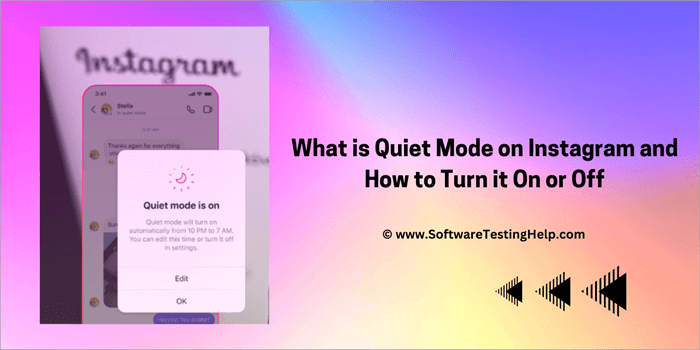
Fortunately, Instagram also understands that constant app alerts can be rather annoying. Over the years, they’ve introduced various features to help users limit their interactions on the app. Quiet Mode is simply the latest in a barrage of new features you can now use to get some break from Instagram notifications.
In this article, I’ll explain what Quiet Mode is, what it does, and how you can use it to get a break from those pesky Instagram notifications.
What is Quiet Mode on Instagram
[image source]
Launched in 2023, Quiet Mode is a new feature on Instagram that allows its users to temporarily pause all notifications from the app. Users can access this feature via their profile settings. Once Quiet Mode is activated, you’ll stop receiving any form of notifications during the specified time at which the mode is on.
Instagram initially launched Quiet Mode for only 7 countries. This included Australia, the US, the UK, Canada, Ireland, Australia, and New Zealand. Thanks to its popularity among users, however, Instagram decided to expand the feature’s roll-out to include even more countries. Today, users can access the feature in almost every country worldwide.
Must Read => Know the Perfect Instagram Story Sizes
What Does Quiet Mode Mean on Instagram
As I mentioned before, Quiet Mode lets you temporarily pause all notifications for a specified period. Let’s say you’ve scheduled Quiet Mode to start from 12 AM until 10 AM every day, and the app will automatically pause all notifications to you during this time frame. You’ll receive an alert 10 minutes before Quiet Mode is triggered at its scheduled time every day.
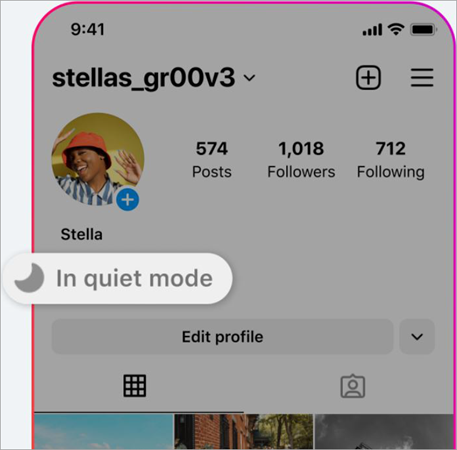
Once this Quiet Mode schedule ends, you’ll receive a summary of all the notifications you received during this down-period. When Quiet Mode is on, the status dot, which is usually green, will take the shape of a moon.
Further Reading => Quickly Turn Off Vanish Mode on Instagram
Besides the notifications pause, the people who DM you will receive an automatic message informing them of your inactivity on the app until the Quiet Mode period ends.
Now that you know what Quiet Mode is and how it works, let’s find out how to activate it on your Instagram.
Turn on Quiet Mode on Instagram on iOS & Android Devices
Activating Quiet Mode is very simple. The process will be the same for iOS, Android, and desktop devices. All you have to follow is the below guide step-by-step:
#1) Open your Instagram.
#2) Tap on your profile picture icon, which you’ll find at the bottom right corner of your screen.
#3) Now tap on the three lines you’ll find at the top right corner of your screen.
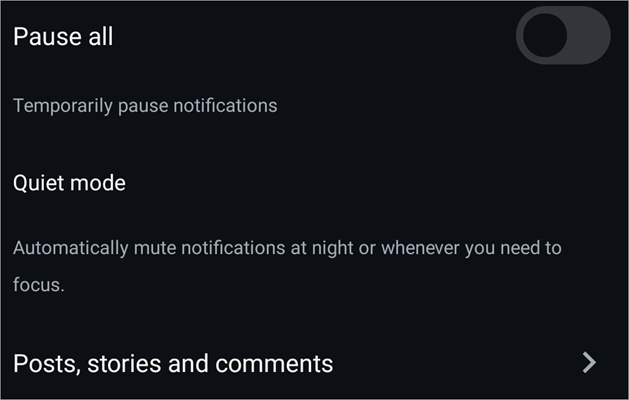
#4) This will open the Settings page. Navigate to “Notifications” -> “Quiet Mode”.
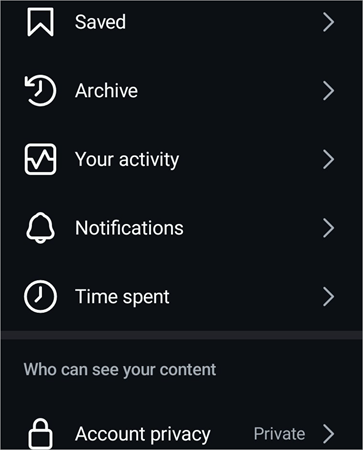
#5) Tap on the toggle to activate Quiet Mode.
#6) Set the start and end times and choose the days.

#7) Quiet Mode will now be activated at your chosen time.
If you simply switch the toggle on and do nothing else, Quiet Mode will be on every day from 11 PM to 7 AM by default. You now know how to turn on Quiet Mode on iPhone and Android.
How to Turn Off Quiet Mode
Deactivating Quiet Mode is just as simple as activating it. Follow the steps I’ve shared above until you reach the Quiet Mode section. Once you are there, simply switch the toggle off.
Although you have the option to enable or disable Quiet Mode at your convenience, remember that it has a time limit of 12 hours per day.
Further Reading => How to Mute or Unmute People on Instagram
How to Send Quiet Messages
What if you want to send someone a message on Instagram but don’t wish to disturb them? Instagram has now got you covered with its new feature, which lets you send “Quiet Messages”.
This feature lets you send a message without alerting the recipient with a notification. Here’s how you send someone a Quiet Message on Instagram:
- Open your Instagram and navigate to your Direct Messages.
- Open the chat window of the username you wish to message.
- When you type, start with /silent, space, and then the rest of your message. This should result in a prompt popping up above your message, which says “Send Message without a Notification”.
- Type the message and hit the send button.
The person you sent the message to won’t receive a notification for it. I suggest using this feature if you wish to send a quick message to someone in the middle of the night or when you know the recipient might be busy.
Also, please note that this is a relatively new feature. If typing /silent before your message doesn’t result in a prompt that says “Send Message without a Notification”, this feature isn’t available in your region yet.
Why Activate Quiet Mode
Why would anyone want to pause their Instagram notifications temporarily? The answer to this question is quite simple for some and complicated for others. Some people just want a break from social media and online spaces.
Being constantly alerted of the engagement you are receiving on Instagram could prevent you from concentrating on your studies or work.
It is estimated that an average Instagram user spends over 29 minutes on the app every day. Some people go beyond 29 minutes in a daze, scrolling through the app. This can be a sign of major concern. Prolonged time on social media can harm one’s productivity, performance, and personal life.
Quiet Mode on Instagram represents an ideal way to disconnect from the popular app for a short time. You’ll still be able to use the app in the traditional sense while Quiet Mode is on. However, you’ll find some relief from all the alerts you would have otherwise received, sometimes at the wrong time.
Suggested Reading =>> Best Free Instagram Scheduler To Schedule Instagram Posts
Pause Instagram Notifications Without Using Quiet Mode
Although effective and quite efficient, Quiet Mode isn’t the only way to stop notifications on your Instagram.
Here are other methods you can employ to do the same:
#1) Adjusting Instagram’s Notification Settings
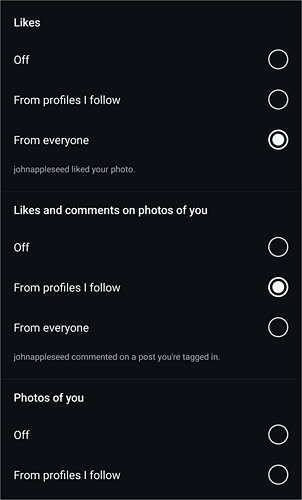
Quiet Mode is a part of Instagram’s extensive notification settings option. Instagram allows its users to be as flexible as possible to pause notifications. For instance, you can go to the settings and simply choose to pause all notifications for 1-8 hours with a single tap. You also have the option to pause alerts individually on likes, shares, comments, follower requests, messages, etc.
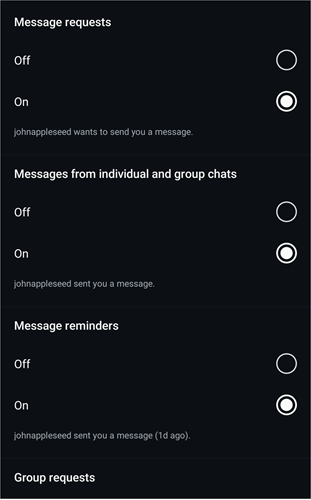
For instance, you can choose to only pause notifications for likes while receiving alerts for direct messages as usual. This proves to be a great alternative for Quiet Mode on Instagram, especially if you wish to pause specific alerts only.
#2) Turning the Notifications off on Your Device.
What can you do if you want to permanently stop all notifications from Instagram? This is something you can do manually via your phone’s settings. Here’s how you do it:
1. On your phone, navigate to the settings.
2. Select “Notifications” and navigate to the app list.

3. From the app list, find Instagram and tap on the toggle right beside it to switch the notifications off.
You will stop receiving all alerts from Instagram without exception unless you switch the notification on again.
Further Reading => Most Popular Private Instagram Viewer to Look for
Frequently Asked Questions
1. Who is Quiet Mode for?
Quiet Mode is for anyone tired of receiving alerts constantly on their Instagram. Quiet Mode is a godsend for bigger Instagram pages with many followers. These pages naturally yield more engagement as likes, shares, comments, and messages than smaller accounts.
By switching on Quiet Mode, these pages can temporarily pause all notifications borne out of this engagement for a specified period. Quiet Mode on Instagram is an ideal feature for professionals, students, and influencers on the platform who want a temporary break from the app.
2. What happens if Quiet Mode is turned on?
Two things happen when Quiet Mode is turned on. First, you’ll stop receiving any alerts from the app during the time this feature is activated. Second, anyone who directly messages you will receive a notification informing them you won’t see their messages until the Quiet Mode period ends.
3. How do I get my Instagram off Quiet Mode?
If you haven’t received notifications for a while, then chances are your app is on Quiet Mode. You’ll need to open your Instagram settings, navigate to “Notifications” and select “Quiet Mode”. You’ll need to switch the toggle against “Quiet Mode” off to deactivate it.
4. For how long can Quiet Mode be turned on?
You can turn on Quiet Mode for as long as 12 hours each day. You’ll be notified ten minutes before Quiet Mode is about to begin. If you choose to only Switch Quiet Mode on and do nothing else, then Quiet Mode will remain in effect by default from 11 PM until 7 AM.
5. Can people see when you are in Quiet Mode?
Yes, people will know you are in Quiet Mode as the green dot that usually indicates that you are active on Instagram will take the form of a moon icon. The status will also change to “In Quiet Mode”.
Besides this, anyone who directly messages you will also receive a notification that your profile is in Quiet Mode and their messages will only reach you once this period ends.
Also Read =>> Free Instagram Scheduler To Schedule Instagram Post
Conclusion
Whether you are small or huge on Instagram, I believe Quiet Mode is a feature that almost everyone will find beneficial. It is a tool that lets you take some much-needed break from the app by temporarily pausing, all notifications pouring out of it. The feature is very easy to set up and activate with a few simple steps, as depicted in the article above.
If you feel like Instagram is distracting you from your work or other matters, use this feature. I use it at night to get some sleep without any disturbance. You could have other reasons. Maybe it is work, studies, or you wish to spend some quality time with friends and family. Whatever the reason, simply activate Quiet Mode to pause those alerts and take a breather from interactions online.
Was this helpful?
Recommended Reading
-

Be it Reels, Videos, Instagram Stories, or If You Want to Go Live, here you will get to know about the Best Time to Post on Instagram for More Likes: It's no secret that you need to create and populate your Instagram feed with intriguing content to gain more followers…
-
Having problems in fetching Instagram Photos from your PC or phone? Read this review to compare and select the best Instagram Photo Downloader Apps: Instagram will not allow you to directly save a Photo to your phone. To get this, you will require a decent Instagram Photo Downloader that can…
-

Express the words in your heart with these Top captions for instagram for girls. Enhance and complement your photos with these unique Instagram Captions for Girls to reflect yourself perfectly: As far as social media is concerned, I doubt anyone would argue when I say that Instagram has never been…
-
List of the Best Free Instagram Scheduler To Schedule Instagram Posts And Hashtag Suggestions: What is Instagram Scheduler? The Instagram Scheduler is an application that will allow you to schedule the posts and will automatically post the content. It will provide hashtag suggestions and analytics. These tools are used as an…
-
Review of the best Private Instagram Viewer to View Account and profiles. A private Instagram account viewer tool will allow you to view private profiles on Instagram easily. The Instagram private profile viewer will be invaluable to parents as they make sure their children don’t indulge in dangerous activities to…
-
Are you looking for any compelling caption descriptions that can go along with your post? Here you will find 300+ BEST Instagram Captions to draw attention to: They say a picture is worth a thousand words and I couldn’t agree more. This is perhaps why Instagram has emerged as one…
-
Review and comparison of the the top Instagram Story Viewers with features and pricing to help you select the best Instagram Viewer: Launched exactly a decade ago, Instagram quickly became a new favorite online hangout spot for people across the globe. The online photo and video sharing platform has only…
-
Here is a list of the top Instagram to MP4 HD Video Downloader with comparison. Learn how to convert an Instagram video to MP4 Downloader from this exclusive review: Instagram does not allow you to download a video directly to your device. Instead, you can take the help of an…