Reduce eye strain and save phone battery with Snapchat dark mode. Get educated on how to Turn ON Snapchat dark mode instantly to extend battery life and protect your eyes:
In my humble opinion, I believe Snapchat is one of the most addictive social media platforms out there. It is said that a person spends at least 30 minutes per day on this app. While 30 minutes may seem like a short time, it is still enough time to strain one’s eyes.
Spend over 30 minutes, and you are bound to face other very distressing symptoms that include blurry vision, migraines, and dizziness.
While managing one’s screen time is always wise, taking certain precautionary measures is also important when you are glued to a mobile or computer screen for hours on end.
Table of Contents:
Steps to Change Snapchat to Dark Mode
So I believe Snapchat did a favor for us all when they introduced the “Dark Mode” for its app back in 2021. The last thing you want to do is get blinded by your phone when using Snapchat, and this feature will ensure that never happens.
That said, most people don’t even know that this feature exists on Snapchat, let alone how they can activate it.

[via Buffer]
With this little guide, I would like to shed some light on this feature and also explain how you can activate or turn on Snapchat dark mode with ease.
So, without much further ado, let’s dive in.
Also Read => How To Get Snapchat On Windows
What is Dark Mode: How to Turn ON Snapchat Dark Mode
Dark Mode is a setting that can be found on almost all modern smartphones, computers, and applications today. The default screen on any smartphone or app is usually black text on a lighter background. Dark mode reverses this, as you’ll see lighter text on a darker background.
[via Safe Connect]
Suggested Read => Steps to Enable Chrome Dark Mode
Enabling this feature will result in your screen’s background switching to a darker color. Most applications and devices offer you the option of either having dark mode enabled permanently or scheduling it to be active at a specified time of the day.
Here is a video for your reference:
Dark mode is a setting recommended by most health experts as they believe it can reduce the strain on one’s eyes. By darkening the screen, dark mode also reduces its brightness, thus making the visuals more comforting to the eyes.
Experts also recommend activating dark mode in the evenings or at night, as it might reverse the negative effects of prolonged screen time on your sleep.
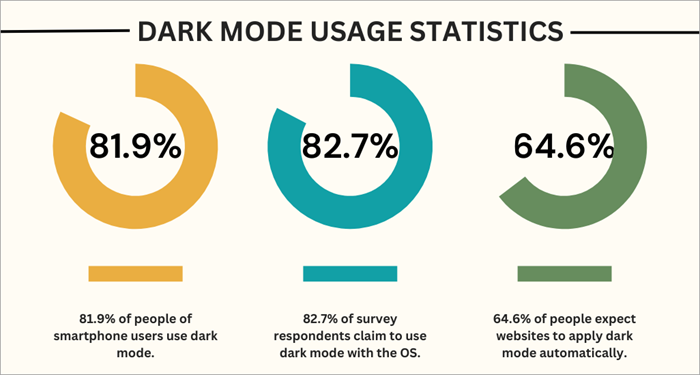
In a study mentioned by the website Hidden Brains, it was found that nearly 81.9% of smartphone users today prefer dark mode. The same study also claims that 64.6% of people expect a website they are using to automatically apply dark mode.
[via Hidden Brains]
These numbers prove beyond a doubt that dark mode is not just a fad but a trend in UI that will continue to grow in popularity in the coming years.
Light Mode Vs. Dark Mode
Now that you know what dark mode is, let’s find out how to change Snapchat to dark mode.
Further Reading => Does Your Snap Score Increase with Chats – Know More
How to Turn On Dark Mode on Snapchat
Activating dark mode on Snapchat is going to be the easiest thing you do today. Depending on the device you are using the app on, simply follow the guide below:
#1) Activating Snapchat Dark Mode (Android and iOS)
1. Open the Snapchat app on your phone.
2. Tap on your Bitmoji icon, which will be at the top left of your screen.
3. Now tap on the Settings cog, which is on the top right.
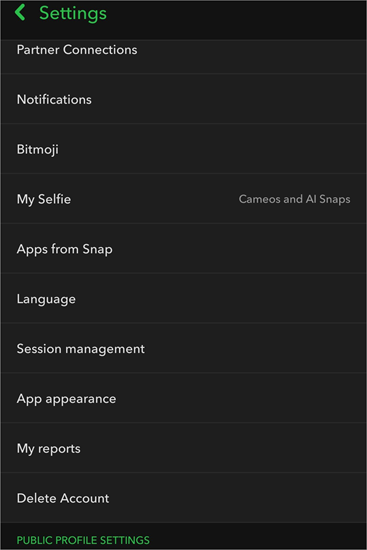
4. Scroll down the menu and tap on “App Appearance.”

5. Select Dark Mode.
Choose “Always Dark” from the given options.
As the app is the same on both Android and iOS, the process of activation will also be the same. Just make sure your app is updated to avoid any issues.
#2) Activating/ Turn ON Snapchat Dark Mode (Web)
- Open Snapchat on your system’s browser
- Log in to your Snapchat account.
- Click on the Bitmoji icon in the top left.
- Select Theme
- Select “Always Dark” from the drop-down menu.
You should now notice your Snapchat’s interface go dark.
How to Turn Off Snapchat Dark Mode
If you know how to turn on Snapchat dark mode, then turning it off is simple. Follow the guide below:
- Open your Snapchat app
- Tap on your Bitmoji icon.
- Select the Settings cog.
- Scroll down and click on “App Appearance”.
- Here, choose “Always Light” instead.
Your phone will go back to a lighter interface.
Suggested Reading => Top App to Hack into Someone’s Snapchat
Why Should You Use Snapchat Dark Mode
As someone who spends a major chunk of his day glued to the screen, I see this feature as nothing short of a lifesaver. Its benefits, especially in reducing eye strain, are very well documented. However, that is not all you can accomplish with this feature activated on your phone.
Dark mode is also said to be immensely beneficial for your phone’s battery life. Activating dark mode reduces the brightness and glare emitted by a phone. This results in low battery consumption. Using Snapchat on dark mode consistently could improve your device’s battery life.
Dark mode also makes the digital screen far more comfortable. It is a recommended setting for the visually impaired. Dark mode is also a setting you should use in lower-light environments. It reduces the blue light emitted from your screen, thereby improving the quality of your sleep.
Limitations of Dark Mode
Although health experts seem to agree on the benefits of dark mode, the study of its effects on eye health is rather inconclusive. There are reports out there suggesting that dark mode may cause more eye strain. Take those reports with a grain of salt.
Dark mode will have no impact on the battery life of your device if you are using an older smartphone model. Finally, how people feel about dark mode ultimately comes down to each person’s subjective experience.
While some users find dark mode comforting, others find this mode less user-friendly. I suggest activating the mode and finding out for yourself.
Further Reading => How to Deactivate Snapchat – Simple Steps
FAQs on How to Make Snapchat Dark Mode
1. When did Snapchat introduce dark mode?
Snapchat introduced dark mode first in 2021. It was first made available to iOS users in 2021 and later introduced to Android users in 2023.
This feature was initially hidden behind a paywall for Android users. It became free for Android users only after August 2023.
2. How do you get dark mode on Snapchat 2026?
Getting dark mode on Snapchat in 2026 is fairly simple. All you have to do is:
1. Open the Snapchat app on your phone
2. Tap on your Bitmoji icon, which will be at the top left of your screen.
3. Now tap on the Settings cog, which is on the top right.
4. Scroll down the menu and tap on “App Appearance.”
5. Select Dark Mode.
6. From the presented options, select “Always Dark”.
3. Does dark mode in Snapchat preserve battery life?
Yes, dark mode in Snapchat can help in preserving your device’s battery life. This is especially true for screens with AMOLED and OLED screens. Dark mode reduces brightness, thus resulting in less power consumption. This results in preserved battery life.
4. Why should I turn on Snapchat dark mode if my phone is already in dark mode?
Snapchat’s interface design differs from your phone’s interface design. By switching on Snapchat’s dark mode, you get to experience the app with the intended design, albeit with a darker background.
Further Reading => Change Background Color on Google Docs
5. When is the perfect time to turn dark mode on?
You can have dark mode switched on all the time, and it will prove beneficial to your phone’s battery life and your eyesight. That said, the best time to turn dark mode on would be at night, close to your sleeping time.
This is recommended if you are someone who likes to be on their smartphone while in bed before going to sleep.
Conclusion
As an avid Snapchat user, my app is always in dark mode, and I enjoy having the app in that mode always. It has drastically improved my phone’s battery life, and I also find it visually comforting. I would recommend you Turn ON Snapchat dark mode, especially if you are spending hours glued to the app.
Further Reading => How to Unpin Someone on Snapchat
We learned the step-by-step process on how to make Snapchat dark mode. Whether you are using an Android device or an iOS smartphone, switching dark mode on is simple. Just a few simple steps, as dictated above, and your Snapchat’s appearance will darken.
I also understand that dark mode might not be everybody’s cup of tea. Still, it won’t hurt to try. Try enabling Snapchat’s dark mode and use the app in that darkened aesthetic for a minute or two. You can switch back to the light mode instantly if the visuals aren’t to your liking.
Was this helpful?
Recommended Reading
-

This tutorial will quickly educate you on how to deactivate Snapchat and delete your account across various platforms and devices with step-by-step screenshots of Snapchat deactivation: Snapchat has been a very popular social media app since its launch in 2011. For over a decade, there has been a sanctum of…
-
Through this tutorial, get to know the best possible ways to address your query: How to Get Snapchat on Windows 10: Three former students developed Snapchat, a communication app at Stanford University. It is only used on mobile devices. But can you get Snapchat on a computer? Yes, there are…
-
Read this review to compare and select the top app to hack into someone’s Snapchat step by step. Snapchat is one of the most popular apps, letting users share photos and videos that disappear shortly after posting. Snapchat is extremely popular among kids, and they spend significant time on the…
-
Create your own Disney world with Snapchat's Cartoon filters. Explore the simple and fun-filled ways to send a snap with the cartoon face lens in Snapchat using your iPhone and Android from this guide: I would argue that no other social media platform today embodies the idea of pure fun…