Looking for ways to unpin a chat on Snapchat? Learn how to unpin someone on Snapchat, along with expert tips from this easy guide, and manage your Snapchat chats efficiently:
When someone “pins” a chat on Snapchat, it is done to have it appear at the very top of your chat screen. I do this sometimes, as it’s a quick way for me to jump back into an ongoing conversation with a good friend on the platform.
That said, you may not want the same chat to always appear at the top of your screen. An easy fix to this minor issue is to “unpin” that chat. If you don’t know how to do this, I’ve got you covered.
Table of Contents:
- Unpin Someone on Snapchat: Quick Steps to Know
- What Does a “Pin” Mean on Snapchat?
- Pinning Someone on Snapchat – Step-by-Step Guide
- How to Pin Someone as Your #1 BFF
- Things to Know When You Pin Someone on Snapchat
- How to Unpin Someone on Snapchat With New Update
- How to Unpin a Group Chat
- How to Unpin My AI on Snapchat
- What Happens When Someone is Unpinned on Snapchat
- Snapchat Unpin Not Working: Troubleshooting Tips to Follow
- Frequently Asked Questions
- Conclusion
Unpin Someone on Snapchat: Quick Steps to Know

Consider this article your comprehensive guide on how to unpin someone on Snapchat. So, without much further ado, let’s dive in.
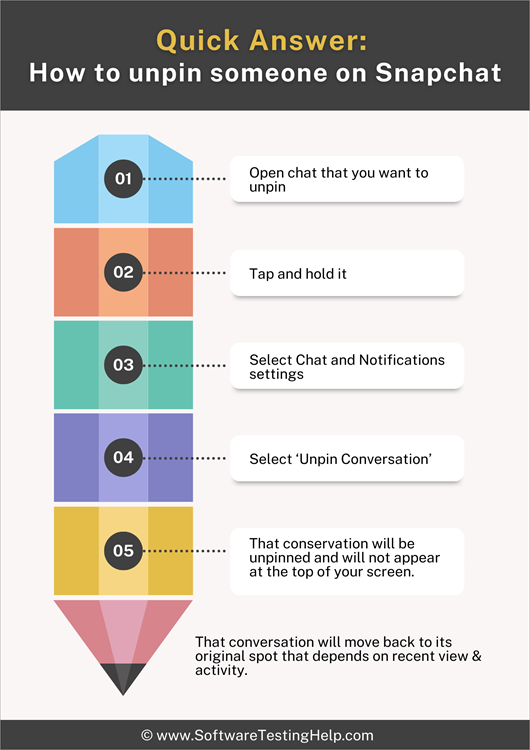
Quick answer to How to unpin someone on Snapchat:
What Does a “Pin” Mean on Snapchat?
Pinning isn’t a feature that’s exclusive to Snapchat. If you are using other platforms like X (formerly Twitter), then you know exactly what its purpose is. Simply put, pinning someone or something on Snapchat will automatically push it to the top of your feed and keep it there until you unpin it.

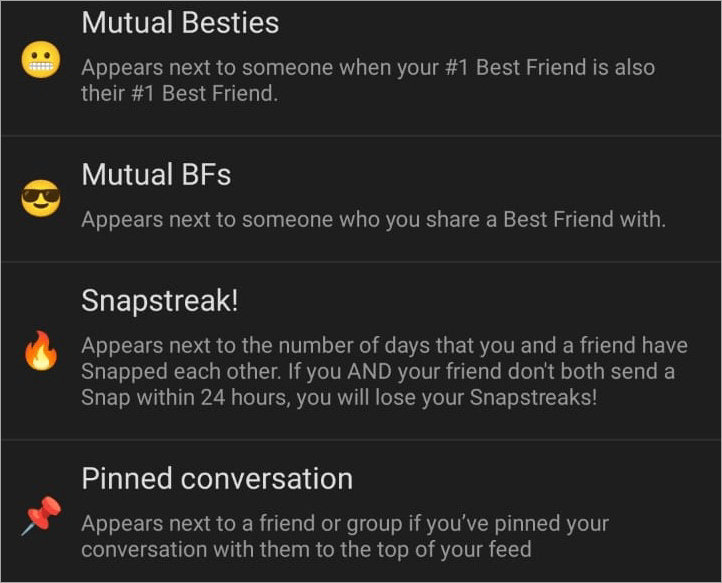
On Snapchat, it is a simple function that offers you easy access to a conversation or chat with a friend on the platform. You’ll know someone’s chat is pinned as a red “pin” symbol 📌will appear beside their username on your feed.
Now that you know what a “Pin” is supposed to do on Snapchat. Let’s understand how to pin someone on Snapchat.
Pinning Someone on Snapchat – Step-by-Step Guide
Pinning someone or their conversation on Snapchat is perhaps the easiest thing you’ll do today. Here’s how you get it done:
1. Launch Snapchat on your phone and swipe right on the camera screen to open Chat.
2. Find the friend or group profile you wish to pin. Tap and hold it.
3. Now, tap on “Chat and Notification Settings” as shown below.
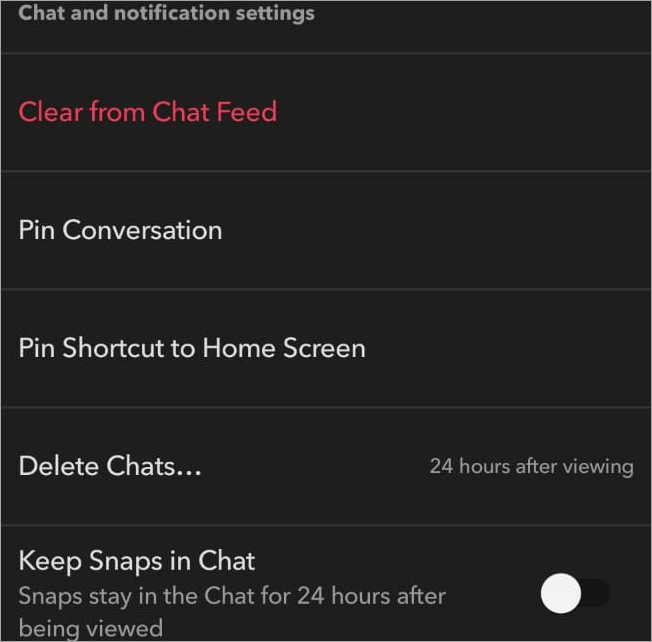
4. Tap “Pin Conversation”.
A red pin 📌will appear beside the user name’s chat that you just pinned. It will now appear at the top of your Chat all the time, unless you decide to unpin.
How to Pin Someone as Your #1 BFF
If you are subscribed to Snapchat Plus, you’ll have the privilege of pinning one person in your chat as your #1 BFF. The process itself will remain the same with one change.
1. Launch Snapchat on your phone and swipe right on the camera screen to open Chat.
2. Find the friend’s chat you wish to pin. Tap and hold it.
3. Now, tap on “Chat and Notification Settings”.
4. Tap “Pin as Your #1 BFF” as in the image below.
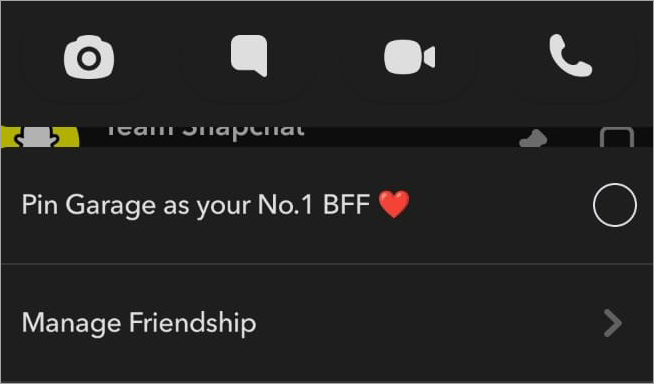
A check mark will appear next to the option confirming the pin.
Note: Your BFF’s profile will have a red ❤️heart right beside their user name. This indicates that you’ve been frequently connecting and chatting with each other for two consecutive weeks.
Some of your friends on Snapchat may have a yellow 💛 heart beside their username. This emoji indicates the initial stages of your friendship with the other person. It will appear if you’ve been exchanging snaps and chats with the other person frequently.
Another emoji that signifies a strong connection with someone on Snapchat is the fire 🔥 emoji. This emoji will appear if you’ve been exchanging snaps with your friend daily. The fire emoji will disappear if you and your friend miss even a single day of exchanging snaps.
Things to Know When You Pin Someone on Snapchat
Know that you can only pin up to three people on Snapchat. This means only three chats can appear at the top of your feed at once. You also don’t have to worry about the pinned person finding out what you’ve done, as Snapchat keeps your side of the activity private. Your friends on the platform won’t be notified if you’ve pinned them.
Previously, the feature was only available on iOS devices, but Snapchat is finally offering this privilege to Android users as well. That said, this feature isn’t available on the web version of Snapchat.
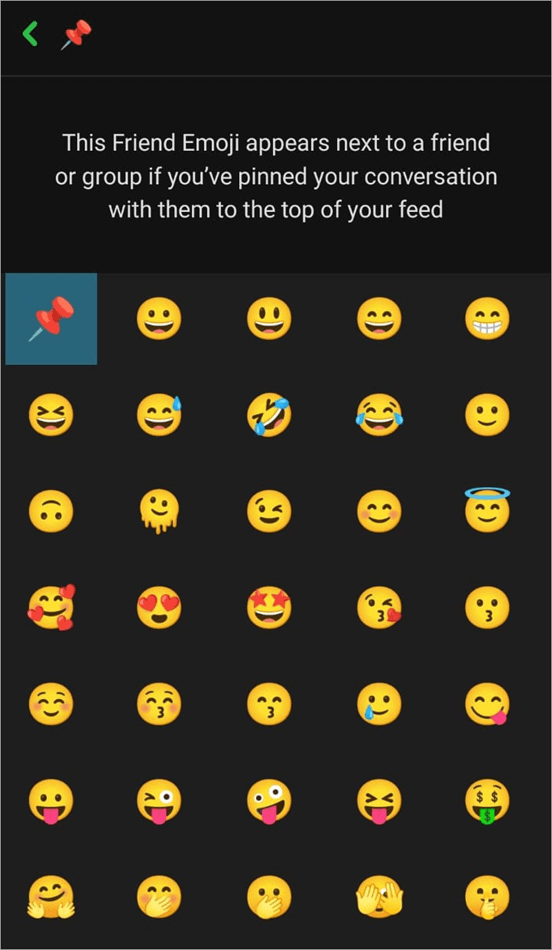
The red pin 📌that appears on a “pinned” chat can also be replaced by another symbol or emoji.
That can be done by following the steps below:
1. Open Snapchat and tap on your Bitmoji icon.
2. Tap on “Settings” at the top-right corner of your screen.
3. In the Settings menu, scroll down until you find the option “Friends Emoji” on iPhone or “Customize Emoji” on Android devices.
4. Again, scroll all the way down until you see “Pinned Conversation” as shown below. Tap on it.
5. Now choose the symbol or emoji you want to use instead of the red pin.
How to Unpin Someone on Snapchat With New Update
Now that we know how a “Pin” works on Snapchat, let’s learn how to unpin someone on Snapchat on iPhone and Android.
1. Open Snapchat and swipe right on the Camera screen to open Chat.
2. Find the friend or conversation you wish to unpin from the top of your screen.
3. Tap and hold that chat until a pop-up menu appears.
4. Select “Chat and Notification” settings.
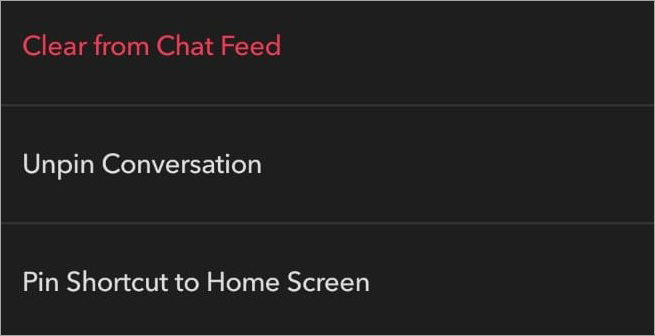
5. Here, you’ll find the option to “Unpin Conversation” as in the image below. Simply tap on it, and you are done.
Pat yourself on the back as you’ve now mastered how to unpin someone on Snapchat Android and iPhone.
How to Unpin a Group Chat
Unpinning a group chat is just as simple as unpinning an individual chat. The steps themselves remain the same.
Here’s how to unpin a group chat on Snapchat:
- Open Snapchat and swipe right on the Camera screen to open chat.
- In the chat window, find the group chat you wish to unpin.
- Press and hold the group chat until a menu appears.
- Select “Chat and Notifications” settings => Unpin Conversation.
Just like that, you’d have unpinned the group chat.
How to Unpin My AI on Snapchat
Snapchat features a built-in AI known as My AI. It is a chatbot that uses generative AI to communicate with snapchatters. You can communicate with this chatbot and even pin your conversations with it to make them appear at the top of your Chat window.
If you would like to unpin My AI, the process will be the same:
1. Open your Chat Window on Snapchat.
2. Press and hold the “My AI” chat.
3. Select “Chat and Notification Settings”.
4. Select “Unpin Conversation”.
It is that simple.
What Happens When Someone is Unpinned on Snapchat
You won’t notice a significant change to your Snapchat feed when someone is unpinned. The only visual difference would be the previously pinned friend or conversation moving back to its original spot on your Chat screen.
Further Reading => How to Get Someone Off Your Best Friend List on Snapchat
It will no longer appear at the top of your screen. Its position on your Chat screen will depend on your recent view and activity. The red pin or whatever emoji you had used to mark the pinned chat will also disappear.
Nothing will change regarding how you receive messages or notifications on the app. You’ll still be notified if you received a message from the previously pinned person. You can also pin that chat back up at any time.
Snapchat Unpin Not Working: Troubleshooting Tips to Follow
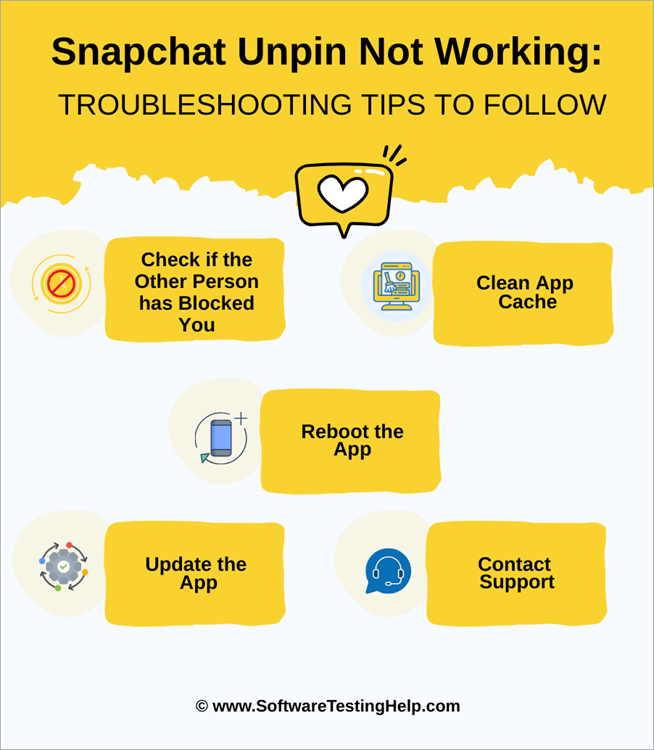
Snapchat can sometimes misbehave, leading to several performance-related issues. This could also mean you have a tough time unpinning someone on Snapchat. If that happens, I suggest following the tips below for quick resolution:
1. Check if the Other Person has Blocked You
This is the first thing I suggest you do. If someone has blocked you, you will not see their profile or the conversations you’ve shared with them. A pinned chat will also cease to exist. Try to search for that person’s user name. If you can’t find them on the platform, know that they’ve blocked you.
2. Clean App Cache
This is something you should do for all apps, let alone Snapchat. Cache builds up over time as you continue to use Snapchat. This can bog down your app’s performance and speed, leading to issues like being unable to unpin someone. Cleaning app cache on Snapchat is simple, and you’ll find this option in the app’s settings.
3. Reboot the App
Rebooting an app works almost 99% of the time. To reboot the app, you can either force shut the app on your phone and restart it or uninstall and reinstall the app. Try to unpin after you’ve restarted the app.
4. Update the App
It is important to keep your Snapchat up-to-date. Check for updates regularly on your Google Play Store or Apple App Store. You can also set Snapchat up to receive updates automatically. Updates will fix any bugs or issues and make sure you have the best user experience possible.
5. Contact Support
If all else fails, simply contact Snapchat support. They will hopefully resolve this issue, especially if the problem is technical in nature.
Frequently Asked Questions
1. How to unpin someone who un-added you on Snapchat?
It doesn’t matter if someone has un-added you on Snapchat. You can still pin and unpin the conversation you’ve had with them. This is because unfriending someone on Snapchat doesn’t erase any past interactions you’ve enjoyed with them. You can still view their profile and access any past messages shared with them.
The process to pin or unpin the person who unadded you will also be the same. Simply follow the instructions I’ve shared above.
2. How to unpin someone who blocked you on Snapchat?
Well, you cannot unpin someone who has blocked you on Snapchat, as their profile and chat will no longer be visible to you. Blocking is an extreme measure that completely restricts access to one’s profile. If someone has blocked you, you won’t be able to see your chats or messages with them.
In a way, blocking can be an effective albeit less ideal alternative to unpinning a chat on Snapchat. It is something I would recommend you do if you wish to cut all communication with someone on the platform.
3. Will Snapchat notify the unpinned person?
No, Snapchat respects user privacy and does not notify the other person if you’ve taken any action against a profile. Rest assured, you can block, unadd, or unpin someone on Snapchat without worrying about Snapchat immediately notifying the other person.
4. What does the 📌mean on Snapchat?
This is a red pin, and it basically conveys that a chat has been pinned on the platform, thus making it appear at the top of one’s Chat screen.
5. How to unpin someone on Snapchat without Premium?
The ability to pin or unpin someone isn’t locked behind Snapchat’s premium plan. It is open to users, irrespective of whether they are using the app for free or not. The only difference with the premium version is that you pin one person as your BFF.
6. How to unpin someone on Snapchat web?
This feature is exclusive to the mobile version of Snapchat. You can easily pin or unpin a chat on Snapchat’s Android or iOS apps. However, Snapchat has yet to integrate it with its web platform.
Here is the video guide on how to unpin someone on Snapchat:
Conclusion
So, there you have it. Pinning or Unpinning Someone on Snapchat isn’t rocket science. All you need to do is follow the instructions as I’ve laid out in this article, and you’ll have achieved your goal within seconds.
It is good to unpin a conversation from your Snapchat, especially if you aren’t interacting with that person as frequently anymore.
Unpinning also clears up the clutter on your interface, leaving you with a neater aesthetic that’s pleasing to the eyes. Now that you know how to unpin someone on Snapchat, give it a try yourself.
Research Process:
The total time involved to complete and publish this article is approximately 37 hours. The content in this article was created through a structured research approach to ensure complete accuracy and reliability.
For more quick Snapchat-related guides, you can explore our range of tutorials below:
- How to Deactivate or Delete Your Snapchat Account Quickly
- How to Send a Snap with the Cartoon Face Lens on Snapchat
- How to Recover and Restore Your Snapchat Streak Without Paying
- How to Turn ON Snapchat Dark Mode on iPhone and Android
- How to Hack into Someone’s Snapchat: Top 6 Useful Apps
Was this helpful?
Recommended Reading
-

This tutorial will quickly educate you on how to deactivate Snapchat and delete your account across various platforms and devices with step-by-step screenshots of Snapchat deactivation: Snapchat has been a very popular social media app since its launch in 2011. For over a decade, there has been a sanctum of…
-
Through this tutorial, get to know the best possible ways to address your query: How to Get Snapchat on Windows 10: Three former students developed Snapchat, a communication app at Stanford University. It is only used on mobile devices. But can you get Snapchat on a computer? Yes, there are…
-
Read this review to compare and select the top app to hack into someone’s Snapchat step by step. Snapchat is one of the most popular apps, letting users share photos and videos that disappear shortly after posting. Snapchat is extremely popular among kids, and they spend significant time on the…
-
Is your Snap streak lost? Are you worried about Snapstreak recovery? Discover the legitimate ways to restore Snapchat streak for free without paying even a penny: Snapchat is probably my favorite social media platform, and snapstreak is a major reason. My friends and I have spent days, months, and years…