


Facing issues with resetting Roku remote? Read this simple guide on how to reset the Roku remote to fix Roku remote reset issue and sync Roku remote back to form:
Think about getting home from a long day of work and all you want to do is sit on the couch and watch TV. I would argue there is nothing more relaxing than this mundane activity we’ve all become accustomed to in our traditional day-to-day lives.
So you pick up the remote, point it at the TV, and are ready to watch your favorite show or movie, only to find out that your remote isn’t working. Trust me, as I’ve been there, the frustration cannot be expressed in words alone.
Table of Contents:
How to Reprogram a Roku Remote: Sync Roku Remote
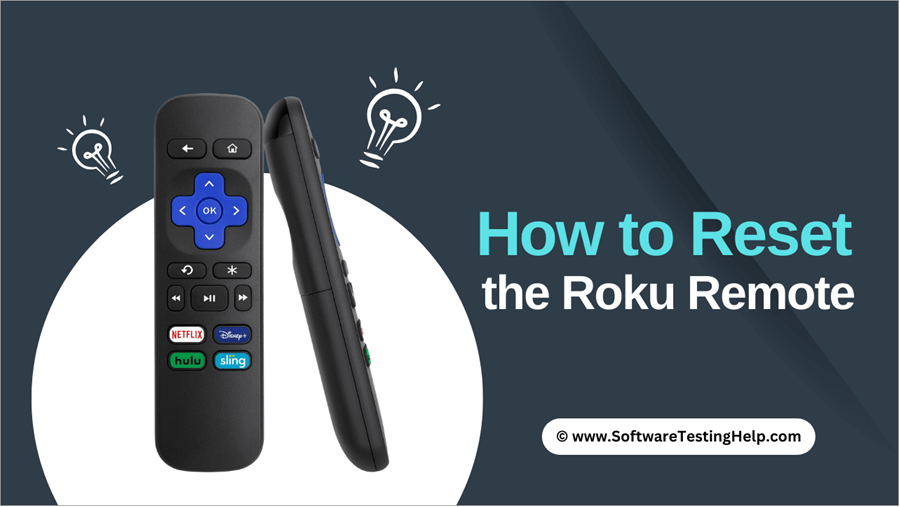
Here is the video on the Roku Remote Tutorial:
As streaming devices like Roku replace traditional television sets, the remotes aren’t going anywhere. You cannot find an alternative to the convenience these remotes offer. They essentially put Roku’s entire streaming library in the palm of your hands, letting you cruise from one channel to another from the comfort of your cozy couch.
Being unable to control your Roku remote can be a source of real grief. That said, you shouldn’t let this frustration get to your head as there are easy fixes to your problem.
In this article, I will acquaint you with a comprehensive guide on how to reprogram a Roku remote.
[image source]
So without much further ado, let’s dive in!
Invaluable Purpose of a Roku Remote
Almost all Roku TV models today come with a Roku remote. Now this remote isn’t exactly an essential accessory, but it is quite handy and makes your streaming convenient. A typical Roku remote lets you perform all the tasks you would expect a traditional TV remote to perform.
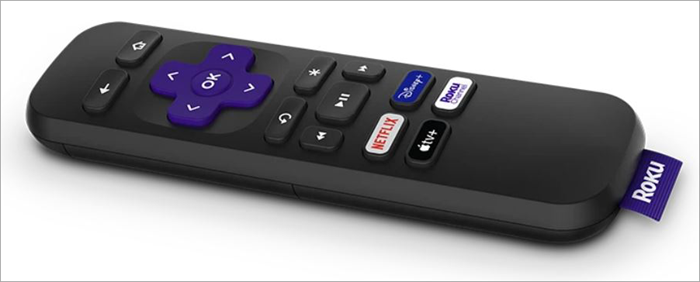
You can use it to power up your TV, control volume, or switch channels. I think one of this remote’s biggest USP is its uncluttered design. A typical Roku remote only features about 21 buttons.
Suggested Reading => Connect Roku TV to Wifi Without Remote
There aren’t any unnecessary buttons to catch you off guard or confuse you unnecessarily. Every button on the Roku remote has a purpose to serve. There is a convenient D-pad in the center, a power button, and a button that lets you give Voice commands (if you are using the enhanced remote).
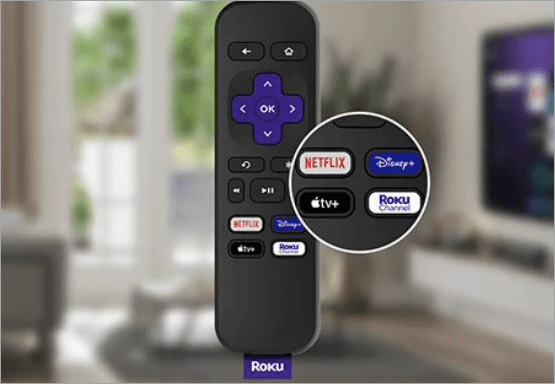
There are also pre-set shortcuts on the remote that let you access streaming apps like Netflix and Apple TV+ with the tap of a single button.
[image source]
The remote itself is compact and lightweight. It feels comfortable in your hands. These features make the Roku remote a must-have accessory with your Roku TV model.
Two Different Types of Roku Remotes
The process of resetting a Roku remote would vary depending on the type of remote you are using. There are two types of Roku TV remotes being used out there. They are:
1) The Simple Infrared Remote
The simple infrared remote is like any other TV remote. This remote demands a direct line of sight with a Roku TV model. The infrared lights emitted from the remote should reach the TV’s receiver. So if these types of remotes aren’t working, the first thing you want to do is make sure nothing is blocking its line of sight.
If the line of sight isn’t blocked and the remote isn’t working, you’ll have to switch the remote’s batteries or replace the remote altogether.
2) Enhanced Remotes
Also known as voice remotes, these devices connect to a Roku TV model via Wi-Fi and do not require a direct line of sight. You can operate the remote by pointing it in any direction, either at the TV or away from it.
The enhanced remote will have a pairing button, usually in the battery compartment. It will also have a section that emits green light. This light blinks when the remote is being paired with a TV.
Further Reading => Most Popular Voice Monitoring Software Solutions
How to Reset Roku Remote: Quick Fixes
To pair the remote, you can try to reboot your Roku player. When the Roku player restarts, see a prompt on your screen that says “Roku Enhanced Remote Pairing”. This leads to the automatic pairing of your remote with the player.
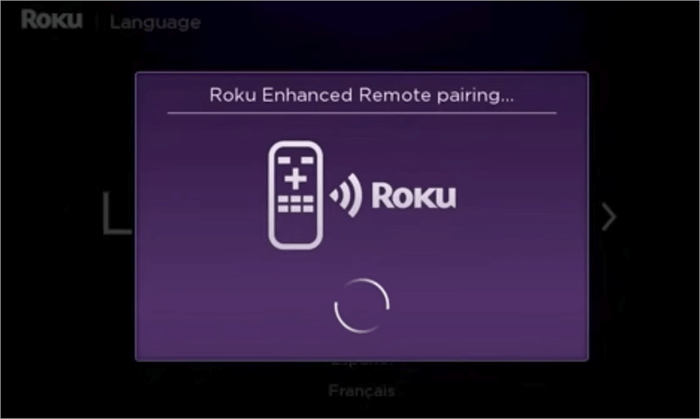
Alternatively, you can pair the remote manually by opening the remote’s battery compartment and holding the pair button for 3-5 seconds. This should trigger the pairing process and sync the Roku remote with the player.
Now that you know how to pair an enhanced remote, let’s discuss ways to reset one if it isn’t working.
How to fix and repair a Roku Remote that is not working?
Resetting a Roku remote is very easy. Follow the guide I’ve shared below step-by-step and your remote will hopefully start functioning again.
1. Remove the batteries from your remote.
2. Unplug your Roku player.
3. Wait for at least 10 seconds before you plug the player back again.
4. As your Roku TV restarts, you’ll see the Roku home screen. Take this as a cue to re-insert those batteries.
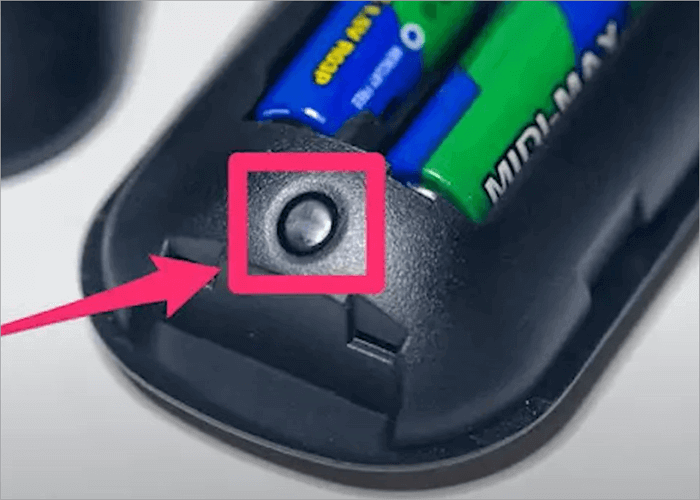
5. Once inserted, press and hold the “reset button” within the battery compartment. Hold it for about 5 seconds or until the green pairing light starts blinking. The pairing process is now in motion.
6. This entire process might take up to 30 seconds. A notification will appear on your screen once the process has concluded.
Alternative Ways to Reset Roku Remote
If you’ve tried the above re-pairing process and still find your remote unresponsive, there are other options available to you.
1. Replacing Dead Batteries
Sometimes, problems aren’t that complicated. Sometimes the fix to a non-working Roku remote is as simple as replacing batteries. Each Roku TV remote comes with 2 AAA batteries. Although they have a substantial life, they will eventually burn out and you’ll have to replace them.
Steps to check the remote battery level:
Go to the Home page by pressing the Home button on your Roku Voice Remote and then follow this selection: Settings -> Remote & Devices -> Remotes -> Select your remote ->About.
You also need to make sure these batteries are placed correctly. Not placing batteries according to designated polarity markings is a mistake I’ve made and keep making even now. So replace those batteries if you must, check if they are inserted properly, and see if that resolves the problem.
2. Check Wi-Fi Connection
An enhanced remote relies on local Wi-Fi to connect with a Roku player. Although the remote doesn’t need a strong internet connection to connect with a Roku device, router malfunctions can still hinder its performance.
You should check your router for software issues, setting misconfiguration, or firmware updates. Getting your router up and running as usual could also end up resolving the issue with your Roku remote.
Also Read => Best WiFi Network for Your Home
3. Using an HDMI Extender
Using a Roku stick requires plugging this device into a TV’s HDMI port. This connection could interfere with a Roku remote’s signal and affect its performance. A great way to avoid this issue is to use an HDMI extender. You can find an HDMI extender on Amazon online. Roku is selling HDMI extenders of their own as well.
4. Using the Roku Mobile App
If you’ve tried everything and your remote still isn’t working, perhaps you could try turning your smartphone into a remote instead. To do so you’ll need to download and install the Roku mobile app on your device. Roku Remote App for iPhone and Roku Remote App for Android are available.
This app needs to be connected to the same Wi-Fi network your Roku TV is connected to.
Once installed, whatever you are using the app on, whether it is an Android smartphone, an iPhone, or a tablet, will turn into a remote. You can use this app to control and navigate your Roku TV’s UI just like you would have with a conventional remote.
5. Factory Reset of the Roku Device
This is a nuclear option. I would suggest only opting for this path if all else has failed. A hard reset of your Roku device means erasing all of your viewing history and account information on the device. However, this might be the only thing that fixes the issue with your Roku remote.
Since your remote isn’t working, you’ll have to hit the reset button at the back of your TV’s panel. You should find a tiny black button near the HDMI ports at the back of your TV. Press and hold this button until you see the Roku TV logo pop up on your screen.
Also Read => Myths & Facts: Does a Factory Reset Delete Everything
6. Call Customer Service or Replace the Remote
If factory reset didn’t do the trick, it is time to give Roku’s customer service a call right away. They might send a technician to your home for a personal inspection of the device or give you instructions over the phone on how to resolve the issue. The customer service representative may suggest buying a new remote.
Where to buy a new Roku Remote?
You can purchase a new remote easily on Amazon or through Roku’s official site. The prices a simple Roku remote without voice features will cost you $9.99 whereas the Voice model starts at $19.99.
FAQ’s on Roku Remote Reset
1. How do I reset my Roku Remote?
Resetting a Roku remote is simple. All you need to do is first open your remote’s battery compartment and proceed to the following:
1. Unplug the Roku player and plug it back in.
2. As the Roku logo pops up on your screen, re-insert the batteries and hold the pairing button until the green light on your remote starts flashing.
3. This green light means your remote is being paired with your Roku player. You’ll notified once this pairing is complete.
This should reset the Roku remote.
2. Why is my Roku remote flashing a green light?
This green light means your remote is being paired with a Roku player. You should see this green light whenever your Roku remote is attempting to establish a connection with a Roku player. This light will start flashing when you restart a Roku player or press the reset button underneath the battery compartment of a Roku remote.
3. Does Roku have a voice remote?
Roku offers a variety of remotes. A voice remote will come with a push-to-talk button that lets you control your Roku player’s UI via voice commands. You can use this push-to-talk button to play shows and movies or turn your TV on or off with your voice.
The voice remote is more expensive than a simple Roku remote as it will cost you $19.99 as opposed to the $9.99 you pay for a simple remote.
4. How to reset your Roku remote without the reset button?
You can reset a Roku button without hitting the reset button by simply unplugging your Roku device and plugging it back in. When your Roku device is unplugged, make sure to remove your remote’s batteries and put them back again.
As your Roku player gets rebooted, you will see a prompt that says “Roku enhanced remote pairing”. The reboot should automatically reset the Roku remote.
5. How to unpair a Roku remote?
Unpairing a Roku remote is as simple as pairing it. Simply do the following:
1. Start by holding the Home, Pairing, and Back buttons on your remote at the same time. 3 seconds should suffice.
2. You should see the indicator light flashing 3 times.
3. This should unpair the remote. You can verify the unpairing by pressing any button on your remote.
Conclusion
An unresponsive Roku remote can sour your mood, especially when you wish to enjoy your entertainment after a long day at work. Thankfully, this isn’t a major problem as there are simple fixes you can try to resolve this issue without breaking a sweat or wasting any precious time.
You could try rebooting your Roku player, re-pairing your Roku remote, replacing your remote batteries, or fixing your Wi-Fi connection. If all else fails, you can get in touch with Roku’s ever-reliable customer service team for a possible solution.
Roku remotes are effective and top-notch when it comes to quality. So you should have no problem fixing any issue plaguing it with a simple reset.
Was this helpful?
Recommended Reading
-

In this guide, you will come across step-by-step solutions to factory reset Windows 10 when your PC won’t start. If your Windows 10 PC is running slowly, experiencing errors, or won’t boot properly, performing a factory reset can help restore it to its original state. A reset removes system issues,…
-
Explore the top methods to understand How to Reset Windows 10 Forgotten Admin Password without resetting your laptop or losing any data: “On my Windows 10 computer, I usually have an Administrator and Local account that has no password. I forgot my Admin password for Windows 10, and whenever I…
-
Review and comparison of the Best Streaming Service that will help you decide on the top streaming TV services to play your movies and shows: Thought about what to do on your weekends? If you just want to spend your time at home- what's better than binge-watching? The best streaming…
-
Get acquainted with the top Streaming Devices along with features, technical specifications, etc. to compare and select the best streaming device for TV: Are you missing out on the exclusive content that is being launched by the best OTT platforms in your country? It's time to start streaming exclusive content…
-
Explore our list of top Video Streaming Services with pricing and comparison to select the best TV streaming service for your requirements: If the recent global health crisis has taught us anything, then it is that no matter what travesty befalls humanity, our thirst for good entertainment will remain firm.…
-
In this tutorial, you will understand the myths & facts to get the answers to your most common query: Does a Factory Reset Delete Everything on a phone: Most people factory reset their device to make the software work as well as make the device new. Or, you will need…
-
Are you looking for quick ways to fix There Was a Problem Resetting Your PC Error in Windows 10 and 11? This step-by-step guide will help you fix this issue easily. The error “There Was a Problem Resetting Your PC” in Windows 10 and 11 can prevent you from restoring…
-
Go through some impressive methods, explained stepwise in this tutorial to recognize the best way: How to Reset Instagram Password: It takes diligence to maintain security online, especially on social media accounts like Instagram, Facebook, etc. And with having to remember so many passwords, from bank accounts to emails, social…


