


This tutorial is about what a Torrent File is and what torrent clients are. Also covers how to open a torrent file on various devices and operating systems.
Torrent files cannot be accessed without the right software, and many people find themselves puzzled when they come across torrent files for the very first time.
If you are looking for ways to open torrent files irrespective of operating system, platform and device, then this guide will help you.
Before creating this guide, I personally tested several torrent clients on Windows, Mac, Linux, and Android to see how easily torrent files could be opened. I checked both desktop and mobile setups, making sure the files downloaded correctly and worked smoothly with each client.

Table of Contents:
What is a Torrent File
A torrent file is like a map that helps your computer find and download a file from other people’s computers over the internet. It doesn’t actually contain the movie, software, or music itself—it just tells your torrent client where to get the pieces from.
It is easier to think of this process as if you were ordering a puzzle, and the torrent file is like the address list of who has what parts of the puzzle. The torrent client downloads all the parts from various people simultaneously until the whole file is received. This is how torrent files work and get downloaded from different servers over the internet.
When you download using a torrent, you’ll hear the terms “peers” and “seeds.” Seeds are people who already have the complete file and are sharing it, while peers are others who are still downloading and sharing parts of the file at the same time. The more seeds there are, the faster and smoother your download will usually be.
There are many advantages associated with a torrent file, and to get the most from it, you should be able to open any .torrent file.
In the following section, you will learn how to download torrent clients and use them to open torrent files on Windows, Mac, Linux, and Android. I have covered torrent clients like BitTorrent, uTorrent, Opera, and Torch.

Suggested Read = >> Top Torrent Clients
How to download and configure a Torrent client
Once you download a .torrent file, the computer doesn’t recognize these files by default, whether it is a Windows computer or a Mac. So you need a torrent client, a special software, to open a .torrent file.
In this section we will see how to download a torrent file and configure it.

[image source]
Download a Torrent client
There are many torrent clients available to download and use to open .torrent files. Torrent clients like uTorrent, BitTorrent, qBittorrent, Deluge, etc are well known and often used to open torrent files. uTorrent or BitTorrent are the most popular pick.
Configure a Torrent Client
After installing the client, you will need to configure it. Although most clients come with fine-tuning, a little tweak could make them better. This is an example of uTorrent about how to fine-tune the client.
- Go to options and select Preferences.
- Under the General tab, you can allow your torrent to start each time Windows starts or disable it.

- Go to the Directories tab and select the place to save your downloaded Torrents.

- Now select the Connection option from the sidebar to enable UPnP port mapping that allows you to download torrents as fast as your Internet connection is capable of.
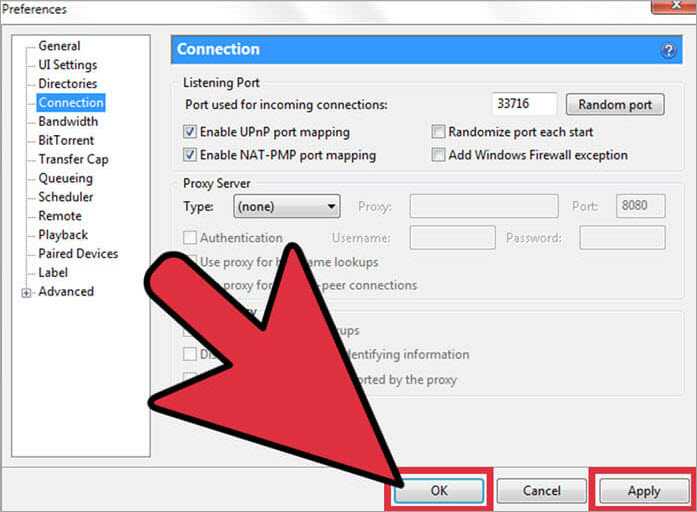
- To limit the maximum upload and download rate, slide down to Bandwidth. This is especially useful if you don’t have broadband. It helps you in continuing the use of the web.

[image source]
However, with some clients like BitTorrent, you might also need to check and configure the firewall. Having an open pathway for the file transfers will allow you to get faster download rates.

A firewall doesn’t allow unauthorized access to the ports of your computer for protecting your system from intruders. And the port is through which an Internet connection travels in and out of the system.
All ports are numbered. Also, each type of communication is given a standard port number. BitTorrent and other clients also use specific port numbers that you can search and find. Firewalls block these ports by default and hence you will have to configure the firewall to allow incoming traffic for receiving .torrent files.
Download a Torrent FILE
In the above section we have seen how to download a torrent client and configure. Now you can look for your specific torrent file that you want for your purpose and download it from trusted source.
Based on your configuration a torrent file will be downloaded on your system. The download file will have various extensions so you need to use particular extension tool to open a torrent file as explained below.
Note: Downloading a torrent file from untrusted and illegal sites may include security risk.

[image source]
How to Open a Torrent File
When you have a downloaded a torrent file, it may have different file extensions. Each extension has a different way to open it. Here are some file extensions for the torrent files and how to open them.
#1) Zip Files
To open a torrent file with a zip extension, you will need to download and install WinZip software. You can either download a free version or unlock its full capabilities with its paid version.
Right-click on the a torrent that you want to open and select WinZip option to extract a file.
#2) EXE Files

We are all aware that you need to install the Windows application before using it. So, if you have downloaded a game or an application, run the installer.
Double-click on the ‘Setup.EXE’ file to run the installer through the installation procedure.
#3) Video Files

If you have downloaded a movie, you will see MP4, MKV, MPC-HC, and similar formats. Usually, your usual media player does the job.
But VLC is a comparatively potent media player that is capable of playing almost every possible video file.
#4) ISO Files
You see a single ISO file when you download games or applications from the Web. These are image files that are perfect replicas of a physical disk. However, both Windows and macOS recognize ISO files and hence you will not need any additional software.
All you need to do is double-click the file and your OS will create a new virtual disk to help you proceed with the installation.
Torrent Clients For Windows
#1) BitTorrent

BitTorrent is one of the most used torrent clients. It is easy to use, and extremely reliable. With a little tweak in settings, you can save the network resources. You can also download torrents in bulk and assign priority to quicken the download. You can also manage torrents remotely.
Steps to open Torrent file with BitTorrent:
- Download and launch BitTorrent.
- Search and download the file, or if you already have a torrent file, right-click on it and open it with BitTorrent.
- Click on I Agree to the pop-up menu.
- Save the file at the selected location.
- View the file.
Price: You can buy its Pro version with a VPN at $69.95 yearly. It allows you to be anonymous. The Pro version is available at $19.95 yearly for secure torrenting. At $4.95 yearly, you get an ad-free no distraction version.
Website: BitTorrent
#2) uTorrent

Like BitTorrent, uTorrent is also a well-known torrent client that is used by many to download and open torrent files. The basic version is free to download.
Steps to open the file with uTorrent:
- Install uTorrent.
- Select the file with a right-click.
- Click File, move to Open With, and select uTorrent.
You will be able to open the file and see its content.
Price: For the ad-free version, you will have to pay $4.95 yearly. At $19.95 per year, you will get its Pro-version for secure torrenting and by paying $69.95 every year, you get its Pro version with VPN and ability to be anonymous.
Website: uTorrent
#3) Vuze

Vuze is an end-to-end software application for your every torrent need. It keeps a lightweight footprint. Also, it downloads the torrents quickly while not compromising the speed of your computer.
Steps to Open a Torrent file with Vuze:
- Click on the Open Torrents option on the top left corner of the Vuze.
- You will get several options on the menu for adding torrents.
- To open a file stored locally, click the Add Files button.
- Go to the stored file, select it, and open it.
- To open a torrent link from the web, download it, and click on it.
Price: You can either use the free version or $3.99 per month for Vuze Plus.
Website: Vuze
#4) BitComet

It is a free torrent client that is super-fast, easy-to-use, and powerful. It gives you long-term seeding so that your torrent doesn’t get stuck at 99% because the seeder left. Also, since it caches data in memory, it doesn’t always need to access the hard drive, thus not damaging it like old clients.
Opening a Torrent File with BitComet:
- Download and launch BitComet.
- Select File and click on Open Torrent.
- Open the .torrent file.
- You will see a pop-up menu.
- Browse and navigate to the file you want to open.
- Click open.
Price: It is available for Free.
Website: BitComet
#5) Torch

Torch is one browser that comes with torrent capabilities. It comes with a fully functional interface for torrents, along with many other features. You can use Torch to open torrent files and organize them as well. The best part is, you don’t have to wait for the torrent to download. Click play and the Torch Torrent will automatically open the link in the Torch Player.
Steps to open a Torrent File With Torch:
- Download and open Torch Browser.
- Search the torrent you want to open.
- Click on the torrent.
- The torrent will start to play and will be downloaded in the background.
Or, if you have already downloaded the file, right-click on the file, select Open with and click on Torch. Your file will be opened in Torch Browser.
Price: It is available for Free.
Website: Torch
Torrent Clients For Mac
How to open a torrent file on Mac? Your answer is uTorrent, Vuze, BitTorrent, and Torch. Apart from these, there are a few other torrent clients that you can use to open a .torrent file as well.
#1) XTorrent

XTorrent is a dedicated macOS torrent client. It is extremely popular because of its user-friendly interface. It allows fast and accurate torrent search along with detailed download information, accurate ratio, seeding control, and much more.
Using xTorrent to Open a Torrent file:
- Download and launch xTorrent.
- Select the file you want to open
- Drag and drop it in the xTorrent window, or,
- Right-click on the file and select xTorrent in the Open With option.
Price: For $25, you can buy xTorrent Pro single user basic plan, and for $40, you can enjoy a single user lifetime plan. For family lifetime xTorrent Pro plans, you will have to pay $55 using xTorrent to Open a Torrent File.
Website: XTorrent
#2) Folx

Folx is one of the powerful torrent clients for macOS that allow you to schedule downloads. It supports magnet links and features multi-threading that leads to faster downloads.
Using Folx to Open a Torrent file:
- Download and launch Folx.
- Search for the torrent file you want to open.
- Download the torrent and click on it to open.
- If you already have downloaded the files, right-click on it and open with Folx.
Price: You can get its Pro version for $19.95.
Website: Folx
#3) Deluge BitTorrent

It is yet another free open-source torrent client for macOS. Although it doesn’t look attractive and might have a little outdated interface, there are no ads and that’s a relief. It comes with a handful of plugins. However, it doesn’t have any support, and that makes it prone to malware and bugs.
Steps to use Deluge to open Torrent Files:
- Download and install Deluge.
- Right-click on the file you want to open.
- Click on Open With.
- Select Deluge.
- If you can’t see Deluge on the list, select open with other applications.
- Then select show other applications.
- Click on Deluge.
Price: It is available for Free.
Website: Deluge BitTorrent
#4) BitLord

BitLord is a popular and free torrent downloader. It has an easy-to-use interface, and it comes with an integrated media player. So, you can start viewing the torrent while it keeps downloading it in the background.
Downloading and Opening Torrent File With BitLord:
- Download and open BitLord.
- In the search bar, search for the file you want to download.
- Hit enter.
- From the list, click the torrent you want to download.
- Double click on it.
- Select Download.
- Pick a place to save the torrent.
If you already have a downloaded torrent, right-click on it and open with BitLord.
Price: It is available for Free.
Website: BitLord
Torrent Clients For Linux
You can use qBittorrent and Deluge for Linux as well. Apart from them, here are a few more clients to open torrent files in Linux.
#1) Transmission

Usually, Transmission comes pre-installed on Ubuntu and so it is one of the most popular torrent clients for Linux. It has a simple user interface with most of the essential options like configuring upload and download speed, magnet link support, remote control, etc.
Opening Torrents with Transmission:
- Download and install Transmission.
- Search the torrent you want to download and click it.
- It will prompt if you want it to open with Transmission.
- Check the box beside do this automatically for files from now on.
- Select Ok.
- You will see the main window and Torrent Options window of Transmission.
- With the Torrent Options window, you will be able to add the torrent to start the download.
Price: It is available for Free.
Website: Transmission
#2) Tixati

Tixati is a peer-to-peer protocol of file sharing and it uses the BitTorrent protocol which is known worldwide. With Tixati, many peers can form a cooperative swarm, thus allowing them to download huge files with even more efficiency.
Steps to open a Torrent File with Tixati:
- Download and install Tixati.
- Find the torrent you want to download.
- Launch Tixati.
- Click on the Add button and add the torrent.
- It will open the file, and Tixati will connect to peers to start the download.
You will find the downloaded torrent in your downloads folder.
Price: It is available for Free.
Website: Tixati
#3) KTorrent

This is yet another application that uses the BitTorrent protocol. With KTorrent, you can run multiple torrents all at the same time. It also comes with many extended features that give it the status of a full-featured BitTorrent client.
Steps to open a Torrent File with KTorrent:
- Download and install KTorrent.
- Find the torrent you want to download and open.
- Double click on it to open with KTorrent.
- Or select Add to for manually adding the torrent.
Price: It is available for Free.
Website: KTorrent
Open Torrent File On Android
For Android, you can use BitTorrent, uTorrent, Opera, or Frostwire for opening Torrent files on Android. Here are a few others you can use.
#1) Flud Torrent Downloader

[image source]
Flud is one of the powerful torrent apps that has a clear and simple interface. And that is why you can easily manage large torrents with it. It also comes with many features and ads with its free version.
Steps to use FLUD to open Torrent File:
- Download Flud on your Android device.
- Find the file you want to download.
- Download the file.
- Open Flud app.
- Go to the bottom right corner and tap on the Floating Action Button.
- Navigate to where you have downloaded the desired file.
- Tap on the file and add it to Flud to start the download.
- Once the file is downloaded, you can open it.
Price: At $1.49, you can go ads free.
Website: Flud Torrent Downloader
#2) Tornado

Tornado is a different torrent downloader as it doesn’t download the torrents on its own. Instead, the app connects to your system where you can see the torrent downloads. This way, your device is free of space and power and your computer carries the load.
Steps to use Tornado to open Torrent file:
- Install Tornado as your Firefox extension or download the app.
- When you click on a magnet link or a torrent link in Firefox, you will see an add torrent dialogue box.
- If not on Firefox, download the file you want, go to add a torrent, and select the torrent.
- Once the torrent is downloaded, you can click on it to open it.
Price: You can use it for free during its trial version. For the full version, you will have to pay $2.90. You can also use the tornado as the extension to Firefox.
Website: Tornado
There are a few more torrent clients for Android that you can download from Play store like tTorrent, zetaTorrent, Transdrome, TorrDroid, LibreTorrent, etc. All these apps will open torrent files in Android easily. You can use the same process for opening the files in each app.
Frequently Asked Questions
Q #1) How to extract a torrent file?
Answer: Download Winzip or 7-Zip and install it. Find the directory with torrent files, select the file with .rar extension. Right-click on it and select Winzip, or 7-zip whichever you have, and click on Extract here.
Q #2) Can I convert a torrent file to mp4?
Answer: Yes, you can. There are many apps available online that you can use for this purpose, like Wondershare UniConverter. Open the mp4 converters and import torrent files. For output format, choose mp4 as the output format and start the conversion. When ready, download wherever you want it.
Q #3) Can I watch the torrent while it downloads?
Answer: Yes, you can. There are many torrent clients that allow you to watch the torrent while it downloads them in the background. We have mentioned some of them above in the article, like Torch and BitLord. You can also use the Webtorrent Desktop App for the same purpose.
Q #4) How can I want to convert unsupported video files on my Android device?
Answer: Go to the Play Store and install an Android video converter on your device. Open the app and you will get the prompts, follow them to convert into mp4 format or other desired format. Click on them to see if the file is fixed.
Conclusion
Torrent files have been very famous some time back. Today, it might not be used so much but is still preferred, especially for downloading movies and games. There are many apps that you can use to download and open them. BitTorrent, uTorrent, Opera, Torch are a few among them.
Whether you want to open a file on Windows and Android, or you are looking for answers about how to open a torrent file on Mac and Linux, you have abundant apps for each platform.
Research Process:
Time taken to Research and publish this Guide: Approximately 48 hours. To put this guide together, I opened torrent files on Windows, Mac, Linux, and Android using commonly used torrent clients. I focused on how simple the process felt on both desktop and mobile devices, from opening the file to starting the download. Only the methods that worked consistently and didn’t require extra tweaking were included.
Recommended reading =>> How to open a JNLP file on Windows and Mac
Was this helpful?
Recommended Reading
-

This Tutorial Explains What is a .JSON File Format and Discusses Various Softwares Tools to Open a JSON File in Windows, Mac, Linux & Android: Most of you must have struggled to open a JSON file at some point in time. In this tutorial, we will discuss all about the…
-
This tutorial explains what is a 7z file extension. Also learn how to create and open .7z file in Windows, Mac, and online: In this tutorial, we will provide you with an understanding of this file format in detail. We will also learn to create and open files in 7z…
-
Struggling to open or watch MKV files? This tutorial covers the best tools to open MKV files on Windows, Mac, Android & iOS. You’ll also learn how to convert MKV files to MP4 for smoother playback on any device. The VLC media player is the best way to open and…
-

This tutorial explains what is .Key file and various ways to open it on Windows. We will also see how to convert the KEY file format to PPT: A .Key file is used for storing Apple Numbers office application files, and as we know, Apple Numbers is a free app…


