Struggling to open or watch MKV files? This tutorial covers the best tools to open MKV files on Windows, Mac, Android & iOS. You’ll also learn how to convert MKV files to MP4 for smoother playback on any device.
The VLC media player is the best way to open and play an .MKV file. You can also use Windows Media Player, DivX Player, etc., or you can use media codecs. You can even convert them to an easily readable file format like AVI or MP4.
In this guide, I’ll introduce the top three tools to open MKV files step by step to watch effortlessly. Plus, I’ll show you how to convert MKV to more commonly used formats like MP4 for better compatibility with a variety of devices.
Table of Contents:
What is a MKV File?

Matroska video files, or MKV is a file type of video that is used for containing movies or TV series in a single file format. The uniqueness of MKV is that it is able to contain video, audio, subtitles, and chapters in a single file format, rather than in different file formats. This makes it very useful for containing high-quality videos and downloading movies.
You may come across MKV files while working with HD or 4K videos. However, opening these files is not possible on all devices. This is why you may require a supportive media player to open and play them. In the next section, we will discuss three of the best tools or software used to open and play MKV files.
MKV files originated in 2002 in Russia. They are open source and are available for free. With time, the format improved, and it became the base for the WebM multimedia format.
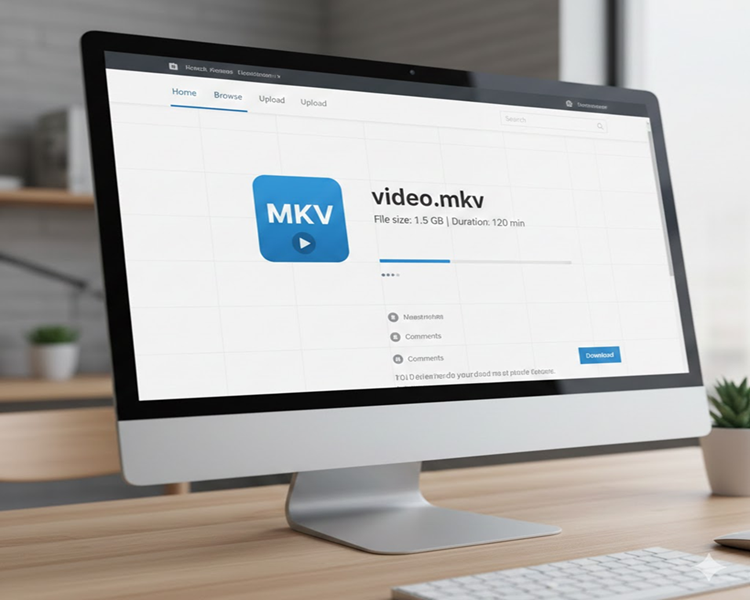

Technically, the MKV file format is based on EBML (Extensible Binary Meta Language), a binary standard. However, the structure of EBML resembles XML, and it can be interpreted as a binary markup. That’s why it is easy to construct even a very complicated nested structure inside the binary file. And that is how the .MKV file gets all those features that make it future-proof.
How to Open MKV Files
You can use any of the following tools to open MKV files:
#1) VLC Media Player

[image source]
VLC is the most popular media player that is capable of opening .mkv files. It can be used for all operating systems- Windows, Mac, iOS, and Android.
Steps to use VLC to open the MKV file:
- Download VLC media player from the App Store, or Google store.
- Install the freeware.
- Run VLC.
- Use a corresponding button or drag-and-drop option to add your MKV file to VLC.
- Click Play.
You can also make VLC your default player for opening and playing MKV files. Then you can open them just with a double-click.
For Windows:
- Go to the MKV file you want to open.
- Right-click on the MKV file.
- Select Open With option.

- Go to Choose Another App.

- Check the box beside Always use this app to open the .mkv files option.

- Hit Ok to save the changes.
For Mac OS:
- Use the finder to pick the MKV file.
- Right-click on the file.
- Select Get Info to open the info window.
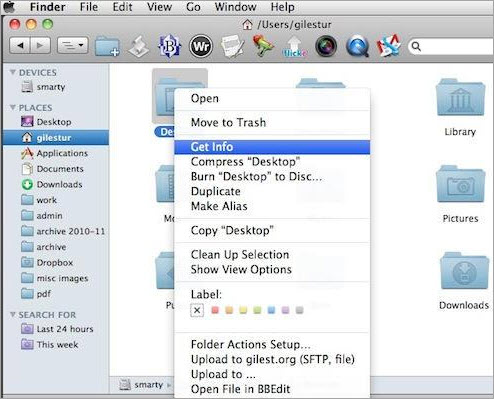
[image source]
- In the window, click on the triangle beside the Open With option.
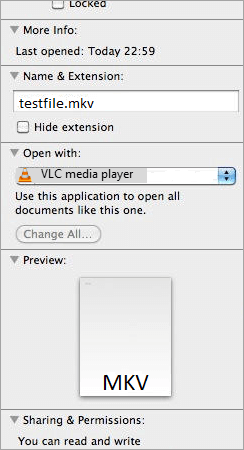
- Select VLC from the app list.
- Click Change All to open all MKV files with VLC.
Price: Free
Download From: VLC Media Player
#2) DivX

DivX is an award-winning video software with which you can play various files like DivX, AVI, MKV, etc on your Mac and Windows devices. The download package includes DivX Player for high-quality video playback, DivX Converter for converting videos, DivX Media Server to cast media from your computer to your TV.
Steps to Open MKV File with DivX:
- Download and Install DivX.
- Open DivX Player and go to Files.

- Click on the option and select Open Video option.

- Now find the MKV file you want to open and play it.
- If you can’t play the MKV file, you can use the DivX converter to convert the MKV file into another file format.
- Open DivX converter.
- Go to Add Files option or drag and drop the video.

- Next to Add Files is the options for the output files, pick one.
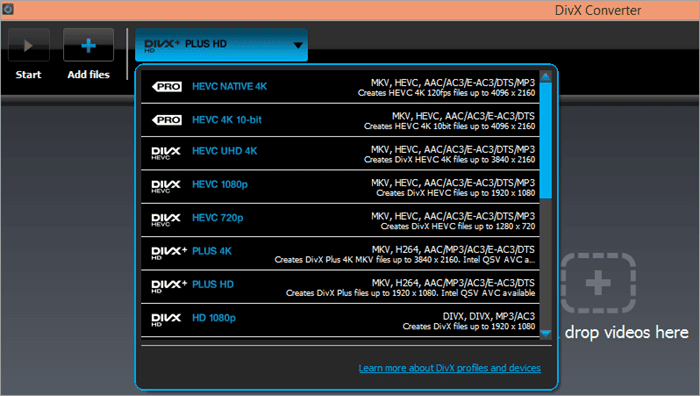
- At the bottom right-hand-side corner, select where you want to save the output file.
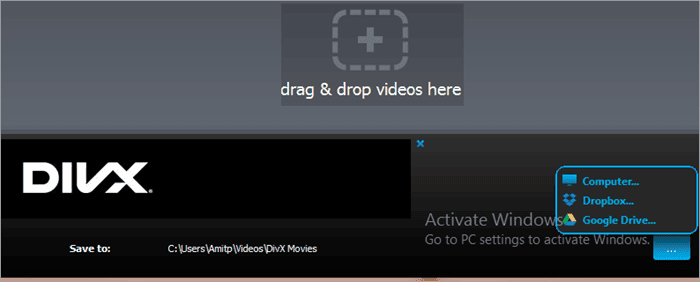
Now you can open this converted MKV file in DivX.
Price: Free
Download From: DivX
#3) BSPlayer
It is a media player that you can use to open files like MKV. It is suitable for users of less capable computers and has over 70 million users.

Steps to open MKV File with BSPlayer:
- Download and install BSPlayer.
- Launch the player.
- Right-click on the player.

- Go to the Open File option.
- Find the file and select it.
- Click Ok.
Now the MKV file will open
Price: Free. However, you can buy the Pro for 29.90 USD for more features.
Download From: BSPlayer
Media Codecs to Open MKV file on Mac and PC
In addition to the above three media players used to open MKV files, there is another method to open and play .mkv file and that is the media codec. Using a media codec, you can encode or decode any type of digital media file.

You can find many free codecs online that you can use for this purpose. You can download K-Lite Codec Pack from here and Media Player Codec Pack from here. These two are the most popular Codec packs used to open MKV files.
A codec is a software program that compresses or decompresses videos, songs, and similar digital data media files. In fact, all media players use these codecs for creating and playing digital media files.
Pros of Codecs:
- You can play all video files using your favorite media player.
- Media codecs also allow you to reproduce various video and audio files that you come across online.
Cons of Codecs:
- Since they are free, they usually carry malware and adware that might harm your PC.
- They support many multimedia files, so they might steal your hard drive space. It would be foolish to install a codec pack for playing only one video format.
How To Convert MKV Files
If for some reason, the above two methods don’t work for you, you can convert the .mkv file to formats like MP4, AVI, etc. Then you can play them on your favorite app.
Suggested Reading => How to Convert HEIC File To JPG In Windows 10
#1) Freemake Video Converter
How to open .mkv file on Windows?
Well, for Windows-based PC, you can use Freemake Video Converter. It is a tool with a beautiful design and easy user-interface. You also get astonishing numbers of formats for output options.

Steps to Convert MKV to MP4 or AVI with Freemake Video Converter:
- Download and install the tool in your system.
- Go to the +video button and add the MKV file. Or you can simply drag and drop the file here.
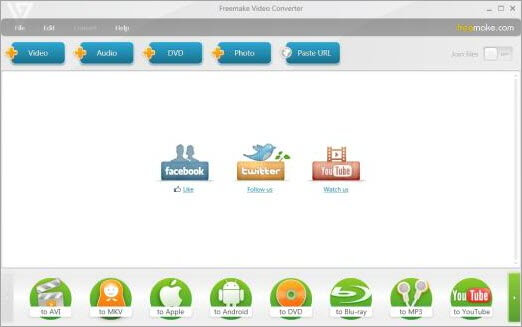
- If you need to, you can also edit the video. The software has an inbuilt editor with which you can cut, rotate, or join videos.
- Select the format of the output, preferably to AVI or MP4.
- You can pick from a ready preset or custom create one.
- Click convert to transform the MKV file into the selected format.
In a few minutes, you will have the converted file that you can watch later offline or upload it.
Price: Free
#2) Handbrake
If you are looking for answers to how to open mkv files on Mac, we have the answer here. Mac users can use Handbrake. It is a little complicated as compared to Freemake. But it is not that difficult to use.

Steps to Convert MKV to MP4 or AVI with Handbrake:
- Download and install Handbrake on Mac.
- Launch it.
- Go to the Open Source button to add files, or drag and drop the .mkv file.

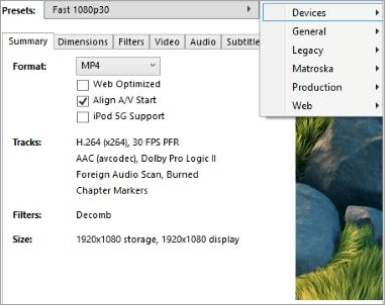
- Pick the output format, preferably MP4, and a ready preset if you need it.
- Now go to the Audio and Subtitles tabs to select the tracks you want to keep for future files.
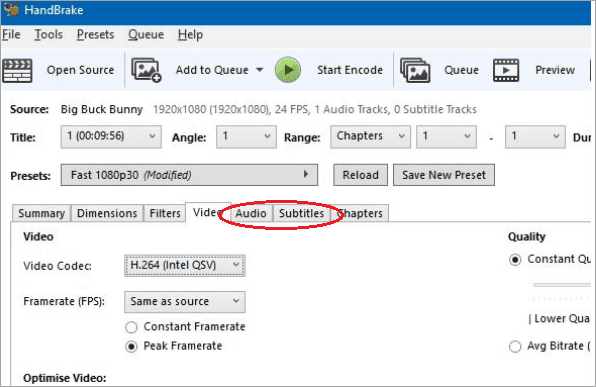
- You can also customize Codec, Framerate, bitrate, etc.
- Click Start for running the process of conversion.
In some time, you will have the converted MKV file.
Price: Free
#3) VLC
We know that the VLC player can play almost any video format. Also, it can convert them to a more universal format like MP4. You can use it for almost all the platforms.
Convert MKV to MP4 with VLC:
- Download and install VLC from its official site.
- Open VLC and go to the Media Tab. You will find it in the upper-left corner.
- From the dropdown menu select Convert/Save.

- Now click on the Add button and find the file you want to convert.
- Select the .mkv file you want to convert, then hit the Convert/Save button. You will find it at the bottom of the window. See the video here.
- In the Profile section, select Video – H.264 + MP3 (MP4).
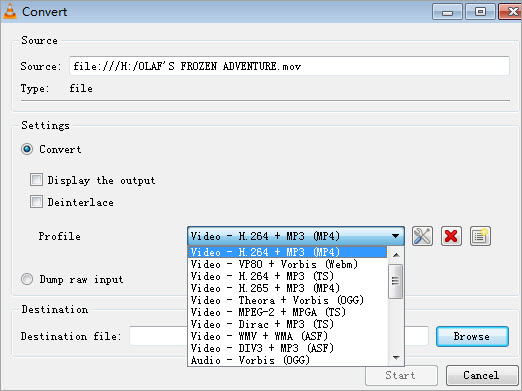
[image source]
- Now select Edit selected profile icon.
- Go to the Encapsulation tab and select MP4/MOV.
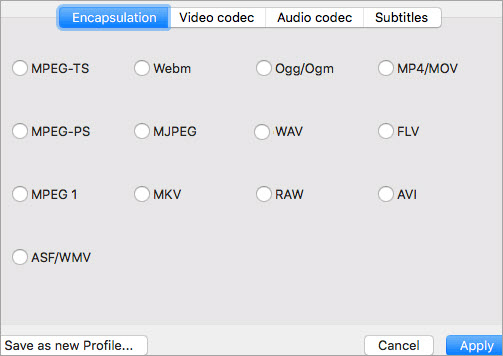
[image source]
- Check both Video and keep the original video track on the video codec tab.
- Do the same for the audio codec tab.
- Click Save.
- Under the Destination option, specify where you want to save the output.
- Click Start.
Your video will be ready in some time.
Price: Free
#4) CloudConvert
If you would rather not download any program, and want to convert MKV to MP4 Online, you can convert MKV to MP4 online. There are many websites that offer you this service. Cloudconvert is one of the best options available.
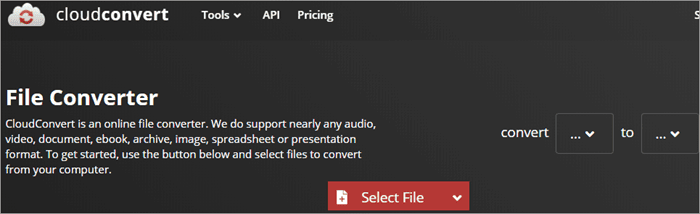
Convert MKV to MP4 using CloudConvert:
- Open the website from here and Signup.
- Go to Convert. In the first box, select MKV, and in the other select MP4. You can also use it to convert MP4 to MKV.

- Then go to the Select File option and select the file you want to convert.
- You can customize the Options.

- Then click on Start Conversion.
Your file will be ready to download and use in a while.
Price: Free
If you are a Media Player fan, you will need to convert the MKV file to a format it supports to open and play it, since Media Player doesn’t support MKV format. For this purpose, you can use Wondershare Uniconverter for both Windows and Mac.

Converting MKV File To Media Player Supported format:
- Launch Wondershare Uniconverter.
- Click on the Add File icon on the toolbar.
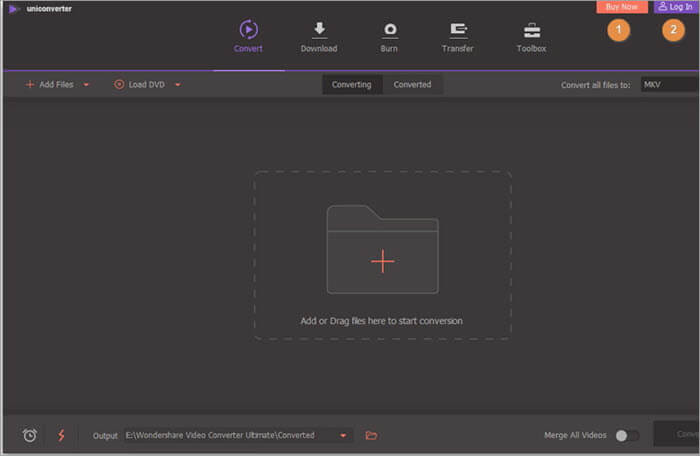
[image source]
- Now, go to the folder with your MKV file.
- Click Open to import the file or just drag-and-drop the file.
- Go to the Output Format option.

[image source]
- From the dropdown menu, select a format that Media Player supports, like WMV.
- Click on the Start All button to start the conversion.
In a while, you will get the file in the selected format. You can then open it in the Media Player.
Price: You can use the free trial version, but it isn’t much help. You can buy its Annual Plan for one year, one PC at $29.95. Or, you can go for its Perpetual Plan, which is for one PC for a lifetime and is available at $45.96. Its Business Plan is available for $161.91 for 2 Pcs. for over 2 PCs, the price will vary.
#6) HitPaw Edimakor
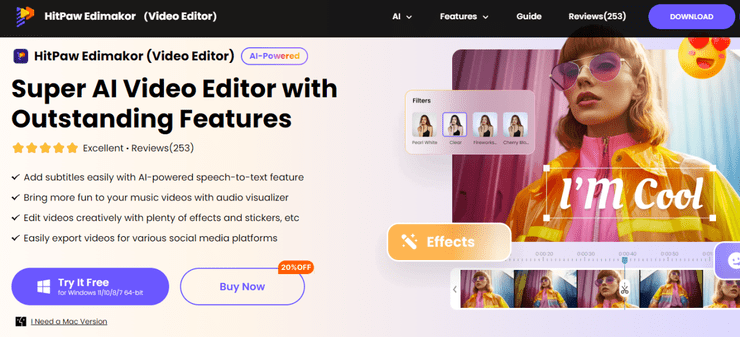
Not every video application or device is compatible with the MKV format, especially mobile devices. For this purpose, You can’t miss HitPaw Edimakor if you want to join MP4 or VAI files effortlessly. Edimakor is a powerful yet intuitive video converter that seamlessly addresses your conversion needs, available for Windows and Mac.
Steps to Convert MKV to MP4 or AVI with HitPaw Edimakor:
- Download and install HitPaw Edimakor in your system.
- Choose “Create a video”.
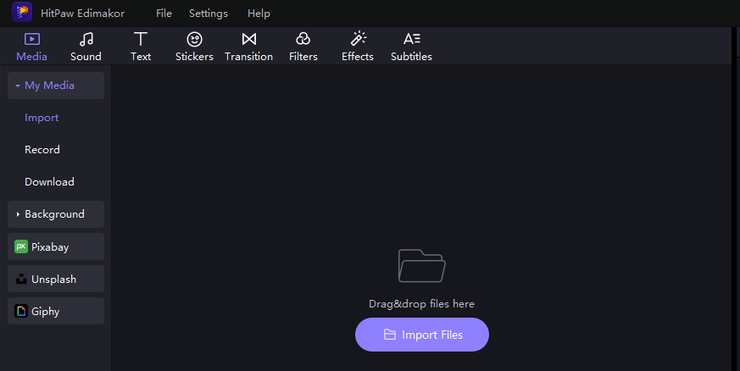
- Select “Import Files” from the Media section.
- Click on “Export” button at the top right corner.
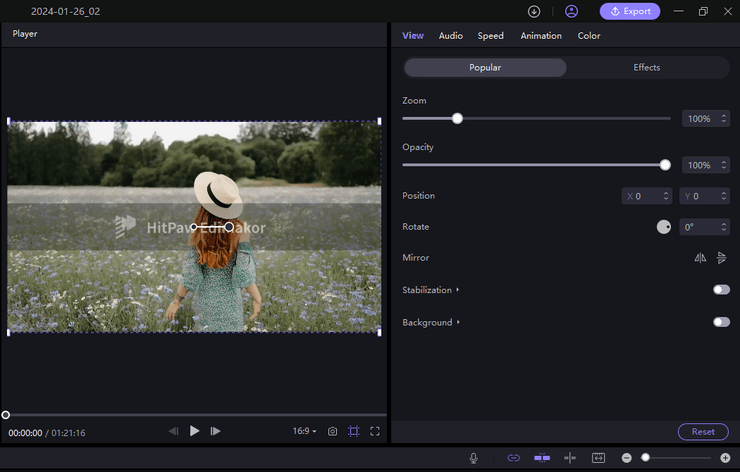
- Go to the Output Format option.

- Select a format supported by your media player from the drop-down menu, such as MP4/AVI.
- Click on Export button to start the conversion.
Price: You can use the free trial version.
FAQs About MKV File
Is MKV a better format than MP4?
MKV is known for converting DVDs and Blu-Ray discs to video files, while MP4 is a more widely supported format for playing video on a browser. Also, it has less file overhead. Each one is better for certain uses while not as good for others.
I want to convert MKV into MP4. How can I do that?
The easiest and the quickest way to convert a .mkv file into MP4 is through VLC.
– Open VLC Media Player
– Go to Media → Convert / Save
– Click Add and select your MKV file
– Click Convert / Save
– Choose Video – H.264 + MP3 (MP4) as the profile
– Click Browse, choose a save location, and click Start
Your MKV file will be converted to MP4 and ready to use.
What is the best MKV Player?
There are a handful of MKV players that you can use to open MKV files. For example, you can use VLC for Windows, Mac, and Linux. DivX is a free video converter that you can use for Windows and Mac. You can simply play the MKV files on BSPlayer which is easy to use.
How to play MKV files on Sony Bravia TV or Smart TV?
You can easily convert MKV files for smart TVs using Wondershare UniConverter:
– Download and install Wondershare UniConverter on your PC
– Add the MKV file using drag and drop or + Add Files
– Click the arrow next to Output Format
– Go to Device → select your TV brand (Sony, Samsung, LG, or Panasonic)
– Click Start All to begin conversion
– Once done, open the Finished tab and transfer the file to a USB drive
After this, you can plug the USB into your TV and play the video smoothly
How to open MKV file on android
To play MKV files on Android, install a versatile third-party player like VLC for Android or MX Player from the Google Play Store. Once installed, simply tap the MKV file, select your newly installed player (VLC/MX Player).
How to open MKV file Mac
To play MKV files on a Mac, install a third-party media player like VLC, IINA, or Elmedia Player, or use a streaming app like Plex for server-based playback, avoiding the need for conversion for simple viewing.
How to open MKV file in Premiere Pro
Premiere Pro do not allow you to open MKV file directly, you need a a converter like OBS Studio (Remux Recordings) or Handbrake to change them to MP4.
How to play MKV files on iPhone
The easiest method to play MKV files on your iPhone is by using a third-party media player app like VLC or Infuse. The other method is to convert the MKV to a natively supported format (MP4/MOV) on your computer.
Conclusion
MKV file format might not be that popular, but they are quite useful in some places. And they are future-safe as well. There are many ways to open an MKV file like using an MKV player, use a VLC player, download codecs, or convert them into a more readable format.
However, using a VLC media player is one of the best options as it is a cross-platform application and is easy to use. Also, people are well versed in using it. You can simply use it to run an MKV file, and if not, you can use it to convert the format into MP4 or AVI format.
So, next time when you come across the MKV file format, don’t be confused. You have many ways to handle it. If one doesn’t work, go to another. But always remember to keep the original untouched, in case something goes wrong. You wouldn’t want to lose the file forever, would you?
Suggested reading => How to open Key file
Research Process
- To write this article, we tested opening and playing MKV files ourselves using different devices and media players to see what actually works. We also looked at the common problems people run into and explained the solutions in a simple way.
- Total Time Taken to research and publish this guide: 30 Hours (Approx)
Was this helpful?
Recommended Reading
-

This tutorial explains what a JNLP file is and how to open it on MacOS, Windows 10 and other Windows versions, and also open it using Chrome and Firefox. A Java Network Launch Protocol (JNLP) file is used to launch Java-based applications directly from the web, but many users struggle…
-

This tutorial explains what is .Key file and various ways to open it on Windows. We will also see how to convert the KEY file format to PPT: A .Key file is used for storing Apple Numbers office application files, and as we know, Apple Numbers is a free app…
-
This Tutorial Explains What is .SWF File and various ways to open it on Windows, Mac and Android. You will also learn how to edit and convert SWF Files. If you’ve found an SWF file on your system and aren’t sure how to open it, then this tutorial will help…
-
This tutorial explains what is a 7z file extension. Also learn how to create and open .7z file in Windows, Mac, and online: In this tutorial, we will provide you with an understanding of this file format in detail. We will also learn to create and open files in 7z…