Discover the simple ways on how to connect AirPods to Laptop. This step-by-step guide will educate you on how to pair AirPods effortlessly with Windows & Mac laptops to enjoy seamless wireless audio:
Let’s get this out of the way, yes! You can connect your AirPods to a laptop. These are Bluetooth devices, after all, and just like any other Bluetooth device, you can have them connected to your laptop quite easily.
Once done, you can enjoy music, attend virtual meetings, and watch videos with these earbuds whispering crystal clear audio directly into your ear.
Table of Contents:
- AirPods Laptop Setup: Complete Guide
- How to Connect AirPods to Laptop: Things to Check
- Connect AirPods to PC (Windows)
- Steps to Follow for AirPods Connection on Windows 11
- How to Connect AirPods to Mac
- Ways to Disconnect Apple AirPods from Windows
- How to Pair Different AirPod Models to Windows
- What to Do When AirPods Won’t Connect to a Laptop
- FAQs on How to Pair AirPods to Laptop
- Conclusion
AirPods Laptop Setup: Complete Guide
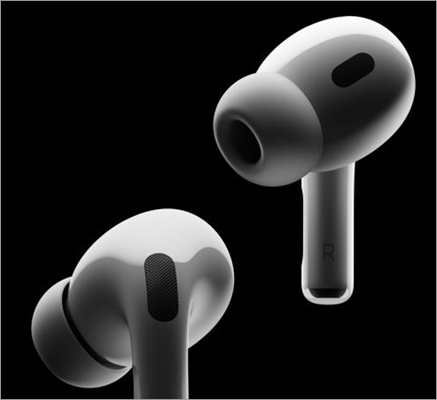
Now, how to connect AirPods to laptop? That is a question I’ve seen people ask a lot. It is simple. All you need to do is follow a few quick steps, and you’ll have the devices ready to work with your laptop of choice.
Watch the video below on AirPods Comparison:
That said, I understand why some people might find this otherwise simple process a tad confusing. The method of connecting these earpieces will vary from system to system. For instance, connecting an AirPod to a Windows laptop isn’t the same as connecting those devices to a MacBook.
Suggested Read => Best Wireless Earbuds for Maximum Comfort
In this article, I aim to cover as much ground as possible, ensuring you have no issues when connecting an AirPod to a laptop, whether it’s running Windows or Mac.
So, without much further ado, let’s dive in.
How to Connect AirPods to Laptop: Things to Check
A successful AirPods connection is only possible if those earbuds are sufficiently charged. So, make sure your AirPods are at least powered up by 20%. If not, put them back in their case and wait until they are partially or fully charged. AirPods will struggle to pair up with their designated laptop if their charge is below 20%.
Second, make sure the Bluetooth on your laptop is on and functioning well.
Suggested Read => How to Turn On Bluetooth on Windows 10
To turn them on a Windows laptop, do the following:
- Navigate to Settings.
- Click on Devices => Bluetooth and Other devices.
- Click the toggle to turn Bluetooth on.
On a Mac, perform these steps:
- Navigate to System Settings.
- Click on Bluetooth and turn the toggle on.
With these things taken care of, we can now proceed to finally pair the AirPods with your laptop.
Connect AirPods to PC (Windows)
While AirPods were specifically designed to work with Apple devices, you can use them with other devices without hesitation. You’ll face no compatibility issues. Connecting AirPods to a Windows-running PC or laptop is quite simple.
Here’s how you do it on Windows 10:
1. Go to Settings => Devices => Bluetooth and other devices.
2. Make sure the Bluetooth is on. If not, simply click on the toggle.
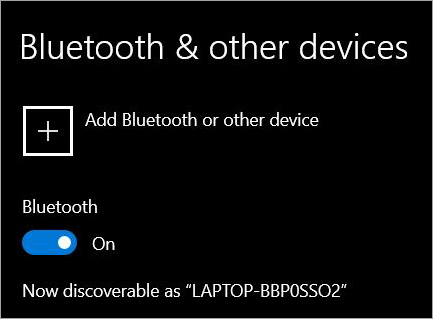
3. At the very top, you’ll see a + sign. Click it to add a Bluetooth device.
4. From the ensuing pop-up window, select Bluetooth.
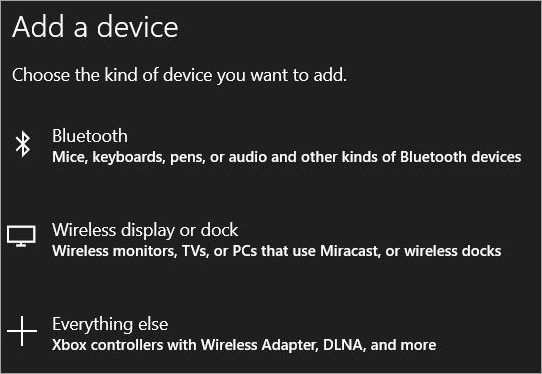
5. It is now time to get your AirPods ready for pairing. Put them in their case and keep it closed for 5 seconds.
6. Then, open the AirPods case. Do not take the AirPods out just yet. Keep them inside until they fully connect to your laptop or PC.
7. Now, press and hold the set-up button on the AirPods case until you see the LED blink. The older cases will have this LED light inside, whereas the new Pro versions have it on the front. Wait until the light turns white.
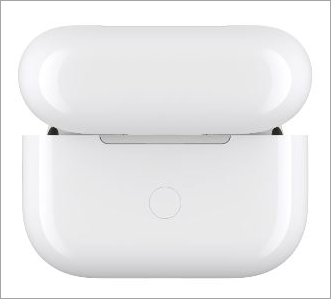
8. Once connected, a list of Bluetooth devices will be loaded up on your laptop screen. Your AirPods should be on that list. Click on the AirPods icon.
9. A pop-up screen will appear, stating “Your device is ready to go”. This indicates successful pairing.
Recommended Reading => Most Popular Over-Ear Headphones
Steps to Follow for AirPods Connection on Windows 11
Connecting AirPods to a Windows 11 running PC is just as simple. Windows 11 slightly differs from Windows 10 when it comes to the interface. So, the connection process itself becomes slightly different as well.
Here’s how you connect AirPods to Windows 11 system:
1. Navigate to settings.
2. Click on Bluetooth and Devices.
3. Click on the Bluetooth toggle to switch it on.
4. At the very top of the screen, click on “Add Devices”.
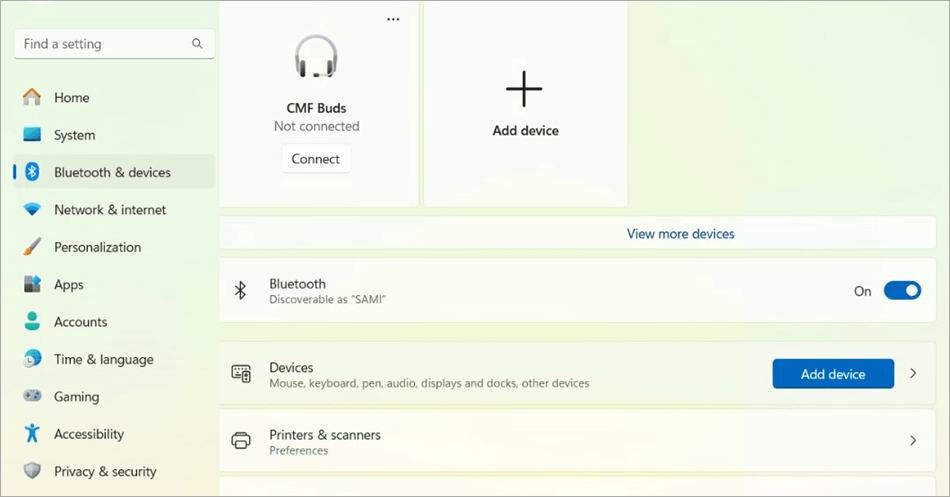
5. Upon clicking, your system will start looking for an active Bluetooth connection.
From here on, the process will be the same as Windows 10.
You don’t have to follow this process every time you wish to connect an AirPod to your laptop. Once paired, your earbuds will automatically connect to the laptop every time you take them out.
How to Connect AirPods to Mac
As I said before, AirPods were designed specifically for Apple devices. As such, you shouldn’t have any issues connecting these earbuds to a MacBook. The pairing process is also simple.
Here’s how you do it:
- Before you initiate pairing, ensure that your AirPods are charged and that your MacBook’s Bluetooth is enabled.
- Keep the AirPods inside the case. Open the case.
- Press and hold the setup button until you see the LED light on the case flash.
- On the Mac, open the Apple Menu.
- Navigate to System Preferences => Bluetooth.
- Click on “Turn Bluetooth On”.
- As soon as the Mac detects the AirPods, click on them in the device list and hit the “Connect” button.
You don’t have to go through this entire process on one condition: Your AirPods are already paired with an iPhone, which is connected to the same iCloud account your Mac is also connected to. If this is the case, your AirPods will automatically connect with your Mac system.
Also Read => Comparison of the Best iCloud Bypass Tools
Ways to Disconnect Apple AirPods from Windows
Disconnecting AirPods from Windows is also just as simple as connecting them. Follow the steps below:
i) On Windows 10
- Go to Devices => Settings => Bluetooth and other devices.
- Select the paired AirPods icon displayed under the device list.
- You’ll now see an option to either “Connect” or “Remove Device”.
- Select “Remove Device” to have the AirPods permanently removed from your device.
ii) On Windows 11
- Navigate to Settings => Bluetooth and Devices.
- On the ensuing screen, you’ll see the icon of the AirPods connected to your device.
- Click on the three dots in the top-right corner of this icon and select “Remove Device”.
This should permanently erase the AirPods from your system. Unless you choose to reconnect them, these AirPods will not connect automatically to your Windows system.
In this video, we will learn how to remove a Bluetooth-paired device from Windows 11.
How to Reconnect AirPods?
Once AirPods are removed from your device, you can always reconnect them following the same method you followed to pair them with your PC the first time. Click “Add Devices” and your PC’s Bluetooth will start scanning for nearby connections.
While your Bluetooth is active, make sure your AirPods are ready for pairing within their case with an open lid. Press and hold the set-up button on the AirPods case until you see the LED blink. Once a connection has been established, the AirPods will appear on the screen. All you have to do is click the “Connect” button.
How to Pair Different AirPod Models to Windows
Regardless of the AirPod model you are using, the connection process remains similar. Refer to the table below for a more comprehensive look at the process for each model:
| How to Connect AirPods Pro to a Windows Laptop | Go to Settings => Bluetooth and Devices => Switch Bluetooth On. Put your AirPods in the case => Keep the lid open and press/hold the setup button until the LED light flashes. Find the AirPods on your laptop’s Bluetooth page and hit the “Connect” button. |
| How to Connect AirPods 4 | |
| How to Connect AirPods Max | Switch on the Bluetooth of your laptop. Press and hold the noise control button on your AirPods Max. Find AirPods Max in the “Nearby Devices List” on your laptop’s Bluetooth page, select it, and click on “Connect.” |
What to Do When AirPods Won’t Connect to a Laptop
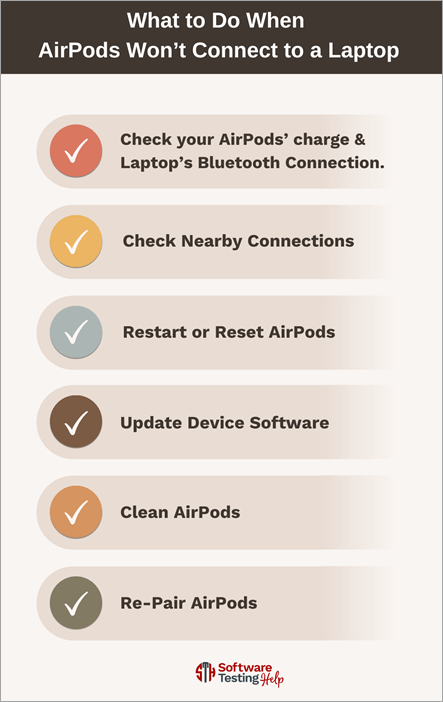
It is frustrating to do everything right, follow the process down to the last detail, and still fail to connect the AirPods. If you find yourself in such a bind, I would recommend not panicking. Instead, try any of the tips below for an easy fix.
1. Check your AirPods’ charge and your Laptop’s Bluetooth Connection.
The first thing you want to do is check your AirPods’ battery. It should be 20% charged to successfully pair up with a laptop or any other device. If the battery’s fine, check your laptop’s Bluetooth connection. Make sure it’s on.
2. Check Nearby Connections
If there is another active Bluetooth device in your room besides the laptop, your AirPods might have accidentally paired up with it. Be sure to disconnect those devices to prevent this problem. You only want your laptop’s Bluetooth to be on within the radius of AirPods.
3. Restart or Reset AirPods
AirPods may fail to function because of a temporary glitch. The best way to address this issue is to reset or restart your AirPods. I suggest putting the AirPods back in their case and closing the lid for at least 15 seconds.
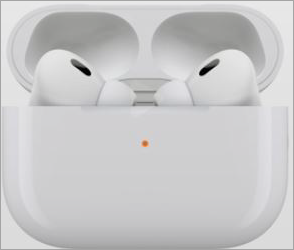
To reset the AirPods, open the case lid. Then, press and hold the setup button on the case until the LED flashing light turns amber.
4. Update Device Software
You want to make sure your Windows or Mac laptop is running on the latest software. Check for updates, download updates if there are any, and then try repairing the AirPods.
5. Clean AirPods
Something as simple as cleaning up your AirPods could be the solution you seek. Use a soft and dry cloth to give your AirPods a nice wipe. Make sure your AirPods are free from any sort of dust or grime interfering with their connection.
6. Re-Pair AirPods
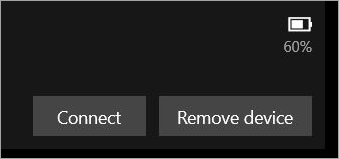
Finally, try to re-establish a connection between your AirPods and laptop. Remove the AirPods from your Bluetooth device list and follow the process necessary to re-pair the device. This should fix the issue. If not, perhaps it is time to look for new AirPods.
FAQs on How to Pair AirPods to Laptop
1. What are AirPods?
AirPods are wireless earbuds designed by Apple. These earbuds can connect to all Apple devices via a Bluetooth connection. This includes iPhone, iPad, and MacBook.
Besides Apple devices, AirPods can also be used with non-Apple devices. You should face no compatibility issues when using these earbuds with an Android phone or Windows PC.
2. How to pair AirPods to a laptop?
Pairing an AirPod with any laptop is quite simple. All you need to do is make sure the Bluetooth on your laptop is on and your AirPods are adequately charged.
Press and hold the AirPods setup button until its LED starts flashing white. Let your laptop’s Bluetooth catch the AirPods’ signal.
On your laptop’s device list, select the AirPods icon and hit the connect button. It is that simple. The article above provides a detailed, step-by-step guide.
3. How to remove or forget the AirPods connection?
Doing so is quite simple. Once a connection is established, go to Settings => Devices => Bluetooth and other devices. Here, you’ll see a list of all devices ready to connect with your laptop. The AirPods will be on this list. Click on the icon and select “Remove device”.
4. How much do AirPods cost?
As far as earbuds go, AirPods are quite an expensive investment. The cost will vary depending on which model you wish to buy. Prices start at $129.
AirPods with the Active Noise Cancellation feature will cost you $179. I suggest visiting the official Apple AirPods page to explore options and check prices.
5. Why are my AirPods not pairing?
You could blame several reasons for the AirPods pairing failure. AirPods typically fail to pair up because of the following reasons:
• Battery below 20%
• Outdated firmware
• Dirt and Grime.
• Way too many active Bluetooth connections in the room
• Outdated laptop software.
• The Bluetooth drive on the laptop is faulty.
I suggest following the tips I’ve shared in this article to quickly troubleshoot the problem. If those tips don’t help, contact Apple support. Try getting a refund or replacing the AirPods if they are under warranty.
6. How to connect AirPods to a Dell laptop?
If you now know how to connect AirPods to a Windows laptop, connecting them to a Dell laptop should be simple. Follow the process I’ve dictated above in the article, which is as follows:
Switch the Bluetooth on your device on. Take your AirPods and put them in the charging case. Open the lid with the AirPods inside. Press and hold the setup button with the lid open and AirPods still inside.
Now, select the AirPods in your laptop’s Bluetooth settings and click the “Connect” button.
Also Read => List of Ultraportable Laptops
Conclusion
How do I connect my AirPods to my laptop? This was a question confronting me on Apple forums across the internet. I finally thought now would be a good time to put this question to bed once and for all. I hope this hands-on guide can be of help to anyone struggling with this question.
As you can see for yourself, it isn’t that hard to connect AirPods to laptop, regardless of the operating system it is running on. Follow the process step-by-step as I’ve discussed, and you should have your AirPods paired up in no time.
Just make sure your AirPods are partially or fully charged and your laptop’s Bluetooth driver is up-to-date to avoid any connection failures.
Was this helpful?
Recommended Reading
-

This article reviews and compares the top Gaming Earbuds with technical specifications to guide you to select the best earbuds for gaming: Are you facing difficulties talking with your teammates while playing games? Is the background noise becoming too difficult to overcome? With the best Gaming Earbuds, you'll be able…
-
This tutorial explores the top Bluetooth Earphones in India with their pricing and comparison to help you select the best Bluetooth earphone: With this pandemic spanning across the world, music is what keeps you away from stress. To enjoy pleasant music you need good earphones and here we are with…
-
Read this review to compare and select the top Wired Headphones. Analyze the technical specifications to select the best headphones with wire: Are you lacking good sound in your existing headphones? Do they have the best bass support and noise cancellation? If this is something you need, it's time to…
-
Here's a review and comparison of the popular Over-Ear Headphones to help you pick the best over the ear headphones per your requirements: Are you getting annoyed by listening to regular background noise while playing games? Do the regular headphones not sound good enough? You can get active noise cancellation…