Are you a gamer who wants to connect AirPods to PS5? Uncover the hidden secrets along with the pro-tips to connect your AirPods to PS5 and enjoy excellent wireless gaming audio:
American gamers are enthusiastic about the combination of high-tech and entertainment, and AirPods usually top the list of preferred wireless earbuds. The product is portable, fashionable, and boasts the Apple Touch, yet presents complications when used with a PlayStation 5.
The graphic and fluid gameplay of the Sony console is a monster, except that it is unwilling to support Bluetooth audio (native) easily. That is to say that you cannot simply use your AirPods as you would with an iPhone or MacBook.
Table of Contents:
- How to Connect AirPods & PS5: Step-by-Step Guide
- AirPods and PS5 Connection Profile
- Can You Connect AirPods to PS5: 3 Working Methods
- Details and Comparison of Connection Methods
- Voice Chat Alternatives When Using AirPods
- Comparisons and Real World Advice
- AirPods PS5 Connection Problems: Troubleshooting Guide
- Tips for a Better Experience with AirPods on PS5
- AirPods Battery Life and Longevity During Gaming
- How Bluetooth Version Affects PS5 Audio
- Troubleshooting AirPods Generation to Generation
- PS5 Movies and Movie Streaming Audio
- Sound Difference Between AirPods and PS5 headsets
- Risks Related to Security and Interference
- Alternatives to AirPods for Connecting to PS5
- Frequently Asked Questions
- Conclusion
How to Connect AirPods & PS5: Step-by-Step Guide
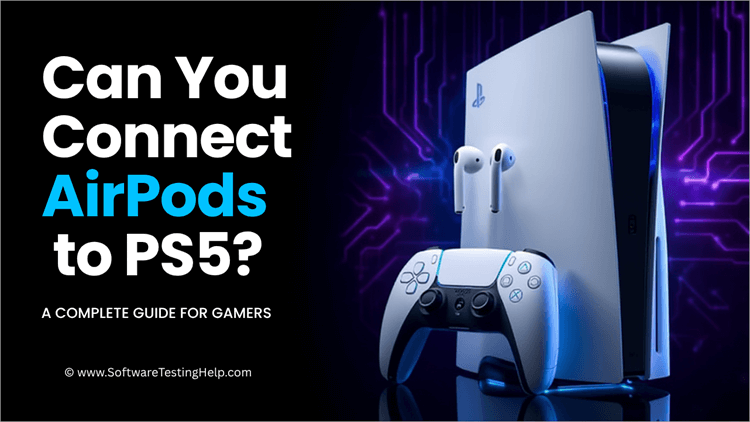
There are also some smart workarounds, and, with the proper configuration, you may listen to the clear sound of AirPods and fight with it on your PS5.
Quick Answer: How can you connect AirPods to PS5?
Yes, you can connect AirPods to PS5, but for that, you will need a Bluetooth Adapter, and the setup time can take 2-3 minutes.
AirPods and PS5 Connection Profile
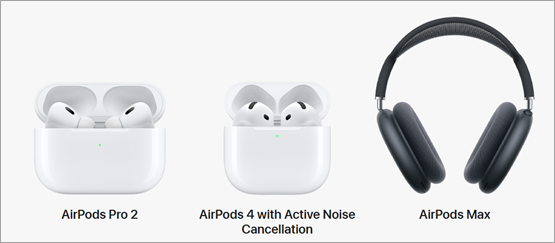
| AirPods Model | Methods of Connecting to PS5 | Design & Features | Strengths | PS5 Performance |
| AirPods (2nd Gen) | – Bluetooth adapter (USB or audio jack dongle)- TV Bluetooth (if supported)- Remote Play app (PC/mobile) | Classic stemmed design, Apple H1 chip, 5 hrs listening time | Affordable, lightweight, easy pairing | Connects fine via adapter, no ANC, noticeable lag |
| AirPods (3rd Gen) | – Bluetooth adapter (best option for stability)- TV Bluetooth connection- Remote Play streaming | Excellent for story games/movies, bulky, and latency in competitive titles | Better sound quality, secure fit, water resistance | Fuller sound than Gen 2, spatial audio doesn’t carry over |
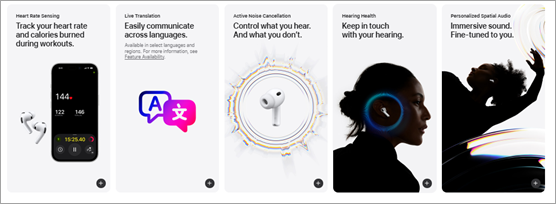
| AirPods Pro (1st Gen) | – Bluetooth adapter (ideal method)- TV Bluetooth pairing- Remote Play (secondary option) | ANC, transparency mode, customizable tips, spatial audio | Immersive sound, ANC reduces distractions, comfortable | Great for noise reduction, limited by Bluetooth lag |
| AirPods Pro (2nd Gen) | – Bluetooth adapter with aptX LL (recommended for low latency)- TV Bluetooth- Remote Play apps | Improved ANC, adaptive transparency, personalized spatial audio | Best in-ear AirPods, strong ANC, adaptive features | Top in-ear option for PS5, still lacks Tempest 3D support |
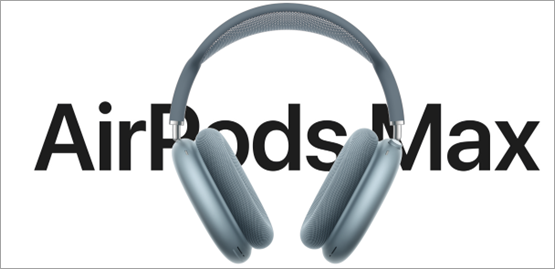
| AirPods Max | – Bluetooth adapter (USB best for full compatibility)- TV Bluetooth (if supported)- Remote Play app- Optional wired via Lightning-to-3.5mm cable | Over-ear design, ANC, large drivers, 20 hrs battery | Richest soundstage, premium build, immersive experience | Excellent for story games/movies, bulky, latency in competitive titles |
[Via apple.com]
I’ll explain why AirPods are not directly usable with a PS5.
Sony purposely limited Bluetooth audio on the PS5. This is not because the company does not like wireless audio, but the wireless audio protocols, the Bluetooth audio protocols, tend to add an observable amount of latency.
Even a second lag between on-screen action and sound can be disastrous in fast-paced gaming. Rather than allowing bulky experiences to enter the door, Sony blocked generic Bluetooth headphones. This is the reason AirPods do not automatically connect with each other, and that is why you have to find alternative ways to make the connection.
Can You Connect AirPods to PS5: 3 Working Methods
#1) Via a Bluetooth Adapter (USB dongle)
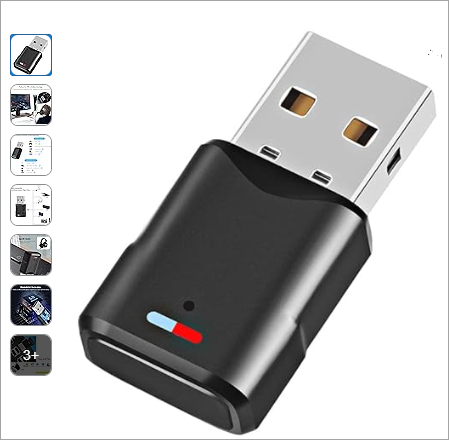
The most common and easiest way to do it is with a dedicated Bluetooth adapter. Once you connect AirPods Pro 2 to PS5 or even other AirPods versions, it will work normally. Your PS5 will use these small set-ups, which act like translators, to broadcast audio to AirPods on air.
What You Need:
- Bluetooth adapter/Dongle: It forms the wireless connection that the PS5 does not provide.
- AirPods, which can be of any generation. Once you connect AirPods Pro 2 to PS5 or indeed other AirPods versions, it will work the same.
- PS5 Console: The home of your gaming audio.
Purpose of Using this Connection: The PS5 does not have any audio via Bluetooth. This is what the adapter is necessary for and why you need the best Bluetooth adapter for AirPods PS5. Fitting the dongle into the console allows it to send a Bluetooth signal that your AirPods can pick up.
Step-by-Step Guide:
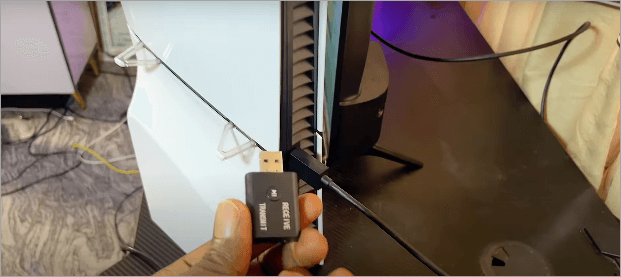
Step 1: Insert the Bluetooth device into the USB of the PS5.
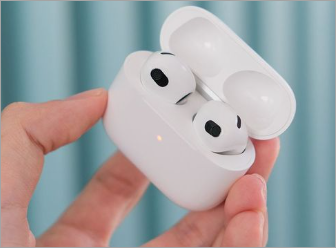
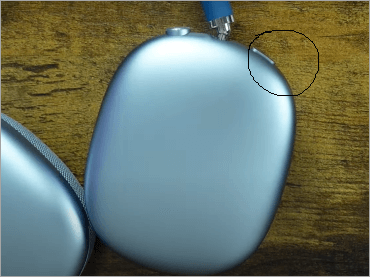
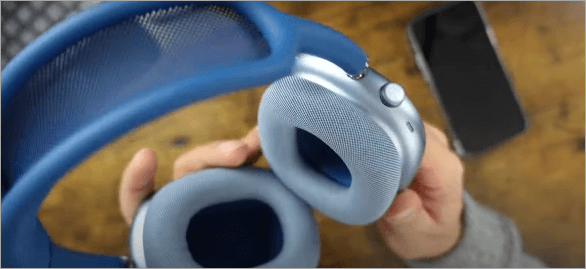
Step 2: Place the AirPods in friend mode by pressing the Set Up button on the case until the light comes out white. This applies to AirPods and AirPods Pro devices. For AirPods Max, use the Noise Control and Digital Clown buttons. Press the Noise Control button for five seconds or until the status light flashes white.
The image below shows the AirPods and AirPods Pro set-up button:
Noise Control button on AirPods is highlighted in the image:
Given below is an image of the AirPods Max Digital Crown button:
Step 3: Your best Bluetooth adapter for Airpods PS5 must now be set ready to pair with the PS5 by turning on the adapter to pairing mode.
Allow automatic connection of the AirPods.
Step 4: Test the audio from the system by opening a game or a video and playing it.
Merits: This technique is cheap, quick, and simple. In addition, it is smooth when installed.
#2) Connecting via TV Bluetooth
Check the video below on how to connect AirPods via BlueTooth:
There are modern TVs with built-in Bluetooth audio output. In case your TV has that option, you can enable it as an intermediary between your PS5 and AirPods.
What You Need:
- Bluetooth television – It functions as the central station.
- AirPods.
- PS5 console – Sends sound to the TV.
Purpose: This TV will do the job of sending the audio of the PS5 to the AirPods, basically redirecting the sound.
Step-by-Step Guide:
Step 1: Switch on your Bluetooth from the Television settings app.
Step 2: Make the AirPods ready for connecting by putting them into pairing mode.
Step 3: Choose AirPods from the device list of your TV.
Step 4: Turn on your PS5, and you will hear the sound go through your earbuds through the TV.
Advantages: You will not need additional dongles and adapters, and this approach is convenient in case your TV has support of Bluetooth.
#3) Using PS Remote Play
Refer to the video below on how to use PS5 Remote Play from anywhere in the world:
Remote Play is a device that enables you to stream your PS5 to a different device. The secondary gadget can be a laptop, phone, or tablet. With that device, you can also have the sound, albeit indirectly, by connecting AirPods to it.
What You Need:
- Smartphone, tablet, or PC, which should have Remote Play installed. The device/s will serve as the display and audio devices.
- AirPods – For listening.
- Secure internet connection – Eliminates lag.
Purpose of using this connection: The external device is the intermediate device estimated to connect both video and audio of the PS5 and transmit sound to your AirPods.
Step-by-Step Guide:
Step 1: Install the PS Remote Play app on your device using the recommended procedures.
Step 2: Plug your AirPods into the device of your choice.
Step 3: Install using your PlayStation account.
Step 4: Begin streaming your PS5 using the app.
Step 5. Enjoy both visuals and sound.
Advantages: Flexible – you can play PS5 games at the same time with the AirPods in your ear.
To conclude, AirPods (Gen 2 or 3) are good for casual players, AirPods Pro (1st or 2nd Gen) are good for noise-sensitive players, AirPods Max gives the best experience for cinematic/story-based players, and none of the AirPods are suitable for competitive players, instead a PS5-specific headset.
All in all, Bluetooth adapters offer the most reasonable price-to-quality ratio.
Details and Comparison of Connection Methods
| Connection Method | How it Works | Pros | Cons | Best For | Cost & Ease of Use |
| Bluetooth Adapter (USB or Audio Jack Dongle) | Dongle plugs into PS5 USB port or controller jack, then pairs with AirPods | Easiest, reliable, inexpensive, supports most AirPods | Still has Bluetooth lag unless using aptX LL adapter | Everyday gaming, plug-and-play convenience | Low cost (~$20–$40). Very easy setup, plug-and-play. |
| Bluetooth Through TV | Free if TV has Bluetooth. Easy setup, but it depends on TV compatibility. | Pair AirPods directly with the TV if it supports Bluetooth audio | No extra hardware if the TV has Bluetooth, convenient setup | Watching movies/streaming apps on PS5 | Still has Bluetooth lag unless using the aptX LL adapter |
| Remote Play (via PC, Mac, or Mobile) | Stream PS5 gameplay to another device and connect AirPods there | Free to use, no dongle required, works across devices | Players who travel or want a remote play option | Free, but harder setup. Requires stable Wi-Fi and an extra device. | Free, but harder setup. Requires stable Wi-Fi and extra device. |
| Wired Connection (AirPods Max only) | AirPods Max connect via Lightning-to-3.5mm cable into controller/adapter | Medium cost (~$35 cable). Setup is simple, but only works with AirPods Max. | Only for AirPods Max, cable required, no mic support | Audiophiles and story-driven gamers | Medium cost (~$35 cable). Setup is simple but only works with AirPods Max. |
Voice Chat Alternatives When Using AirPods
One of the most annoying things to lose when gamers insert AirPods into their PS5 systems is the loss of mic/voice chat. Since the majority of Bluetooth adapter solutions are only compatible with audio output, and not two-way Bluetooth communication with a microphone, players are left to be creative.
This subtopic covers other options in the choices of mics or chat routes that allow the gamer to continue using AirPods to hear sound and still communicate with teammates. This will also help to resolve the issues in case the PS5 AirPods microphone is not working.
It is reported by many users that the sound of the game can be received through their AirPods when they use a dongle, but the microphone does not work, i.e., the PS5 does not consider AirPods a complete headset. Other adapters do not have any mic pass-through or only one direction of audio.
Listed below are some of the other options alongside the description, action, advantages, and disadvantages of each, and thus, a geeky gamer may choose the one that fits them well.
Method A: DualSense Controller Mic + Audio Only AirPods
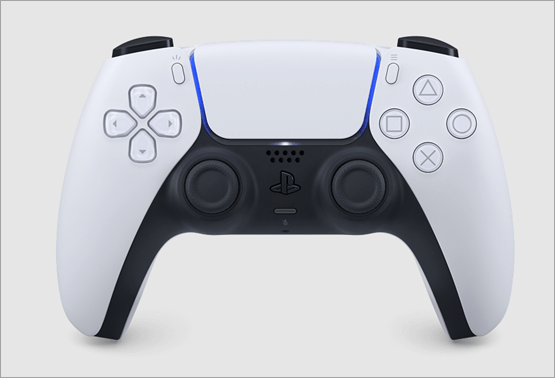
[Via playstation.com]
The mechanics (explained in a nutshell): The gamer will listen to the sounds of the game with the AirPods, and voice chat is sent through the built-in microphone on the DualSense controller.
What’s Needed/Purpose:
- An operating PS5 DualSense controller with an inbuilt mic (standard) – the mic is included because it needs to hear your voice.
- When using PS5, it is recommended to set audio so that the controller mic provides the audio input for chatting, whereas the output device would be your AirPods (adapter).
- You probably require an option to turn off “output to controller speaker” since chat can be played accidentally).
Step-by-Step Guide:
- Use what you choose (adapter, e.g. the Avantree PS5 adapter, TV Bluetooth, etc.) to connect your AirPods.
- On PS5: Open Settings -> Sound -> Microphone and ensure that the mic input is configured to the DualSense controller (or Microphone (Controller)).
- Next, go to Settings -> Sound -> Audio Output and select the path of your output device as the Bluetooth adapter/AirPods.
- Voice chat or party audio is also often misconfigured in certain games of chat lobbies that use the default controller mic as the input.
- Turn muted/off using the mic mute button on the controller in case of need.
Benefits:
- You simultaneously maintain the immersive sound of AirPods and can talk.
- Voice low latency, as the controller mic is hard-wired to the input of the system.
- No additional hardware is necessary (in addition to what you have at present).
Drawbacks/Emotional Weight:
- Your voice may not sound perfect: The controller microphone is good, but not a broadcast microphone.
- When you tilt the head or voice or speech off-axis, the voice volume or clarity can become lower.
- The configuration is a little hybrid or hackeish: You have lost the all-in-one headset experience.
- It is also a common workaround that is often most practical when ad hoc mic support via an adapter is unavailable.
Method B: Has a Secondary Chat Headset or Mic and AirPods
The idea (in brief): Only use a specific mic or a headset when chatting, leaving the AirPods free to only use game audio.
What’s needed/purpose:
- A standard wired headset, a USB microphone, or an analog microphone (inexpensive is alright).
- An audio or splitter system that will allow you to separately route the input of chat and the out of game audio.
- When in PS5 mode, the chat/microphone input is set to the mic/headset, and the AirPods are the output.
Step-by-Step Guide:
- Connect your AirPods in the same way to listen to music.
- Connect your chat headset/mic to any one of the controller jack, USB, or optical/audio jack (depending on your setup).
- Select the mic/headset as input in PS5 -> Settings -> Sound -> Microphone.
- In the Settings -> Sound -> Audio Output, retain the AirPods/adapter route.
- With party/game chat environments, ensure the mic + chat audio is picking up your dedicated mic, and is not attempting to utilize the AirPods.
Benefits:
- Granted, the superior mic voice quality compared to the controller mic.
- Flexibility – you can use cheap mics instead of having a single adapter, e.g., the Avantree PS5 adapter, which needs to do everything.
- Greater voice settings control is independent of game audio.
Drawbacks:
- More mess due to extra wires/equipment.
- Using two audio devices creates a moderate mental load.
- Possible sync problems in the audio you listen to and voice input (you may hear a latent sound when talking immediately).
Method C: Adapters/Dongles that Accept Mic Pass-through
- The mechanism (abridged): It requires a high-quality Bluetooth dongle or adapter that can handle a two-way Bluetooth/audio + mic (AirPods will therefore serve as both a speaker and a microphone).
What’s Needed/Purpose:
- One of the expensive adapters that will work with UAC (USB Audio Class) and mic pass-through (both game and chat channels).
- AirPods with mic input (a few AirPods Pro/Max have an option of Bluetooth mic).
- Driver or firmware that should support the adapter to map chat and audio streams properly.
Step-by-Step Guide (general):
- Plug the adapter into the PS5.
- Place AirPods in full pairing mode (supports both output + mic).
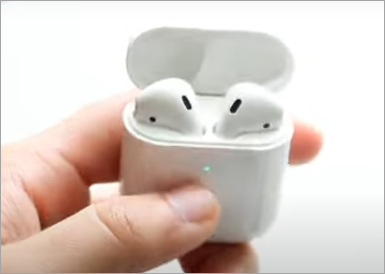
- Enable Adapter Pair: Make sure that the LED shows that there are two audio channels.
- PS5 Settings -> Sound -> Microphone: Select the input as the adapter or USB audio device.
- Go to Settings -> Sound -> Audio Output and have it on the adapter/AirPods.
- Practise listening and speaking at a party and a game.
Benefits:
- It is one gadget and does everything – effortlessly.
- Nicer, prettier – less hacking about hybrids.
- AirPods are your only headset.
Drawbacks/Emotional Risk:
- These adapters are more expensive, uncommon, and not as reliable.
- Bluetooth audio quality can be slower than wired mics or of lower quality.
- Voice chat can fail silently without apparent error if one of the components (firmware, codec, or mapping) fails.
Comparisons and Real World Advice
In actual use:
- Method A (controller mic+ AirPods) is what a lot of gamers rely on, as they want to use their AirPods as audio and still chat, without spending more money on additional equipment. It’s a dependable compromise.
- Method B (dedicated mic and AirPods) will provide better voice quality, but it will cost you extra for installation.
- Method C (dual-channel adapters) works when it works, but it is random and usually expensive.
Players who prefer one-stop comfort can be frustrated by the head and hand-off system, but most get used to the hybrids. The most important aspect is a steady voice reliability, as in team games, it is more annoying to miss a call or your microphone glitching out in a critical situation than a little audio delay.
AirPods PS5 Connection Problems: Troubleshooting Guide
Enlisted below are some of the connection issues related to AirPods and PS5, along with the troubleshooting tips to be followed.
Issue 1: Audio Lag
What It Means: Audio lag is a phenomenon where you hear the sound after seeing it on the screen. This may destroy the immersion and affect competitive games.
Issues It Introduces: Frustration, delay in reaction time, and feeling out of place.
Workaround: Make sure that you have a Bluetooth adapter that supports aptX Low Latency. When the AirPods’ PS5 latency is low, there is very little lag.
Issue 2: Pairing Failures
What It Means: What it means: In some cases, AirPods will not appear in the list of devices that you can pair or refuse to connect.
Issues It Introduces: The loss of time, broken play, and the same frustration.
Resolution: To restart the AirPods, press the button on the back until the light turns amber, and then white. Additionally, restart the Bluetooth system of the adapter or TV.
Issue 3: Poor Sound Quality
What It Means: Audio can be fuzzy, distorted, or weak.
Issues it introduces: Makes conversation difficult to watch, and game effects less immersive.
Resolution: Make sure your AirPods are charged, then make sure they are within 3-5 meters of the adapter and turn off other devices that use Bluetooth.
Tips for a Better Experience with AirPods on PS5
Here are some exclusive tips for a better experience with AirPods on PS5:
- Install a Bluetooth Adapter with aptX Low Latency: Otherwise, you are likely to experience lag. Sound becomes much more aligned with the action with it.
- Carry AirPods and Adapter: Bluetooth is not terribly strong, and when you are more than 3-5 meters apart, the connection becomes weaker. Remember to ensure low AirPods’ PS5 latency.
- Fully Charge: Low battery may lead to unforeseen failures or poor sound quality.
- Use Interference: The signal of Bluetooth can be disrupted by microwaves, Wi-Fi routers, and other equipment.
- Install Firmware: PS5 and AirPods are regularly updated with both compatibility- and performance-enhancing software.
AirPods Battery Life and Longevity During Gaming
- Big battery life is a big thing when you are engrossed in lengthy gaming – no one would want to see their ears just run dry in the middle of a boss battle. Based on user statistics, the average AirPods models have a practical life of approximately 4.7 hours on a full charge in light use.
- Models may have a longer or shorter lifespan depending on the presence or absence of some features, such as noise cancellation (ANC).
- Gaming may be even more battery-depleting with the continuous wireless transmission, which may have a higher volume and the overhead of Bluetooth pairing in the background. The capacity of the battery will also deteriorate over time (lithium-ion batteries lose performance after numerous charge cycles).
- The moral of the story is to choose your times carefully, to have a charger, and perhaps not to play such long gaming marathons and use only a single battery charge. Lower-latency adapters and newer Bluetooth can help cut wasted power overhead and provide a little increased lifespan.
How Bluetooth Version Affects PS5 Audio
Bluetooth has changed significantly since then, and that is important when you are trying to make AirPods sound good on a PS5. As an illustration, Bluetooth 5.0 supports greater data speed, a wider range, and can facilitate interference as compared to the older versions of Bluetooth.
The latest ones, such as Bluetooth 5.3, introduce efficiency improvements, reduced power consumption, and improved channel management.
Provided your adapter, your AirPods, or your PS5 bridge has a more recent version of Bluetooth, you may experience fewer dropouts, less erratic connection, and less interference.
Conversely, when one of the chain links is attached to an older version of Bluetooth (such as 4.x or even earlier 5.x), it can become a bottleneck to the whole chain – increased lag, signal jamming, battery waste.
Therefore, not every Bluetooth adapter is the same. One that fits newer standards gives you an edge in the comfort and consistency of connecting the AirPods to play games.
Troubleshooting AirPods Generation to Generation
Not every AirPods is equally compatible in terms of its quirks. The solutions (AirPods 1, 2, 3, Pro, Max) could exhibit a little variation in the way they react to adapters or PS5 bridges. Some adapters are more reliable at identifying newer AirPods Pro or Max compared to older stem-style models.
An example is that older models may just support the simple SBC audio codec, whereas newer ones may support superior codecs (when the adapter permits it). The pairing and disconnects with older units or even failure to pair can occasionally be caused by some quirks in firmware or the differences in the Bluetooth stack.
That is why it is prudent to make sure that the adapter you order specifically supports your AirPods model (or a variety). Updating firmware, or even a manual reset, may also be required between generations. Such generation-based troubleshooting serves to minimize the headaches of why it won’t work.
PS5 Movies and Movie Streaming Audio
Although most of the attention is devoted to gaming, the PS5 is used by many to stream movies, YouTube, Netflix, or Disney+ as well. In those applications, audio delay is less punitive; humans tolerate better when the lips do not absolutely match perfectly.
That is, some of the trade-offs you were forced to make in gaming (a bit of lag, a bit less accurate directional cues) are less apparent.
Therefore, the AirPods can stream to PS5, usually even using a generic Bluetooth device or a TV Bluetooth. The surround sound or bass experience can still be wanting; however, behind-the-scenes sound, dialogue, or movie sound usually suffices.
The utility situation also implies that you can weigh battery life and comfort over latency higher than before, so options such as ANC (active noise cancellation) are of greater value.
Sound Difference Between AirPods and PS5 headsets
AirPods can be used as general listening headphones, that is, for music, phone calls, and podcasts. Their sound tuning focuses on balanced minds and highs, portability, and convenience.
But PS5 headsets are gamer-friendly: more spatial information, directional sound, foot trajectories, enemy positioning. The difference implies that even when you plug AirPods into a PS5, you may not receive the minor benefits of spatial audio that a headset designed to work with the Tempest 3D AudioTech of PS5 can offer.
In brief: AirPods are good-sounding but not always well-adapted to games. This is the reason why some gamers continue to prefer PS5-specific headsets – they can provide a greater degree of directionality, a more immersive environmental sound, and reduced latency as a by-product.
Risks Related to Security and Interference
- Once you begin to send audio over Bluetooth adapters, televisions, or other devices, you expose possible interferences or security risks. Generally speaking, Bluetooth is prone to pairing attacks or jamming. Moreover, 2.4 GHz (Wi-Fi, Bluetooth, microwaves, etc.) may have too much traffic and disrupt the signal or drop out.
- When your configuration is messy, that is, your numerous Bluetooth devices are active around, you are likely to make collisions or confuse signals. Besides, when your device or adapter is unencrypted or has poor pairing protocols, there is a remote chance (at least in a public/shared setting) that someone will manage to intercept or disrupt the signal.
- Therefore, in best practice, make the signal path sequence as bare as possible, switch off any unused Bluetooth devices, and preferably select adapters or hardware with good security/pairing protocols.
Alternatives to AirPods for Connecting to PS5
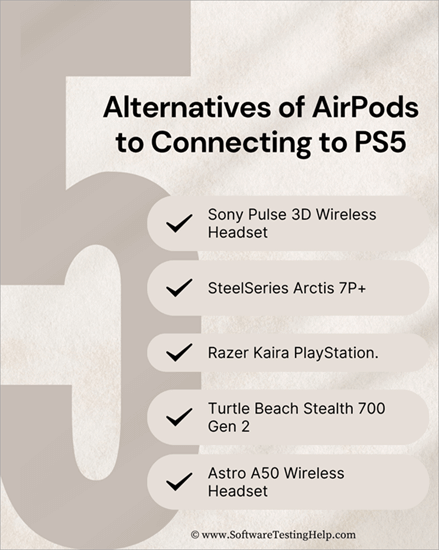
Here is a list of alternatives to AirPods for connecting to PS5:
- Sony Pulse 3D Wireless Headset
- SteelSeries Arctis 7P+
- Razer Kaira PlayStation
- Turtle Beach Stealth 700 Gen 2
- Astro A50 Wireless Headset
#1) Sony Pulse 3D Wireless Headset
This headset is designed by Sony and is unique to PS5 Tempest 3D AudioTech.
Advantages: Native support, zero-lag, 3D audio.
Cons: Bulkier than AirPods
Connection: It has a wireless dongle attached by default–no installation headaches.
#2) SteelSeries Arctis 7P+
SteelSeries headsets are well-known and reputable in terms of comfort and reliability, and they are also popular among professional gamers.
Advantages: Good battery life, good wireless signal.
Cons: Pricier than AirPods.
Connection: You require a USB-C dongle to use this easily.
#3) Razer Kaira PlayStation
Razer provides gamer-style lighting effects of RGB and powerful bass.
Advantages: Good bass and personalized audio.
Disadvantages: Bulky, not the best choice to travel with.
Connection: This is connected to a PS5-compatible USB dongle.
#4) Turtle Beach Stealth 700 Gen 2
Turtle Beach headsets are popular in the console market and combine quality audio with affordable prices.
Advantages: Microphone is solid and comfortable to use.
Disadvantages: A bit lower quality of the construction.
Connection: In the box, there is a wireless adapter.
#5) Astro A50 Wireless Headset
A high-end version targeted at the hardcore gamer looking to have the best sound possible.
Advantages: Unbelievable sound, docking base station.
Cons: Very expensive
Connection: PS5 is connected directly to the base station, whereas the headset is connected wirelessly.
Real User Reviews:
Casual gamers say that they experienced very good audio with zero latency on AirPods Pro. Some experienced good sound quality, but the lag of about 20ms. A few experienced issues with connecting a mic for voice chat.
A few competitive gamers mentioned that they experience a 40-60 ms delay during fast-passed shooters. According to some movie watchers, there are compatibility and setup problems, and some don’t like the sound.
Frequently Asked Questions
1. What is the way to have the AirPods work with a Bluetooth adapter on a PS5?
AirPods may be connected to the PS5 by using a Bluetooth adapter that serves as the missing connectivity Sony omitted in the console. The adapter is inserted into a USB port on the PS5 and turned into pairing mode to make it work. Meanwhile, the AirPods have to be turned on a pairing mode until the light displays white.
Once the adapter identifies both devices, it sends audio from the PlayStation to the AirPods in real-time. Though this does not ensure a zero-latency performance, it is normally quick enough to suit most casual and even competitive gamers.
The most attractive thing about this approach is its convenience: not only is it cheap, but also it does not need any special technical skills, and when the AirPods are paired, they will automatically connect the next time again.
2. What is the reason for the audio delay with AirPods and PS5?
Audio delay is mostly caused by the very nature of standard Bluetooth technology. In contrast to specialized low-latency protocols, ordinary Bluetooth coded and sent sound in a manner that introduces a small, but visible delay.
In the movies or in simple games, such lag might not be a big issue, but in competitive shooter or high-speed action-based games, it will interfere with timing and performance.
The PS5 does not have faster Bluetooth codecs by default, so unless a gamer has a dongle that contains aptX Low Latency, there will still be a delay. Even using the correct hardware, a small lag may still happen.
This is the reason PlayStation officially suggests the use of PS5-certified wireless headsets, which do not trigger such a problem. Nonetheless, AirPods are fast enough and convenient enough to be a tradeoff for many players.
3. Is it possible to use AirPods as a PS5 microphone?
Unluckily, AirPods cannot be used as an output and input device at the same time, connected to the PS5 indirectly. Although they can carry the sound of the games, they often have their microphones disconnected in such links since the PS5 does not recognize them as a complete headset.
It implies that in case players want to talk over the internet, they will require an additional system like the built-in mic of the PS5 DualSense controller or a specific gaming headset.
Certain non-Dell third-party Bluetooth adapters have microphone capability, although not all are reliable.
This could be inconsequential to a casual gamer, but to those who engage in multiplayer games where communication is highly valued, AirPods are not the solution. A special PS5 wireless headset may also be a good idea in case chat support is paramount.
4. Which is the most common way to have AirPods connected to PS5?
In the case of the regular gamer, a Bluetooth adapter is the most feasible option. It balances affordability, simplicity, and effectiveness. The adapters are cheap and can be purchased for less than 40 dollars, and can be installed within a few minutes.
After they are matched, they can offer regular performance without additional equipment or complex workarounds. In comparison, TV Bluetooth is only convenient when the television is compatible with it; however, not always.
Remote Play is free and is more likely to create internet-related delay, and may not be as immersive as the console is not being shown on the TV, due to its own power. Although none of these solutions fully do away with the possibility of audio latency, Bluetooth adapters and aptX Low Latency in particular provide the most comparable experience to a gust-free connection. They are the best bet to anyone who simply prefers to play from the comfort of their own home.
5. What are the better alternatives to AirPods with PS5?
Several wireless headsets are also PS5-specific and can usually offer smoother sound with no lag compared to AirPods. The official one is the Sony Pulse 3D Wireless Headset, configured to Tempest 3D AudioTech, a soundscape that is very immersive.
Additional higher-end options are the SteelSeries Arctis 7P+, Razer Kaira Pro, Turtle Beach Stealth 700 Gen 2, and the Astro A50 Wireless Headset. All these minimize latency, offer superior quality of microphones, and support pro gaming sessions with ergonomic designs.
These headsets work in the living room, as opposed to the AirPods, which are portable and work with other Apple products, as well as be used in marathons. The benefit is increased size, but it results in a more robust, reliable sound similar to the PS5’s speed.
Conclusion
There is no direct connection between AirPods and PS5; however, there are clever workarounds available that allow you to game with the AirPods and listen to top-notch, signature audio. Bluetooth adapters to TV, Bluetooth, and Remote Play each have a compromise of convenience, cost, and performance.
Though some lag and connection issues may be experienced occasionally, smart tips and troubleshooting solutions ease the usage. And to those who want something perfect, there are some good alternatives as several high-quality headsets.
Finally, the idea of AirPods connecting to PS5 is not so much about perfection as it is about being flexible and allowing the gamer to remain in the Apple environment and explore the world of entertainment of PS5.
For more related guides, you can explore our range of tutorials below:
- The Top 10 Budget Graphics Card For Gamers (Best Sellers)
- Top 10 Budget CPUs for Gaming (Review And Comparison)
- Top 10 Graphics Cards For Gamers And Video Editors
- 10 Best Hard Drive For Gaming (External And Internal)
- Top 11 Gaming Monitors (Bestsellers in Budget)
- The 14 Best Gaming Keyboards For Gamers (Best Sellers)
- The Top 13 Wireless Earbuds (Best Sellers List)
- The 14 Best Noise-Cancelling Earbuds (Bestsellers)
- Top 6 Sony PlayStation 5 Stores | Where To Buy PS5
Was this helpful?
Recommended Reading
-

Looking for simple ways to resolve PS5 controller drift? Discover how to fix stick drift on PS5 controller and enhance your PlayStation gaming experience with all our possible solutions: This exclusive guide will explain all about PlayStation 5 controller drift, including symptoms, causes, and fixes in simple terms. PS5 controller…
-

Looking for the best monitor to use with your PS5? Look no further! We've compiled a list of top-rated gaming monitors for PS5 that are perfect for your setup. Keep reading for more information: Do you have a PS5 and want to upgrade your gaming experience? If yes, then having…
-
Do you have a console and want to play games at a higher refresh rate without any lag? If yes, then you need to review this list of best Gaming TVs to pick one of your choice: Gaming TVs can compete with gaming monitors these days. This can be a…
-
Here we will explore the top Sony Playstation 5 Stores with ratings to answer the most asked question, i.e. Where To Buy PS5 online or offline: If you are having a hard time getting your hands on a brand-new PS5, then don’t stress, as you are not alone. It has…