Frustrated with Liquid Detected in Lightning Connector error on your iPhone? Discover the safe methods to understand how to fix liquid detected in Lightning connector without damaging your device:
If you are worried after getting a notification that Liquid is detected in the Lightning connector, then relax, because this issue can be solved quite easily, most of the time. Read the article to learn about the reasons and solutions to this problem.
iPhones are built to be water-resistant, so submerging them in water for some time won’t damage them. But this doesn’t mean that they are waterproof.
Table of Contents:
- Liquid in Lightning Port: Fix iPhone Safely
- Why Does My Phone Say Liquid Detected in the Lightning Connector?
- Turn off the Liquid Detected in Lightning Connector
- What to do if Liquid is Detected in the Lightning Connector
- iPhone Liquid Detected in Lightning Connector Not Wet: What’s Next
- FAQs on How to Fix Liquid Detected in Lightning Connector
- Conclusion
Liquid in Lightning Port: Fix iPhone Safely
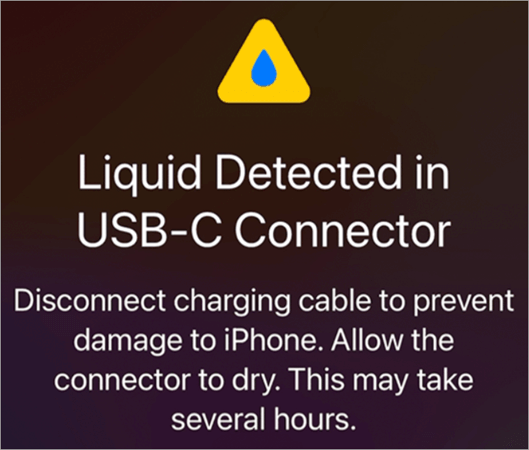
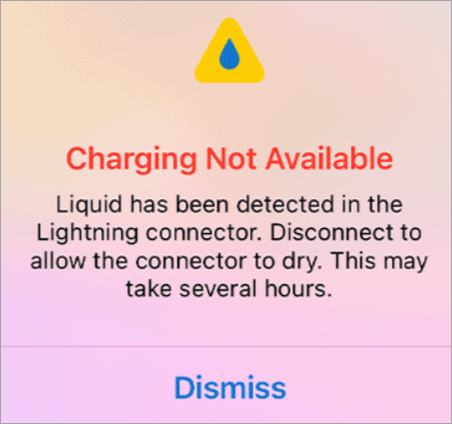
If there is liquid inside the charging cable or the Lightning port, the phone will instantly alert you when plugged in to charge, because this can cause damage to the phone.
Suggested Read => Solutions to fix the iPhone not Charging Issue
Here, your phone will either notify you as:
Or as:
Why Does My Phone Say Liquid Detected in the Lightning Connector?
If your iPhone notifies you that liquid is detected in the lightning connector, it could be due to several reasons, like:
- There is some liquid in the lightning accessory or port.
- The phone may have a bug.
- Your phone may need a software update.
- There can be other issues with the charging cable or the lightning connector, like physical damage.
Also Read => Best iPhone Chargers to Look for
Turn off the Liquid Detected in Lightning Connector
If your iPhone notifies you about liquid detection in the Lightning connector, you must remove the connector immediately from the phone, then switch off your phone and leave it to dry up, as charging it can cause damage in this situation.
But if you need to charge your phone immediately, then do as stated under
- Tap on the Liquid Detection warning
- Now select Open
- Now you will see 2 options-
- Emergency override
- Dismiss
- Click on Emergency override and get your phone charged. Charging your phone for some time would not cause any issues.
Please note that if there is an emergency, it would be better if you use a wireless charger in this situation instead of charging when there is liquid in the lightning connector.
What to do if Liquid is Detected in the Lightning Connector
Here’s what to do if your phone detects liquid in the lightning connector:
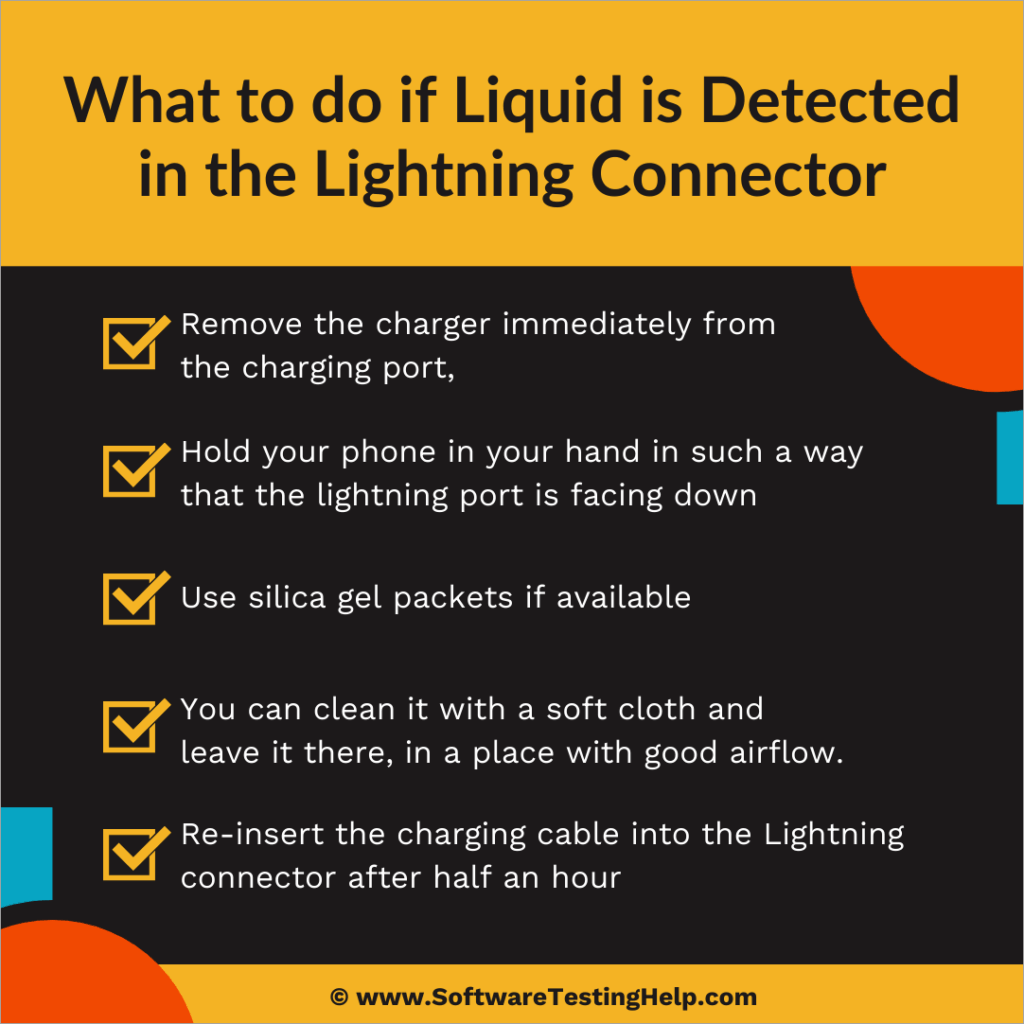
- First, remove the charger immediately from the charging port, as it can cause damage to your phone.
- Hold your phone in your hand in such a way that the lightning port is facing down. And then gently tap your phone with the other hand, so that the excess liquid will come out. Then turn off your device and leave it in a place with good airflow for at least half an hour, so that the lightning port dries up. Watch this YouTube reel to see how to remove excess water from the charging port by tapping the phone gently.
- You can also use silica gel packets if available. They are used to absorb moisture from packaged items. Just put your phone in a bowl containing silica gel packets so that they will absorb the moisture from your phone.
- There are chances that your charging cable may have some liquid in it. You can clean it with a soft cloth and leave it there, in a place with good airflow, for about 30 minutes to dry.
- Re-insert the charging cable into the Lightning connector after half an hour. If you see the same notification stating ‘Liquid detected in lightning connector’, then try leaving your phone to dry for 24 hours. Make sure you put it in a place with good airflow.
Further Reading => How to Turn Off SOS Mode on iPhone
iPhone Liquid Detected in Lightning Connector Not Wet: What’s Next
iPhone users have often been spotted searching for solutions for liquid detected in the lightning connector, not wet.
Yes, an iPhone may show this notification unnecessarily when it is not even wet. This can happen when there is a bug or damage to the phone/lightning connector.
In this situation, you can do as stated under:
- If your phone is still showing the same notification even after it has dried up, you can try restarting your phone. If there is a bug, it will most probably get fixed by doing this.
- Check for system updates. Not updating the software when required also causes the phone to behave abruptly.
- For updating your software, follow these steps:
- Go to Settings
- Tap on General
- Now select Software Update
- Try using a different charging cable. There is are chance that your charging cable may have some defect.
If none of the above methods solves your issue, you can go for resetting your phone. This method works if there is a bug on your phone.
Further Reading => How to Remove Malware from iPhone
Make sure you back up your data before doing a reset.
Here are the steps to back up your iPhone:
- Go to Settings
- Tap on Your name
- Now select iCloud
- Then tap on iCloud Backup
- Turn on Backup This iPhone
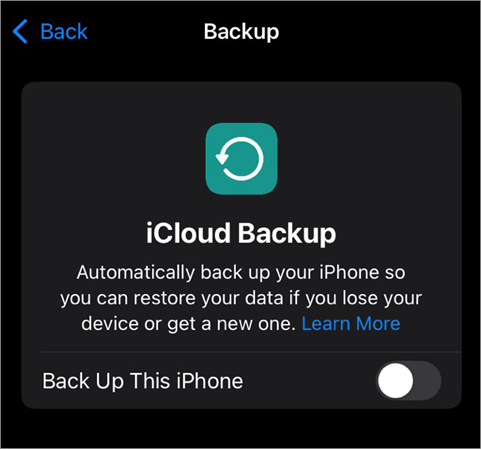
This allows your iPhone to do the backup automatically when it connects to a Wi-Fi connection.
Further Reading => Best Backup Software of the Year
- If you want to backup your phone using cellular data, go to Settings, then tap on Your name, then select iCloud, then iCloud Backup, and then turn Back Up Over Cellular on or off.
- For manual backup, tap on Back Up Now.
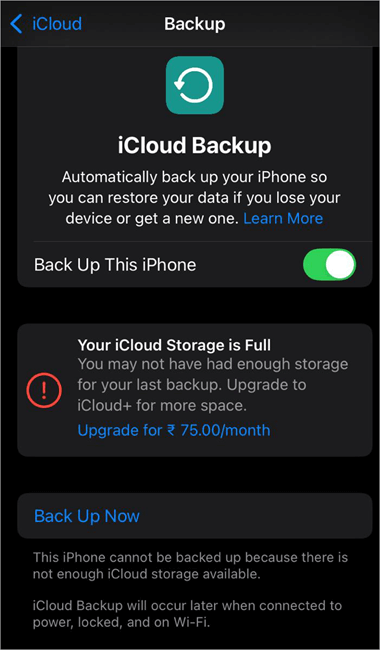
- If your problem persists, then you would need to visit an iPhone service center, or contact Apple support.
What not to do when fixing the issue ‘iPhone liquid detected in lightning connector’
You can try all of the methods listed above for fixing the issue. But you MUST refrain from doing these things:
Suggested Reading => Explore the Top Portable Chargers
- Using a hair dryer and similar accessories to dry up the charging port may cause permanent damage to the phone due to excessive heat. So, it’s better not to use this method.
- Inserting anything into the lightning connector (especially sharp objects) can lead to physical damage. So, don’t insert anything into the lightning connector.
FAQs on How to Fix Liquid Detected in Lightning Connector
1. Is it bad to override the liquid detected in Lightning connector?
Overriding the ‘Liquid detected in lightning connector’ warning usually does not cause damage if you charge the phone for some time and then leave it to dry.
But this can also cause damage to the charging port if you keep on charging even after getting notified about liquid in the lightning port. So if it is not very urgent, do not override this notification. If possible, use a wireless charger in this case.
2. How long does it take for liquid to get out of a charging port?
The liquid must get out of the charging port within ½ – 1 hour, if put at a place with good airflow (like near a window). Otherwise, it can take up to 24 hours.
3. Can I use a fan to dry my phone?
Yes, a small fan can dry the phone or the charging port. But make sure you do not use a blow dryer, as it can heat your phone up and can be bad for the phone’s hardware.
4. Does rice work for a wet phone?
No, I won’t recommend using rice for drying up a wet phone, because rice contains small particles, which can go inside the port and cause physical damage to the phone.
5. Can a phone be ok after water damage?
Yes, a phone will most probably be ok after water damage if it is powered off and put to dry up immediately.
Many phones, including iPhones, are usually water-resistant, which means that they can be submerged in water for some time and will still work. But this doesn’t mean that water can not damage them.
If water goes inside the lightning port, and you put the phone on charge, your phone’s parts may corrode.
6. How do you know if your phone is ok after dropping it in water?
If your phone is functioning properly, then your phone is ok. Here is the list of symptoms that indicate that water has caused a problem with your phone:
• Your phone notifies- ‘Charging not available’, or ‘Liquid detected in lightning connector’ when plugged in to charge
• Your phone is clicking blurry pictures
• The sound is not clear when you talk to someone on a call
• The other person on the call can not hear you well
• Corrosion or discoloration of the charging port
• Droplets of moisture inside the screen
• Wired headphones do not work perfectly.
• Even the SIM tray and your SIM card may corrode if liquid gets inside it.
7. How to remove moisture from the phone?
You can adopt the following measures to remove moisture from your phone:
• Leave your phone in a place with good airflow for at least half an hour
• You can use silica gel packets for drying up the phone. Put your phone in a bowl filled with silica gel packets. They absorb moisture from their surroundings.
• You can also use a small fan to dry the phone. Do NOT use a blow dryer for this purpose.
8. Why is my phone saying water detected when it is not wet?
The phone may be showing this notification due to a bug. You can fix it with the help of these methods:
• Restart your phone
• Check for software updates
• Reset the phone if the above-stated methods don’t work.
• Talk to Apple support if the phone is still showing this notification.
• You may also need to go to a service center to get the issue fixed.
9. How to override moisture detection on iPhone?
You can override the moisture detection notification on your iPhone through these steps:
• If the notification has the option ‘Dismiss’ beneath it, then just click on it and you can start charging your phone.
• Otherwise, tap on the notification, then click on ‘Open’, and then tap on ‘Emergency override’.
10. Why does my phone keep saying water in port when there isn’t?
Your phone may give a false liquid detection warning due to one of the following reasons:
• There can be some issues with the charging cable
• Your phone may need a software update
• There can be a bug, which can most probably be solved just by restarting the phone
• Your phone can also have some issues; you would need to contact Apple Support if that’s the case.
Conclusion
Several phones today, including most of the iPhones, are water-resistant. So you won’t have to worry about water damaging the phone. But if water gets inside the Lightning port or charging cable, the phone will not charge and will keep on alerting you about the same.
In that case, you can just gently tap on your phone while the lightning connector faces downward and then leave the phone at a place with good airflow, so that the charging port completely dries up. The charging cable also needs to be cleaned with a soft cloth in this case.
Further Reading => Review of FoneGeek iOS System Recovery
And if the phone notifies you of detecting liquid in the charging port, even when it is not wet, chances are that your phone has a bug. You can fix it by restarting the phone or checking for software updates. If this doesn’t work, then reset your phone. If the problem persists even after this, contact Apple Support.
Was this helpful?
Recommended Reading
-

Explore all possible solutions to fix the iPhone not charging issue. Discover the typical reasons for iPhone charging port issues along with some expert tips to maintain it in good condition: Smartphones are a part of almost everyone's life today. They are not just used for calling and texting but…
-
Compare the technical specifications and review of the top Wireless Charging Pads to select the best wireless phone charger for instant charging: Are you getting tired of wired cables tangling on your phone while charging? It's time to go on wireless! Having a wireless charger is the best way to…
-
Explore the top Portable Chargers with pricing, technical specifications, and comparison to select the best power bank portable charger: Ever faced a situation when you've been out for the entire day and run out of battery by night? Not being able to contact or inform others about your problem can…
-
Explore the top and best iPhone Chargers with pricing, technical specifications, and comparisons to select the fastest iPhone charger as per your needs: The compatible iPhone Charger that you are using might just not be good enough. It's time to pick out an iPhone charger that does the job faster…